What Resolution Is Ultrawide Monitor
Ultrawide monitors offer an immersive experience with their expanded aspect ratios. Understanding their resolutions, like 3440×1440 or 5120×1440, is crucial for maximizing gaming, productivity, and media consumption. This guide will demystify ultrawide resolutions, helping you choose the best fit for your needs and enjoy a visually stunning setup.
So, you’re eyeing an ultrawide monitor. Great choice! These sleek, expansive displays promise a more immersive experience for gaming, a more productive environment for work, and a richer way to enjoy your favorite movies. But when you start shopping, you’ll see a bunch of numbers like “3440×1440” or “5120×1440” thrown around. What do these resolutions actually mean for an ultrawide monitor? And how do you pick the right one?
Don’t worry, we’re here to break it all down. This guide will take you on a journey to understand ultrawide monitor resolutions, what they offer, and how to make an informed decision. By the end, you’ll be confident in choosing an ultrawide monitor that perfectly fits your digital life.
Key Takeaways
- Understanding Aspect Ratio: Ultrawide monitors typically feature a 21:9 or 32:9 aspect ratio, meaning they are significantly wider than standard 16:9 displays.
- Common Ultrawide Resolutions: Popular resolutions include 2560×1080 (WFHD), 3440×1440 (WQHD), 5120×1440 (DQHD), and 7680×1600 (8K Ultrawide).
- Resolution vs. Pixel Count: Higher resolution means more pixels, leading to sharper images, more screen real estate, and improved detail.
- Impact on Gaming: Ultrawide resolutions provide a wider field of view in games, enhancing immersion and competitive advantage.
- Productivity Benefits: More horizontal space allows for multiple windows to be displayed side-by-side, boosting multitasking efficiency.
- Hardware Requirements: Driving higher ultrawide resolutions requires a more powerful graphics card and potentially a faster processor.
- Software Compatibility: Most modern games and applications support ultrawide resolutions, but older titles might require adjustments.
What Exactly Is an Ultrawide Monitor?
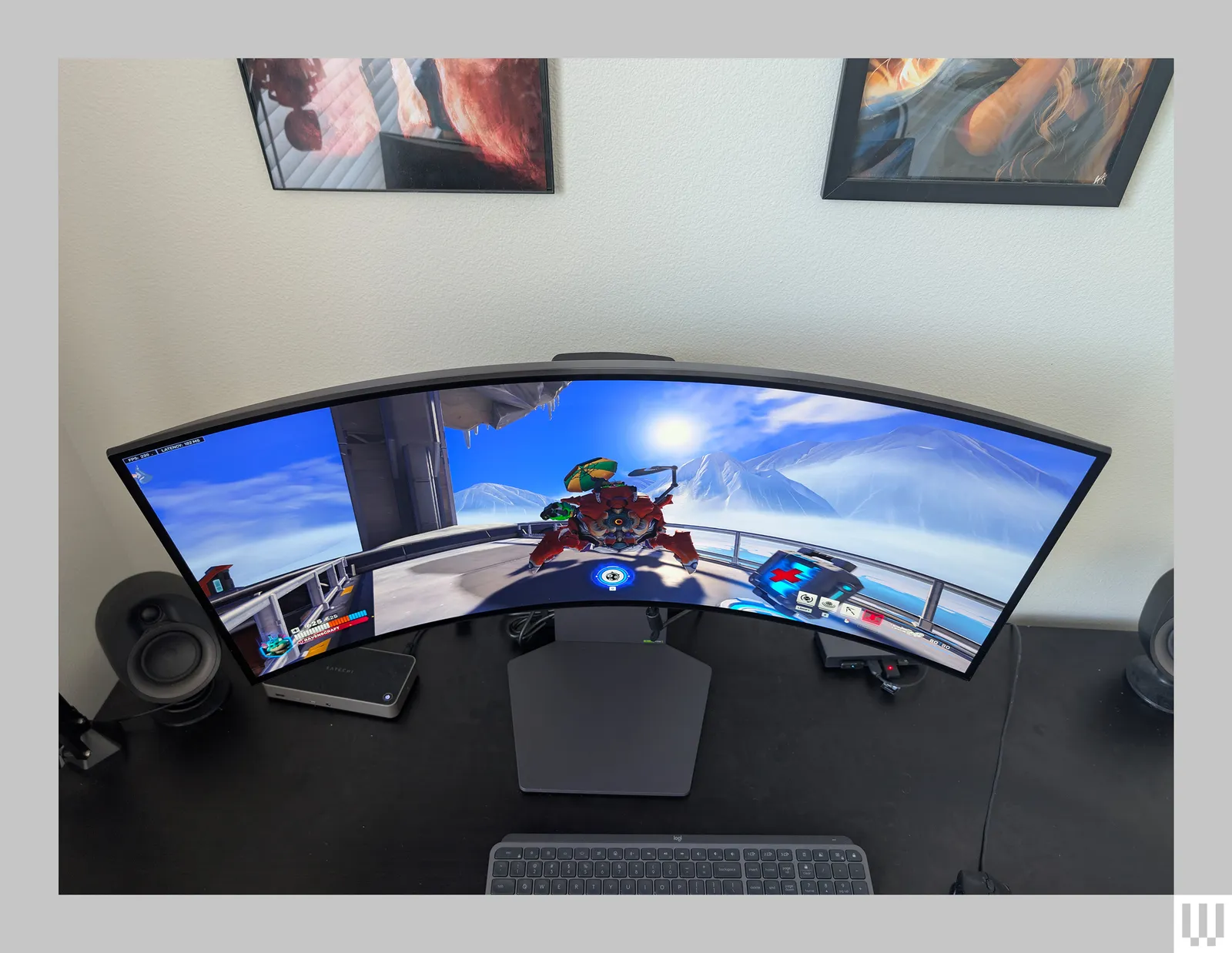
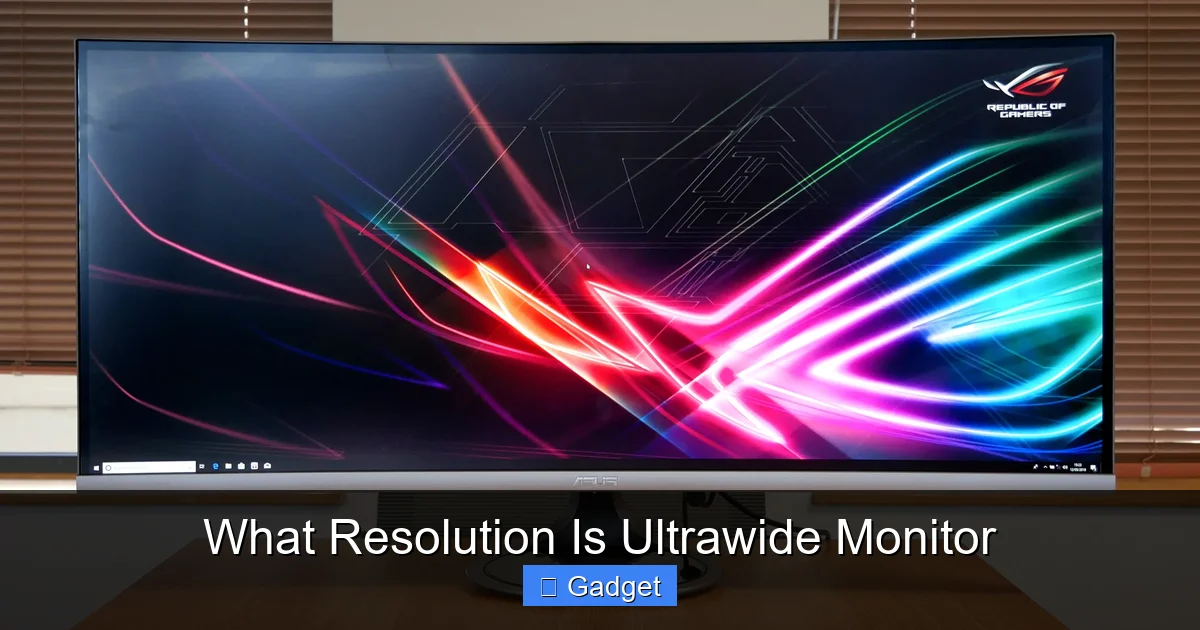
Before we dive into resolutions, let’s quickly define what makes a monitor “ultrawide.” The key difference lies in the aspect ratio. Most standard monitors use a 16:9 aspect ratio, meaning for every 16 units of width, there are 9 units of height. Ultrawide monitors, on the other hand, stretch this out, typically using a 21:9 aspect ratio. Some even go wider with a 32:9 aspect ratio. This wider format is what gives them their signature panoramic look.
Think of it like this: a 16:9 monitor is like watching a standard TV show, while a 21:9 ultrawide monitor is more like watching a movie in its cinematic aspect ratio, filling more of your field of vision.
Understanding Monitor Resolution
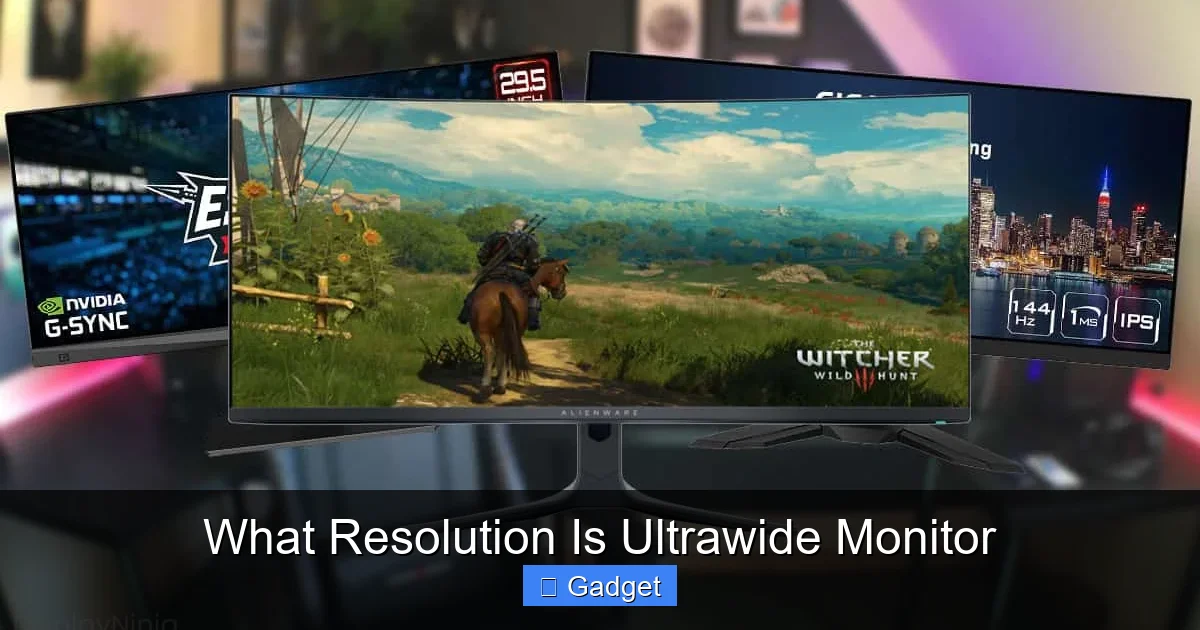
Visual guide about What Resolution Is Ultrawide Monitor
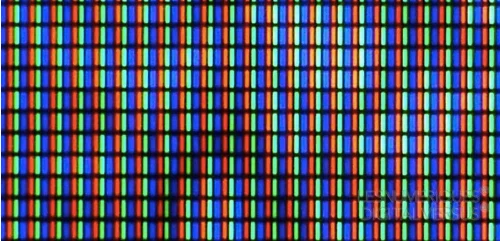
Resolution refers to the number of pixels that make up the image displayed on your screen. It’s expressed as width x height. For example, a standard 1920×1080 (Full HD or 1080p) monitor has 1920 pixels horizontally and 1080 pixels vertically. The total number of pixels is the product of these two numbers (1920 * 1080 = 2,073,600 pixels).
More pixels mean a sharper, more detailed image. It also means more “stuff” can fit on your screen at once. This is where ultrawide monitors really shine.
Common Ultrawide Monitor Resolutions Explained
Visual guide about What Resolution Is Ultrawide Monitor
Now, let’s look at the specific resolutions you’ll encounter with ultrawide monitors and what they bring to the table.
2560×1080 (WFHD Ultrawide)
This is often considered the entry-level ultrawide resolution. It’s essentially a Full HD (1920×1080) resolution stretched out to a 21:9 aspect ratio.
- What it means: You get a wider viewing experience compared to a standard 1080p monitor, which is great for multitasking and watching movies. The pixel density will be lower than higher resolutions, meaning individual pixels might be more noticeable, especially if you sit very close to the screen.
- Who it’s for: Gamers on a budget, users who primarily want more screen real estate for general productivity (browsing, office apps), and those who want a taste of the ultrawide experience without breaking the bank. It’s also less demanding on your graphics card.
- Pros: Affordable, less demanding on hardware, noticeable improvement over 16:9 1080p.
- Cons: Lower pixel density means less sharpness compared to higher resolutions, potentially less ideal for detailed creative work.
3440×1440 (WQHD Ultrawide)
This is arguably the most popular and widely adopted ultrawide resolution. It offers a significant step up in clarity and detail. It’s like having a 2560×1440 (QHD) monitor squeezed into a 21:9 aspect ratio.
- What it means: You get a much sharper and more detailed image than 2560×1080. The increased pixel count provides ample space for multiple windows, making it fantastic for multitasking. In games, the extra pixels contribute to a more immersive experience with better clarity.
- Who it’s for: Gamers looking for a great balance of immersion and performance, professionals who need more screen space for data analysis, coding, video editing, or design, and anyone who wants a premium visual experience without going to the absolute highest end.
- Pros: Excellent sharpness and detail, great for gaming and productivity, good balance between performance demands and visual quality.
- Cons: Requires a more capable graphics card than 2560×1080, can be more expensive.
5120×1440 (DQHD Ultrawide / Super Ultrawide)
This resolution, often found in 49-inch monitors, is the equivalent of two 27-inch QHD monitors placed side-by-side without a bezel. It’s a true “super ultrawide” experience.
- What it means: You get an immense amount of horizontal screen real estate. This is the ultimate for users who want to replace multiple monitors with a single display. The pixel density is excellent, providing very sharp visuals.
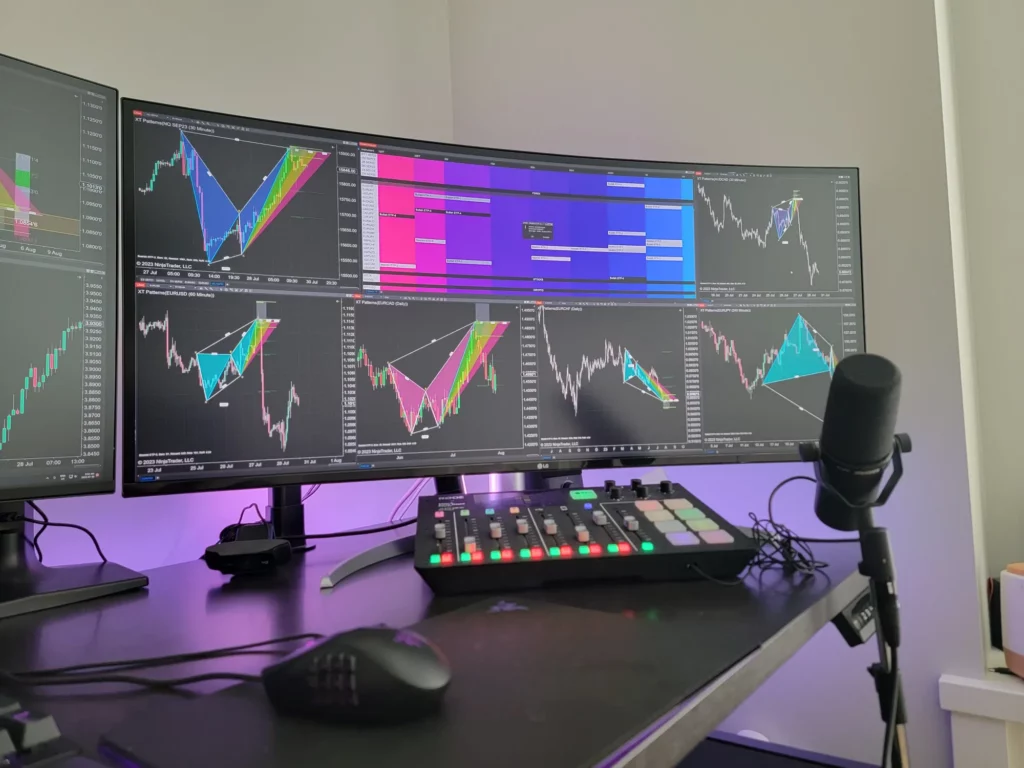
- Who it’s for: Power users, programmers, traders, video editors, or anyone who needs to have many applications open and visible simultaneously. It’s also incredibly immersive for gaming if your system can handle it.
- Pros: Massive screen real estate, exceptional for multitasking, very sharp image, highly immersive for gaming.
- Cons: Demanding on graphics hardware, can be very expensive, some people find the extreme width disorienting initially, may require specific desk space.
7680×1600 (8K Ultrawide / Super Ultrawide)
This is at the very high end of ultrawide resolutions, offering an unprecedented level of detail and screen space. While not as common as 3440×1440 or 5120×1440, these displays exist and offer an 8K experience stretched across a wide aspect ratio.
- What it means: You’re looking at an image with over 12 million pixels. This resolution is designed for extreme detail and an incredibly expansive view. For content creation, especially with high-resolution footage, this can be a game-changer.
- Who it’s for: Professionals working with extremely high-resolution content (e.g., 8K video editing, high-fidelity graphic design), or enthusiasts who want the absolute best in visual fidelity and screen real estate, and have the budget and hardware to support it.
- Pros: Unparalleled detail and sharpness, massive workspace, future-proof for content creation.
- Cons: Extremely demanding on hardware, very expensive, software support for 8K ultrawide content is still developing, might be overkill for most users.
How Resolution Affects Your Experience
Visual guide about What Resolution Is Ultrawide Monitor
The resolution of your ultrawide monitor directly impacts several aspects of your digital life.
Gaming Immersion
This is a big one for many ultrawide buyers. A higher resolution on an ultrawide monitor means:
- Wider Field of View: In supported games, the extra pixels on the sides of the screen give you a much wider perspective. This is especially beneficial in racing games, flight simulators, and first-person shooters where seeing more of your surroundings can provide a tactical advantage and greatly enhance immersion. If you’re curious about whether ultrawide monitors are particularly beneficial for racing games, check out our detailed analysis on whether ultrawide monitors are better for racing games.
- Sharper Details: Higher resolutions mean finer details in game environments, textures, and character models. This makes games look more realistic and visually stunning.
- Performance Considerations: Driving more pixels requires more processing power from your graphics card. A 3440×1440 monitor will demand more from your GPU than a 2560×1080 ultrawide. For 5120×1440 and beyond, you’ll need a high-end graphics card to maintain smooth frame rates.
Productivity and Multitasking
Ultrawide monitors are productivity powerhouses. The horizontal stretch is ideal for:
- Side-by-Side Applications: Imagine having your email client open on the left, a spreadsheet in the middle, and a web browser on the right – all without overlap. This makes multitasking incredibly efficient.
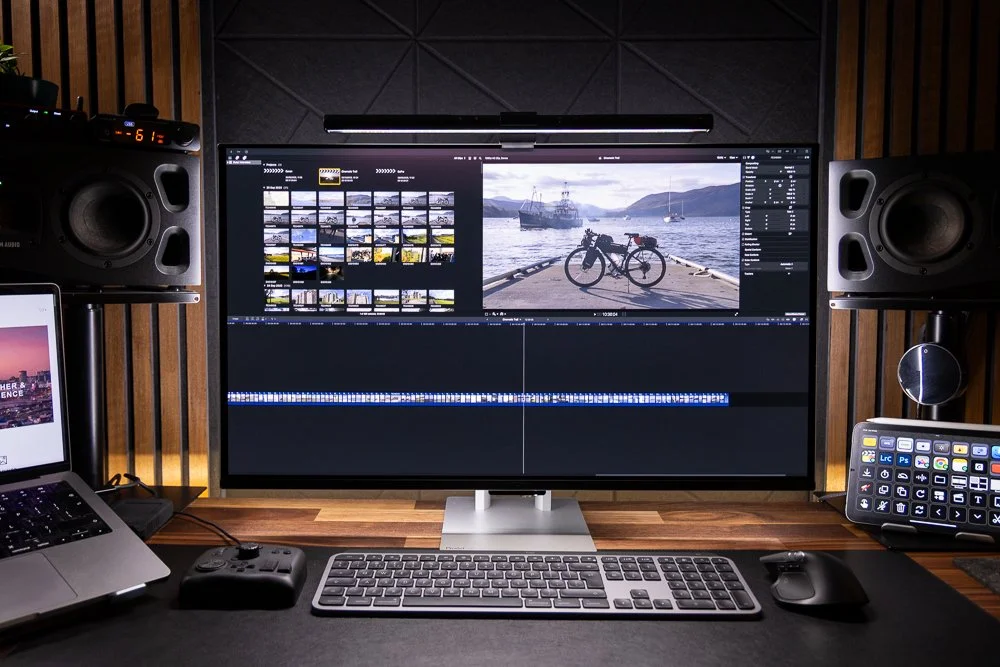
- Timeline Editing: For video editors or audio engineers, the extra horizontal space is invaluable for viewing long timelines. You can see more of your project at once, reducing the need to constantly scroll.
- Coding and Data Analysis: Developers can see more lines of code. Analysts can view wider data sets without constant horizontal scrolling. For developers wondering about the benefits, we explore whether ultrawide monitors are good for coding in a dedicated article.
- Web Browsing: Wider websites that utilize the space can be a joy to browse, offering more content at a glance.
Content Consumption
Watching movies and videos on an ultrawide monitor can be a fantastic experience, especially if the content is natively in a 21:9 aspect ratio.
- Cinematic Experience: Many modern movies are filmed in widescreen formats. Playing these on a 21:9 ultrawide monitor means you’ll see the film as the director intended, with minimal black bars (or none at all).
- Desktop Stretching: If the content isn’t in 21:9, you might encounter black bars on the sides (letterboxing) or the image might be stretched. Most media players and operating systems can handle this gracefully, but it’s something to be aware of.
Choosing the Right Ultrawide Resolution for You
Now that you understand the options, how do you pick the one that’s right for you? Consider these factors:
Your Budget
Ultrawide monitors, especially those with higher resolutions, are generally more expensive than their 16:9 counterparts. Set a budget and see what resolutions fall within it. If you’re looking for cost-effective options, our guide on the best budget ultrawide monitors can help you find a great deal without sacrificing quality.
Your Primary Use Case
- Gaming: If gaming is your priority, consider 3440×1440 for a great balance of immersion and performance. If you have a top-tier PC and want the ultimate immersive experience, 5120×1440 or even higher could be an option. For budget-conscious gamers, 2560×1080 is a good starting point.
- Productivity: For serious multitasking, 3440×1440 is excellent. If you need to replace multiple monitors and want maximum screen real estate, 5120×1440 is the king.
- Content Creation: This depends heavily on the type of content. 3440×1440 is sufficient for many. For high-resolution video editing or professional graphic design where every pixel counts, 5120×1440 or even 7680×1600 might be worth the investment if your software and hardware can handle it.
Your PC’s Hardware Capabilities
- Graphics Card (GPU): This is the most critical component. Driving more pixels requires a more powerful GPU. Check the recommended specifications for the resolution you’re considering. For 3440×1440, a mid-range to high-end GPU from the last few years is generally recommended for a good gaming experience. For 5120×1440 and above, you’ll likely need a top-tier GPU.
- CPU: While less critical than the GPU for gaming, a faster CPU can help in some games and for general system responsiveness, especially when running many applications.
Screen Size
Resolution and screen size work together to determine pixel density (pixels per inch or PPI). A higher resolution on a larger screen will have more pixels spread out, potentially resulting in a similar PPI to a lower resolution on a smaller screen. For ultrawides, a 34-inch monitor at 3440×1440 offers a comfortable PPI. A 49-inch monitor at 5120×1440 has a similar PPI.
Step-by-Step: Setting Up Your Ultrawide Monitor
Once you’ve chosen your ultrawide monitor, setting it up is straightforward.
Step 1: Unboxing and Assembly
- Carefully unpack your monitor, stand, and any accessories.
- Follow the manufacturer’s instructions to attach the stand to the monitor. Most modern stands attach with a quick-release mechanism or a few screws.
Step 2: Connecting to Your PC
- Identify the available ports on your graphics card (e.g., DisplayPort, HDMI) and your monitor. DisplayPort is generally preferred for higher resolutions and refresh rates.
- Connect your PC to the monitor using the appropriate cable. Ensure you use a cable rated for the resolution and refresh rate you intend to use. A high-quality DisplayPort 1.4 or HDMI 2.0/2.1 cable is recommended for higher resolutions.
- Connect the power adapter to your monitor and plug it into a wall outlet.
Step 3: Configuring Your Display Settings
- Turn on your monitor and your PC.
- Your PC should automatically detect the monitor. If not, you may need to install drivers for your graphics card.
- Adjust Resolution:
- On Windows: Right-click on your desktop and select “Display settings.” Scroll down to “Display resolution” and select the native resolution of your ultrawide monitor (e.g., 3440×1440). Click “Keep changes” if prompted.
- On macOS: Go to System Preferences > Displays. Select your ultrawide monitor. Under “Resolution,” choose “Scaled” and then select the “Looks like” option that matches your monitor’s native resolution.
- Adjust Refresh Rate (if applicable): For gaming, ensure your refresh rate is set to the highest your monitor supports (e.g., 120Hz, 144Hz). In Windows, this is found in “Display settings” under “Advanced display settings.”
Step 4: Testing and Optimization
- Check for Clarity: Look at text and images. If they appear blurry, ensure you’ve selected the native resolution and that your drivers are up to date.
- Test in Games/Applications: Launch a game or application that supports ultrawide resolutions to see how it looks and performs.
- Window Management: Consider using window management software (like FancyZones in Microsoft PowerToys) to easily arrange applications on your ultrawide screen.
Troubleshooting Common Issues
- Black Bars or Stretched Image: This usually means the game or application is not set to your monitor’s native ultrawide resolution. Go into the application’s display settings and select the correct resolution. If the issue persists, check your graphics card control panel (NVIDIA Control Panel or AMD Radeon Software) for scaling options.
- Flickering or Instability: This can be caused by a faulty cable, an outdated graphics driver, or a monitor issue. Try a different, high-quality cable. Update your graphics drivers. If the problem persists, the monitor might be defective.
- Low Performance in Games: This indicates your hardware isn’t powerful enough for the chosen resolution. You may need to lower in-game graphical settings, reduce the resolution to a less demanding one (e.g., from 3440×1440 to 2560×1080), or consider upgrading your GPU.
- Not All Applications Support Ultrawide: While most modern applications and games do, some older titles or specific software might not have native ultrawide support. This can result in black bars or incorrect aspect ratios. There are sometimes community patches or workarounds available online for popular older games.
Conclusion
Ultrawide monitors offer a compelling upgrade for anyone seeking greater immersion, productivity, or a more visually engaging experience. Understanding ultrawide resolutions – from the entry-level 2560×1080 to the expansive 3440×1440 and beyond – is key to making the right choice.
By considering your budget, primary use case, and PC hardware, you can confidently select an ultrawide monitor whose resolution will unlock its full potential. So go forth, explore the wider world of computing, and enjoy the panoramic view!

Similar Posts