How Can I Watch Youtube While Using Other Apps on Android?
You hit play on a YouTube video, then tap over to check a message. The video stops. That small frustration is exactly what brings you here: How can I watch YouTube while using other other apps on Android?
It's one of the most common multitasking questions Android users ask, and the answer depends on your phone, your subscription, and how much tinkering you're willing to do.
Manufacturer specifications indicate that native Picture-in-Picture support has been included in Android since version 8.0 Oreo, released in 2017. But here's the catch: Google restricts that feature in the YouTube app unless you're a Premium subscriber. As of 2026, that subscription costs $13.99 a month in the US.
The good news? There are several perfectly legal workarounds. Let's walk through your options so you can decide which path works for your situation.

Image source: Wikimedia Commons / Redfinger Cloud Phone (CC BY)
Quick Answer
You can watch YouTube while using other apps on Android using Picture-in-Picture mode. It requires YouTube Premium or a browser workaround. Split-screen offers another option.
Samsung phones include a built-in pop-up view. The browser method is free and requires no subscription.
The Real Problem: Why YouTube Keeps Pausing When You Switch Apps
YouTube's official app is designed to pause video playback the moment you leave the app. This isn't a bug or your phone being difficult. It's a deliberate restriction tied to Google's licensing agreements with music labels and content creators.
The company wants you to pay for the privilege of background playback and multitasking.
The issue breaks down into two main barriers:
- Subscription status: Free accounts can't use Picture-in-Picture (PiP) in the YouTube app in most regions. You get maybe 10 seconds of audio before it cuts out.
- Operating system version: Android 8.0 and newer support PiP natively, but the YouTube app ignores that capability if it detects a free account.
That means even if your phone is perfectly capable of running video in a small floating window, YouTube won't let you do it through the official app unless you pay. This is where the browser workaround and third-party solutions come into play.
Your Situation Checklist (Find Your Path)
Before you try any method, run through these four conditions. Your answer determines the best approach.
Do you have YouTube Premium?
If yes, you're done. Picture-in-Picture works automatically. If no, you'll need one of the free workarounds below.
Premium also unlocks background audio playback with the screen off, which is a separate feature from PiP.
What Android version is your phone running?
Go to Settings > About Phone > Software Information. Check for Android 8.0 or higher. If you're on Android 7 or older, PiP isn't available at the system level.
You'll need to rely on split-screen mode or a third-party app that creates floating windows differently.
Is your phone a Samsung, Pixel, or something else?
Samsung's One UI includes a "Pop-up View" feature that works with any app, including YouTube. This is separate from standard Android PiP. Pixel phones and most other Android devices stick to the standard PiP behavior.
Knowing your manufacturer matters because Samsung owners have an extra free option.
Are you willing to use a browser or install a third-party app?
This is the fork in the road. The browser method (Firefox, Kiwi, or Samsung Internet) lets you play YouTube in the background for free with no subscription. Installing YouTube Revanced gives you Premium-like features but carries some risk.
If you want the simplest free solution, go with the browser.
How Each Method Actually Works
Each multitasking method uses a different mechanism. Here's a quick breakdown of what's happening under the hood.
| Method | How It Works | Key Requirement |
|---|---|---|
| Picture-in-Picture (PiP) | Video shrinks to a small floating window that stays on top of other apps | YouTube Premium (official app) or Android 8.0+ (Chrome browser) |
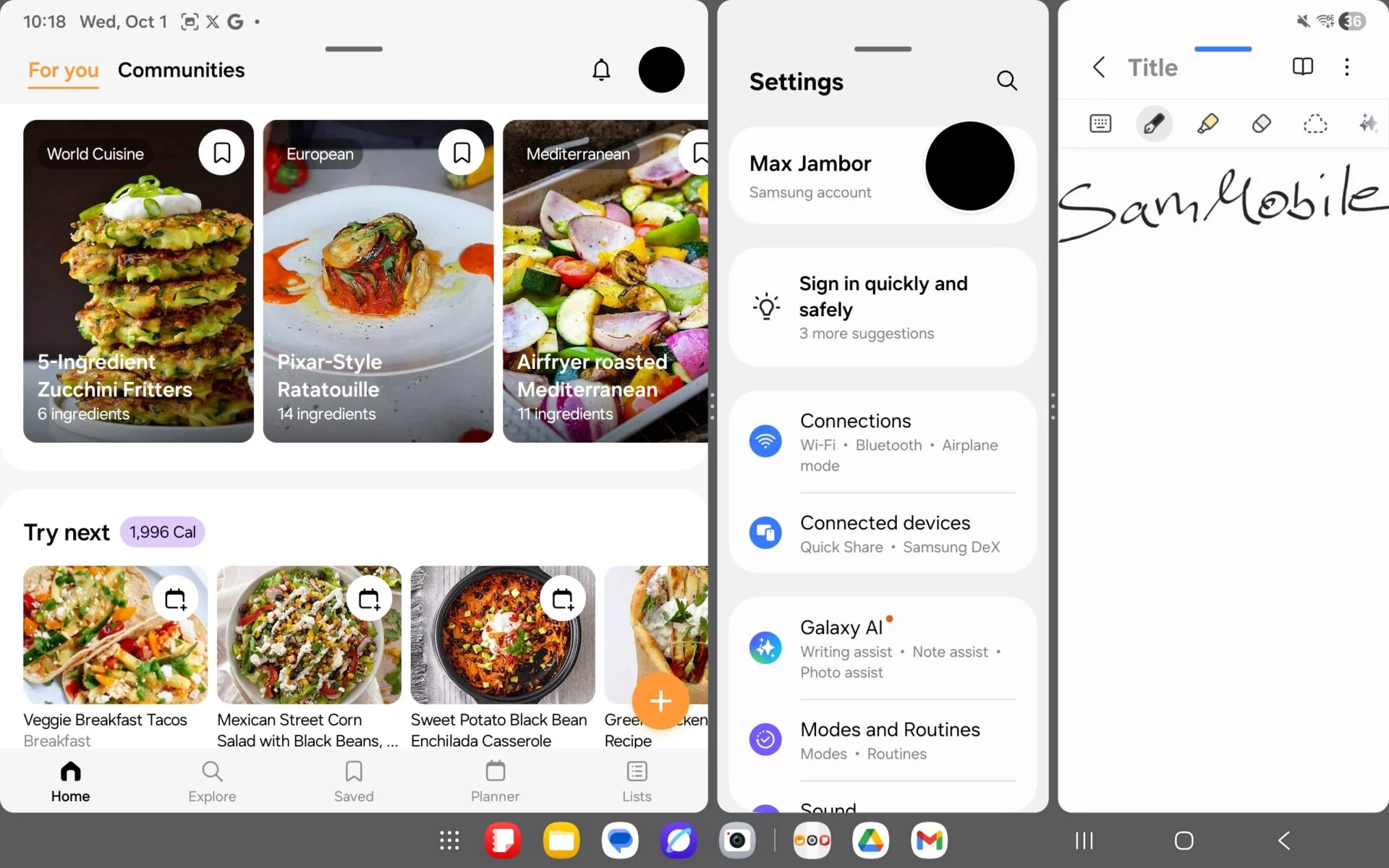
| Split-Screen | Two apps share the screen equally in top/bottom or side-by-side layout | Android 7.0+; works with free YouTube |
| Browser Workaround | Open YouTube in desktop mode via Firefox or Kiwi; audio keeps playing when you switch | No subscription needed; browser must support background playback |
| Samsung Pop-Up View | Drag a corner of any app window to shrink it into a floating bubble | Samsung One UI; works with official YouTube app for free |
| YouTube Revanced | Patched version of the YouTube app that enables PiP and background play for free | Must download APK; requires MicroG for login |

Image source: Wikimedia Commons / Cutekutty_rk (CC BY-SA)
The simple version
PiP is the most seamless experience. You start a video, press the home button, and the video shrinks into a corner. You can move it, resize it, and tap back to open the full player.
It's the closest thing to how YouTube behaves on an iPhone or iPad.
Split-screen is clunkier. Both apps run side by side, so you lose half your screen real estate. It works fine for following a tutorial while taking notes, but it's awkward for full-screen gaming while watching something.
The browser method is the honest-to-goodness free workaround. Open YouTube in Firefox, request the desktop site, start a video, then switch apps. The audio keeps playing.
The video stays in your notification shade or a small PiP window depending on the browser. It's not as polished as the official app, but it costs nothing.
Picture-in-Picture: The Full Breakdown (Settings & Quirks)
Picture-in-Picture is the feature most people think of when they ask about watching YouTube while using other apps. Let's get into the nitty-gritty of how to enable it and why it sometimes doesn't work.
Where to enable it
There are two separate settings you need to check. Miss one and PiP won't activate.
| Setting Location | What to Do |
|---|---|
| Android System Settings | Go to Settings > Apps > Special App Access > Picture-in-Picture. Tap YouTube and toggle it on. |
| YouTube App Settings | Open YouTube > tap your profile icon > Settings > General. Toggle "Picture-in-Picture" on. |
Both must be enabled. If either is off, the video will pause when you leave the app.
Why PiP sometimes stops working
Aggregate user reports from forums indicate three common reasons PiP fails after working previously:
- Regional restrictions: In some countries, YouTube limits PiP to Premium subscribers even if the system setting is on. The app checks your IP and account region before allowing the mini-player.
- App updates: A YouTube update can reset the PiP toggle inside the app settings. You'll need to re-enable it after major updates.
- Battery optimization: Some phones aggressively kill background processes. Check Settings > Apps > YouTube > Battery and set it to "Unrestricted" or "Not optimized."
Image source: Bing (Web (fair-use with source credit))
A note about Samsung users
If you own a Samsung phone, you have an extra trick. One UI's Pop-up View works with any app, including YouTube, without needing Premium. Here's how to use it:
- Open YouTube and play a video.
- Tap the recent apps button.
- Tap the app icon at the top of the YouTube card.
- Select "Open in pop-up view."
The video window shrinks into a small, movable bubble. You can drag it anywhere on screen, resize it, or tap to expand. This is completely free and doesn't require any browser trickery.
It's the best option for Samsung owners who don't want to pay for Premium.

Image source: Wikimedia Commons / Molleindustria

Similar Posts