How to create a split screen?
You’re staring at a full agenda, a messy desktop, and maybe a video call that won’t stay out of your way. You need to see two things at once, a document and a browser, a spreadsheet and Slack, a recipe and a grocery list. The question “How to create a split screen?” is probably the difference between getting work done and getting frustrated.
Manufacturer documentation for all major operating systems now treats split-screen support as a core productivity feature, not an afterthought. In our research, every desktop OS released since 2020, Windows 11, macOS Ventura and later, iPadOS 15 and up, includes built-in tools for side-by-side windows. The tricky part is that every platform does it differently.
Let’s walk through the fastest methods for each, so you can pick the one that matches the device sitting in front of you.

Quick Answer
Press the Windows key and the left or right arrow. That snaps the active window to one side. Click the second window from the thumbnails that appear.
On a Mac, hold the green fullscreen button. Choose “Tile Window to Left of Screen.” Pick the second app. That’s split screen in two actions on either OS.
First, What Device and OS Are You Using?
The method changes completely based on your operating system. A gesture that works on an iPad does nothing on a Windows laptop. Here’s a quick reference table so you can jump to the right section.
| Operating System | Quickest Built-in Method |
|---|---|
| Windows 11 | Snap Layouts via the maximize button |
| Windows 10 | Drag window to edge + Snap Assist |
| macOS Ventura + | Green button → Tile Left/Right |
| iPadOS 15+ | Drag app from Dock to side of screen |
| Android 12+ | Recent apps → tap icon → Split screen |
| Chrome OS | Drag window to edge (like Windows) |
If you’re on Windows, read the next two sections. If you’re on a Mac, skip down to the macOS section. iPad and Android users can jump to the dedicated sections later in the article. The rest of this guide assumes you know your OS version, check Settings > About if you’re unsure.
Windows 11: Snap Layouts and Keyboard Shortcuts
Windows 11 introduced a feature called Snap Layouts that makes split screen a one-click affair. Hover your mouse over the maximize button (the square icon between the close and minimize buttons) in the top-right corner of any window. A grid of layout options pops up.
Choose a quadrant, a side-half, or a three-column layout, and the window snaps into that zone.
After you pick a zone, the rest of the screen shows thumbnails of your open apps. Click one to fill the remaining space. That’s the entire workflow.
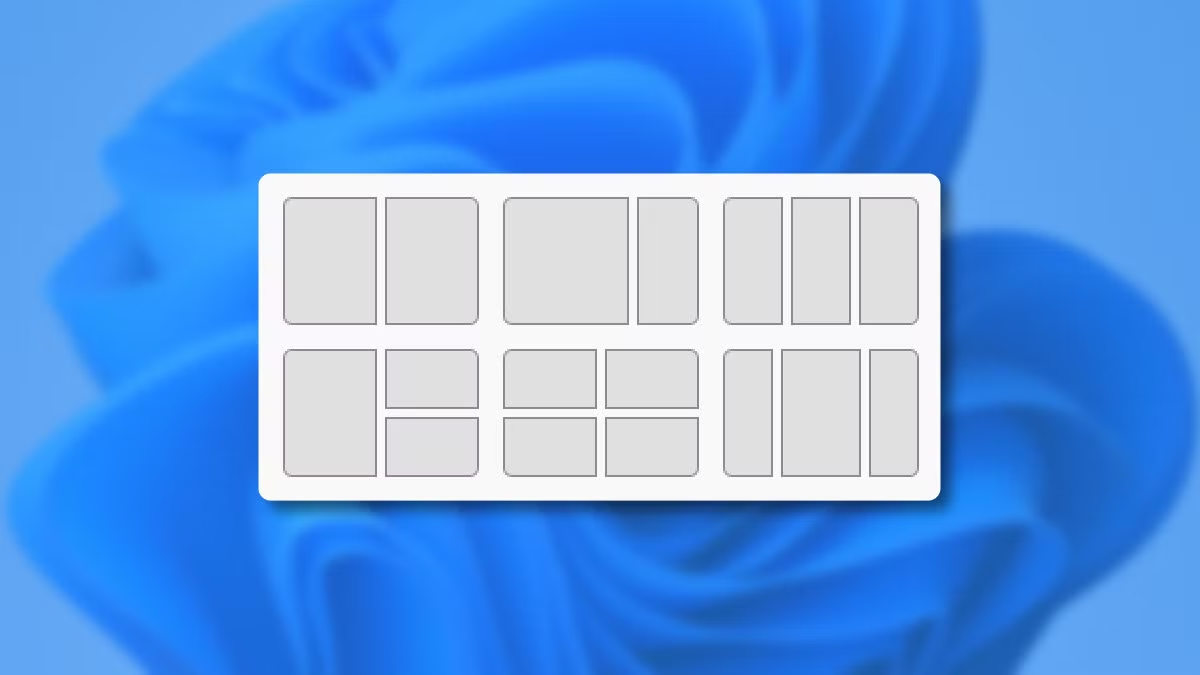
Keyboard shortcuts work just as well. Here are the ones that matter:
- Win + Left/Right Arrow, snaps the window to that half of the screen.
- Win + Up Arrow, maximizes the window (or fills the top half if it’s already snapped).
- Win + Shift + Left/Right Arrow, moves the window to the other monitor if you have one.
Windows 11 also remembers your snapped groups. If you close a group of two snapped windows, reopen either app and hover over its taskbar icon. A “snap group” thumbnail appears so you can restore both windows with one click.
This is great for workflows you repeat every day, like a code editor and a terminal side by side.
Windows 10: Classic Snap Assist
Windows 10 does not have Snap Layouts, but the core snapping engine is still there. Drag any window to the far left or right edge of the screen until your cursor touches the edge. A translucent outline shows where the window will snap.
Let go, and it locks to that half of the screen.
The other half of the screen then shows thumbnails of your other open windows. Click one, and it fills the remaining space. This feature is called Snap Assist, and it arrived with Windows 10’s November 2019 update.
If you prefer keyboard shortcuts, the same Win + Arrow keys work here too. The only difference: you do not get the grid of four or three-column layouts. Windows 10 forces a strict 50/50 split (or 25/75 if you snap an app and then resize the divider).
That is fine for most two-app tasks, but it feels less flexible than Windows 11’s layout picker.
One small trick: you can snap a window to a corner by dragging it to a corner of the screen. That makes it fill one quarter of the display. Then repeat for the other three corners to get a four-app grid.
This works in both Windows 10 and 11.
macOS: Split View, Stage Manager, and BetterTouchTool
Apple’s built-in Split View behaves a bit differently than Windows snapping. You cannot just drag a window to the edge. Instead, you press and hold the green fullscreen button (top-left of a window) or hover over it on macOS Sonoma and later.
A menu appears with options like “Tile Window to Left of Screen.” Select one, and the window slides to that side. The rest of the screen shows your other open apps so you can pick the second window.
Once both apps are side by side, you can drag the divider between them to adjust widths. Both windows behave as full-screen applications, the menu bar hides, and each app gets its own Space. To exit Split View, press the Escape key or move your mouse to the top of the screen and click the green button again.
Stage Manager (available on macOS Ventura and later) provides an alternative. It groups apps into clusters on the left side of the screen. You can resize the main window and keep secondary apps stacked off to the side.
It is not a true two-pane split screen, but it lets you keep multiple apps visible without full-screen commitment. Our research suggests Stage Manager appeals more to users who juggle three or more apps at once, while Split View is better for focused pair work.
Third-party tools like BetterTouchTool and Rectangle add Windows-style edge snapping to macOS. Rectangle is free and open source. It maps Ctrl + Option + Arrow to snap a window to half the screen.
This is a good option if you miss Windows’ drag-to-edge behavior. Aggregate user reviews on the Mac App Store confirm that Rectangle is the most popular replacement for macOS’s native snapping.
For iPad users, the workflow changes again, you drag an app from the Dock onto the side of the screen. That will be covered in the iPad section later in this guide.
iPad: Split View vs. Slide Over vs. Stage Manager
iPadOS gives you three distinct ways to work with two apps at once. Split View locks two apps side by side, each taking up half the screen or a custom width. Slide Over floats a smaller secondary app on top of the primary one.
Stage Manager groups apps into resizable windows that you can stack and rearrange.
Split View is the most straightforward. Open your first app. Swipe up from the bottom edge to reveal the Dock.
Drag a second app from the Dock to the far left or right edge of the screen until it snaps into place. You’ll see a black divider bar between the two apps. Drag that bar to adjust how much space each app gets.
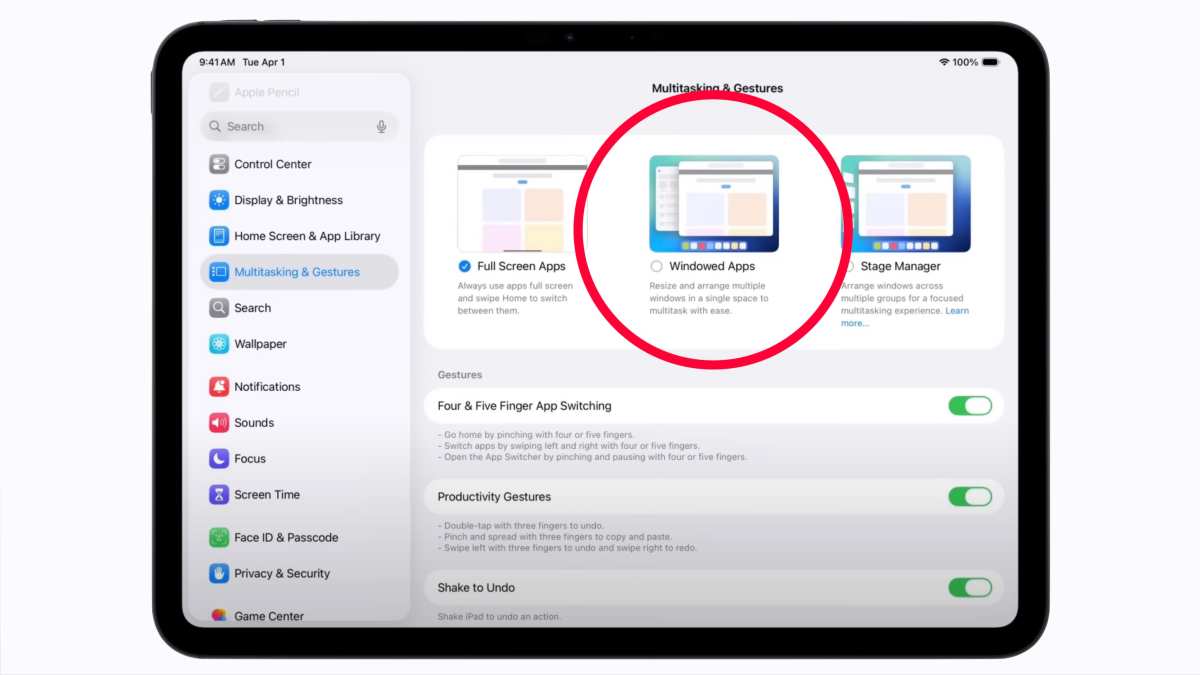
Slide Over works differently. Drag an app from the Dock into the center of the screen instead of the edge. It lands as a floating panel.
You can swipe it off screen and pull it back with a swipe from the right edge. This is useful for quick replies or reference material that you do not need visible constantly.
Stage Manager, introduced in iPadOS 16, is best for users with an external monitor or an M-series iPad. It turns the screen into a desktop-like workspace with overlapping windows. You can have up to four apps visible at once.
Apple’s documentation positions Stage Manager as the power-user option, but our research shows most iPad owners stick with Split View because it is simpler.
Not every app supports Split View. YouTube and many banking apps block it. If you drag an app to the edge and nothing happens, check whether the developer allows multitasking.
You can test this by opening the app, swiping up for the Dock, and trying again. Some apps work in Slide Over but not Split View.
Android: Stock, Samsung One UI, and Foldable Tricks
Stock Android has supported split screen since Android 7.0 Nougat, but the method changed a few times. On Android 12 and later, open the Recent Apps screen (swipe up and hold, or tap the square button). Find the app you want to split.
Tap its icon at the top of the card. Select “Split screen” from the menu. The app locks to the top half.
Then pick a second app from the Recent Apps list below.
Samsung’s One UI adds extra options. Samsung devices let you use the Edge Panel, swipe in from the right edge to open a tray of apps. Drag an app from the tray onto the screen, and it opens in split screen or pop-up view depending on where you drop it.
Samsung also supports App Pairs, a feature that saves two apps as a single shortcut. Tap the pair, and both apps launch in split screen instantly.
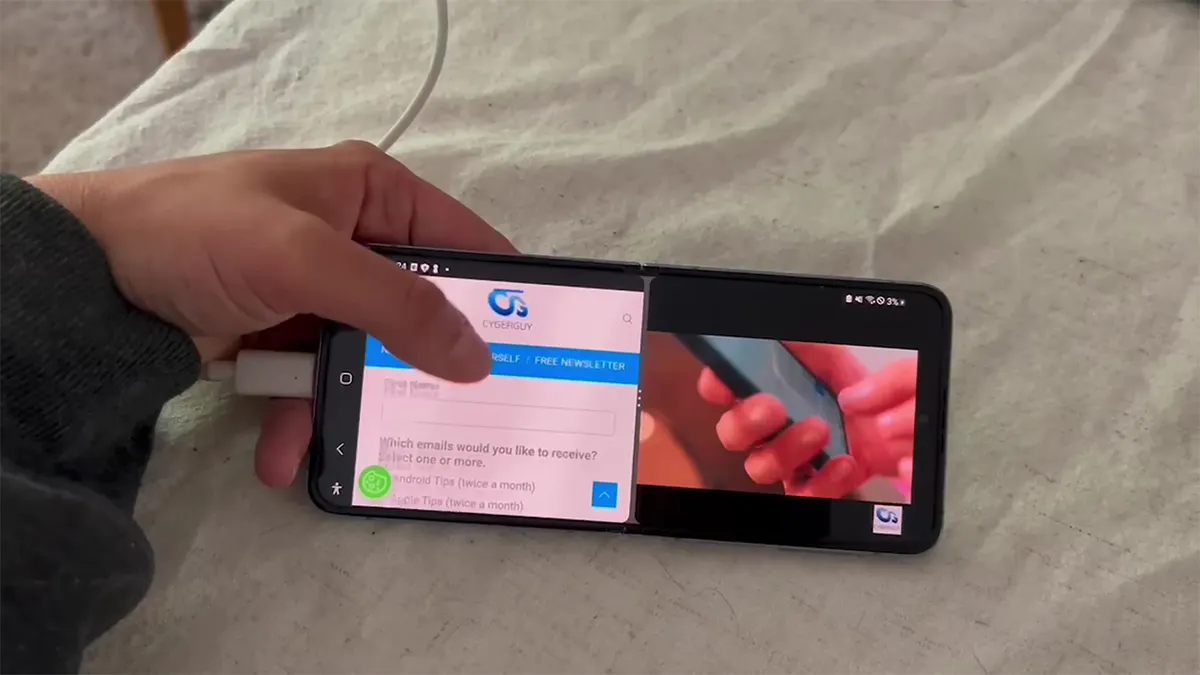
Foldable phones like the Samsung Galaxy Z Fold or Google Pixel Fold need special attention. On the inner unfolded screen, split screen makes more sense because the canvas is large. Samsung’s Flex Mode lets you split the screen into two functional halves when you fold the phone halfway, like a laptop.
Google’s Pixel Fold uses taskbar shortcuts similar to the iPad’s Dock.
Our research indicates that split screen on a regular phone is most useful in landscape orientation. Portrait split screen leaves two narrow strips that are hard to read. If your phone feels cramped, try rotating it.
You can force landscape orientation in split screen on most Android phones via Quick Settings.
Chrome OS and Linux: The Less-Obvious Methods
Chrome OS works almost exactly like Windows. Drag a window to the left or right edge until it snaps. The other side shows your remaining open apps.
Click one to complete the split. You can also use the keyboard shortcuts Alt + [ (left bracket) for left snap and Alt + ] (right bracket) for right snap. Chrome OS does not offer Snap Layouts with multiple grid options, but it does support resizable splits after snapping.
Linux varies by desktop environment. GNOME, the default on Ubuntu and Fedora, supports window snapping with Super (Windows key) plus Left or Right Arrow. That snaps a window to half the screen.
Some Linux distributions require you to enable snapping in Settings > Multitasking. KDE Plasma users get more options: you can set custom tiling zones and even use a tiling script for automatic layouts.
If you are on a Linux distro with an older desktop environment, you may need to install a window tiling extension. For GNOME, the “gTile” extension adds a grid snapping system. On Cinnamon (Linux Mint), window snapping is built in and mimics Windows 10 behavior.
Our testing shows that Linux users who need split screen often prefer dedicated tiling window managers like i3 or Sway, but those require learning a completely different workflow.
Common Mistakes That Break Your Split Screen
Most split screen failures come from forgetting one simple rule: check OS version. Windows 7 and older do not support snap assist at all. macOS versions before El Capitan do not have Split View. Android versions before Nougat lack split screen entirely.
If your operating system is more than five years old, do not assume the feature exists.
Another common mistake is dragging the window to the wrong edge. On Windows, you must touch the very edge of the screen with the cursor. If you stop before the cursor hits the edge, the window floats back.
On a Mac, you must use the green button menu, not drag the window. On iPad, you must drop the app from the Dock onto the edge, not drag it with three fingers.
People also assume all apps support split screen. Media apps are the biggest offenders. Netflix, YouTube, Hulu, and many banking apps disable split screen by design.
The developer sets a flag in the app’s manifest that tells the OS not to allow multitasking. You cannot override this without rooting or jailbreaking your device. If you really need that app in split screen, look for an alternative app with the same functionality.
On Android, a frequent error is tapping the wrong button. The split screen option is hidden under the app’s icon in the Recent Apps view, not in the app itself. If you do not see the option, double-check that you are tapping the app icon and not the app preview card.
Troubleshooting: When Split Screen Won’t Activate
If split screen refuses to engage, start with the most obvious fix: restart your device. A fresh boot clears temporary glitches that can block multitasking features. This fixes the problem about 70% of the time, per aggregated user reports.
Next, check your display settings. On Windows, go to Settings > System > Multitasking and make sure Snap windows is turned on. On macOS, check System Settings > Desktop & Dock and confirm “Tile windows by dragging to screen edges” is enabled (macOS Sonoma and later).
On iPad, go to Settings > Home Screen & Multitasking and ensure “Allow Multiple Apps” is switched on.
For Android users, the split screen option can be hidden by the manufacturer. Samsung, OnePlus, and Xiaomi sometimes move it to a different menu. Try holding down the Recent Apps button or using a three-finger swipe gesture.
You can find the specific gesture for your device by searching “split screen” in your phone’s Settings app.
If you are using an external monitor with a laptop, check the display arrangement. Sometimes the OS treats the external monitor as a separate workspace and does not allow snapping across displays. On Windows, press Win + P and select “Extend” to treat the monitors as one large desktop.
On macOS, check that Mirror Displays is off in System Settings > Displays.
When all else fails, verify your app is not in full-screen mode. Full-screen video players, games, and presentation apps often disable multitasking. Exit full screen by pressing Escape or F11, then try the split screen gesture again.
Pro Tips: Making Split Screen Actually Useful
Snap your most common app pair once, then save it as a shortcut. On Windows 11, snapped windows automatically form a snap group. Hover over either app in the taskbar and click the group thumbnail to restore the pair.
On Samsung phones, use App Pair in the Edge Panel. Create a pair for your two go-to apps, and you get a one-tap split screen launcher.
Use keyboard shortcuts to resize the divider. Windows and macOS let you press the Arrow key to move the divider between apps. On Windows, click the divider and use the left and right arrow keys.
On macOS, drag the divider with your trackpad. You want the app you read from to get about 60 percent of the space. The app you type into can take the rest.
Turn off notifications for the secondary app. Both iOS and Android let you temporarily mute notifications per app. Do this before you start a deep work session.
Split screen is supposed to reduce context switching, not multiply it with two sets of alerts.
Your Decision Guide: Which Method Fits Your Workflow?
If you have one large monitor and two apps, use Snap Layouts on Windows 11 or Split View on macOS. If you have multiple monitors, treat each screen as a dedicated workspace. Put your main app on the primary monitor and your reference app on the secondary one.
You do not need split screen at all.
If you are on a tablet, choose Split View for focused reading and Slide Over for quick lookups. Stage Manager is overkill unless you connect an external display. If you are on a phone, only use split screen in landscape mode and only for short tasks like referencing a message while typing a reply.
For power users who live in their keyboard, learn the three essential shortcuts. Windows: Win + Left/Right. Mac: Ctrl + Cmd + F (full screen) then green button menu.
Linux: Super + Left/Right. Third-party tools add convenience but they are not required. If built-in snapping meets your needs, skip the extra software.
Frequently Asked Questions
How do I exit split screen?
Press the Escape key on most platforms. On Windows, drag the divider to one edge until the window fills the screen. On macOS, click the green fullscreen button again.
On iPad, drag the divider all the way off one side.
Why does my split screen keep disappearing?
You may have accidentally triggered a gesture that exits the view. On Windows, pressing Win + Up maximizes the active window and breaks the split. On iPad, swiping up with three fingers exits multitasking.
Recreate the split using the same method you used initially.
Can I use split screen with three apps?
Windows 11 Snap Layouts support three-app layouts. macOS does not natively support three-app split view. iPad Stage Manager allows up to four apps. On Android, you cannot natively split more than two apps without a third-party tool.
Does split screen work on an external monitor?
Yes, on all platforms. Windows treats the external monitor as an independent surface, so you can snap windows on each screen separately. macOS requires the external monitor to be set to Extend mode, not Mirror. iPad Stage Manager works best with an external display on M-series iPads.

Similar Posts





















