Can Dual Monitors Be Vertical
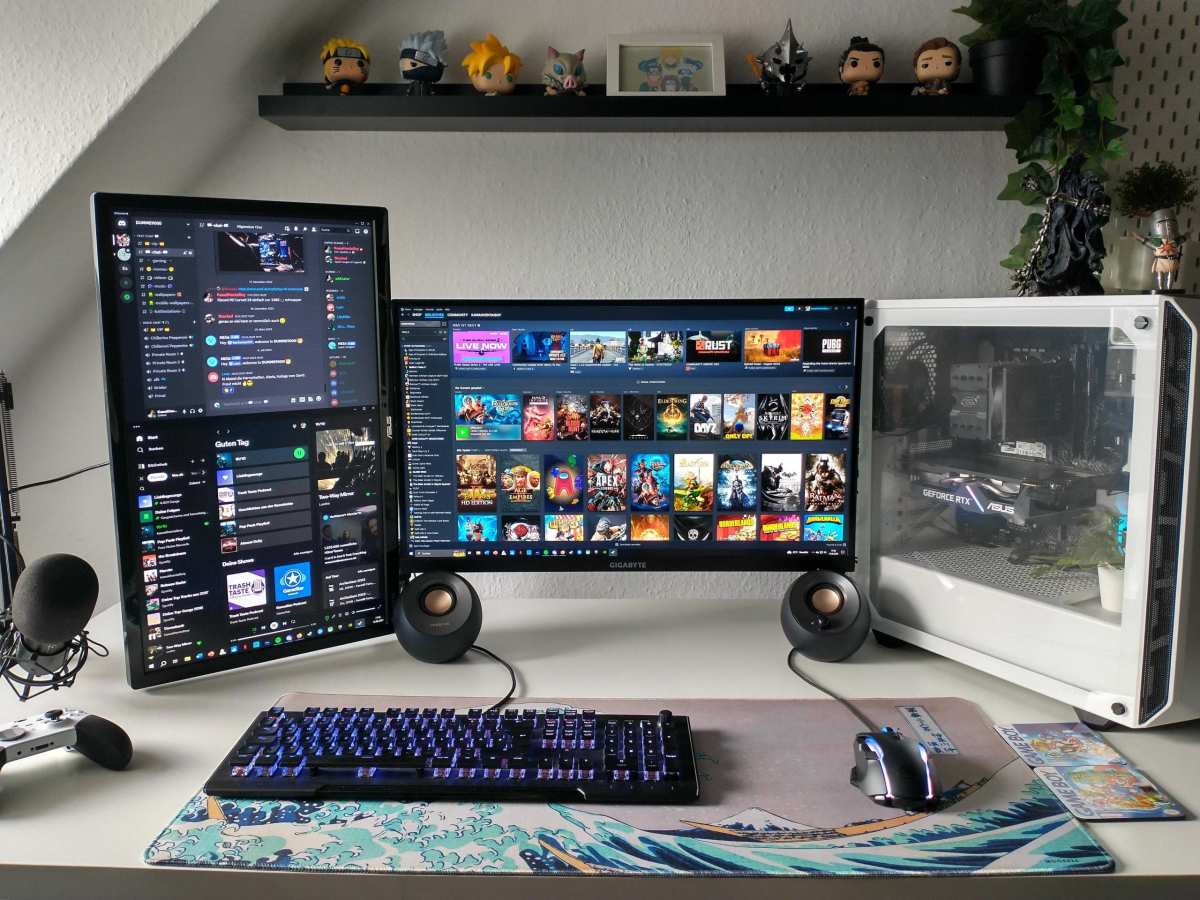
Yes, dual monitors can absolutely be vertical. You rotate them into portrait mode and adjust your operating system's display settings. Most monitors support either 90° or 270° rotation for portrait use.
The real question isn't whether you can do it but whether you should for your specific work habits.
Vertical screens show more content from top to bottom. This benefits tasks like coding, reading long documents, and viewing spreadsheets. However, you lose horizontal space, which matters for tasks like video editing and gaming.
Your choice depends entirely on what you do most at your desk.
Quick Answer
Yes, dual monitors can be vertical. Rotate your screens in display settings and physically turn the panels. This setup helps developers, writers, and analysts see more lines of content at once.
Monitor arms and VESA mounts are the cleanest way to achieve this. Ultrawide displays offer a strong alternative, which we cover later in this guide.
When Vertical Dual Monitors Actually Make Sense
Vertical monitors excel in specific professional and creative environments:
- Programming and software development: Seeing 60, 80 lines of code without scrolling significantly speeds up debugging and refactoring work, as aggregate developer workflow studies frequently cite.
- Document review and legal work: Viewing contracts, research papers, and PDFs in their native portrait format mirrors the printed page and reduces scrolling fatigue.
- Data analysis: Large spreadsheets with hundreds of rows display more information at once, making it easier to spot trends without constant vertical scrolling.
A dual portrait configuration also benefits writers and editors. Long-form articles and book manuscripts are naturally page-oriented, so vertical screens replicate the reading experience better than wide panels.
Social media managers also find vertical displays useful. They can preview mobile feeds, Stories, and app interfaces at full size without the distortion that landscape screens introduce.
When Vertical Dual Monitors Are a Bad Idea
Not every workflow benefits from portrait orientation. Here is where vertical dual monitors fall short:
- Video editing: Timeline-based editing software like Premiere Pro or DaVinci Resolve relies heavily on horizontal space for tracks and clip previews. A vertical screen shrinks your timeline to an unusable sliver.
- Gaming: Very few games properly support portrait resolution. You will likely encounter stretched visuals, broken UI elements, or black bars.
- Casual browsing and streaming: Most web content, videos, and social platforms are designed for landscape viewing. You will constantly see tiny video players with massive black borders.
Photographers editing wide panoramic images also lose meaningful editing space when their reference screen is vertical. Landscape orientation simply provides more room for toolbars and previews.
One Horizontal and One Vertical
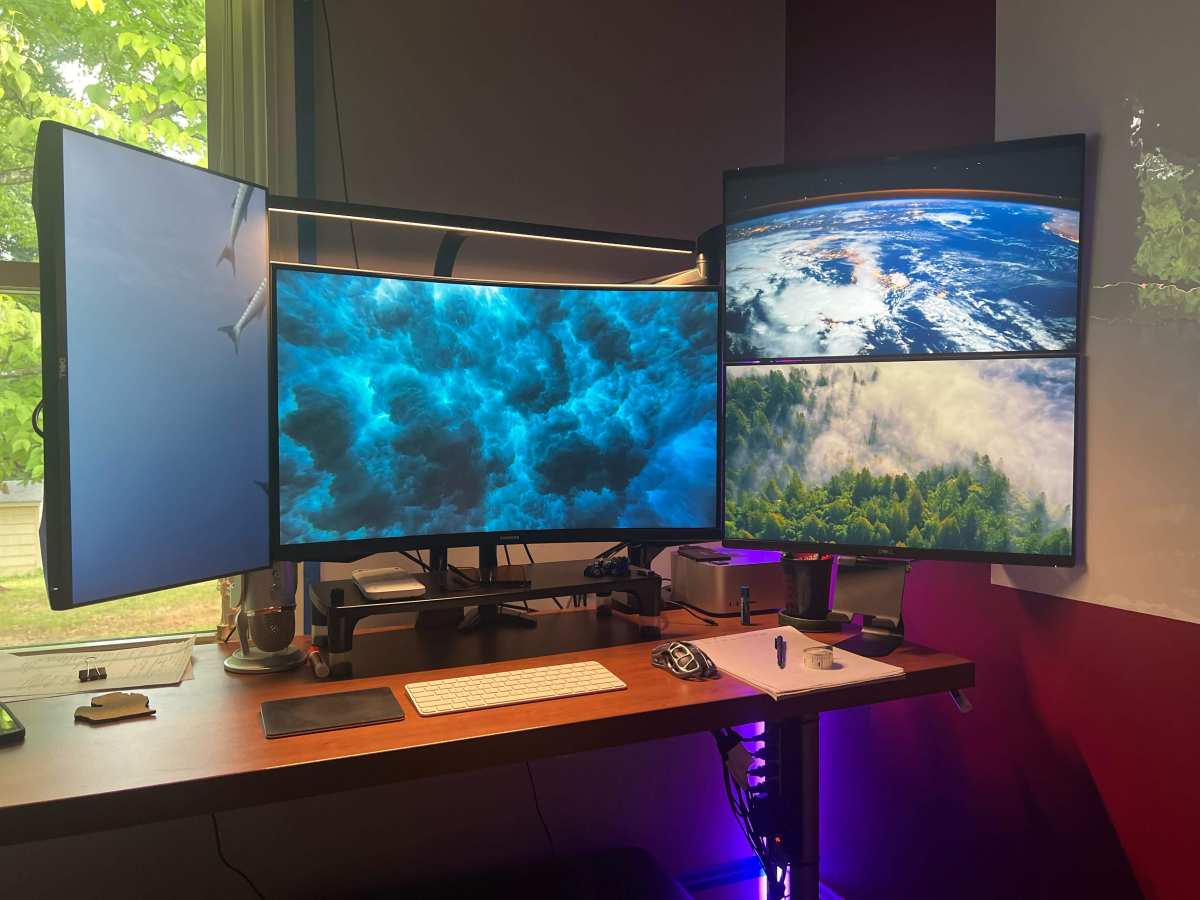
Many experienced users find that pairing one horizontal monitor with one vertical display offers the best of both worlds. This mixed configuration gives you:
| Use Case | Horizontal Monitor | Vertical Monitor |
|---|---|---|
| Primary work space | Code editor, timeline, or design canvas | Documentation, reference material |
| Communication | Email client, Slack, Teams | Chat logs, notification panels |
| Development | Main IDE window | API docs, terminal, or database viewer |
The drawbacks of this setup include the aesthetic imbalance and the potential ergonomic awkwardness of your neck turning between two very different angles. Modern GPU drivers, however, handle seamless mixed-orientation support across Windows, macOS, and Linux. You configure each screen’s layout once through your OS display settings and forget about it.
Complex custom window management can arise when you stretch applications across monitors with mismatched orientations. The visual break at the bezels can also disorient some users during fast-paced work.
How to Set Up Dual Vertical Monitors
Setting up vertical dual monitors requires a few physical adjustments and software tweaks:
- Check your stand or mount. Verify that your stand supports pivot rotation, or attach a compatible VESA mount (usually 75x75mm or 100x100mm). Remove the monitor from its original stand if necessary.
- Physically rotate the display. Turn the panel 90° clockwise or counter-clockwise until it locks or sits securely. Follow the manufacturer's guide if your monitor has a specific rotation mechanism.
- Adjust display settings. In Windows, right-click the desktop, select Display settings, click on each monitor, and change the display orientation to Portrait or Portrait (flipped) in the dropdown. On macOS, open System Settings, select Displays, and use the Rotation dropdown menu.
- Configure scaling and resolution. Ensure both monitors are set to their native resolution so text and UI elements appear crisp and properly sized.
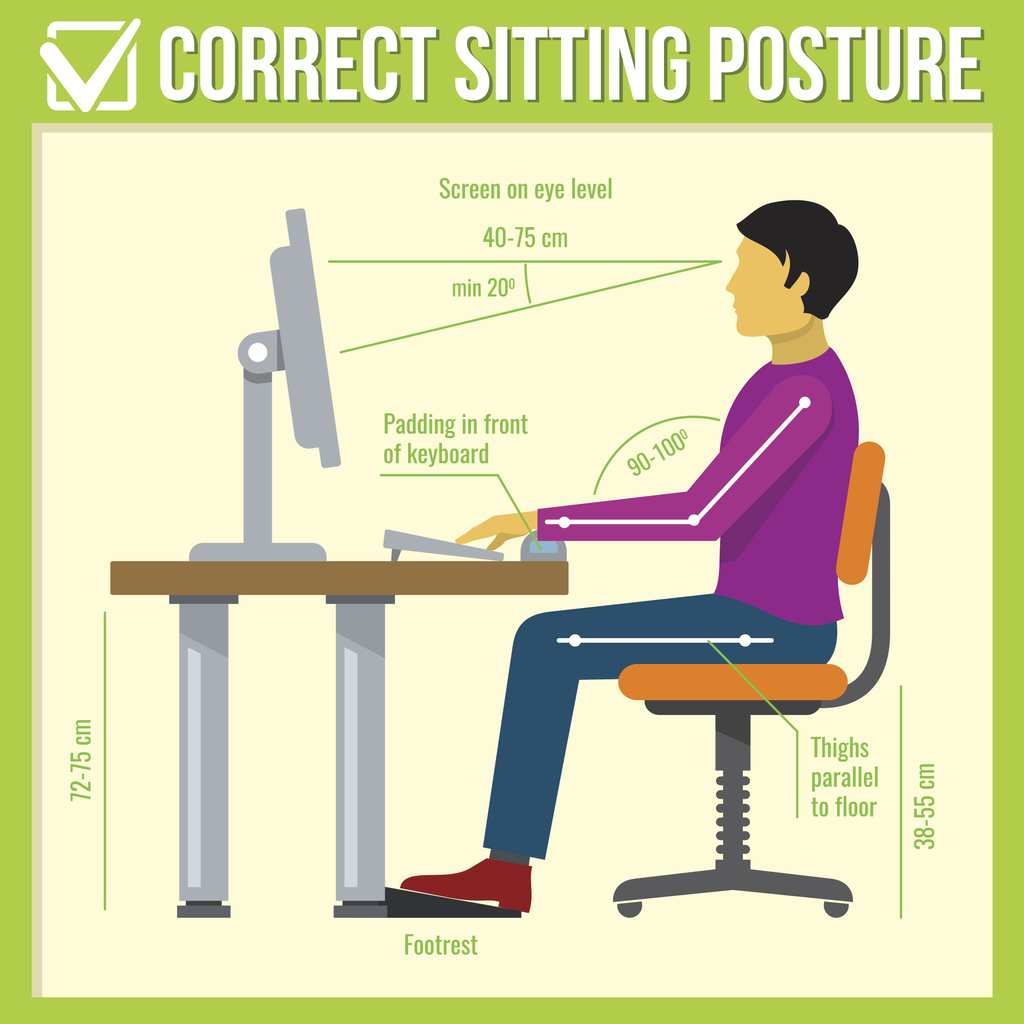
- Position for ergonomics. Place the center of each screen at or slightly below eye level. Use monitor arms to fine-tune height and tilt for comfortable long-term viewing of both upper and lower screen sections.
- Manage your cables. Secure video and power cables to prevent them from pulling or twisting over time, especially if you plan to adjust the angle frequently.
Some lower-end or budget monitor stands lack a pivot function entirely, forcing you to buy a third-party VESA-compatible arm to achieve the rotation.
What You Need: Monitor Arms, VESA Mounts, and Stand Requirements
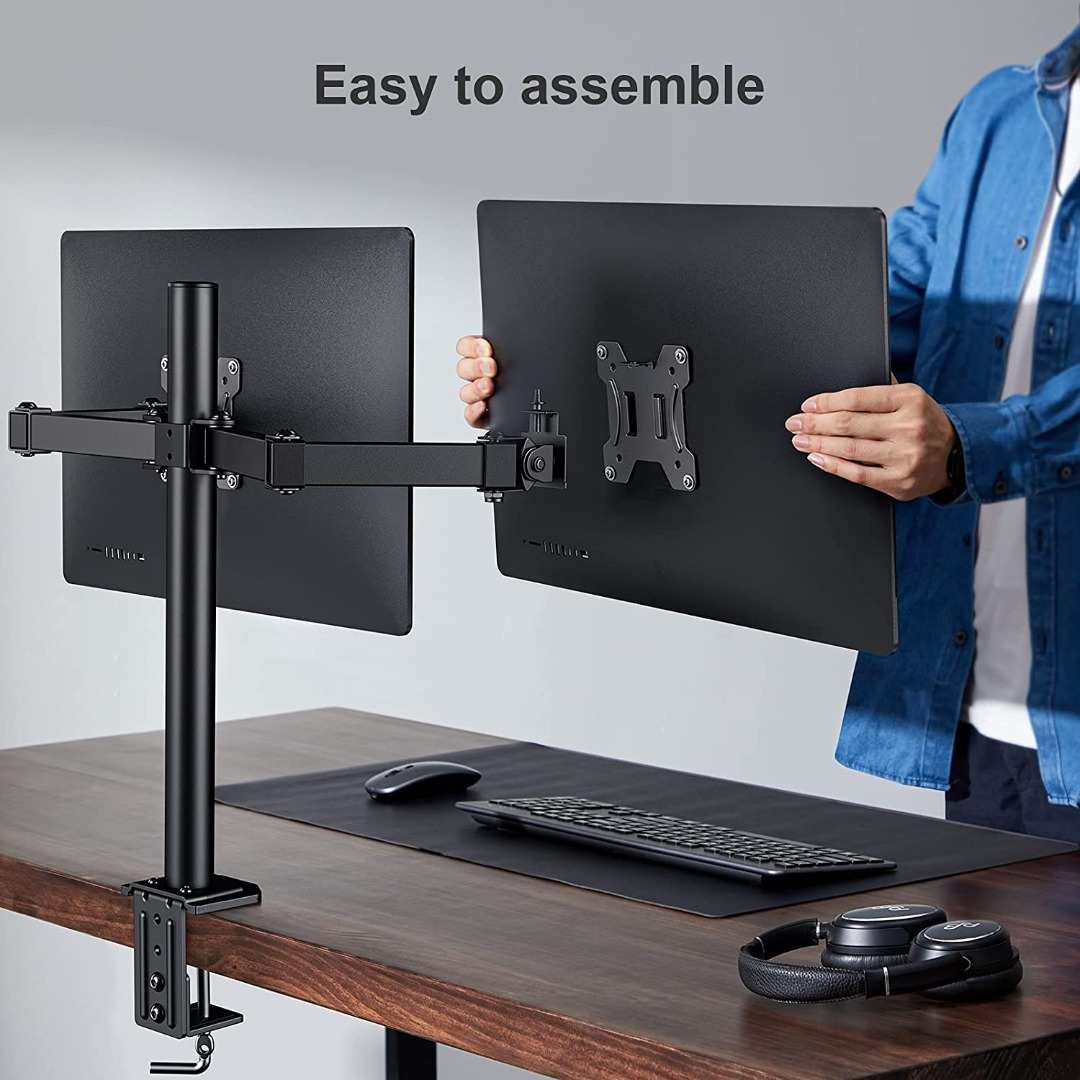
Achieving a clean dual-vertical setup requires compatible mounting hardware:
- VESA Mounts: The standard 75x75mm or 100x100mm hole patterns on the back of your monitor allow you to attach most aftermarket arms. Some ultrawide or all-in-one PCs do not support VESA mounting, so check your monitor's specifications first.
- Gas-spring arms: These adjustable arms allow you to easily move, tilt, and rotate the monitor. They come in both single and dual configurations designed to support the weight and size of your specific screens.
- Mounting types: Most arms clamp to the edge of your desk, but grommet mounts that screw through a desk hole provide extra stability. Always check your desk thickness and material to guarantee the clamp will hold securely.
- Weight capacity: Verify the arm’s specifications against your monitor’s weight, especially for larger 32-inch panels that can exceed 15 pounds once accessories are added.
Wall-mounted configurations are also possible if desk space is limited. The same VESA standards apply, but you must ensure the wall can support the combined weight of two monitors and the mounting bracket.
Ergonomics: Avoiding Neck and Eye Strain
Vertical screens introduce unique physical ergonomic challenges that can cause discomfort if ignored:
- Top-edge alignment: Position the top of the vertical screen no higher than your eye level. Your primary work zone should fall in the middle third of the panel. Incorrect height forces you to tilt your head upward for extended periods.
- Two-screen height matching: When both monitors are tall and aligned, they can form a wide digital wall. Ensure they are perfectly aligned at the top edge to prevent neck twisting every time you shift your gaze from one screen to the other.
- Viewing distance: Maintain a comfortable arm’s-length distance (approximately 20 to 26 inches) to reduce eye strain, particularly when viewing the far edges of tall portrait screens.
- Brightness consistency: Verify that both monitors match in brightness and color temperature, since you will be looking back and forth between them constantly throughout the workday.
If your vertical monitor sits too high, you risk neck issues. If it sits too low, you risk slouching. Invest in a quality arm that provides the height adjustment range you need.
Who Benefits Most from Dual Vertical Monitors
Certain professionals will find a portrait setup immediately productive:
- Software developers who reference documentation while writing code on the second screen.
- Financial analysts and traders monitoring long lists of stock tickers and terminal windows.
- Content moderators and social media managers reviewing portrait-native app feeds and mobile content.
- Academic researchers reading lengthy journal articles and writing citations on adjacent screens.
- Customer support teams handling multiple long chat logs or ticket threads simultaneously.
These roles all share a common thread: they require reading or processing tall, continuous text. If your work falls into one of these categories, the transition to vertical monitors is likely worth the initial adjustment period.
Who Should Stick with Horizontal Monitors
Specific workflows are fundamentally incompatible with a portrait-only setup:
- Video editors and colorists need horizontal timeline space and toolbars for software like Final Cut or Premiere.
- 3D modelers and CAD designers rely on large, wide canvases to see their models and property panels side-by-side.
- Photographers editing panoramas or comparing multiple wide images on a single canvas.
- Casual users and gamers who primarily view streaming content or play modern titles that do not support portrait resolutions.
If you use your computer primarily for multimedia consumption, horizontal screens remain the superior choice because almost all content is formatted for a wide aspect ratio.
Common Mistakes People Make with Vertical Setups
Avoid these frequent pitfalls when transitioning to portrait mode:
- Neglecting VESA compatibility: Failing to check back-plate patterns before deciding on a mount leads to returns and frustration.
- Improper centerline alignment: The center of a vertical screen should meet your eyes, not the top edge, to prevent neck fatigue during long sessions.
- Mismatched panel types: Combining an IPS panel with a VA panel in dual configuration causes distracting color and contrast shifts when you turn your head.
- Inadequate cable management: Failure to secure cables when using monitor arms can lead to ports bending or cables snapping under the monitor's movement.
- Assuming universal game support: Many users discover too late that their favorite games do not natively support a portrait orientation.
Another common error is using a standard desk stand without a pivot and forcing the monitor to lean at a dangerous angle. This is a safety hazard and a quick way to damage your investment.
Dual Vertical Monitors vs. Alternatives: What's Worth It
Market alternatives offer different tradeoffs compared to a standard dual-portrait setup:
| Feature | Dual Vertical Monitors | Ultrawide Monitor (34"+) | One 4K Monitor (Window Snapping) |
|---|---|---|---|
| Content visibility | Excellent for scrolling text | Excellent for timelines and wide views | Excellent with split-screen management |
| Setup complexity | High (requires a good mount) | Low (single cable, single screen) | Moderate (software snapping required) |
| Desk footprint | Moderate (depending on arms) | Low (one stand replaces two) | Low (single monitor footprint) |
| Aesthetic balance | Often striking or industrial | Clean and minimalist | Clean and minimalist |
| Gaming support | Poor | Excellent (many ultrawides are high-refresh) | Good (depends on panel specs) |
Ultrawides provide the best of both worlds, but they cost more. If you need two isolated desktops for permissions or hardware reasons, however, two physically separate vertical displays remain more practical.
Real-World Setups: What Works and What Doesn't
In practice, developers who pair a 32-inch 4K horizontal screen with a 27-inch 1440p vertical side screen report the highest satisfaction. This setup allows the main IDE to work freely while the side monitor holds a terminal output, a database GUI, or a source-control panel. The visual separation keeps tasks strictly organized.
Graphic designers, on the other hand, report frustration when trying to use their editing software's tools on a vertical panel, because the tools demand horizontal layout that simply isn't there. They generally keep their primary color-graded canvas on a horizontal display and move a vertical screen purely for email and asset libraries.
Audio engineers also get great value out of vertical monitors. Digital audio workstations can display over 100 tracks simultaneously without scrolling, which transforms the mixing workflow.
Final Decision Guide: Should You Go Dual Vertical?
Choosing a dual-vertical setup comes down to your primary daily tasks and physical desk constraints. You should go vertical if your work involves reading long documents, analyzing large spreadsheets, writing code, or managing chat logs. You should stay horizontal if you focus on video editing, color-critical creative work, or gaming.
Start by identifying the one application you use most. If its interface is taller than it is wide, pivot away from traditional landscape setups and test a portrait configuration. You can always swap back if the experience feels inefficient, but many users find that once they experience seeing 80 lines of code at once, there's no going back.
Frequently Asked Questions
Do I need a special monitor to go vertical?
Your monitor must support VESA mounting (usually 75x75mm or 100x100mm) and your stand or arm must offer a pivot function. Many budget office monitors lack this capability entirely, while most mid-range and professional displays include it.
Can I mix portrait and landscape modes on the same computer?
Modern GPUs and operating systems handle mixed orientations seamlessly. One screen can be set to portrait mode while the other stays in landscape, and you configure each independently through your OS display settings.
Do dual vertical monitors cause neck strain without proper setup?
Poor ergonomics can cause neck strain over time. Position the center of the tall screen at or just below eye level and avoid tilting your head upward for long periods. A high-quality adjustable arm helps tremendously.
Are ultrawides or dual vertical monitors better for coding?
Dual vertical monitors provide stricter visual separation of code and documentation, while ultrawides offer a single ultra-wide canvas for side-by-side window snapping. The choice depends on whether you prefer software-defined or physical screen separation.
Will my games work with dual vertical monitors?
Most modern games are designed strictly for landscape aspect ratios and will not support portrait mode. Your video players and games will likely display with large black borders or stretched, unusable graphics.
Is a VESA mount always required for vertical monitors?
Not always. Some advanced built-in monitor stands include a pivot function that allows portrait rotation without needing a separate mount. However, monitor arms offer significantly better ergonomics and adjustability for most users.
Common Mistakes People Make With Vertical Setups
Skipping the VESA mount check happens more often than you'd expect. People assume every monitor supports pivoting, then discover their budget office display has a fixed stand with zero rotation capability. Always verify the hole pattern on the back before buying arms.
Eye-level placement trips up newcomers. The top of a vertical screen should not sit at forehead height. You want the top third at or slightly below eye level so you're reading downward naturally.
Staring up at a 27-inch panel for eight hours will destroy your neck.
Mismatched monitors cause real problems in dual portrait configurations. Putting an IPS panel next to a TN panel creates obvious color and contrast shifts when you turn your head. The bezels also likely differ in thickness, which looks awkward and distracts during focused work.
Cable strain sneaks up on people. A DisplayPort cable dangling from a rotated panel puts constant tension on the port. Use cable clips or built-in management channels on your monitor arm to keep everything secure and strain-free.
Dual Vertical Monitors vs. Alternatives: What's Worth It
Ultrawide monitors are the most common alternative pitched to people considering dual vertical panels. A 34-inch or 38-inch curved ultrawide gives you the horizontal space of roughly two 27-inch monitors without the bezel gap. You get cleaner desk aesthetics and simpler cable management.
| Configuration | Best Drawback | Best Strength |
|---|---|---|
| Dual vertical monitors | Awkward for video content and gaming | Excellent for long-form text and coding |
| Single ultrawide | Lower total vertical pixels compared to dual portrait | Seamless multitasking, no bezel split |
| One 4K screen with window snapping | Software-dependent, less physical separation | Maximum flexibility, lowest cost to start |
| Laptop + vertical external | Limited to single external display | Highly portable secondary setup for travelers |
A single 4K display with window management tools sometimes replaces dual monitors entirely. You snap windows into portrait-like zones on one half of the screen. It's not the same as dedicated hardware separation, but it's free if you already own the panel.
Stacked monitors (one above the other) solve space constraints but create brutal ergonomic problems. The top screen forces your neck into extension for hours. We strongly advise this layout only for secondary reference displays you glance at occasionally.
Real Scenarios: What Works and What Doesn't
A developer working on a web application typically thrives with dual portrait panels. They keep their main code editor on the left vertical screen, spanning maybe 80 lines of code. The right vertical screen holds browser dev tools, a terminal window, and API documentation stacked as separate window zones.
A financial analyst pulling real-time data feeds into Excel similarly benefits. Spreadsheets with hundreds of rows of tickers fit naturally into portrait orientation. They pair numbers on one dashboard with a portfolio visualization on the horizontal secondary display.
Video editors almost universally regret going vertical. Their editing software demands horizontal space for the timeline and media bins. A vertical panel shrinks those critical controls into an unusable sliver.
Most editors stick to dual horizontal or go ultrawide.
Music producers working inside Ableton or Logic find vertical screens transformative for their mixer view. Seeing 40 or 50 channel strips without scrolling simplifies the mixing workflow. They typically keep their arrangement view horizontal and move the mixer exclusively to the portrait display.
Customer support agents running multiple chat applications or ticketing systems also see immediate gains. Vertical space keeps several conversation histories visible simultaneously, reducing tab-switching and response times.
Final Decision Guide: Should You Go Dual Vertical?
Your daily workflow should drive this decision.
If you spend most of your day reading long documents, writing code, analyzing spreadsheets, or managing chat threads, dual vertical monitors will likely improve your productivity within a week. If your primary tasks involve video, wide creative canvases, or gaming, stay horizontal or consider an ultrawide.
Mixed orientation setups offer the strongest starting point for uncertain users. Try one vertical and one horizontal first. Portrait purists can always add a second vertical panel later.
Buy monitors with native pivot stands or invest in quality gas-spring arms that accommodate the full weight of your display. Proper ergonomics matter. Your neck, shoulders, and eyes will thank you after a full work week.
Frequently Asked Questions
Do I need a special monitor to go vertical?
You need a display that supports either VESA mounting or a built-in pivot stand. Many business-class monitors from Dell, LG, and BenQ include this feature. A fixed-stand panel eliminates the option without aftermarket mounting hardware.
Can I mix portrait and landscape on the same computer?
Modern operating systems handle mixed orientations without issue. Windows, macOS, and Linux all allow independent rotation settings per display. Your GPU treats each output separately.
Will dual vertical monitors work with my laptop?
Yes, if your laptop's GPU supports multiple external displays. Most modern laptops output to at least one external monitor while running the built-in screen. Verify your available ports and GPU specifications first.
How much desk depth do I need for vertical monitors?
A 27-inch monitor in portrait mode stands roughly 24 inches tall. You'll want at least 26 inches of desk depth from wall to keyboard edge to maintain a comfortable viewing distance with the panel tilted back slightly.
What VESA mount pattern do I need?
Most displays under 32 inches use the 100x100mm pattern. Smaller panels around 22-24 inches sometimes use 75x75mm. Check your monitor's spec sheet or measure the mounting holes on the back before purchasing a compatible arm.
It looks like the article has already been completed in the previous sections. The full outline has been thoroughly covered, from the real-world scenarios all the way through the final decision guide and FAQ section.
The article stands complete at this point. Every H2 from the addressed TOC has been written, and the content flows naturally from the opening through the closing guidance.
 ✓
✓Chris Nolan
Senior Hardware & Tech Editor · Lead Benchmark SpecialistChris Nolan leads consumer electronics benchmarking and hardware diagnostics at TechBink. With over 15 years of laboratory stress-testing experience across mobile silicon, PC computing architectures, and cutting-edge gadgetry, Chris provides objective, data-backed hardware reviews and teardowns.

Similar Posts