Slow Laptop? Turbocharge It (No New Hardware!)
Has your trusty laptop started to feel like it's trudging through mud? You're not alone if you're wondering how to speed up a slow laptop without buying new hardware. Over time, even the best machines can get sluggish, making everyday tasks frustratingly slow.
Our research indicates that digital clutter and inefficient background processes are common culprits. Many users report significant performance gains by addressing these issues. We'll walk you through a clear, step-by-step process to get your laptop feeling zippy again.
how to speed up a slow laptop without buying new hardware
You can speed up a slow laptop without new hardware. Identify performance bottlenecks using Task Manager or Activity Monitor. Uninstall unnecessary software and manage startup programs.
Clear temporary files and browser data regularly. Scan for malware and update all drivers. Adjust visual effects and power settings for better performance.
Is Your Laptop Dragging Its Feet? Why They Slow Down Over Time
It's a common story: you buy a new laptop, and it flies. Everything opens instantly, multitasking is a breeze. But then, after a few months or a year, it starts to get sluggish.
This isn't usually due to faulty hardware, though that can happen. More often, your machine slows down because of software accumulation and inefficient digital habits. Think of it like your home becoming cluttered over time.
Your laptop's performance depends on three main components: the Central Processing Unit (CPU), Random Access Memory (RAM), and storage (Hard Disk Drive or Solid State Drive). When one or more of these get overloaded, everything grinds to a halt. As of 2026, manufacturers continue to optimize software, but user-installed applications still dictate much of the real-world performance.
We'll show you how to tackle these issues directly.
Become a Digital Detective: Pinpointing the Performance Bottleneck
Before you start randomly deleting files or changing settings, you need to figure out why your laptop is slow. This is where your inner digital detective comes in. You'll need to check your system's resource usage to find the culprits.
If you don't know what's causing the slowdown, you might fix the wrong thing and waste your time. We've found that pinpointing the exact issue saves a lot of frustration. It lets you apply the right fix effectively.
Checking Your System's Core Resources (CPU, RAM, Disk)
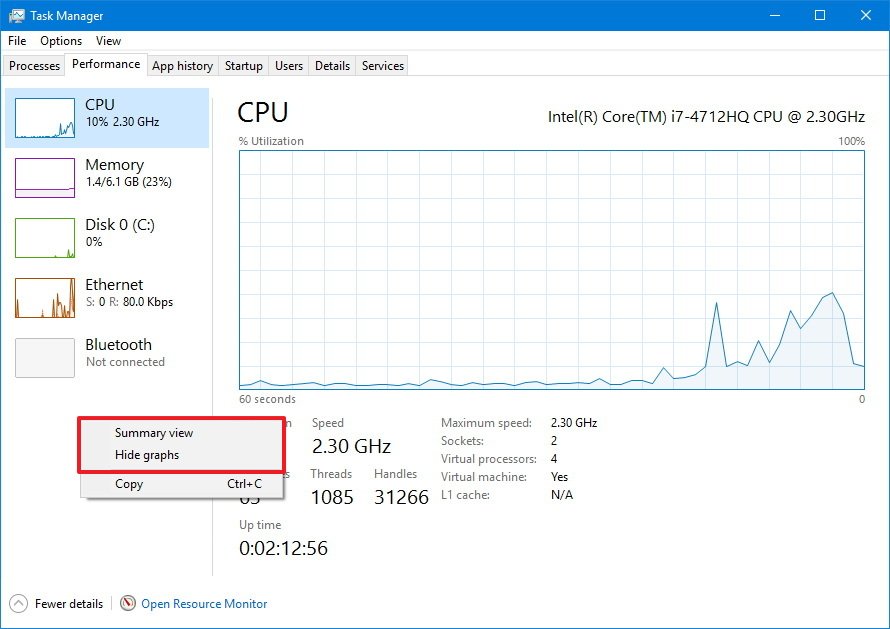
Your first stop should be your system's built-in monitoring tools. These give you a real-time look at what's happening under the hood. They show you which resources are being heavily utilized.
- For Windows: Open the Task Manager. You can usually do this by pressing
Ctrl + Shift + Escor right-clicking on the taskbar and selecting "Task Manager." Once open, click on the "Performance" tab. - For macOS: Open Activity Monitor. You'll find it in
/Applications/Utilities. Click on the "CPU," "Memory," and "Disk" tabs.
What you're looking for here are consistently high percentages. If your CPU or RAM is constantly near 100%, that's a big red flag. High disk activity, especially if you have a traditional Hard Disk Drive (HDD), can also indicate a problem.
Identifying Apps and Processes Hogging Power
Once you've checked the overall resource usage, switch to the "Processes" or "Applications" tab within Task Manager (Windows) or Activity Monitor (macOS). This view lists all the running programs and background processes. It also shows how much CPU, memory, disk, and even network bandwidth each is consuming.
Look for any unfamiliar applications or processes. Also, note any programs that are using a disproportionately high amount of resources. Sometimes, a web browser with too many tabs open can be a huge memory hog.
Other times, it's a program that crashed and isn't responding, still consuming resources in the background. If you spot a program you don't recognize or don't need, make a mental note. This information is crucial for the next steps in our plan.
Your Action Plan: Fixing Common Performance Hogs
Now that you've identified some potential culprits, it's time to take action. This section focuses on the most common software-related issues that drag down laptop speed. You don't need to be a tech wizard for these fixes.
We've organized these steps so you can tackle the most impactful changes first. Getting rid of unnecessary software and managing what starts with your laptop often provides the quickest results. Let's get started on decluttering your digital life.
Untangling Runaway Programs and Startup Apps
One of the biggest drains on performance comes from too many programs launching when your laptop starts up. Each of these adds to your boot time and consumes precious resources even if you aren't actively using them. Many applications automatically configure themselves to start with Windows or macOS.
- Disable Startup Programs (Windows): Open Task Manager (Ctrl+Shift+Esc), then go to the "Startup" tab. You'll see a list of applications and their "Startup impact." Right-click on any non-essential programs and select "Disable." Be cautious; don't disable critical system services.
- Manage Login Items (macOS): Go to System Settings (or System Preferences) > General > Login Items. Here, you can remove apps from the "Open at Login" list. You can also turn off "Allow in Background" for certain applications.
Uninstalling programs you no longer use is also key. On Windows, go to Settings > Apps > Apps & features. On macOS, simply drag the application from your Applications folder to the Trash.
This frees up disk space and stops background processes.
Freeing Up Precious Disk Space and Digital Clutter
Your laptop stores a lot of temporary files, old downloads, and system caches that aren't needed. These take up valuable storage space and can contribute to slow performance, especially if your drive is nearly full. Regularly cleaning these out is a simple yet effective maintenance task.
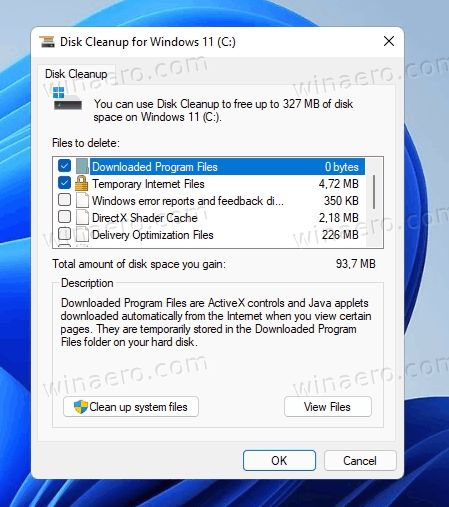
- Disk Cleanup (Windows): Search for "Disk Cleanup" in the Start menu. Select your main drive (usually C:). The utility will scan for files you can safely delete. Check boxes for "Temporary files," "Recycle Bin," and "Temporary Internet Files." You can also click "Clean up system files" for more options.
- Storage Management (macOS): Go to Apple menu > System Settings (or System Preferences) > General > Storage. macOS offers recommendations for optimizing storage, like storing files in iCloud or emptying the Trash automatically. You can also manually review "Documents" and "Applications" sections.
Emptying your Recycle Bin or Trash regularly is a quick win. Also, check your Downloads folder; it's often a graveyard of large, forgotten files.
Battling Malware, Adware, and Unwanted Software
Malicious software, including Malware, Adware, and potentially unwanted programs (PUPs), can severely impact your laptop's speed. They often run hidden in the background, consuming CPU, RAM, and network resources. This also poses a significant security risk.
Our research shows that a surprising number of users experience slowdowns due to unaddressed malware infections. Standard antivirus software is a good first line of defense, but sometimes you need a more focused approach.
- Run a Full System Scan: Use a reputable antivirus program to perform a comprehensive scan of your entire system. If you don't have one, consider installing a free, trusted option. Many organizations, such as the Cybersecurity & Infrastructure Security Agency (CISA) within the U.S. government, recommend using antivirus software as a basic security measure.
- Remove Adware/PUPs: Sometimes, ad-injecting software or browser hijackers slip past traditional antivirus. Look for standalone anti-malware tools that specialize in detecting and removing these types of threats. Always download these tools from official, trusted websites.
- Browser Check: Review your browser extensions and add-ons. Many malicious programs install unwanted extensions that track your activity or inject ads, slowing down your browsing experience. Remove any extensions you don't recognize or no longer need.
Beyond the Basics: Optimizing Your Operating System's Settings
Once you've cleared out the obvious performance hogs, it's time to dig a little deeper into your operating system's settings. These adjustments don't typically involve removing software, but rather tweaking how your Windows or macOS uses its resources. Making these changes can lead to noticeable improvements in responsiveness and overall system speed.
These are the kinds of optimizations that many users overlook. They can often provide significant gains without costing a penny. We'll guide you through some key areas to adjust.
Updating Drivers and System Files for Peak Efficiency
Outdated or corrupted device drivers are a common, yet often overlooked, cause of system slowdowns. Drivers are essential software that allows your operating system to communicate with your hardware components, like your graphics card, network adapter, or even your chipset. When these aren't up-to-date, your hardware might not be working as efficiently as it could.
- For Windows:
- Open Device Manager (right-click the Start button and select it).
- Expand categories like "Display adapters" or "Network adapters."
- Right-click on your devices and select "Update driver." While Windows Update often handles this, it's sometimes necessary to visit the laptop manufacturer's website directly (e.g., Dell Support, HP Support) for the very latest drivers.
- Run System File Checker (SFC Scan): Open Command Prompt as an administrator and type
sfc /scannow. This tool scans for and repairs corrupted Windows system files.
- For macOS: macOS usually handles driver updates through its regular system updates. Make sure you're always running the latest version of macOS. Go to System Settings (or System Preferences) > General > Software Update.
Keeping your system and drivers updated ensures optimal compatibility and performance. Manufacturer specifications often detail performance improvements from specific driver versions.
Tweak Your Power Plan and Visual Effects
Did you know your laptop's visual appearance and how it manages power can affect its speed? By default, most operating systems prioritize visual flair and balanced power usage. However, for maximum performance, you can make some adjustments.
- Adjust Power Plan (Windows):
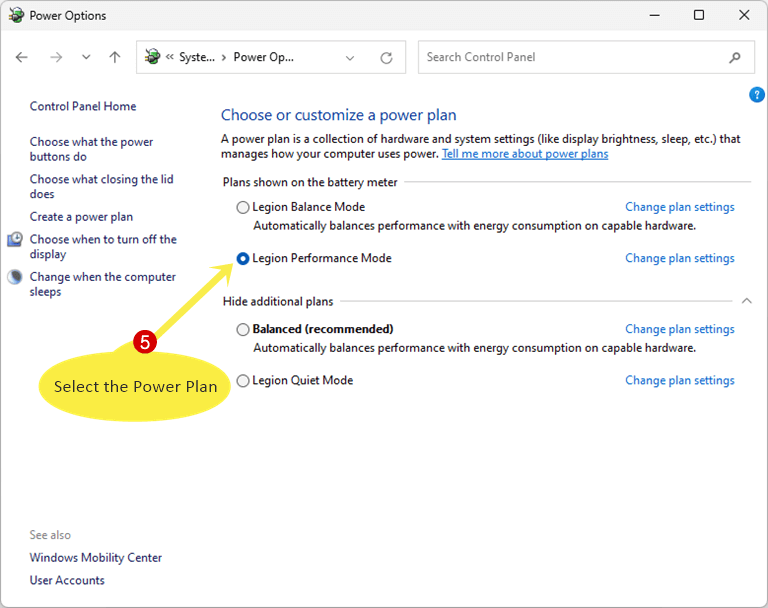
- Search for "Choose a power plan" in the Start menu.
- Select "High performance" if available, or click "Change plan settings" then "Change advanced power settings" to customize. For example, ensure "Processor power management" is set to 100% for both minimum and maximum processor state when plugged in. This ensures your CPU isn't artificially throttled.
- Adjust Visual Effects (Windows):
- Search for "Adjust the appearance and performance of Windows."
- In the "Visual Effects" tab, select "Adjust for best performance." This turns off animations, shadows, and other graphical flourishes that consume GPU and CPU cycles.
- Reduce Motion (macOS):
- Go to System Settings (or System Preferences) > Accessibility > Display.
- Check "Reduce motion" and "Reduce transparency." These settings reduce visual effects that use graphics resources.
These small changes might make your interface look a bit less flashy. However, they can free up valuable processing power, especially for older machines or integrated graphics.
Managing Virtual Memory and Paging File
Virtual memory, also known as the paging file (on Windows) or swap space (on macOS/Linux), is a critical part of how your operating system manages memory. When your laptop runs out of physical RAM, it temporarily stores data on your hard drive. This process is slower than using RAM, but it prevents crashes.
If your laptop consistently runs low on RAM, optimizing virtual memory can help prevent slowdowns.
- For Windows:
- Search for "Adjust the appearance and performance of Windows," then go to the "Advanced" tab.
- Under "Virtual memory," click "Change."
- Uncheck "Automatically manage paging file size for all drives."
- Select your system drive (usually C:), choose "Custom size," and set both the "Initial size" and "Maximum size" to 1.5 times your total physical RAM (in MB). For example, if you have 8GB RAM (8192 MB), set it to 12288 MB.
- For macOS: macOS manages virtual memory automatically, and it's generally not recommended to manually adjust it. The best way to optimize virtual memory on a Mac is to close unused applications and browser tabs, which reduces the need for swap file usage.
While manually tweaking virtual memory can sometimes help, it's usually a Band-Aid fix for insufficient RAM. If you frequently hit your virtual memory limit, it might signal that your physical RAM is simply not enough for your typical workload.
Smart Habits to Keep Your Laptop Humming Along
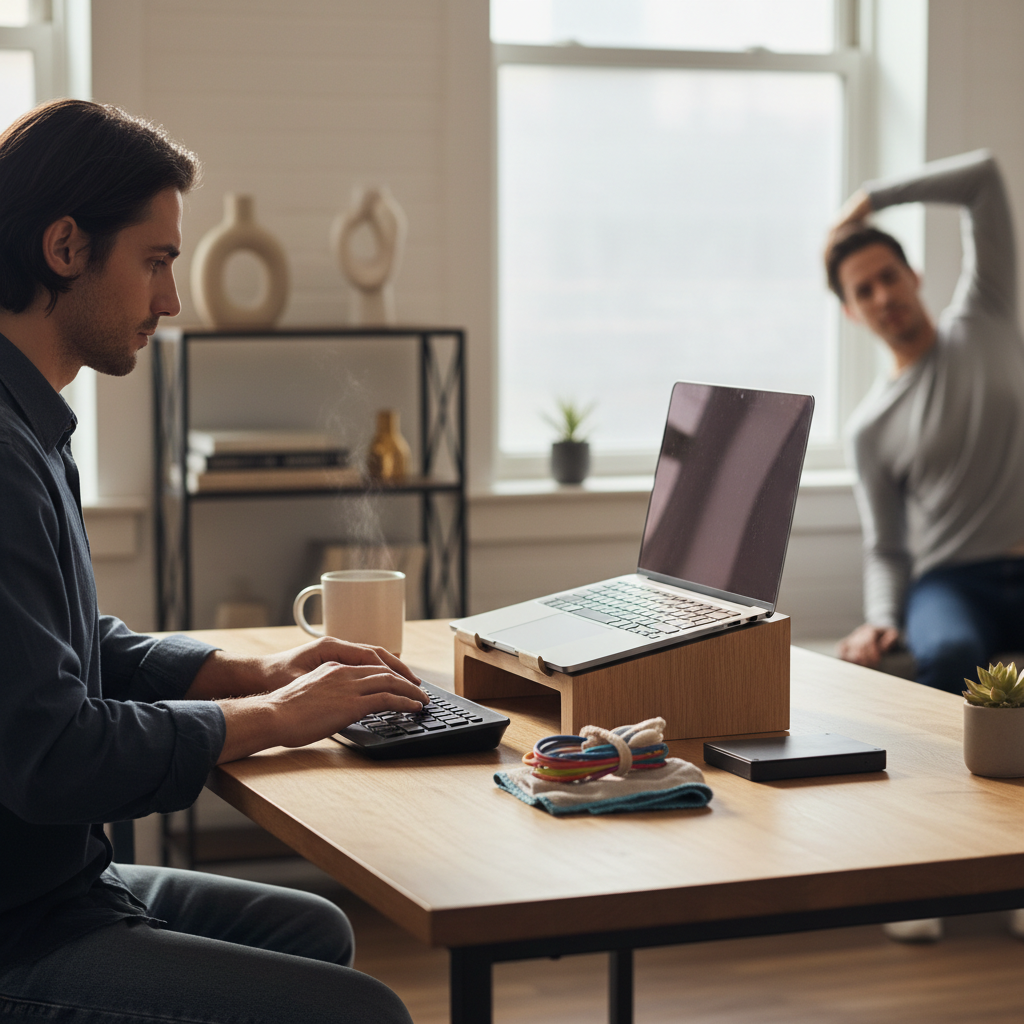
Making initial tweaks is great, but maintaining a fast laptop means adopting some smart habits. Just like regular cleaning keeps your home tidy, routine digital hygiene keeps your laptop performing well. These are ongoing practices that prevent slowdowns from building up again.
- Restart Regularly: A simple restart clears out temporary files, flushes RAM, and closes any lingering background processes that might be consuming resources. Aim for at least one restart every few days.
- Keep Software Updated: Regularly update your operating system, web browsers, and all installed applications. Updates often include performance enhancements and bug fixes.
- Mind Your Browser Tabs: Each open browser tab consumes RAM. Use browser extensions that suspend inactive tabs or make it a habit to close tabs you're not actively using.
- Organize Your Desktop: A cluttered desktop with many icons and files can consume resources and make your system slower, especially on startup. Keep your desktop clean.
- Be Selective with New Software: Only install applications you truly need and trust. Avoid "free" software bundles that often include bloatware or adware.
Avoid These Pitfalls: What NOT to Do When Speeding Up Your Laptop
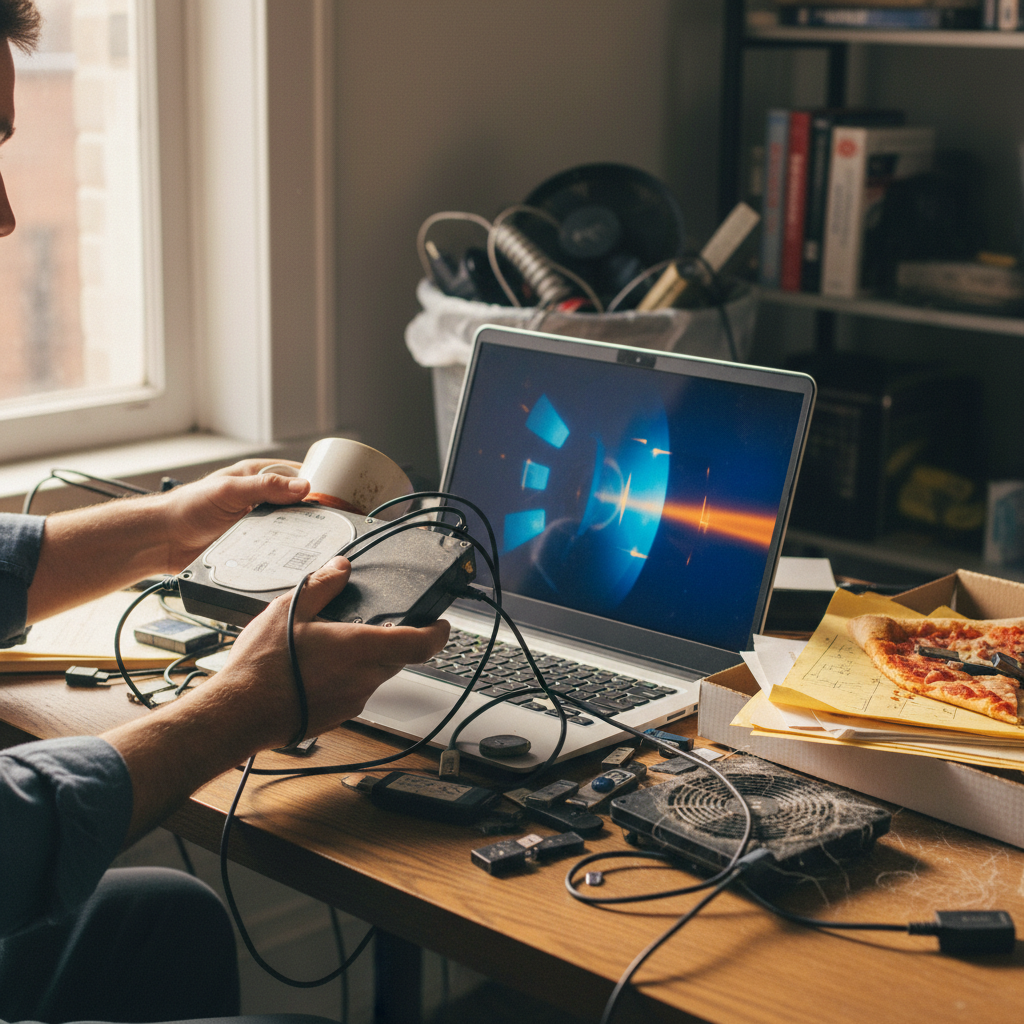
While there are many effective ways to speed up your laptop, there are also common mistakes that can cause more harm than good. It's important to approach optimization carefully to avoid system instability, data loss, or even introducing new security risks. Trustworthy advice is crucial here.
- Avoid Untrusted "PC Cleaner" or "Optimizer" Software: Many programs advertised as "PC speed optimizers" are often glorified bloatware themselves. They can install unwanted software, make unnecessary registry changes, or even contain malware. Stick to your operating system's built-in tools or well-known antivirus brands.
- Don't Delete Files Blindly: Never delete files or folders if you're unsure of their purpose. You could accidentally remove critical system files, leading to a non-bootable system or software malfunctions. When in doubt, leave it alone or research its function.
- Beware of "Free RAM" or "Memory Booster" Apps: These applications often promise to free up RAM but typically just move data from active RAM to virtual memory, which can actually slow down your system rather than speed it up. Your operating system is usually quite good at managing memory on its own.
- Don't Over-Defragment Solid State Drives (SSDs): If your laptop has an SSD, defragmenting it regularly is unnecessary and can reduce its lifespan. SSDs work differently than traditional HDDs; defragmentation doesn't improve performance and causes unnecessary write cycles. Windows automatically optimizes SSDs through a process called TRIM, not traditional defragmentation.
- Avoid Disabling Essential Services: While it's tempting to disable every non-essential service, some background processes are critical for system stability, security, or proper functionality. Disabling them could lead to unexpected errors or security vulnerabilities. If you're unsure about a service, it's best to leave it enabled.
Still Stuck in Slow Motion? Next Steps and FAQs

If you've gone through all the steps we've covered and your laptop is still painfully slow, don't despair. There are a few more avenues to explore, though they're more drastic. These options are often a last resort before considering hardware upgrades or a new machine.
They involve a more significant commitment of time and effort.
Considering a Full Operating System Reset or Reinstall
A fresh start can work wonders, and a full operating system reset or reinstall is the ultimate "clean slate." This wipes your hard drive and reinstalls your OS from scratch. It gets rid of all accumulated software, temporary files, and hidden conflicts that might be causing slowdowns.
- Before you begin: Back up all your important files. This includes documents, photos, videos, and any downloaded software installers. A reset will delete everything on your primary drive.
- For Windows: Go to Settings > System > Recovery. Under "Recovery options," select "Reset this PC." You'll usually have an option to keep your personal files, but choosing "Remove everything" for a truly fresh start is best for performance.
- For macOS: Boot into macOS Recovery (restart while holding Command + R). From the utilities window, select "Reinstall macOS." This downloads and installs a fresh copy of your operating system.
A full reinstall can often bring an old laptop back to near-new performance levels. It's a time-consuming process, but it can be incredibly effective when all else fails.
When to Consider Professional Help
Sometimes, despite your best efforts, you might encounter issues you can't resolve on your own. That's perfectly normal. There are situations where professional help is the safest and most efficient path.
- Persistent Malware: If aggressive malware keeps returning, a professional might have specialized tools to remove it completely without data loss.
- Suspected Hardware Failure: If you suspect a hardware component, like your Hard Disk Drive (HDD), might be failing, a technician can diagnose it accurately. Signs might include unusual clicking noises or frequent system crashes.
- Complex System Errors: If you're encountering cryptic error messages or your operating system is unstable even after a reset, a professional can troubleshoot deeper issues.
Always choose a reputable service provider. They can often provide insights into hardware limitations, guiding your decision if a software fix isn't enough.
FAQs
Why do laptops get slow over time?
Laptops slow down due to accumulating software, background processes, filled storage, fragmented hard drives, and outdated software drivers. Digital clutter and resource-intensive applications demand more from older hardware.
Is it worth speeding up an old laptop?
Yes, it's often worth speeding up an old laptop. Software optimizations can significantly extend its useful life. This saves money by delaying the need for a new purchase.
How often should I perform laptop maintenance?
Aim for monthly maintenance checks. Clear temporary files, update software, and review startup programs. Run an antivirus scan at least once a week.
Will factory resetting my laptop make it faster?
Yes, a factory reset typically makes a laptop faster. It removes all installed applications and user data, providing a clean slate. This eliminates software conflicts and resource hogs.
Can a slow internet connection make my laptop feel slow?
Yes, a slow internet connection can make your laptop feel slow. Web browsing, streaming, and cloud-based applications will load slowly. This often gets mistaken for overall system sluggishness.
Should I defrag my SSD to speed it up?
No, do not defragment an SSD to speed it up. Defragmentation reduces the lifespan of an SSD and offers no performance benefit. SSDs use different optimization methods like TRIM.

Similar Posts