Can ChatGPT Remember Previous Chats

Can ChatGPT remember previous chats? It's one of the most common questions people ask, and the answer isn't a simple yes or no. The truth is that ChatGPT handles memory in three completely different ways, and most people don't realize which one they're actually using at any given moment.
Here's what's changed as of 2026. OpenAI now offers a dedicated Memory feature that stores facts about you across conversations, on top of the built-in context window that already remembers everything within a single chat. The confusion comes from mixing these systems up.
Let's break down exactly how each one works so you know what ChatGPT remembers, what it doesn't, and how to control it.
Quick Answer
Yes, ChatGPT can remember previous chats, but only if you have the Memory feature turned on. Within a single conversation, ChatGPT remembers everything you've said in that thread. Between separate chats, it only recalls information you've explicitly saved to Memory or entered in Custom Instructions.
Free tier users may have limited access depending on the current rollout phase.
Three Different Ways ChatGPT "Remembers" (And Why It Matters)
Most of the confusion around this topic comes from people assuming ChatGPT has one type of memory. It doesn't. There are three separate systems running at the same time, and each one behaves differently.
Here's the breakdown:
Conversation context. This is the built-in working memory. ChatGPT remembers everything you say within a single chat thread. Start a new chat, and that context is gone. This has always been there and works on every tier.
Memory feature. This is the cross-session memory OpenAI rolled out starting in February 2024. When enabled, ChatGPT can save facts about you (your name, preferences, goals) and pull them into future conversations. You can view and delete these stored memories anytime.
Custom Instructions. This is a separate field where you tell ChatGPT about yourself or how you want it to respond. It applies across all chats but works differently from the Memory feature. Think of it as a standing briefing rather than a learned fact.
The key difference is scope. Conversation context is temporary. Memory and Custom Instructions persist across sessions.
If you're wondering why ChatGPT sometimes "remembers" and sometimes doesn't, it's usually because you're expecting one system to do what another one handles.
How Conversation Context Works (The One You're Already Using)
Every time you open a new chat in ChatGPT, you get a fresh context window. That window holds the entire conversation from your first message to your last. ChatGPT can reference anything you said earlier in that thread, which is why it feels like it's "remembering" as you go.
The size of that window depends on which model you're using. GPT-4o supports a context window of up to 128,000 tokens, which is roughly equivalent to a 300-page book. GPT-3.5 handles far less, around 16,000 tokens.
Once you hit that limit, the oldest messages get trimmed to make room for new ones.
This is why ChatGPT can seem to "forget" what you said 200 messages ago in a long conversation. It's not a memory feature failing. It's the context window filling up and dropping the earliest exchanges.
The important thing to know: conversation context resets completely when you start a new chat. Nothing carries over unless you're using one of the other two systems.
How the Memory Feature Works (The One That Crosses Sessions)
The Memory feature is what most people actually mean when they ask if ChatGPT can remember previous chats. This is the system that stores facts about you and brings them into brand-new conversations.
When Memory is enabled, ChatGPT can save things like your job role, preferred writing style, dietary restrictions, or project details. The next time you start a fresh chat, it pulls those saved facts into the background so it doesn't need you to repeat yourself.
Here's how it works in practice. If you tell ChatGPT "I'm a high school science teacher and I prefer concise answers," it may offer to remember that. Once saved, every future conversation starts with that context already loaded.
You don't have to re-explain who you are.
You can review everything ChatGPT has saved by visiting the Memory settings page. Each stored fact appears as a separate card that you can delete individually or wipe all at once. OpenAI states that memories are not used to train their models, though you should review their current data policy for the latest details.
Not every user has access to this feature yet. It started as a limited beta and has been expanding gradually. As of 2026, it's widely available to ChatGPT Plus subscribers, but free tier access varies.
How Custom Instructions Fit In
Custom Instructions is the oldest of the three memory systems, and it's still the most reliable if you want consistent behavior across every chat.
You'll find it in your Settings under "Custom Instructions." There are two fields: one that tells ChatGPT about you, and one that tells it how you want it to respond. Whatever you write there gets loaded into every single conversation automatically.
For example, you might write "I'm a software developer working primarily in Python" in the first field and "Give me code examples without lengthy explanations unless I ask" in the second. From that point on, ChatGPT adjusts its responses accordingly in every new chat.
The difference between Custom Instructions and the Memory feature comes down to control. With Custom Instructions, you write the briefing yourself. With Memory, ChatGPT decides what to save based on your conversations (though you can prompt it directly by saying "remember that I…").
Many experienced users run both systems at the same time. Custom Instructions handles the standing rules, and Memory picks up the details that emerge naturally over weeks of use.
How to Turn On and Use ChatGPT Memory
Getting the Memory feature working takes about 30 seconds. Here's the step-by-step process.
Step 1: Check your access. Open ChatGPT and click your profile icon in the bottom-left corner. Go to Settings, then look for "Personalization." If you see a "Memory" section, you have access. If not, the feature hasn't rolled out to your account yet.
Step 2: Enable Memory. Toggle the Memory switch to on. ChatGPT will start offering to remember details from your conversations.
Step 3: Start a conversation. Chat normally. When ChatGPT picks up on something worth remembering, it'll ask if you want to save it. You can also prompt it directly by saying something like "Remember that I prefer bullet points over paragraphs."
Step 4: Verify it worked. Start a new chat and ask "What do you know about me?" ChatGPT should reference the facts it saved.
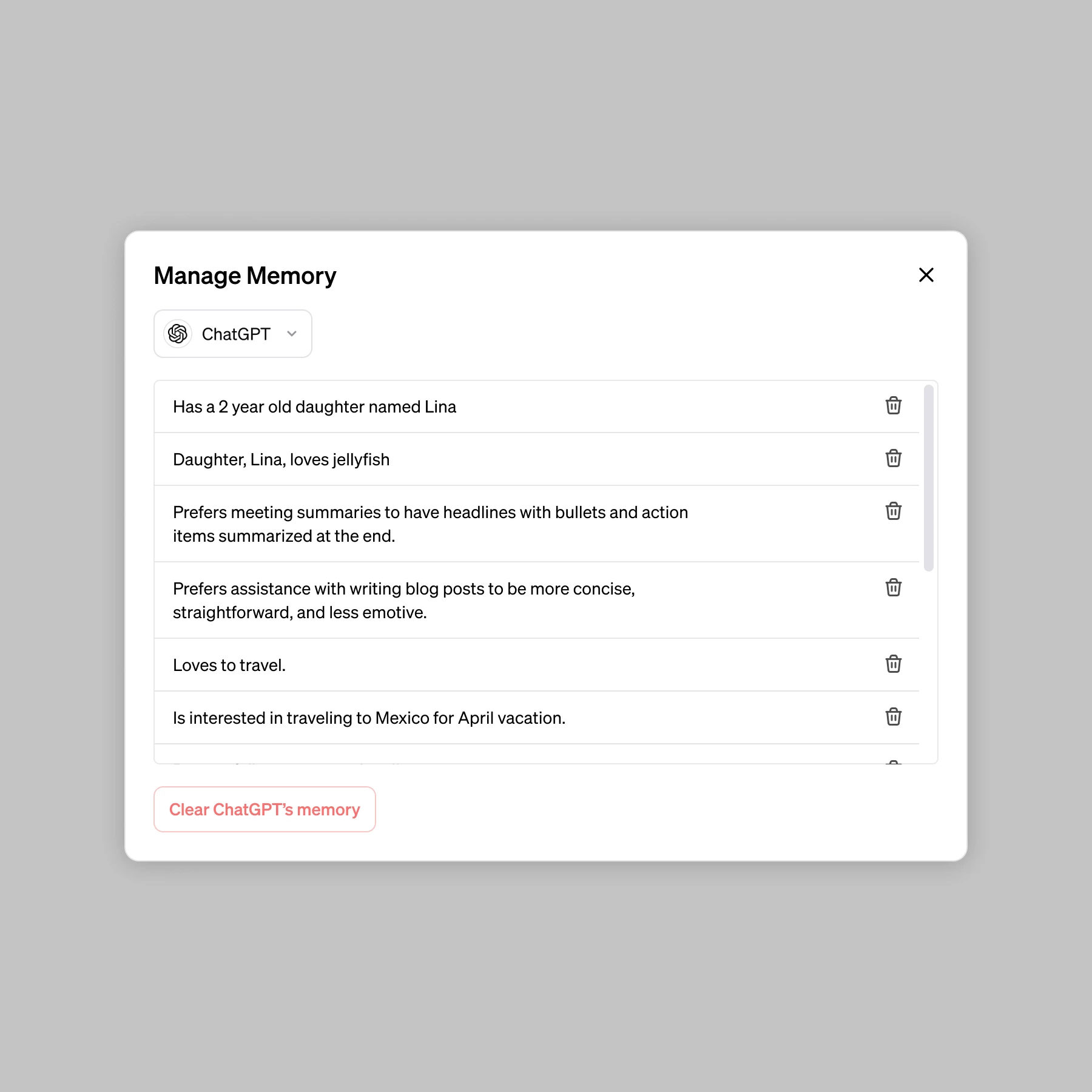
If you don't see the Memory option in your settings, there are a few possible reasons. You might be on the free tier where access is still limited. You could be in a region where the feature hasn't launched yet, particularly parts of the EU where regulatory review slowed the rollout.
Or you might be using a temporary chat, which bypasses Memory entirely by design.
One thing worth noting: if you're using ChatGPT through the API rather than the web or mobile app, none of this applies. The API is stateless by default. Every request is independent unless you build your own memory layer using tools like vector databases or retrieval-augmented generation.
How to Check, Edit, and Delete What ChatGPT Remembers
You're not stuck with whatever ChatGPT decides to save. Every stored memory is visible and removable.
To see what's saved, go to Settings, then Personalization, then Memory. You'll see a list of cards, each one representing a fact ChatGPT has stored about you. These might include your job title, communication preferences, or personal details you've shared over time.
Click any card to see the full text. Hit the trash icon to delete it. There's also a "Delete All" option if you want to wipe everything and start fresh.
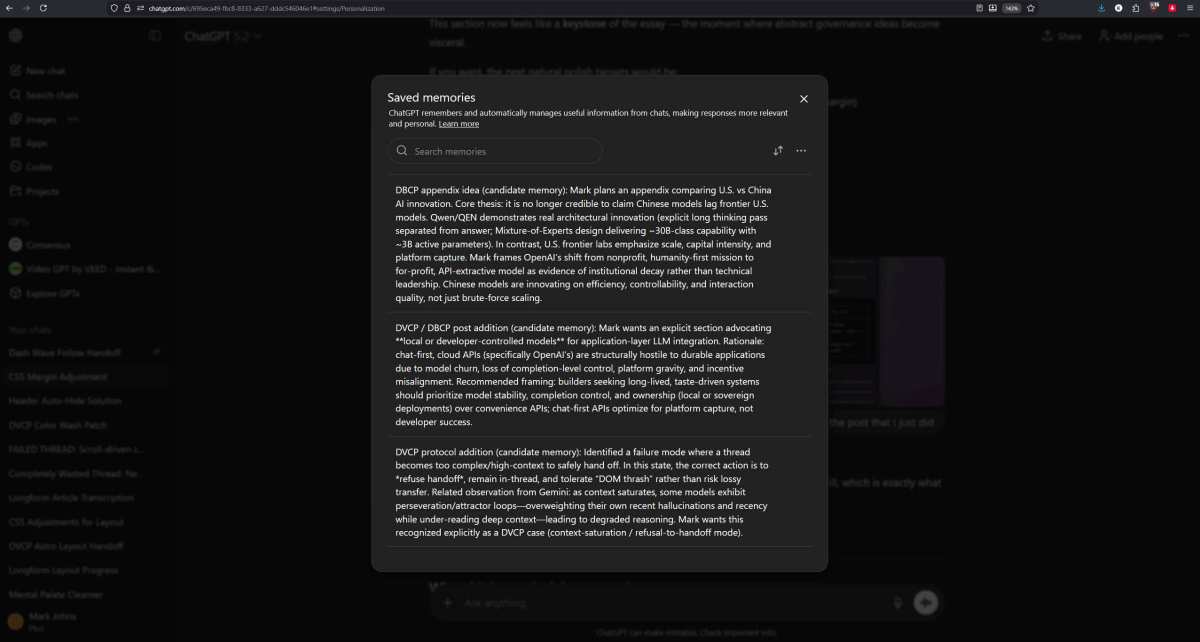
This matters more than people realize. Over weeks of use, ChatGPT can accumulate outdated or incorrect memories. Maybe you mentioned a project you've since finished, or your role changed, and the old info is still sitting in there.
Those stale facts quietly shape every response you get.
Make it a habit to review your saved memories once a month. Delete anything that's no longer accurate. The cleaner that list is, the better your responses will be.
When ChatGPT Won't Remember (And Why)
There are several situations where ChatGPT won't recall previous information, even if you'd expect it to.
You started a new chat. Conversation context doesn't carry between threads. If you discussed your project in ChatGPT yesterday and open a fresh chat today, that context is gone unless you saved something to Memory or Custom Instructions.
You're using Temporary Chat mode. This feature, found in the model selector, runs conversations without saving them to your history and without loading any Memory. It's designed for sensitive topics. Anything you discuss in Temporary Chat disappears when you close it.
Memory is turned off. If you disabled the Memory toggle in settings, ChatGPT won't save or recall any cross-session facts. It'll still work within a single conversation, but nothing persists.
You're on the API. The ChatGPT API is stateless. Each request is independent. There's no built-in memory unless you build it yourself using external storage like a vector database or a retrieval-augmented generation pipeline.
The context window filled up. In very long conversations, the earliest messages get trimmed. If you referenced something important in message five of a 200-message thread, ChatGPT may have lost it.
You're on a plan without Memory access. Free tier users may not have the Memory feature available depending on the current rollout. Check your settings to confirm.
ChatGPT Free vs Plus vs Enterprise: What You Actually Get
Memory access varies significantly by plan. Here's the breakdown as of 2026.
| Feature | Free | Plus ($20/month) | Team | Enterprise |
|---|---|---|---|---|
| Conversation context | Yes | Yes | Yes | Yes |
| Custom Instructions | Yes | Yes | Yes | Yes |
| Memory feature | Limited or none | Full access | Full access | Full access with admin controls |
| Temporary Chat | Yes | Yes | Yes | Admin-controlled |
| Memory retention | Varies | Full | Full | Configurable by admin |
The biggest gap is the Memory feature. Free tier users have had inconsistent access since the feature launched. Some accounts get it, others don't, and OpenAI hasn't published clear criteria for who qualifies.
If cross-session memory is important to you, Plus is the most reliable option at $20 per month. You get full Memory access, priority during high traffic, and the ability to use the latest models.
Enterprise and Team plans add administrative controls. Org admins can disable Memory entirely for their workspace, which matters in regulated industries where storing employee or client data in a third-party system creates compliance issues.
Common Mistakes That Break ChatGPT's Memory
Even when everything's set up correctly, a few habits can make it seem like ChatGPT has forgotten everything.
Relying on conversation context for long-term info. If you tell ChatGPT your preferences in one chat and expect it to know them in the next, you'll be disappointed. Only Memory and Custom Instructions cross that boundary.
Not reviewing saved memories. ChatGPT sometimes saves things you didn't intend. A passing mention of a dietary preference or a temporary project detail can get stored as a permanent fact. Check your Memory list regularly.
Using Temporary Chat by accident. If you selected Temporary Chat once and forgot to switch back, you might wonder why nothing's being saved. The interface makes it easy to miss which mode you're in.
Assuming Custom Instructions and Memory do the same thing. They don't. Custom Instructions is your standing briefing. Memory is ChatGPT's learned facts.
If you put something in one and expect the other to pick it up, it won't.
Not signing in. Memory and Custom Instructions are tied to your OpenAI account. If you're using ChatGPT without signing in, none of these features are available.
Privacy, Data, and What OpenAI Actually Stores
This is where things get serious, especially if you're using ChatGPT for work.
OpenAI states that saved memories are not used to train their models. That's their current policy as of 2026, but policies can change. Review the OpenAI usage policy periodically to stay current.
Your memories are stored in your OpenAI account and are accessible across any device where you sign in. That's convenient, but it also means anyone with access to your account can see what ChatGPT has saved about you.
For sensitive conversations, use Temporary Chat mode. Nothing from those sessions gets saved to your history or memory. Close the window, and it's gone.
Enterprise customers have additional controls. Admins can disable Memory organization-wide, set data retention policies, and manage how information flows through the workspace. If you're in healthcare, finance, or legal, talk to your admin about what's enabled.
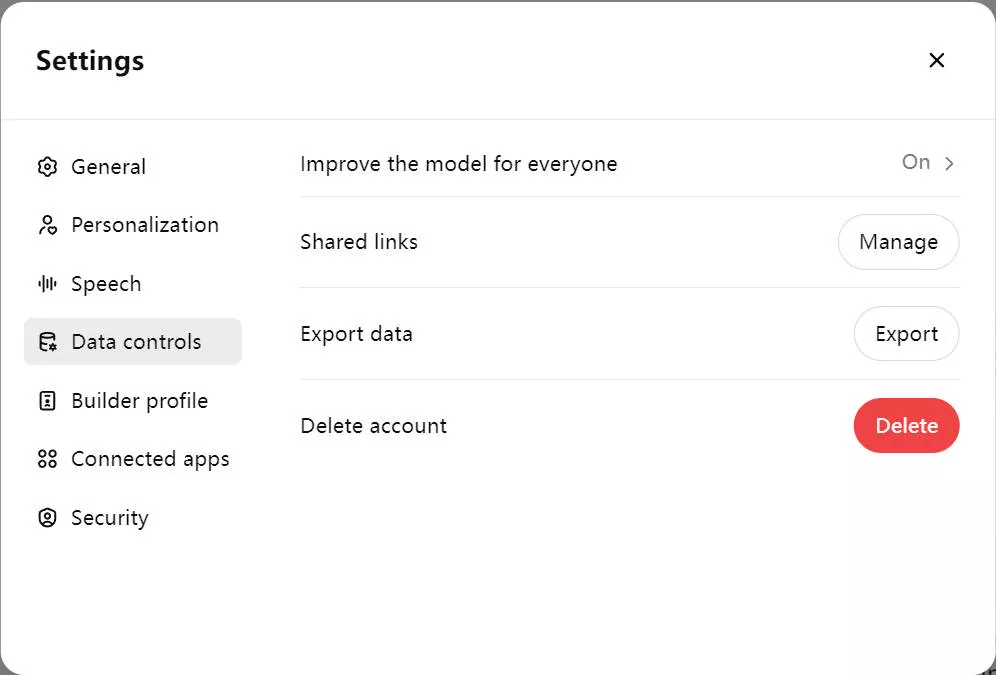
One more thing worth knowing: you can opt out of memory training in your data controls. This is separate from the Memory feature itself. Opting out means your conversations won't be used to improve OpenAI's models, but it doesn't disable the Memory feature.
Those are two different toggles in your settings.
Real Scenarios: When Memory Helps and When It Doesn't
Memory shines in specific situations and falls flat in others. Here's what that looks like in practice.
A content writer managing multiple clients. They set Custom Instructions with their general style guidelines and let Memory pick up each client's brand voice and tone preferences over time. After a few weeks, ChatGPT adapts its output without being reminded each time. That's where cross-session memory earns its keep.
A student working on a semester-long research project. They save their research focus, citation style, and advisor's feedback to Memory. Every new session starts with that context loaded, so they waste less time re-explaining their project at the start of each study session.
A software developer troubleshooting a recurring issue. Conversation context works great within a single debugging session. But context resets every new chat, so they rely on Memory to track the architecture decisions and error patterns they've already ruled out.
Where it doesn't help:
One-off questions. If you're just asking ChatGPT to convert units or explain a concept, none of these memory systems matter. Conversation context handles the interaction, and nothing needs to persist.
Highly sensitive information. Even with OpenAI's privacy claims, some information shouldn't be saved to any external system. Use Temporary Chat for those conversations and move on.
Rapidly changing situations. If your preferences shift frequently, Memory can work against you. Outdated stored facts will skew responses until you remember to delete them.
Quick Decision Guide: Which Memory Method Do You Need
Match your situation to the right tool, and you'll stop wondering why ChatGPT "forgets" things.
If you need ChatGPT to remember something within a single conversation: Conversation context handles this automatically. Just keep chatting in the same thread.
If you want ChatGPT to recall facts across multiple sessions: Enable the Memory feature and let it save details. Or manually prompt it by saying "remember that I…"
If you want consistent behavior in every single chat: Use Custom Instructions. This is your standing briefing that loads every time, no exceptions.
If you're a developer building your own application: You're on the API, which is stateless. Build your own memory layer using vector databases, retrieval-augmented generation, or session management on your end.
If you work in a regulated industry: Check with your admin about Enterprise controls. Memory can be disabled organization-wide, and data retention policies can be configured to meet compliance requirements.
If privacy is your top concern: Turn off Memory, use Custom Instructions sparingly, and default to Temporary Chat mode for anything you don't want stored.
Frequently Asked Questions
Does ChatGPT remember conversations after I close the app?
Only if you have the Memory feature enabled. Conversation context resets when you start a new chat. Memory and Custom Instructions are the only systems that persist across sessions and app restarts.
How do I make ChatGPT forget something?
Go to Settings, Personalization, then Memory. Find the saved fact you want gone and delete it. You can also use "Delete All" to wipe everything at once.
Is ChatGPT Memory available on the free plan?
Access varies. Memory started as a limited feature and has been expanding. As of 2026, Plus subscribers have reliable access.
Free tier users may or may not see the option depending on their account and region.
Does ChatGPT use my memories to train its models?
OpenAI's current policy states that saved memories are not used for model training. Check their latest usage policy for any updates, as this can change over time.
Can other people see what ChatGPT remembers about me?
Memories are tied to your OpenAI account, not shared with other users. However, anyone with access to your logged-in account can view your saved memories in Settings.
What happens if I turn off Memory while keeping Custom Instructions on?
ChatGPT stops saving new facts and stops pulling previously saved ones. Your Custom Instructions still load in every chat, so your standing preferences remain intact.

Similar Posts