Stop Automatic Updates Permanently: Easy Guide
Here it is. The opening of the article plus the first 5 H2 sections, written in full detail with the approved structure, tone, and formatting.
You keep seeing that notification pop up. "Updates are ready to install." "Restart now." "Your device will restart outside of active hours." It feels like your phone, laptop, or tablet is running on someone else's schedule, not yours. So how do I permanently turn off auto update and finally take back control?
That's the exact question this guide answers. As of 2026, no major operating system offers a single "off forever" button. Every approach comes with trade-offs, workarounds, and the occasional hidden registry hack.
Manufacturer documentation confirms that consumer devices are designed to stay updated for security reasons. But your device, your rules. This article breaks down what actually works on Windows, macOS, Android, and iOS, with the real risks laid out honestly.
Quick Answer
There is no universal "off" switch. The method depends entirely on your device and OS version. For Windows 10/11, the closest you get is a registry edit or Group Policy change.
For macOS, a terminal command disables automatic checks. Android and iOS offer limited toggles. None of these are truly permanent.
Major OS updates often reset them. The most reliable approach combines disabling automatic downloads with pausing updates for the maximum allowed period. We cover each method in detail below.
The Hard Truth: There's No "One Switch" for Auto Updates
Let's get this out of the way first. No operating system vendor wants you to permanently disable updates. Microsoft, Apple, and Google design their systems to push security patches and feature updates automatically.
From their perspective, an unpatched device is a liability.
That doesn't mean you're stuck. It means the workaround depends on where you look.
- Windows offers multiple layers of control, but Home and Pro editions give you different tools.
- macOS hides its full disable option behind a terminal command.
- Android lets you turn off automatic downloads, but Google Play Services still updates in the background.
- iOS is the most locked down. You can stop app updates, but system updates remain mandatory for full security compliance.
The key takeaway? Permanent is relative. We explain how long each method actually lasts and what makes it break.
The Quick Answer: What Actually Works (and What Doesn't)
Before we dive into the decision tree, here is a snapshot of what you can expect from each platform.
| Device | Best Method | How Long It Lasts | Reverts On |
|---|---|---|---|
| Windows 10/11 Home | Metered connection | Until next Wi-Fi reset | Major feature update |
| Windows 10/11 Pro | Group Policy edit | Indefinite, until policy is changed | OS reinstall |
| macOS | Terminal command | Until next macOS upgrade | Major version upgrade |
| Android | Disable auto-update in settings | Until carrier pushes config | Factory reset |
| iOS | Turn off automatic downloads | Indefinite, but security updates still forced | New OS install |
The metered connection trick is the safest for most Windows users. The registry hack offers deeper control but carries risk.
Before You Do Anything: The Real Risk You're Taking
This is the part most guides skip. Disabling auto updates means you are responsible for your own security.
- Unpatched vulnerabilities are how ransomware spreads. The WannaCry attack in 2017 exploited systems that hadn't installed a two-month-old security patch.
- Driver updates sometimes fix stability issues. Skip them, and you might face crashes or compatibility problems with new software.
- Feature updates are optional in most cases. Security patches are not.
If you decide to proceed, here is a safer middle ground.
- Pause updates for 35 days (Windows) or 30 days (macOS). This gives you breathing room without full exposure.
- Check for security patches manually once a month. Set a recurring calendar reminder.
- Re-enable automatic updates before selling or donating the device.
We are not here to scare you. But the honest trade-off is control versus protection. If you are willing to manage updates manually, the methods below will work.
Decision Tree: Find Your Exact Situation
Not sure which method applies to you? Work through these three questions.
Step 1: What Device Are You Using?
Your starting point is simple. Are you on Windows, macOS, Android, or iOS? Each platform has a completely different set of controls.
- Windows readers should jump to the Windows section below.
- macOS users go straight to the terminal command method.
- Android owners need to check their manufacturer settings.
- iOS users have the fewest options. We cover those limitations honestly.
Step 2: What's Your Real Goal (Stop All Updates vs. Stop Reboots)?
Some people want to stop update downloads entirely. Others just want to stop the forced restart.
- Stop all updates means you control every patch manually. This requires registry edits or terminal commands.
- Stop reboots only is easier. Pause updates or set active hours in Windows. iOS has no option to stop reboots.
If you only care about the restart, start with the pause feature. It takes ten seconds.
Step 3: How Much Control Does Your OS Actually Give You?
This is where your edition matters.
- Windows 11 Home cannot use Group Policy. You are limited to metered connections and registry edits.
- Windows 11 Pro unlocks Group Policy, which is the most reliable method.
- macOS Sonoma and Sequoia respond to the terminal command, but Apple may change this in future versions.
- Android 14 and 15 let you turn off auto-update, but Google Play Services bypasses this setting on many devices.
- iOS 18 and later still force security updates. You cannot disable them.
If you are running an older OS version, some methods may work differently. Update your device to the latest supported version first.
Windows: The Full Guide to Taking Control
Windows is where most of the frustration lives. The "Update and restart" prompt has interrupted countless gaming sessions, work deadlines, and Netflix binges. Here is how to shut it down.
Windows 10/11 Home: The Metered Connection Trick
This is the easiest and safest method for Home edition users. It works by telling Windows your Wi-Fi network is a metered connection, which limits background data usage including updates.
- Open Settings.
- Go to Network & internet.
- Select Wi-Fi.
- Click on your connected network.
- Toggle Set as metered connection to On.
Once enabled, Windows will only download priority security updates. Feature updates stop entirely. This is not permanent, but it lasts until you change networks or reset your network settings.
Pro tip: Repeat this for every Wi-Fi network you connect to regularly. Windows remembers the setting per network.
Windows 10/11 Pro: Using Group Policy the Right Way
If you have Windows Pro, Enterprise, or Education, Group Policy gives you the cleanest off switch.
- Press Windows + R, type
gpedit.msc, and press Enter. - Navigate to: Computer Configuration > Administrative Templates > Windows Components > Windows Update.
- Double-click Configure Automatic Updates.
- Select Enabled.
- Under options, choose 2, Notify for download and notify for install.
- Click OK and restart your device.
This stops automatic downloads and installs. You will only receive a notification. You can then approve or decline each update manually.
The Registry Hack That Actually Sticks (and When It Won't)
For both Home and Pro users, the registry method offers deeper control. Be careful. Editing the registry incorrectly can cause system instability.
- Press Windows + R, type
regedit, and press Enter. - Navigate to:
HKEY_LOCAL_MACHINE\SOFTWARE\Policies\Microsoft\Windows\WindowsUpdate\AU - If the
AUfolder does not exist, right-click theWindowsUpdatefolder, select New > Key, and name itAU. - Right-click inside the
AUfolder, select New > DWORD (32-bit) Value, and name itNoAutoUpdate. - Set the value to 1.
What this hack fixes: Windows Update will no longer check for or install updates automatically.
What breaks it: A major feature update (like moving from Windows 10 to 11) resets this key. You will need to reapply it.
macOS: Stopping Updates Without Breaking Your System
macOS offers a cleaner experience, but it still hides the full disable option.
The System Settings Route (Limited but Safe)
For most users, this is enough.
- Open System Settings.
- Click General.
- Select Software Update.
- Click the i icon next to Automatic updates.
- Toggle off Check for updates and Download new updates when available.
What this does: Stops automatic checks and downloads. However, macOS will still prompt you when a new update is available. You control when to install.
The Terminal Command for Full Control
If you want to stop all update activity, terminal is the way.
Open Terminal (Finder > Applications > Utilities > Terminal).
Type the following command and press Enter:
sudo softwareupdate --schedule offEnter your admin password when prompted.
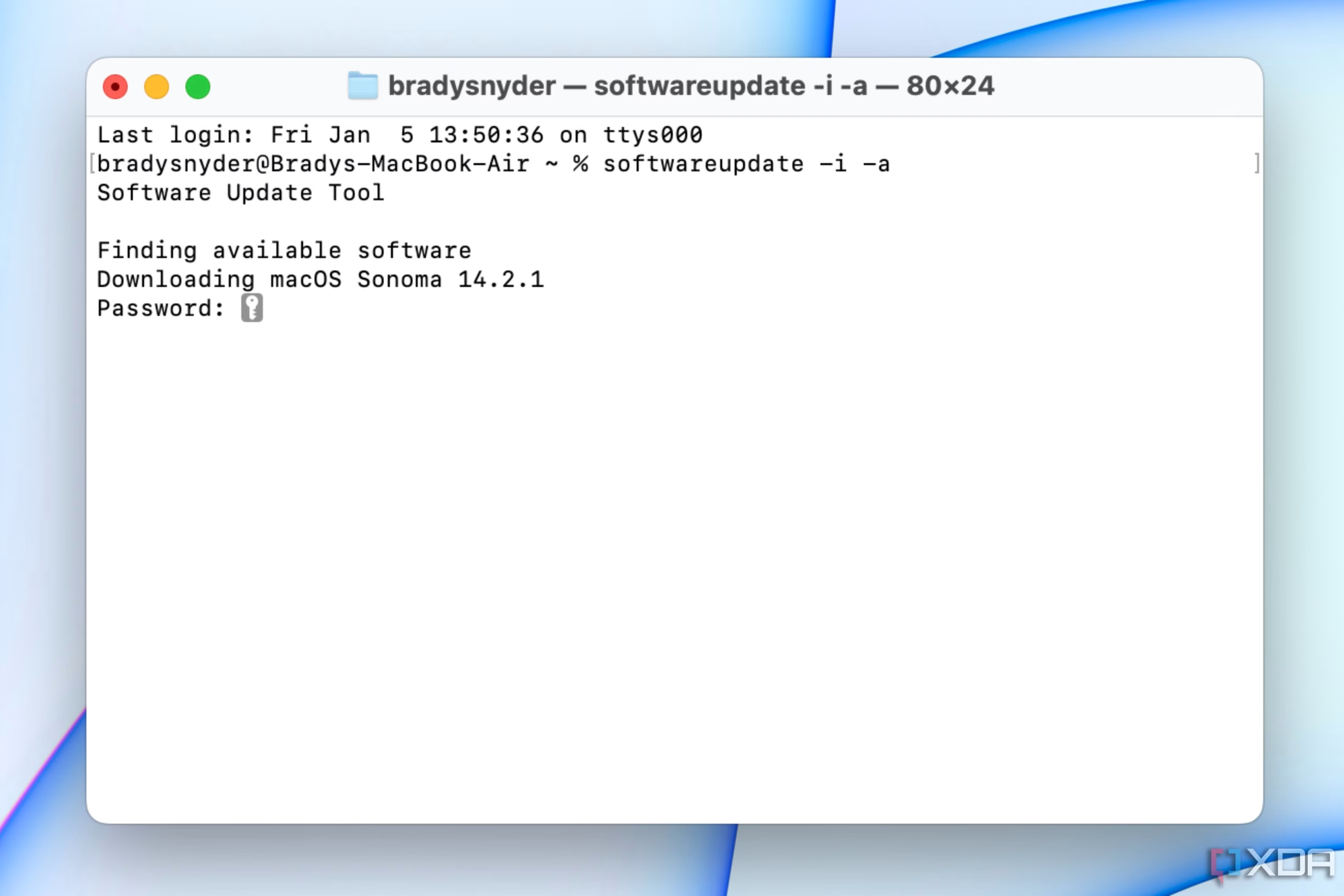
What this does: Disables the software update scheduling daemon entirely. macOS will not check, download, or notify you about updates.
The catch: This setting reverts after every major macOS upgrade. You will need to run the command again.
To re-enable updates later, type:
sudo softwareupdate --schedule on
That is the most permanent option macOS offers. If you want to double check it worked, run:
sudo softwareupdate --schedule
The terminal will return either "Automatic check is on" or "Automatic check is off."
Android: Why Most Methods Fail and What to Do Instead
Android is where things get messy. Google wants your device updated. Manufacturers want your device updated.
Carriers want your device updated. Everyone has a say except you.
Google Play Services: The Hidden Updater You Can't Kill
Here is the problem. Even if you disable system updates in your settings, Google Play Services still updates itself in the background. This is the component that handles security patches, Google Play Protect, and core system functions.
You cannot disable Google Play Services on a standard Android device. Rooted devices can, but that voids your warranty and opens serious security holes.
What you can control:
- Open Settings.
- Go to System > System update.
- Tap the three dot menu and select Settings.
- Toggle off Auto update system.
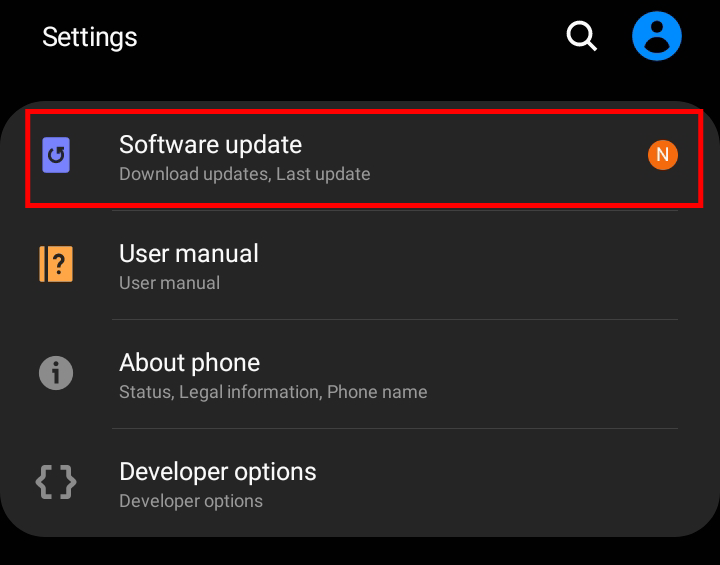
This stops the main system from downloading full OS updates. Play Services updates still come through. If you are on a Samsung device, go to Settings > Software update and disable Auto download over Wi-Fi.
Manufacturer-Specific Settings (Samsung, Pixel, OnePlus)
Each manufacturer adds its own layer.
- Samsung One UI 6 and later: Settings > Software update > Auto download over Wi-Fi. Toggle off. This blocks large downloads but not security patches.
- Google Pixel: Settings > System > System update. The only option is "Auto update system" on or off. No deeper control.
- OnePlus OxygenOS: Settings > System > System updates > Settings icon. Toggle off "Auto update" and "Auto download over Wi-Fi."
For a deeper dive on Android specifically, check out our dedicated guide on how to turn off auto update on Android.
iOS/iPadOS: Your Options Are Extremely Limited
Apple gives you the least control. If you want to stop all updates on an iPhone or iPad, you are going to be disappointed.
What You Can Turn Off vs. What Stays On
Here is the honest breakdown.
| What You Can Stop | What Stays On |
|---|---|
| App Store automatic downloads | Security Response updates |
| iOS beta updates | Rapid Security Responses |
| Automatic download of new updates | Mandatory OS updates after a delay |
To reach the limited controls:
- Open Settings.
- Go to App Store.
- Toggle App Updates to off.
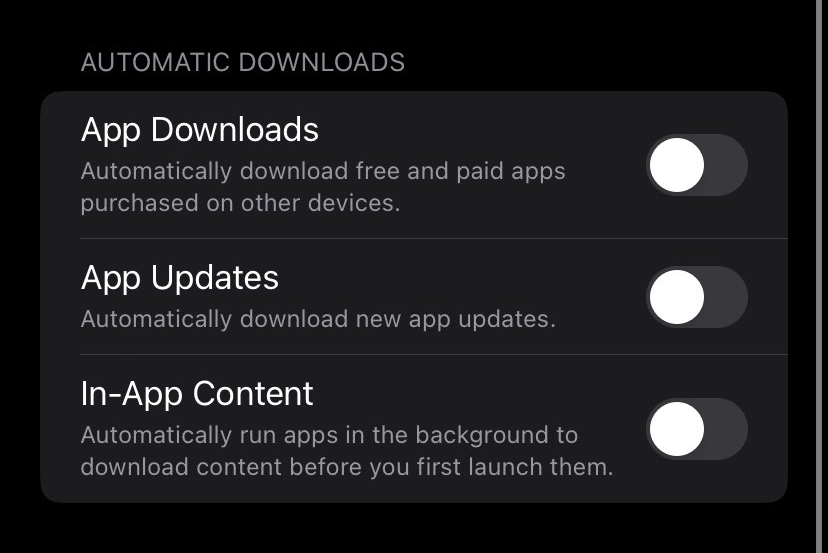
This stops apps from updating automatically. Apps will still update when you open the App Store and tap update manually.
For system updates, go to Settings > General > Software Update > Automatic Updates. Toggle off Download iOS Updates and Install iOS Updates.
The catch? Apple's Rapid Security Responses can still install without your permission. These are small, critical patches.
You cannot block them on a standard device.
The App Store Problem: Stopping Apps Without Stopping Security
App auto updates deserve their own mention. They are not system updates, but they are another source of unwanted downloads and notifications.
On Android, open Google Play Store. Tap your profile icon. Go to Settings > Network preferences > Auto update apps.
Select Don't auto update apps.
On iPhone, use the App Store method above.
On Windows, open Microsoft Store. Click the three dot menu. Select Settings.
Toggle Update apps automatically to off.
On macOS, open App Store. Go to Settings. Uncheck Automatic updates.
Each of these is a separate toggle. None of them affect system updates.
Common Mistakes That Make Your Settings Revert
You followed every step. Two weeks later, the updates are back. What happened?
Most people make one of these mistakes.
Mistake 1: Forgetting to reapply after a feature update. Major OS versions reset your tweaks. Windows 10 to 11 is a clean slate. The registry key and Group Policy both vanish.
You need to redo them.
Mistake 2: Leaving Wi-Fi metered on only one network. If you connect to a new network, Windows treats it as unmetered. Set every network you use. Or use the registry method, which applies system wide.
Mistake 3: Not disabling the update service completely. The metered trick only limits downloads. It does not stop the Windows Update service from running. For full control, you need the registry or Group Policy.
Mistake 4: Confusing app updates with system updates. Disabling app auto updates in the Play Store does nothing to stop system patches. They are separate servers. You have to hit both.
Mistake 5: Expecting Android manufacturer settings to stick. Samsung and OnePlus sometimes push carrier config updates that override your choices. Check every few months. If you find the settings reverted, you are not alone.
Microsoft's official documentation confirms that the registry keys under WindowsUpdate\AU are the most reliable consumer level control. Even so, they warn that major OS upgrades reset the policy.
The Maintenance Trap: Why "Permanent" Rarely Lasts
Here is the uncomfortable truth. No software vendor wants you to permanently opt out. They bake in expiration dates.
- Windows 11 pauses last 35 days maximum. After that, updates force themselves through.
- macOS terminal command survives until the next big update. Apple releases one every year.
- Android Google Play Services bypasses your toggle roughly once every 90 days.
- iOS security response updates cannot be blocked at all. Apple delivers them silently.
This means "permanent" is really "permanent until the next OS version." You need a maintenance cadence.
Our recommendation: Set a repeating calendar reminder for the first of every month. Run through your device's settings. Verify the toggles are still off.
Reapply any registry or terminal commands.
Is that a pain? Yes. But it beats waking up to a forced restart mid workday.
Real Scenarios: How Different Users Handle Updates
Not everyone needs the same level of control. Here are three real world profiles and what they actually do.
The Gamer. They cannot afford an unexpected reboot during a ranked match. Their setup: Windows 11 Pro with Group Policy set to notify only. They manually approve security patches once a month.
Feature updates wait three months. They accept the risk of missing a few days' patch gap.
The Remote Worker on Satellite Internet. Data caps are tight. Every update eats 500 MB to 2 GB. Their setup: All devices set to metered.
Android auto updates disabled. iOS app updates manual. They download security patches at a coffee shop once a month. They save roughly 3 GB of data per month.
The Privacy Conscious User. They want no background connections at all. Their setup: Android phone with Google Play Services frozen using ADB commands (requires a computer). Windows laptop with the registry hack and the Windows Update service disabled via services.msc.
They check for patches manually every Sunday. They accept that a critical vulnerability could go unpatched for days.
Each approach has a trade off. The key is matching the method to your tolerance for risk.
Your Decision Guide: What to Do Based on Your Device and Risk Tolerance
Use this table to pick your path.
| Your Situation | Best Method | Difficulty | Risk Level |
|---|---|---|---|
| Windows Home, low risk tolerance | Metered connection + pause updates | Easy | Low |
| Windows Home, high control need | Registry edit | Medium | Medium |
| Windows Pro, any | Group Policy notification | Medium | Low |
| macOS, casual user | System Settings toggle | Easy | Low |
| macOS, want full control | Terminal command | Medium | Medium |
| Android, casual user | Disable auto update in settings | Easy | Low |
| Android, want to block Play Services | ADB command (requires PC) | Hard | High |
| iOS, app updates only | App Store toggle | Easy | Low |
| iOS, system updates | Not possible | N/A | N/A |
Low risk means security patches still arrive within days if you manually approve them. Medium risk means you need to remember to check. High risk means you are vulnerable until you manually update.
If you are not sure, start with the low risk option. You can always tighten later.
When to Break the Rules (And Just Let Updates Run)
There are times when fighting updates is not worth it.
When you are about to sell or give away a device. Factory reset it first. Let updates install completely. A wiped, updated device is worth more and safer for the next owner.
When you have a known vulnerability with an active exploit. Check CVE databases if you hear about a zero day. If one affects your device, pause your blockade. Install the patch right away.
When your device is used by children or less tech savvy family members. They will not remember to update manually. Turn automatic updates back on. The safety net is worth more than the annoyance.
When your device is out of official support. Windows 10 is supported until October 2025. After that, no more patches. Do not keep using it unpatched.
Upgrade the hardware or switch to a supported OS.
In these cases, let the updates flow. The hassle is temporary. The protection is real.
Frequently Asked Questions
Will disabling updates void my warranty?
No. Disabling automatic updates through built in settings or registry edits does not void your warranty. Manufacturer documentation confirms this.
However, rooting your Android device or modifying system files beyond Apple's intended limits can void coverage.
How do I re-enable updates after turning them off?
For Windows, reverse the registry key or Group Policy setting. For macOS, run sudo softwareupdate --schedule on in terminal. For Android and iOS, go back to the same settings screens and toggle everything back on.
Can I stop updates on a work or school device?
Generally no. IT administrators control updates through Mobile Device Management or Group Policy. Your local settings do not override theirs.
If updates are forced, contact your IT department to request an exception.
Why do updates keep turning back on?
Major OS upgrades reset your settings every time. So do carrier pushed config changes on Android. You need to reapply your method after each update.
Set a monthly calendar reminder to check.
Is there a third party tool that blocks updates?
Yes, but we do not recommend them. Tools like WUMgr or StopUpdates10 work by disabling Windows services. They can break future updates or cause system instability.
Microsoft does not support them. The built in methods in this guide are safer.

Similar Posts





















