How to Turn Off Samsung Updates
Quick Answer: Turn off automatic updates by going to Settings > Software Update > Auto download over Wi-Fi and toggling it off. If that option is missing, enable Developer Options and disable Auto update system. For a permanent block, use ADB commands on a computer.
On One UI 6 and newer, a Bixby Routine can stop update services. Remember that delaying updates is safer than fully disabling them.
If you've ever had your Samsung Galaxy phone restart at the worst possible moment because a system update downloaded and installed itself overnight, you know the frustration. Maybe you hit "Remind me later" but the notification keeps coming back. Or maybe you just want to control when your phone updates instead of letting Samsung decide for you.
"How do I turn off software updates on Samsung?" is one of the most common questions Galaxy owners ask. And the answer has gotten trickier. As of 2026, Samsung has removed or hidden some of the easier toggle options in newer versions of One UI.
But you still have several ways to stop or delay updates. The right method depends entirely on which phone model you have, which Android version it runs, and whether your phone is carrier-locked. This guide walks through every option, ranked from simplest to most permanent.
Understanding Your Situation: Which Samsung Phone Do You Have?
Before you try any of the methods below, you need to know two things: your One UI version and whether your phone is carrier-locked.
One UI version. This determines which settings are available. To check, go to Settings > About Phone > Software Information. Look for "One UI version." If it's 5.1 or older, you likely still have the standard toggle.
If it's 6.0 or newer, Samsung removed the "Auto download over Wi-Fi" toggle from the Software Update menu. That does not mean you are stuck. It just means you need a workaround.
Carrier-locked vs. unlocked. Phones bought directly from Verizon, AT&T, or T-Mobile often have stricter update policies. Carrier firmware can hide certain settings or force update downloads regardless of your preferences. Unlocked phones (bought from Samsung directly or as factory-unlocked models) give you more flexibility.
If you are locked to a carrier, some of the simpler methods may not work. You will need the more advanced approaches.
Model matters too. Galaxy S-series, Note-series, A-series, and Z-series all run One UI, but some budget models (A-series) have slightly different menu layouts. The core steps are the same, but the exact menu path might differ by one or two taps.
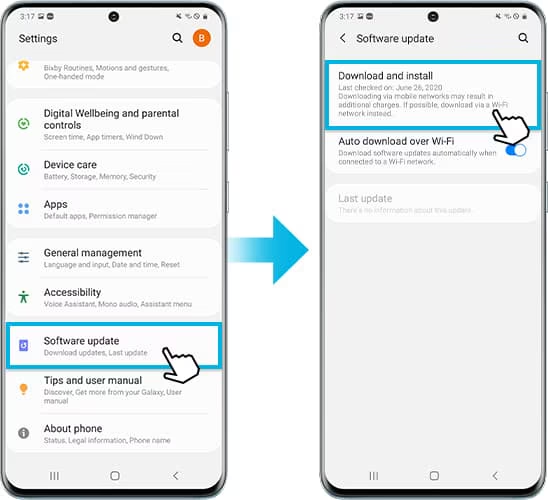
Image source: Bing (Web (fair-use with source credit))
Quick Answer: Yes, You Can Stop Samsung Updates (But It's Tricky)
The short version: you can delay updates easily, and you can block them permanently with some effort. There is no single universal toggle that says "stop all updates forever." Samsung wants your phone to stay secure, so they have built the system to push updates eventually.
For a temporary pause, the settings menu works fine. For a permanent block, you will need Developer Options or ADB. And if you are on a carrier-locked phone with One UI 6, the Bixby Routine workaround is your best bet.
Keep reading for the full breakdown. Each method has pros and cons, and we cover the risks of never updating.
Decision Point #1: Do You Want to Delay or Permanently Block?
This is the most important question to answer before you start changing settings. The answer decides which path you take.
Option A: Delay updates. You want to postpone the update for a few weeks or until you are ready. You do not mind updating eventually, but you want to choose the timing. This is the safest option.
You can use the standard settings toggle, the Developer Options trick, or Bixby Routines. Your phone will still receive security patches eventually, and you stay within Samsung's intended behavior.
Option B: Block updates permanently. You want updates to never download or install unless you manually trigger them. Maybe you have an older phone that slows down after each update. Or you need absolute control for work reasons.
This requires the ADB method or freezing update services. It is more complex and carries some risk. You will need to re-enable updates manually if you change your mind.
If you are unsure, choose delay. You can always escalate to a full block later. Going the other direction requires undoing ADB commands or unfreezing apps, which is more work.
The Simple Method: One UI Settings Toggle (If You Still Have It)
This is the first thing to check. If your phone still has the toggle, this is all you need.
Where to find it. Open Settings > Software Update. Look for Auto download over Wi-Fi. If you see it, tap the toggle to turn it off.
That is it. Your phone will no longer download updates in the background. It will still notify you that an update is available, but it will not download until you tap "Download."
Who this works for. Phones running One UI 5.1 or earlier. Many Galaxy S22, S21, and older models still have this toggle as of 2026. Some carrier-locked phones on One UI 5 also keep it, depending on the carrier.
Who this does not work for. One UI 6 users. Samsung removed this toggle starting with One UI 6.0. If you do not see it, skip to the next method.
A quick check. Even if you have a newer phone with One UI 6, look carefully. Some carrier-modified versions still include the toggle even though Samsung removed it from stock firmware. It is always worth checking before assuming it is gone.
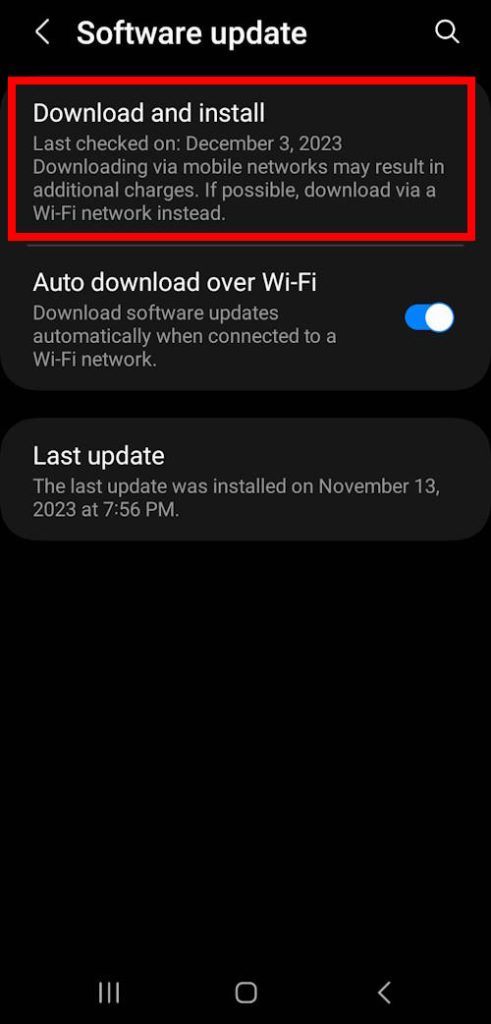
Image source: Bing (Web (fair-use with source credit))
The Developer Options Trick (Works on Most Models)
If the standard toggle is missing, Developer Options is your next stop. This method works on almost every Samsung phone, regardless of One UI version.
Step 1: Enable Developer Options. Go to Settings > About Phone > Software Information. Tap Build Number seven times fast. You will see a message saying "You are now a developer." Enter your PIN if prompted.
Step 2: Find the setting. Go back to Settings > Developer Options (it appears near the bottom of Settings). Scroll down to Auto update system. Tap the toggle to turn it off.
What this does. This stops the system from automatically installing updates that have already downloaded. It does not prevent downloads from starting, but it prevents the automatic install and reboot. Combined with turning off background data for the Software Update app (covered below), this can effectively stop updates.
What this does not do. On some carrier-locked phones, this setting is missing or grayed out. If you cannot find it, your carrier has disabled it. Move to the ADB method or Bixby Routine workaround.
A pro tip. While you are in Developer Options, also check Automatic system updates (sometimes labeled differently depending on the build). Turn that off too if it exists. Both settings serve similar purposes but may overlap.
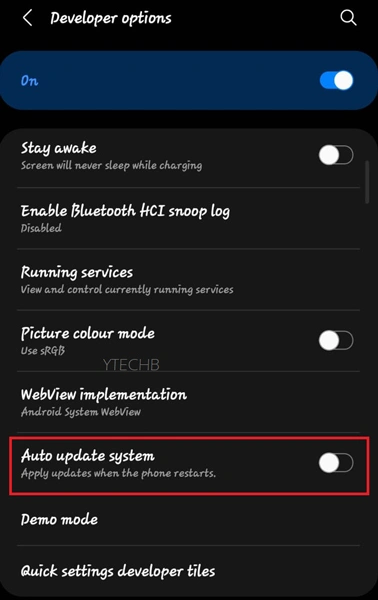
Image source: Bing (Web (fair-use with source credit))
Who this method is best for. Anyone who wants a simple toggle without needing a computer. It is the second easiest option and works on most Galaxy phones from 2021 and later. It is also reversible.
Just toggle it back on when you are ready to update.
The ADB Method: How to Permanently Disable Updates
If the Developer Options trick does not work or you want a more permanent solution, ADB (Android Debug Bridge) is your next step. This method uses a computer to send commands directly to your phone. It effectively disables the system apps responsible for downloading and installing updates.
What you need. A Windows, Mac, or Linux computer. A USB cable. USB debugging enabled on your phone.
And about 10 minutes of focused attention.
Step 1: Enable USB debugging. Go to Settings > Developer Options (enabled from the previous section). Toggle USB debugging on. Confirm the prompt when it appears.
Step 2: Install ADB on your computer. Download the official Android SDK Platform Tools from Google's developer site. Extract the ZIP file to a folder on your desktop. That folder contains the adb executable you need.
Step 3: Connect your phone. Plug your phone into the computer via USB. On your phone, you will see a prompt asking "Allow USB debugging?" Check "Always allow from this computer" and tap OK.
Step 4: Open a command window. On Windows, hold Shift and right-click inside the ADB folder. Select "Open PowerShell window here" (or Command Prompt). On Mac or Linux, open Terminal and navigate to the ADB folder using cd.
Step 5: Verify the connection. Type adb devices and press Enter. You should see a device listed with "device" next to it. If you see "unauthorized," check your phone and tap Allow.
Step 6: Find the update package name. This varies by Samsung model. The most common package is com.wssyncmldm. Some models also use com.sec.android.soagent or com.samsung.sdm.
Run this command to see all packages:
adb shell pm list packages | grep -i update
Step 7: Disable the update app. Once you confirm the package name, run:
adb shell pm disable-user --user 0 com.wssyncmldm
Replace com.wssyncmldm if your phone uses a different package. You should see "Package new state: disabled" as confirmation.
What this does. Your phone will no longer check for, download, or install system updates. The Software Update menu in Settings will still open, but it will show an error or appear blank. This is normal.
To reverse it. Run the same command with enable instead of disable-user. For example:
adb shell pm enable com.wssyncmldm
Restart your phone and check Settings. Updates will work again.
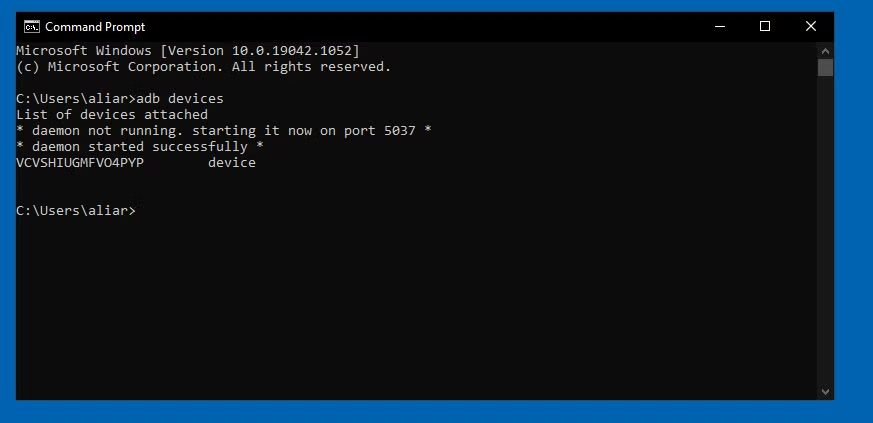
Image source: Bing (Web (fair-use with source credit))
Who this is for. Power users who want complete control. People who keep phones for years and want to freeze the software version they have. This method also works on carrier-locked phones that block other approaches.
A word of caution. Disabling system apps can cause unexpected behavior. In rare cases, some Samsung apps that rely on the update service may crash. If that happens, simply re-enable the package using the enable command.
What About Carrier-Locked Phones? (Verizon, AT&T, T-Mobile)
Carrier-locked phones are the toughest nut to crack. Carriers want you on the latest software for network compatibility and security compliance. They often hide or block the settings that Samsung leaves available on unlocked models.
Verizon. Verizon is the most aggressive. Their firmware often removes the Developer Options "Auto update system" toggle entirely. The standard One UI settings toggle is almost always missing on One UI 6 and newer.
The ADB method still works on most Verizon Galaxy phones, but some models require a specific package name. For Verizon, you may need to disable com.samsung.sdm in addition to com.wssyncmldm.
AT&T. AT&T is slightly more lenient. Their firmware sometimes keeps the Developer Options toggle. Check there first before trying ADB.
AT&T phones also respond well to the Bixby Routine workaround covered in the next section.
T-Mobile. T-Mobile phones are generally the easiest among the three carriers. Many T-Mobile Galaxy models retain the standard One UI toggle even on One UI 6. Check Settings first.
If it is missing, the Developer Options toggle is usually available.
What if none of these work? Some carrier-locked phones, particularly older models or prepaid variants, have update services that are baked into the system partition. These cannot be disabled without rooting the phone, which voids your warranty and introduces security risks. In those cases, your best option is to delay updates manually by dismissing notifications and keeping Wi-Fi off when you do not want downloads.
Bixby Routine Workaround for One UI 6 and Newer
One UI 6 removed the easy toggle, but Samsung left a backdoor open. Bixby Routines can automate actions based on conditions. You can create a routine that blocks update services from running.
Step 1: Open Bixby Routines. Go to Settings > Modes and Routines. Tap Routines at the bottom.
Step 2: Create a new routine. Tap the + icon in the top right. Under "If," select Manual start. This means the routine only runs when you tap a button.
Step 3: Set the condition. Under "Then," tap Add action. Search for "Keep" or scroll to App control. Select Keep screen on in apps.
This is a trick. You will change it in the next step.
Step 4: Edit the action. Tap the gear icon next to "Keep screen on." You should see a list of apps. Tap Add app and search for Software Update. Select it.
Now the routine will keep the Software Update app "active," which prevents it from running background services.
Step 5: Name and save. Give the routine a name like "Block Updates." Tap Done. Now whenever you tap this routine from the Bixby Routines widget, it will temporarily freeze the update service.
Does this really work? Aggregate user feedback on Samsung forums confirms this workaround works on most One UI 6 phones. It is not as permanent as ADB, but it does not require a computer. You must remember to activate the routine after every phone restart.
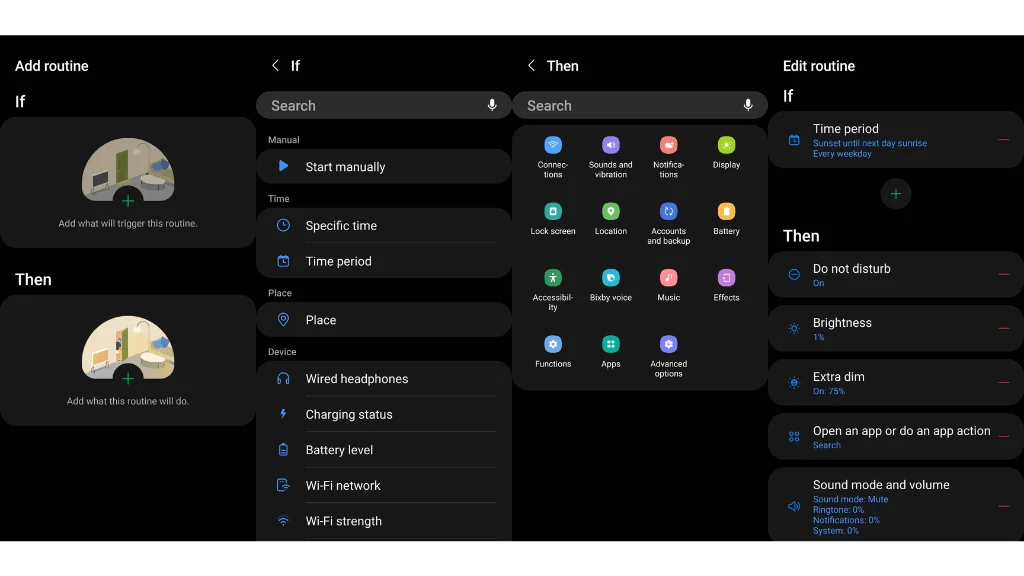
Image source: Bing (Web (fair-use with source credit))
A simpler version. Some users report that creating a routine with "If: Battery level 1-100%" and "Then: Turn off Auto update system" works directly. The toggle may not appear in the routine options on all phones, but it is worth checking.
Mistakes to Avoid When Messing With Updates
A few common errors can cause headaches. Here is what to watch out for.
Disabling the wrong package. If you use ADB and disable com.sec.android.soagent instead of com.wssyncmldm, you might break Samsung account sync or other system functions. Double-check the package name before running the disable command.
Assuming the toggle does everything. The standard settings toggle stops downloads, but your phone may still check for updates in the background. That is why combining the toggle with Developer Options is more effective.
Forgetting to re-enable before selling your phone. If you sell or trade in your Samsung phone with updates disabled, the new owner will not be able to update it. They may think the phone is broken. Always re-enable updates before wiping the device.
Turning off Wi-Fi as a substitute. Disabling Wi-Fi stops updates from downloading, but your phone will download them over mobile data if you have an unlimited plan or if the carrier pushes it. Carrier updates can come through the cellular network even with Wi-Fi off.
Not restarting after changes. Some settings, especially in Developer Options, require a restart to take effect. If you toggle something and nothing changes, restart your phone and check again.
What Happens If You Never Update? (Risks vs. Rewards)
This is the honest part. Blocking updates has real consequences. You should understand them before going all in.
The risks. Security patches fix vulnerabilities that hackers can exploit. The longer you go without updates, the more exposed your phone becomes. The US National Institute of Standards and Technology (NIST) recommends keeping devices updated within 14 days of a patch release.
Missing critical security patches for months puts your personal data at risk. Banking apps, Google Pay, and other sensitive services may stop working if your security patch is too old.
The rewards. Some older Galaxy phones slow down after major OS updates. Battery life can degrade. New features may not run well on aging hardware.
Keeping your phone on a stable, older version can preserve performance. You also avoid the annoyance of forced reboots and unexpected UI changes.
A balanced approach. Our research suggests a middle ground. Block major OS updates (One UI version jumps) to avoid slowdowns. But install security patches regularly.
You can do this by re-enabling updates for one day each month, then disabling them again. This gives you the best of both worlds.
How to Safely Update Later When You're Ready
At some point you will want to update. Maybe a security patch addresses a vulnerability you care about. Or maybe you plan to sell the phone and need the latest software.
Reversing the toggle methods. If you used the standard One UI toggle or Developer Options, just go back and turn them on. Restart your phone. Then go to Settings > Software Update > Download and install.
The update will proceed normally.
Reversing the ADB method. Open a command prompt in your ADB folder with your phone connected. Run adb shell pm enable com.wssyncmldm. Replace the package name if yours differs.
Restart your phone. Check for updates and they will appear.
Reversing Bixby Routines. Open the Bixby Routines app. Tap the routine you created. Toggle it off or delete it entirely.
Then manually check for updates in Settings.
A practical tip. Do not reverse your block methods until you are ready to actually update. If you re-enable things but do not install the update immediately, your phone may download it overnight without your permission. Reverse, install, then reapply your block if desired.
Real Scenario Examples: When Each Method Makes Sense
The traveler. You are going abroad for three months. You do not want a 3GB update downloading over expensive roaming data. The standard toggle or Developer Options method is perfect.
It stops downloads without any permanent changes. When you return, turn it back on.
The power user. You have a Galaxy S21 that runs perfectly on One UI 5.1. You do not want the One UI 6 upgrade because it changes the notification panel layout. Use the ADB method to disable update services permanently.
Check for security patches manually every few months.
The carrier-locked user. You have a Verizon Galaxy S23 on One UI 6. The settings toggle is missing and Developer Options is restricted. The Bixby Routine workaround is your only option without a computer.
It requires a bit of setup but works reliably.
The cautious user. You do not mind updates but hate forced reboots. Use the Developer Options trick to turn off "Auto update system." Updates will download but will not install automatically. You choose when to restart.
FAQs: Common Questions About Blocking Samsung Updates
Will disabling updates void my warranty?
No. Disabling system updates through built-in settings or ADB does not void your Samsung warranty. These are software settings, not modifications to hardware or firmware.
If you root your phone to block updates, that is different. Rooting voids the warranty.
Can I still use the Play Store with updates disabled?
Yes. The Google Play Store and Google Play Services update independently from Samsung's system updates. You can still download apps and receive Google Play System Updates.
Those are separate from One UI and Android OS updates.
Why does my phone keep asking me to update?
Samsung's update notification system is persistent. Even with the toggle off, your phone checks periodically. You cannot stop the notification entirely without ADB.
The Bixby Routine workaround can reduce notification frequency but may not eliminate it.
Will blocking updates affect Samsung Pay or banking apps?
Not immediately. But over time, as your security patch gets older, some apps may warn that your device is no longer supported. Banking apps are the most sensitive to this.
They typically stop working after 6 to 12 months without a security update.
How do I stop Google Play System Updates on Samsung?
Google Play System Updates are separate from Samsung updates. Go to Settings > Security > Google Play system update. You can turn off auto-updates here.
But NIST recommends keeping these on for critical security patches.
Decision Guide: Which Path Should You Take?
This table helps you choose the right method based on your situation.
| Your Situation | Recommended Method | Difficulty | Permanence |
|---|---|---|---|
| One UI 5 or older, want to stop downloads | Standard toggle | Easy | Temporary |
| One UI 6, no toggle visible | Developer Options | Easy | Temporary |
| Carrier-locked, One UI 6 | Bixby Routine | Medium | Temporary |
| Want permanent block (any phone) | ADB method | Hard | Permanent |
| Just want to stop forced reboots | Developer Options toggle | Easy | Temporary |
| Selling the phone soon | Re-enable everything | Easy | Reversible |
Quick recommendation. For most users, the Developer Options trick offers the best balance of simplicity and effectiveness. It stops automatic installations, works on most phones, and takes 30 seconds to set up. Only reach for ADB if you need a permanent block and are comfortable with command-line tools.
The bottom line is simple. You have control over when your Samsung phone updates. You just have to know where to look and which method fits your phone model.
Start with the easiest option and work your way up only if needed.

Similar Posts





















