How to fix touch screen sensitivity on iPhone?
If you're asking how to fix touch screen sensitivity on iPhone?, start with the cause, not the settings. Most people dive into Accessibility menus and factory resets before checking the screen protector they fitted last week. In our research, the cheapest fixes solve most of these complaints.
The panel is a capacitive digitizer. It reads touch by detecting tiny changes in electrical charge at the contact point. Anything that alters that charge, from thick glass to a battery pressing from behind, will confuse it.
Apple lists 0°C to 35°C as the iPhone operating range, and heat changes the picture too. Here's how to work through the branches in order.
How to Fix Touch Screen Sensitivity on iPhone?
Remove the screen protector and case first. Then force restart your iPhone. Check Settings > Accessibility > Touch next.
Turn off Touch Accommodations and AssistiveTouch. Test again with the charger unplugged. If one band stays dead, the digitizer needs service.
Why Your iPhone Screen Misses Taps (And What It's Telling You)
Three fault patterns show up again and again, and each points somewhere different. Knowing which one you have stops you toggling settings that were never the problem.
- Ghost touch. The panel registers taps nobody made. Text types itself, apps open alone, menus flicker. Usually a protector, a case edge, moisture, or a battery pushing the panel.
- Dead zones. One strip or corner never responds, however hard you press. That's digitizer or display damage, and no setting brings it back.
- Dropped or laggy input. Swipes stall, pinch-to-zoom stutters, keys feel half a second late. Usually software, storage pressure, or Accessibility options left on.
If the fault moves around the screen, think interference. If it stays in exactly the same place, think hardware. Ghost taps that keep landing in odd spots usually trace back to a misbehaving panel.
The 60-second map test: drag, type, and screen-record
Open Notes or a drawing app. Drag one finger slowly across the whole panel in a grid, then repeat with two fingers. Type a full paragraph to catch stray characters.
Screen-record the session, because phantom taps are easy to miss live and obvious on playback.

Rule Out the Easy Stuff First: Screen Protectors, Cases, and Chargers
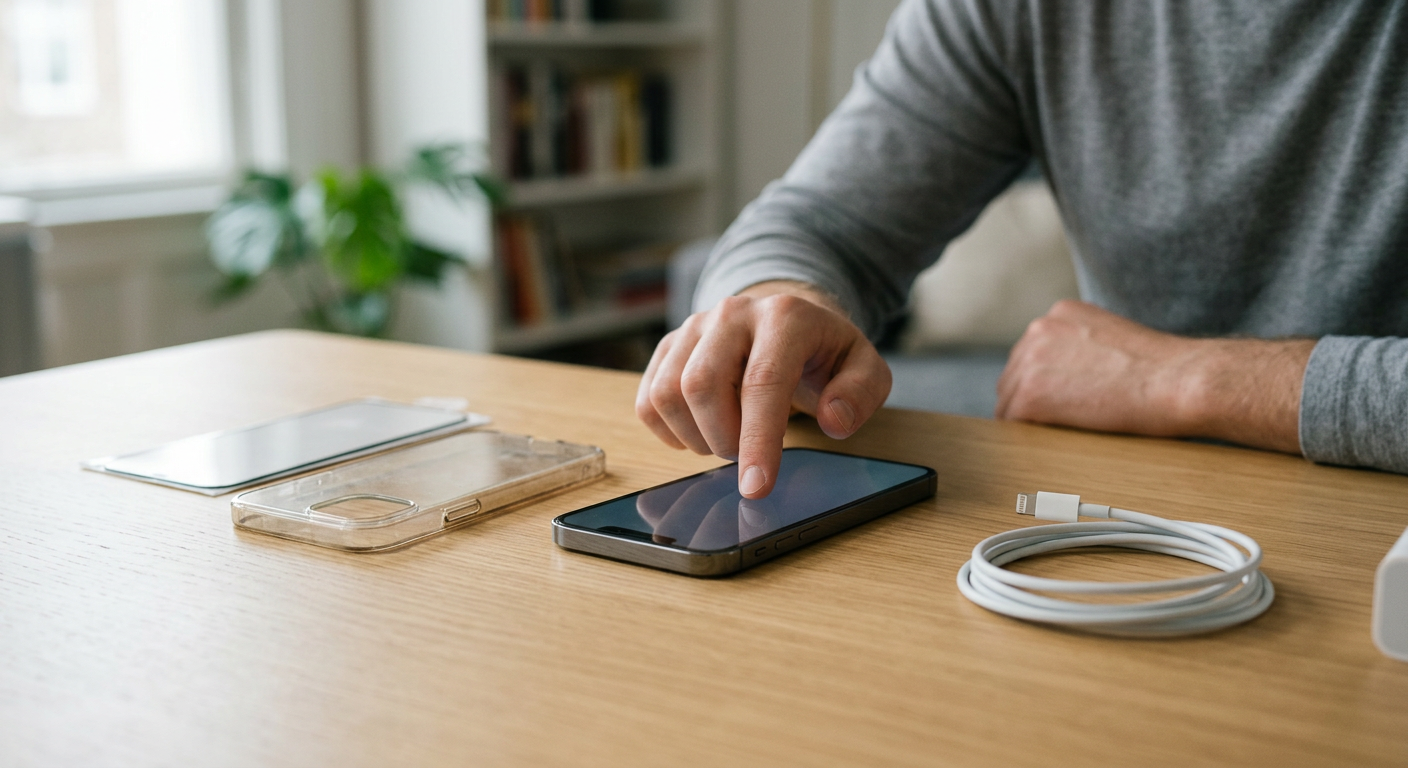
Strip the phone back to bare glass before you touch a single setting. Peel the protector off, remove the case, and wipe the panel with a dry microfiber cloth. Then use the phone normally for a day.
This one test resolves more cases than any reset.
Why protectors cause trouble at the edges
A thick tempered sheet, around 0.5mm, damps the small charge change the digitizer is looking for. Dot-matrix protectors, the ones with adhesive only around the border, leave an air gap in the middle. Lift one corner and the panel reads constant contact there.
If taps only fail near the bezel, that's your answer.
Case lips, MagSafe, and the charging clue
Glitches that appear only while plugged in point at the charger. Cheap ungrounded adapters leak current the panel picks up as noise. Switch to an MFi-certified cable and an earthed outlet.
If the panel starts ignoring touches after a case change, treat it as a screen that stops responding and retest bare.
Reapplying a protector properly
Clean the glass, align the edges, and press from the center out. Leave it 24 to 48 hours for the adhesive to fully cure. Don't judge touch accuracy in that first hour.
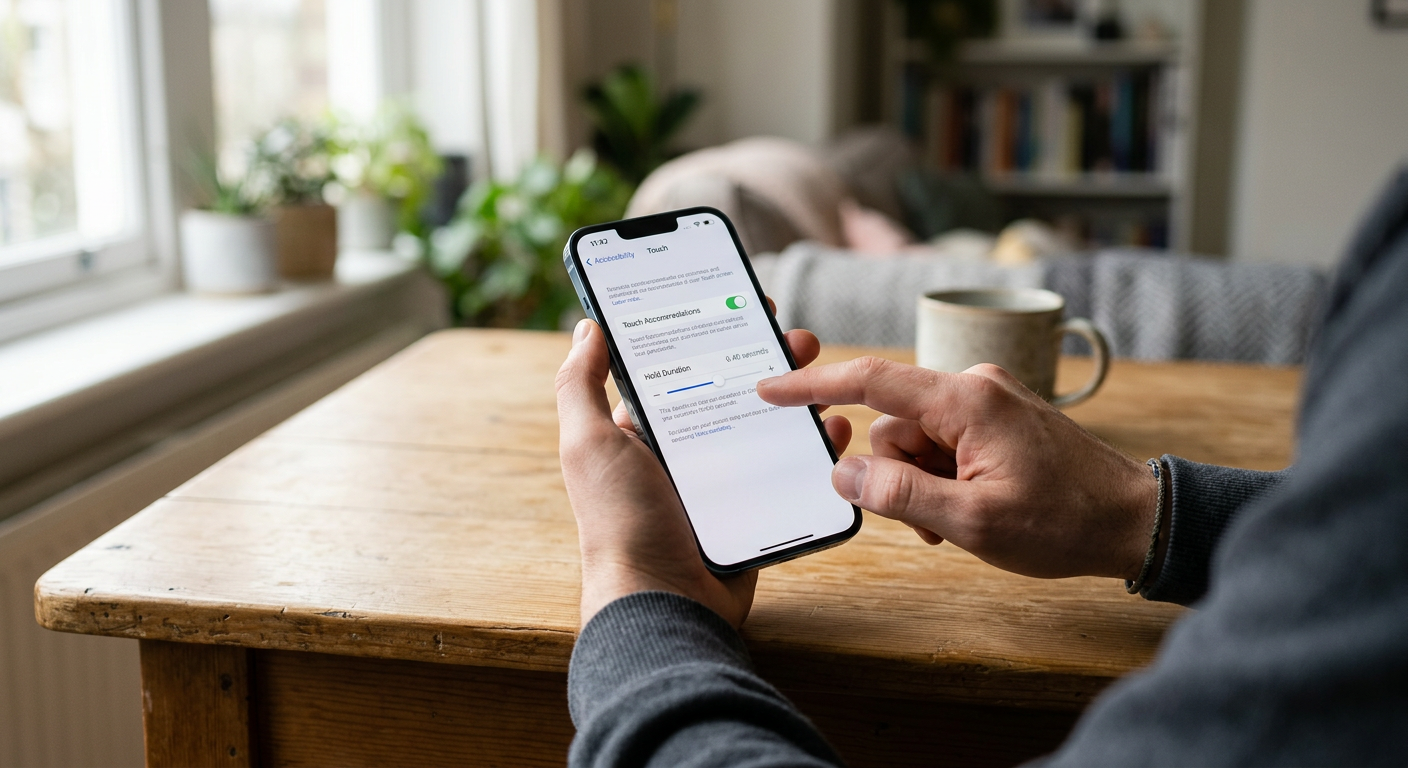
The Software Branch: iOS Updates, Touch Accommodations, and the Reset Ladder
If the screen behaves with no protector and no case, move to software. Start in Settings > Accessibility > Touch. Touch Accommodations is the usual culprit.
With Hold Duration or Ignore Repeat on, the phone waits before accepting a tap, so typing feels broken.
The settings audit, in order
- Touch Accommodations: off.
- Haptic Touch duration: Fast.
- AssistiveTouch and Back Tap: off unless you actually use them.
- Display Zoom and Text Size: standard, since cramped targets feel like missed taps.
The reset ladder
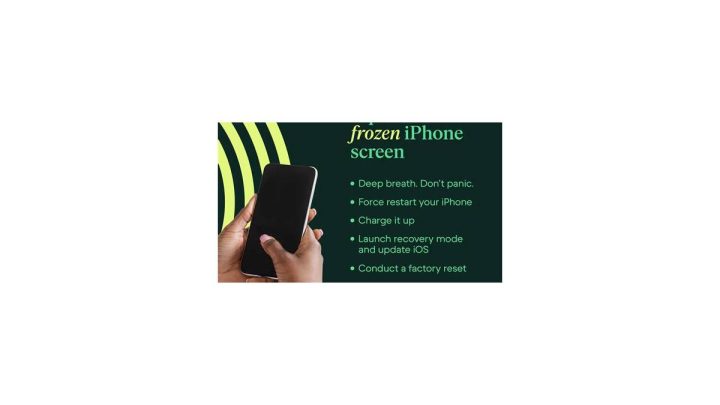
Work upward, not sideways. Force restart first, using Apple's documented button sequence. Then Reset All Settings, which keeps your data but clears preferences.
Then update iOS to the latest release.
Why erasing comes last
Erase All Content and Settings wipes the phone. Do it only with a verified backup ready, and test the device as new before restoring anything. If touch still fails on a clean slate, the problem was never software.
If you can't unlock the phone at all, there's a route for getting past a frozen lock screen.
The Hardware Branch: Swollen Batteries, Non-Genuine Displays, and Repair Decisions
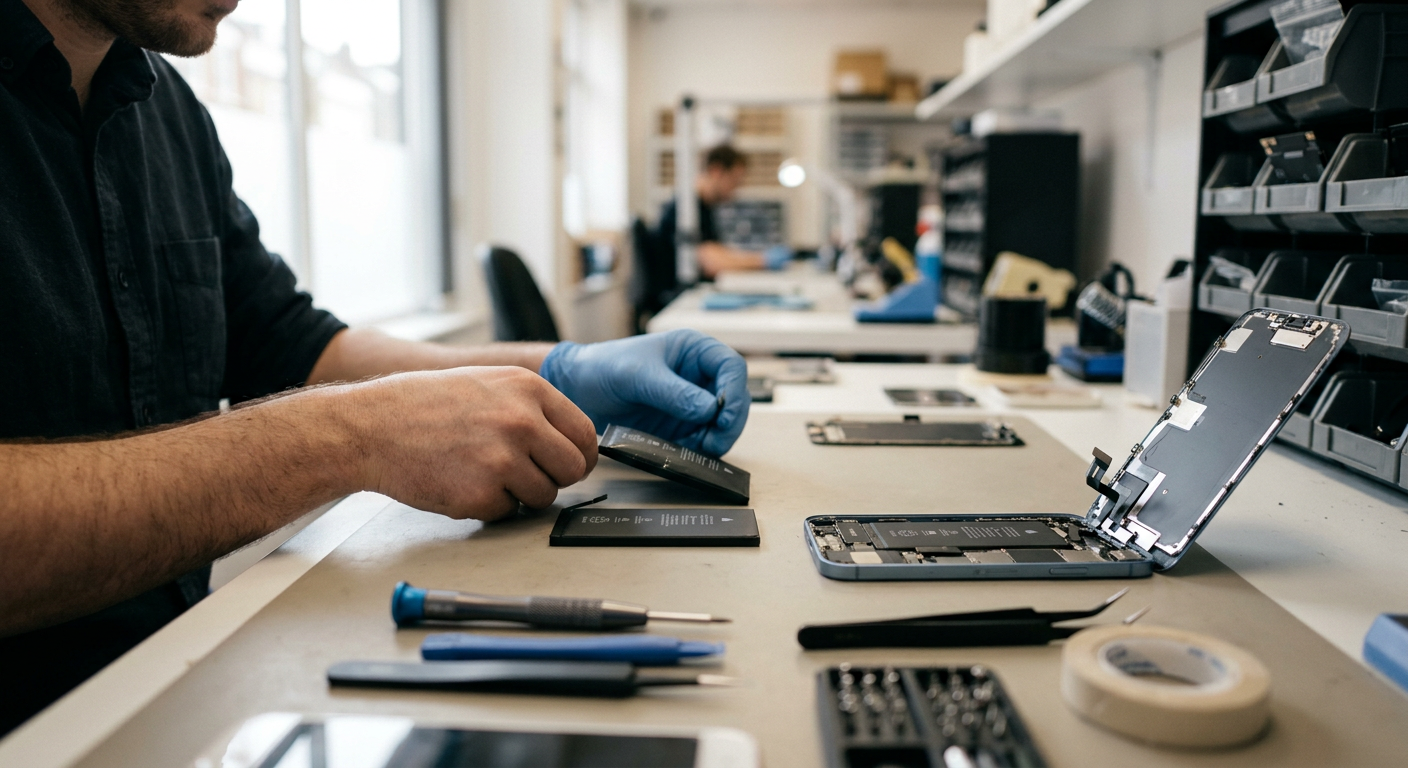
Some faults are physical, and no amount of toggling helps. Two checks are worth doing before you book any service.
Press the screen flat
Lay the phone face up on a table and press gently on the middle of the glass. If it rocks, clicks, or you see a gap at the frame, stop. A swollen lithium-ion battery is bowing the display from behind, which is a fire risk rather than a settings problem.
Unplug it, keep it cool, and book service. Per US CPSC guidance, swollen cells should never be punctured, pressed down, or charged.
Spotting a non-genuine display
Open Settings > General > About. If Parts and Service History shows an "Unknown Part" entry, the display was swapped for a non-genuine one. Calibration is usually missing, so touch feels slightly off no matter what you change.
Cases where the picture stays perfect but input fails are the classic sign.
What repairs cost and who should do them
Apple's out-of-warranty display service runs roughly $129 to $379 depending on model as of 2026. AppleCare+ cuts that to a flat damage fee, and an Authorized Service Provider matches Apple pricing.
| Situation | Likely cause | Best move |
|---|---|---|
| Ghost taps after a new protector | Edge lift or thick glass | Peel, clean, reapply or go bare |
| One dead strip, no drops | Failing digitizer or display flex | Apple or Authorized Service Provider |
| Screen bows, case won't sit flush | Swollen battery | Stop using, book service today |
| Fine on battery, jittery plugged in | Ungrounded or uncertified charger | MFi cable plus earthed outlet |
| "Unknown Part" after a cheap swap | Non-genuine display | Genuine display replacement |
Frequently Asked Questions
Why does my iPhone screen only fail while charging?
Charging introduces current the digitizer can misread. The usual fix is a certified cable and a properly earthed outlet. Test on battery alone to confirm the pattern before blaming the phone itself.
Can a screen protector really cause ghost touches?
Yes. Thick glass or a lifted edge changes the local charge the panel measures. Dot-matrix protectors with border adhesive are the worst offenders.
Peel it off and retest for a day to confirm.
Does Reset All Settings delete my photos or apps?
No. It clears preferences like Wi-Fi passwords, wallpapers, and privacy permissions. Your data stays put.
Back up first anyway, since it costs you nothing and saves a lot.
How do I know if my iPhone display is genuine?
Check Settings > General > About for Parts and Service History. A genuine part shows normally. An unknown part entry means an aftermarket screen, which often explains poor touch accuracy.
An unresponsive panel with genuine parts points to a different fault.
When should I stop troubleshooting and get it repaired?
Stop once a dead zone stays fixed in one spot, the glass bows, or a clean-slate install still fails. That's hardware territory. Our notes on bringing a frozen handset back cover the last software steps before you book.

Similar Posts