iPhone Screen Not Responding to Touch? Here’s Why
Few phone issues trigger panic quite like tapping your glass display and getting zero response. If you are wondering, "Why is my iPhone not allowing me to touch the screen?", you are dealing with either a temporary software lockup or a broken digitizer. When the phone stops accepting inputs, you cannot even swipe the slider to turn it off.
Apple displays rely on projected capacitive touch technology, which registers electrical charges through a sub-millimeter sensor grid. A system memory crash or an electrical grounding fault can sever that input pathway in a fraction of a second. Understanding the underlying trigger helps you resolve the issue before spending money on unnecessary hardware repairs.
Why Is My iPhone Not Allowing Me to Touch the Screen?
An iPhone will stop allowing touch input due to system freezes or hardware faults. A crashed background application can completely lock the user interface. Low internal storage often freezes the operating system touch driver.
Physical drops can detach the fragile digitizer cable underneath the glass. Uncertified chargers can also paralyze touch sensors with electrical noise.
The Triage Workflow: What to Check Before Touching Hardware
Before assuming your screen is broken, you need to isolate external variables. Follow this practical decision sequence to quickly identify the culprit:
- If your iPhone is plugged into a wall outlet or computer, unplug it immediately. Faulty power adapters send erratic electrical currents directly across the digitizer grid.
- If you have a case with rigid edges, remove it. Tight cases can pinch the display border, tricking the sensor into registering a permanent touch.
- If your screen has liquid droplets or grease smudges, wipe it down. Capacitive screens need clean contact with your skin to register touch points properly.
Take a dry, lint-free microfiber cloth and thoroughly clean the display surface. Moisture creates phantom contact points that block your actual taps.
Next, inspect your screen protector. Thick tempered glass can chip along the edges and develop micro-pockets of trapped air. These gaps break the tiny electrical current between your fingertip and the sensor beneath.
If your phone only ignores taps in specific areas, gently peel off the protector to test the bare glass.
Official documentation from Apple Support confirms that accessories covering the ambient light or proximity sensors can also cause the screen to go completely numb. Eliminating these physical barriers is always your first move.
How to Force Restart Every iPhone Model (When You Can't Swipe to Turn Off)
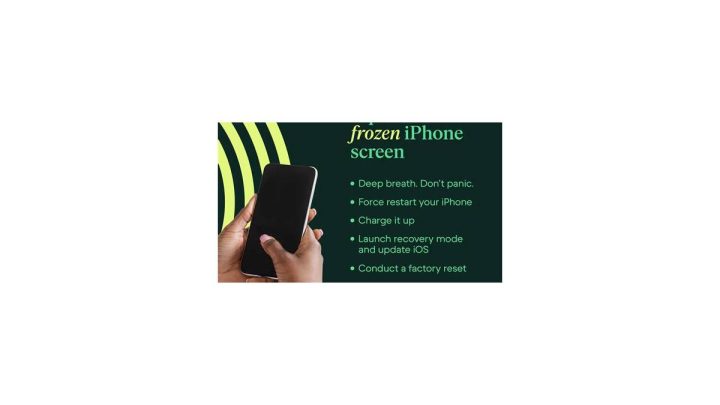
When your screen will not respond, the normal power-off slider is useless. A forced restart cuts power at the hardware level, clearing the system cache and forcing iOS to restart its touch services.
If you are following our broader steps for resolving an unresponsive display, performing a hard reboot is the single most effective software fix. The button combination depends on the exact model you carry.
For iPhone 8, iPhone SE (2nd generation and later), and all models from iPhone X through iPhone 16:
- Press and quickly release the Volume Up button.
- Press and quickly release the Volume Down button.
- Press and hold the Side button on the right edge.
- Keep holding the Side button for roughly ten seconds.
- Release the button only when the white Apple logo appears on the screen.
For the iPhone 7 and iPhone 7 Plus:
- Press and hold both the Volume Down button and the Sleep/Wake button simultaneously.
- Keep holding both buttons for about ten seconds until the Apple logo appears.
For iPhone 6s and iPhone SE (1st generation):
- Press and hold both the Home button and the top Sleep/Wake button together.
- Release both buttons once the Apple logo shows up.
Be prompt with the button sequence on modern iPhones. If you pause too long between tapping the volume buttons, the device interprets the input as a simple volume adjustment rather than a reboot trigger.
Identifying Digitizer Failure vs. Software Freezes
You need to know whether you are fighting an iOS software loop or a physical hardware breakdown. The display assembly houses two main components: the panel that generates the picture and the digitizer layer that detects your fingers.
A simple software freeze happens when the operating system thread responsible for touch events hangs. The hardware itself is fine, but the software cannot process incoming signals. In contrast, digitizer failure means the sensor grid is physically incapable of detecting charge transfer.
| Symptom | Probable Cause | Recommended Next Step |
|---|---|---|
| Clock time updates, notifications arrive, but taps do nothing | Digitizer hardware or loose cable | Check for physical damage or seek service |
| Display is completely frozen on one static screen | iOS SpringBoard crash | Execute a hardware force restart |
| Ghost touch (screen taps buttons by itself) | Delaminated glass or liquid entry | Remove protector; replace digitizer if persistent |
| Top half works, bottom half is dead | Cracked internal sensor layer | Hardware screen replacement required |
| Screen freezes exclusively inside one specific app | Bad application build | Force-quit the application once rebooted |
Look closely at the status bar at the top of your display. If the clock time is advancing and battery icons change, iOS is still alive. That points toward a digitizer problem.
If the clock is stuck and alarms ring without an alert interface appearing, the operating system is locked solid. As of 2026, running an iPhone with less than ten percent free storage is a leading trigger for these sudden UI freezes.
Environmental, Charger, and Accessory Interference
External conditions interfere with capacitive touch far more often than people realize. If your phone works normally on your desk but stops responding in your car or at your nightstand, look at your charging setup.
Cheap third-party chargers and low-grade charging cables frequently lack proper electrical shielding. These accessories bleed high-frequency alternating current ripple onto the phone chassis. That electrical leakage completely overwhelms the delicate mutual capacitance sensors in your screen.
The phone simply cannot distinguish between your finger and the stray voltage running across the surface. Unplugging the cable usually restores touch control within two seconds.
Extreme ambient temperatures also cripple screen responsiveness. Apple rates iPhones for safe operation between 32°F and 95°F (0°C to 35°C). In freezing conditions, the liquid crystal and organic light-emitting diode layers become sluggish, while the glass surface struggles to detect thermal conduction from cold fingers.
Similarly, high humidity can cause microscopic condensation beneath damaged screen protectors. That moisture acts like an extra hand resting on the phone, causing total input paralysis until the device is dried out.
Mistakes That Can Permanently Damage an Unresponsive Screen
When an expensive phone stops taking inputs, frustration can lead to hasty decisions. Avoid these common mistakes that often turn a simple glitch into an expensive hardware repair:
- Do not press hard on the glass. Capacitive displays rely on electrical conductivity, not physical pressure. Tapping with excessive force will crack the delicate OLED matrix underneath the glass, causing permanent green lines or black ink spots.
- Avoid using household hair dryers to dry out suspected moisture. Direct thermal heat softens the waterproof adhesive seals around the frame. Excessive heat can also cause the lithium-ion battery to swell, creating pressure that lifts the display panel.
- Never try to pry open the screen assembly using kitchen knives or metal tools. Modern iPhones use strong waterproof sealants and delicate ribbon cables right along the edges. A metal blade will sever the digitizer cable instantly.
- Do not keep tapping the screen blindly if you experience ghost touch. Repeatedly failing the lock screen passcode can trigger an irreversible security lockout. If your screen is tapping numbers on its own, force restart the phone immediately.
Frequently Asked Questions About iPhone Screen Freezes
Why does my iPhone screen freeze when someone calls me?
An incoming call UI freeze usually points to a stalled system process or a dirty proximity sensor. When the sensor near the top speaker gets blocked by oil, iOS thinks the phone is against your ear and disables the screen. Clean the top speaker notch and perform a forced restart.
Can low storage cause touch screen failure?
Yes, critically low storage frequently locks up touch response. When an iPhone drops below two gigabytes of available flash memory, iOS cannot allocate virtual memory pages. That memory starvation freezes the background touch driver, leaving the display powered on but completely numb to all taps and gestures.
Why is only half of my iPhone screen responding?
Dead zones on half the screen indicate localized hardware failure. The digitizer uses separate horizontal and vertical sensor lines to plot your finger coordinates. If an impact breaks one trace on the ribbon cable, an entire vertical column or horizontal block of the screen goes dead permanently.
Will a factory reset fix an unresponsive touch screen?
A factory reset fixes the issue only if corrupted firmware caused the lockup. If a forced restart does not restore touch control, connect the iPhone to a Mac or PC. Put the device into Recovery Mode and reinstall iOS.
If touch still fails after a fresh installation, the digitizer hardware is broken.
The Repair Decision Guide: Apple Store, DIY, or Replacement?
If software troubleshooting and forced reboots fail, you must choose how to fix the physical hardware. Your choice depends on your budget, device age, and technical comfort.
An Apple Store or Apple Authorized Service Provider remains the safest path. Technicians use genuine screens calibrated to your specific logic board. This calibration preserves True Tone color balancing, auto-brightness profiles, and full touch sampling rates.
While genuine repairs cost between $129 and $379 depending on the model, they maintain your device's factory water resistance and trade-in value.
Third-party repair shops offer faster turnaround times and lower prices, usually shaving thirty to fifty percent off Apple's rates. If you choose this route, verify that the shop uses high-grade refurbished OEM panels rather than cheap aftermarket copy screens. Budget aftermarket panels often exhibit high touch latency, reduced brightness, and poor viewing angles.
Taking on a DIY repair is only practical if you have precision screwdrivers, suction tools, and steady hands. Opening modern water-sealed iPhones requires heating the edges to loosen factory adhesive without tearing delicate sensor cables. For older devices out of warranty, replacing the screen yourself saves significant cash.
For newer models, professional service protects your investment and ensures your screen operates smoothly.

Similar Posts