Touch Screen Unresponsive? Here’s How to Fix It
Tapping your glass display only to get zero reaction is intensely frustrating. You need to know how do I fix my unresponsive touch screen without risking your personal data. Most touch failures stem from temporary operating system lockups rather than a ruined glass assembly.
Modern capacitive touch controllers sample finger inputs at rates between 120Hz and 240Hz, which means minor memory bottlenecks or electrical interference can instantly halt input registration. As of 2026, mobile devices pack extreme display hardware into thin frames, making routine software triage your most reliable first response. A few calculated checks will quickly separate a minor software glitch from a true hardware failure.
How Do I Fix My Unresponsive Touch Screen?
You can fix an unresponsive touch screen with a forced hardware restart. Unplug all third-party chargers and cables immediately. Clean the glass surface using a dry microfiber cloth.
Remove thick screen protectors or cases that trap moisture. Connect a wired USB mouse if input remains completely dead.
Why Your Touchscreen Stops Responding
A modern touchscreen relies on a capacitive digitizer, which is a transparent sensor grid bonded to the display glass. This grid carries a tiny electrostatic charge. When your conductive finger touches the glass, it distorts the local electrostatic field.
The controller chip reads that change in voltage, calculates the exact coordinates, and hands the input to your operating system.
When that pipeline breaks down, the cause usually falls into one of two buckets. Either the physical hardware cannot detect the voltage change, or the software is too overwhelmed to register it. System UI crashes can freeze input handling entirely while the screen picture continues to display normally.
In other instances, physical micro-fractures in the digitizer flex cable disrupt communication with the motherboard. Background apps consuming excessive system resources can also starve the touch input thread of processing time.
Triage First: Is It Physical Damage, Dirty Glass, or Bad Power?
Before attempting software resets, you must rule out external factors that trick capacitive sensors. Liquid droplets, grease films, and condensation create ghost capacitance that blinds the sensor grid to actual finger presses. Use a dry, lint-free microfiber cloth to wipe the surface thoroughly.
Next, remove any case or screen protector currently on the device. Low-cost tempered glass often lacks proper oleophobic coatings or separates slightly from the display, creating air gaps that kill sensitivity.
Faulty power adapters are another frequent culprit. Cheap charging bricks introduce alternating current ripple noise into the chassis, which overwhelms capacitive sensors with stray electrical interference.
| Symptom | Likely Root Cause | Immediate Action |
|---|---|---|
| Random taps without touching | Surface moisture or dirty protector | Clean screen with dry microfiber; remove protector |
| Freezes only during charging | AC ripple noise from wall brick | Unplug cable and switch to a certified charger |
| Dead strip across one edge | Fractured digitizer trace | Test screen rotation to verify hardware boundary |
| Full freeze across entire glass | Operating system process crash | Execute a physical button force restart |
The Universal Hardware Fix: How to Force Restart Any Frozen Screen
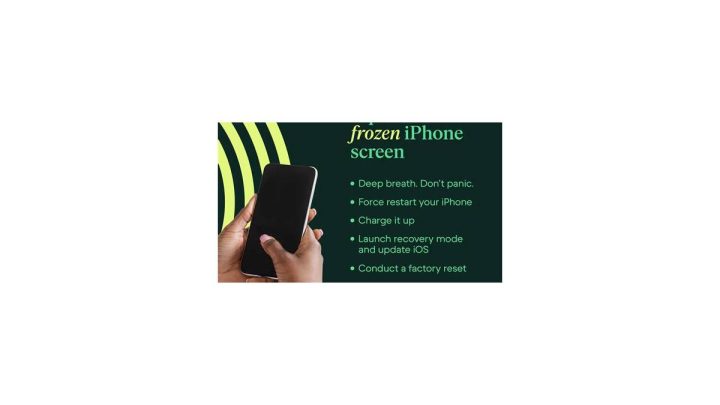
When your display ignores touch input, you cannot use normal on-screen power sliders to turn the device off. You must send a direct hardware interrupt command using physical button combinations. This cuts power to the volatile memory and reboots the operating system cleanly.
Apple iPhone and iPad Hard Reboot Combos
For modern Apple hardware without a physical Home button, press and immediately release the Volume Up button. Next, press and immediately release the Volume Down button.
Finally, press and hold the Side power button for roughly ten seconds. Keep holding it down until the screen goes completely dark and the white Apple logo appears, then let go. For step-by-step assistance with resolving iOS display lockups, you can also review official guidelines on Apple Support to verify your exact hardware version.
Modern Android Force Reboot Combos (Samsung, Google Pixel, Motorola)
Android devices use a synchronized multi-button hold to initiate a hard power cycle. Press and hold both the Power button and the Volume Down button at the exact same time.
Maintain firm pressure on both buttons for seven to fifteen seconds. The device will simulate a battery disconnect, vibrate, and initiate a fresh boot cycle. Official documentation on Google Support confirms this procedure bypasses all active software processes without erasing any personal user data stored on the drive.
The Decision Tree: Troubleshooting Ghost Touches, Dead Zones, and System Freezes
Once your device restarts, determine whether the problem has vanished or narrowed down to a specific pattern. Follow this troubleshooting flow based on how your screen acts right now.
If the Screen Has Dead Zones or Ghost Touches
If the display accepts input in some areas but ignores taps in a specific strip, you likely have a fractured digitizer trace. Rotate the phone into landscape mode and try tapping the same application icon. If the dead zone remains fixed in the exact same physical spot on the glass, the digitizer layer is physically broken and requires replacement.
If the Screen Froze While Plugged into a Charger
Disconnect the charging cable and wait five seconds. If responsiveness returns the moment the cable leaves the port, your charger or cable lacks adequate electromagnetic shielding. Discard the faulty charging block and switch to a brand-certified wall plug that complies with standard power delivery regulations.
If the Display Works but Input Is Completely Dead
If the screen lights up, displays live notifications, but ignores all finger input across the entire panel, the display controller has either crashed or become detached internally. Check whether a drop preceded the failure. A sudden impact can loosen the digitizer ribbon cable from the mainboard socket even if the exterior protective glass did not crack.
How to Bypass a Dead Touchscreen with a USB Mouse to Save Your Data
You can bypass an unresponsive touch layer entirely by plugging a standard USB computer mouse into your charging port. Most modern mobile operating systems feature built-in mouse pointer drivers. This allows you to unlock your phone, enter your passcode, and trigger a cloud backup even if the digitizer glass is completely non-functional.
For Android devices, plug a simple USB-C to USB-A adapter (often called an On-The-Go or OTG dongle) into the charging port. Connect a standard wired mouse to the adapter. A black cursor will appear on the screen immediately.
Left-click to select icons and drag the cursor across the display to draw your unlock pattern.
Apple hardware running current iOS versions also supports mouse input through wired Lightning or USB-C camera adapters. Once connected, your device displays a circular pointer. This workaround lets you bypass the glass to back up photos, authenticate cloud transfers, or navigate device settings before booking a physical screen repair.
Safe Mode, Diagnostic Codes, and Isolating Glitched Apps
Booting into Safe Mode stops third-party apps from running in the background. If a corrupted software application is monopolizing processor threads and blocking touch input, Safe Mode will instantly restore your touch controls.
On Android, initiate Safe Mode by pressing and holding the physical Power button until the power icons appear. Press and hold the on-screen Power Off icon until the Safe Mode prompt appears, then tap it. If your touch works normally inside Safe Mode, uninstall recently downloaded apps one by one until the culprit is gone.
Samsung devices feature a built-in diagnostic menu to map touch performance. Open the phone dialer and enter the code star-hash-zero-star-hash (*#0*#). Tap the "Touch" tile to open a testing grid.
Run your finger across every square on the panel. If lines fail to turn green in specific areas, you have mapped a physical dead zone on your digitizer.
Common Mistakes That Ruin Screens During DIY Troubleshooting
Pressing down hard on a non-responsive screen is a frequent mistake that cracks the underlying OLED matrix. The touch digitizer is an electrical grid, not a pressure-sensitive mechanical button. Forcing your thumb into the glass flexes the display panel, which destroys pixels and causes permanent vertical colored lines.
Another common error is applying liquid cleaners directly onto the screen glass. Spraying water, window cleaner, or pure rubbing alcohol can seep through the speaker grille or frame seams. Liquid dissolves the adhesive layers holding the display stack together and ruins capacitive traces.
Always mist a microfiber cloth with a 70 percent isopropyl alcohol solution instead of spraying the phone itself.
Finally, avoid placing a frozen device into a freezer. While users sometimes attempt this to cool an overheating processor, rapid temperature swings create internal condensation. Water drops short out the touch controller chip and can permanently damage the battery.
Frequently Asked Questions About Unresponsive Touchscreens
Can a screen protector make a touch screen stop working?
Yes, a poorly installed or cracked screen protector can block capacitive input. Air gaps and accumulated dust reduce electrical conductivity between your finger and the glass. You can remove the protector completely or turn on "Touch Sensitivity" within your device display settings to boost screen responsiveness.
Why is my screen working except for the very top edge?
A dead strip at the top edge usually points to physical digitizer trace damage or a software notification-shade crash. Try rotating the screen into landscape view to pull down notifications. If the issue remains tied to that exact physical edge, the hardware digitizer layer is cracked.
Can water damage cause ghost touches on a phone?
Yes, water and moisture conduct electrical charges across the glass surface. Even microscopic moisture trapped beneath a screen protector triggers false capacitive inputs. Power down the device, wipe the screen dry with a clean cloth, and let the device air out completely before powering it back on.
How much does it typically cost to fix an unresponsive screen?
Repair costs vary based on whether you need a basic software reflash or full hardware replacement. Out-of-warranty screen assembly replacements generally run between eighty and three hundred dollars depending on whether the phone uses an LCD or OLED panel. Authorized repairs ensure the new digitizer is properly calibrated to the motherboard.
Final Verdict: When to Repair It Yourself vs. Booking a Technician
If your touchscreen stopped responding due to a temporary background process freeze, dirty glass, or an incompatible charger, standard software troubleshooting will fix it for free. A simple physical button restart and removing third-party accessories resolves the vast majority of daily touch freezes.
However, if you notice persistent dead zones across specific sections of the display, erratic ghost touches that survive a factory reset, or visible ink-like bleed inside the panel, your digitizer is physically broken. In these scenarios, software tweaks cannot repair severed hardware traces. Back up your files using a USB mouse, then take the device to an authorized repair technician to replace the screen assembly.

Similar Posts