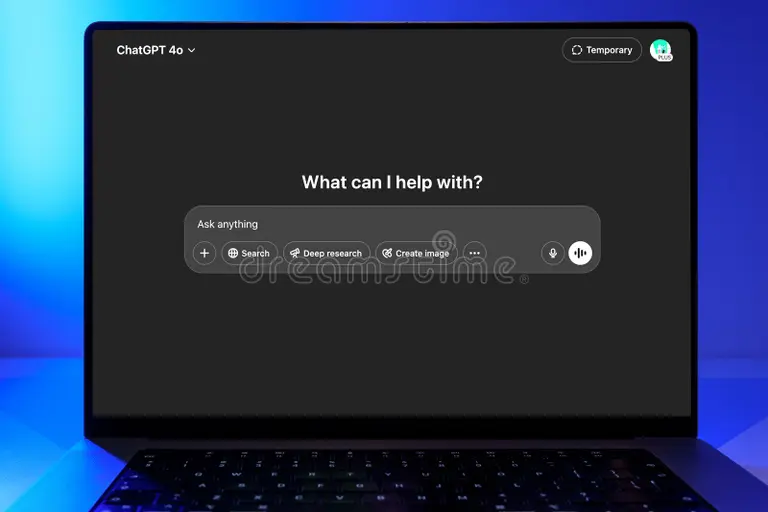
What Is ChatGPT Projects
If you've ever lost track of a good ChatGPT conversation because your sidebar turned into a mess of unrelated chats, you're not alone. OpenAI built ChatGPT Projects to solve exactly that problem. They let you group conversations, files, and instructions into one organized workspace.
Think of a project like a dedicated folder for a specific topic or task. Everything you upload and every instruction you set stays scoped to that project. You don't have to re-explain your context every time you start a new chat.
As of 2026, ChatGPT Projects are available on the Plus, Team, and Enterprise plans. Free-tier users don't have access. The feature rolled out to help heavy users manage multiple work streams without losing their place.

Quick Answer
ChatGPT Projects are organizational workspaces inside ChatGPT. They group related conversations, uploaded files, and custom instructions together. Each project keeps its own context separate from your other projects.
You need a paid plan to use them. They help you stay organized when you use ChatGPT for multiple topics or clients.
How ChatGPT Projects Differ from Custom GPTs

This is the single most common point of confusion, so let's clear it up right away. ChatGPT Projects and Custom GPTs are two completely different features. They live in different parts of the interface and serve different purposes.
A Custom GPT is a tailored version of ChatGPT with its own name, personality, and capabilities. You build it once and share it with others. It has its own GPT Store listing if you choose to publish it.
A ChatGPT Project is a private workspace for you (or your team). It doesn't create a new GPT. It just organizes your existing chats, files, and instructions under one roof.
Here's a side-by-side breakdown:
| Feature | ChatGPT Projects | Custom GPTs |
|---|---|---|
| Purpose | Organize your own work | Build a shareable AI tool |
| Audience | You or your team | Anyone you share it with |
| File uploads | Yes, scoped to the project | Yes, as knowledge files |
| Custom instructions | Per project | Built into the GPT itself |
| Collaboration | Team plan and above | Can be shared publicly |
| Sidebar location | Projects section | Explore or My GPTs section |
If you just want to keep your marketing research separate from your coding help, you want Projects. If you want to build a reusable AI assistant that other people can use, you want Custom GPTs.
Features and Capabilities Inside a ChatGPT Project
Once you create a project, you get a set of tools designed to keep everything self-contained. Here's what lives inside.
File uploads. You can drop PDFs, text files, spreadsheets, and images directly into a project. On the Plus plan, you get up to 20 files per project. Team and Enterprise plans bump that to 40 files.
Every conversation inside that project can reference those files without you re-uploading them.
Project-specific custom instructions. Instead of setting one global instruction for all your chats, you can write instructions that only apply to a single project. Tell ChatGPT to act as a legal reviewer for one project and a creative copywriter for another. The instructions stay isolated.
Color and icon labeling. Each project gets a color and an icon. This sounds small, but it makes scanning your sidebar dramatically faster when you're juggling five or six active projects.
Conversation threads. Every new chat you start inside a project inherits that project's files and instructions. You can have dozens of conversation threads under one project, all drawing from the same context.
Web search and model toggles. You can enable or disable web search on a per-conversation basis within a project. The same goes for switching between available models like GPT-4o.
One thing to note. Knowledge does not carry between projects. That's by design.
Your marketing project won't accidentally pull context from your legal project. If you need shared context across projects, you'll need to upload the same files to each one.
Who Should Use ChatGPT Projects (and Who Shouldn't)
Not everyone needs this feature. Here's how to decide if it's worth your time.
You'll benefit from ChatGPT Projects if:
- You use ChatGPT for multiple unrelated topics or clients
- You upload reference files regularly and hate re-uploading them
- You want different tones or roles for different types of work
- You're on a Team plan and need shared workspaces for colleagues
- Your sidebar has become impossible to navigate
You can skip ChatGPT Projects if:
- You only use ChatGPT for casual, one-off questions
- You're on the free tier (you won't have access anyway)
- You prefer a single, flat list of conversations
- You don't upload files or use custom instructions
Freelancers and consultants tend to get the most value here. If you're managing three clients and each one has its own set of documents and style guidelines, projects keep everything clean. Students organizing by course also find them useful.
If you're a casual user who asks ChatGPT for recipe ideas and occasional email help, you probably won't notice much difference. The feature shines when your usage gets complex.
Step-by-Step: How to Set Up and Use ChatGPT Projects

Getting started takes about two minutes. Here's the full walkthrough.
Step 1: Open the Projects section. Look at the left sidebar in ChatGPT. You'll see "Projects" listed near the top. Click it.
Step 2: Create a new project. Hit the button to create a new project. Give it a clear name. Pick a color and an icon that make it easy to spot.
Step 3: Upload your files. Once inside the project, upload any reference documents you'll need. PDFs, spreadsheets, text files, and images all work here.
Step 4: Set your project instructions. Write any custom instructions that should apply to every conversation in this project. Specify tone, role, formatting preferences, or anything else that's consistent across the work.
Step 5: Start chatting. Open a new conversation inside the project. It will automatically have access to your uploaded files and instructions. Every follow-up chat in this project inherits the same context.
Step 6: Manage and clean up. When a project is done, you can rename it, archive it, or delete it. Keeping your project list tidy makes the whole system more useful over time.
The whole flow is straightforward. The real payoff comes after a week or two, when you've built up several active projects and can jump between them without missing a beat.
ChatGPT Projects on Plus vs. Team vs. Enterprise
Not all paid plans treat Projects the same. The tier you're on determines how many files you can upload, whether you can share projects, and how much admin control you get.
Here's the breakdown:
| Feature | Plus ($20/month) | Team ($25/user/month) | Enterprise (custom pricing) |
|---|---|---|---|
| Files per project | 20 | 40 | Expanded limits |
| Project sharing | No, individual only | Yes, within workspace | Yes, with admin controls |
| Custom instructions per project | Yes | Yes | Yes |
| Admin console | No | Limited | Full admin dashboard |
| Data residency options | No | No | Yes |
If you're a solo user on Plus, Projects still work well for personal organization. You just can't share them with anyone else. Every project lives in your individual account.
Team plan is where collaboration kicks in. You can share a project with your whole workspace or specific members. Everyone with access sees the same files and instructions.
This is the tier where Projects become a genuine team tool, not just a personal organizer.
Enterprise adds admin-level controls. IT teams can manage who creates projects, set data policies, and control retention. If your company has compliance requirements, this is the tier that matters.
Common Mistakes People Make with ChatGPT Projects
Even a simple feature can trip you up if you approach it the wrong way. Here are the mistakes that show up most often in user feedback.
Confusing Projects with Custom GPTs. We covered this earlier, but it bears repeating. If you're trying to build a shareable AI tool, you're in the wrong section of the app. Projects are for organizing your own work, not publishing anything.
Uploading files to the wrong project. Once a file is in Project A, it's not available in Project B. If you need the same reference document across multiple projects, you have to upload it to each one separately. Plan your project structure before you start uploading.
Setting global instructions when you need project-specific ones. Your main custom instructions apply everywhere. If you only want a certain tone or role for one project, set it inside that project's instructions, not your global ones.
Creating too many projects. It's tempting to make a new project for every tiny task. Resist that. If two topics share most of the same files and instructions, they probably belong in the same project.
Fewer, well-organized projects beat a dozen half-empty ones.
Forgetting that context doesn't cross project boundaries. This trips up people who assume ChatGPT remembers everything across projects. It doesn't. Each project is its own silo.
That's a feature, not a bug, but it surprises people who don't expect it.
When to Use Projects vs. Regular Chats vs. Custom GPTs
Here's a simple decision framework. Pick the right tool for what you're actually trying to do.
Use a regular chat when:
- You have a quick, one-off question
- You don't need files or saved context
- The topic doesn't connect to anything else you're working on
Use a ChatGPT Project when:
- You're working on an ongoing topic with multiple conversations
- You have reference files you want to reuse
- You need different instructions or tone for different types of work
- You want to keep your sidebar organized
Use a Custom GPT when:
- You want to build a reusable AI tool for others to use
- You need a GPT with a specific name, personality, and capability set
- You plan to share it via the GPT Store or a direct link
The rule of thumb is simple. If it's personal and ongoing, use a Project. If it's a one-off, use a regular chat.
If it's a tool for other people, build a Custom GPT.
Expert Tips for Getting the Most Out of ChatGPT Projects
Once you've got the basics down, a few habits will make Projects significantly more useful.
Name projects by outcome, not topic. "Q3 Campaign Launch" is more useful than "Marketing Stuff." Specific names make it easier to find the right project months later.
Use the first conversation as a setup chat. Start each project with a message that summarizes what the project is about, what the files contain, and what you're trying to accomplish. This primes the context for every follow-up conversation.
Review and prune monthly. Projects accumulate fast. Set a reminder to archive or delete ones you're no longer actively using. A clean project list saves real time.
Leverage project instructions for formatting. If you always want bullet points in one project and full paragraphs in another, put that in the project instructions. You won't have to repeat yourself every chat.
Combine Projects with Custom Instructions for power workflows. Set a global instruction for your baseline preferences, then override specific ones per project. This layered approach gives you consistency where you want it and flexibility where you need it.
Frequently Asked Questions
Can I use ChatGPT Projects on the free plan?
No. Projects require a paid plan. Plus at $20 per month is the entry point.
Free-tier users don't have access to the Projects feature at all.
How many ChatGPT Projects can I create?
OpenAI doesn't publish a hard cap on the number of projects for Plus users. Team and Enterprise plans offer effectively unlimited projects. In practice, most users won't hit a limit.
Can I share a ChatGPT Project with someone on a different account?
Not on the Plus plan. Projects are individual-only at that tier. Team plan lets you share projects within your workspace.
Enterprise adds more granular sharing controls.
Do files in a ChatGPT Project expire?
Files stay in a project as long as the project exists. There's no published auto-expiry for uploaded files. If you delete the project, the files go with it.
Can I move a conversation from a regular chat into a Project?
No. You can't move an existing conversation into a project after the fact. You'd need to start a new conversation inside the project and reference the same files or context.
Is there a way to duplicate a ChatGPT Project?
Not directly. You'd need to create a new project, re-upload the files, and copy over the instructions manually. There's no clone or template feature as of 2026.
Final Verdict: Are ChatGPT Projects Worth Using?
If you're a paid ChatGPT user who juggles multiple topics, clients, or work streams, Projects are a genuine upgrade. They solve a real organizational problem without adding complexity.
The feature isn't flashy. It won't change how ChatGPT thinks or what it can do. But it changes how efficiently you can work with it over time.
That matters more than most people expect.
For solo users on Plus, the value is mostly personal organization. For teams on the Team or Enterprise plan, Projects become a shared workspace that reduces repetition and keeps everyone aligned.
If your ChatGPT usage is light and casual, you can skip this feature entirely. But if your sidebar is already a mess and you're tired of re-explaining your context every session, Projects are exactly what you need.
What Happens to My Data Inside a ChatGPT Project?
Everything you upload into a project is subject to OpenAI's privacy policy. That includes files, conversation history, and custom instructions.
On the Plus and Team plans, OpenAI states that conversations may be used to improve their models unless you opt out in your data settings. Enterprise customers can opt out of model training entirely through their admin console.
If you're uploading sensitive business documents, client information, or anything containing personally identifiable information, review OpenAI's data handling policies first. Enterprise plan offers the most control here, including data residency options for organizations with regulatory requirements.
A practical tip. Avoid uploading anything you wouldn't want stored on a third-party server. That's true for any cloud-based tool, not just ChatGPT.
Can I Use ChatGPT Projects on Mobile?
Yes. The Projects feature is available in the ChatGPT mobile app for both iOS and Android. The interface is slightly condensed compared to the desktop browser version, but all the core functionality is there.
You can create projects, upload files, set instructions, and start conversations from your phone. The sidebar layout adapts to a collapsible menu on smaller screens.
One limitation. Managing large numbers of files is easier on a desktop. The mobile upload flow works fine for a handful of documents, but if you're dropping 20 files into a project, a laptop or desktop browser is the better experience.
How Do ChatGPT Projects Handle Large Files?
File size limits apply per upload, though OpenAI doesn't always publish exact thresholds in their public documentation. In practice, most standard PDFs, text files, and spreadsheets upload without issue.
Very large files, think hundreds of pages or complex multi-sheet workbooks, may hit limits or take longer to process. If a file fails to upload, try breaking it into smaller sections.
Image files are supported, but they count against your per-project file limit just like any other upload. On Plus, that means one large image takes up 1 of your 20 available file slots.
What's the Difference Between Project Instructions and Memory?
ChatGPT has a separate feature called Memory that remembers details across all your conversations. Project instructions are scoped to a single project. These two systems work independently.
Memory might remember that you prefer concise answers or that you work in healthcare. Project instructions might tell ChatGPT to act as a specific persona or follow a specific format, but only within that project.
If you set a preference in Memory and a conflicting instruction in a project, the project instruction wins for conversations inside that project. Outside the project, Memory applies as normal.
Think of Memory as your global settings and project instructions as local overrides. They complement each other when set up thoughtfully.
Will ChatGPT Projects Get More Features Over Time?
OpenAI has a track record of expanding features after initial rollout. Projects launched with core functionality, and additional capabilities like the Canvas workspace have been integrated into the broader ChatGPT experience since then.
Based on OpenAI's public roadmap patterns, expect gradual improvements rather than dramatic overhauls. File limit increases, better project management tools, and deeper integrations with Custom GPTs are all reasonable possibilities.
The best way to stay current is to check OpenAI's official changelog and help center. They document new feature rollouts there before most third-party sources pick them up.

Similar Posts