How to Organize Chats in ChatGPT
If you've ever scrolled through dozens of "New Chat" entries trying to find that one conversation from last week, you already know the problem. Learning how to organize chats in chatgpt isn't just about tidiness. It's about actually being able to reuse good work instead of starting from scratch every single time.
ChatGPT gives you a few built-in tools to bring order to the chaos, but they only work if you use them consistently. As of 2026, the main options are Projects, starred conversations, smart naming, and temporary chats. The right combination depends on how many chats you generate and whether you're using ChatGPT for work, study, or personal stuff.

Quick Answer
Organize ChatGPT chats using Projects to group related conversations. Star important chats for quick access later. Rename conversations with clear, searchable titles.
Use temporary chats for one-off questions you don't need to save. Clean up your sidebar weekly to keep things manageable.
Why Your ChatGPT History Becomes a Mess (and Why It's Not Your Fault)
Here's the thing. ChatGPT doesn't force you to name or categorize anything when you start a new conversation. It just slaps on a generic title like "New Chat" or "Help with Email" and drops it into a long, flat list.
Do that a few times a week and within a month you've got 50-plus conversations with no real structure.
The auto-generated titles are the biggest culprit. ChatGPT tries to summarize what you discussed, but the results are often vague or unhelpful. "Discussion About Various Topics" tells you nothing when you're searching three weeks later.
And unlike some competitors, ChatGPT doesn't offer folders, tags, or color-coding natively. You're working with a limited toolkit.
The good news is that the tools that do exist are pretty effective when you use them with a system. Most people just never set one up.
The Two Ways to Actually Organize Chats in Chatgpt
There are two main approaches, and they work best when you combine them.
Projects are the closest thing ChatGPT has to folders. You create a Project for each topic, client, or subject area, and then move related conversations into it. Projects also let you set custom instructions that apply to every conversation inside them.
That means you can tell ChatGPT the context once instead of repeating it every time.
Manual organization relies on starring, renaming, and searching. You star conversations you'll need again. You rename them with specific, searchable titles.
Then you use the search bar to find things later. This works well if you don't have too many chats or if you prefer a simpler setup.
Here's a quick comparison:
| Method | Best For | Effort Level | Scalability |
|---|---|---|---|
| Projects | Heavy users, multiple topics, team work | Medium setup, low maintenance | Excellent |
| Starring and renaming | Casual users, fewer chats | Low setup, medium maintenance | Fair |
| Combined approach | Most people | Medium setup, low maintenance | Very good |
If you're generating more than 10-15 chats a week, Projects are almost certainly worth the setup time. If you use ChatGPT casually, starring and smart naming might be all you need.
How to Use Projects to Group Conversations by Topic or Client
Projects are available on ChatGPT Plus, Pro, Teams, and Business plans. If you're on the free tier, you won't see this feature. That's worth knowing before you plan your whole system around it.
To create a Project, click the sidebar and look for the Projects section. You can create a new Project and give it a clear name like "Client A Work" or "Biology Study Notes." Once it's created, you can start new conversations directly inside it or move existing chats in.
The real power move is setting custom instructions for each Project. Let's say you have a Project for freelance writing work. You can set custom instructions that tell ChatGPT your tone preferences, your client's style guide basics, or the type of output you usually need.
Every conversation in that Project picks up that context automatically.
Here's how to set it up step by step:
- Open the sidebar and click into your Projects area.
- Create a new Project with a specific, descriptive name.
- Open the Project settings and add custom instructions that fit the context.
- Start new conversations inside that Project, or drag existing ones in.
- Review your Projects every couple of weeks and archive or delete ones you no longer need.
One thing to watch out for. Projects don't create hard boundaries between conversations. ChatGPT may still reference context from other conversations in your history depending on your memory settings.
If you need strict separation between clients or topics, turn off memory for sensitive Projects and double-check what the model can access.

How to Use Starred Chats and Smart Naming to Find Anything Fast
Even if you use Projects, starring and renaming are still worth doing. They're your quick-access layer for the conversations you return to most often.
Starring is simple. Hover over any chat in your sidebar and click the star icon. Starred conversations get pulled to a separate section so you don't have to scroll through everything else.
Use this for templates, reference material, or anything you've bookmarked mentally as "I'll need this again."
Renaming is where most people drop the ball. The auto-generated titles are almost never specific enough. Get in the habit of renaming a chat within the first few messages.
Use a consistent format that makes sense to you.
Some naming formats that work well:
- Client or project name plus topic. "Acme Corp, Q4 Email Draft"
- Subject plus date. "Tax Prep Notes, Jan 2026"
- Purpose plus status. "Blog Outline, Draft Complete"
- Question format. "How to calculate self-employment tax"
The key is picking one format and sticking with it. Inconsistent naming defeats the purpose because you won't remember what convention you used when.
When you search later, ChatGPT's search function looks through both titles and conversation content. A specific title gets you to the right chat faster than keyword matching alone. Think of it like naming files on your computer.
"Document1" doesn't help you. "2026 Budget Spreadsheet Final" does.
When to Use Temporary Chats vs. Saved Conversations
Not every conversation deserves a permanent spot in your history. That's where temporary chats come in.
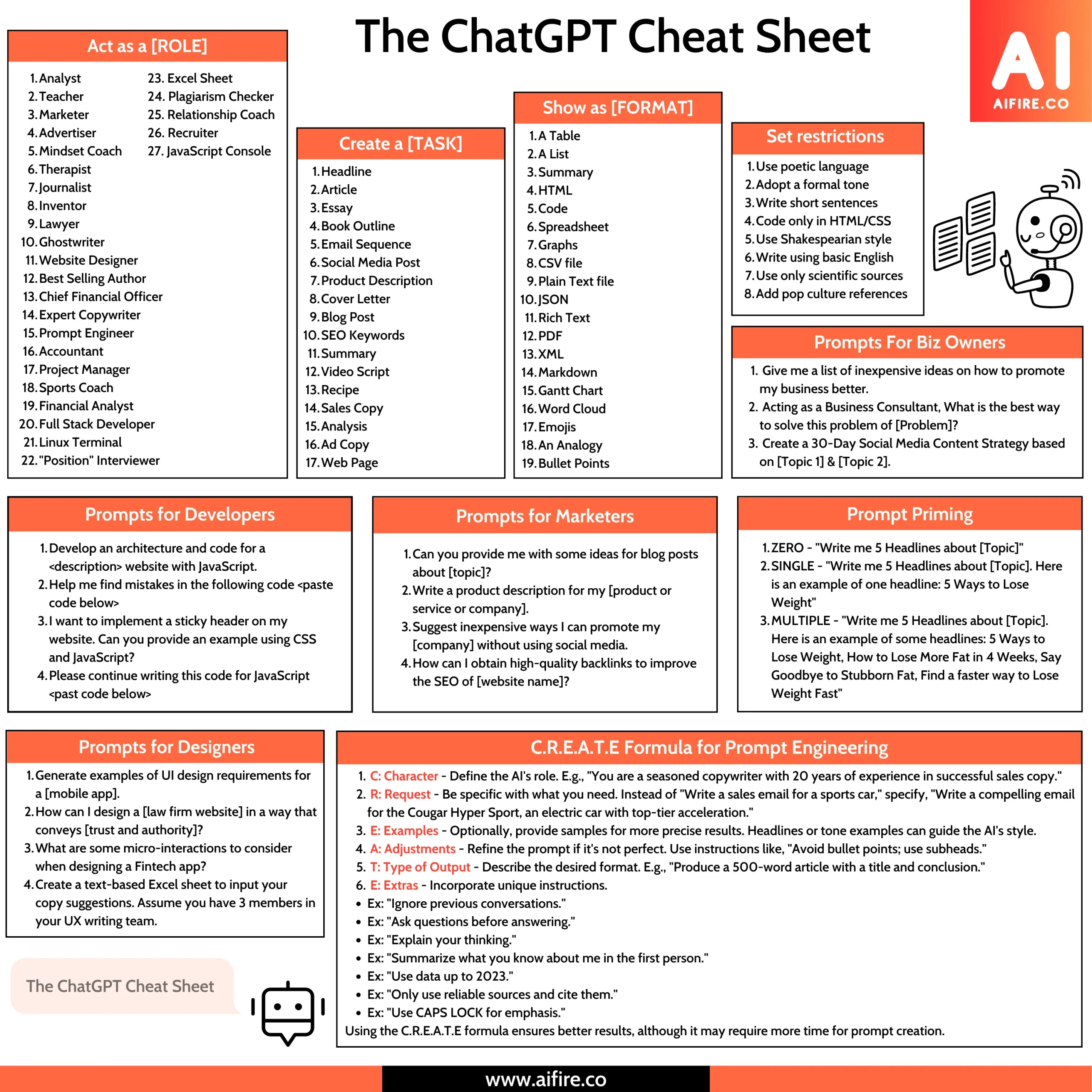
Temporary chats are conversations that don't get saved to your history. They won't appear in your sidebar, they won't be used for training, and they won't clutter up your search results. You toggle them on from the chat interface, usually near the model selector.
Use temporary chats for:
- Quick one-off questions you don't need to reference later
- Sensitive information you don't want stored in your account
- Testing prompts or experimenting with ideas
- Anything you'd otherwise delete immediately after
Don't use temporary chats for:
- Work you might need to revisit
- Conversations with useful context for future chats
- Reference material or templates
- Anything you'd want to search for later
The tradeoff is obvious. Temporary chats keep your history clean, but you lose access to that conversation forever once you close it. If you're even slightly unsure, save it.
You can always delete it later, but you can't recover a temporary chat after the fact.
One practical approach is to default to temporary chats for casual browsing and switch to saved chats when you're doing focused work. It takes a second to toggle, and it prevents your history from filling up with throwaway conversations you'll never look at again.
How Custom Instructions and Memory Reduce Repetitive Setup
One of the biggest time sinks in ChatGPT is re-explaining the same context every time you start a new conversation. Custom instructions and the memory feature exist to fix that.
Custom instructions are settings you configure once and they apply across your conversations. You can tell ChatGPT things like your profession, the tone you prefer, the format you usually need, and any background the model should keep in mind. Find these in your account settings under the custom instructions section.
When you combine custom instructions with Projects, you get a layered setup. Your general custom instructions handle broad preferences. Your Project-specific instructions handle context for that particular topic or client.
The result is that every new conversation starts with the right framing already in place.
Memory works a bit differently. ChatGPT can remember details you've shared in past conversations and reference them later. If you mention that you're a freelance graphic designer who works primarily with SaaS companies, the model may recall that in future chats without you repeating it.
Here's how to make both features work together:
- Set your general custom instructions in account settings with broad preferences.
- Create Project-specific instructions for each major topic or client area.
- Review your saved memory entries periodically in settings and delete anything outdated or irrelevant.
- Turn off memory for Projects where you need strict separation between contexts.
The main limitation is that memory isn't perfect. ChatGPT may forget details or apply context where you don't want it. If you notice the model making wrong assumptions, check your memory entries and clear anything that's causing confusion.
The Weekly Cleanup Routine That Keeps Your Sidebar Tidy
Even the best organization system falls apart without maintenance. A quick weekly review keeps your sidebar from turning into the same mess you started with.
Set aside five minutes once a week. Friday afternoon or Sunday evening works well for most people. The goal is to catch small problems before they compound.
Here's a simple cleanup checklist:
- Rename any chats with vague auto-generated titles. If you've started conversations this week, make sure each one has a specific, searchable name.
- Star anything you'll need again. Templates, reference material, and work-in-progress all deserve a star.
- Move loose chats into the right Projects. If you've been working outside your Projects this week, sort those conversations now.
- Delete or archive finished conversations. If a chat served its purpose and you won't need it again, remove it.
- Review your Projects list. Archive any Projects that are no longer active.
This takes almost no time once it becomes a habit. The alternative is spending 10 minutes searching for something that should take 10 seconds to find.
What to Do When You Have 100+ Chats and No System Yet
If you're starting from a completely disorganized history with dozens or hundreds of chats, don't try to fix everything at once. That's a recipe for giving up after 20 minutes.
Instead, work in passes. Start with the most recent month and work backward. Recent chats are the ones you're most likely to need again, so they give you the most value for your effort.
Here's a practical approach:
- Sort your chat history by date and focus on the last 30 days first.
- Rename the 10-15 most important recent chats with specific titles.
- Star anything you know you'll reference again.
- Create 3-5 Projects based on the main topics you see in your recent history.
- Move the relevant chats into those Projects.
- Delete obvious throwaway conversations to reduce the total count.
- Repeat the process for the previous month when you have time.
You don't need to rename every chat from six months ago. Most of those are probably irrelevant by now. Focus your energy on the conversations that still matter and build your system going forward.
Common Mistakes That Make ChatGPT Organization Worse
A few habits actively work against you even when you're trying to stay organized.
Relying on auto-generated titles. This is the most common one. ChatGPT's automatic summaries are rarely specific enough to be useful later. Always rename important chats yourself.
Creating too many Projects. If you have 40 Projects, you've basically recreated the same problem you had with 40 loose chats. Most people do fine with 5-10 active Projects. Archive the rest.
Never deleting anything. Hoarding every conversation "just in case" makes everything harder to find. If you haven't referenced a chat in two months and it's not a template or reference material, delete it.
Inconsistent naming conventions. Switching between different naming formats means you can't predict how to search. Pick one system and stick with it.
Ignoring the search function. ChatGPT's search works well when your titles are descriptive. If you're scrolling through your entire history every time, you're working harder than you need to.
Setting up organization and never maintaining it. A system that worked in week one will be a mess by week eight without occasional cleanup. The weekly review takes minutes and saves hours over time.
How ChatGPT's Organization Compares to Claude and Other AI Tools
ChatGPT isn't the only AI assistant with organization features, and it's not necessarily the best at them.
Claude offers a Projects feature that works similarly to ChatGPT's, but with a key difference. Claude's Projects include a shared knowledge base where you can upload documents that inform every conversation in that Project. ChatGPT's Projects rely more on custom instructions and don't offer the same document upload functionality within Projects as of 2026.
Google Gemini takes a different approach. It doesn't have a Projects feature in the same way, but it integrates with Google Drive and can reference your files and emails if you grant permission. That's a different kind of organization, more about connecting to your existing files than managing conversations.
For people who want more structure than any AI chatbot offers natively, external tools like Notion or Obsidian work well. You can export ChatGPT conversations and store them in a system with tags, links, and folders. This adds a step but gives you more control.
The bottom line is that ChatGPT's organization tools are solid for most users, but they're not the most advanced option available. If conversation management is central to your workflow, it's worth comparing how each tool handles it before committing to one.
Real Workflows: How Freelancers, Students, and Teams Actually Stay Organized
Different use cases call for different setups. Here's what tends to work for three common user types.
Freelancers usually organize by client. Create one Project per active client and set custom instructions with that client's brand voice, style guide notes, and typical deliverables. Star your template conversations so you can find them across Projects.
Use a naming format like "Client Name, Deliverable Type, Date" so everything sorts predictably.
Students tend to organize by subject or course. One Project per class works well. Custom instructions can include your academic level, citation style preferences, and the topics you're covering that semester.
Rename chats by topic and week, something like "Biology Week 5, Cell Division." Star your study guides and summary notes for midterm season.
Teams using ChatGPT Teams or Business should agree on conventions together. Decide as a group how Projects will be structured, what naming format to use, and who's responsible for cleanup. Without shared conventions, one person's "Client Work" is another person's "Project X" and nobody can find anything.
The common thread is that the best system is the one you'll actually use consistently. Fancy setups that take 20 minutes per chat aren't sustainable. Simple systems you can maintain in seconds are.
FAQs About Organizing ChatGPT Chats
Can I create folders in ChatGPT?
Not exactly. ChatGPT doesn't have a traditional folder system. Projects serve the same purpose by grouping related conversations together.
You can create multiple Projects and organize chats within them.
How do I move a chat into a Project?
Open the chat, look for the move or organize option in the interface, and select your target Project. The exact steps may vary slightly between the web and mobile apps. On mobile, you may need to access chat options through the menu.
Does deleting a chat remove it from a Project?
Yes. Deleting a chat removes it entirely, including from any Project it was in. If you want to keep the conversation but remove it from a Project, move it to your general history instead.
Can I organize chats on the free plan?
The free plan has limited organization options. You can rename and star chats, but Projects require a paid plan. If you're on free tier, focus on consistent naming and use starring to flag important conversations.
How many Projects can I create?
OpenAI doesn't publish a hard limit. In practice, most users won't hit one. If you find yourself with more than 15-20 active Projects, consider archiving older ones to keep things manageable.
Do shared conversation links still work if I rename or move the chat?
Yes. Shared links point to the specific conversation, not its title or location. Renaming or moving a chat won't break a link you've already shared.
The Bottom Line: Pick the System That Matches How You Actually Work
There's no single right way to organize ChatGPT chats. The best system depends on your volume, your use case, and how much maintenance you're willing to do.
If you're a heavy user juggling multiple topics, invest the time in Projects with custom instructions. If you're a casual user, smart naming and starring will take you most of the way. If you're somewhere in between, combine both approaches and do a quick weekly cleanup.
The worst thing you can do is nothing. Even a basic system beats scrolling through 80 unnamed conversations hoping the right one jumps out at you. Pick a setup, spend 10 minutes implementing it, and adjust as you learn what works for your workflow.

Similar Posts