How To See Archived Chats On Chatgpt Guide
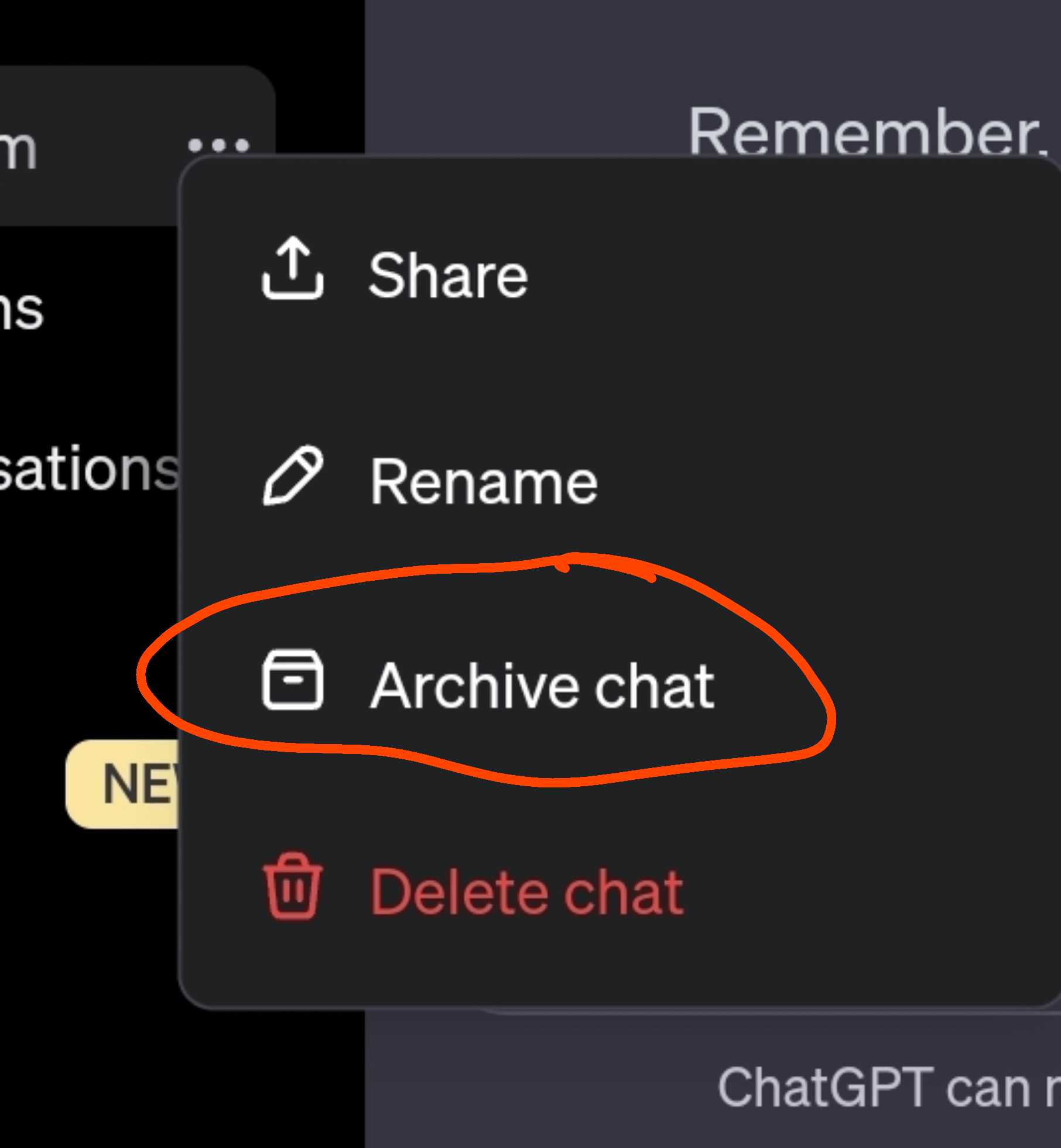
To see archived chats on ChatGPT, simply navigate to your chat history and select the archived section. A quick click will reveal all your stored conversations, making it easy to revisit past discussions. It’s straightforward once you know where to look!
In short, viewing archived chats on ChatGPT involves accessing the chat history menu and selecting the archived folder. This allows you to effortlessly find and review previous conversations you’ve stored away. No need to worry—it’s a simple process designed to keep your chats organized.
Ever wondered how to access those important chats you’ve saved but hidden away? Many users feel frustrated trying to find older conversations, especially when they’re busy and need quick access. Luckily, ChatGPT makes it easy to manage your chat history, including viewing archived chats. Whether you’re trying to retrieve tips, plans, or funny moments, knowing how to view archived conversations can save you time and keep your interactions organized. In this guide, we’ll walk you through the simple steps to find and view your archived chats, ensuring you never lose track of those valuable exchanges again.

How to See Archived Chats on ChatGPT
Understanding ChatGPT’s Chat Archiving System
ChatGPT offers users the ability to save and organize their conversations for future reference. Archiving chats helps keep your main chat list uncluttered while still preserving valuable interactions. Knowing how to access these archived chats is essential for anyone who wants to revisit past conversations easily.
The archiving feature is designed to keep your chat history private and manageable. When you archive a chat, it moves out of your main chat interface but is not deleted. This allows users to keep their chat list tidy while still having access to important or interesting conversations later on.
It’s important to understand that archived chats are stored securely within your account. They are not visible to others unless you explicitly share or export them. This setup offers both convenience and privacy for users wanting to manage their chat history effectively.
How to Access Archived Chats on ChatGPT
Accessing your archived chats is straightforward once you know where to look. Follow these simple steps:
- Log into your ChatGPT account on the web or app.
- Navigate to the main chat interface where your ongoing conversations are listed.
- Look for an option called “Archived” or “Archive Chats”. This might be a tab or a menu item depending on your interface.
- Click or tap this option to open your archived conversations.
Once in the archived section, you will see a list of conversations you previously saved. These can be opened at any time to review or continue where you left off.
Locating the Archive Button on Different Platforms
The placement of the archive button can vary between platforms. It’s essential to familiarize yourself with these differences for easy access.
Web Version
In the browser version of ChatGPT, the archive feature is often located in a sidebar or menu labeled “Chat History” or “Archived”. It might be a small icon or a dropdown menu at the top or side of the interface.
Mobile App
On the ChatGPT mobile app, look for a menu icon, often represented by three horizontal lines or dots. Tapping this opens a sidebar or dropdown menu, where you should find “Archived Chats”.
Desktop App
If you’re using the desktop app, the process is similar to the web version. The archive option should be clearly visible in the main menu or sidebar. Sometimes, it appears as a folder icon or labeled directly as “Archive”.
Restoring or Unarchiving Chats on ChatGPT
Unarchiving allows you to move a chat back to your main conversation list. Here’s how:
- Open your archived chats via the archive button or menu.
- Find the chat you want to restore.
- Click or tap on the chat to open it.
- Select the option “Unarchive” or “Move to Main Chat”. This might be a right-click menu or a button within the chat window.
After unarchiving, the conversation reappears in your main chat list, making it easy to continue the discussion.
Managing Archived Chats for Better Organization
Keeping your archived chats well-organized improves your experience. Here are some tips:
Label or Name Your Chats
Giving meaningful titles to your chats makes it easier to find them later. Use descriptive names that summarize the conversation topic.
Use Tags or Folders
If available, utilize tags or folders to categorize archived chats by subject, project, or date. This adds an additional layer of organization.
Regularly Review and Clean Up
Periodically review your archived chats to delete those no longer needed. This keeps your archive manageable and relevant.
Searching for Specific Archived Chats
Searching is crucial if you have many archived conversations. ChatGPT usually provides a search bar within the archive section.
How to Search
Type keywords related to the conversation or specific details you remember. The search feature scans your archived chats and displays relevant results instantly.
Tips for Effective Searching
– Use exact phrases or unique keywords to narrow results.
– Combine search terms for more precise results.
– Review snippets or chat previews provided by the search to confirm relevance.
Privacy and Security of Archived Chats
Your archived chats are stored securely within your account. ChatGPT employs encryption and security protocols to protect your data.
Always ensure you’re logged into a secure connection when accessing your chats. Avoid sharing your login details to keep your conversation history safe.
If you export or share archived chats, be mindful of the privacy of the information contained within them. Always delete sensitive information if it’s no longer needed.
Advantages of Using the Archive Feature
Archiving chats helps you stay organized without losing access to important conversations. It enables quick retrieval of past discussions without cluttering your main interface.
It also offers a way to keep personal or sensitive chats private from casual viewers. Archiving is a simple yet effective tool for managing your ChatGPT interactions.
Common Issues and How to Solve Them
Sometimes users face challenges when trying to access archived chats. Here’s what to do:
Chats Not Showing in Archive
Make sure you have actually archived the chat. Check if the chat was moved to the archive or deleted.
Unable to Find the Archive Button
Update your app or browser to the latest version. Interface updates may change the location of features.
Archived Chats Not Loading
Refresh the page or restart the app. Clear your cache if necessary and ensure a stable internet connection.
Additional Tips for Managing Your Chat History
For a seamless experience, consider these extra tips:
- Regularly backup your chats if the option is available.
- Review privacy settings related to chat history and archiving.
- Use export features to save important conversations externally.
This way, you can keep your conversations safe and accessible, even if you switch devices or platforms.
Related Topics to Explore
To enhance your understanding and use of ChatGPT, consider exploring related topics:
How to Export ChatGPT Conversations
Learn how to save your chats externally in formats like PDF or text files for long-term storage.
Best Practices for Chat Organization
Discover ways to keep your chat history manageable and easy to navigate.
Privacy Settings and Data Management in ChatGPT
Understand how to control your data, manage privacy preferences, and secure your chat history.
Using Multiple Accounts with ChatGPT
Manage various accounts effectively, especially when handling different projects or personal and professional chats.
Each of these topics complements your ability to manage archived chats effectively on ChatGPT.
The process of viewing your archived chats is simple once you understand where to look and how to navigate the interface. With a little practice, managing your chat history becomes an effortless part of your overall ChatGPT experience. Whether you want to revisit old conversations, organize your chats better, or keep sensitive discussions private, the archive feature offers a practical solution.
How to Access Archived Chats on ChatGPT 2024
Frequently Asked Questions
Can I access archived chats through the ChatGPT mobile app?
Yes, you can view archived chats using the ChatGPT mobile app. Open the app, navigate to the chat history section, and look for an archive or saved chats folder. From there, you can browse and reopen any archived conversations.
Is there a way to organize archived chats for easier access?
Currently, ChatGPT allows you to archive chats, but it doesn’t offer advanced organization features. To keep track of important conversations, consider labeling or noting key chats before archiving, so you can quickly identify them later.
How can I delete an archived chat if I no longer need it?
To delete an archived chat, go to your chat history, locate the specific archived conversation, and select the delete option. Confirm the deletion to remove the chat permanently from your archive.
Can I restore an archived chat back to active conversations?
Yes, restoring an archived chat is possible. Find the archived chat in your history, select it, and choose the option to unarchive or move it back to your main chat list. The conversation will then appear among your active chats.
Where do I find the archived chat section on the ChatGPT website?
On the ChatGPT website, log into your account and click on the chat history panel. There, you should see an archive or saved chats section where all your archived conversations are stored for easy access.
Final Thoughts
To see archived chats on ChatGPT, start by logging into your account. Navigate to the sidebar and click on the “Chat History” or similar section. You will find an archived tab where your past conversations are stored.
Remember, ‘how to see archived chats on chatgpt’ involves these simple steps to access your saved conversations quickly. Quickly locate the archived chats and revisit any previous discussions at your convenience.

Similar Posts