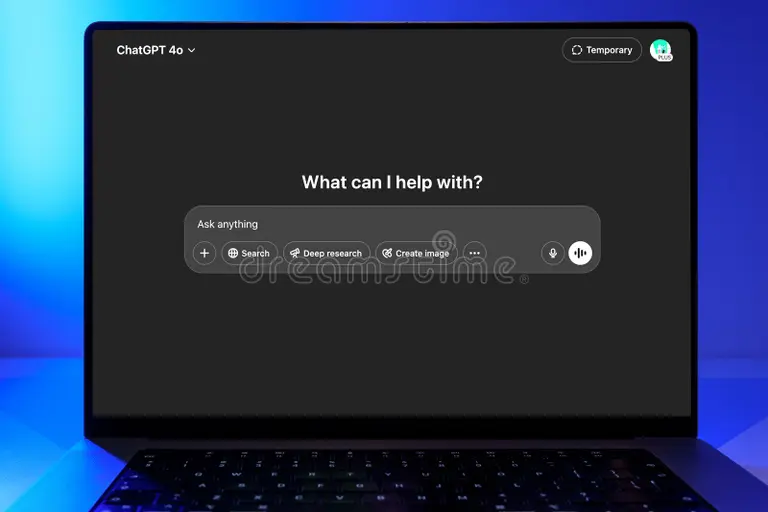
How to Turn Off ChatGPT Memory

Image source: Bing (Web (fair-use with source credit))
Figuring out how to turn off ChatGPT memory is probably simpler than you expected, but the details matter more than most guides admit. The feature stores details about your preferences, writing style, and past topics so future conversations feel more tailored. That's great until you're on a work device, switching between sensitive topics, or just tired of ChatGPT bringing up something from three months ago.
The good news is you've got real control here. You can stop new memories, delete everything already saved, or use a temporary chat mode that forgets everything the moment you close it. As of 2026, OpenAI has kept the controls largely stable across web, desktop, and mobile, so once you know where to look on your platform, the process takes about 30 seconds.
Let's walk through exactly what to do and, just as importantly, what happens after you flip that switch.
Quick Answer: How to Turn Off ChatGPT Memory
Open Settings in ChatGPT. Select Personalization. Toggle Memory off.
That stops ChatGPT from saving new details. You can also use Temporary Chat mode for a session with zero stored data. To erase old memories, go to Manage Memory and delete them individually or all at once.
The Fastest Way on Desktop
- Open ChatGPT in your browser or desktop app.
- Click your profile icon in the bottom-left corner.
- Select Settings.
- Click Personalization in the left sidebar.
- Toggle Memory to off.
- Confirm the toggle switch moves to the off position (gray, not colored).
ChatGPT will display a small confirmation. It stops storing new conversation details immediately. But it does not erase memories it already saved.
For that, you need one more step, detailed in the section below.
The Fastest Way on Mobile (iOS & Android)
- Open the ChatGPT app.
- Tap your profile icon (top-left on some versions, top-right on others).
- Tap Settings→ Personalization.
- Toggle Memory off.
- You'll see a brief notification confirming the change.
Mirror behavior is identical on mobile: new memories stop, but old ones persist. If you've been using ChatGPT on both platforms and wonder why it still seems to "know" things on your phone after turning memory off on desktop, that's why. You're seeing old stored memories, not new ones accumulating.
Memory Off Isn't Always Memory Gone: What Stays and What Goes
This is the part trips people up. Flipping the Memory toggle stops ChatGPT from learning anything new from your current or future conversations. That's it.
It does not reach back and erase the preferences, project details, or personal tidbits it already filed away earlier.
Think of it like locking the front door. Nobody new gets in. But everything already sitting inside your house is still there until you go room by room and clear it out.
Stopping New Memories vs. Deleting Old Ones
| Action | What It Does | What It Does NOT Do |
|---|---|---|
| Toggle Memory off | Halps ChatGPT from saving any new details | Does not erase previously saved memories |
| Delete individual memories | Removes only the ones you select | Does not stop new ones from being saved |
| Delete all memories | Wipes the entire stored memory bank | Does not automatically turn off the Memory toggle |
| Temporary Chat mode | Runs a conversation with zero memory storage | Makes no changes to your saved memory at all |
As of 2026, ChatGPT can store roughly a million tokens worth of combined memory. Preference reminders, project names, writing tone instructions, all of it counts toward that cap. Most users never hit the limit, but if you've been a heavy user since memory rolled out in 2023, yours could be substantial.
How to View Everything ChatGPT Has Stored About You
This is worth doing even if you plan to leave memory on. Transparency matters.
- Go to Settings → Personalization → Manage Memory.
- You'll see a list of every stored memory.
- Each entry shows a short summary like "User prefers detailed explanations" or "User works in graphic design."
The panel is searchable. Open it and use your eyes. Some entries might surprise you.
Others are borderline useless. Either way, seeing them makes the next decision easier.
You'll also see a small note at the top saying something like "ChatGPT has saved X memories from your conversations." That number tells you at least how much accumulated personalization you're carrying around.
How to Delete Specific Memories or Wipe Everything
Delete individual memories:
- In the Manage Memory panel, click the X or "Forget" button next to any specific entry.
- ChatGPT asks for confirmation. Confirm it.
- That memory is gone permanently.
Delete all memories at once:
- Scroll to the bottom of the Manage Memory panel.
- Click "Delete all memories".
- Confirm when prompted.
- The panel will show zero saved memories.
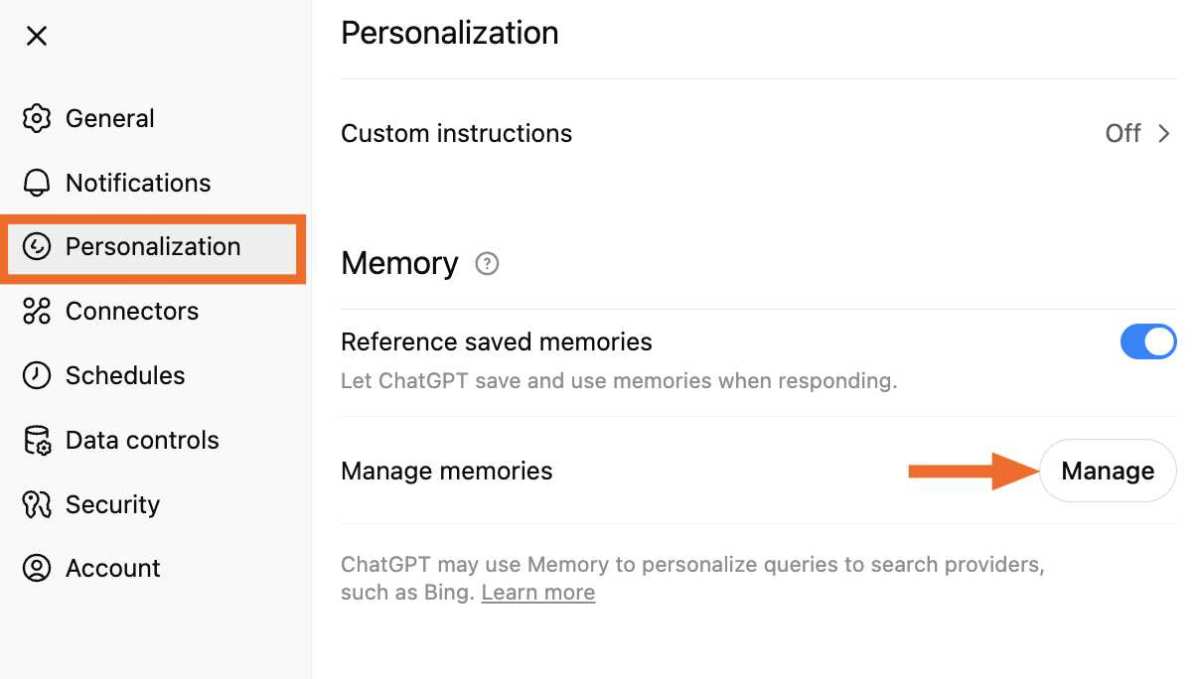
Image source: Bing (Web (fair-use with source credit))
If you toggle Memory off and then delete all memories, you're in a fully clean state. No saved preferences, no accumulated context, no future learning. ChatGPT treats every new conversation like it's meeting you for the first time.
Temporary Chat: The Nuclear Option for Private Conversations
Temporary Chat is exactly what it sounds like. You open a conversation, chat freely, and when you close it, there's nothing left behind. No memory stored, no history visible later, no trace in your account.
When to Use Temporary Chat Instead of Turning Off Memory
Temporary Chat makes sense when:
- You're asking about something sensitive you don't want influencing future responses.
- You're on someone else's device or a shared computer.
- You're testing a prompt and don't want stored preferences skewing results.
- You need a one-off answer and prefer zero retention.
Regular "memory off" mode makes sense when:
- You want a persistent account but without personalization.
- You've already wiped your stored memories.
- You prefer consistency but not ChatGPT remembering your life story.
What You Lose When You Use Temporary Chat
Temporary Chat is clean but sterile. You lose:
- Access to your project history.
- Any continuity between sessions.
- Custom instructions in newer interface versions.
It's a tradeoff. Pure privacy, zero continuity. Most users reserve it for sensitive queries and use normal mode with memory cleared for everyday chats.
To start one, open ChatGPT and select the option usually labeled something like "Temporary chat" near the new chat button. The interface makes it visually distinct so you know you're in private mode. Close the tab or navigate away, and that conversation vanishes from your account entirely.
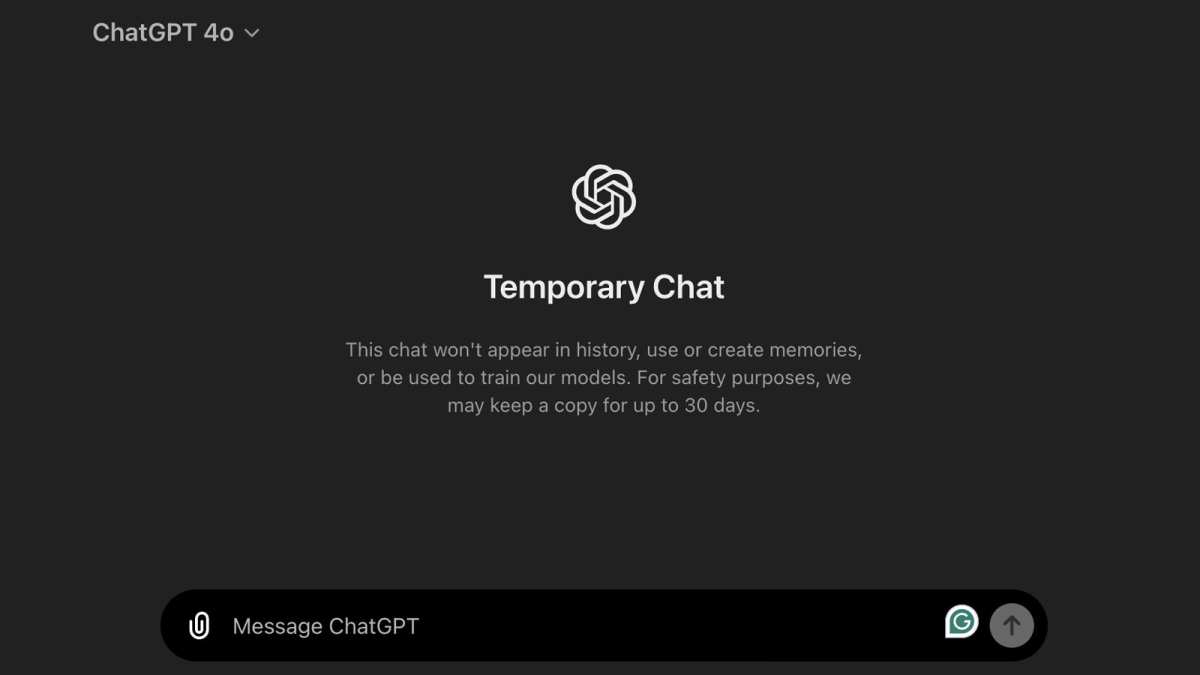
Image source: Bing (Web (fair-use with source credit))
Your Situation Decides the Right Move
Not everyone needs the same approach. What matters depends on why you're here in the first place. Let's match your situation to the right set of actions.
I Just Want ChatGPT to Stop Remembering New Stuff
Do this: Toggle Memory off. That's the whole fix. You keep your existing history and conversations, but ChatGPT stops filing away new details about your preferences or topics.
You don't need to delete anything. You don't need to change how you chat. One toggle, done.
I Wiped My Old Memories and Want a Clean Slate
Do this: Toggle Memory off first, then go to Manage Memory and delete all saved entries. Log out and back in if you want to be thorough.
After that, every conversation starts fresh. ChatGPT won't reference past preferences or bring up old project names. You get the same experience a brand-new user would get.
I'm on a Shared or Work Device
Do this: Use Temporary Chat mode for every session. Don't rely on the memory toggle alone, because someone else using the same device after turn it back on or see stored memories if the session isn't fully signed out.
If you must use normal mode on a shared device, sign out completely when you're done. Clear the browser cache. It's not glamorous advice, but it's the kind that actually protects you.
I Work in a Sensitive Field (Legal, Healthcare, Financial)
Do this: Turn off Memory, delete all stored memories, and use Temporary Chat for any conversation that involves client data, patient information, or confidential financial details.
Here's why this matters beyond personal preference. If you're in a jurisdiction covered by GDPR, you have a legal basis to request data deletion. HIPAA in the United States carries its own requirements around patient data handling.
Storing sensitive professional information in a third-party AI memory system, even a well-intentioned one, creates risk you probably don't want or need.
For healthcare users specifically: OpenAI's zero-data-retention API option exists for organizations that need it. The consumer ChatGPT product doesn't carry HIPAA certification as of 2026. Keep patient conversations out of it entirely, regardless of memory settings.
I'm an Admin Enforcing Policy Across a Team or Organization
Do this: If your organization uses ChatGPT Team or Enterprise, admins can manage memory settings through the admin console.
In the admin panel, look for data controls or memory settings under the workspace configuration. The exact label varies depending on your plan tier and when your organization last updated its admin tools. The key piece is that Enterprise admins can disable memory organization-wide, toggle it off by default for new members, or restrict what types of data ChatGPT is allowed to retain.
You can verify our guidance here against your specific admin console because the interface shifts between plan tiers, and OpenAI occasionally renames sections. The principle holds: admins have the power to enforce a no-memory policy across the entire workspace. Individual users can't override it from their personal settings.
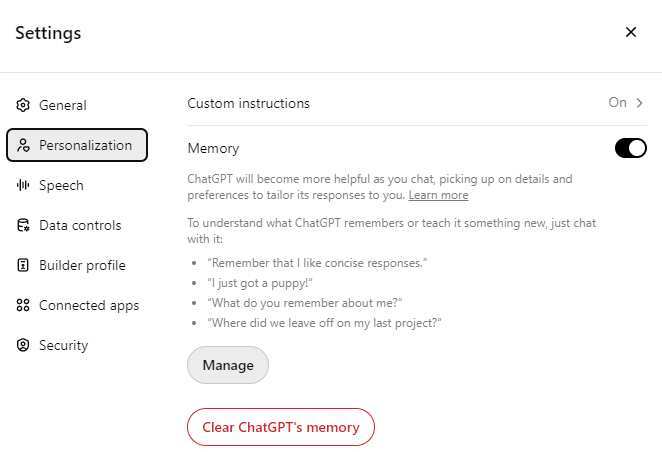
Image source: Bing (Web (fair-use with source credit))
The Stuff People Get Wrong About ChatGPT Memory
Plenty of guides gloss over the nuances here, so let's clear up the three misconceptions that show up most often in user forums and help threads.
"Turning Off Memory Deletes Everything"
Nope. This is the single biggest misunderstanding. The toggle controls future collection, not past storage.
Your existing memories sit in that Manage Memory panel until you actively delete them.
Some users turn the toggle off, close the settings tab, and assume they're clean. Weeks later they notice ChatGPT still referencing a preference they thought was gone. That's because the old memory was never wiped.
The toggle just stopped new ones from forming.
"Memory Is Off on Mobile If It's Off on Desktop"
Memory settings sync across devices on the same account. Aggregate user reports and OpenAI's official help documentation both confirm this behavior.
If you toggle it off in your browser, your phone gets the sync. If it isn't syncing for you first check that you're signed into the same account on both devices. An outdated app version can occasionally delay or fail to sync this preference through.
Updating the app and toggling the setting again from within the app usually resolves it.
"Temporary Chats Are Saved Somewhere Anyway"
Temporary Chat genuinely leaves nothing in your account's history. OpenAI's documentation states these conversations are not used to train models and are not accessible after the session ends.
That said, temporary doesn't mean invisible to your network administrator, employer, or internet provider at the infrastructure level. It means the data isn't retained within your ChatGPT account. If you need protection beyond the platform itself, use a VPN and avoid entering real names or sensitive identifiers even in temporary sessions.
Memory vs. Temporary Chat: Side-by-Side Comparison
The two approaches overlap but aren't interchangeable. Here's how they stack up across the details that actually matter.
| Feature | Memory Off | Temporary Chat Mode |
|---|---|---|
| Stops new memories | Yes | Yes (entire session has no memory) |
| Deletes existing memories | No (requires separate action) | N/A (no memory exists to delete) |
| Visible in chat history | Yes | No |
| Custom instructions apply | Yes | Depends on interface version |
| Accessible on other devices | Yes (synced via account) | No |
| Survives app restart | Yes | No |
| Best for | Daily use without personalization | Sensitive one-off queries |
| Affects stored memory panel? | No | No interaction with stored memory at all |
Choose memory off when you want a consistent baseline but don't want ChatGPT learning new things. Choose temporary chat when you need a conversation that leaves no footprint whatsoever.
Most users end up using both. Memory off as their default state and temporary chat for anything sensitive. That combination covers the widest range of scenarios without requiring constant settings juggling.
What This Means for Privacy Regulations (GDPR, HIPAA, and So On)
If you handle data that falls under regulatory frameworks, the stakes of how memory works go beyond personal preference. Here's the breakdown that matters.
GDPR Users
Under the EU's General Data Protection Regulation, you have the right to erasure, often called the "right to be forgotten." The Manage Memory panel where you can view and delete every stored entry directly supports exercising that right for data within ChatGPT.
If ChatGPT has inferred details about you, like your profession or interests, those inferences qualify as personal data under GDPR. Deleting them through the interface is your clearest path to exercising control. For a more formal process, you can also submit a data deletion request through OpenAI's privacy page.
HIPAA and Healthcare Users
ChatGPT's consumer plans do not carry HIPAA compliance certification as of 2026. If you handle protected health information, the safest approach is to keep all patient-related conversations out of ChatGPT regardless of memory settings.
For healthcare organizations looking to use OpenAI's tools in a compliant manner, the Zero Data Retention (ZDR) API is the available path. It's available to Business-tier customers who configure it specifically. Consumer ChatGPT, even with memory off and temporary chat, is not the same as a compliant healthcare AI deployment.
Don't treat it as one.
Enterprise and Organizational Compliance
ChatGPT Enterprise carries SOC 2 compliance, which matters for organizations with audit requirements. Admins can enforce memory policy globally, which simplifies compliance across teams.
If your organization operates across multiple jurisdictions, the admin console lets you set a baseline policy that applies to all members regardless of their location. Individual users can't override it, which gives compliance teams a clear enforcement point. Check your plan tier because some data control features are only available at the Enterprise level, not Team.
Keeping Memory Off Long-Term: What to Watch For
Turning memory off isn't a set-it-and-forget-it situation. Here are the situations it can quietly reappear or behave differently than expected.
App updates sometimes reset preferences. User reports across forums note that after major ChatGPT app updates, the Memory toggle occasionally reverts to the on position. OpenAI hasn't confirmed this as a consistent bug, but it shows up often enough to warrant checking after each update.
New devices or browsers can behave unexpectedly. If you sign into ChatGPT on a new device for the first time, the memory setting should sync from your account. On rare occasions some users report it defaulting to on. It takes 15 seconds to check.
Make it a habit when you set up ChatGPT anywhere new.
Custom GPTs operate separately. If you use or create custom GPTs from the GPT Store, those can have their own context and memory behaviors independent of your main ChatGPT memory settings. Turning off memory in your ChatGPT account doesn't automatically strip context from custom GPTs you've built or interacted with.
Clearing your account is a last resort. If you want to fully reset everything, including memory, conversation history, and preferences, the nuclear option is to delete your ChatGPT account entirely and start fresh. This is drastic and irreversible. For most users, toggling memory off and deleting all saved memories achieves the same practical result without losing the account.
A quick check-in routine helps. Once a month open Settings → Personalization. Verify the Memory toggle is still off.
Glance at Manage Memory to make sure nothing new crept in. Two minutes, once a month. That's all it takes to maintain the clean state you set up.
Frequently Asked Questions
Does turning off chatGPT memory affect custom instructions?
No. Custom instructions are a separate setting. They remain active even when memory is off.
You can use both together or independently without conflict.
Can other users on my ChatGPT plan see my memories?
No. Memories are tied to your individual account. Other members of a Team or Enterprise plan can't view your stored memories unless they have access to your account credentials.
How long does it take for deleted memories to disappear?
Immediately. Once you confirm deletion in the Manage Memory panel, those memories do not influence future conversations. There's no grace period or delayed processing.
Does clear chat history also clear memory?
No. Deleting a conversation from your sidebar does not remove memories ChatGPT stored from that conversation. Memory and conversation history are separate systems.
Can I turn off memory for just one conversation?
The closest option is Temporary Chat mode. The memory toggle is account-wide. There's no way to blacklist individual conversations from memory while leaving memory on for others.
Will ChatGPT remember things I told it before I turned memory off?
Yes, unless you manually delete those stored memories. The toggle stops future collection. Existing entries stay in the Manage Memory panel until you remove them.

Similar Posts