ChatGPT Projects vs Folders

If you've been using ChatGPT for more than a few weeks, you've probably hit the same wall: your sidebar turns into a graveyard of half-finished conversations, and finding that one thread from three weeks ago feels like archaeology. OpenAI's answer has been two separate features, and most people aren't sure which one to actually use. The chatgpt projects vs folders question isn't just about tidiness.
It's about whether your conversations remember context, follow rules you set, and stay organized in a way that scales.
Here's the short version. Folders are visual sorting bins. Projects are full workspaces with memory, custom instructions, and team-sharing built in.
As of 2026, both exist side by side in the ChatGPT interface, and the smartest setup uses each for what it's actually good at. Let me break down exactly how they differ, where they overlap, and which one deserves your attention based on how you actually work.
Quick Answer
ChatGPT Projects are workspaces that hold custom instructions, persistent memory, and shared team access. Folders are visual labels that sort your chats without adding any intelligence. Projects are better for long-running work like client accounts or research.
Folders are better for quick daily sorting. Most power users end up combining both.
Why This Comparison Actually Matters Right Now
OpenAI rolled out Projects as a major upgrade to how ChatGPT handles organization, but they didn't remove Folders. That left a lot of people confused about whether Folders are being phased out, whether Projects replace them entirely, or whether the two features do the same thing under different names.
They don't. And picking the wrong one for your workflow means either overcomplicating a simple sorting job or underpowering something that needs real structure. If you're a freelancer juggling five clients, a student managing three courses, or a team lead sharing context across colleagues, the choice between these two features changes how efficient your ChatGPT setup actually is.
The confusion is compounded because OpenAI's own documentation doesn't always make the distinction obvious. Both features live in the sidebar. Both let you group conversations.
But under the hood, they solve completely different problems.
The Quick Answer: Projects vs. Folders in Plain English
Think of Folders like the tabs in a filing cabinet. You drop a document in, it stays where you put it, and that's the end of the story. Projects are more like a dedicated desk for a specific job, with your reference materials pinned to the wall, your preferences already set, and your assistant briefed on how you work.
Folders sort. Projects think.
If you just want to keep your Monday marketing chats separate from your Wednesday coding chats, Folders handle that fine. If you want ChatGPT to remember that you always write in British English for Client A, use a specific tone for Client B, and never mention a competitor's name in either context, you need Projects.
What ChatGPT Projects Actually Do (And Why They're Different)
A Project in ChatGPT is a container that holds conversations, files, custom instructions, and memory settings all in one place. When you create a Project, you're not just making a folder. You're setting up a workspace that behaves differently from your general ChatGPT usage.
Here's what makes Projects genuinely different from simple organization:
Custom instructions per Project. You can tell ChatGPT to adopt a specific tone, format, or set of rules that only apply inside that Project. Your "Client Onboarding" Project can have completely different instructions from your "Internal Brainstorming" Project.
Persistent memory scoped to the Project. ChatGPT's memory feature can store facts and preferences. Within a Project, that memory is contextual, so it doesn't bleed unrelated information into conversations that shouldn't have it.
File uploads tied to the Project. You can upload reference documents, style guides, or codebases that stay available across conversations within that Project.
Team and Enterprise sharing. Projects can be shared with other members of your ChatGPT Team or Enterprise workspace, giving everyone access to the same context and instructions.
Model selection. On Pro and Enterprise plans, you can set a default model for a Project, so every conversation inside it uses the right tool for the job.
Projects are designed for work that has continuity. If you're doing something over weeks or months, with consistent rules and shared context, a Project keeps all of that intact without you re-explaining it every time you open a new chat.
What Folders Still Get Right
Folders do one thing well: they let you visually group conversations in the sidebar. You create a Folder, name it, optionally color-code it, and drag chats into it. That's it.
No custom instructions, no memory, no file uploads, no sharing.
And honestly, for a lot of people, that's enough.
Folders shine when your organizational needs are simple and temporary. Maybe you want to group this week's chats about a specific task. Maybe you're cleaning up your sidebar after a busy month.
Maybe you just like seeing your conversations sorted by topic without any extra setup.
The advantages of Folders are real, even if they're modest:
Zero setup time. Create a Folder, name it, done. No instructions to write, no settings to configure.
No cognitive overhead. You don't have to think about whether a conversation belongs in a Project or a Folder. If it's a quick sort, use a Folder.
Works on every plan. Folders are available across all ChatGPT tiers, including the free plan, without any feature restrictions.
Easy to restructure. Moving a chat from one Folder to another is a drag-and-drop action. No need to reassign context or worry about losing custom instructions.
Folders aren't a lesser version of Projects. They're a different tool for a different job. The mistake is treating them as interchangeable.
ChatGPT Projects vs. Folders: Side-by-Side Comparison
Let's put them next to each other so you can see exactly where each one wins and where each one falls short.
Organization & Structure
| Feature | Projects | Folders |
|---|---|---|
| Groups conversations | Yes | Yes |
| Nested organization | Folders can exist inside Projects | Standalone only |
| Color coding | No | Yes |
| Sidebar visibility | Appears as a section | Appears as a collapsible group |
| Drag-and-drop sorting | Limited | Full |
Projects give you a top-level structure. Folders give you fine-grained sorting. The real power move is using Folders inside a Project to get both layers of organization.
Custom Instructions & Memory
| Feature | Projects | Folders |
|---|---|---|
| Custom instructions | Yes, per Project | No |
| Scoped memory | Yes, contextual to the Project | No |
| File uploads | Yes, persistent within the Project | No |
| Tone and style rules | Yes | No |
This is where the comparison isn't even close. If you need ChatGPT to behave differently based on what you're working on, Folders can't do that. Projects are the only option.
Collaboration & Sharing
| Feature | Projects | Folders |
|---|---|---|
| Share with team members | Yes (Team/Enterprise) | No |
| Shared custom instructions | Yes | N/A |
| Admin controls | Yes (Enterprise) | No |
| Guest access | Limited (Enterprise) | No |
If you're on a Team or Enterprise plan, Projects become significantly more valuable because they let you standardize how your team uses ChatGPT. Folders are strictly personal.
Limits & Performance
| Feature | Projects | Folders |
|---|---|---|
| Available on free plan | Yes | Yes |
| Conversation limits | Subject to plan limits | Subject to plan limits |
| File upload limits | Per plan, shared across Projects | N/A |
| Number of Projects | No hard cap reported | No hard cap reported |
Neither feature has a published hard limit on how many you can create. Both are constrained by your overall plan's conversation and storage limits.
When to Use Projects (And When They're Overkill)
Projects earn their place when you have ongoing work that benefits from continuity. If you're managing a client relationship over months, running a recurring content calendar, or building a codebase that ChatGPT needs to understand contextually, a Project keeps all of that intact.
Here's where Projects genuinely shine:
Client work. Set custom instructions with the client's brand voice, upload their style guide, and every conversation inside that Project starts with the right context.
Long-term research. Upload reference papers, set instructions for citation format, and let memory accumulate relevant facts over weeks of work.
Team collaboration. Share a Project with colleagues so everyone works from the same instructions and context without duplicating setup.
Coding projects. Keep a codebase's architecture documented in the Project instructions so ChatGPT gives consistent, informed answers across sessions.
But Projects can be overkill. If you're just sorting chats from a one-off task, creating a full Project with custom instructions is like renting a warehouse to store a single box. You'll spend more time setting it up than you'll ever save.
When Folders Are Still the Smarter Choice
Folders win when your needs are lightweight and temporary. They're the right call when you want to clean up your sidebar, group chats from a specific week, or separate personal from professional conversations without any extra configuration.
Folders are the better option when:
You're on the free plan and want basic organization. Folders work fully on every tier. No feature is locked behind a paywall.
You need to sort chats quickly. Drag, drop, done. No setup, no instructions, no decisions to make.
Your work doesn't have continuity. If each chat is a standalone task with no relationship to the previous one, a Project's memory and instructions add zero value.
You're organizing retroactively. Cleaning up fifty old chats is faster with Folders than moving them into Projects one by one.
The key is matching the tool to the job. Folders aren't outdated. They're just simple, and simple is exactly what you need half the time.
How to Set Up ChatGPT Projects the Right Way
Setting up a Project takes about two minutes, but doing it well means thinking about what you actually need before you click "New Project."
Creating Your First Project
Open the sidebar and click the "+" next to Projects. Give it a clear, specific name. "Client A" works better than "Work Stuff." You can always rename it later, but a good name from the start saves confusion.
Once created, the Project appears as its own section in the sidebar. New chats started from within that Project automatically inherit its settings.
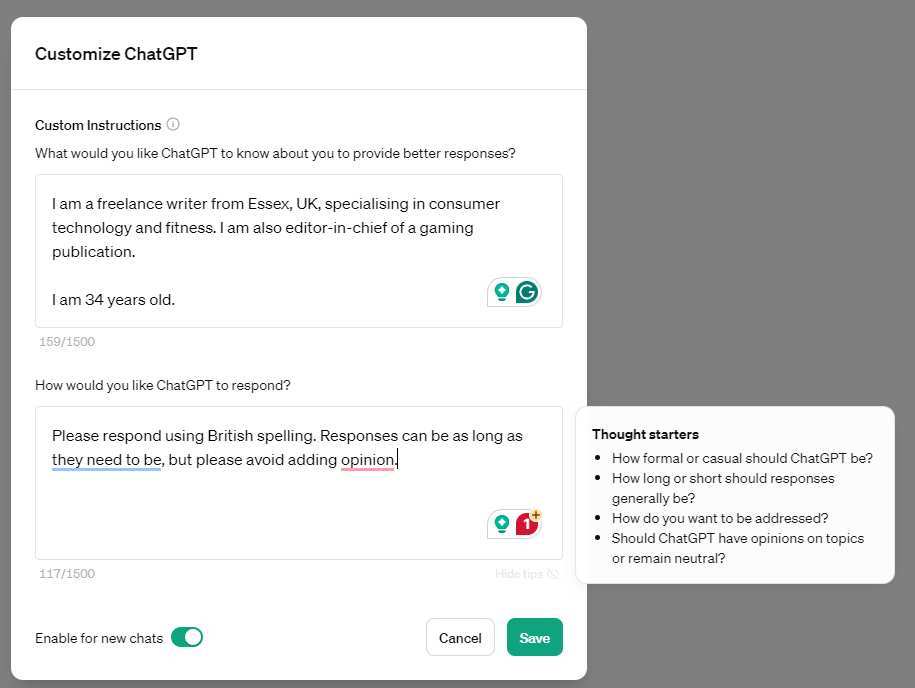
Adding Custom Instructions That Actually Stick
Inside the Project settings, you'll find the custom instructions field. This is where most people either write too little or too much. The sweet spot is three to five clear directives.
For example, a good set of custom instructions for a content marketing Project might be:
- Write in a conversational but professional tone.
- Use British English spelling and grammar.
- Structure all blog posts with H2 subheadings and bullet points where relevant.
- Never mention competitor brand names directly.
Specific beats vague every time. "Be helpful" tells ChatGPT nothing. "Always format code examples with Python syntax highlighting and include a brief comment explaining each block" tells it exactly what to do.
Moving Existing Chats Into a Project
You can move existing conversations into a Project by dragging them from the sidebar into the Project section. The chat retains its full history, and going forward, it operates under the Project's custom instructions.
One thing to know: moving a chat into a Project doesn't retroactively apply the Project's instructions to the existing conversation. Those instructions only affect new messages you send after the move. If you need the old conversation to follow the new rules, start a fresh chat within the Project and reference the previous one if needed.
How to Organize Folders Within Projects (Best of Both Worlds)
Here's where things get genuinely useful. You can create Folders inside a Project, giving you two layers of organization. The Project handles the intelligence, the memory, and the instructions.
The Folders handle the visual sorting.
For example, inside a "Client A" Project, you might create Folders called "Blog Posts," "Email Campaigns," and "Social Content." Each Folder holds the relevant conversations, but they all share the same custom instructions and memory context.
To create a Folder inside a Project, open the Project, click the Folder icon, and name it. Then drag conversations into the appropriate Folder. The sidebar shows the Project as a parent section with Folders nested underneath.
This combination is the setup most power users land on. Projects for the big categories that need context. Folders for the subcategories that just need sorting.
Common Mistakes People Make With Projects and Folders
The biggest mistake is treating Projects and Folders as either/or choices. They're complementary. Using only Folders means you're missing out on custom instructions and memory.
Using only Projects means you're overcomplicating simple sorting tasks.
Other frequent missteps include:
Creating too many Projects. If you have twenty Projects for twenty one-off tasks, you've recreated the clutter you were trying to solve. Consolidate where possible.
Writing vague custom instructions. "Be professional" or "Keep it short" don't give ChatGPT actionable guidance. Be specific about tone, format, and constraints.
Forgetting that Folders inside Projects share context. A Folder doesn't isolate conversations from the Project's instructions. If you need truly separate contexts, use separate Projects.
Not using memory effectively. Projects work best when you let memory accumulate relevant facts over time. If you're clearing memory constantly, you're losing one of the biggest advantages Projects offer.
Ignoring the sharing features. If you're on a Team plan and still briefing every colleague individually on how to use ChatGPT for shared work, you're leaving time on the table. A shared Project standardizes that automatically.
Pricing: What You Get on Every Plan
Both Projects and Folders are available on the free ChatGPT plan, so you can start organizing without paying a penny. The differences show up when you need advanced features.
| Plan | Price (Monthly) | Projects | Folders | Key Limitations |
|---|---|---|---|---|
| Free | $0 | Yes | Yes | No team sharing, standard model access |
| Plus | $20 | Yes | Yes | No team sharing, priority model access |
| Pro | $200 | Yes | Yes | Full model access, higher usage limits |
| Team | $25/user | Yes | Yes | Project sharing, admin controls |
| Enterprise | Custom | Yes | Yes | Full admin, SSO, unlimited usage |
The real unlock is team sharing, which requires at least the Team plan. If you're a solo user, the free or Plus plan gives you everything you need for both Projects and Folders.
Real Scenarios: Which One Wins for Your Situation
Let's walk through a few common setups so you can see how this plays out in practice.
Freelance writer with three clients. Create one Project per client with custom instructions for tone, style, and deliverables. Use Folders inside each Project to separate article drafts, email copy, and social posts. This keeps each client's context completely isolated.
Student managing coursework. One Project per subject works well if you're uploading lecture notes or referencing specific textbooks. Folders inside each Project can separate semesters or assignment types. If that feels like too much, just use Folders for each subject and skip Projects entirely.
Marketing team of five. Create shared Projects for each campaign or brand. Every team member gets the same custom instructions and context. Folders inside each Project separate content types like ads, blogs, and landing pages.
This is where the Team plan pays for itself.
Casual personal user. Stick with Folders. Sort by topic, delete when done, and don't overthink it. Projects add complexity you won't benefit from if you're just asking ChatGPT occasional questions.

Final Verdict: Should You Use Projects or Folders?
Use Projects when your work has continuity, specific rules, or shared context. Use Folders when you just need to sort things quickly. Combine both when you want the full picture.
If you only take one thing from this guide, let it be this: start with Folders for a week. Notice where you're re-explaining the same context over and over. That's your signal to create a Project for that work.
Frequently Asked Questions
Can I use both Projects and Folders at the same time?
Yes, and you should. Folders can exist inside Projects, giving you two layers of organization. The Project handles context and instructions while Folders handle visual sorting.
Do Projects work on the free ChatGPT plan?
Projects are available on the free plan. Team sharing and some advanced settings require a paid plan, but the core functionality works everywhere.
Will OpenAI eventually remove Folders?
There's no official indication that Folders are being deprecated. Both features serve different purposes, and OpenAI continues to support both as of 2026.
Can I move a chat from one Project to another?
Yes. Drag the chat from one Project to another in the sidebar. The chat's history is preserved, and it will follow the new Project's custom instructions going forward.
Do custom instructions in a Project override my global settings?
Yes. Project-level custom instructions take precedence over your account-level settings for any conversation within that Project. This is exactly what you want for keeping client or topic contexts separate.
How many Projects can I create?
OpenAI doesn't publish a hard limit. In practice, most users can create as many as they need. If you find yourself with dozens of single-use Projects, consolidate them into Folders within fewer Projects.

Similar Posts