How to Use ChatGPT Projects
Figuring out how to use ChatGPT Projects can save you hours of repetitive prompting if you're juggling multiple clients, topics, or workflows. The feature is simple on the surface, but most people set it up wrong and wonder why it feels clunky. The trick is knowing when a Project actually helps versus when it just adds another layer of clicks.
A Project in ChatGPT is a dedicated workspace that holds its own conversations, uploaded files, and a set of persistent instructions. Once you configure it, that context carries across every new chat inside that Project. As of early 2026, Projects are available on ChatGPT Plus, Pro, Team, and Enterprise plans, with file upload limits up to 512 MB on higher tiers.
Let's break down exactly what they do and when they're worth your time.
Quick Answer
ChatGPT Projects are workspaces that store their own conversations, files, and instructions. To use one, open the sidebar, click the "+" or "New Project button", name it, and write project instructions under Settings. Inside a Project, every new chat inherits those instructions without re-prompting.
Projects keep work isolated from your main ChatGPT history, which is the core value.
However, you shouldn't create a Project for everything. If you're just having one-off conversations, regular chats work fine. Projects shine when you return to the same topic, reference the same files, or need consistent output rules across many sessions.
Think of them as labeled digital workspaces rather than a magic upgrade.
What ChatGPT Projects Actually Are (And Who Should Bother)

At its core, a Project is a container. It holds conversations, files, and a set of custom instructions that persist across every chat you start inside it. Think of it like a dedicated folder that remembers what you're working on, what rules to follow, and what documents to reference.
Each Project has its own color label, which helps you scan the sidebar quickly. You can rename or recolor a project anytime by opening its settings. The isolation is the point: conversations in Project A don't carry over into Project B, and neither do their files.
Who benefits most? If you're a freelancer handling three clients at once, a student organizing courses, or a marketer running separate campaigns, Projects remove the mental load of re-explaining context every time you open ChatGPT. If your use is mostly casual Q&A, though, you probably don't need them at all.
How Projects Compare to Custom GPTs, Regular Chats, and Claude Projects

One of the biggest sources of confusion is how Projects stack up against other ChatGPT organization tools. Here's the breakdown:
Regular Chats: Freestanding conversations with no persistent context or attached files beyond the current thread. Good for quick, one-off tasks.
Custom GPTs: Reusable AI agents with defined capabilities, knowledge files, and actions. They're designed to be shared or published, not to serve as personal workspaces. A GPT is what you build when you want a repeatable agent. A Project is where you store your ongoing work.
Claude Projects: Anthropic's equivalent feature. Both serve similar purposes, but they're not interoperable. Files and instructions stay within each platform's ecosystem.
ChatGPT Projects: Best for personal or team workspaces where you want persistent instructions and file access without building a full agent.
The simplest way to choose: if you want a reusable tool, build a Custom GPT. If you want an organized workspace for ongoing work, create a Project. Regular chats sit in the middle for ad hoc questions.
Feature Comparison Table
| Feature | Regular Chat | ChatGPT Project | Custom GPT |
|---|---|---|---|
| Persistent instructions | No | Yes | Yes |
| File uploads | Per chat thread | Per project | Knowledge files (up to 20) |
| Color coding | No | Yes | No |
| Shareable | No | Team/Enterprise only | Yes (GPT Store) |
| Best for | One-off questions | Ongoing workspaces | Reusable agents |
Step-by-Step: Setting Up Your First ChatGPT Project the Right Way
Getting a useful Project running takes about five minutes. Skipping the instruction-writing step is why most people think Projects "don't do anything." Follow this flow:
[INSERT_IMAGE_2_HERE]
Open the sidebar. Click your profile or workspace name in the bottom-left corner of ChatGPT. Look for the "+" icon or a "New Projects" button.
Create the Project. Give it a descriptive name, like "Client X Content" or "Biology 101 Study Guide." Pick a color label that makes visual scanning easy.
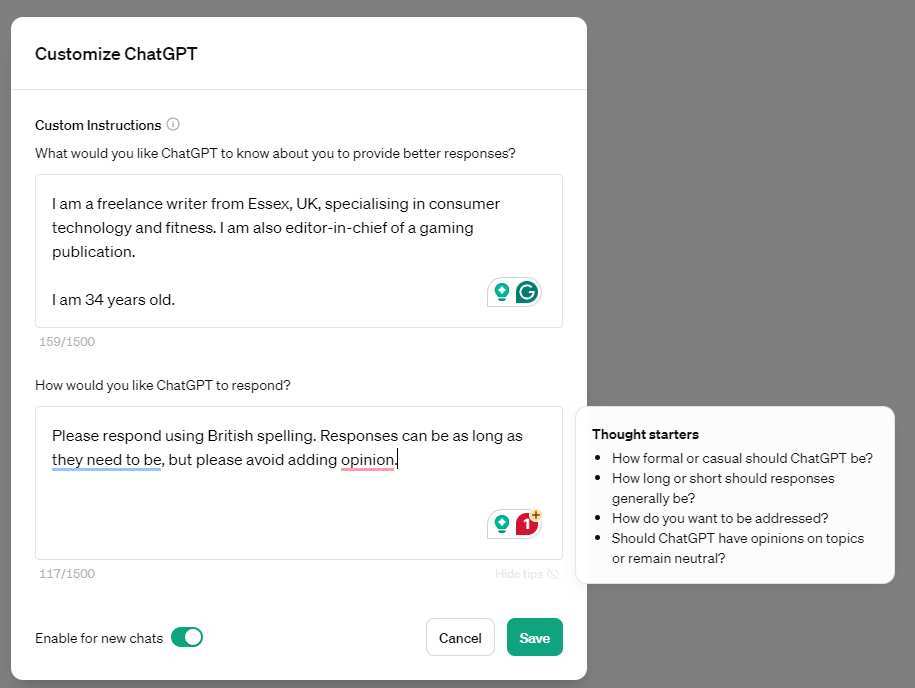
Write the project instructions. After creating the Project, click the Project name at the top and select "Customize ChatGPT" or Project Settings. Here you write the persistent instructions that apply to every new chat in this Project. This is the most important step.
Upload reference files. Under the same settings area, use the file upload button to attach PDFs, spreadsheets, style guides, or anything the conversations will reference.
Start your first chat. Close settings and begin typing. Your instructions are already loaded. You don't need to re-paste your context or style rules.
The key move most people miss: writing tight, specific project instructions. Generic prompts like "be helpful" don't change much. Instead, define tone, output format, and boundaries explicitly, as detailed in the next section.
Writing Project Instructions That Actually Stick Across Conversations
Project instructions function as a persistent system prompt. They load into every new conversation within that Project, so you avoid re-explaining the same context. To make them effective, follow these guidelines:
Set the role and tone. Write something like: "You are a technical writer specializing in SaaS documentation. Use a clear, concise tone aimed at developers with 1 to 3 years of experience."
Define output format. Specify if you want bullet points, numbered steps, tables, code blocks, or headings. For example: "Always structure answers with a one-sentence summary, followed by a numbered list of steps."
Boundaries and exclusions. Tell the model what to avoid: "Do not include introductory paragraphs. Do not summarize at the end."
Reference uploaded files. Mention them by name: "When answering questions about styling, refer to the uploaded brand-guide.pdf. Match tone and terminology to that document."
Keep it concise. Instructions between 50 and 200 words work well beyond that, you risk hitting token limits or diluting focus.
Here's a before and after. Before: "Help me with marketing stuff." After: "You are a B2B SaaS marketer. Draft email sequences in a casual but professional tone.
Each email should be 80 to 120 words. Avoid exclamation points and AI clichés." That second version actually changes the output in a measurable way.
Important caveat: project instructions stack on top of ChatGPT's built-in system prompts and your account-level custom instructions. If both are active, conflicts can produce unexpected results. If something feels off, turn off one layer to isolate which instruction is winning.
Organizing Files, Folders, and Workflows Inside a Project
Every Project gets its own file storage, separate from your main ChatGPT account files. This means you can upload a style guide to Project A and a codebase to Project B without them bleeding into each other.
What you can upload:
- PDFs (contracts, manuals, research papers)
- Spreadsheets (CSV, XLSX for data analysis)
- Images (diagrams, screenshots, reference photos)
- Code files and text documents
File storage is per-project, not global. This can trip you up if you're used to pulling from a central library. You need to upload separately into each Project that needs access.
For recurring workflows, batch upload at setup so you're not hunting for files later.
Workflow patterns that work well:
- Client-based structure: One Project per client with their brief, brand guidelines, and deliverables folder.
- Topic-based structure: One Project per subject area, like "Q1 Campaign," "Product Launch," or "Course Notes."
- Role-based structure: One Project for writing, one for coding, one for research, each with its own instructions.
Keep your setup simple at first. Create only the Projects you actually need, not a folder for every hypothetical scenario.
When to Use Projects vs. When to Stick With Regular Chats
This is the decision most people skip, and it's the one that determines whether Projects feel like a lifesaver or a waste of time.
When a Project makes sense:
- You return to the same topic or client repeatedly.
- You need consistent output rules (tone, format, terminology) preserved across sessions.
- You reference the same files or documents across multiple conversations.
- You're collaborating with a team and need shared context.
- You want visual separation between unrelated work areas so nothing gets mixed up.
When regular chats are enough:
- You're asking one-off questions or doing quick brainstorming.
- The conversation has no follow-up value.
- You don't need persistent instructions or file references.
- You're experimenting and don't want to commit to a structure.
The golden rule: open a Project when the cost of re-explaining context exceeds the two minutes it takes to click the "+" button. If you wouldn't write project instructions that last more than a day, regular chat is fine.
Scenario Test: Which Tool Fits?
| Scenario | Best Option |
|---|---|
| Writing a single email | Regular chat |
| Managing a month-long content calendar for a client | Project |
| Building a reusable AI agent for your team | Custom GPT |
| Studying for a semester-long course | Project |
| Quick fact-checking | Regular chat |
| Running weekly sprint retrospectives with the same team | Project |
Real Use Cases: How Different People Structure Their Projects
Here's how various workflows map onto Projects in practice.
Freelance writer handling multiple clients. Create one Project per client. Upload their brand guide, tone examples, and past deliverables. Write instructions that lock in their preferred voice.
Every new article or email draft starts with that context loaded.
Software developer managing separate codebases. One Project per repo or product. Upload README files, API docs, and architecture diagrams. Set instructions for the language, framework, and coding conventions.
Switch between Projects when context-switching between products.
Student organizing coursework. One Project per class. Upload the syllabus, textbook chapters, and lecture notes. Write instructions for the professor's preferred citation style and answer format.
Midterm prep and essay drafting both happen in the same Project.
Marketing team running campaigns. One Project per campaign or channel. Upload campaign briefs, performance data, and creative assets. Team members on the Team or Enterprise plan can share the Project so everyone works from the same context.
Researcher conducting literature reviews. One Project per research question. Upload papers, notes, and data sets. Write instructions for summarization style and comparison frameworks.
Each conversation builds on the same body of knowledge.
The pattern is consistent: Projects work best when the work itself is ongoing and returns to the same well of context.
Mistakes Most People Make With ChatGPT Projects
Even after setting up Projects correctly, a few common errors undermine the experience.
Writing vague instructions. "Be professional" or "help me with my work" doesn't change behavior. Specificity is everything. Define tone, format, audience, and boundaries in concrete terms.
Forgetting that context windows still fill up. A Project doesn't give you infinite memory within a single conversation. Long chats still hit the token limit (128K for GPT-4o, 200K for some configurations). Start a new conversation within the Project when the thread gets long.
Uploading files to the wrong Project. Files are isolated per Project. If you upload a brief to Project A but start working in Project B, the model can't see it. Double-check which Project is active before uploading.
Ignoring the interaction between account-level and project-level instructions. If you have custom instructions set at the account level and different ones at the project level, they can conflict. Test with both on, then isolate if output feels off.
Creating too many Projects. A cluttered sidebar defeats the purpose. Archive or delete Projects you're no longer using. Keep the list short enough to scan in one glance.
Not updating instructions as needs evolve. If your client changes their brand voice or your course shifts focus, update the project instructions. Stale instructions produce stale output.
Assuming deleted Projects are recoverable. Deleting a Project removes its conversations and files. There's no recycle bin. Be certain before you click delete.
Team and Enterprise Projects: Sharing, Permissions, and Collaboration

On ChatGPT Team and Enterprise plans, Projects can be shared across members. This changes the dynamic from personal workspace to collaborative environment.
How sharing works:
- A Project owner invites team members by email or workspace assignment.
- Shared members can view conversations, upload files, and start new chats within the Project.
- Project instructions apply to everyone, ensuring consistent output across the team.
- Admins on Enterprise plans can control who creates, shares, or archives Projects.
Practical collaboration patterns:
- A content team shares a Project with brand guidelines and campaign briefs so every writer produces on-brand work.
- A product team shares a Project containing specs, user research, and sprint notes for consistent internal documentation.
- A support team shares a Project with FAQ docs and response templates to standardize customer replies.
Permission considerations:
- Team plan members can typically share Projects freely within the workspace.
- Enterprise plans offer admin controls to restrict sharing, manage retention, and audit access.
- Files uploaded to a shared Project are visible to all members with access. Don't upload sensitive personal documents to a shared workspace.
Limitations to know:
- There's no granular permission system like "view only" versus "edit" within a Project. Members with access can contribute.
- Project-level instructions can be edited by anyone with access unless admin controls restrict it on Enterprise.
- Shared Projects count against each member's usage limits for messages and file storage.
For teams serious about governance, Enterprise is the tier that delivers real admin controls. Team works for smaller groups that trust each other to collaborate without heavy restrictions.
What Projects Cost and What You Get at Each Plan Level
Projects aren't available on the free tier. Here's the pricing breakdown as of early 2026:
| Plan | Monthly Price | Projects | File Upload Limit |
|---|---|---|---|
| Plus | $20 | Yes | Lower tier (varies) |
| Pro | $200 | Yes | Up to 512 MB per file |
| Team | $25/user | Yes (shared) | Moderate limits |
| Enterprise | Custom pricing | Yes (admin controls) | Highest limits |
Free-tier users don't get Projects at all. If the feature matters to you, Plus is the entry point. Pro and Enterprise unlock larger file uploads and higher message limits, which matters when you're running data-heavy workflows.
Team is the sweet spot for small groups that need shared Projects without Enterprise pricing. Enterprise is where admin controls, SOC 2 compliance, and data residency options live.
Data Privacy, File Handling, and Compliance Considerations
Files you upload to a Project sit on OpenAI's servers. They're not local to your device. This matters for anyone handling sensitive information.
Key privacy facts:
- Business plans (Team and Enterprise) do not use uploaded data for model training by default.
- Consumer plans (Plus and Pro) may use data for training unless you disable it in your data controls.
- Enterprise plans offer data residency options and zero data retention configurations for certain use cases.
- HIPAA compliance requires specific Enterprise setup. It's not standard out of the box.
Practical guidance: don't upload personally identifiable information, financial records, or protected health data to a Project unless you're on an Enterprise plan with the right configuration. For client work, confirm your contract allows third-party AI processing before uploading briefs or documents.
If you're in a regulated industry, check OpenAI's Trust and Security documentation for current compliance certifications. SOC 2 is available on Enterprise, and that's the baseline most compliance teams look for.
Expert Tips for Getting the Most Out of Projects Long-Term
A few patterns that separate people who get real value from those who abandon Projects after a week.
Archive, don't hoard. When a client engagement ends or a semester wraps, archive the Project. Keep your sidebar lean. You can always reference old conversations through search if needed.
Write instructions that age well. Avoid time-specific references like "for the Q2 campaign." Instead, describe the voice and format rules that stay constant so you don't have to edit every quarter.
Use the new conversation button liberally. Don't let a single thread run for 50 messages. Start fresh within the same Project when you shift topics. The instructions persist, but the context window resets.
Pair Projects with ChatGPT search. Toggle on web search within a Project when you need fresh data alongside your reference files. It's especially useful for ongoing research workflows.
Review quarterly. Every few months, audit your active Projects and update instructions. Outdated brand guidelines or old syllabi produce outdated output.
Frequently Asked Questions
Can I use Projects on the free plan?
No. Projects require a paid plan. Plus at $20 per month is the cheapest option that includes them.
Do Project conversations carry over between Projects?
No. Each Project is isolated. Conversations and files in one Project are invisible to others by design.
Can I move a conversation from a Project to my main chat history?
Not directly. You can copy the output manually, but there's no native move function between Projects and standalone chats.
What happens to files when I delete a Project?
They're gone. Deleted Projects and all their contents are not recoverable. Be certain before deleting.
How many Projects can I create?
OpenAI doesn't publish a hard cap, but practical limits depend on your plan. Enterprise users report no meaningful restrictions. If you hit a ceiling, it's likely a UX prompt to reconsider your structure rather than a technical limit.
Can team members edit my Project instructions?
On shared Team Projects, yes. Anyone with access can modify instructions unless Enterprise admin controls restrict it. For sensitive setups, Enterprise's permission controls are the answer.
The Bottom Line: Is This Worth Setting Up for You?
Projects pay off when your work is recurring, reference-dependent, and benefits from consistent rules. If that describes your workflow, the setup time is minimal and the compounding return is real.
If most of your ChatGPT use is casual, one-off questions, Projects add friction without benefit. Stick to regular chats and save the organization for when it actually earns its keep.
Start with one Project for your most frequent use case. Write tight instructions. Upload two or three reference files.
Use it for a week. If it saves you time, expand from there. If it doesn't, you've lost ten minutes and learned something useful about how you actually work.

Similar Posts