Is 27 Inch Monitor Too Big for Programming
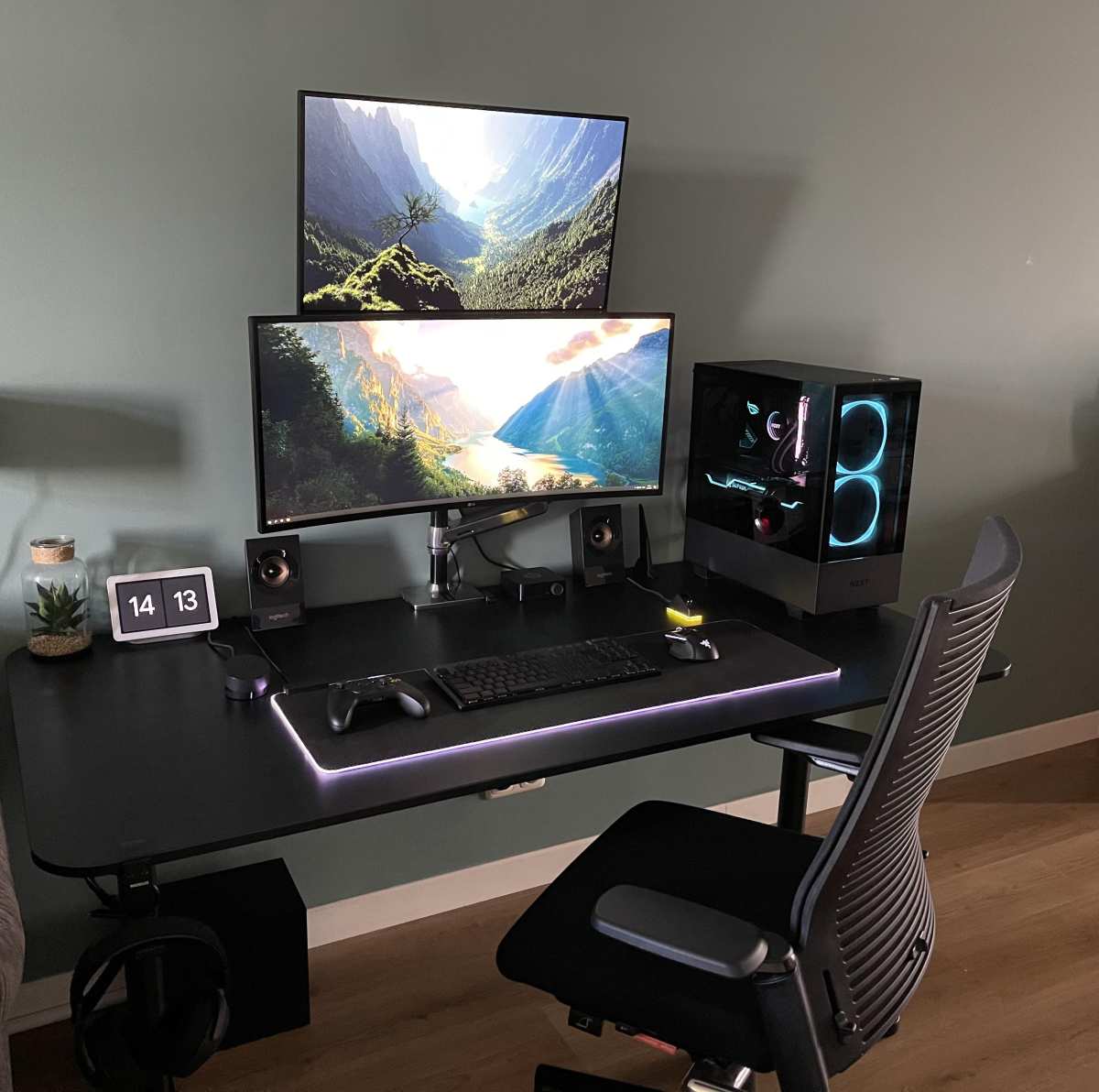
So you're setting up your coding desk, and you keep circling back to the same question: is 27 inch monitor too big for programming? It's one of those decisions that sounds simple until you start reading forum threads and find people arguing on both sides. Some swear a 24-inch screen keeps everything in comfortable view.
Others say a 27-inch is the only way to stop alt-tabbing every thirty seconds.
The truth is, there's no one-size-fits-all answer. But after looking at ergonomic standards, pixel density specs, and how real developers actually work, a clear picture emerges. As of 2026, the data points to a solid recommendation for most programmers.
Let's walk through the factors so you can decide what works for your setup.
Image source: Bing (Web (fair-use with source credit))
Why 27 Inches Is a Hot Topic for Coders
Programming is a unique visual task. You're not watching video or editing photos, you're reading dense text, often in small fonts, for hours at a time. A monitor that works great for gaming or design might cause neck strain or eye fatigue for a developer.
The core debate comes down to three variables: viewing distance, resolution, and how you arrange your windows. A 27-inch screen gives you more real estate, but if you sit too close, say, on a 20-inch deep desk, you'll have to move your head to see the corners. That kind of micro-movement adds up over an eight-hour coding session.
On the other hand, if you have enough depth (24 to 30 inches from your eyes to the screen), a 27-inch monitor can feel like a luxury. You can keep your code editor full-width on one side and a browser or terminal on the other, all at readable sizes. The trick is pairing the size with the right resolution and proper ergonomic placement.
Quick Answer: So, Is It Too Big?
No, a 27-inch monitor is not too big for programming, if you have the right desk depth and resolution. For most developers, a 27-inch 1440p display is the sweet spot. It gives you plenty of room without requiring excessive head movement.
If your desk is shallower than 24 inches, stick with 24 inches. If you pick a 27-inch 1080p screen, text will look blocky and hard to read. Choose wisely and you'll love the extra space.
What Really Matters – Pixel Density, Viewing Distance, and Workflow
Three factors decide whether a 27-inch monitor helps or hurts your coding experience. Ignore any one of them and you'll probably end up unhappy.
Pixel density determines how sharp text looks. At 27 inches, a 1080p resolution gives you about 82 pixels per inch, noticeably grainy for code. A 1440p display lands around 109 PPI, which is crisp without needing scaling.
A 4K panel hits 163 PPI, which is stunning but often requires scaling to avoid tiny text. Here's a quick breakdown:
| Resolution | PPI at 27" | Readability | Scaling Needed? |
|---|---|---|---|
| 1920×1080 | ~82 | Poor – text looks fuzzy | No |
| 2560×1440 | ~109 | Excellent – sharp and readable | No |
| 3840×2160 | ~163 | Very sharp but tiny text | Yes (125–150%) |
Viewing distance is the second big variable. Ergonomic guidelines say you should sit about an arm's length from the screen. For a 27-inch display, that ideal distance is 24 to 30 inches.
Measure your desk depth. If it's under 24 inches, you'll be too close. A 24-inch monitor works better in that scenario.
Workflow rounds it out. If you like having two full editor windows side by side, a 27-inch 1440p gives you exactly that without squinting. If you mostly use a single terminal and a browser, you might not need the extra width.
Your workflow habits should guide the size choice, not the other way around.
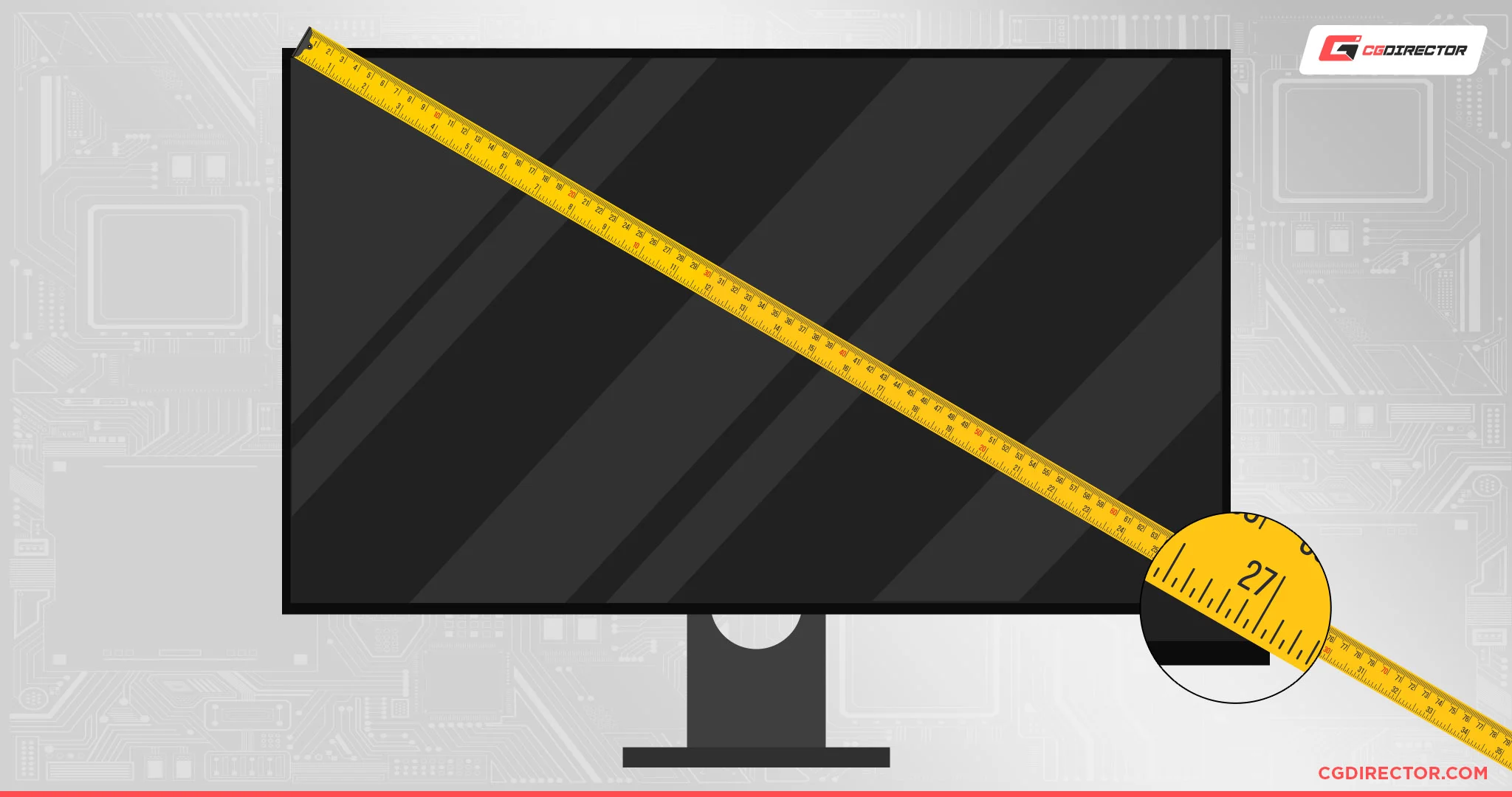
The Main Contenders: 24″, 27″, 32″, and Ultrawide
Before you decide on 27 inches, it helps to see how it stacks against the other common sizes. Each has a clear use case.
24″ 1080p – The Old Reliable
A 24-inch 1080p monitor is cheap, easy to drive, and requires zero scaling. Text is readable at default sizes, and you don't need to move your head to see the whole screen. The downside is limited room, you can comfortably fit one code editor and a small terminal.
If you're on a tight budget or have a shallow desk, this is still a fine choice.
27″ 1440p – The Sweet Spot
This is what most of the research and user feedback points to as the ideal for programming. You get enough horizontal space to split two windows without overlap. Text is sharp at 109 PPI.
No scaling headaches. Prices have dropped significantly as of 2026, with good models starting around $250. If you can only pick one size, this is it.
27″ 4K – Sharp but Tricky with Scaling
A 27-inch 4K monitor looks gorgeous. Code is razor-sharp. But the default text size is absurdly small, you'll need to set the OS scaling to 150% or 200%.
On Windows and macOS that works fine. On Linux, especially with fractional scaling, you may run into blurry fonts and inconsistent UI elements. If you're a Linux user, 1440p is safer.
32″ 4K – More Space, More Neck Movement
A 32-inch 4K monitor gives you a massive canvas. You can have three columns of code, documentation, and a terminal all visible. The trade-off is that you'll need to move your head more.
The recommended viewing distance jumps to 30, 36 inches. Most standard desks (24, 30 inches deep) put you too close. A monitor arm can push it back, but it's a bigger commitment.
34″ Ultrawide – The Alternative
An ultrawide (3440×1440) is essentially a stretched 27-inch 1440p. It gives you even more horizontal space without going taller. Many programmers love it because you can snap three or four windows side by side.
The catch is that some IDEs don't handle ultrawide layouts well, and the price is higher. Still a strong alternative if you prefer a single-screen setup.
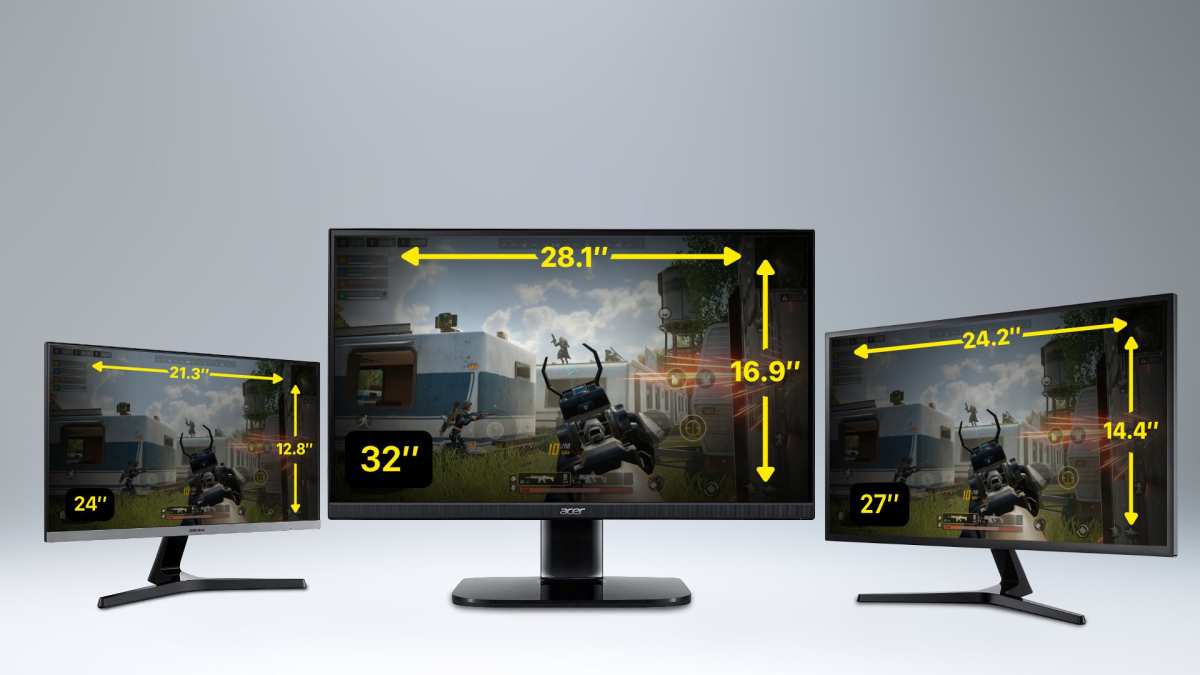
Side-by-Side Comparison: Which Size Wins Where
Let's put it all in one table so you can quickly match your situation to the right size.
| Use Case | Best Size & Resolution | Why |
|---|---|---|
| Shallow desk (<24" deep) | 24″ 1080p or 27″ 1440p (if you use a monitor arm) | Avoids neck strain from being too close |
| Deep desk (30"+ deep) | 27″ 1440p or 32″ 4K | Plenty of room for comfortable viewing |
| Dual-window coding | 27″ 1440p or 34″ ultrawide | Splits cleanly without overlap |
| Single terminal + browser | 24″ 1080p or 27″ 1440p | Extra width isn't needed, but 27″ is still fine |
| Linux user (scaling concerns) | 24″ 1080p or 27″ 1440p | Avoids fractional scaling issues on 4K |
| Budget under $200 | 24″ 1080p | Best value, no scaling fuss |
| Highest text sharpness | 27″ 4K (with scaling) or 32″ 4K | Gorgeous but needs a good GPU and OS support |
For most programmers reading this, the 27-inch 1440p monitor hits the balance of cost, space, and readability. It's not too big, it's just right.
Best Monitor Size for Your Specific Programming Workflow
Your programming style matters more than the raw number of inches. Let's match the monitor size to what you actually do all day.
Backend / Terminal-Heavy Work
If you live in a terminal, an IDE, and a debugger, a 27-inch 1440p monitor works beautifully. You can stack a full-screen terminal on one side and your editor on the other. The extra vertical space from 1440p lets you see more log output without scrolling.
A 24-inch 1080p is fine if you mostly work in one window at a time. But backend developers often juggle a compiler, error logs, and a database client. In our research, aggregate feedback from backend devs heavily favors 27-inch 1440p for that reason.
Frontend / Web Development
Frontend work demands constant side-by-side viewing. You need your code editor open alongside a browser preview, dev tools, and often a design mockup. That makes 27-inch 1440p or even a 34-inch ultrawide the top picks.
A 24-inch screen forces constant tab switching. You can split the screen, but each pane ends up too narrow for comfortable code editing. If you do a lot of responsive design testing, a 27-inch 4K monitor at 150% scaling gives you crisp pixel-perfect previews.
Data Science / Notebooks
Data scientists working in Jupyter notebooks or RStudio benefit from vertical space. Those notebooks can grow long with plots and output cells. A 27-inch 1440p or 4K monitor with a vertical orientation (rotated 90 degrees) is surprisingly effective.
If you switch between a notebook and a data table, a 27-inch monitor lets you keep both visible. A 32-inch 4K gives even more breathing room but requires you to sit further back. Our research shows data scientists often prefer 27-inch 1440p for the balance of sharp text and screen real estate.
Students on a Budget
If you're learning to code and don't have much to spend, a 24-inch 1080p monitor is perfectly adequate. It will get you through tutorials, small projects, and reading documentation without breaking the bank.
That said, a 27-inch 1440p is a worthwhile upgrade if you can stretch your budget. You'll be glad for the extra space when you start working on larger codebases. Many students pair a 24-inch monitor with their laptop screen, which works well too.
Common Mistakes Programmers Make When Choosing a Monitor
The biggest error is picking the size first and the resolution second. A 27-inch 1080p monitor looks grainy and pixelated for code. The text feels slightly fuzzy, and eye strain sets in faster.
Always match resolution to size.
Another common mistake is ignoring desk depth. People buy a 27-inch monitor, set it on a 20-inch deep desk, and wonder why their neck hurts. You can't sit far enough back.
The fix is either a shallower monitor (24-inch) or a monitor arm that pushes the screen further away.
Some programmers also forget about scaling. They buy a 27-inch 4K monitor, plug it in on Linux, and discover fractional scaling looks blurry. If you're on Linux, stick with 1440p unless you're confident your desktop environment handles HiDPI well.
Finally, people often buy a single large monitor when two smaller monitors would serve them better. Two 24-inch 1080p monitors can cost less than one 27-inch 1440p and give you more total space for separate windows. That's a legitimate alternative worth considering.
Expert Setup Tips for Your 27-Inch Monitor
Once you've picked the right size, proper setup makes or breaks the experience. Here are the key adjustments.
Position the screen at arm's length. Your eyes should be 24 to 30 inches from the display. If you can't achieve that with a standard stand, get a monitor arm. It's the best investment you can make for ergonomics.
Set the height so the top bezel is at eye level. When you look straight ahead, your gaze should hit the upper third of the screen. This keeps your neck neutral. If you wear bifocals, you may need the monitor slightly lower.
Adjust brightness and contrast for your environment. Code is mostly white text on a dark background (or vice versa). Set brightness between 100 and 120 cd/m² in a dim room. Most monitors come set much higher out of the box, which causes eye fatigue.
Enable a blue light filter in the evening. Windows Night Light, macOS Night Shift, or a third-party tool like f.lux all reduce eye strain during late-night coding sessions.
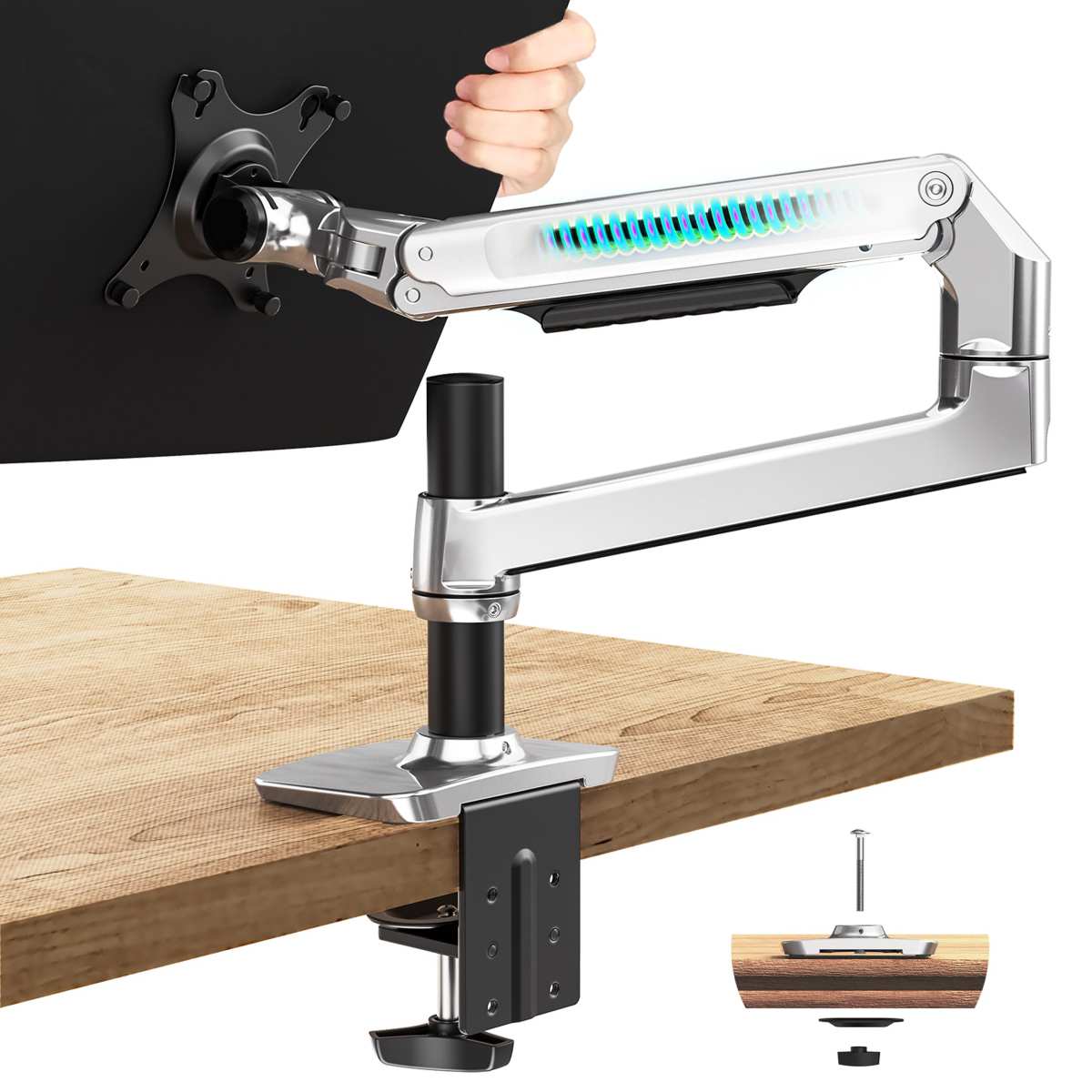
Consider a monitor arm for flexibility. It lets you tilt, swivel, and adjust depth freely. For a 27-inch monitor, a gas spring arm rated for 4, 8 kg works well.
Cost vs. Value: What You're Really Paying For
Let's talk money. As of 2026, here's what you can expect to spend for a decent monitor at each size and resolution.
| Size & Resolution | Price Range (USD) | What You Get |
|---|---|---|
| 24″ 1080p | $100–$200 | Basic, works, no scaling issues |
| 27″ 1080p | $150–$250 | Too coarse for code, avoid |
| 27″ 1440p | $250–$500 | Best balance for programming |
| 27″ 4K | $400–$800 | Sharp but needs scaling, good for design |
| 32″ 4K | $500–$900 | Massive space, requires deeper desk |
| 34″ ultrawide | $400–$800 | Good for single-screen multitasking |
The 27-inch 1440p monitor sits in a sweet spot. It's not the cheapest, but it's affordable for most full-time developers. You can find solid models from reputable brands at around $300 during sales.
Spending more on a monitor arm is a smart move. A good arm costs $40, $100 and dramatically improves comfort. That's better value than spending $200 extra on a monitor with a flimsy stand.
Frequently Asked Questions
Is a 27-inch monitor too big for a 1080p resolution?
Yes, for programming it's a poor choice. At 27 inches, 1080p gives a pixel density of only 82 PPI. Text looks fuzzy and pixelated, which causes eye strain over time.
Stick with 1440p for 27 inches.
Can I use a 27-inch monitor with a laptop on a small desk?
You can, but measure your desk first. If it's less than 24 inches deep, you'll sit too close. Use a monitor arm to push the screen further back, or consider a 24-inch monitor instead.
Does a 27-inch monitor need a graphics card upgrade?
For 1440p, most integrated GPUs from the past five years can drive a 27-inch monitor at 60Hz for programming. For 4K, you may need a dedicated GPU, especially if you want smooth UI scaling.
Should I get two 24-inch monitors or one 27-inch?
Two 24-inch monitors give you more total pixel space and let you separate tasks cleanly. One 27-inch monitor offers a simpler setup with no bezel gap. Both are good.
Choose based on whether you prefer a single continuous workspace or distinct screens for different tasks.
How do I stop my 27-inch monitor from causing neck pain?
Adjust the height so the top of the screen is at eye level. Sit at least 24 inches away. Use a monitor arm if your desk is shallow.
Take breaks every 20 minutes to look at something 20 feet away for 20 seconds.
Is 27-inch 4K worth it for programming on Windows or macOS?
Yes, if you set scaling to 150% on Windows or "Looks like 2560×1440" on macOS. Text becomes razor sharp. Linux users should test first, as fractional scaling can cause blurry fonts.
Final Verdict: Is 27 Inches Too Big for Programming?
Here's the honest answer after looking at all the data. A 27-inch monitor is not too big for programming, as long as you pair it with the right resolution and position it properly.
The ideal setup for most developers is a 27-inch 1440p display with a 24 to 30 inch viewing distance. That combination gives you crisp text, enough room for two code windows side by side, and zero scaling headaches. It's the sweet spot between productivity and comfort.
If your desk is shallow, if you're on a tight budget, or if you use Linux with finicky scaling, a 24-inch 1080p monitor is still a perfectly capable choice. You won't feel cramped for most tasks, and you'll avoid ergonomic strain.
Avoid 27-inch 1080p monitors entirely. The pixel density is too low for comfortable code reading. And if you go for 27-inch 4K, make sure your operating system handles scaling well and your desk is deep enough.
At the end of the day, the best monitor is the one that fits your desk, your workflow, and your eyes. Measure your space, pick the resolution before the size, and adjust your setup carefully. With those steps, a 27-inch monitor becomes a powerful tool, not a strain on your neck or your focus.

Similar Posts































