Are OLED Monitors Good for Streaming
If you're wondering whether OLED monitors are good for streaming, the short answer is yes, with some real caveats you need to understand before dropping your money. OLED panels deliver stunning image quality that makes streamed content look incredible, but they also come with burn-in risks that are more relevant for streamers than for typical users.
Streaming puts unique stress on a display. You've got static UI elements sitting on screen for hours at a time, chat overlays, webcam frames, and HUD elements that never move. That's exactly the kind of usage pattern that makes OLED longevity a legitimate concern.
As of 2026, though, modern OLED monitors have gotten significantly better at mitigating these risks, and the picture quality advantage over IPS and Mini-LED is substantial. Let's break down what actually matters for your streaming setup.

Quick Answer
OLED monitors are excellent for streaming if you prioritize image quality and your content varies regularly. They offer perfect blacks, infinite contrast, and outstanding HDR performance. However, static stream overlays create genuine burn-in risk during long sessions.
Modern OLEDs include pixel care features that reduce this risk significantly. For most streamers, the visual benefits outweigh the drawbacks with proper setup habits.
The Question Behind the Question
When people ask whether OLED monitors work for streaming, they're usually weighing two competing priorities. On one side, they want the absolute best image quality for their viewers and for their own monitoring needs. On the other side, they're worried about ruining an expensive display by leaving static elements on screen for six, eight, or ten hours at a stretch.
This isn't an irrational fear. Burn-in is a real phenomenon with OLED technology. But the conversation around it has evolved a lot over the past couple of years.
Panel manufacturers like LG Display and Samsung Display have made meaningful improvements in pixel longevity and built-in mitigation. The question isn't really "is OLED safe for streaming" anymore. It's more like "how do I set up my OLED so it lasts while still getting the benefits."
The answer depends on what kind of streamer you are, what your layout looks like, and how disciplined you are about panel care habits. Let's get into the specifics.
What Makes OLED Different for Streaming Work
OLED stands for organic light-emitting diode. Unlike IPS or VA panels that use a backlight behind a liquid crystal layer, every single pixel on an OLED panel produces its own light. When a pixel needs to display black, it simply turns off.
That's why OLED achieves what marketers call "infinite contrast." There's no backlight bleed, no IPS glow in the corners, and no haloing around bright objects on dark backgrounds.
For streaming, this matters more than you might think. If you're playing horror games, watching HDR footage, or reviewing cinematic content on stream, the shadow detail and black levels on an OLED are in a completely different league from what IPS can deliver. Your viewers watching on OLED TVs will see your content closer to how you intended it.
But the self-pixel nature of OLED is also what creates the burn-in risk. Each organic compound degrades slightly with use. If some pixels are working harder than others, they degrade faster, and over time you get uneven wear.
That's burn-in.
Static Elements: The Real Burn-In Concern
Here's where streaming specifically creates risk that general gaming or movie watching doesn't. A typical stream layout includes several static or semi-static elements that sit in the same position for the entire broadcast.
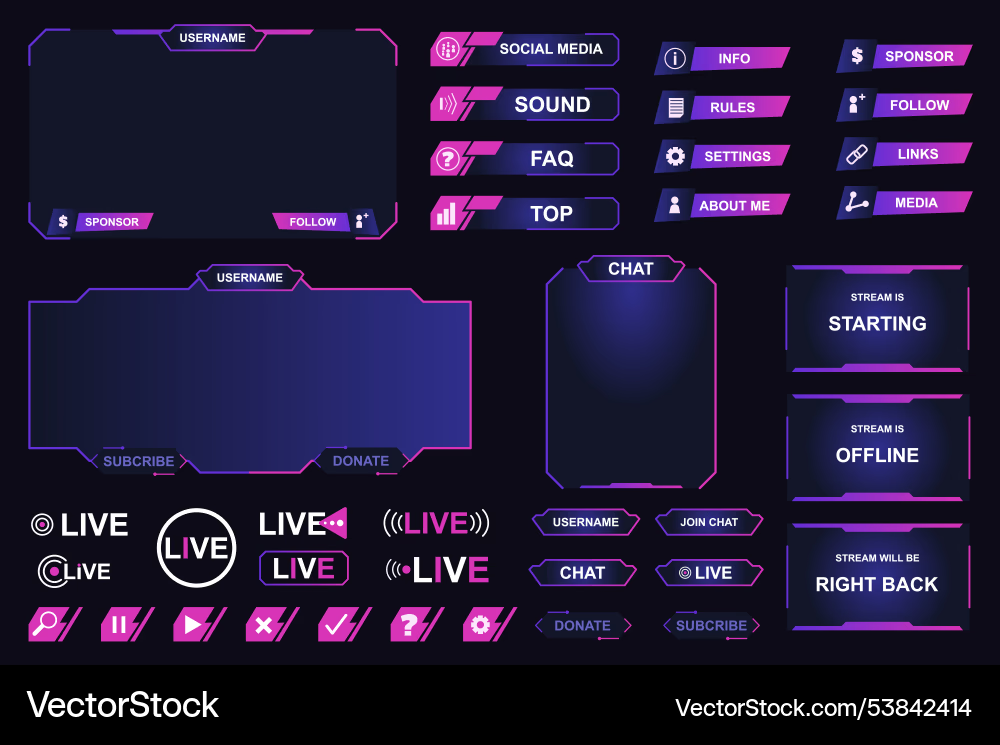
Common culprits include:
- Chat overlay boxes pinned to one side of the screen
- Webcam frames that stay in the same corner
- Stream labels and alerts with bright backgrounds
- Game HUD elements like health bars, minimaps, and ammo counters
- Taskbars and dock icons if you don't auto-hide them
- Scoreboard or timer overlays for sports and competitive streams
The risk isn't that one four-hour stream will kill your panel. It's that doing this five days a week for months creates cumulative wear patterns. The good news is that modern OLED monitors have multiple layers of protection built in, and we'll cover those in detail later.
Brightness Behavior During Long Stream Sessions
OLED monitors use something called Automatic Brightness Limiting, or ABL. This is a protective mechanism that reduces overall panel brightness when a large portion of the screen is displaying bright content simultaneously. It exists because driving the entire panel at max brightness would draw too much power and generate too much heat.
What this means practically is that an OLED monitor might hit 1,000 nits peak brightness on a small HDR highlight, but only sustain around 200 to 250 nits on a full white screen. For streaming, this matters because if your layout is mostly bright, the panel will dim itself to compensate. In a dark room, this is totally fine.
In a bright streaming space with windows or strong ambient lighting, you might find the display looks dimmer than you'd expect.
Newer QD-OLED panels from Samsung Display have improved sustained brightness compared to earlier generations. But ABL is still a fundamental characteristic of the technology, not a bug you can fix with a setting.
Response Times and Motion Clarity
One area where OLED genuinely excels for streaming is motion clarity. Most OLED panels advertise response times around 0.1ms gray-to-gray, which is roughly ten times faster than a typical IPS panel. For fast-paced content like first-person shooters, racing games, or action titles, this means cleaner motion with less smearing.
If you're streaming competitive games where motion clarity matters to your audience, OLED gives you a noticeable edge. The combination of fast response times and perfect blacks makes dark scenes look crisp in a way that IPS simply can't match.
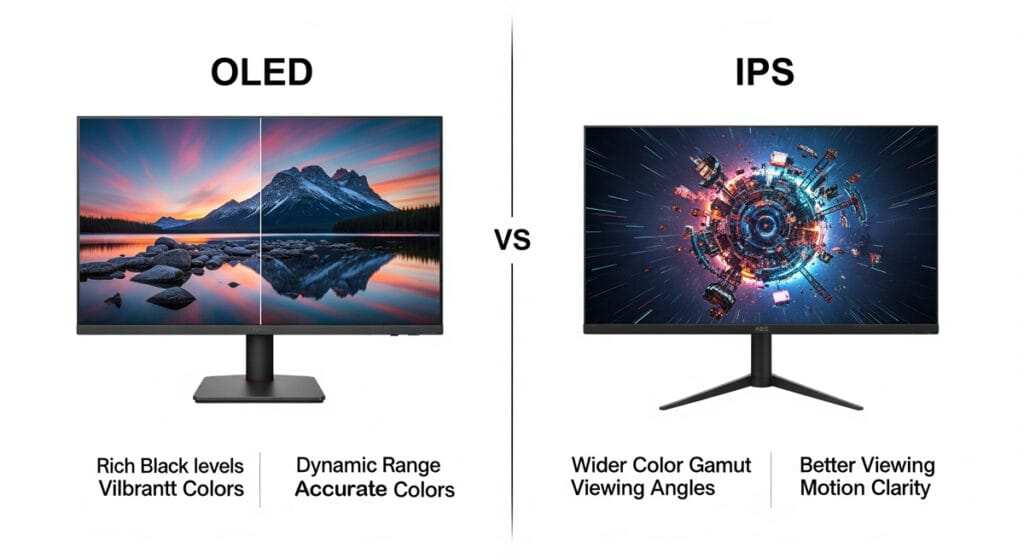
OLED vs. IPS vs. Mini-LED for Streaming: The Honest Comparison
Choosing the right panel technology for streaming means understanding what each one does well and where it falls short. There's no universal "best" here. It's about matching the technology to your specific streaming workflow.
Where OLED Wins
- Shadow detail in dark scenes. Horror games, atmospheric titles, and night-time content look dramatically better on OLED. You'll see detail in shadows that IPS panels crush into black or muddy gray.
- Color accuracy out of the box. Most OLED monitors ship with factory calibration hitting Delta E below 2 and covering 98% or more of DCI-P3. That's reference-grade color without needing a separate calibrator.
- Fast motion during high-action content. The near-instantaneous pixel response means clean motion during fast camera pans, quick turns, and action sequences.
- No backlight artifacts. No IPS glow, no backlight bleed, no haloing around bright objects on dark backgrounds. The image is clean and uniform.
- Viewer experience on OLED displays. A growing number of your viewers watch on OLED TVs. Streaming from an OLED source to an OLED display preserves the intended contrast and color more faithfully.
Where OLED Falls Short for Streaming
- ABL limits sustained full-screen brightness. If your streaming layout is mostly white or bright content, the panel will dim itself. This is a hardware limitation, not a settings issue.
- Burn-in risk from static overlays. Chat boxes, webcam frames, and HUD elements create uneven pixel wear over time. This is the single biggest concern for streamers considering OLED.
- Higher purchase cost. A 27-inch 4K OLED monitor typically runs $600 to $1,000, while a comparable IPS panel might cost $300 to $500.
- Replacement cost and warranty limitations. If burn-in does occur, panel replacement is expensive. Some manufacturers cover burn-in under warranty, but terms vary significantly.
- Brightness struggles in high-ambient-light rooms. If your streaming space has uncontrolled lighting, an IPS or Mini-LED with higher sustained brightness may serve you better.
Where IPS or Mini-LED Are the Smarter Pick
- Long static broadcast graphics. If your stream features scoreboards, news tickers, or fixed UI elements that never change, IPS eliminates burn-in worry entirely.
- Ultra-bright streaming spaces. Mini-LED monitors with full local dimming can sustain much higher full-screen brightness, making them better for rooms with lots of ambient light.
- 24/7 digital signage-style usage. If you run content continuously for extended periods with static elements, IPS is the safer long-term investment.
- Budget-conscious multi-monitor builds. If you need three or four monitors for your streaming rig, the cost difference between OLED and IPS adds up fast.
- Setups where burn-in anxiety would affect your workflow. If you'd spend your entire stream worrying about panel wear instead of focusing on content, that's a real productivity cost.
Here's a quick comparison table to make the trade-offs clearer:
| Feature | OLED | IPS | Mini-LED |
|---|---|---|---|
| Contrast ratio | Infinite (1,000,000:1+) | 1,000:1 to 3,000:1 | 100,000:1+ (with dimming) |
| Sustained brightness | 200-250 nits (full screen) | 300-400 nits | 400-600+ nits |
| Peak HDR brightness | 900-1,000+ nits | 400-600 nits | 600-1,200 nits |
| Response time | ~0.1ms | 1-4ms | 1-4ms |
| Burn-in risk | Yes (manageable) | None | None |
| Color gamut (DCI-P3) | 98-99%+ | 95-98% | 95-99% |
| Price range (27" 4K) | $600-$1,000 | $300-$500 | $400-$800 |
| Best for streaming use | Varied content, HDR, dark rooms | Static layouts, bright rooms | Bright rooms, HDR on budget |
What Streaming Setup Type Calls for What Panel Technology
Not every streamer faces the same risks or benefits from OLED. Your specific streaming style should drive your panel choice more than any general recommendation.
The Twitch Gamer Playing Varied Titles (OLED-Friendly)
If you stream a mix of games that change regularly, your screen content varies naturally. One session you're in a dark dungeon, the next you're in a bright outdoor scene. This variation is exactly what keeps OLED panels healthy.
The pixels get exercised evenly rather than wearing in a fixed pattern.
This is the ideal OLED streaming use case. You get the visual benefits without the static element risk, as long as you keep your overlay elements minimal and follow basic panel care practices.
The News / Esports / Fixed-UI Streamer (IPS / FALD)
If your stream features a persistent scoreboard, news ticker, or fixed HUD that occupies the same screen position for hours, OLED becomes a liability. The static elements create a burn-in pattern that no amount of pixel shifting can fully compensate for over months of daily use.
For this type of content, a good IPS or Mini-LED with local dimming is the smarter long-term choice. You sacrifice some contrast performance, but you gain peace of mind and a longer usable panel lifespan.
The YouTuber Recording Camera + Editing on One Screen (Context Matters)
If you're using your monitor for both streaming and video editing, the calculus changes. Editing timelines have lots of static UI elements, but they're spread across the screen rather than concentrated in one area. And when you're reviewing footage, OLED's HDR and color accuracy are genuinely valuable.
A dual-monitor setup works well here. Use the OLED for footage review and streaming preview, and a cheaper IPS for your editing timeline and static tools. This gives you the best of both worlds without putting your OLED at risk from extended static UI exposure.
The Console Streamer Using a Capture Card (OLED Often Ideal)
Console gaming tends to feature more varied content than PC gaming with fixed overlays. Games are designed for full-screen viewing, and the UI elements tend to be minimal or auto-hiding. If you're streaming console gameplay through a capture card, OLED is an excellent choice.
The HDR output from modern consoles pairs beautifully with OLED's per-pixel dimming. You'll get a noticeably better image than IPS can provide, and the burn-in risk is lower than a typical PC streaming setup with persistent chat overlays.
The Professional Broadcast Reference / Color Grading Setup
For professional broadcast work where color accuracy is non-negotiable, OLED reference monitors are the industry standard. They're used in color grading suites, broadcast trucks, and mastering studios worldwide. The per-pixel luminance control and color uniformity are unmatched.
However, professional reference monitors are typically used for specific tasks rather than left on with static UI for hours. If you're doing professional color work, OLED is the right tool. Just be mindful of how you integrate it into your broader streaming workflow.
Real-World Risks: How Streamers Actually Experience Burn-In
Burn-in anxiety is real, but it's worth understanding what actually causes it versus what's just fear-mongering. Let's look at the real risk factors and how they apply to streaming specifically.
Typical Static Elements on a Streaming Layout
The most common static elements that create burn-in risk for streamers include:
- Chat overlay boxes with bright backgrounds pinned to one side
- Webcam border or frame that stays in the same corner for every stream
- Stream starting soon screens displayed for 10-15 minutes before going live
- BRB screens with large bright text or images
- Game HUD elements like health bars, minimaps, and kill feeds
- Operating system taskbar if not set to auto-hide
- Stream alert boxes that pop up in the same position every time
- Donation goal bars or subscriber counters with fixed positions
The risk level depends on how bright these elements are, how long they stay on screen, and how many hours per day you stream. A streamer doing two-hour sessions with varied content faces dramatically less risk than someone doing eight-hour streams with a fixed layout.
What Panel-Level Protections Already Do
Modern OLED monitors include several built-in features designed to prevent burn-in. These aren't marketing fluff. They're genuinely effective at extending panel lifespan.
- Pixel shifting. The entire image moves by a few pixels periodically. You won't notice it, but it helps distribute wear across pixel boundaries.
- Panel refresh cycles. Automatic compensation cycles run every four hours of use. A more thorough manual refresh runs periodically and takes about an hour.
- Static screen detection. The monitor detects when the image hasn't changed and can dim the screen or display a reminder.
- Brightness limiting. ABL and automatic brightness reduction for static elements reduce the rate of organic compound degradation.
- Screen saver activation. After a set period of static content, the monitor can automatically switch to a screen saver.
These features work together to significantly reduce burn-in risk. They don't eliminate it entirely, but they make OLED viable for streaming with reasonable precautions.
What Manufacturer Warranties Actually Cover (the fine print)
This is where things get important. Burn-in warranty coverage varies significantly between manufacturers, and you need to read the specific terms before buying.
| Manufacturer | Typical Warranty | Burn-In Coverage | Notes |
|---|---|---|---|
| LG | 3 years | Yes, included on most UltraGear models | Covers burn-in under normal use conditions |
| Samsung | 3 years | Yes, included on Odyssey OLED models | Check specific model terms |
| Dell / Alienware | 3 years | Yes, included on QD-OLED models | Premium panel guarantee included |
| ASUS | 3 years | Yes, included on ROG Swift OLED models | Burn-in covered under standard warranty |
| MSI | 3 years | Varies by model | Check specific product warranty terms |
The key phrase to look for is whether burn-in is covered under "normal use" or excluded as "image retention." Most major manufacturers now include burn-in coverage, but the definition of normal use may exclude commercial or 24/7 operation. For typical streaming use, you should be covered. Just keep your receipt and register your product.
Features That Matter Most When Choosing an OLED for Streaming
Not all OLED monitors are created equal for streaming use. Some features matter more than others when you're evaluating which panel to buy.
Panel Type: WOLED vs. QD-OLED
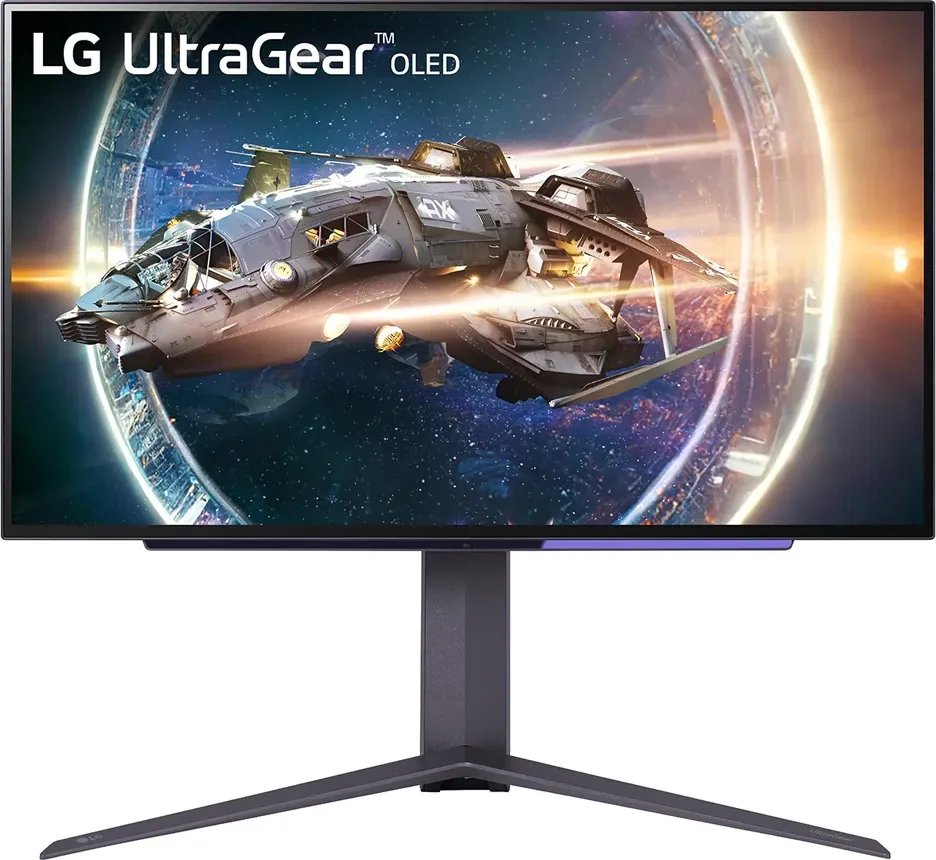
There are two main OLED panel technologies you'll encounter in monitors. LG Display makes WOLED panels, and Samsung Display makes QD-OLED panels. Both are excellent, but they have different characteristics.
WOLED (LG Display) uses a white OLED layer with a color filter. It tends to have excellent sustained brightness and is available in larger sizes up to 45 inches and beyond. The latest MLA (Micro Lens Array) generation boosts peak brightness significantly.
QD-OLED (Samsung Display) uses blue OLED light passed through quantum dot color converters. It tends to have wider color volume and more saturated colors, especially in reds and greens. Peak brightness on small highlights is excellent, but full-screen sustained brightness is slightly lower than WOLED.
For streaming, both are great choices. If you prioritize color saturation and HDR impact, QD-OLED has a slight edge. If you prioritize sustained brightness and panel longevity data, WOLED has a longer track record.
Factory Calibration and Color Accuracy Out of the Box
Most OLED monitors ship with factory calibration that hits Delta E below 2 across the sRGB and DCI-P3 color spaces. That's accurate enough for streaming and content creation without needing a hardware calibrator.
Look for monitors that specifically mention factory calibration in their specs. Some gaming-focused OLEDs prioritize speed over accuracy out of the box, so checking reviews for actual measured color accuracy is worth your time.
Built-In Pixel Care Features
Every OLED monitor includes pixel care features, but the implementation varies. Look for:
- Automatic pixel refresh that runs every four hours without interrupting use
- Manual panel refresh that you can run during off-hours
- Static screen detection that dims or alerts when the image hasn't changed
- Pixel shift that's subtle enough to not notice during use
- Screen saver options built into the monitor's OSD
These features are your primary defense against burn-in. A monitor with robust pixel care features is a safer streaming investment than one that treats these as afterthoughts.
Connectivity for Streaming Rigs (HDMI 2.1, KVM, USB-C)
Streaming rigs often involve multiple devices. Make sure your OLED monitor has the connectivity you need.
- HDMI 2.1 for console connections and capture cards
- DisplayPort 1.4 with DSC for PC connections
- USB-C with power delivery if you're connecting a laptop for streaming
- KVM switch functionality if you're switching between a streaming PC and gaming PC
- Built-in USB hub for connecting peripherals without extra cables
Warranty Terms on Burn-In
We covered this in the comparison section, but it bears repeating. Before you buy, verify that the specific model you're considering includes burn-in coverage under warranty. Check the manufacturer's website for the exact warranty terms, not just the retailer's summary.
This is your safety net if something goes wrong.
Setup Practices That Lower Burn-In Risk
Getting an OLED monitor for streaming is only half the equation. How you set it up and use it determines how long it lasts. These practices make a real difference.
- Auto-hide your taskbar and desktop icons. This removes two of the brightest static elements from your screen during streams.
- Use screen savers or display-off timers during breaks. If you step away for more than five minutes, let the screen turn off.
- Keep static UI elements dark or transparent. A semi-transparent chat overlay is less risky than a solid white one.
- Schedule full pixel refresh cycles during off-hours. Most monitors do this automatically, but make sure you're not unplugging the monitor before it completes.
- Vary your content types regularly. If you stream the same game with the same HUD every day, that specific pattern wears faster.
- Understand ABL and manage your brightness settings. Don't run the monitor at maximum brightness unnecessarily. Let the ABL do its job.
- Position overlays away from the taskbar zone. The bottom of the screen is highest risk because of the OS taskbar. Keep your webcam and alerts elsewhere.
- Consider a secondary cheap IPS for chat and dashboards. A $150 24-inch IPS for your streaming software and chat removes almost all static element risk from your OLED.
Price Check: What You're Actually Paying for in 2025
OLED monitor prices have dropped significantly over the past two years. You no longer need to spend $1,500+ for a quality 4K OLED panel. Here's what the current market looks like.
Current Genuinely Strong OLED Picks for Streaming Setups
| Monitor | Panel Type | Size | Resolution | Refresh Rate | Key Feature | Approximate Price |
|---|---|---|---|---|---|---|
| LG UltraGear 27GR95QE | WOLED | 27" | 4K | 240Hz | MLA brightness boost | $699 |
| Alienware AW3225QF | QD-OLED | 32" | 4K | 240Hz | QD-OLED color volume | $899 |
| Samsung Odyssey OLED G8 | QD-OLED | 34" | 3440×1440 | 240Hz | Ultrawide for streaming | $999 |
| ASUS ROG Swift PG27AQDP | WOLED | 27" | 4K | 240Hz | Dual mode 4K/1080p | $799 |
| MSI MEG 342C QD-OLED | QD-OLED | 34" | 3440×1440 | 175Hz | Built-in KVM | $749 |
Current Genuinely Strong IPS / FALD Alternatives
| Monitor | Panel Type | Size | Resolution | Refresh Rate | Key Feature | Approximate Price |
|---|---|---|---|---|---|---|
| LG UltraGear 27GR95QE | IPS | 27" | 4K | 144Hz | Nano IPS, 1ms | $449 |
| ASUS ROG Swift PG27UQ | IPS (FALD) | 27" | 4K | 144Hz | 384-zone dimming | $599 |
| Dell S2722QC | IPS | 27" | 4K | 60Hz | Budget 4K option | $299 |
| Samsung Odyssey Neo G8 | Mini-LED (VA) | 32" | 4K | 240Hz | 1,196 dimming zones | $699 |
| Acer Predator X34 S | IPS | 34" | 3440×1440 | 180Hz | Ultrawide alternative | $599 |
Frequently Asked Questions
Can I really use an OLED monitor for streaming without burning it in?
Yes, with proper setup habits. Modern OLED monitors include pixel shifting, automatic refresh cycles, and static screen detection that significantly reduce burn-in risk. Keep your overlays minimal, auto-hide your taskbar, and let the panel care features do their job.
Most streamers will upgrade for other reasons before burn-in becomes an issue.
How long does an OLED monitor last for streaming use?
Manufacturer specifications and aggregate user reports suggest OLED panels retain usable image quality for 30,000 to 50,000 hours under typical use. For a streamer doing four hours daily, that's roughly 20 to 35 years before significant degradation. Burn-in is the real concern, not overall lifespan, and that depends on your specific usage patterns.
Is QD-OLED or WOLED better for streaming?
Both work well. QD-OLED tends to have wider color volume and more saturated colors, which looks great on stream. WOLED tends to have better sustained brightness and a longer track record for longevity data.
For most streamers, the difference is marginal. Pick based on the specific monitor's features and price rather than the panel technology alone.
Should I get a second monitor for streaming if I buy OLED?
It's a smart move. A secondary IPS monitor for your streaming software, chat, and dashboard removes most static element risk from your OLED. You can pick up a decent 24-inch IPS for $150 to $200, and it protects your much larger OLED investment.
Does HDR streaming work well on OLED monitors?
OLED is arguably the best consumer display technology for HDR content. The per-pixel dimming means you get true blacks alongside bright highlights without the haloing or blooming that affects IPS and even Mini-LED panels. If you're creating or viewing HDR content, OLED delivers the most impactful HDR experience available.
What brightness should I run my OLED at for streaming?
There's no single right answer, but running at 100% brightness constantly accelerates pixel degradation. In a controlled streaming environment, 50-70% brightness is usually sufficient and reduces wear. Let the ABL manage peak brightness for HDR content rather than forcing maximum at all times.
Final Verdict: Is OLED Right for Your Streaming Setup?
The answer depends on your specific situation. Here's a framework to help you decide.
Quick Decision Matrix
OLED is a strong fit if you:
- Stream varied content that changes regularly
- Play cinematic or HDR games frequently
- Stream in a controlled or dark lighting environment
- Can commit to basic panel care habits
- Want the best possible image quality for your viewers
- Stream fewer than 6-8 hours per day on average
Consider IPS or Mini-LED instead if you:
- Have persistent static UI elements you can't minimize
- Stream in a bright room with lots of ambient light
- Run 8+ hour streams daily with fixed layouts
- Want zero burn-in worry for peace of mind
- Are building a multi-monitor setup on a budget
- Use your monitor for 24/7 content display
The Bottom Line
OLED monitors are genuinely excellent for streaming. The image quality advantage is real and noticeable, both for you during your stream and for your audience watching the output. The burn-in risk is manageable with modern panel care features and sensible setup practices.
If you're the kind of streamer who values visual quality and can follow basic panel care habits, OLED is worth the investment. If your workflow involves hours of static content with fixed elements, the anxiety and risk might not be worth it. Either way, you now have the information to make the right call for your specific situation.
Maintenance / Long-Term Optimization
Keeping an OLED monitor healthy for streaming is less work than most people think. But you do need to stay consistent with a few habits.
Run the automatic pixel refresh. Every modern OLED runs a brief compensation cycle every four hours of use. You'll see a small notification on screen. Don't turn off the monitor during this process.
It takes a minute and it's doing important work. Schedule the full panel refresh monthly. This deeper cycle takes about an hour and recalibrates the entire panel. Run it overnight or during a time when you won't need the display. Check your OSD settings quarterly. Monitor firmware can reset or change pixel care settings after updates. Verify that pixel shifting and auto-brightness limiting are still enabled. Keep firmware updated. manufacturers occasionally release updates that improve panel care algorithms.
Check the support page for your specific model every few months.
The biggest thing is just not fighting the technology. Let the screen saver activate. Let the taskbar auto-hide.
Don't disable the ABL or run at maximum brightness constantly. The panel is designed to last if you let its built-in protections do their job.
Expert Tips / Pro Advice
Professional broadcast engineers and experienced streamers have learned some practical lessons about OLED use that go beyond the spec sheets.
Keep your streaming layout dynamic. Even small changes help. Rotate your webcam position between streams. Move your chat overlay occasionally.
The goal is to avoid a single static image burning the same pixels day after day. Use dark mode everywhere you can. Dark mode interfaces reduce the overall luminance hitting the panel. Every pixel that displays black is a pixel that's literally turned off and not degrading. Don't pause your game with the HUD on screen for long periods. If you take a break, either close the game or switch to a non-static screen. A paused game with a fixed HUD is a burn-in risk. Set your stream starting soon screen to a slideshow or animation. A static "Starting Soon" screen sitting for 15 minutes every session adds up quickly.
A moving or cycling screen distributes that wear. Monitor your panel's compensation cycle count. Some monitors expose this in the OSD or through software tools. Tracking it helps you understand how hard the panel is working to maintain itself. If you notice temporary image retention, don't panic. Run a pixel refresh and change your content for a few hours. Temporary retention usually clears.
Persistent retention that doesn't clear after a full refresh is when you should contact support.

Similar Posts





















