Are OLED Monitors Good for Professional Use
Are OLED monitors good for professional use? The honest answer is: it depends entirely on what kind of professional work you actually do. For a video colorist, an OLED display can be a genuine upgrade that transforms your workflow.
For a programmer staring at static IDE elements eight hours a day, it might be an expensive headache you don't need. Readers comparing various configurations should also examine whether oled monitors good for streaming.
The technology has matured significantly as of 2026, but the trade-offs are still real. Let's walk through exactly where OLED shines, where it falls short, and how to decide if it's the right call for your specific situation.
Quick Answer
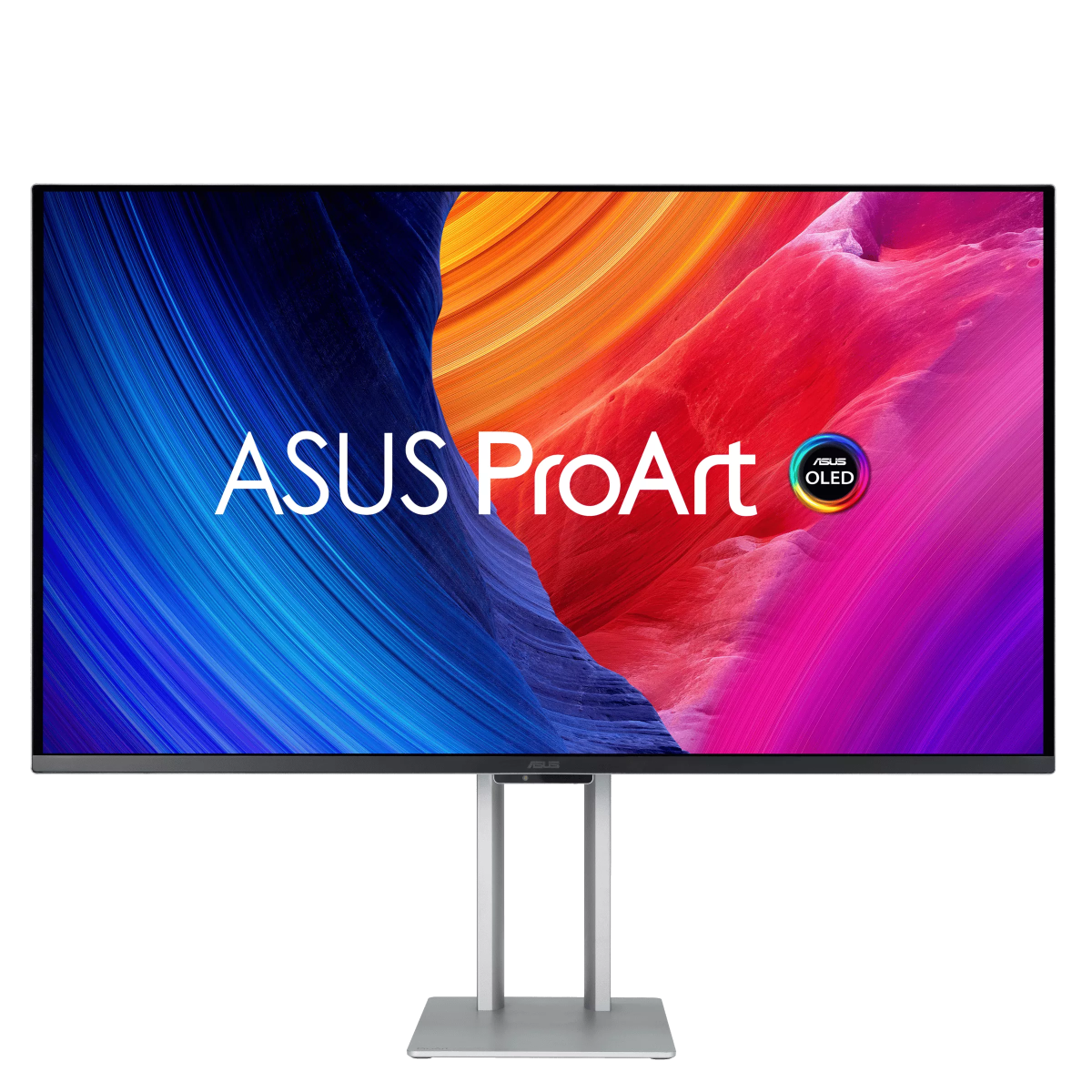
OLED monitors are excellent for color-critical professional work like video editing and photo retouching. They offer perfect blacks and wide color gamut coverage. They are less ideal for text-heavy or static-UI workflows due to burn-in risk.
Your specific work type determines whether OLED is worth the premium.
The Three Questions That Actually Determine Your Answer
Before you spend a single dollar, you need to answer three questions honestly. These will determine whether OLED makes sense for your professional setup or whether you'd be better served by a high-end IPS or Mini-LED display. You can also reference our testing on whether oled monitors good for photo editing when configuring your display.
What Type of Professional Work Do You Do?
This is the big one. Not all "professional" work is the same, and OLED's strengths and weaknesses land differently depending on your workflow.
- Color-critical work (video color grading, photography editing, graphic design, 3D rendering): OLED is genuinely excellent here. The per-pixel dimming delivers infinite contrast ratio and color volume that IPS panels simply cannot match.
- Text-heavy work (coding, writing, spreadsheets, financial trading): This is where things get complicated. Text fringing caused by OLED subpixel layouts can be distracting, and static UI elements create real burn-in concerns over time.
- Mixed-use work (content creation, hybrid gaming and productivity, general creative work): This is the sweet spot for most professionals. Varied content reduces burn-in risk, and you get OLED's visual benefits when you need them.
How Much Do You Worry About Burn-in?
Burn-in is the elephant in the room with every OLED purchase. Here's the reality: modern OLED monitors have extensive mitigation features, and the technology has improved dramatically. But it's not zero-risk.
If your workflow involves static elements, toolbars, or status bars sitting in the same position for 8+ hours daily, you need to be honest about your habits. Are you willing to hide your taskbar? Use dark mode?
Let the screen timeout kick in? If not, the anxiety alone might not be worth it.
What's Your Budget Reality?
OLED monitors carry a price premium. Here's what you're looking at in 2026:
| Category | Price Range | Examples |
|---|---|---|
| Consumer OLED | $800–$1,200 | LG 27GR95QE, MSI MPG 271QRX |
| Prosumer OLED | $1,200–$2,000 | ASUS ProArt PA32UCG, LG 32GS95UE |
| Professional reference OLED | $2,000–$4,000+ | Sony BVM-HX310, high-end ASUS ProArt models |
If you're coming from a $400 IPS monitor, that jump is significant. Make sure the benefits actually justify the cost for your specific work.
How OLED Monitors Actually Perform for Professional Work
Let's get into the specifics. OLED technology works differently from LCD-based displays, and those differences create both advantages and challenges for professional users.
Where OLED Dominates: Color, Contrast, and HDR
This is where OLED earns its reputation. Each pixel produces its own light and can turn off completely. That means:
- Perfect blacks: No backlight bleed, no IPS glow in corners. When the screen shows black, it's actually black.
- Infinite contrast ratio: Manufacturer specifications cite ratios of 1,500,000:1 or higher. This matters enormously for HDR content and dark scene evaluation.
- Wide color gamut: Most professional OLED monitors cover 99% or more of DCI-P3 out of the box. Many also hit high Adobe RGB coverage, which is essential for print design work.
- Color accuracy: Factory calibration on prosumer models typically achieves Delta E < 2, which is the threshold where the human eye can't distinguish color errors.
For video editors working in HDR, photographers evaluating shadow detail, or designers creating content for digital displays, these advantages are not subtle. They're immediately visible and genuinely impact the quality of your output.
Where OLED Struggles: Brightness, Text, and Longevity
OLED isn't perfect. Here are the real limitations you need to understand:
Automatic Brightness Limiter (ABL): OLED panels can't sustain peak brightness across the full screen. A monitor might hit 1,000 nits on a small HDR highlight, but full-screen sustained brightness often drops to 200, 250 nits in SDR. In a bright office with windows, this can be a problem.
Text fringing: Most OLED monitors use a triangular or RWBG subpixel layout instead of the standard RGB stripe that LCDs use. This can cause visible color fringing on small text, especially at lower pixel densities. Windows ClearType tuning helps but doesn't eliminate it entirely.
Burn-in risk: Despite improvements, organic materials degrade unevenly with use. Static elements that display the same content for thousands of hours can leave a visible ghost image. Modern pixel refresh cycles and pixel shifting mitigate this, but they don't make it impossible.
The Decision Tree: Should You Buy an OLED Monitor for Work?
Let's break this down by professional use case so you can find your situation and see the honest recommendation.
Branch 1: Color-Critical Professionals (Video, Photo, Design)
If your work involves color grading, photo retouching, or design for digital displays, OLED is arguably the best consumer-available technology for the job right now.
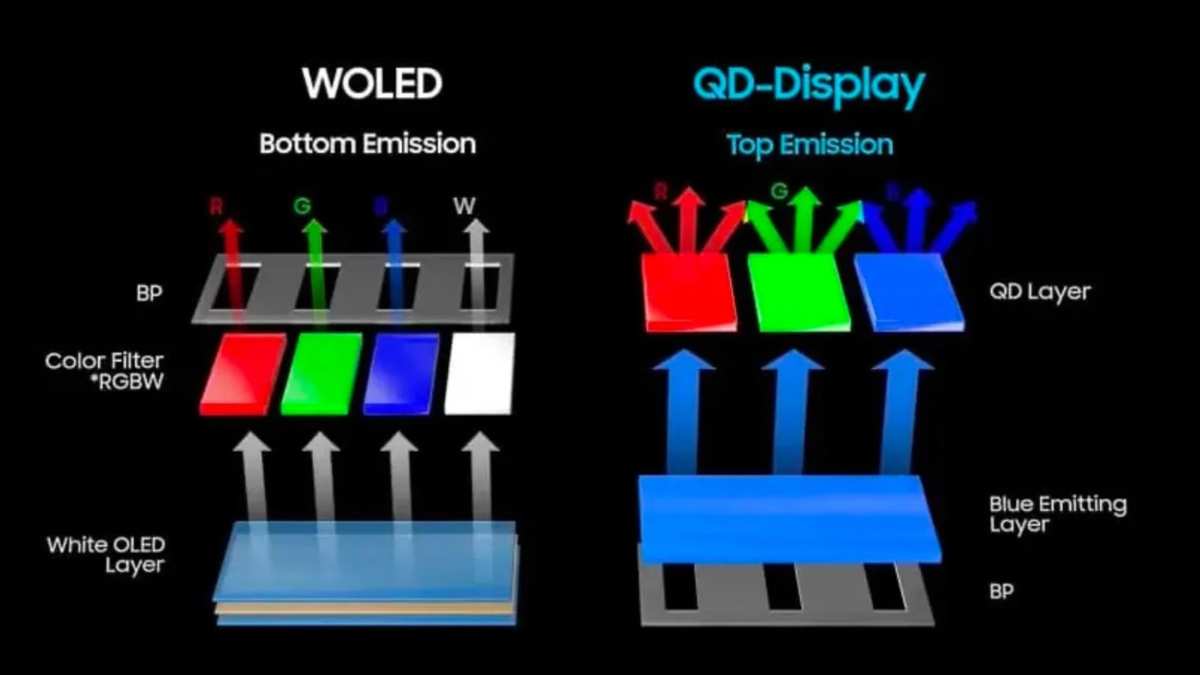
QD-OLED vs. WOLED for color work:
| Feature | QD-OLED (Samsung Display) | WOLED (LG Display) |
|---|---|---|
| Color volume | Excellent, wider gamut potential | Very good, mature calibration |
| Peak brightness | Higher HDR peaks | Better sustained brightness |
| Text clarity | Slightly more fringing | Generally better text rendering |
| Available sizes | 27", 32", 49" | 27", 32", 42", 45", 49" |
| Professional calibration | Good, improving | Excellent, longer track record |
QD-OLED panels from Samsung Display tend to offer higher peak brightness and wider color volume. WOLED panels from LG Display have a longer track record for professional calibration support and slightly better text rendering.
Recommended approach: Look at the ASUS ProArt PA32UCG or LG 32GS95UE for prosumer color work. Both offer hardware calibration support and factory-calibrated accuracy. If budget allows and you need a true reference display, the Sony BVM-HX310 remains the gold standard, though at a significantly higher price point.
Branch 2: Text-Heavy Professionals (Coding, Writing, Office)
Here's where I'd pump the brakes. If your primary work involves reading and writing text all day, OLED might not be the best choice.
The text fringing problem is real. Most OLED monitors use non-standard subpixel layouts. On a standard RGB stripe LCD, each pixel has three evenly sized subpixel columns (red, green, blue). On QD-OLED, the subpixels are arranged in a triangular pattern with different sizes.
This causes color fringing on high-contrast text edges, particularly visible on light backgrounds with dark text.
You can mitigate this with:
- Windows ClearType tuning
- Using dark mode everywhere possible
- Choosing higher pixel density displays (4K at 27" or 32")
- Selecting WOLED panels, which tend to handle text better
But if you're sensitive to it, you'll notice it every single day. And that's distracting when you're trying to work.
Burn-in concern for static UI: Code editors, IDEs, and office applications have static elements. Toolbars, status bars, and line numbers sit in the same position for hours. Over months, this uneven aging can create visible retention.
My honest recommendation: For pure text work, a high-quality IPS monitor like the ASUS ProArt PA279CRV or an EIZO ColorEdge will serve you better. You'll get better text clarity, higher sustained brightness, and zero burn-in anxiety.
Branch 3: Mixed-Use and Content Creation
This is where OLED makes the most sense for the broadest range of professionals. If you're a content creator who edits videos, color grades, does some photography, and also games on the side, an OLED monitor gives you the best of everything.
Why mixed use works in OLED's favor:
- Varied content reduces uneven pixel wear
- You get OLED's color and contrast benefits for creative work
- Gaming performance is exceptional (0.03ms GtG response time)
- HDR content looks dramatically better than on IPS
Managing burn-in with mixed use:
- Enable pixel shifting in the monitor's OSD
- Set screen timeout to 10, 15 minutes of inactivity
- Hide the taskbar or set it to auto-hide
- Use dark mode in applications that support it
- Run the manual pixel refresh monthly or when the monitor prompts
Best all-round OLED monitors for 2026:
- ASUS ProArt PA32UCG: Excellent calibration support, professional connectivity
- LG 32GS95UE: Good balance of gaming and creative features
- Dell Alienware AW3225QF: Strong QD-OLED performance, competitive pricing
- MSI MPG 271QRX: More affordable entry point, solid performance
Burn-in Reality Check: What Actually Causes It and How to Prevent It
Let's talk about the thing everyone worries about. Burn-in gets a lot of attention, but the reality is more nuanced than the horror stories suggest.
What Burn-in Looks Like in Real Workflows
Burn-in happens when organic compounds in the OLED material degrade unevenly. Pixels that display the same content for thousands of hours age faster than pixels showing varied content. The result is a faint ghost image of static elements.
High-risk scenarios for professionals:
- Trading desks with fixed layouts and static data displays
- Development environments with persistent sidebars and status bars
- Video editing timelines left on screen for entire workdays
- Any workflow where the same UI elements never move
Lower-risk scenarios:
- Video and photo editing where content changes constantly
- Web browsing and general productivity with varied windows
- Gaming with varied content and HUD positions
Modern OLED monitors from 2024 onward include multiple burn-in mitigation features. Pixel refresh cycles run automatically and can be triggered manually. Pixel shifting moves the entire image by a few pixels periodically, which is invisible to you but helps distribute wear.
Some models also dim static elements automatically.
OLED Care Features That Actually Work
Every major OLED monitor includes built-in protection. Here's what to look for and how to use it:
- Pixel refresh (automatic): Runs periodically, typically after the monitor has been in use for several hours. Takes about 5, 10 minutes. Don't turn off the monitor during this process.
- Panel refresh (manual): A more intensive cycle that takes up to an hour. Run this monthly or when the monitor prompts you. It helps equalize pixel wear.
- Pixel shifting: Subtle image movement that prevents static content from hitting the exact same subpixels. Enable this in the OSD and leave it on.
- Logo dimming: Detects static logos or UI elements and reduces their brightness automatically. Useful for news channels or persistent UI elements.
- Brightness limiter: Some models let you cap maximum brightness, which reduces degradation rate.
Habits That Extend OLED Lifespan
Beyond the built-in features, your daily habits matter:
- Hide your taskbar: This is the single biggest static element on most desktops. Auto-hide it or move it to the side.
- Use dark mode: Dark backgrounds mean fewer pixels are lit, reducing wear.
- Set aggressive screen timeouts: 10, 15 minutes of inactivity should trigger screen-off.
- Vary your window positions: Don't leave the same application in the same spot every day.
- Run manual pixel refresh when prompted: Don't ignore the monitor's maintenance reminders.
With these habits, most users can expect 3, 5 years of professional use before any noticeable image retention occurs. Many monitors will last longer. The key is consistency with the care habits.
OLED vs. the Alternatives for Professional Use
OLED doesn't exist in a vacuum. Let's compare it to the other technologies competing for your professional monitor budget.
OLED vs. IPS Monitors
IPS (In-Plane Switching) is the current standard for most professional monitors. Here's how they stack up:
| Factor | OLED | IPS |
|---|---|---|
| Contrast ratio | 1,500,000:1 (effectively infinite) | 1,000:1 to 3,000:1 |
| Black levels | Perfect (pixel off) | IPS glow in corners |
| Color gamut | 99%+ DCI-P3 typical | 95–98% DCI-P1 typical |
| Sustained brightness | 200–250 nits (full screen) | 350–600 nits |
| Text clarity | Good to very good (varies by panel) | Excellent (RGB stripe) |
| Burn-in risk | Present | None |
| Price | $800–$4,000+ | $300–$2,000 |
| Response time | 0.03ms GtG | 1–5ms GtG |
Choose IPS if: You prioritize text clarity, work in a bright office, need sustained high brightness, or simply don't want to think about burn-in.
Choose OLED if: You work with HDR content, need the best contrast and color volume for color-critical work, or want a hybrid gaming and productivity display.
OLED vs. Mini-LED IPS
Mini-LED is IPS with local dimming zones. It's become popular as a middle ground between standard IPS and OLED.
Advantages of Mini-LED over OLED:
- Higher sustained full-screen brightness (400, 600+ nits)
- No burn-in risk
- Better text clarity (still uses RGB stripe subpixels)
- Often lower price for similar size
Advantages of OLED over Mini-LED:
- No blooming or haloing around bright objects on dark backgrounds
- Perfect blacks (Mini-LED zones can't match per-pixel control)
- Better viewing angles
- Thinner form factor
- Faster response time
The blooming problem: Mini-LED monitors divide the backlight into zones (typically 100, 1,000+ zones). When a bright object appears on a dark background, the entire zone lights up, creating a visible halo. This is distracting for video editors and anyone working with dark content.
OLED doesn't have this issue because each pixel is independently controlled.
Choose Mini-LED if: You need high sustained brightness for a bright workspace, work with lots of static UI, or want better text clarity than OLED offers.
Choose OLED if: You prioritize contrast and black levels, work with HDR content, or want the cleanest image without blooming artifacts.
OLED vs. Professional Reference Monitors
Professional reference monitors like the Sony BVM-HX310 cost $30,000 or more. They're used in broadcast, cinema, and medical imaging where color accuracy is legally required.
When consumer OLED is good enough:
- YouTube and streaming content creation
- Independent film and video work
- Photography for web and print
- Design work for digital displays
When you genuinely need a reference monitor:
- Broadcast television (legal requirements for color accuracy)
- Cinema color grading for theatrical release
- Medical imaging (diagnostic requirements)
- Print production with strict color standards
For most professionals, a well-calibrated prosumer OLED monitor is more than sufficient. The reference monitor comparison is really about compliance requirements, not image quality for its own sake.
Recommended OLED Monitors by Professional Use Case
Here are specific recommendations based on the professional use cases we've discussed. These reflect current market availability as of 2026.
Best for Color-Critical Video and Photo Work
ASUS ProArt PA32UCG
- 32-inch WOLED panel
- Factory calibrated to Delta E < 2
- Hardware calibration support via ASUS ProArt Calibration
- 99% DCI-P3 coverage
- USB-C with 90W power delivery
- Price range: $1,500, $2,000
LG 32GS95UE
- 32-inch WOLED panel
- Excellent out-of-box calibration
- Dual mode (4K 240Hz or 1080p 480Hz)
- Good connectivity options
- Price range: $1,000, $1,400
Best for Developers and Text-Heavy Work
Honestly, most OLED monitors aren't the best choice for pure development work. But if you're set on OLED:
LG 32GS95UE (WOLED panel tends to handle text better than QD-OLED)
- Use Windows ClearType tuning to reduce fringing
- Run at 4K resolution for maximum pixel density
- Enable dark mode in your IDE
- Consider using a matte screen coating model if available
Better alternative: ASUS ProArt PA279CRV (IPS, excellent text clarity, hardware calibration, $450, $550)
Best for Content Creators and Hybrid Use
Dell Alienware AW3225QF
- 32-inch QD-OLED, 4K 240Hz
- Excellent HDR performance
- Good color accuracy out of box
- Competitive pricing for the feature set
- Price range: $900, $1,200
MSI MPG 271QRX
- 27-inch QD-OLED, 1440p 360Hz
- More affordable entry point
- Solid gaming and creative performance
- Good for smaller desk setups
- Price range: $700, $900
Best Budget OLED for Professionals
LG 27GR95QE-B
- 27-inch WOLED, 1440p 240Hz
- Often available under $800
- Good color accuracy with calibration
- Smaller size works well for single-monitor setups
- Trade-off: lower pixel density than 4K models
Common Mistakes Professionals Make with OLED Monitors
After researching user feedback and professional reviews, certain mistakes come up repeatedly. Here's what to watch out for.
Buying Without Testing Text Rendering First
This is the number one regret among professionals who buy OLED for mixed use. Text fringing varies between panel types and individual sensitivity differs. Some people barely notice it.
Others find it unbearable.
What to do: If possible, see an OLED monitor in person before buying. Bring up a text-heavy application and check for color fringing on edges. If you can't test in person, buy from a retailer with a good return policy.
Ignoring ABL for Bright Office Work
Many buyers see "1,000 nits HDR" in the marketing and assume the monitor is bright. But that peak brightness only applies to small highlights. Full-screen sustained brightness on most OLED monitors is 200, 250 nits.
If your office has large windows and lots of ambient light, this can be a real problem. You'll find yourself cranking the brightness and still struggling to see clearly.
What to do: Test your current monitor's brightness setting. If you're running it above 70% in your normal office lighting, OLED might not be bright enough for you.
Not Setting Up OLED Care Properly
Most OLED monitors ship with default settings that aren't optimized for professional use. Pixel shifting might be off. Brightness might be set too high.
Screen timeout might be too long.
What to do: Spend 15 minutes in the OSD when you first set up the monitor. Enable pixel shifting. Set appropriate brightness for your environment.
Configure screen timeout. Enable logo dimming if available.
Expecting Professional Calibration on Consumer OLEDs
Not all OLED monitors support hardware calibration. Some only offer software calibration, which is less precise and can degrade over time.
What to do: Check whether the monitor supports hardware calibration (LUT adjustment at the monitor level) before buying if this matters for your work. ASUS ProArt models and professional-grade displays typically support this. Consumer gaming OLEDs often don't.
Long-Term Ownership: What to Expect Over 3–5 Years
OLED monitors are a bigger investment than typical IPS displays. Here's what you can realistically expect from long-term ownership.
Panel Degradation Patterns
OLED organic materials degrade with use. This is unavoidable, but the rate has improved significantly with newer panel generations.
What typically happens:
- Brightness reduction: Expect 10, 20% brightness loss over 3, 5 years of professional use
- Color shift: Colors may shift slightly as different subpixel materials age at different rates
- Image retention: Mild retention of static elements may appear after 2, 3 years of heavy static content use
Modern pixel refresh cycles and mitigation features slow this degradation considerably. With good care habits, most users report their OLED monitors still look excellent after 3 years of daily professional use.
Warranty and Support Realities
This is where you need to read the fine print. Burn-in warranty coverage varies significantly by manufacturer:
| Manufacturer | Burn-in Warranty | Standard Warranty |
|---|---|---|
| ASUS (ProArt OLED) | Typically covered | 3 years |
| LG (UltraGear OLED) | Varies by model | 3 years |
| Dell/Alienware | Covered on premium models | 3 years |
| MSI | Varies by model | 3 years |
What to do: Check the specific warranty terms for the exact model you're considering. Some manufacturers explicitly cover burn-in. Others classify it as "user damage" and exclude it.
This is a significant factor in your purchase decision.
Resale Value and Upgrade Paths
OLED monitors hold their value reasonably well, though technology improvements mean newer models offer better performance. Expect to recover 40, 60% of your purchase price after 3 years if the monitor is in good condition with no visible image retention.
Plan for a 4, 5 year replacement cycle for professional use where color accuracy matters. If you're using the monitor for less critical work, you can extend this timeline.
Frequently Asked Questions
Is OLED good for office work?
OLED works for office work if you use dark mode and hide static UI elements. However, IPS monitors offer better text clarity and higher sustained brightness for bright offices. For pure office productivity, IPS is usually the more practical choice.
How long do OLED monitors last for professional use?
With proper care habits, expect 3, 5 years of professional use before noticeable degradation. Modern OLED panels have improved significantly in longevity compared to earlier generations. Running pixel refresh cycles and avoiding static content extends lifespan considerably.
Is QD-OLED or WOLED better for professional work?
QD-OLED offers higher peak brightness and wider color volume. WOLED generally has better text rendering and a longer track record for professional calibration support. For color-critical work, both are excellent.
For text-heavy work, WOLED tends to be the safer choice.
Can you do photo editing on an OLED monitor?
Yes, OLED is excellent for photo editing. The wide color gamut, perfect blacks, and high contrast ratio provide an ideal viewing environment. Just ensure the monitor is hardware-calibrated and covers your required color space (Adobe RGB or DCI-P3).
Do OLED monitors lose brightness over time?
Yes, OLED panels gradually lose brightness as organic materials degrade. Expect roughly 10, 20% brightness reduction over 3, 5 years of professional use. Pixel refresh cycles and moderate brightness settings help slow this process.
Is burn-in still a problem with modern OLED monitors?
Burn-in risk has decreased significantly with modern mitigation features, but it's not eliminated. Static UI elements displayed for many hours daily can cause image retention over time. Following OLED care best practices minimizes this risk substantially.
Final Decision Guide: Is OLED Right for Your Professional Setup?
Let's bring everything together into a clear action plan based on your specific situation.
The 5-Minute Self-Assessment
Answer these questions honestly:
- What's your primary work? Color-critical creative work leans OLED. Text-heavy productivity leans IPS.
- How many hours per day? Under 6 hours of static content, OLED risk is manageable. Over 10 hours, be cautious.
- What's your lighting like? Dark or controlled lighting, OLED excels. Bright north-facing windows, consider IPS.
- Can you adopt care habits? If you'll hide the taskbar and use dark mode, OLED works. If you won't, don't bother.
- Is your budget above $800? Below that, IPS gives you more for your money.
When to Buy OLED Now
- You edit video or photos professionally
- You work with HDR content regularly
- Your office has controlled lighting
- You're willing to follow OLED care practices
- You want a hybrid gaming and work display
When to Wait or Choose Alternatives
- Your work is primarily text-based
- You run static UI 10+ hours daily
- Your office is very bright with natural light
- Your budget is under $800
- Burn-in anxiety would distract you from your work
The Bottom Line
OLED monitors are genuinely excellent for specific professional use cases. For color-critical creative work, they're arguably the best consumer-available technology right now. For text-heavy or static-UI workflows, the trade-offs still favor IPS for most people.
The technology has improved enough that OLED is no longer a compromise for the right user. It's a genuine upgrade. You just need to be honest about whether you're that user.


Similar Posts





















