Are Microled Monitors Good for Spreadsheets
Are MicroLED monitors good for spreadsheets? Not for most people, and the gap between the technology's strengths and what spreadsheet work actually demands is wider than you'd think.
MicroLED excels at contrast, brightness, and modular scale. But spreadsheet work is text-heavy, static, and color-ordinary. The premium you'd pay mostly buys capabilities you won't use.
Let's break down exactly where MicroLED fits and where a solid IPS panel saves you a lot of money.
Why This Comparison Even Matters
Monitor shopping in 2026 has gotten genuinely confusing. You've got IPS panels that have been refined over decades, OLED screens that deliver stunning image quality, Mini-LED backlights that bridge the gap, and now MicroLED entering the conversation as the newest premium option.
Each technology has a sweet spot. OLED is phenomenal for media consumption. Mini-LED handles HDR content and gaming well.
IPS remains the dependable workhorse for offices everywhere. MicroLED, meanwhile, is positioned as the no-compromise display technology.
But "no compromise" doesn't automatically mean "best for every task." Spreadsheet work has specific demands: crisp text at small point sizes, stable colors across the screen, long sessions with static UI elements, and reasonable cost. That's a very different benchmark than what MicroLED was designed to impress on.
Quick Answer
MicroLED monitors are not the best choice for spreadsheet work for most users.
The current MicroLED monitor market focuses on large-format and modular IPS-alternative displays, not standard desktop panels.
IPS monitors deliver better value, wider availability, and sufficient performance for text-heavy work.
Only consider MicroLED for spreadsheets if you need a very large display or a tiled multi-panel setup that IPS can't match.

What MicroLED Actually Brings to the Table
MicroLED is a self-emissive display technology. Each pixel produces its own light, similar to OLED, but uses inorganic gallium nitride materials instead of organic compounds. This gives it several theoretical advantages that sound impressive on a spec sheet.
Manufacturer specifications indicate peak brightness levels exceeding 2,000 nits on some MicroLED modules. Contrast ratio is effectively infinite since individual pixels can turn off completely. The modular panel design allows custom screen sizes that traditional monitor manufacturing can't achieve.
These are genuine engineering achievements. But here's the disconnect: none of those strengths directly improve your experience scrolling through rows and columns of data.
Perfect Blacks, Infinite Contrast — and What That Means for Cells and Columns
Infinite contrast sounds like it would make spreadsheet text pop off the screen. In practice, most spreadsheet interfaces use light backgrounds. White or light gray cells dominate the workspace.
That perfect black capability only matters when pixels are off or displaying dark content. For a typical Excel or Google Sheets workflow, you're staring at a predominantly bright screen. The contrast advantage MicroLED is famous for simply doesn't activate in a meaningful way during spreadsheet tasks.
Where it could help: dark mode spreadsheet applications, reviewing dashboards with dark chart backgrounds, or working in low ambient light. These are niche scenarios, not daily spreadsheet reality for most people.
Text Clarity and Pixel Density at Typical Desk Distances
This is where the conversation gets practical. Text clarity at normal desk distances (roughly 20 to 28 inches from your eyes) depends primarily on pixel density and how well the operating system renders fonts at that density.
Most MicroLED displays use panels with pixel pitches ranging from approximately 0.9mm to 1.5mm. At larger screen sizes (75 inches and up), this translates to lower PPI than a standard 27-inch 4K IPS monitor. You'd need to sit fairly close to notice the difference, but desk-bound work puts you right in the zone where it matters.
A 27-inch 4K IPS panel delivers about 163 PPI. That's more than sufficient for razor-sharp text at arm's length. MicroLED would need to match or exceed that density to compete on text clarity, and in standard monitor-sized configurations, it often doesn't.
Burn-In Risk: The Spreadsheet User's Hidden Problem
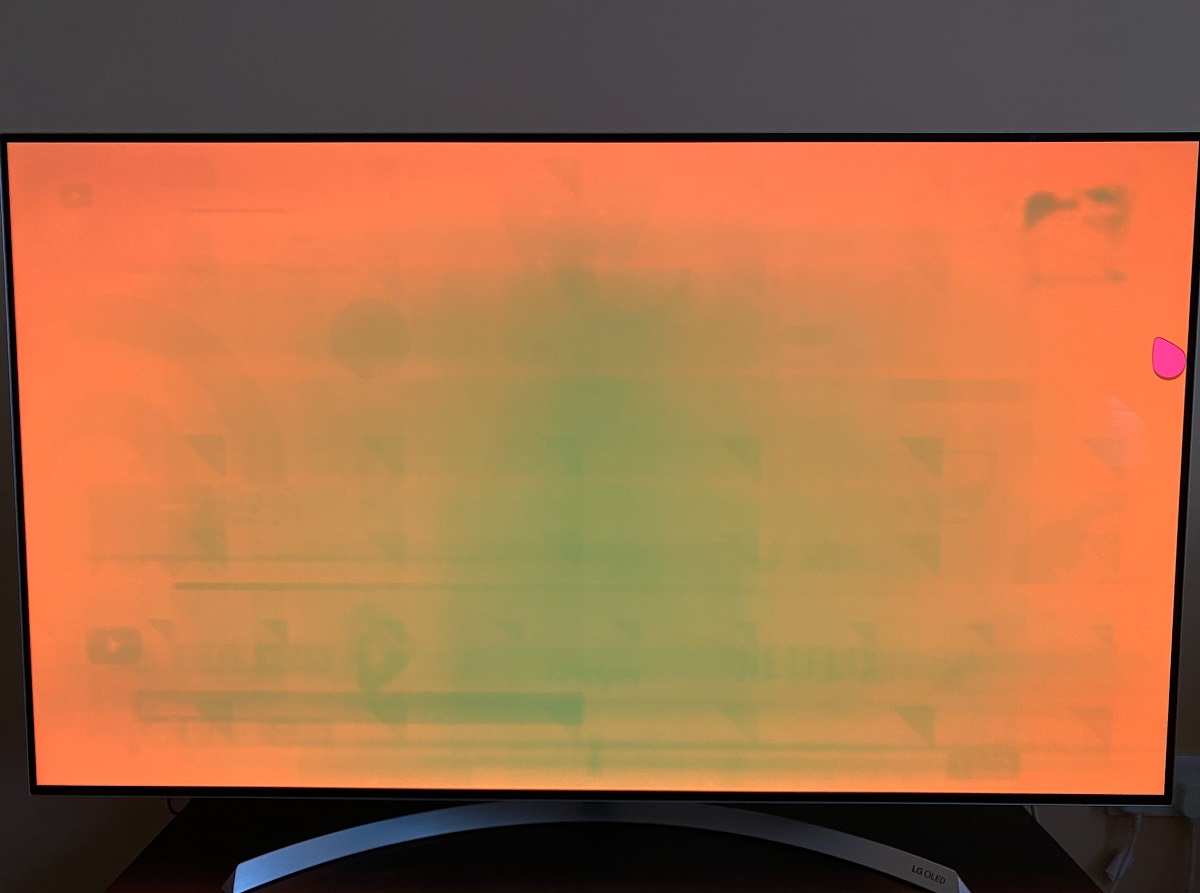
This deserves its own section because it's the single biggest practical concern. Spreadsheet applications are poster children for static interface damage.
Think about it. Excel keeps your formula bar, column headers, and sheet tabs on screen for hours at a time. Many users leave a spreadsheet open all day.
That's exactly the kind of workload that raises concerns about permanent image retention on susceptible display panels.
The Real Competitors: How MicroLED Stacks Up Against IPS, OLED, and Mini-LED
Now let's see how MicroLED compares against the technologies you'd actually be choosing between for spreadsheet work.
MicroLED vs. IPS: The Workhorse Standard for Office Displays
IPS (In-Plane Switching) panels have dominated office and professional monitors for years. They offer good color accuracy, wide viewing angles, and consistent performance across the screen. Modern IPS panels also achieve respectable contrast ratios and high brightness levels for indoor use.
For spreadsheets, a good IPS monitor checks every box: sharp text, adequate brightness for office lighting, stable colors, and essentially zero burn-in risk. The Dell UltraSharp U2724D and BenQ PD2725U are strong examples in the 27-inch productivity category.
MicroLED's advantages over IPS (deeper blacks, higher peak brightness, modular design) don't translate to meaningful improvements during spreadsheet tasks. Meanwhile, IPS wins on price, availability in standard sizes, mature text rendering optimization, and zero burn-in concern.
MicroLED vs. OLED: Beautiful but Risky for Static Interfaces
OLED delivers stunning image quality. Perfect blacks, incredible contrast, vibrant colors. For photo editing, video work, and media consumption, it's exceptional.
But those perfect blacks come from organic materials that degrade over time. And spreadsheet interfaces with their persistent toolbars, cell borders, and status bars create the exact conditions for burn-in. Even with pixel-shift technology and panel care features, the risk remains real for this use case.
MicroLED actually has an advantage here. The inorganic materials don't degrade the way OLED organics do. So MicroLED eliminates the burn-in concern that makes OLED genuinely risky for spreadsheet-heavy workflows.
MicroLED vs. Mini-LED: Closest Rival, Smallest Gap
Mini-LED is the closest competitor to MicroLED for productivity work. Both use LED-based technology. Both can achieve high brightness and improved contrast compared to standard IPS.
Mini-LED monitors like the Apple Pro Display XDR or various HDR-capable panels offer excellent performance for text work. They come in standard monitor sizes (27 to 34 inches). They cost significantly less than MicroLED equivalents.
And while they don't match MicroLED's perfect per-pixel dimming, the difference is marginal for spreadsheet content.
For most spreadsheet users, Mini-LED hits the sweet spot between performance and practicality that MicroLED overshoots.
Side-by-Side Comparison Table: Key Specs That Matter for Spreadsheet Work
| Feature | MicroLED | IPS (Good) | OLED | Mini-LED |
|---|---|---|---|---|
| Text sharpness (standard sizes) | Good to excellent | Excellent | Excellent | Excellent |
| Pixel density at 27" equivalent | Varies by panel size | ~163 PPI (4K) | ~163 PPI (4K) | ~163 PPI (4K) |
| Burn-in risk (static UI) | None | None | Moderate to high | None |
| Brightness for office use | Far exceeds needs | 350-400 nits | 250-400 nits | 400-600 nits |
| Color accuracy for spreadsheets | Overkill | Sufficient | Overkill | Sufficient |
| Cost (27-34" equivalent) | Very high ($3,000+) | Moderate ($300-$800) | High ($800-$2,500) | Moderate-high ($500-$1,500) |
| Availability (2025) | Limited | Widely available | Available | Widely available |
| Static UI endurance | Excellent | Excellent | Concern | Excellent |
The pattern is clear. MicroLED checks the technical boxes but at a cost that's hard to justify for the task.
Who Actually Benefits from a MicroLED Monitor Setup
That said, there are specific scenarios where MicroLED makes sense for spreadsheet work. Let's be honest about who actually benefits.
Financial Analysts and Multi-Screen Power Users
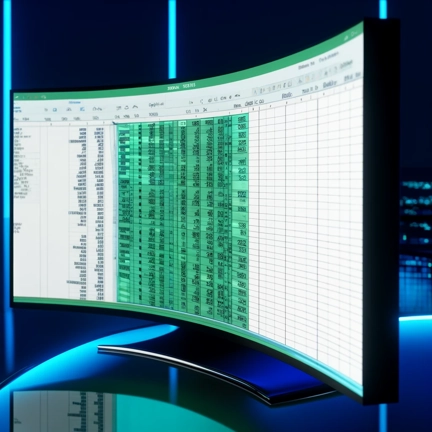
If you're running Bloomberg terminals alongside multiple Excel windows across a massive screen canvas, the modular MicroLED approach has genuine appeal. A tiled MicroLED display can replace a multi-monitor array with a single seamless surface. No bezels interrupting your data wall.
This is a niche use case, usually in trading floors or dedicated analytics setups. But for those specific workflows, the MicroLED advantage is real: a single customizable display surface that spans the width of your desk.
Enterprise and Corporate IT Procurement
Some organizations prioritize future-proofing and prestige in their hardware choices. MicroLED's longevity claims (100,000+ hours) and absence of burn-in risk make it attractive from a procurement and replacement-cycle perspective.
However, standard enterprise spreadsheet work doesn't require this level of display investment. The business justification would need to reference other use cases like conference room displays or client-facing presentations. Pure spreadsheet work alone doesn't justify the cost.
Remote Workers and Home Office Setups
For most home office professionals working in Google Sheets or Excel, MicroLED is almost certainly overspend. You'd notice zero improvement over a good $400 IPS panel for 95% of spreadsheet tasks.
The money you save by choosing an IPS monitor could go toward a better chair, a quality desk, or standing desk converter, investments that'll actually improve your daily work experience.
Where MicroLED Falls Short for Productivity
Cost is the elephant in the room. And honestly, it's a dealbreaker for most people even considering this question.
But beyond price, there are practical limitations that hit differently when your workload is text-heavy spreadsheets instead of photo editing or video production.
Cost-Per-Inch Is Dramatically Higher Than IPS Alternatives
A quality 27-inch 4K IPS monitor runs between $300 and $700 as of 2025. Something like the Dell UltraSharp U2724D sits around $450 and handles spreadsheet work beautifully.
MicroLED displays start where IPS ends. Samsung's MicroLED offerings (often marketed under The Wall brand for commercial installations) begin around $1,000 for the smallest configurations, and consumer-friendly desktop sizes quickly climb to $3,000 and up. For pure spreadsheet work, that price gap is impossible to justify functionally.
You'd be paying five to ten times more for improvements you won't perceive during formula editing or pivot table review.
Limited Availability in Standard Monitor Sizes
MicroLED technology targets large-format displays and modular installations. The sweet spot is 75 inches and above, with some manufacturers offering desktop-oriented configurations starting around 55 inches.
A 55-inch display is enormous for desk use. Most desks can't accommodate one comfortably at typical viewing distances. You'd need a deeper desk or wall mounting, which changes the entire ergonomic setup.
Standard productivity monitors live in the 27 to 34-inch range. MicroLED's product lineup mostly skips this category, leaving you with poor options for a normal desk setup.
Overkill Color Specs for Non-Color-Critical Work
MicroLED panels often cover 99% or more of DCI-P3 and Adobe RGB color gamuts. They achieve Delta E values below 2, meaning color accuracy is essentially invisible to the human eye.
Spreadsheets aren't color-critical. Cells are white or light gray. Data labels use basic palette colors.
Conditional formatting relies on simple fills that don't require wide-gamut precision.
You'd be paying for Hollywood-grade color performance to render blue hyperlinks and red negative numbers.
Burn-In Mitigation Requires Active Habits
MicroLED's inorganic materials essentially eliminate burn-in risk. That's a genuine advantage over OLED. But if you're coming from OLED or comparing the two, it's worth stating clearly: you don't need to develop mitigation habits with MicroLED.
This matters because many productivity guides recommend hiding the taskbar, using screen savers, and rotating content to prevent burn-in. With MicroLED, you can leave Excel open all week without worrying. That's a legitimate quality-of-life benefit, even if the overall value proposition still favors IPS for cost reasons.
Pricing Reality Check: What You'd Actually Spend
Let's put real numbers on the comparison. Here's what you'd actually pay for a spreadsheet-capable display in each technology tier.
| Display Type | Typical Size | Price Range | Cost Justified for Spreadsheets? |
|---|---|---|---|
| IPS (4K, productivity-focused) | 27-32 inches | $300-$800 | Yes, easily |
| IPS (4K, professional calibration) | 32 inches | $800-$1,500 | For heavy all-day use |
| Mini-LED (productivity) | 27-34 inches | $500-$1,500 | Marginal over IPS |
| OLED (productivity) | 27-34 inches | $800-$2,500 | Risk outweighs benefit |
| MicroLED (desktop-capable) | 55-75 inches | $3,000-$10,000+ | Only for niche use cases |
The spreadsheet user who simply needs a reliable, sharp, comfortable display has no reason to spend beyond the $300 to $800 range. That budget buys an IPS monitor with 4K resolution, USB-C connectivity, and ergonomic adjustment.
If someone's telling you MicroLED is the best spreadsheet monitor, they're either selling them or they've confused different use cases.
Expert Tips: Getting the Most Out of Any Display for Spreadsheets
The monitor technology matters less than how you set up these five configuration choices. Get these right on any display and your spreadsheet experience improves immediately.
Scaling and Resolution Configuration
Windows and macOS handle high-DPI scaling differently. For a 27-inch 4K display, set scaling to 150% in Windows for readable text without wasted screen space. macOS defaults work well but check "Default for display" in System Preferences.
Avoid running a 4K panel at native 100% scaling unless you have exceptional eyesight. Text becomes tiny and you'll squint through long sessions.
Workspace Ergonomics Setup
Position the top of the screen at or slightly below eye level. Keep the display about an arm's length away. These basics reduce neck strain and eye fatigue more than any display technology upgrade.
If your current monitor sits too low, a simple stand or arm adjustment costs $30 to $50. That's a better investment than a new panel for comfort.
Font and ClearType Tuning
Windows users should run the ClearType Text Tuner. It improves text readability on any LCD panel. macOS users benefit from enabling Font smoothing in System Preferences. These small software tweaks often deliver more noticeable improvement than a hardware upgrade.
Taskbar and UI Optimization
Auto-hide the taskbar to free up screen real estate for your spreadsheet. Hide unnecessary toolbars in your spreadsheet application. Every row counts when you're deep in data.
Consider using full-screen mode in Excel or Google Sheets when you need focused data work. Less visual clutter helps you focus.
Common Mistakes People Make When Choosing a Productivity Monitor
These mistakes waste money more often than display technology limitations do.
Buying Resolution You Can't Use: A 5K or 8K panel sounds impressive. But if your work is primarily text-based spreadsheets at standard font sizes, 4K at 27 inches is the sweet spot. Higher resolutions demand more scaling configuration and GPU resources without visible text improvement.
Ignoring Panel Uniformity: Cheap IPS panels can suffer from backlight bleed and color shift across the screen. A mid-range IPS with good uniformity ratings outperforms a bargain panel with impressive specs on paper. Check reviews for uniformity complaints before buying.
Skipping Calibration: Most productivity monitors benefit from basic calibration. Factory settings are often too blue or too bright for office environments. A simple brightness and color temperature adjustment to match your room makes text easier to read all day.
Overvaluing HDR: HDR support sounds great. But most spreadsheet software doesn't use HDR rendering. Unless you're also doing photo or video work, an HDR-capable display adds cost without benefiting your actual workflow.
Ignoring Connectivity: A beautiful display means nothing if you can't connect it easily. Check that your laptop and the monitor share a compatible connection type (USB-C with DisplayPort Alt Mode is ideal for modern laptops). Adapters work, but they're one more thing to fail on your desk.
The Bottom Line: Should You Buy a MicroLED Monitor for Spreadsheets?
For the vast majority of people who work with spreadsheets, MicroLED is the wrong choice. The strengths it brings to the table don't align with what spreadsheet work demands day to day.
IPS monitors in the $300 to $800 range deliver sharp text, reliable colors, zero burn-in risk, and comfortable all-day use. Mini-LED offers a modest step up for users who want slightly better contrast without OLED's burn-in concerns.
MicroLED earns its premium for large-format display needs, tiled multi-panel setups, and scenarios where no bezels can interrupt the workspace. Those are specific professional workflows, not everyday spreadsheet tasks.
If you're staring at Excel for eight hours a day and you're wondering whether to upgrade, spend $500 on a great IPS monitor and $500 on a quality desk chair. You'll notice more improvement than any display technology swap could deliver.
Frequently Asked Questions
Can MicroLED monitors display Excel without any issues?
Yes. MicroLED handles spreadsheet content without technical problems. The display can render text, charts, and interfaces just fine.
The limitation isn't capability, whether MicroLED can do the basic job of showing a spreadsheet clearly. It can. The real question is whether the premium you'd pay is worth the marginal benefits for that specific task.
Is MicroLED better than IPS for long work sessions?
MicroLED doesn't cause eye strain more or less than IPS. Both technologies are comfortable for extended use when brightness is set appropriately for the room. The bigger factors in session comfort are brightness setting, ambient room lighting, and taking regular breaks.
Neither technology has a meaningful ergonomic advantage.
What's the smallest MicroLED monitor available?
As of 2025, MicroLED desktop options typically start around 55 inches, with most offerings in the 75-inch and above range. This is significantly larger than the 27 to 34-inch sweet spot for desk-based productivity. Some manufacturers are developing smaller options, but availability in standard monitor sizes remains very limited.
Will MicroLED replace IPS for office monitors eventually?
Possibly, but not soon. The manufacturing challenges and cost structure of MicroLED make it unlikely to compete with IPS on price for standard office monitor sizes in the near term. As production scales and costs decrease, MicroLED may become more accessible.
For now, IPS remains the practical choice for the vast majority of office and home office setups.
Does MicroLED have any real advantage over OLED for Excel work?
Yes, one significant advantage: burn-in resistance. Spreadsheets display static UI elements for long periods, which creates real burn-in risk on OLED panels. MicroLED's inorganic materials don't suffer from this degradation.
If your workflow keeps Excel open all day with the same interface elements visible, MicroLED eliminates that concern entirely.
Should I wait for MicroLED prices to drop before buying?
If you need a monitor now, buy a good IPS panel today and enjoy it immediately. MicroLED price drops in the standard monitor size segment are unpredictable and likely years away from being competitive with mid-range IPS. Don't put off a purchase waiting for a technology that may not target your use case at reasonable prices within this budget cycle.
Final Recommendation: Decision Guide Based on Your Situation
Your best monitor depends entirely on your specific situation. Use this as a quick reference.
| Your Situation | Best Choice | Why |
|---|---|---|
| Standard spreadsheet work, budget-conscious | IPS ($300-$700) | Sharp text, zero burn-in risk, proven reliability |
| All-day spreadsheet work, budget flexible | IPS ($700-$1,200) or Mini-LED | Better build quality, ergonomic adjustability, calibration |
| Multi-screen power user, deep desk | Tiled MicroLED or large format | Seamless display area, replaces monitor arrays |
| Mixed use (spreadsheets + photo/video) | Mini-LED or OLED (with precautions) | Versatility across workloads |
| Future-focused, long replacement cycle | IPS with good warranty | Best cost-per-year value for office productivity |
Frequently Asked Questions
Does MicroLED work well with spreadsheet applications like Excel or Google Sheets?
MicroLED displays spreadsheet applications without any technical issues. The rendering quality is sharp and responsive. The limitation is value, not capability.
An IPS panel handles the same task at a fraction of the cost.
Is a MicroLED monitor worth it for office work?
For standard office work including spreadsheets, documents, and email, MicroLED doesn't justify its premium. The technology shines in large-format and specialized installations, not everyday desk productivity.
How long do MicroLED monitors last compared to IPS?
MicroLED's inorganic materials suggest a longer lifespan than OLED. Compared to IPS, both technologies offer excellent longevity for office use. IPS panels routinely last seven to ten years without significant degradation.
MicroLED should match or exceed that, but real-world long-term data is still limited since the technology is newer in the consumer space.
Can tiled MicroLED replace a multi-monitor setup for Excel?
Yes. One of MicroLED's genuine strengths is modular tiling with minimal bezel gaps. For Excel power users running multiple windows simultaneously, a tiled MicroLED canvas can replace two or three separate monitors with a single continuous workspace.
This is one of the few scenarios where MicroLED's unique capabilities align well with spreadsheet workflow demands.

Similar Posts





















