Are USB C Monitors Good for Spreadsheets
Are USB-C monitors good for spreadsheets? Yes, they work well for spreadsheet work, but the USB-C connector itself has almost nothing to do with display quality. What matters is the panel behind it.
A mediocre screen over USB-C still looks mediocre.
The real draw is convenience. One cable handles video, data, and charging. That's genuinely useful when you're docking a laptop to crunch numbers.
But you need to look past the connector and check what you're actually getting.

Quick Answer
USB-C monitors work fine for spreadsheets. The connector type does not affect display quality. What matters is resolution, panel type, and screen size.
USB-C adds convenience through single-cable docking and power delivery. Choose the panel specs first. Treat the USB-C connection as a bonus.
What USB-C Actually Means for a Monitor (And What It Doesn't)
USB-C on a monitor just means the input port uses the USB Type-C connector shape. That's it. It doesn't tell you anything about color accuracy, brightness, or how crisp your text looks.
What USB-C can carry depends on the protocol behind it. Most productivity monitors use DisplayPort Alt Mode over USB-C. This sends a standard DisplayPort signal through the USB-C cable.
Your laptop's USB-C port must support DisplayPort Alt Mode. Not all of them do.
Some monitors add Power Delivery over the same cable. This charges your laptop while displaying video. Wattage varies.
Dell's S2722QC delivers 65W. BenQ's PD2705U does the same. That's enough for most ultrabooks and business laptops.
Thunderbolt 3 or 4 over USB-C is a different beast. It offers higher bandwidth and often supports daisy-chaining two monitors. But Thunderbolt monitors cost more.
For pure spreadsheet work, DisplayPort Alt Mode over USB-C is sufficient.
Here's the key point. A USB-C monitor with a 4K IPS panel will look fantastic for spreadsheets. A USB-C monitor with a 1080p TN panel will look washed out and hard to read.
The connector doesn't change that.

The Real Question: Panel Quality vs. Cable Type
Most people asking this question are really asking whether they should pay extra for a USB-C monitor. The answer depends on what else you get for that money.
A $300 USB-C monitor and a $300 HDMI monitor can have identical panels. You're paying for the added circuitry and power delivery. If you'll use that single-cable convenience daily, it's worth it.
If you won't, save the money.
Aggregate reviews on productivity monitors show a pattern. Buyers who prioritize the USB-C feature often overlook panel specs. Then they complain about text fringing or poor viewing angles.
The connector was fine. The screen wasn't.
For spreadsheets specifically, here's what actually determines your experience:
- Resolution and pixel density. Text sharpness comes from how many pixels pack into each inch. At 27 inches, 2560×1440 gives you about 109 PPI. That's comfortable. 4K at 27 inches gives 163 PPI, which is sharper but may need display scaling.
- Panel type. IPS panels offer wide viewing angles and consistent colors. VA panels have better contrast but slower response times. TN panels are cheap but have poor viewing angles. For spreadsheets, IPS is the safe choice.
- Screen size and aspect ratio. A 27-inch 16:9 monitor works well. An ultrawide 34-inch 21:9 gives you two full spreadsheet windows side by side. That's a genuine productivity boost.
The USB-C port is just the doorway. The panel is the room.
USB-C Monitor Benefits That Actually Matter for Spreadsheet Work
Not every benefit marketed on the box holds up under real use. Here's what actually helps when you're working in Excel or Google Sheets all day.
Single-cable simplicity
Plug in one USB-C cable and your laptop gets display output, charging, and access to the monitor's built-in USB hub. No separate power brick. No HDMI cable.
No dock cluttering your desk.
This sounds minor until you undock and redock multiple times a day. Consultants, hybrid workers, and anyone hot-desking feel this benefit immediately.
Power delivery keeps your laptop charged
Most business laptops charge via USB-C natively. A monitor delivering 65W or 90W eliminates the need for a separate charger. Your desk stays clean.
Your laptop stays topped up.
Check your laptop's power requirements first. A MacBook Pro 16-inch wants 140W. Most USB-C monitors won't deliver that.
You'll still need the MagSafe charger for full-speed charging.
Cleaner desk, faster docking
This is the underrated benefit. One cable means one motion. No fumbling for the right port.
No cable spaghetti behind your monitor stand.
For people who move between a desk and meetings constantly, this quality-of-life improvement adds up. It's not about specs. It's about friction.
Future-proofing as laptops shift to USB-C only
Apple, Dell, Lenovo, and HP have all moved to USB-C as the primary port. Some ultrabooks have no HDMI port at all. A USB-C monitor means you're not hunting for adapters.
As of 2026, this is less of a concern than it was three years ago. Most people buying now already have USB-C laptops. But it's still worth noting if you're buying a monitor you'll keep for five or six years.
Where USB-C Monitors Fall Short
USB-C monitors aren't all upside. There are real trade-offs you should know about before spending your money.
You might pay more for the connector, not the panel
A USB-C monitor with a decent 4K IPS panel costs $350 to $500. A nearly identical HDMI version of the same monitor might cost $50 to $100 less. That premium pays for the USB-C circuitry and power delivery.
If you don't need single-cable docking, you're paying for a feature you won't use. That money could go toward a better panel or a larger screen instead.
Cable and compatibility headaches
Not all USB-C cables support DisplayPort Alt Mode. Some only handle data and charging. Buy the wrong cable and you get no display signal.
This confuses people constantly.
Your laptop's USB-C port also needs to support DP Alt Mode. Most modern business laptops do. Some budget models and older machines don't.
Check your laptop's specs before assuming it'll work.
Not all USB-C ports are created equal
A USB-C port can support USB 2.0 speeds, USB 3.2, DisplayPort Alt Mode, Thunderbolt, or some combination. Manufacturers don't always make this clear. You might plug in a cable and get video but no charging.
Or charging but no USB hub functionality.
Read the fine print. Look for "DisplayPort Alt Mode" and "Power Delivery" listed explicitly in your laptop's port specifications.
Cheap USB-C monitors often cut corners on display quality
Some manufacturers slap a USB-C port on a budget monitor and charge a premium. The panel underneath is mediocre. Low brightness.
Narrow viewing angles. Poor color accuracy.
This is the biggest trap. The USB-C label makes it look premium. The specs tell a different story.
Always check the panel type, resolution, and brightness rating before buying.
Limited to 60Hz for most productivity models
Most USB-C productivity monitors top out at 60Hz. That's fine for spreadsheets. But if you also game or watch video, you might want 120Hz or higher.
Those options exist but cost more and are less common in the USB-C monitor category.
For pure spreadsheet work, 60Hz is perfectly adequate. Just know that the USB-C monitor market skews toward productivity, not entertainment.
USB-C vs HDMI vs DisplayPort: Which Connection Is Best for Spreadsheets?
For spreadsheet work, the connection type barely matters. The image on your screen looks identical over USB-C, HDMI, or DisplayPort. What differs is convenience and flexibility.
Here's a quick breakdown of each option for productivity use.
| Factor | USB-C | HDMI 2.0 | DisplayPort 1.4 |
|---|---|---|---|
| Max resolution at 60Hz | 4K (with DP Alt Mode) | 4K | 4K |
| Charges laptop | Yes (if PD supported) | No | No |
| Cable carries data | Yes | No | No |
| Adapter needed for modern laptops | No (native) | Often yes | Often yes |
| Daisy-chaining | Rare | No | Yes |
| Typical price premium | $50–$100 more | Baseline | Slight premium |
USB-C wins if you want one cable for everything. Video, charging, and USB hub access through a single connection. Best for people who dock and undock frequently.
HDMI wins if you're on a tight budget and don't need charging through the monitor. Most HDMI monitors cost less. The image quality is the same for spreadsheet work.
DisplayPort wins if you're running multiple monitors or need the highest bandwidth. It's the most reliable connection for multi-display setups. But most laptops no longer have DisplayPort outputs, so you'll likely need an adapter.
For a single-monitor spreadsheet setup, USB-C offers the best balance of convenience and capability. The image quality is identical to the other options. You're paying for workflow improvement, not visual improvement.
What Specs Actually Matter for Spreadsheet Work
Stop looking at the port. Start looking at these numbers instead.
Resolution and pixel density
Text clarity is everything when you're staring at cells all day. At 27 inches, 2560×1440 (QHD) hits the sweet spot. You get sharp text without needing display scaling that can cause blurriness in some applications.
4K at 27 inches looks gorgeous but often requires 125% or 150% scaling in Windows. Google Sheets in a browser handles this fine. Some older Excel versions and legacy software don't scale cleanly.
Test your specific workflow before committing.
1080p at 27 inches looks noticeably soft. Text edges aren't crisp. If you're comparing numbers across columns, that matters more than you'd think.
Stick to QHD or 4K for 27-inch monitors.
Panel type
IPS panels are the standard recommendation for productivity. Wide viewing angles mean colors stay consistent even if you shift in your chair. Text looks clean from any position.
VA panels offer deeper contrast. Dark mode spreadsheets look better. But some VA panels have slower pixel response that causes slight smearing during fast scrolling.
TN panels avoid for spreadsheet work. Colors shift when you look at the screen from slightly off-center. They're cheap, but your eyes pay the price.
Screen size and aspect ratio
27 inches at 16:9 works well for most people. Enough room for a full spreadsheet with visible row numbers and formula bars.
32 inches at 4K gives you more real estate. You can have two spreadsheets open side by side without squinting. The larger screen also means text can be physically bigger at native resolution.
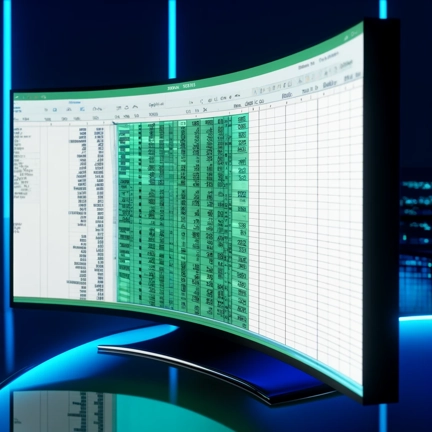
Ultrawide monitors at 34 inches or wider are excellent for spreadsheet-heavy workflows. A 21:9 aspect ratio lets you place two full-width sheets next to each other. Financial analysts and data professionals tend to love this layout.
Power delivery wattage
If you're buying a USB-C monitor for the charging benefit, check the wattage. 65W handles most ultrabooks and business laptops. 90W covers most 14-inch machines with discrete graphics.
Gaming laptops and mobile workstations often need 130W or more. No standard USB-C monitor delivers that. You'll still need your laptop's dedicated power adapter.
Best USB-C Monitors for Spreadsheets: What to Look For
You don't need a specific model. You need a specific set of specs. Here's what to prioritize.
Must-have specs for spreadsheet work
- QHD (2560×1440) or 4K (3840×2160) resolution
- IPS panel for viewing angles and text clarity
- 27 inches or larger
- USB-C with DisplayPort Alt Mode
- Power delivery of at least 65W
- Adjustable stand with height and tilt
Nice-to-have extras
- Built-in USB hub (acts as a dock)
- KVM switch for controlling two computers
- Factory-calibrated color accuracy
- Blue light filter or flicker-free backlight
- Ultrawide option if you work with multiple sheets
Models that consistently meet these specs
Dell's S2722QC offers 4K, IPS, and 65W power delivery at a reasonable price. LG's 27UK850-W adds an IPS panel with good sRGB coverage. BenQ's PD2705U targets professionals with factory calibration and a KVM switch.
These aren't the only options. They're examples of monitors that pair USB-C connectivity with genuinely good panels. Use them as benchmarks when shopping.
What to avoid
- 1080p resolution at 27 inches or larger
- TN panels at any price
- USB-C monitors that don't specify DisplayPort Alt Mode
- Monitors with USB-C ports that only handle data, not video
- No-name brands with vague spec sheets
Who Should Buy a USB-C Monitor for Spreadsheets (And Who Shouldn't)
Best fit
Remote workers and hybrid employees who dock daily benefit most. One cable means faster setup and teardown. The convenience compounds over months of daily use.
People with USB-C-only laptops have no choice. Newer MacBook Air and Pro models, Dell XPS laptops, and many Lenovo ThinkPads only have USB-C ports. A USB-C monitor eliminates the need for dongles.
Financial analysts and accountants who work with wide datasets should consider ultrawide USB-C monitors. The extra horizontal space is genuinely useful for viewing more columns without scrolling.
Not worth it
Desktop PC users with dedicated graphics cards should use DisplayPort or HDMI. USB-C offers no advantage when your PC has standard video outputs.
Budget-conscious buyers who don't need charging through the monitor should save the money. A $250 HDMI monitor often has the same panel as a $350 USB-C version.
People who already use a Thunderbolt dock don't need USB-C on the monitor itself. The dock handles connectivity. A standard HDMI or DisplayPort monitor works fine.
Common Mistakes People Make When Buying a USB-C Monitor
Buying for the connector, not the screen
The most common error. People see "USB-C" and assume it's premium. Then they end up with a 1080p TN panel that looks terrible.
Always check the panel specs first.
Assuming all USB-C cables work the same
USB-C cables vary wildly. Some handle only USB 2.0 data. Some support Thunderbolt 4.
Some carry DisplayPort video. The cable included with the monitor usually works. Third-party cables need careful verification.
Ignoring laptop compatibility
Not every USB-C port supports video output. Some laptops have USB-C ports for charging and data only. Check your laptop's manual for "DisplayPort Alt Mode" or "video output over USB-C" before buying.
Overpaying for power delivery you don't need
If your laptop already has a charger you're happy with, you don't need 90W power delivery through the monitor. A basic USB-C monitor with 65W or even no charging might save you money.
Forgetting about display scaling
4K on a 27-inch monitor looks sharp but makes everything small. Windows scaling fixes this, but not all applications handle scaling well. Some older spreadsheet tools and add-ins may look blurry at non-native scaling factors.
Setup Tips: Getting the Most From a USB-C Monitor
Use the right cable. The cable bundled with your monitor should work. If you need a replacement, buy one certified for DisplayPort Alt Mode and USB 3.1 or higher. Cheap USB-C cables from unknown brands cause flickering and connection drops.
Check your laptop's port. Look up your specific laptop model's specs. Confirm the USB-C port supports DisplayPort Alt Mode. Some manufacturers put USB-C ports on their laptops that only handle charging and data.
No video means no display.
Set your scaling before you judge the monitor. If text looks too small or blurry, adjust display scaling in your operating system. Windows 10 and 11 handle 150% scaling well on 4K 27-inch monitors. macOS handles it natively and cleanly.
Update your graphics drivers. Driver bugs cause USB-C display issues more often than hardware problems. Intel, AMD, and NVIDIA all release updates that improve external display compatibility.
Test power delivery. After connecting, check if your laptop is charging. Some monitors deliver power only when the display is active. Sleep or standby modes may not trigger charging.
This varies by model.
Frequently Asked Questions
Do I need a special USB-C cable for video?
Yes. Not all USB-C cables carry video signals. You need a cable that supports DisplayPort Alt Mode or Thunderbolt.
The cable included with your monitor is usually fine. Third-party cables should explicitly list video support on the packaging.
Will a USB-C monitor work with my older laptop?
It depends on your laptop's ports. Older laptops with HDMI or DisplayPort outputs won't connect directly to a USB-C monitor without an active adapter. Laptops with USB-C ports need DisplayPort Alt Mode support for video output.
Is 4K necessary for spreadsheet work?
No. QHD resolution at 24 or 27 inches provides sharp text and comfortable screen space. 4K looks better but costs more and may require display scaling. For most spreadsheet tasks, QHD is the practical choice.
Can I daisy-chain two USB-C monitors?
Rarely. Most USB-C monitors don't support daisy-chaining. You'd need Thunderbolt monitors or a Thunderbolt dock with multiple video outputs.
Standard USB-C monitors with DisplayPort Alt Mode generally work as single displays only.
Does USB-C affect text clarity at all?
No. Text clarity depends entirely on resolution, pixel density, and panel quality. The connection type has zero impact on how sharp or readable text appears on screen.

Similar Posts





















