Are USB C Monitors Good for Productivity
If you're wondering whether USB-C monitors are good for productivity, the short answer is yes, with some important caveats. The promise of a single cable handling video, data, and charging sounds great in theory. But whether it actually works for your setup depends on what your laptop supports and what you need from your display.
The USB-C connector itself tells you almost nothing about capability. A port might support 100W power delivery and 4K video, or it might only do charging. Understanding the difference is what separates a clean single-cable desk from a frustrating mess of adapters and flickering screens.

Image source: Bing (Web)
Quick Answer
USB-C monitors are good for productivity when your laptop fully supports DisplayPort Alt Mode and Power Delivery. They reduce cable clutter and simplify docking. However, not every USB-C port supports video output.
Cable quality and power delivery wattage vary significantly. Check your laptop's port specs before buying.
Why This Question Is Harder Than It Looks
Most people assume USB-C is USB-C. Plug it in, get video, get power, done. That assumption causes more headaches than almost any other mistake in modern desk setups.
The problem is that the USB-C connector is just a shape. What matters is which protocols run behind it. Your laptop's USB-C port might support Thunderbolt 4 with 40Gbps bandwidth and 100W charging.
Or it might only do USB 3.2 data at 10Gbps with no video output at all. Same port, completely different capabilities.
Manufacturer specs confirm this wide variability. A 2023 Dell XPS 13 gives you full Thunderbolt 4. A budget laptop from the same year might only offer USB-C for charging and data.
You need to verify three things before buying a USB-C monitor: DisplayPort Alt Mode support, Power Delivery wattage, and whether your bandwidth needs match what the port can deliver.
What's Actually Behind That USB-C Port
This is where most people get tripped up. The USB-C port on your laptop could be one of several very different things.
USB-C shape ≠ USB-C capability
The USB Type-C connector has 24 pins. How many of those pins are actually wired up depends entirely on the manufacturer. A charging-only port uses just a few pins.
A full-featured Thunderbolt 4 port uses all of them. You cannot tell by looking.
DisplayPort Alt Mode explained simply
DisplayPort Alt Mode (DP Alt Mode) is what lets a USB-C port carry video. Without it, no USB-C monitor will work for display output, period. Most laptops released after 2020 with USB-C support DP Alt Mode, but not all.
Some manufacturers leave video capability off to save cost or because they expect you to use HDMI instead.
Check your laptop's technical specifications sheet. Look specifically for "DisplayPort over USB-C" or "DP Alt Mode." If it's not listed, that port won't drive a USB-C monitor.
Power Delivery tiers that matter for your laptop
USB Power Delivery (PD) comes in tiers. Here's what you'll commonly see:
| PD Tier | Wattage | Typical Use Case |
|---|---|---|
| USB PD 2.0 | 60W | Ultrabooks, thin-and-light laptops |
| USB PD 3.0 | 100W | Most productivity laptops |
| USB PD 3.1 EPR | 140W | Performance laptops (MacBook Pro 16", gaming laptops) |
If your laptop needs 100W and your monitor only delivers 65W, it'll charge slowly or not at all under heavy workloads. The laptop might even drain while plugged in.
Thunderbolt vs USB4 vs plain USB-C: the real differences
| Standard | Max Bandwidth | Video Support | Power Delivery | Daisy Chaining |
|---|---|---|---|---|
| USB 3.2 Gen 2 + DP Alt Mode | 10Gbps | Single 4K@60Hz | Up to 100W | No |
| USB4 Gen 3 | 40Gbps | Single 4K@120Hz or dual 4K@60Hz | Up to 100W | Yes (with MST) |
| Thunderbolt 4 | 40Gbps | Dual 4K@60Hz or single 8K | Up to 100W (mandatory) | Yes |
| Thunderbolt 5 | 80Gbps | Dual 8K@60Hz | Up to 140W+ | Yes |
Thunderbolt 4 guarantees certain capabilities that USB4 leaves optional. That's the key difference. A Thunderbolt 4 port will always support dual 4K displays and 100W PD.
A USB4 port might only support a single display and lower wattage.
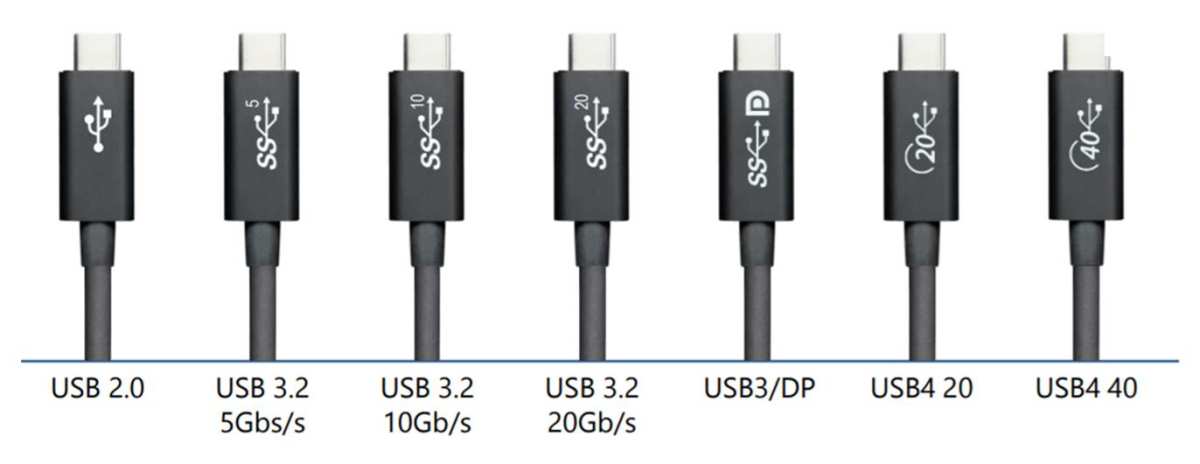
Image source: Bing (Web)
USB-C Monitors vs Traditional Monitors: Honest Comparison
Let's lay this out clearly. USB-C monitors aren't inherently better or worse than traditional monitors. They're a different approach to the same job.
Where USB-C monitors win
- Single cable simplicity. One cable from laptop to monitor handles video, data, and charging. No separate power brick for the laptop, no HDMI cable, no USB upstream cable.
- Easier docking and undocking. Walk up, plug in one cable, you're working. Walk away, pull one cable, you're mobile. This matters a lot for hybrid workers who move between home and office.
- Cleaner desk. Fewer cables means less visual clutter. If you care about a tidy workspace, this alone can be worth it.
- Built-in hub functionality. Most USB-C monitors include USB-A and USB-C downstream ports. Your keyboard, mouse, external drive, and webcam all connect through the monitor instead of a separate dock.
Where traditional monitors win
- More choices at every price point. HDMI and DisplayPort monitors have been the standard for decades. You get more options, better competition, and lower prices, especially below $300.
- No compatibility guessing games. HDMI is HDMI. DisplayPort is DisplayPort. You don't need to research whether your laptop's USB-C port supports some specific alt mode.
- Better for multi-monitor setups with a desktop PC. Most desktop GPUs have multiple HDMI and DisplayPort outputs. They rarely have USB-C. If you're running a desktop, traditional connections are simpler.
- Higher refresh rates for gaming. If you want 144Hz or 240Hz, you'll find far more options with DisplayPort than USB-C.
The honest bottom line
For a laptop-centric productivity setup, USB-C monitors offer genuine convenience. For a desktop setup or a budget build, traditional monitors make more practical sense. Neither is universally better.
What You Actually Gain for Productivity
Let's talk about the real-world benefits, not just specs on paper.
Single-cable docking and undocking
This is the headline feature. You plug one cable into your laptop and your monitor, keyboard, mouse, internet connection, and power all come through that single connection. Aggregate user reviews consistently cite this as the number one reason people switch to USB-C monitors.
For anyone who uses a laptop at a desk but takes it to meetings or works from different locations, the time savings add up. No more fumbling with multiple cables. No more forgetting to plug in your mouse.
Desk setup simplification
A traditional laptop-at-desk setup typically involves at least three cables: one for video (HDMI or DisplayPort), one for a USB hub or peripherals, and one for laptop charging. A USB-C monitor collapses all three into one.
This isn't just aesthetic. Fewer cables means fewer points of failure, easier cable management, and a workspace that's faster to set up and tear down.
Built-in hub functionality
Most USB-C monitors include a USB hub. You connect your peripherals to the monitor, and they're available whenever the monitor is connected to your laptop. This effectively replaces a standalone docking station, which typically costs $150 to $300 on its own.
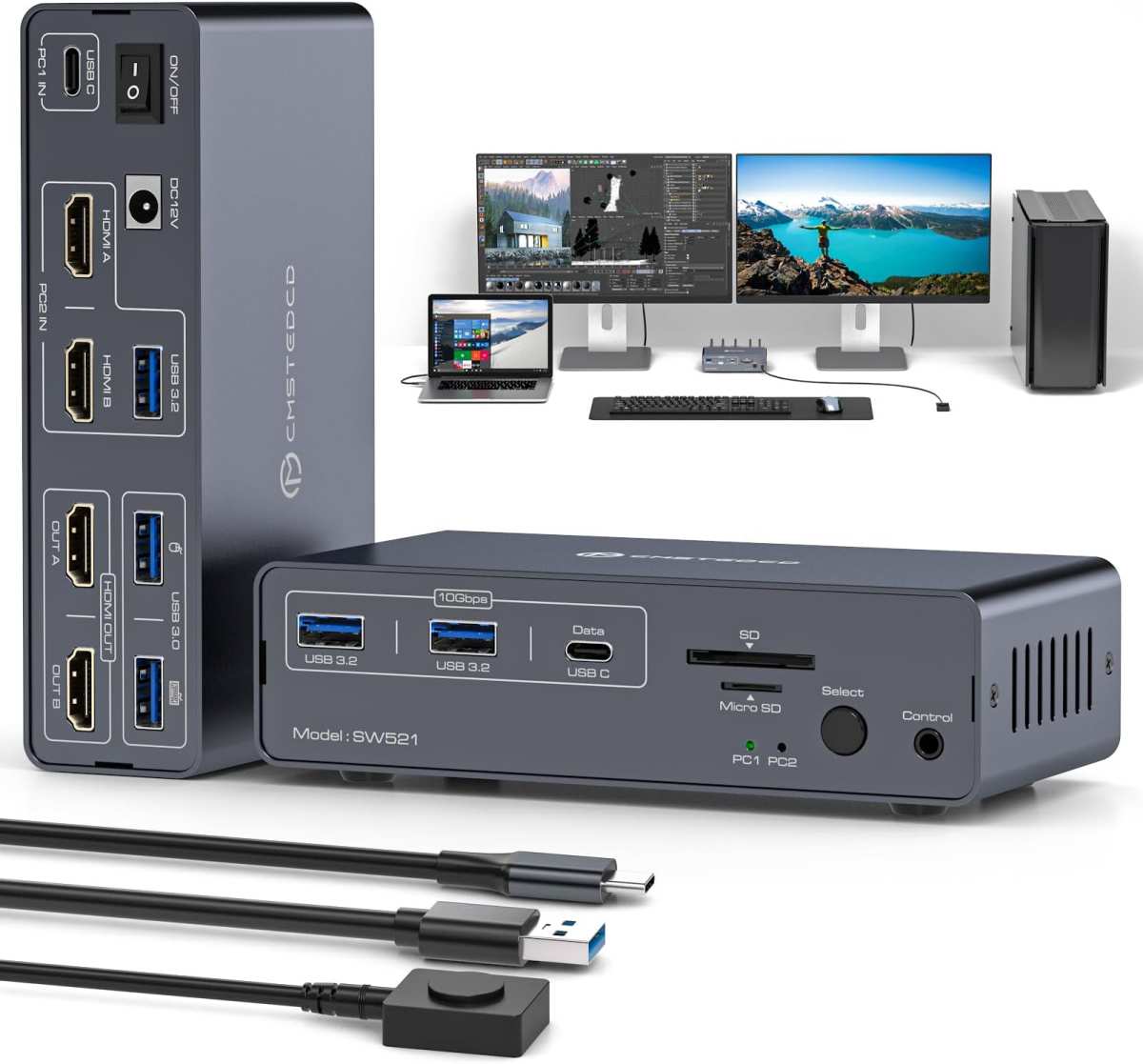
Some higher-end models include Ethernet pass-through, audio output, and even built-in KVM switches. That's a lot of functionality packed into a single device.
Portability for hybrid and remote workers
Portable USB-C monitors have become a popular category for people who travel or work from multiple locations. These 15 to 17-inch displays run entirely off a single USB-C connection from your laptop. No external power needed for many models.
They're not a replacement for a full desktop monitor, but they're excellent as a second screen when you're working from a coffee shop, hotel room, or client site.

Similar Posts





















