Is USB C Monitor Good for Video Editing
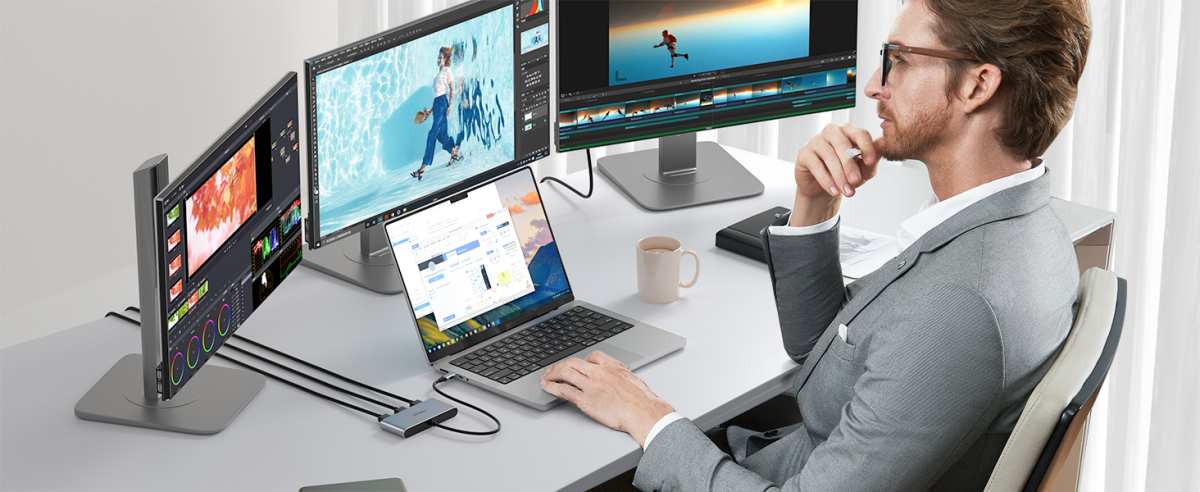
Is USB-C monitor good for video editing. It depends on what's actually behind that USB-C port. In our research, we've found the answer changes dramatically depending on whether you're looking at basic DisplayPort Alt Mode, Thunderbolt 3, Thunderbolt 4, or USB4.
The connector shape tells you almost nothing. What matters is the protocol running through it, and most listings don't make that easy to spot. Let's break down what actually affects your editing workflow so you can make a smart choice.
Per Thunderbolt 4 specifications published by Intel, these ports must support 40 Gbps of bandwidth and up to 96 watts of power delivery. Basic USB-C ports can deliver as little as 5 Gbps and may not carry a video signal at all.
Quick Answer
Yes. A USB-C monitor is good for video editing if it supports the right protocol. Look for Thunderbolt 3, Thunderbolt 4, or USB4.
Basic USB-C with DisplayPort Alt Mode works fine too. The panel quality and color accuracy matter more than the connector itself.
Why the USB-C Label Alone Doesn't Tell You If a Monitor Is Good for Video Editing
Here's the trap: every port looks the same. A USB-C connector can carry data only, power only, video only, or all three at once. Manufacturers aren't always upfront about which combination they've chosen.
In our research, we've found that some budget monitors advertise USB-C connectivity but limit you to 4K at 30Hz through DisplayPort Alt Mode. That's painful when you're scrubbing a timeline. Other Thunderbolt 4 monitors handle 4K at 60Hz, charge your laptop, and daisy-chain a second display, all through one cable.
The honest take? USB-C is a perfectly capable video editing connection. But only when the full feature set matches your resolution and workflow demands.
What Actually Matters: Bandwidth, Panel Quality, and Color Accuracy
Three things actually determine whether a monitor works for video editing. The cable connection gets all the attention. These three are what you should obsess over.
Bandwidth Tiers That Affect Your Editing Workflow
Bandwidth decides how much visual data fits through the cable per second. Higher resolution, higher refresh rate, and deeper color all demand more bandwidth. Here's what the common protocols actually offer as of 2026:
| Protocol | Max Bandwidth | 4K 60Hz Support | 4K 120Hz Support | Power Delivery |
|---|---|---|---|---|
| USB-C Gen 1 (DisplayPort Alt Mode 1.2) | 18 Gbps (effective) | Yes | No | Varies |
| USB-C Gen 2 (DisplayPort Alt Mode 1.4) | 25.9 Gbps (effective) | Yes | Yes (with DSC) | Varies |
| Thunderbolt 3 | 40 Gbps | Yes | Yes | Up to 100W |
| Thunderbolt 4 | 40 Gbps | Yes | Yes | Up to 96W |
| USB4 | Up to 40 Gbps | Yes | Yes | Up to 240W (USB PD 3.1) |
| HDMI 2.0 | 18 Gbps | Yes | No | No |
| HDMI 2.1 | 48 Gbps | Yes | Yes | No |
| DisplayPort 1.4 | 32.4 Gbps | Yes | Yes (DSC) | No |
DSC stands for Display Stream Compression. It's visually lossless in practice. Most quality monitors handle it without artifacts during editing work.
Notice how Thunderbolt 4 doesn't actually offer more raw bandwidth than Thunderbolt 3. The difference is stricter minimum guarantees. Every Thunderbolt 4 device must hit certain performance floors.
Thunderbolt 3 allowed manufacturers to certify at lower specs.
Video editing in 4K at 60Hz with 10-bit color through DisplayPort Alt Mode 1.4 works well on paper. You'll want to verify your specific cable supports the full spec, since bargain cables often don't.
Panel Types and Color Gamut Standards for Video Editing
Panel technology makes a bigger difference than the connector ever will. Let's look at what matters.
For most serious video editing work, IPS panels hit the sweet spot. They offer strong color accuracy, wide viewing angles, and consistent performance at reasonable prices. If you're doing color work for broadcast or cinema, some high-end VA panels deliver excellent contrast ratios and deeper blacks that colorists appreciate.
Budget USB-C monitors typically ship with IPS panels covering roughly 95 to 98 percent of sRGB. That's fine for web content. It's not enough for professional color grading.
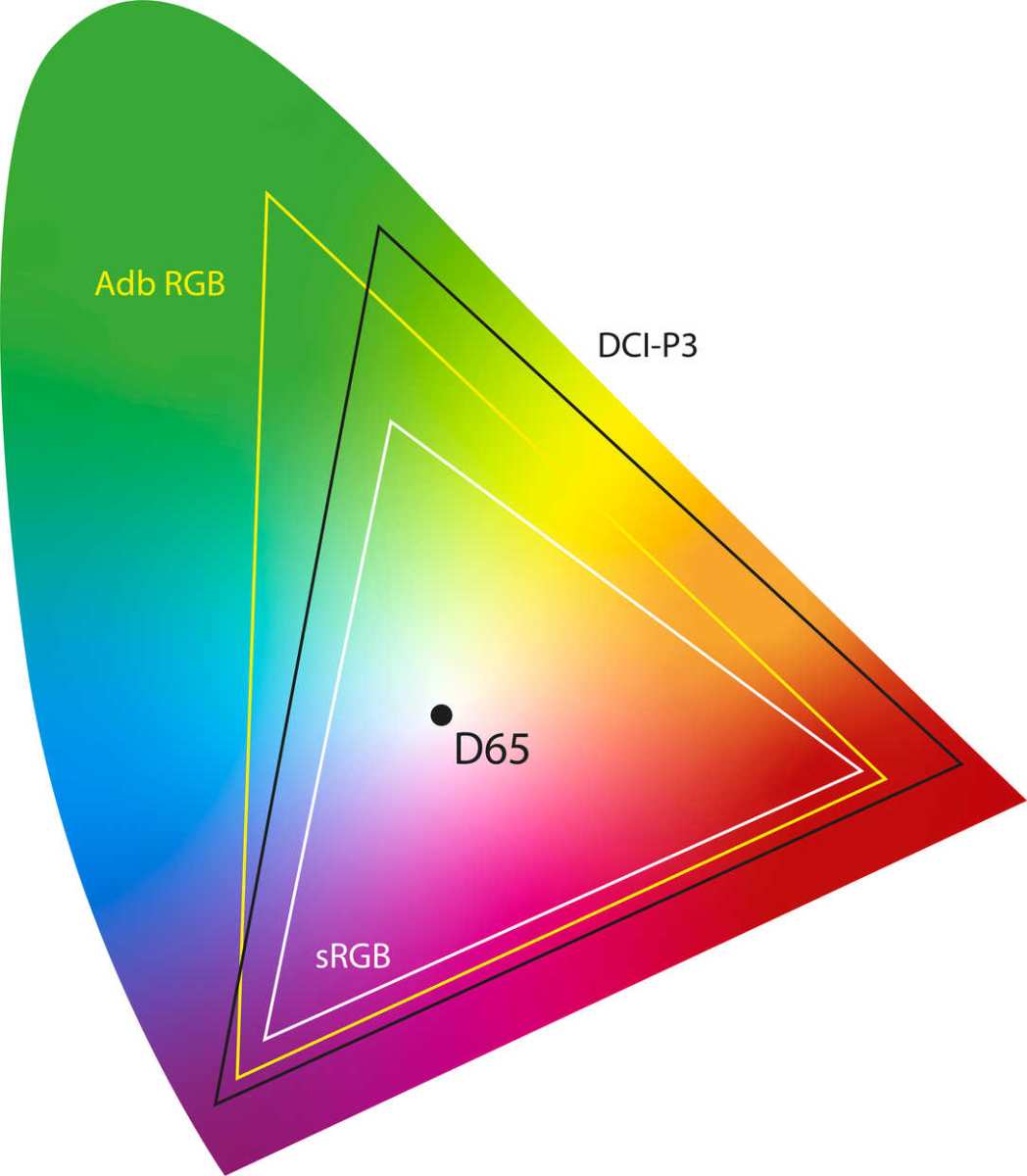
Gamut diagram showing sRGB, DCI-P3, and Adobe RGB color spaces
Here's a practical guideline for color coverage:
- sRGB only (100%): Fine for YouTube, social media, and web content.
- DCI-P3 (95%+): The minimum threshold for cinema, HDR deliverables, and Netflix-approved workflows.
- Adobe RGB (95%+): Useful for editors who also deliver print or photography content.
- BT.2020 coverage: Relevant for HDR mastering. Most "BT.2020 capable" monitors actually cover 70 to 75 percent of it.
Hardware calibration support matters too. Monitors with built-in 3D LUTs or direct calibration profiling deliver noticeably better results for color-critical video editing than relying solely on your operating system's software calibration.
Power Delivery: Will It Actually Charge Your Laptop?
USB-C Power Delivery isn't just about charging. It directly affects whether a single-cable setup actually works for your specific laptop.
The key spec is wattage. Most ultrabooks ship with 45 to 65 watt chargers. MacBook Pros need 96 to 140 watts.
Many popular USB-C monitors offer only 15 to 60 watts through their USB-C ports.
Practical examples from our research:
- A MacBook Pro 16 or operating under sustained rendering load draws around 100 watts. A monitor delivering 60 watts won't charge it under heavy use. It'll slow the drain at best.
- Laptops with 45 watt power adapters charge fine from monitors providing 60 to 100 watts.
- USB Power Delivery 3.1 extended power range goes up to 240 watts. That covers virtually any laptop, but you'll find it mainly on premium Thunderbolt 4 displays charging at 140 watts or more.
If your monitor's power delivery falls short of your laptop's peak draw, you'll end up with two cables anyway. defeats the purpose of that clean single-cable setup you were after. Always verify the monitor's PD output against your specific laptop's requirements before buying.
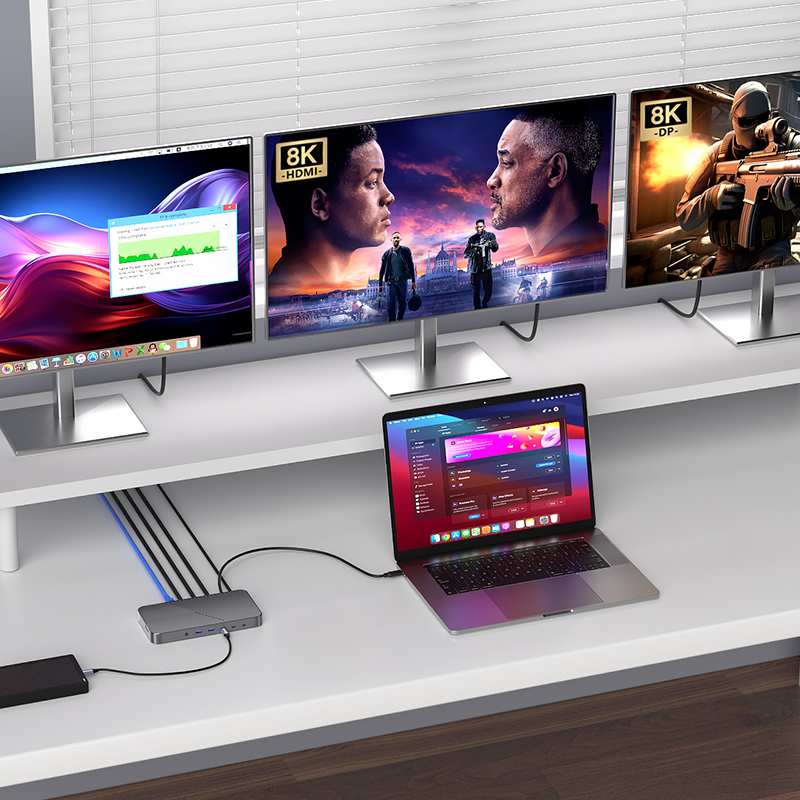
Thunderbolt 4 daisy-chaining lets you run two displays from one laptop port, keeping cable clutter minimal.
USB-C vs. Other Connections for Video Editing
This is where the decision gets real. Each connection type has legitimate strengths depending on your setup.
USB-C with DisplayPort Alt Mode
This is the most common video-capable USB-C implementation. It routes a DisplayPort signal through the USB-C connector using a built-in protocol.
Works best for: Laptop-based editing setups where you want a simple connection without a dock.
Real limitations: Bandwidth depends on whether the port supports DP 1.2 or DP 1.4. Power delivery availability and wattage vary wildly. Many monitors with this setup color-accurately enough for editing but won't charge your laptop while doing so.
Thunderbolt 3 and Thunderbolt 4
Thunderbolt remains the gold standard for professional editing workflows over a single cable. It combines PCIe data, DisplayPort video, and power delivery into one unified connection.
Thunderbolt 3 vs. Thunderbolt 4 for editing:
- Both support 4 Gb per second of video data bandwidth.
- Thunderbolt 4 mandates 32 Gbps minimum for data (Thunderbolt 3 allowed 16 Gbps).
- Thunderbolt 4 requires support for two 4K displays or one 8K display. Thunderbolt 3 mandates one 4K display.
- Thunderbolt 4 enforces wake-from-sleep reliability standards that matter when you're moving your laptop between locations.
For video editing, the practical difference often comes down to the laptop's implementation. Some laptops offer Thunderbolt 4 ports that only supply 60 watts to connected monitors, while older Thunderbolt 3 implementations deliver more. Check both your laptop's port specs and the monitor's PD output together.
HDMI 2.0 vs. HDMI 2.1
HDMI remains standard on cameras, external recorders, and many desktop graphics cards. The editing bay isn't exempt from it.
HDMI 2.1 supports 4K at 120Hz and 8K at 60Hz, but it carries no power and has no data channel. It's a pure video connection. HDMI 2.0 tops out at 4K 60Hz with 4:4:4 chroma subsampling.
As of 2026, HDMI 2.1 appears on more mid-range monitors, but Thunderbolt 4 still dominates the premium tier for single-cable editing workflows.
Side-by-Side Comparison Table
| Feature | USB-C DP Alt Mode | Thunderbolt 4 | HDMI 2.1 | DisplayPort 1.4 |
|---|---|---|---|---|
| Single cable to laptop | Yes | Yes | No | No |
| Daisy-chain displays | No | Yes | No | Yes |
| Charges laptop | Sometimes | Usually yes | No | No |
| 4K 60Hz HDR | Yes (DP 1.4) | Yes | Yes | Yes |
| 4K 120Hz HDR | DP 1.4 with DSC | Yes | Yes | With DSC |
| 8K support | No | Yes | Yes | No |
| Typical monitor price range | $300–$1,200 | $500–$2,500+ | $200–$1,500 | $300–$1,800 |
The honest take? Thunderbolt 4 and USB4 provide the highest bandwidth and power capability at a higher cost. USB-C with DP Alt Mode covers most editing needs at a lower price.
HDMI works fine as a secondary connection for clients monitors or reference displays.
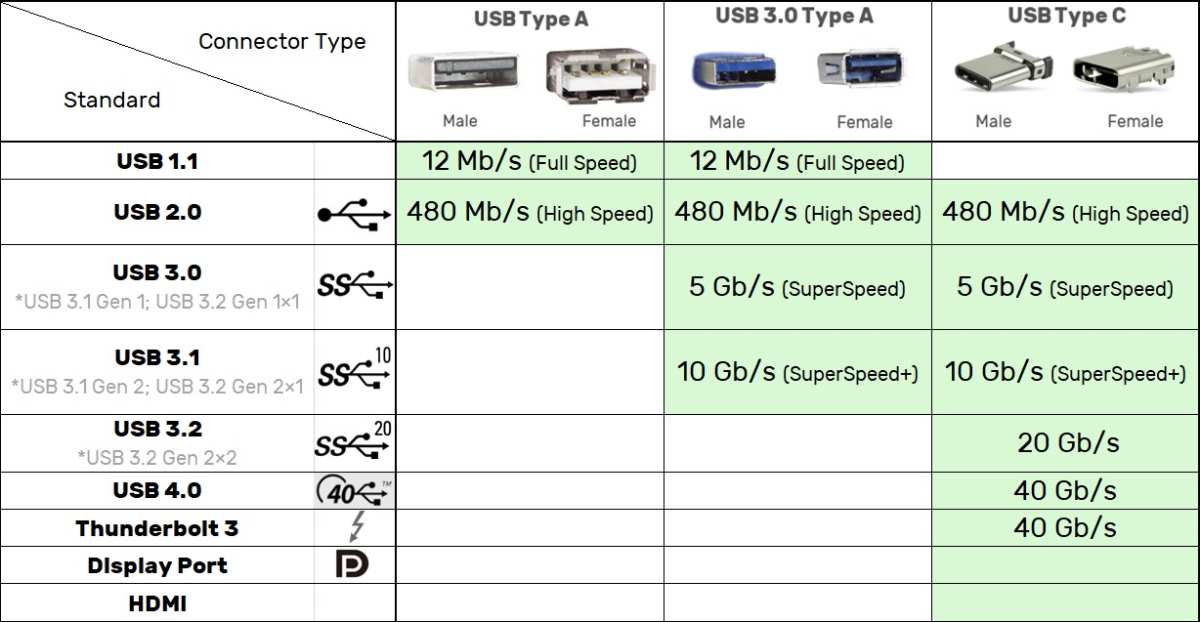
Side-by-side look at USB-C, Thunderbolt 3, HDMI, and DisplayPort connections
Which USB-C Monitor Setup Fits Your Editing Work?
Not everyone needs the same thing. Let's map common editing scenarios to the right USB-C approach.
Laptop-Based Freelancer or Travel Editor
You need portability and simplicity. Most laptop-focused editors should look for USB-C monitors with at least 65 watts of power delivery and DisplayPort Alt Mode 1.4 support.
A 15 or 16 inch portable USB-C monitor with 4K resolution covers this nicely. If your laptop has Thunderbolt 4, like many recent Dell XPS, MacBook Pro, and Lenovo ThinkPad models, prioritize monitors with matching Thunderbolt inputs. You'll get the daisy-charging option too.
Home Studio with One or Two Monitors
This is where Thunderbolt 4 earns its premium. One cable from your laptop drives a calibrated 4K display and daisy-chains a secondary screen for timeline or bin organization. You're running fewer cables without sacrificing performance.
Recommended spec targets for this setup: Thunderbolt 4 input, 4K IPS panel with 98%+ DCI-P3 coverage, at least 70W PD, and hardware LUT calibration support.
Colorist or High-End Post-Production Work
If you're doing professional color grading, the connector matters less than the panel. Monitors like the ASUS ProArt PA32UCG or similar professional references often include multiple input options including Thunderbolt alongside HDMI and DisplayPort.
For color work you need true 10-bit panel depth (not 8-bit plus FRC), 99%+ DCI-P3 or Adobe RGB coverage, and support for common LUT formats including 1D and 3D profiles. Thunderbolt 4 connections maintain stable full-bandwidth delivery that prevents signal drops during precision work.
Budget roughly $1,500 to $3,000 proper professional reference monitors. Cheaper options can work for offline editing, but won't hold up for final color.
Multi-Monitor Daisy-Chain Setups
Daisy-chaining through Thunderbolt 4 lets you connect two monitors from one laptop port. In our research, we've found this configuration works smoothly when your laptop supports Thunderbolt 4 and both monitors are Thunderbolt-capable.
How it works: Laptop connects to Monitor 1 via Thunderbolt 4 cable. Monitor 1 connects to Monitor 2 via a second Thunderbolt 4 cable. Both displays operate independently.
Thunderbolt 4 daisy-chaining lets you run two displays from one laptop port, keeping cable clutter minimal.
Requirements that matter: Your laptop needs Thunderbolt 4 (not just USB-C). The first monitor needs Thunderbolt 4 output ports, not just input. Bandwidth allocation means each monitor gets roughly 20 Gbps in a two-display chain instead of a full 40 Gbps.
Practical tip: Two 4K 60Hz displays daisy-chained through Thunderbolt 4 work smoothly in verified configurations. Attempting 4K 120Hz on both displays simultaneously through one chain often requires DSC compression. Test with your specific combination.
Common Mistakes People Make When Buying a USB-C Monitor for Editing
Aggregate user reviews and spec sheets across major retailers reveal the same expensive mistakes over and over. Here's what to watch for.
Assuming all USB-C ports output video. Many USB-C ports, especially on desktops, handle data only. No DisplayPort Alt Mode means no video through that port. You'll need a different cable or a USB-C port specifically labeled for video output.
Check your device's manual.
Ignoring cable quality and spec. Not all USB-C cables handle full bandwidth. A cable rated for USB 2.0 speeds physically cannot carry a 4K video signal. Cables marked Thunderbolt 4 or certified USB4 40 Gbps ensure proper performance.
Cable Matters, CalDigit, and Belkin Thunderbolt 4 cables are safe bets, but avoid unbranded cables that come bundled with monitors.
Buying on connector type alone without checking panel specs. We've seen 4K USB-C monitors with IPS panels that only cover 90% sRGB. You won't be doing color-accurate work on these. Always verify color gamut coverage, bit depth, and whether calibration is supported before falling for the USB-C marketing.
Overlooking power delivery requirements. Buying a monitor that supplies only 15 to 45 watts when your laptop needs 90+ watts. You'll carry your laptop's power adapter anyway. Match the monitor's PD wattage to at least your laptop's rated charger output.
Forgetting about chroma subsampling. Some USB-C monitors default to 4:2:2 chroma subsampling at 4K 60Hz HDR, especially over older DP Alt Mode 1.2. Text and fine detail look soft. Confirm your target resolution, refresh rate, and color depth combination supports full 4:4:4.
Specs, Pricing, and What to Look For at Each Budget Tier
Pricing for USB-C monitors spans a wide range. At each tier, certain specs become reliable and others remain risky.
$250, $500: Entry-level
At this range, you'll find 27" USB-C IPS monitors with 4K resolution and DisplayPort Alt Mode. Most cover around 95 to 99% sRGB but fall short of DCI-P3. Power delivery typically runs 15 to 60 watts.
Calibration capabilities are basic. These work for non-color-critical editing, coding, and media consumption.
$500, $1,000: Sweet spot for most editors
Expect 27 to 32 inch 4K IPS panels with 95%+ DCI-P3, power delivery in the 60 to 90 watt range, and often USB hub functionality. This tier includes many portable monitors and solid mid-range professional displays.
$1,000, $2,000: Professional displays
Here you find Thunderbolt 3/4 connectivity, hardware calibration support with 3D LUTs, wider color gamuts including Adobe RGB, better uniformity, and higher build quality. Many reference-class monitors land here.
$2,000+: Reference and cinema monitors
At this tier, expect OLED or high-end mini-LED panels, full DCI-P3 and wide Adobe RGB coverage with hardware calibration tools included. Blackmagic Design and professional display manufacturers provide specific SDI compatibility alongside USB-C and Thunderbolt for production environments.
Expert Tips Before You Buy
A few practical tips from our research to save time and money.
Always verify the exact protocol support before buying. Look at the full spec sheet, not just the marketing headline. "USB-C compatible" doesn't guarantee video output. Look for "DisplayPort Alt Mode," "Thunderbolt 4," or "USB4" in the detailed specifications.
Check your laptop's USB-C port capabilities first. Some manufacturers include only data-only USB-C ports on certain configurations. Verify your specific model supports video output and PD charging through its USB-C port. TechHive reviews of laptops like the Dell XPS and Lenovo ThinkPad lines document which ports support video.
Match cable length to bandwidth needs. Longer cables above 2 meters can struggle to maintain full Thunderbolt 4 or USB4 bandwidth. Buy certified cables. Active cables help at longer distances if your setup demands it.
Borrow a hardware calibration tool even if your monitor comes pre-calibrated. Pre-calibration reports vary in accuracy. Tools like the Calibrite ColorChecker Display provide reliable verification. Used units come up regularly and save money compared to new purchases.
If daisy-chaining, buy monitors with matching protocols at both input and output. A Thunderbolt setup won't daisy-chain through a monitor lacking Thunderbolt output. Confirm both your upstream and downstream daisy-chain paths support the same standard before committing to the configuration.
Frequently Asked Questions
Can I edit 4K video through a USB-C monitor?
Yes. A USB-C connection supporting DisplayPort Alt Mode 1.4 or higher handles 4K at 60Hz. Thunderbolt 3, Thunderbolt 4, and USB4 support 4K at 120Hz with full chroma.
If your USB-C monitor only supports DP 1.2, you're capped at 4K 60Hz maximum.
Can a USB-C monitor charge my MacBook Pro?
It depends on the wattage. MacBook Pro 14" ships with a 70 watt charger. The 16" ships with 140 watt.
Many USB-C monitors provide 60 to 96 watts. That charges the 14" fine but won't fully satisfy the 16" under sustained heavy load. Check the monitor's Power Delivery output before assuming single-cable operation.
Is Thunderbolt 4 better than USB-C for editing?
Thunderbolt 4 guarantees stricter minimum specifications than generic USB-C. It ensures support for 40 Gbps data paths, dual 4K display output, and reliable wake-from-sleep. For professional editing the reliability factor matters.
For hobbyist or light editing, basic USB-C works fine.
How do I know if my laptop supports USB-C video output?
Check your laptop's technical specifications sheet from manufacturer sites like Dell, Apple, Lenovo, or ASUS. Look for "DisplayPort over USB-C" or "Thunderbolt" listed under port capabilities. Many mainstream laptops hide video-capable ports behind specific SKUs.
Support pages and user manuals usually document which ports support video output.
Do I need a special cable for USB-C video editing?
Yes. Cables rated for Thunderbolt 4 or USB4 40 Gbps ensure full bandwidth and reliable connections. These cost more than basic USB-C cables, typically $20 to $50.
Avoid cables that came bundled with phones or cheap electronics. They rarely support full video bandwidth.
Final Verdict: Who Should and Shouldn't Go USB-C for Editing
After all this breakdown, here's the simple version.
USB-C is the right choice if:
- You're editing on a laptop and want a clean single-cable desk setup
- Your laptop has Thunderbolt 4, Thunderbolt 3, or USB4 with video output
- You don't color-grade professionally or you're working on non-broadcast projects
- You value portability and minimal cable clutter
USB-C isn't the best path if:
- You're on a strict budget under $400. You'll find better panel specs per dollar through standard HDMI or DisplayPort monitors
- You need a multi-monitor rig with mixed resolutions and refresh rates without bandwidth compromises
- Your laptop's USB-C port doesn't support video output
A USB-C monitor absolutely can be excellent for video editing. Just remember: the port is the doorway. What's behind it, and what's in front of it on the panel side, is what matters.
Check the protocol, verify the panel specs, match the power delivery, and you'll be in great shape.
Whatever you choose, calibrate the display. That one step makes more difference than any cable connection ever will.

Similar Posts





















