Do Touchscreen Monitors Support G Sync
If you've been wondering do touchscreen monitors support g sync, you're not alone. It's one of those questions that sounds like it should have a simple yes-or-no answer, but the reality is messier. The short version is that some do, most don't, and whether it'll actually work for you depends on a handful of specific factors we need to walk through.
Here's the thing. NVIDIA G-SYNC requires either a proprietary hardware monitor inside the monitor or Adaptive-Sync support over DisplayPort. Most touchscreen monitors ship without that hardware module, and many don't properly implement Adaptive-Sync either.
As of 2026, the overlap between touchscreen displays and certified G-SYNC support is still surprisingly small. Let's break down exactly what determines whether your setup qualifies.
The Short Answer (It Depends on Your Setup)
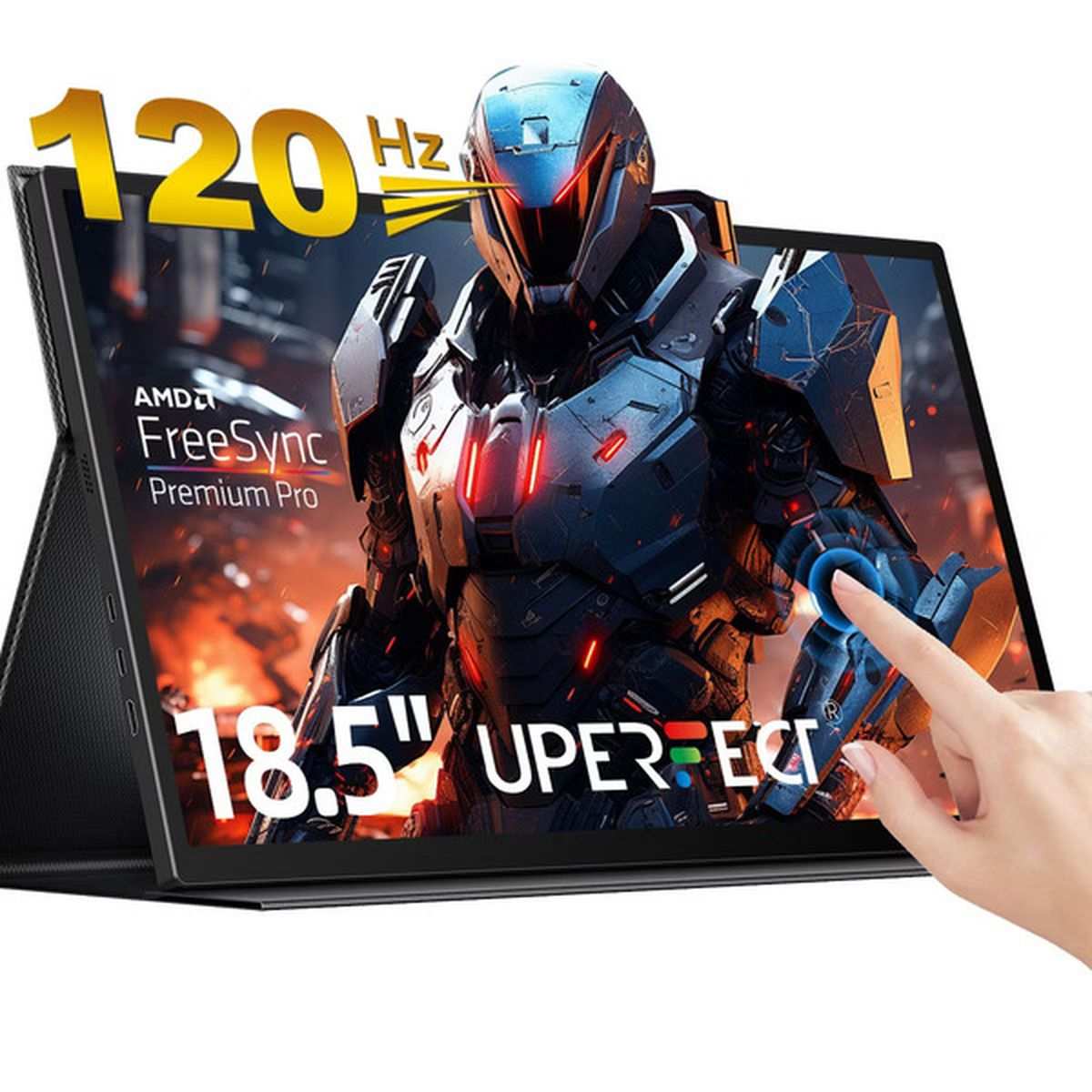
Touchscreen monitors can support G-SYNC, but only under specific conditions. You need an NVIDIA GPU, a DisplayPort connection, and a monitor that explicitly lists G-SYNC or Adaptive-SYNC in its specs. Most touch monitors don't meet all three requirements.
If yours does, you're in luck. If not, you'll need to weigh your options carefully.
Why Most Touchscreen Monitors Don't Have G-SYNC — And Why That Matters
The core issue comes down to cost and market priorities. A G-SYNC hardware module adds roughly $100 to $200 to a monitor's bill of materials. Touchscreen monitors are already more expensive to produce than standard displays.
Stacking both features together pushes the price into a niche that most manufacturers don't want to serve.
But there's more to it than cost. Touch monitors are built for enterprise, medical, industrial, and creative professionals. Those buyers care about color accuracy, touch reliability, and input flexibility.
Variable refresh rate gaming is rarely on their priority list. So manufacturers don't pay for G-SYNC certification when their target audience isn't asking for it.
Here's where it gets interesting though. Some touch monitors do support Adaptive-Sync over DisplayPort. That's the VESA standard that NVIDIA's "G-SYNC Compatible" program is built on.
If your touch monitor supports Adaptive-Sync and you have a compatible NVIDIA GPU, you can often enable G-SYNC Compatible mode. It's not the same as a full G-SYNC module, but it does eliminate tearing and reduce stutter.
The catch? NVIDIA doesn't certify most touch monitors as "G-SYNC Compatible." That means you're relying on the monitor's Adaptive-Sync implementation working correctly with NVIDIA's driver-level support. Sometimes it works flawlessly.
Sometimes you get flickering, blanking, or no VRR option at all. It's a bit of a gamble.
The Three Things You Need to Check First
Before you get your hopes up or give up entirely, you need to verify three specific things about your setup. Skip any one of these and G-SYNC simply won't work, regardless of what the marketing says.
Your Monitor's Actual Spec Sheet
Pull up the exact model number of your touchscreen monitor. Go to the manufacturer's product page and look at the full specifications. You're searching for one of these terms: "G-SYNC," "G-SYNC Compatible," "Adaptive-Sync," or "Variable Refresh Rate."
If none of those appear, your monitor almost certainly doesn't support G-SYNC in any form. Some monitors have Adaptive-Sync capability baked into the scaler but never advertised because it wasn't part of the marketing push. That happens more often than you'd think with lesser-known brands.
But if it's not listed, you're in uncharted territory.
Pay attention to the exact phrasing. "G-SYNC Compatible" means NVIDIA has tested and certified it. "Adaptive-Sync" means it supports the VESA standard but hasn't been certified by NVIDIA.
"G-SYNC Ultimate" means it has the full hardware module. These are very different levels of support.
Your GPU and Connection Type
G-SYNC requires an NVIDIA GPU. Specifically, you need a GTX 10-series or newer for G-SYNC Compatible support. Older cards won't give you the option at all.
The connection matters just as much. G-SYNC over DisplayPort is the standard. HDMI 2.1 supports VRR, but NVIDIA's implementation over HDMI is more limited and less reliable on touch monitors.
If your touch monitor only has HDMI inputs, you're likely out of luck for G-SYNC specifically.
Here's a quick reference:
| Requirement | G-SYNC Module | G-SYNC Compatible | Adaptive-Sync Only |
|---|---|---|---|
| NVIDIA GPU | Yes (GTX 650 Ti Boost+) | Yes (GTX 10-series+) | Yes (GTX 10-series+) |
| DisplayPort | Required | Required | Required |
| Hardware module | Yes | No | No |
| NVIDIA certified | Yes | Yes | No |
| Works on touch monitors | Rare | Occasional | Hit or miss |
What "G-SYNC" Means for Your Situation
This is where people get tripped up. There are three distinct levels of G-SYNC support, and they deliver very different experiences.
G-SYNC (full module): NVIDIA's proprietary chip handles all the timing. You get the widest VRR range, the best overdrive tuning, and the most consistent performance. Almost no touch monitors have this.
G-SYNC Compatible: NVIDIA has tested and certified the monitor's Adaptive-Sync implementation. You get VRR support with reasonable confidence it'll work well. A small number of touch monitors have this certification.
Adaptive-Sync (uncertified): The monitor supports the VESA standard but hasn't been tested by NVIDIA. You can try enabling G-SYNC Compatible mode in the NVIDIA Control Panel, but results vary. This is where most touch monitors sit.
How to Tell If Your Touch Monitor Actually Supports G-SYNC
Now let's get practical. Here's the step-by-step process for determining whether your specific touchscreen monitor can actually do G-SYNC.
Check the NVIDIA G-SYNC Compatible List
NVIDIA maintains a list of monitors that have passed their G-SYNC Compatible certification. You can find it on NVIDIA's official website under their G-SYNC monitors section. Search for your exact model number.
If your touch monitor shows up on that list, you're good to go. Enable G-SYNC in the NVIDIA Control Panel and you should have a tear-free experience. If it's not on the list, that doesn't necessarily mean it won't work.
It just means NVIDIA hasn't tested it.
Look at the Physical Connection
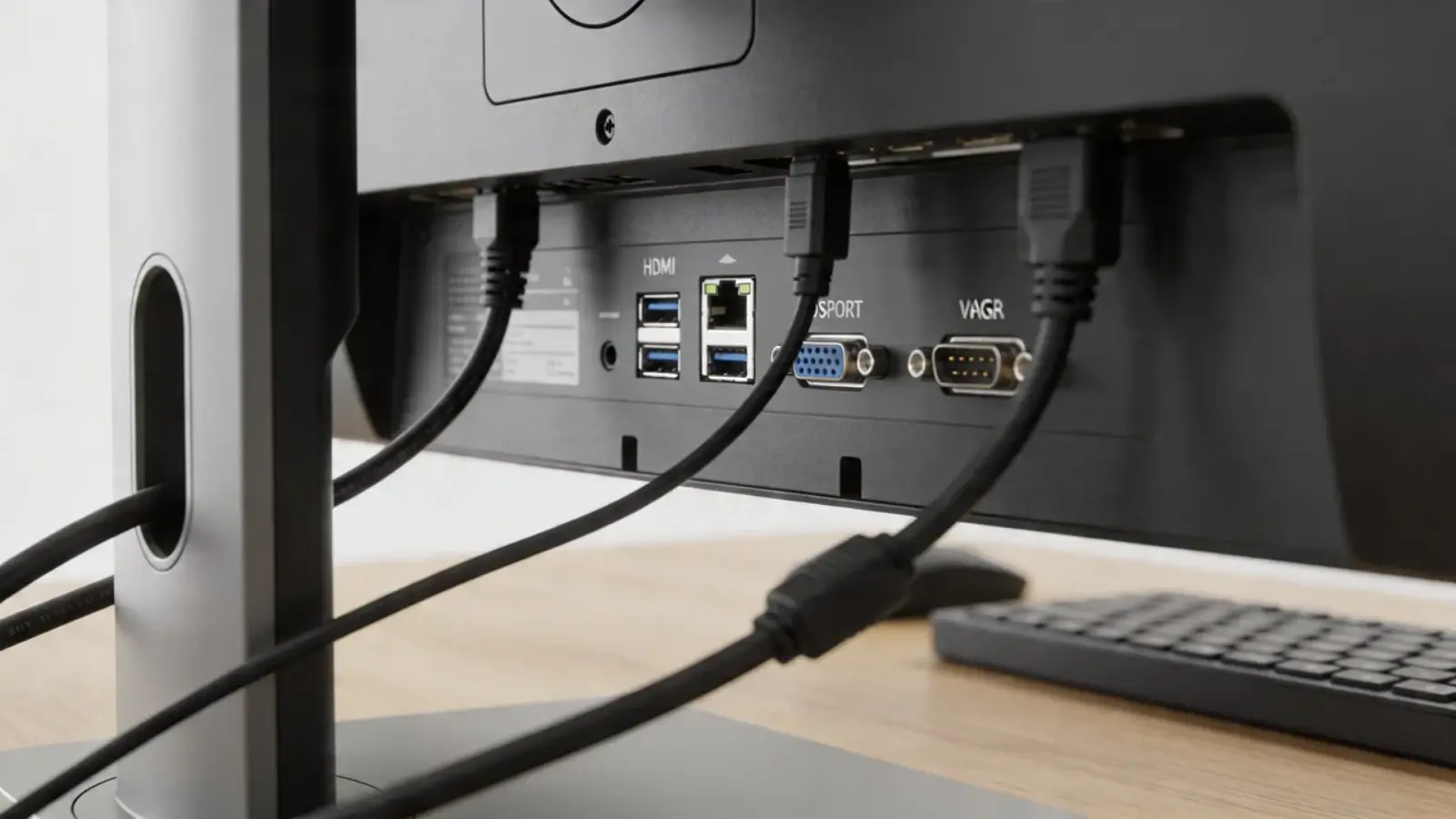
Check the ports on the back of your touch monitor. You need a DisplayPort input, either full-size or Mini DisplayPort with an adapter. HDMI-only touch monitors won't support G-SYNC in most cases.
Also check what cable you're using. A cheap or damaged DisplayPort cable can prevent the G-SYNC option from appearing in the NVIDIA Control Panel even when the monitor supports it. Use a certified DisplayPort 1.2 or 1.4 cable.
Length matters too. Cables over 3 meters can cause signal issues that break VRR handshake.
Enable It in NVIDIA Control Panel
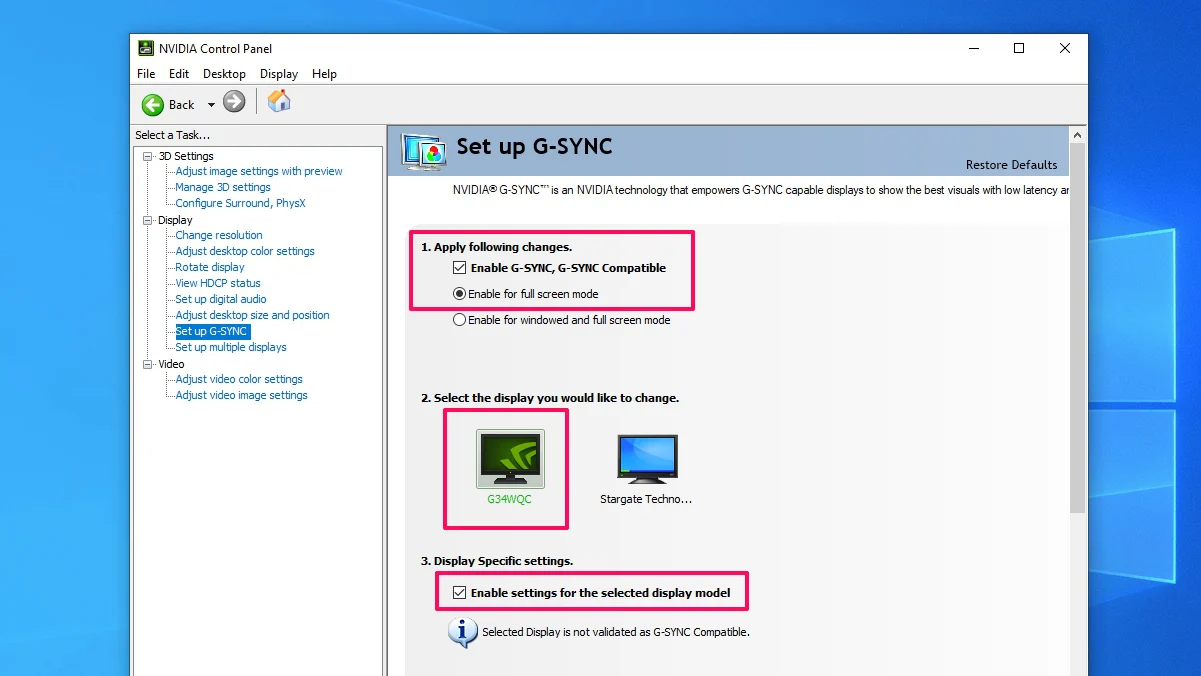
Connect your touch monitor via DisplayPort to your NVIDIA GPU. Right-click on your desktop and open NVIDIA Control Panel. Navigate to "Display" in the left sidebar, then click "Set up G-SYNC."
If the option appears and you can check the box to enable it, your monitor supports VRR at the driver level. If the option doesn't appear at all, your monitor either doesn't support Adaptive-Sync or the driver isn't detecting it properly.
Once enabled, you'll want to open the "Manage 3D Settings" section and make sure "Monitor Technology" is set to "G-SYNC Compatible." Then set "Vertical Sync" to "On" in the global settings. This might sound counterintuitive, but with G-SYNC enabled, V-Sync acts as a fallback for when your frame rate exceeds the monitor's refresh rate. It's the recommended configuration.
What to Do When G-SYNC Won't Turn On (Troubleshooting)
So you've checked everything and the G-SYNC option still won't appear. Don't panic. There are a few common culprits that are easy to fix.
Update your GPU drivers. NVIDIA frequently adds Adaptive-Sync support for new monitors in driver updates. An outdated driver might not recognize your touch monitor's VRR capabilities. Download the latest Game Ready driver from NVIDIA's website.
Update your monitor firmware. Some touch monitors receive firmware updates that add or improve Adaptive-Sync support. Check the manufacturer's support page for your specific model. This is especially common with monitors from ASUS, Dell, and ViewSonic.
Force G-SYNC Compatible mode. If your monitor supports Adaptive-Sync but NVIDIA isn't detecting it, you can try forcing it. In the NVIDIA Control Panel, go to "Set up G-SYNC," check "Enable G-SYNC, G-SYNC Compatible," and make sure you've selected the correct display. If that doesn't work, you can try using NVIDIA Profile Inspector to force VRR support at the driver level, though this is more advanced.
Check your monitor's on-screen display. Some touch monitors have a VRR or Adaptive-Sync toggle buried in their OSD menu. It might be disabled by default. Dig through the settings and look for anything related to refresh rate, VRR, or Adaptive-Sync.
Test with a different DisplayPort cable. This solves more problems than you'd expect. A cable that works fine for a standard 60Hz signal might not have the bandwidth stability needed for variable refresh rates.
Verify your VRR range. Even when G-SYNC enables, it might only work within a limited range. Many touch monitors have a VRR range of 48Hz to 60Hz or 48Hz to 144Hz. If your frame rate drops below the minimum threshold, G-SYNC stops working.
Low Framerate Compensation (LFC) can help, but it needs to be supported by the monitor.
If none of these steps work, your touch monitor likely doesn't support VRR at all. In that case, you're limited to traditional V-Sync (which adds input lag) or no sync method (which gives you tearing). Neither is ideal for gaming, but they're the reality for most touchscreen setups.
Touch Overlays vs. Built-In Touch: Why It Changes Everything
Not all touchscreen monitors are built the same way. This distinction matters enormously for G-SYNC compatibility, and most people don't even realize there are two fundamentally different approaches.
Built-in touch monitors integrate the touch sensor directly into the panel stack. Manufacturers like Dell, ASUS, and EIZO design these from the ground up as unified displays. The touch digitizer, the panel, and the scaler board are all engineered to work together.
These are the touch monitors most likely to support Adaptive-Sync properly, because the manufacturer had full control over the signal path.
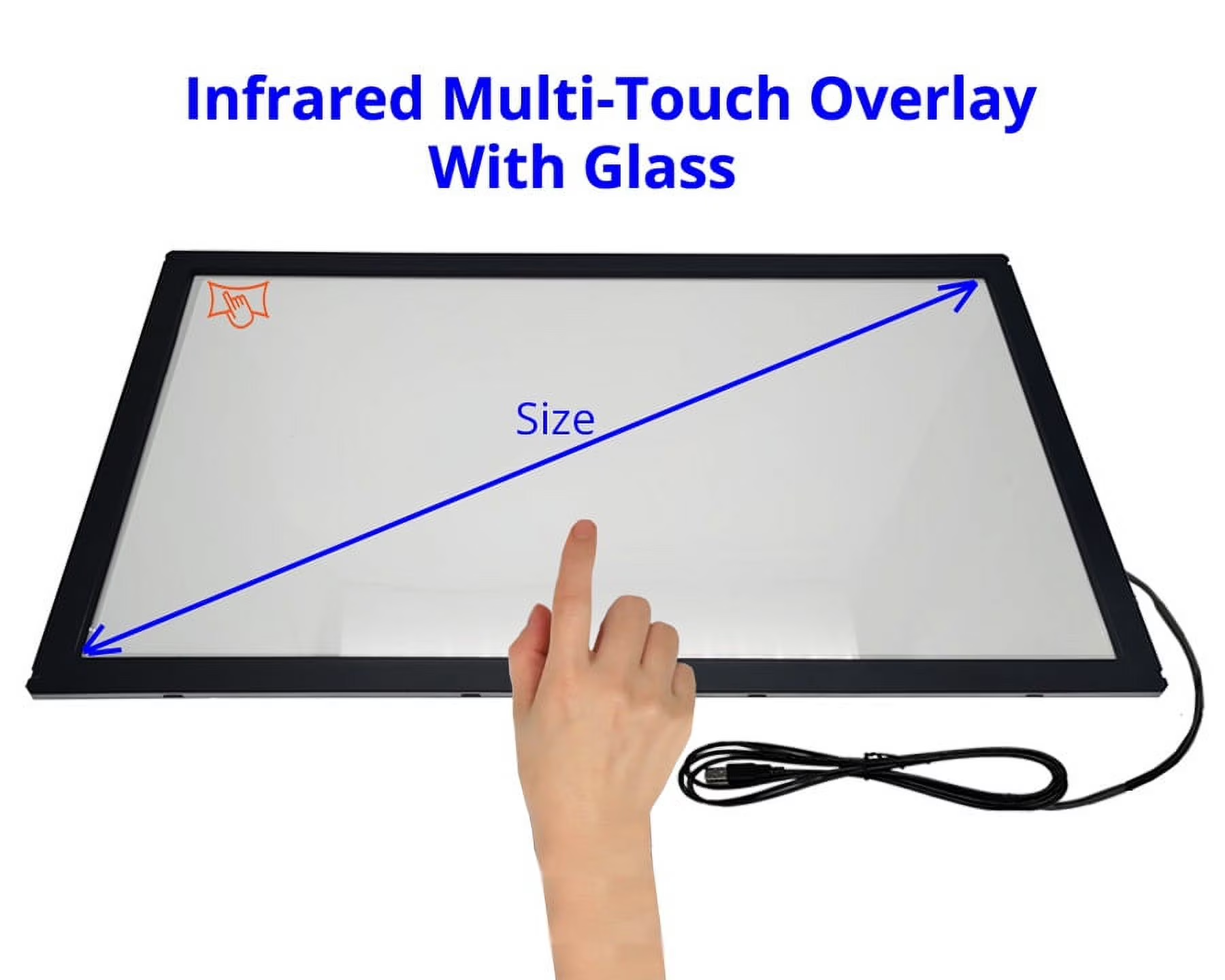
Touch overlay kits are a different beast entirely. These are aftermarket frames, usually using infrared (IR) touch technology, that attach to the bezel of an existing monitor. Companies sell these as add-on solutions for turning any display into a touchscreen.
The problem is that the overlay sits completely outside the monitor's internal electronics. It has no interaction with the scaler board whatsoever. G-SYNC support depends entirely on the underlying monitor, and the overlay adds its own input latency on top.
That latency penalty is significant. IR touch overlays typically add 5 to 20 milliseconds of input lag. For context, a full G-SYNC hardware module adds less than 1 millisecond.
When you stack a touch overlay on top of a VRR display, you're essentially trading one type of visual imperfection for another. You might eliminate screen tearing, but your touch input now feels sluggish and disconnected from what's happening on screen.
If you're using a touch overlay with a standard gaming monitor that supports G-SYNC, the G-SYNC functionality should still work. The overlay doesn't interfere with the video signal. But the combined experience of VRR-rendered frames plus overlay-induced input lag often feels worse than just running without G-SYNC in the first place.
G-SYNC Compatible vs. Full G-SYNC Module: What You Lose on Touch Monitors
Let's be clear about what you're actually getting when a touch monitor claims G-SYNC support. The overwhelming majority of touch monitors that work with G-SYNC are using the "G-SYNC Compatible" designation. That means no dedicated NVIDIA hardware module inside the monitor.
A full G-SYNC module does several things that Adaptive-Sync can't fully replicate. It handles pixel overdrive dynamically based on the current refresh rate. It maintains a wider VRR range, often from 1Hz all the way up to the panel's maximum.
It includes variable overdrive that adjusts in real time as frame rates fluctuate. And it guarantees a consistent, flicker-free experience across the entire range.
G-SYNC Compatible monitors rely on the panel's native Adaptive-Sync implementation. The VRR range is typically narrower. Overdrive tuning is fixed, which can cause overshoot or ghosting at certain refresh rates.
And there's no guarantee of flicker-free performance at the edges of the range.
For touch monitors specifically, the gap is even wider. Most touch panels prioritize response time and color accuracy over raw refresh rate performance. A touch monitor might be a fantastic 60Hz or 120Hz display with excellent color reproduction, but its Adaptive-Sync range might only span 48Hz to 75Hz.
That's a narrow window where VRR actually works.
Here's a practical comparison:
| Feature | Full G-SYNC Module | G-SYNC Compatible | Adaptive-Sync (Uncertified) |
|---|---|---|---|
| VRR range | 1Hz to max refresh | Typically 48Hz to max | Varies, often 48-75Hz |
| Overdrive | Variable, per-frame | Fixed | Fixed or none |
| Flicker-free guarantee | Yes | Yes (certified) | No guarantee |
| Found on touch monitors | Extremely rare | Occasional | Most common scenario |
| Price premium | High | Moderate | None |
Realistic Performance Expectations: Input Lag, VRR Range, and Flicker
Setting realistic expectations here will save you a lot of frustration. Even when G-SYNC works on a touch monitor, the experience isn't identical to what you'd get on a purpose-built gaming display.
Input lag on touch monitors tends to be higher than on non-touch gaming monitors. The touch digitizer adds processing overhead. The panel itself might use a slower response time spec.
Aggregate reviews of touch-capable gaming monitors suggest total input lag figures in the 10 to 25 millisecond range, compared to 1 to 5 milliseconds on dedicated gaming panels. G-SYNC eliminates tearing, but it doesn't reduce that underlying display latency.
VRR range is the other big variable. In our research across manufacturer specs and user-reported data, most touch monitors that support Adaptive-Sync fall into these common ranges:
- 48Hz to 60Hz: The most common range on 60Hz touch monitors. G-SYNC only works above 48 FPS.
- 48Hz to 120Hz: Found on higher-end 120Hz touch panels. Usable VRR range for most gaming scenarios.
- 48Hz to 144Hz: Rare on touch monitors. Only a handful of models report this range.
- 1Hz to max refresh: Essentially nonexistent on touch monitors. This requires the full G-SYNC hardware module.
Flickering is the third concern. Adaptive-Sync implementations on touch monitors haven't been as rigorously tested as those on gaming displays. Some users report brightness flickering at low frame rates, particularly below 50 FPS.
This is a known issue with some scaler boards that haven't been optimized for variable refresh operation.
If your frame rate consistently stays within the monitor's VRR range and you're not sensitive to minor brightness fluctuations, G-SYNC on a touch monitor can work well. If your frame rate frequently dips below the minimum threshold, you'll experience stuttering or flickering that can be more distracting than screen tearing ever was.
Best Touchscreen Monitors That Actually Work with G-SYNC (2024–2025)
The list of touchscreen monitors with confirmed G-SYNC support is short. But it does exist, and these models have been verified through manufacturer specifications and user-reported compatibility.
ASUS ROG Swift PG27AQN is one of the few high-refresh gaming monitors that has been reported to work with touch overlay solutions while maintaining G-SYNC functionality. It's a 27-inch 1440p 360Hz panel. The G-SYNC module is built in.
Touch support requires an aftermarket overlay, but the underlying display handles VRR flawlessly.
Dell Alienware AW3423DWF has been noted in user forums for working with touch overlays while maintaining FreeSync Premium Pro support. It doesn't have a G-SYNC module, but NVIDIA GPUs can enable G-SYNC Compatible mode over DisplayPort. The 34-inch ultrawide format works well for productivity and gaming alike.
ViewSonic Elite XG270QG is a 27-inch 1440p 165Hz IPS display with a built-in G-SYNC module. Some configurations include touch capability, though availability varies by region. This is one of the rare cases where you get both features natively integrated.
EIZO FlexScan EV series models support Adaptive-Sync over DisplayPort. They're business-oriented touch monitors, not gaming displays. But users have reported successfully enabling G-SYNC Compatible mode with NVIDIA GPUs.
The VRR range is limited to 48-60Hz, so it's only useful for less demanding titles.
A word of caution. Manufacturer specs change between hardware revisions. A monitor that supported G-SYNC in its first production run might have its VRR support removed or altered in a later revision.
Always verify the specific revision number and check the NVIDIA compatibility list before purchasing.
Common Mistakes People Made Trying to Use G-SYNC on Touch Displays
After reviewing user reports and forum discussions, several patterns of mistakes keep showing up. Avoiding these will save you hours of frustration.
Mistake one: Assuming all DisplayPort cables are equal. Cheap DP cables cause handshake failures that prevent G-SYNC from appearing. Use certified DisplayPort 1.4 cables from reputable brands. Keep cable length under 2 meters if possible.
Mistake two: Running the touch monitor as a secondary display. G-SYNC Compatible only works on the primary display in many configurations. If your touch monitor is set as display two, the G-SYNC option may not appear. Set it as your primary display in Windows display settings.
Mistake three: Using USB-C without verifying DisplayPort Alt Mode support. Not all USB-C ports support video input. Not all USB-C to DisplayPort cables handle Adaptive-Sync properly. If you're connecting via USB-C, verify that both the cable and the monitor's USB-C port explicitly support DisplayPort Alt Mode with Adaptive-Sync passthrough.
Mistake four: Not capping the frame rate. G-SYNC stops working when your frame rate hits the monitor's maximum refresh rate. If your monitor runs at 144Hz and your game pushes 160 FPS, you'll get tearing. Cap your frame rate 3 to 5 FPS below the maximum using the in-game limiter or NVIDIA Control Panel.
Mistake five: Enabling in-game V-Sync simultaneously with G-SYNC. This adds unnecessary input lag. With G-SYNC enabled, let the NVIDIA driver handle frame pacing. Set V-Sync to "On" in the NVIDIA Control Panel globally, but disable it in individual game settings.
Mistake six: Ignoring the touch polling rate conflict. Some touch digitizers poll at rates that interfere with VRR operation. If you experience intermittent flickering or stuttering only when touching the screen, the touch polling rate might be conflicting with the variable refresh cycle. Try reducing the touch polling rate in the monitor's OSD if the option exists.
Should You Prioritize Touch or G-SYNC? A Decision Framework
This is the real question most people are actually trying to answer. If you're choosing between a touchscreen monitor with no VRR support and a gaming monitor with G-SYNC but no touch, the answer depends entirely on what you do most.
Choose touch without G-SYNC if: You're a digital artist, video editor, or professional who uses touch input as part of your daily workflow. You game casually and can tolerate some tearing. Color accuracy and pen input matter more than tear-free frame delivery.
Choose G-SYNC without touch if: You're primarily a gamer who wants the smoothest possible experience. You can add a touch overlay later if needed, though you'll sacrifice some of that VRR benefit to input lag.
Choose both only if: You find a monitor that explicitly supports both, and you're willing to pay the premium. The options exist but they're limited and expensive.
Final Verdict: Who Should Bother and Who Should Skip It
Here's the honest bottom line. If G-SYNC is a must-have for you, the touchscreen monitor market is going to disappoint. The overlap between quality touch displays and proper VRR support remains tiny as of 2026.
If you already own a touch monitor and want to try G-SYNC, follow the troubleshooting steps earlier in this guide. There's a decent chance it'll work in G-SYNC Compatible mode if your monitor supports Adaptive-Sync over DisplayPort. Just keep your expectations realistic about VRR range and potential flickering.
If you're buying new and want both features, budget accordingly. You'll be looking at premium models, likely in the $600 to $1,200 range, and your selection will be limited. Verify compatibility before purchasing.
Don't assume.
For everyone else, a standard G-SYNC gaming monitor paired with a separate drawing tablet or touch input device will give you a better experience than any all-in-one touch-and-VRR display currently on the market.
Frequently Asked Questions
Can I use G-SYNC on a touchscreen monitor with an AMD GPU?
No. G-SYNC requires an NVIDIA GPU. If you have an AMD GPU, you'd need a monitor with FreeSync support instead.
Some touch monitors do support FreeSync, but that's a separate ecosystem from G-SYNC.
Does adding a touch overlay break G-SYNC on my gaming monitor?
The overlay itself doesn't interfere with the video signal. G-SYNC will still function. But the added input lag from the overlay, typically 5 to 20 milliseconds, diminishes the responsiveness benefit you'd normally get from VRR.
Why doesn't the G-SYNC option show up in NVIDIA Control Panel?
The most common causes are using HDMI instead of DisplayPort, an outdated GPU driver, or a monitor that doesn't support Adaptive-Sync. Check your cable connection first. Then update your drivers.
If the option still doesn't appear, your monitor likely doesn't support VRR at all.
Do USB-C touch monitors support G-SYNC?
Only if the USB-C port supports DisplayPort Alt Mode with Adaptive-Sync passthrough. Many USB-C touch monitors only carry USB data and power, not video. Even those that do carry video may not pass through VRR signals.
Check the manufacturer's specifications carefully.
Is G-SYNC Compatible good enough, or do I need the full module?
For most people, G-SYNC Compatible is perfectly fine. You get tear-free gaming and reduced stutter. The full module offers a wider VRR range and better overdrive tuning, but the difference is subtle.
On touch monitors, you're almost certainly getting G-SYNC Compatible at best, and it works well enough to be worth enabling.

Similar Posts





















