Do Touchscreen Monitors Support Windows 11 Gestures
You just plugged in your new touchscreen monitor, swiped with three fingers expecting task view, and… nothing happened. You're not alone. The answer to "do touchscreen monitors support Windows 11 gestures" is yes, but only if your monitor's touch controller speaks the right language.
Most people assume touch equals gestures. It doesn't.
Here's what actually matters. Windows 11 distinguishes between basic touch input and Precision Touchpad (PTP) protocol support. The USB HID Specification defines how touch controllers report data to Windows, and only controllers with the correct HID descriptor unlock the full gesture stack. For more background on real-world performance, read our breakdown of whether touchscreen monitors support stylus.
If your monitor's controller lacks that descriptor, you get taps and drags but not the smooth three- and four-finger gestures you're expecting. Let's figure out exactly where your setup stands.
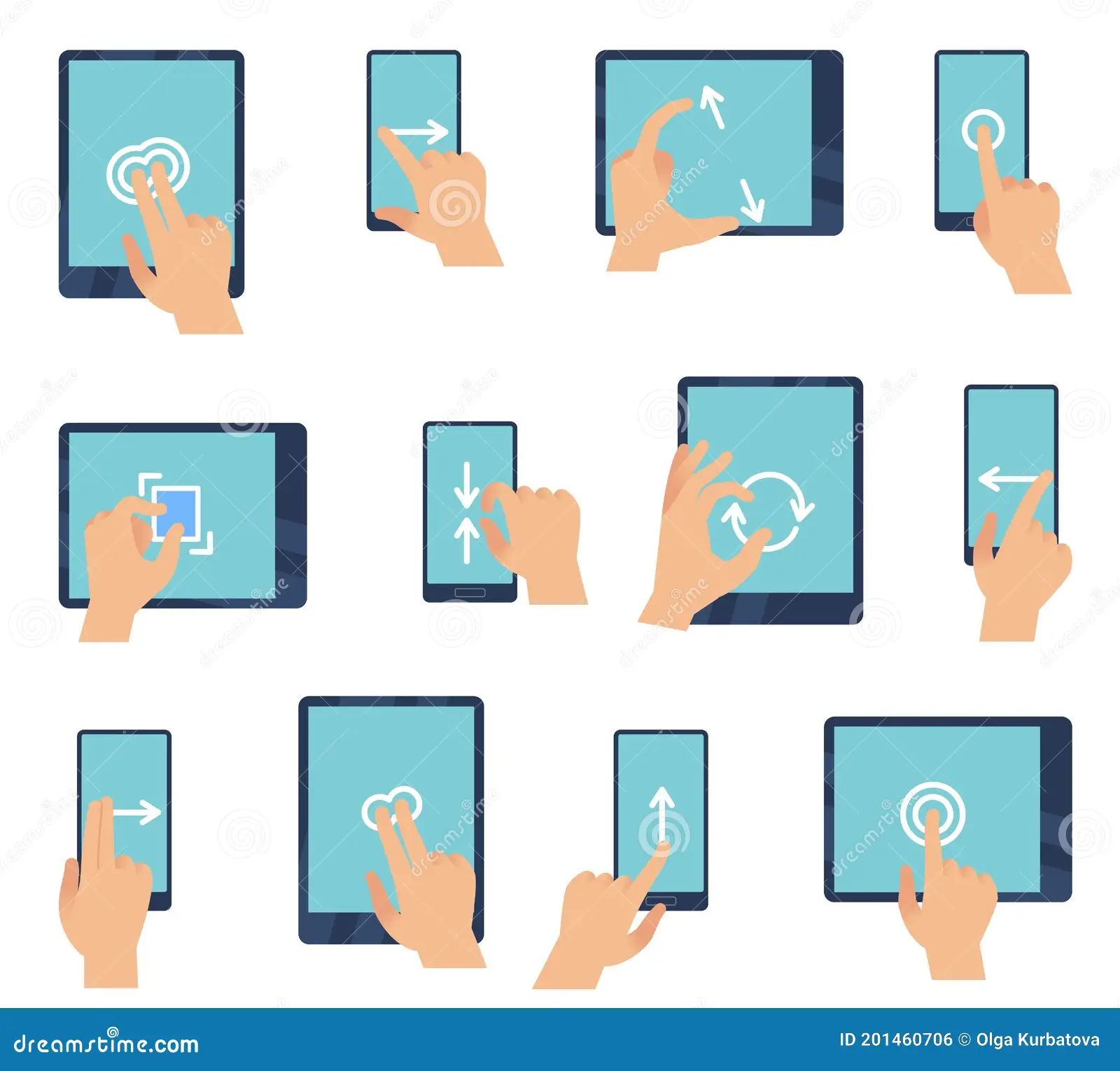
Quick Answer
Touchscreen monitors can support Windows 11 gestures. The monitor's touch controller must support Precision Touchpad protocol. USB-connected touchscreens often lack full gesture support.
Check your Device Manager for the Precision Touchpad setting to confirm.
Why Your Touchscreen Monitor Might Not Support Windows 11 Gestures
The core issue comes down to how Windows 11 classifies your touchscreen. There's a fundamental difference between a screen that accepts touch input and one that supports the full Windows gesture engine. For related troubleshooting and calibration steps, check our walkthrough on whether touchscreen monitors support usb c.
Touch vs. Precision Touch: The Hidden Line
Windows 11 treats touchscreens and precision trackpads differently under the hood. A basic touchscreen sends coordinate data. That's it.
You tap, Windows registers a click. You drag, Windows registers a scroll if the app supports it.
Precision Touchpad protocol changes everything. When a device supports PTP, it sends rich gesture data directly to Windows. Three-finger swipe becomes a discrete command, not a series of coordinate points Windows has to interpret.
Four-finger tap triggers an action. Edge swipes work reliably.
Most touchscreen monitors ship with basic HID-compliant touch controllers. They work for tapping and dragging. They don't send the structured gesture data Windows needs for advanced gestures.
USB vs. I2C: Why Connection Type Matters
Your touchscreen's physical connection to the PC determines what data it can send.
USB touchscreens use a generic HID interface. The controller reports raw touch coordinates. Windows treats it like a basic input device.
Two-finger scroll might work through software emulation. Three- and four-finger gestures usually don't.
I2C touchscreens (common in laptops and some high-end monitors) use a direct bus connection. The controller can implement Precision Touchpad protocol natively. This is what enables the full gesture stack.
Some monitors use USB internally but include controllers that emulate PTP over USB. That's the exception, not the rule. You need to check your specific controller chipset.
How Windows 11 Decides What Gestures You Get
Windows 11 checks the HID descriptor when you plug in a touchscreen. This descriptor tells Windows what the device is capable of. If the descriptor includes Precision Touchpad support, Windows enables the full gesture settings panel.
If it doesn't, you get basic touch only.
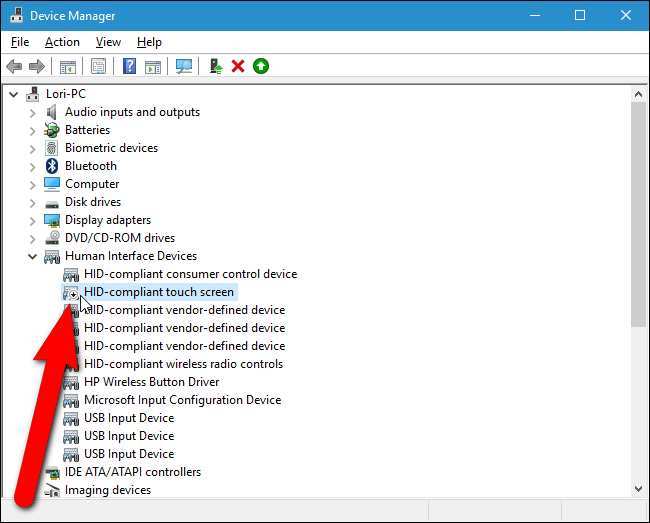
You can verify this yourself. Open Device Manager, look under Human Interface Devices. If you see "HID-compliant touch screen" but no "Precision Touchpad" entry, your monitor's gestures are limited to what basic touch supports.
Which Touch Controllers Actually Support Windows 11 Gestures
Not all touch controllers are created equal. The chipset inside your monitor determines whether you get full gesture support or just basic touch.
Common Controller Chipsets
Here are the most common touch controller brands and what they typically support:
| Controller | Protocol Support | Gesture Support | Common In |
|---|---|---|---|
| eGalax | HID + PTP (some models) | Full on PTP models | Budget to mid-range monitors |
| EETI | HID basic | Limited (2-finger only) | Budget USB touchscreens |
| Goodix | HID + PTP (newer models) | Full on newer chipsets | Mid-range to premium monitors |
| Ilitek | HID basic to PTP | Varies by model | Laptops, some monitors |
| Elan | HID + PTP | Full on PTP models | Laptops, premium monitors |
Manufacturer specifications for specific monitor models usually list the touch controller. If the spec sheet mentions "10-point multi-touch" without mentioning Precision Touchpad, assume basic touch only.
How to Identify Your Controller
You can check your touch controller through Device Manager. Open Device Manager, expand Human Interface Devices, and look for entries related to touch. The hardware IDs in the Details tab will show the vendor and device IDs.
Cross-reference those IDs on the USB ID database or the manufacturer's website to identify the exact chipset.
Some monitors use custom controller boards from less-known manufacturers. In those cases, the monitor's support page or manual is your best resource. If the manufacturer doesn't mention Precision Touchpad support anywhere, it probably doesn't have it.
The HID Descriptor Requirement
The HID (Human Interface Device) descriptor is a data structure that tells Windows what your device can do. For full gesture support, the descriptor must include:
- Usage page 0x0D (Digitizers)
- Usage 0x04 (Touch Screen) or 0x05 (Touch Pad)
- Valid pointing data for gesture recognition
Precision Touchpad devices include additional descriptor fields that report confidence, touch size, and gesture-ready data. Without these fields, Windows can't distinguish a three-finger swipe from three separate taps.
This is why two monitors can both claim "10-point multi-touch" but deliver completely different gesture experiences. The spec sheet tells you how many fingers it can detect. It doesn't tell you what Windows can do with that data.
Your Decision Tree: Does Your Monitor Support Gestures?
Let's walk through this step by step. Each branch leads to a clear answer.
Branch 1: Check Your Connection Type
If your touchscreen connects via USB only:
You're likely limited to basic touch. Some USB controllers do support PTP, but most don't. Proceed to Branch 2 to verify.
If your touchscreen connects via I2C or USB-C with Alt Mode:
You have a better chance of full gesture support. I2C connections can carry PTP data natively. USB-C with DisplayPort Alt Mode can also support advanced touch protocols.
If you're using a USB-C hub or adapter:
You might be stripping out the touch data path. Connect directly to a USB-C port on your GPU or motherboard for the best results.
Branch 2: Check Your Device Manager
This is where you get a definitive answer.
- Right-click the Start button and select Device Manager
- Expand the "Human Interface Devices" section
- Look for "HID-compliant touch screen" (basic touch)
- Look for "Precision Touchpad" or "I2C HID Device" (advanced touch)
If you see "Precision Touchpad":
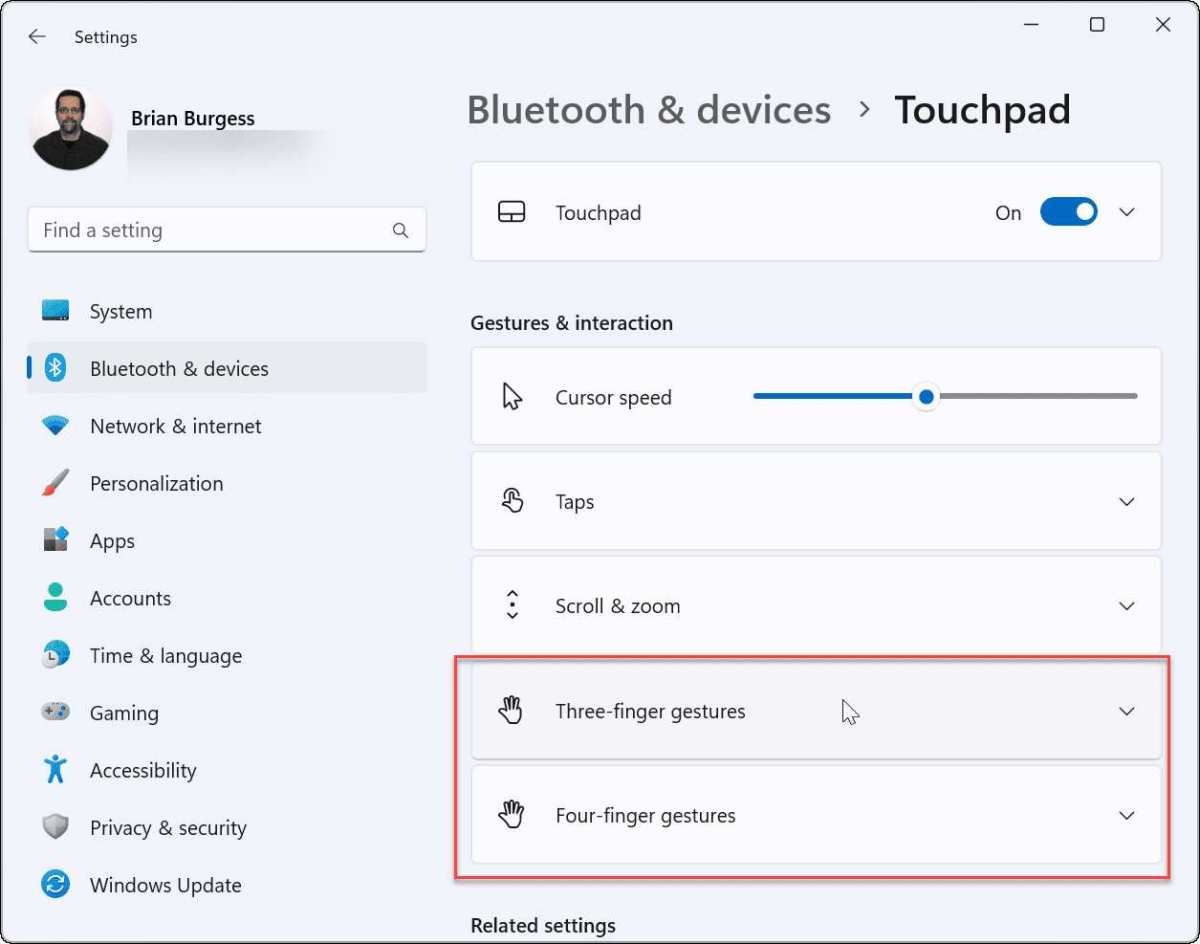
Your monitor supports full Windows 11 gestures. Go to Settings > Bluetooth & devices > Touchpad to configure them.
If you only see "HID-compliant touch screen":
Your monitor supports basic touch only. You'll get tap, drag, and possibly two-finger scroll. Three- and four-finger gestures won't work natively.
If you see neither entry:
Your touchscreen isn't being recognized properly. Check your cable connection and install the manufacturer's touch driver.
Branch 3: Test Your Gestures
Even if Device Manager shows Precision Touchpad support, verify the actual gestures work.
Two-finger scroll test:
Open a long webpage or document. Place two fingers on the screen and drag up or down. If the page scrolls smoothly, basic gesture support is working.
Pinch-to-zoom test:
Open an image or map. Pinch two fingers together or spread them apart. If the content zooms, your controller supports multi-touch gesture recognition.
Three-finger swipe test:
Swipe three fingers left or right. This should switch between virtual desktops. Swipe three fingers up to open Task View.
Swipe three fingers down to show the desktop.
Four-finger tap test:
Tap four fingers on the screen. This should open the notification center or quick settings, depending on your Windows 11 configuration.
If only the two-finger tests work, your controller supports basic multi-touch but not the full PTP gesture stack. If none of the multi-finger tests work, you're on basic touch only.
Windows 11 Gestures: What Works and What Doesn't on Touchscreens
Let's break down exactly which gestures you can expect at each support level.
Gestures That Work on Basic Touchscreens
These gestures work on any touchscreen that Windows 11 recognizes:
- Tap: Single finger tap. Equivalent to left-click.
- Drag: Single finger drag. Moves content or selects text.
- Two-finger scroll: Scrolls content vertically or horizontally. Works in most apps.
- Pinch-to-zoom: Zooms in or out. Works in browsers, image viewers, and maps.
- Long-press: Equivalent to right-click. Opens context menus.
These are the gestures most touchscreen monitors support reliably. They don't require Precision Touchpad protocol. The touch controller sends coordinate data, and Windows interprets it.
Gestures That Require Precision Touchpad Support
These gestures need a controller that speaks PTP:
- Three-finger swipe (left/right): Switches between virtual desktops.
- Three-finger swipe (up): Opens Task View.
- Three-finger swipe (down): Shows desktop.
- Four-finger tap: Opens notification center or quick settings.
- Four-finger swipe (left/right): Switches between open apps.
- Edge swipes: Swiping from screen edges for system actions.
If your monitor doesn't show the Precision Touchpad entry in Device Manager, these gestures won't appear in your settings. Windows simply doesn't know the hardware can do them.
Edge Swipes and Their Limitations
Edge swipes are particularly tricky on touchscreen monitors. On laptops with precision trackpads, the driver knows exactly where the edge of the input surface is. On a touchscreen monitor, the bezel and the active display area don't always align perfectly with what Windows expects.
Some monitors handle this well. Others register edge swipes inconsistently or not at all. This is a driver-level issue, not something you can fix through Windows settings.
If edge swipes matter to you, check user reviews for your specific monitor model before buying. Look for mentions of gesture reliability, not just "touch works."
How to Enable or Fix Gesture Support on Your Touchscreen Monitor
If your gestures aren't working, there are several things to try before giving up.
Install Manufacturer-Specific Touch Drivers
Windows 11 includes generic HID touch drivers. They work for basic touch. They don't unlock advanced features.
Go to your monitor manufacturer's support page. Look for touch drivers specific to your model. Brands like Dell, HP, ASUS, and ViewSonic often provide custom touch drivers that enable better gesture support than the generic Windows driver.
Install the driver, restart your PC, and check Device Manager again. If the driver adds Precision Touchpad support, you'll see the new entry appear.
Update Your Touch Controller Firmware
Some touch controllers receive firmware updates that add or improve gesture support. This is more common with eGalax and EETI controllers.
Check the manufacturer's website for firmware update tools. The process usually involves downloading a utility, connecting your monitor via USB, and running the update. Follow the instructions carefully.
A failed firmware update can brick the touch controller.
Calibrate Touch Input Through Windows Settings
Calibration won't add gesture support that your hardware lacks. But it can fix issues where gestures are recognized but feel inaccurate.
Go to Settings > Bluetooth & devices > Touch. Look for touch calibration options. Some monitors also include their own calibration utilities in the driver package.
Run the calibration, test your gestures again. If multi-finger gestures still don't work after calibration, the limitation is hardware, not configuration.
What to Do When Gestures Still Don't Work
If you've installed drivers, updated firmware, and calibrated, but gestures still don't work, your touch controller likely doesn't support PTP. You have a few options:
- Accept basic touch: Two-finger scroll and pinch-to-zoom still provide decent navigation.
- Use keyboard shortcuts: Win + Tab for Task View, Win + D for desktop, Alt + Tab for app switching.
- Consider a different monitor: If gestures are essential, look for monitors that explicitly advertise Precision Touchpad support.
- Add a precision trackpad: A separate PTP device like a Magic Trackpad or a laptop-style trackpad can provide full gestures alongside your touchscreen.
Touchscreen Monitors vs. Graphics Tablets vs. Precision Trackpads
If gesture support is your priority, how does a touchscreen monitor compare to other input methods?
Where Each Option Wins
| Feature | Touchscreen Monitor | Graphics Tablet | Precision Trackpad |
|---|---|---|---|
| Direct screen interaction | Yes | No (pen on pad, eyes on screen) | No |
| Full Windows 11 gestures | Sometimes | No (pen gestures differ) | Yes |
| Pressure sensitivity | Rarely | Yes (up to 8192 levels) | No |
| Multi-touch gestures | Varies by controller | Limited | Full support |
| Price range | $200-$1000+ | $50-$2000+ | $50-$150 |
| Best for | Navigation, kiosks, accessibility | Digital art, photo editing | Productivity, full gesture control |
Creative Professionals: Which Setup Delivers
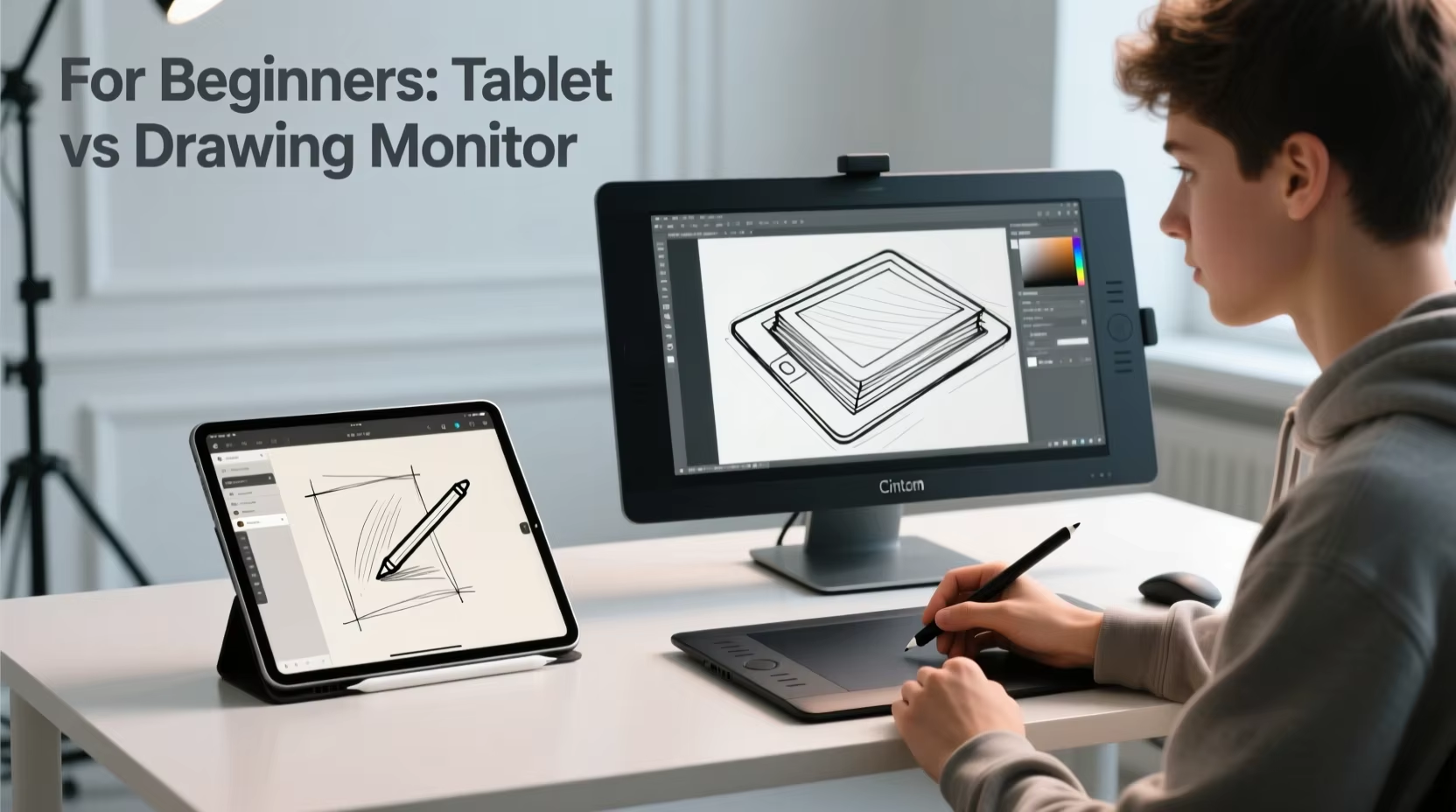
If you're a designer or illustrator, a graphics tablet gives you pressure sensitivity and pen precision. But it won't give you Windows 11 gestures. You'd still need a mouse or trackpad for navigation.
A touchscreen monitor lets you interact directly on screen. Some models support pressure-sensitive pens. But gesture support varies, and the drawing experience isn't as refined as a dedicated tablet.
The best setup for many creatives is a graphics tablet for drawing plus a precision trackpad for navigation. That gives you the best of both worlds.
Price and Performance Trade-offs
A touchscreen monitor with full PTP support costs more than a basic touchscreen monitor. You're paying for the better controller chipset and often better driver support.
A precision trackpad costs $50 to $150 and guarantees full gesture support. If you already have a touchscreen monitor with basic touch, adding a trackpad might be cheaper than upgrading the monitor.
Graphics tablets range from $50 for basic models to $2000+ for professional displays. The gesture question doesn't really apply here since tablets use their own gesture systems through pen input.
Common Mistakes When Setting Up a Touchscreen Monitor for Windows 11
People run into the same issues repeatedly. Here's what to watch for.
Assuming Plug-and-Play Means Full Gesture Support
Just because your touchscreen works out of the box doesn't mean gestures do. Windows 11 will install generic drivers that handle basic touch. Advanced gestures need specific drivers or controller support.
Always check Device Manager after connecting a new touchscreen. If you don't see Precision Touchpad listed, don't expect three- and four-finger gestures to work.
Using the Wrong USB Port or Cable
Some USB ports don't provide enough bandwidth for touch data alongside display data. USB 3.0 ports are generally fine. USB 2.0 ports can cause issues with higher-resolution touchscreens.
If you're using USB-C, make sure the port supports DisplayPort Alt Mode if your monitor requires it. Not all USB-C ports carry display signals.
Cable quality matters too. A cheap USB-C cable might handle charging but not data. Use the cable that came with your monitor, or a certified replacement.
Skipping Driver Updates
Manufacturers release touch driver updates that fix bugs and sometimes add features. If you're having gesture issues, check for driver updates before troubleshooting further.
The Windows Update catalog sometimes includes touch driver updates. Check there as well as the manufacturer's website.
Confusing Touchscreen Gestures with Precision Touchpad Gestures
Windows 11 has separate settings pages for touchscreen gestures and precision trackpad gestures. The touchscreen gesture settings are limited. The precision trackpad settings are comprehensive.
If you're looking for gesture customization and only see basic options, your monitor isn't being recognized as a precision touchpad device. The settings you want simply aren't available for your hardware.
Not Checking HID Compliance Before Buying
Before purchasing a touchscreen monitor, check the specifications for HID compliance and Precision Touchpad support. If the product page doesn't mention PTP, assume basic touch only.
User reviews often mention gesture support. Search reviews for "gestures," "three-finger," or "touchpad" to see what other buyers experienced.
Real-World Use Cases: Who Needs Touch Gestures on a Monitor?
Not everyone needs full gesture support. Here's who benefits most.
Designers and Illustrators Navigating Creative Software
Adobe Photoshop, Illustrator, and similar apps benefit from pinch-to-zoom and two-finger scroll. Three-finger swipe for desktop switching helps when you have multiple projects open.
If your workflow relies on quick navigation between tools and canvases, gesture support saves time. A touchscreen with PTP gives you that without reaching for the keyboard.
Office Workers Who Want Faster Navigation
Spreadsheets, long documents, and multi-window setups all benefit from gesture navigation. Three-finger swipe to switch desktops keeps your workspace organized. Four-finger tap for quick settings lets you adjust volume or brightness without menus.
For office productivity, a touchscreen monitor with full gestures can replace mouse movements for common tasks.
Educators Running Interactive Lessons
Teachers using touchscreen displays in classrooms need reliable gestures. Students expect tablet-like interaction. Pinch-to-zoom on maps, three-finger swipe between apps, and tap-to-select all need to work consistently.
A monitor with basic touch might frustrate both teacher and students. PTP support ensures the interaction feels natural.
Accessibility Users Who Rely on Gesture-Based Controls
For users with mobility limitations, gestures can be easier than precise mouse movements. Large swipe gestures require less fine motor control than clicking small buttons.
Windows 11's accessibility settings work better with precision touchpad devices. If you rely on gesture-based navigation, verify PTP support before choosing a monitor.
Buying Guide: Touchscreen Monitors That Support Windows 11 Gestures
If you're shopping for a touchscreen monitor and gestures matter, here's what to look for.
What to Check Before You Buy
- Precision Touchpad support: Look for this explicitly in the specifications. If it's not mentioned, assume basic touch only.
- Controller chipset: eGalax and Goodix controllers often support PTP. EETI controllers typically don't.
- Connection type: USB-C with Alt Mode or I2C is better than USB-only for gesture support.
- Driver availability: Check the manufacturer's support page for Windows 11 touch drivers.
Controller Chipsets to Look For (and Avoid)
Good options:
- eGalax (models with PTP firmware)
- Goodix (newer models)
- Elan (PTP-capable models)
Limited options:
- EETI (basic touch only on most models)
- Ilitek (varies, check specific model)
Price Ranges and What You Get
| Price Range | Typical Gesture Support | Best For |
|---|---|---|
| $200-$400 | Basic touch (2-finger scroll, pinch) | Budget office use |
| $400-$700 | Varies (check controller) | Mid-range productivity |
| $700-$1000+ | Often includes PTP | Professional use, creative work |
Higher price doesn't guarantee PTP support. Always verify the specific controller and protocol support regardless of price.
Frequently Asked Questions
Do all touchscreen monitors work with Windows 11?
Yes, all touchscreen monitors work with Windows 11 for basic touch input. Tapping, dragging, and two-finger scrolling work universally. Advanced gestures like three-finger swipe require Precision Touchpad support, which not all monitors have.
How do I enable three-finger gestures on my touchscreen monitor?
Go to Settings > Bluetooth & devices > Touchpad. If you see gesture options there, your monitor supports them. If the Touchpad section is missing, your monitor doesn't have Precision Touchpad support and can't use three-finger gestures.
Can I add gesture support to a touchscreen that doesn't have it?
No. Gesture support depends on the touch controller hardware and its HID descriptor. You can't add PTP support through software alone.
Your options are using basic touch gestures or adding a separate precision trackpad.
Why does my touchscreen work but gestures don't?
Your touchscreen sends basic coordinate data that Windows recognizes as taps and drags. Advanced gestures require structured gesture data that only Precision Touchpad controllers provide. Your monitor likely has a basic HID touch controller without PTP capability.
Do USB touchscreens support Windows 11 gestures?
Most USB touchscreens support basic touch only. Some USB controllers with PTP firmware do support full gestures, but this is uncommon. Check your specific controller model to confirm.
Is a touchscreen monitor better than a trackpad for gestures?
Not necessarily. A precision trackpad guarantees full Windows 11 gesture support. A touchscreen monitor might or might not, depending on the controller.
For guaranteed gestures, a trackpad is the safer choice.
Maintenance and Long-Term Optimization
Touchscreen gesture support isn't a set-it-and-forget-it situation. Driver updates, Windows updates, and firmware changes can all affect how your gestures work over time.
When Windows Updates Break Gestures
Major Windows 11 feature updates sometimes reset touch driver configurations. After a major update, check Device Manager to make sure your Precision Touchpad entry is still present. If it's missing, reinstall the manufacturer's touch driver package.
Monthly cumulative updates occasionally include HID driver changes. These can introduce latency or change how gestures are recognized. If your gestures suddenly feel sluggish or stop working after an update, check for a newer driver from your monitor manufacturer.
Keeping Drivers Up to Date
Set a reminder to check for touch driver updates quarterly. Most manufacturers post updates on their support pages but don't push notifications. Windows Update sometimes includes touch driver updates, but not always the latest version.
If your monitor manufacturer provides a driver update utility, use it. These utilities check for the correct driver for your specific model and install it automatically.
Recalibrating After Hardware Changes
If you change your monitor's connection (for example, switching from USB to USB-C or using a different cable), Windows may need to re-enumerate the touch controller. Run touch calibration again after making hardware changes. This ensures the coordinate mapping is accurate and gestures register correctly.
Final Verdict: What to Do Right Now
Here's your action plan based on what we've covered.
If you haven't bought a touchscreen monitor yet: Look for models that explicitly advertise Precision Touchpad support. Check the controller chipset before purchasing. EETI, eGalax, and Goodix controllers offer PTP support.
If you already own a touchscreen monitor: Check Device Manager for the Precision Touchpad entry. If it's there, configure your gestures in Settings. If it's not, install the manufacturer's touch drivers and check again.
If gestures still don't work after driver installation: Your controller likely doesn't support PTP. You can still use basic touch gestures like two-finger scroll and pinch-to-zoom. For full gesture support, consider adding a separate precision trackpad to your setup.
The bottom line is simple. Touchscreen monitors can support Windows 11 gestures, but only with the right hardware. Check your controller, install proper drivers, and you'll know exactly what your setup can do.
Costs, Pricing, and Data
Gesture support affects price. Here's what to expect.
Price Ranges by Gesture Capability
| Category | Price Range | Gesture Support | Examples |
|---|---|---|---|
| Basic touch | $150-$350 | Tap, drag, 2-finger scroll | Budget USB touch monitors |
| Mid-range touch | $350-$700 | Varies by controller | Dell P-series, ASUS VT-series |
| Premium touch with PTP | $700-$1500+ | Full gesture stack | Dell C-series, HP Elite displays |
What Drives the Price Difference
The touch controller chipset adds cost. PTP-capable controllers cost more than basic HID controllers. Display panel quality, color accuracy, and build quality also factor in.
You're not just paying for gesture support. You're paying for the controller that enables it alongside other premium features.
Touch Latency and Responsiveness Data
Basic HID touchscreens typically report at 60Hz with 10-20ms latency. PTP-capable controllers often report at 100Hz or higher with 5-10ms latency. Lower latency means gestures feel more responsive.
This matters for three-finger swipes where timing affects recognition accuracy.
Expert Tips and Pro Advice
A few things that aren't obvious from the spec sheets.
Check the HID Descriptor Before Buying
If you can find the hardware IDs for a monitor model, look them up on the USB ID database. This tells you the exact controller chipset. Then check whether that chipset supports PTP.
This takes five minutes and saves you from buying the wrong monitor.
Use a Dedicated USB Controller for Touch
Some monitors route touch through the USB hub built into the display. This works, but can introduce latency. If your monitor has a separate USB upstream port for touch, use it.
Connect it directly to a motherboard USB port, not a hub.
Disable Windows Fast Startup
Fast Startup can cause touch driver initialization issues after shutdown. Disable it in Power Options if your touchscreen isn't recognized after boot. This is a common fix for touch devices that work after a restart but not after a cold boot.
Test with Windows Touch Settings First
Before installing third-party gesture software, test with Windows' built-in gesture settings. If the gestures work there, your hardware supports them. If they don't, no third-party tool will add PTP support that your controller lacks.
Safety, Legal, and Compliance
A few things worth knowing.
Accessibility Compliance
Monitors used in government or educational settings may need to meet Section 508 accessibility requirements. Touchscreen gesture support can factor into compliance. PTP devices are generally easier to certify for accessibility because Windows has built-in gesture support for them.
Electrical Safety and Certifications
Touchscreen monitors carry standard electrical safety certifications (UL, CE, FCC). The touch controller adds minimal risk. However, using non-certified USB cables or adapters can void certifications and potentially cause issues.
Stick with the included cables or certified replacements.
Warranty Considerations
Some manufacturers void warranty if you install third-party touch drivers or firmware. Check your warranty terms before modifying touch controller firmware. Using manufacturer-provided updates is always safe.
Custom firmware flashes are at your own risk.

Similar Posts





















