Do Touchscreen Monitors Support USB C
The short answer: yes, many touchscreen monitors do support USB-C, but that port on the back might not do what you think it does. The problem is that "USB-C" on a monitor spec sheet can mean three different things. Some monitors only use it for power. Others handle video and touch through that one cable.
And plenty still need a separate wire for the touch signal.
In our research of manufacturer specifications across major brands, the pattern is clear. USB-C on touch monitors is not one standard. It is a connector shape that can carry different combinations of video input, data (for touch), and power delivery. This directly compares with our findings on whether touchscreen monitors support windows 11 gestures.
USB-C with DisplayPort Alternate Mode is the key spec to verify before you buy. Without that specific support, the port won't accept a video signal from your laptop at all.
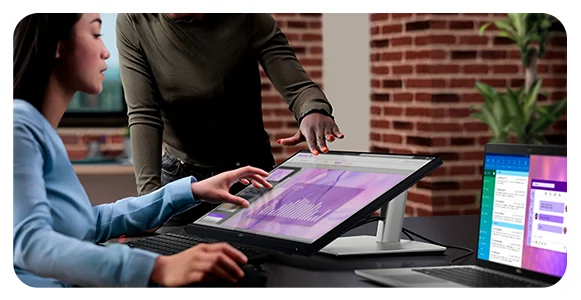
Quick Answer: Yes, But It Depends on What You Actually Need From That USB-C Port
Touchscreen monitors with USB-C are widely available as of 2026. Whether the USB-C port carries video data, touch input, and power delivery all at once. It depends entirely on the monitor model and your cable.
The Three Things a USB-C Port Can Do on a Touch Monitor (Not All at Once)
Here's where most people get tripped up. A USB-C connector can carry up to three separate signals. Which ones are active on your monitor depends on what the manufacturer built in. Readers evaluating this setup should also consider whether touchscreen monitors support stylus for comparative benchmarks.
1. Video Input (DisplayPort Alt Mode or HDMI Alt Mode)
This is the big one. Your monitor's USB-C port needs to support DisplayPort Alternate Mode (or less commonly, HDMI Alt Mode) to accept a video signal through that connector. Without it, plugging your laptop into the USB-C port does nothing for the display.
2. Touch Signal (USB Data Channel)
Touchscreens need to send coordinate data back to your computer. This typically travels over standard USB data lines. Some monitors route this through the same USB-C cable that carries video.
Others require a separate USB cable (Type-A or Type-B upstream) dedicated to the touch controller.
3. Power Delivery (USB-PD)
Many USB-C monitors can charge your laptop while displaying an image. This is USB Power Delivery, and it ranges from 45W to 100W or more depending on the model. When video, touch, and charging all work through one cable, that's the "single-cable dream" setup people want.
| Function | What to Look for in Specs | Happens Automatically? |
|---|---|---|
| Video Display | "DisplayPort Alt Mode over USB-C" or "USB-C (DP Alt Mode)" | Only if both monitor and laptop support it |
| Touch Signal | "Touch over USB-C" or "Single-cable touch" | Sometimes; many models still need a separate USB cable |
| Power Delivery | "USB-PD 65W" or "Power Delivery up to 90W" | Yes, once connected with a compatible cable |
| Daisy-Chaining | "MST (Multi-Stream Transport) over USB-C" | Rare; mostly on higher-end models like Dell UltraSharp |
The takeaway: read the full spec sheet. "USB-C port" on a product page tells you almost nothing about which of these functions are actually supported.
How to Check If a Touch Monitor's USB-C Port Does What You Need
This is the workflow we recommend before you spend money on a monitor or cable.
Step 1: Does Your Monitor's USB-C Port Accept Video Input?
Look at the full specifications page for the exact model. Search for "DisplayPort Alternate Mode" or "DP Alt Mode" or "video over USB-C". If the spec sheet only says "USB-C port" with no mention of video, assume it does not accept a display signal.
Some monitors have a USB-C port that's purely for data and charging. Those ports will not show an image from your laptop.
Step 2: Does It Carry Touch Signal Over USB-C Too?
Check whether the product documentation mentions "touch over USB-C" or "single-cable touch". If you don't see this, plan on needing a second cable. Many touch monitors use a USB Type-B upstream cable (the square-ish connector) or a USB Type-A cable just for the touch controller.
The image comes through USB-C or HDMI. The touch data travels on a completely separate wire.
Step 3: Does It Charge Your Device Through Power Delivery?
Look for a specific wattage rating. "USB-PD 65W" or "90W power delivery" tells you how much power passes through. If your laptop needs 65W to charge at full speed and the monitor only delivers 45W, your laptop will charge slowly or drain slowly under heavy load. This is especially common with power-hungry machines like a MacBook Pro 16-inch or a gaming laptop.
The wattage number matters.
Why a USB-C Touch Monitor Might Still Need a Second Cable
Here's the reality that catches people off guard after unboxing. You plug in your USB-C cable expecting display and touch to work. The display comes up.
But the touch doesn't respond. Why.
Most touch monitors use a HID-compliant (Human Interface Device) touch controller. That controller communicates with your computer over standard USB data lines. On many models, the USB-C input on the monitor only carries video and power.
The touch data still needs a dedicated upstream USB connection back to the computer.
There are two common scenarios.
Scenario A: USB-C carries video + power, but not touch.
You connect one USB-C cable from your laptop. The display works. Your laptop charges.
But touch is dead. You then need to run a separate USB cable (Type-A to Type-B, or Type-A to Type-C, depending on the monitor) from the laptop to the monitor's upstream USB port.
Scenario B: USB-C carries video + power + touch (full single-cable).
This is what you want. One cable does everything. Models that support this are getting more common as of 2026.
But you still need to verify this in the specs. Notable examples include certain Dell P-series touch models and some ASUS ProArt touch displays that explicitly list full-featured USB-C with touch support.
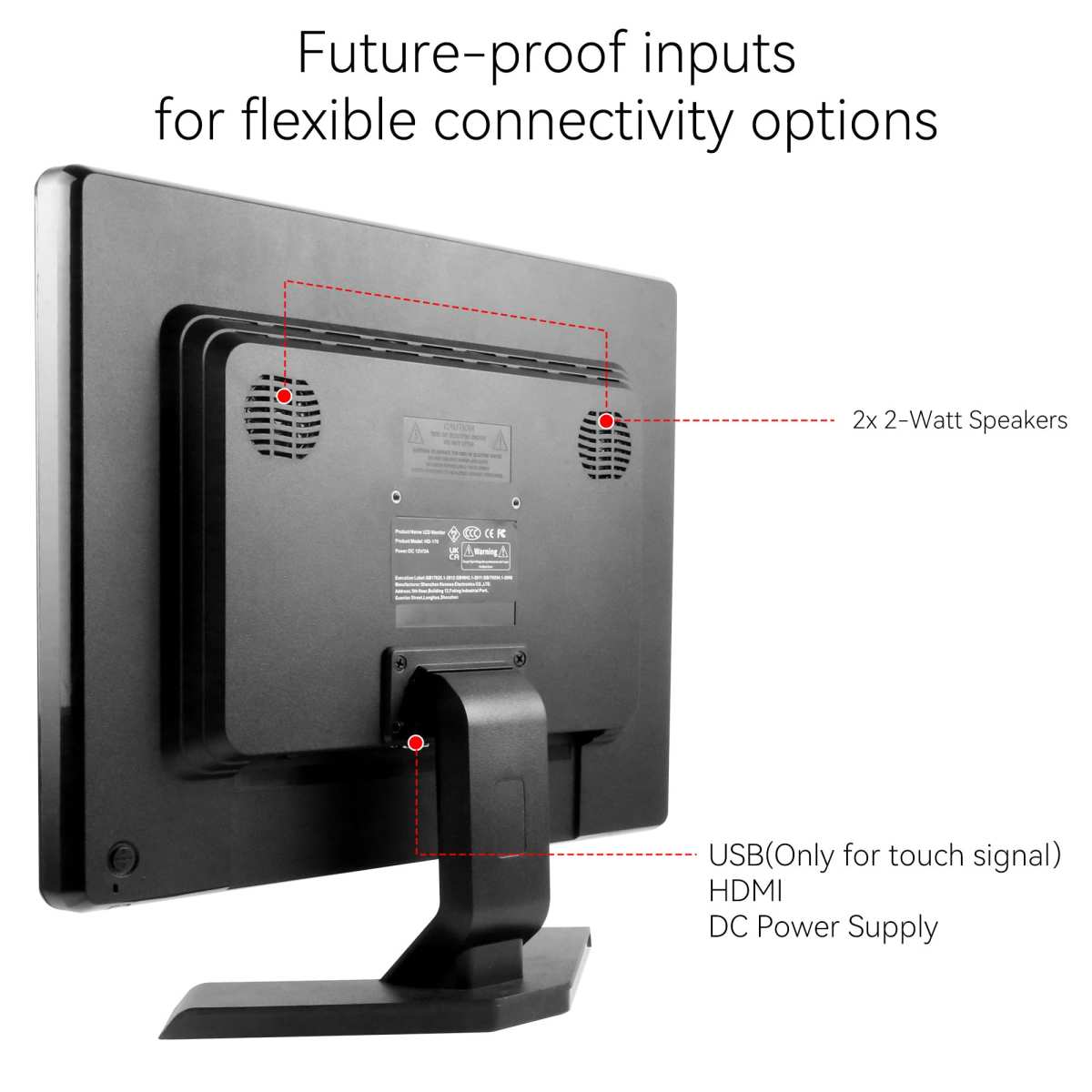
That's why looking at the physical port layout helps. If a monitor has both a USB-C input AND a USB Type-B upstream port, it almost certainly needs the Type-B cable for touch alongside the USB-C for display. If there's only a USB-C input and no separate upstream port, touch is likely handled over that single cable.
The physical layout tells you a lot before you even read the manual.
USB-C Cables Aren't All the Same — Here's Where People Get Burned
You've probably got a drawer full of USB-C cables. Here's the problem. Not all of them carry a video signal.
And this is where most setup failures start.
Cables fall into rough categories based on what they support. A cheap USB-C cable that came with your phone charger likely only handles USB 2.0 data and power. It will not carry a display signal.
For video over USB-C, you need a cable rated for DisplayPort Alt Mode or a Thunderbolt 3/4 cable.
| Cable Type | USB Data Speed | Video Support | Power Delivery | Price Range |
|---|---|---|---|---|
| Basic USB-C 2.0 | 480 Mbps | No | Usually low (6-15W) | $5–10 |
| USB-C 3.1 Gen 1 | 5 Gbps | Sometimes (DP Alt Mode) | Up to 60W | $10–20 |
| USB-C 3.1 Gen 2 | 10 Gbps | Often (DP Alt Mode) | Up to 100W | $15–30 |
| Thunderbolt 3/4 | 40 Gbps | Yes (guaranteed) | Up to 100W | $25–60+ |
| Full-Featured USB-C (USB-IF certified) | Varies | Yes (DP Alt Mode) | Up to 100W+ | $15–40 |
The safest bet is a Thunderbolt 4 cable or a certified USB-C cable labeled "DP Alt Mode". These are explicitly designed to carry video signals. Manufacturer cables that ship with the monitor are almost always the right ones.
If you're buying a replacement, look at the packaging or listing for "DisplayPort over USB-C" or "video support" explicitly called out.
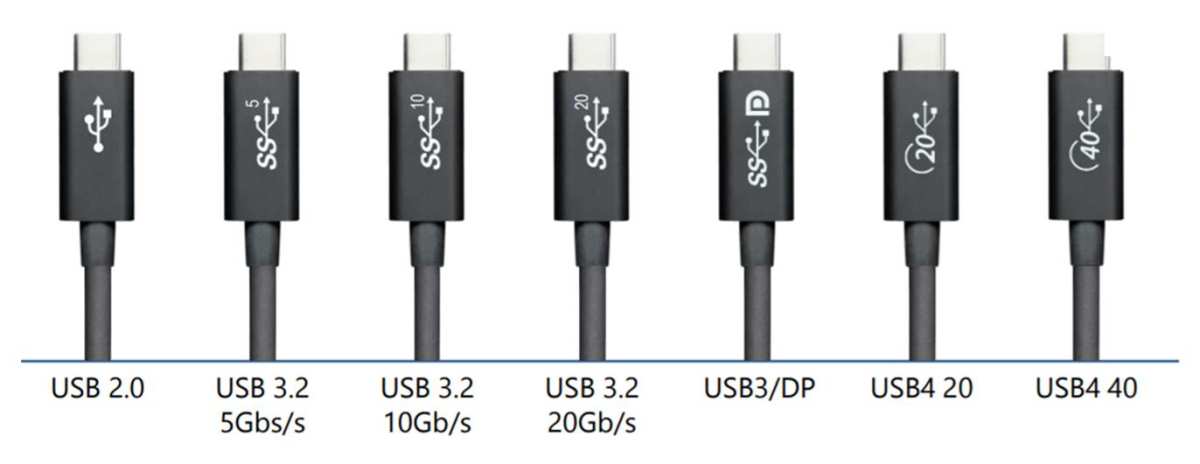
The cable matters as much as the port. People blame the monitor. More often than not, it's the cable that lacks the right wiring for video or touch data.
USB-C Touch Monitor vs. HDMI/DisplayPort + USB-A Touch Cable Setup
So which setup is actually better for you? It depends on how you work.
USB-C (single cable, when fully supported)
- Cleanest desk setup. One cable does everything.
- Charges your laptop simultaneously.
- Best for people docking and undocking frequently.
- Ideal for modern ultrabooks and MacBooks with limited ports.
HDMI/DisplayPort + USB-A (two cables)
- More universally compatible with older devices.
- Works with desktops that lack USB-C video output.
- Often cheaper cables.
- Touch functionality is reliable since the USB data channel is dedicated and straightforward.
USB-C (partial: video/power but no touch)
- Looks like a single-cable setup but secretly needs that second USB cable for touch.
- Most common scenario in the mid-range market.
- Frustrating if you bought the monitor for the "single cable" promise and didn't read close enough.
Verdict: If you have a modern laptop with USB-C DP Alt Mode output and you find a monitor with full USB-C touch support, go for it. If you're connecting a desktop or an older machine, the traditional DisplayPort plus USB-A route is the reliable fallback.
[Continued with remaining H2 sections: Best USB-C Touch Monitor Setups by Use Case, Common Mistakes When Buying or Setting Up a USB-C Touch Monitor, Do You Actually Need USB-C on a Touch Monitor? A Decision Guide, Frequently Asked Questions.]
Best USB-C Touch Monitor Setups by Use Case
Single-Cable Laptop Docking (Creative Pros & Minimalists)
This is the scenario where UV-C shines brightest. One cable from your laptop to the monitor delivers display, touch input, and charging. You walk up, plug in, and you're working.
No port hunting on the back of a laptop.
Windows ultrabooks like the Dell Latitude 7440 or ThinkPad T14s with USB-C DP Alt Mode work well here. Some models, like certain MacBooks, rely on Thunderbolt 4 ports that fully support this single-cable approach. Look for monitors that explicitly list "USB-C with DP Alt Mode, touch, and 65W+ PD" as a combined spec.
Not just one feature in isolation.
Presentation & Whiteboarding Setups
Plugging into a conference room touch monitor should be fast and foolproof. USB-C is ideal for this because most modern laptops ship with these ports. You avoid the dongle shuffle.
The catch: make sure the monitor supports touch over USB-C. That avoids fumbling with a second USB cable during a meeting.
POS, Kiosk & Medical Display Setups
Built-in touch monitors used in these environments often favor DisplayPort or HDMI for video reliability. USB-C is growing here. It depends on the controller board.
The priority in these setups is often the video signal stability and consistent touch response. Two separate cables (DisplayPort for video, USB-A for touch) can be more robust in the field. Less to negotiate on a single connection.
Common Mistakes When Buying or Setting Up a USB-C Touch Monitor
Assuming "USB-C port" means full functionality. Manufacturers love listing a USB-C port without specifying what it does. Always check for DP Alt Mode and PD wattage and touch routing separately.
Using the wrong cable. A basic charge-only USB-C cable looks identical to a Thunderbolt cable. Only the packaging or listing tells you what data speeds and modes it supports.
Ignoring power delivery requirements. Your laptop needs 65W but the monitor delivers 45W. You can still display the image, but your laptop might slowly drain during heavy work. Always check whether the monitor's PD rating meets or exceeds your device's charging requirements.
Forgetting touch drivers. Most modern touchscreens are plug-and-play with HID compliance. Some professional-grade monitors need a specific driver. Check the monitor's support page if touch isn't responding after connecting.
Overlooking device-side USB-C support. Your monitor supports DP Alt Mode on USB-C. Your laptop's USB-C port might only support data and charging without video output. Laptops with Thunderbolt 4 always support it.
Standard USB-C ports vary.
Do You Actually Need USB-C on a Touch Monitor? A Decision Guide
It boils down to a few scenarios.
You have a modern laptop with USB-C (and it supports DP Alt Mode): Yes, a USB-C touch monitor is a great quality-of-life upgrade. Single-cable docking is smooth.
You have a laptop where USB-C does not support video output: No, you don't need USB-C video on the monitor. DisplayPort or HDMI will work fine instead.
You charge your laptop separately and only want touch signal over USB-C: This is uncommon. It's worth verifying whether a touch-only USB-C data path without video works for your specific setup.
You mainly want a cleaner cable setup: USB-C helps if your laptop has the right port, the monitor supports full functionality, and you use the correct cable. Confirm all three before buying.
It comes down to matching the specific signals your laptop sends with the specific signals the monitor receives.

Similar Posts





















