Is 1440p Monitor Worth It for Gaming
If you're wondering is 1440p monitor worth it for gaming, the short answer is yes for most people. It delivers a visible jump in sharpness over 1080p without crushing your frame rates the way 4K does. As of 2026, it's the resolution where price, performance, and visual quality actually line up.
The 1440p standard, also called QHD or WQHD, packs 3,686,400 pixels. That's 78% more than 1080p. You'll notice the difference immediately, especially at 27 inches where pixel density hits around 109 PPI. This directly compares with our findings on whether 144hz monitor worth it for casual gaming.
Let's break down whether it makes sense for your setup.
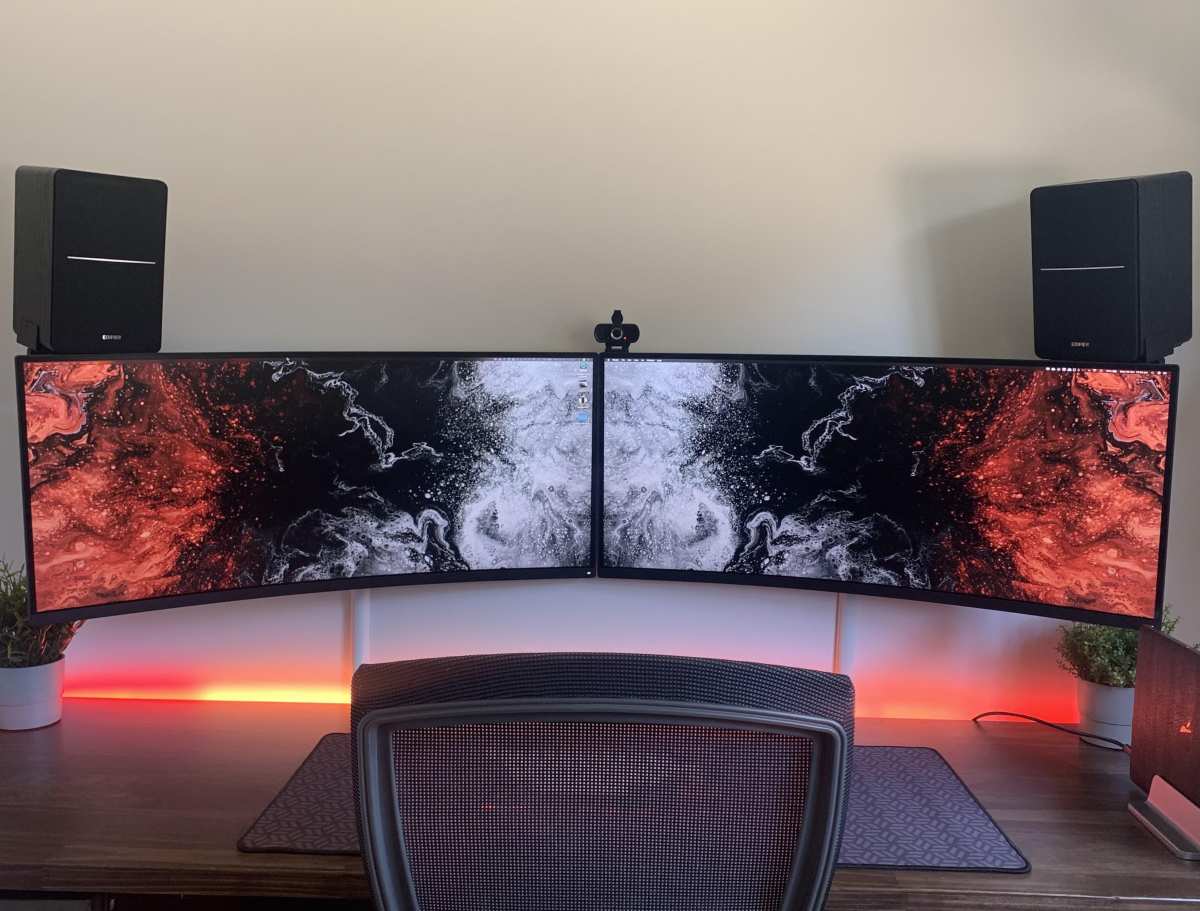
Quick Answer
Yes, 1440p is worth it for most gamers in 2026. It offers 78% more pixels than 1080p. The performance cost is manageable on modern GPUs.
Prices have dropped significantly. It's the current sweet spot for gaming monitors.
Why 1440p Hits Different From 1080p (and Why 4K Isn't Always Better)
The jump from 1080p to 1440p is one of those upgrades you feel the moment you sit down. Text looks cleaner. Game worlds look sharper. You can also reference our testing on whether curved gaming monitor worth it when configuring your display.
Distant objects in games like Cyberpunk 2077 or Elden Ring actually hold detail instead of turning into a blurry mess.
Here's the thing most people miss. The pixel density at 27 inches is where 1440p really shines. At that size, 1080p gives you around 82 PPI, which looks fine but slightly soft. 1440p pushes that to 109 PPI, which is sharp enough that you stop seeing individual pixels at normal viewing distances.
Now, 4K is sharper still. At 27 inches, 4K hits 163 PPI. But here's the trade-off. 4K has roughly four times the pixels of 1080p.
That means your GPU has to work four times harder. Even an RTX 4080 struggles to push 4K at high refresh rates in demanding titles without DLSS.
1440p sits right in the middle. You get a meaningful clarity bump without needing a $1,200 GPU to drive it. For most gaming rigs built around the RTX 4060 through RTX 4070 Ti range, 1440p is where you'll get the best balance of visual quality and smooth frame rates.
There's another factor people overlook. Running 1080p content on a 1440p monitor actually looks worse than on a native 1080p screen. The non-integer scaling makes things slightly soft.
If you're coming from a 1080p monitor and play at 1080p on a 1440p display, you might be disappointed until you switch to native resolution.
The Real Cost of Running 1440p: What Your GPU Actually Needs
%20_%20GPU%20FPS_W%20Efficiency%20_%20Experimental%20Chart%20_%20GamersNexus-4x_foolhardy_Remacri_2.png.webp)
Let's talk numbers. 1440p has 1.78 times the pixels of 1080p. That means your GPU load increases by roughly that amount, sometimes more depending on the game. If you're getting 120 fps at 1080p, expect somewhere around 68 fps at 1440p with the same settings.
That's a significant drop. But here's why it still works. Most people buying a 1440p monitor are targeting 120 to 165 fps, not the 240+ fps competitive players chase at 1080p.
And modern GPUs handle 1440p well, especially with DLSS and FSR in the picture.
%20_%20GPU%20FPS_W%20Efficiency%20_%20Experimental%20Chart%20_%20GamersNexus-4x_foolhardy_Remacri_2.png.webp)
Minimum GPU Tiers for 1440p Gaming at Different Refresh Rates
Here's a realistic breakdown of what you'll need based on our research and aggregate benchmark data.
| Use Case | Target FPS | Recommended GPU (NVIDIA) | Recommended GPU (AMD) |
|---|---|---|---|
| 1440p 60Hz (casual) | 60 fps | RTX 3060 / RTX 4060 | RX 6600 XT / RX 7600 |
| 1440p 144Hz (smooth) | 100-144 fps | RTX 4070 / RTX 4070 Super | RX 7800 XT / RX 7700 XT |
| 1440p 240Hz (competitive) | 200+ fps | RTX 4080 / RTX 4090 | RX 7900 XTX |
| 1440p high-refresh AAA | 100+ fps with RT | RTX 4070 Ti Super / RTX 4080 | RX 7900 XT |
These numbers assume high settings in modern AAA titles. Esports titles like Valorant or CS2 will run at much higher frame rates on the same hardware.
DLSS, FSR, and Frame Generation: How They Change the Math
This is where things get interesting. NVIDIA's DLSS and AMD's FSR let you render at a lower resolution and upscale to 1440p. DLSS Quality mode, for example, renders at roughly 1706×960 and reconstructs a 1440p image.
The result looks close to native but costs much less performance.
Frame generation takes this further. DLSS 3 Frame Gen on RTX 40-series cards can double your frame rate by inserting AI-generated frames. So a game running at 70 fps native can feel like 140 fps with Frame Gen enabled.
The trade-off is a small amount of added input latency, which matters for competitive play but is barely noticeable in single-player games.
FSR 3 from AMD offers similar frame generation on Radeon RX 7000 series cards. It's not quite as refined as DLSS in image quality, but it works across more games and doesn't require specific hardware beyond a compatible AMD GPU.
If you're on a mid-range card like the RTX 4060 Ti or RX 7700 XT, these upscaling technologies make 1440p much more achievable. You're essentially getting 1440p visuals at near-1080p performance costs in supported titles.
1440p vs 1080p vs 4K: Side-by-Side Comparison
Let's put the three main resolutions head to head. Each has a clear use case, and the right choice depends on your priorities.
Pixel Density and Clarity at Common Monitor Sizes
| Resolution | 27" PPI | 32" PPI | Clarity Rating |
|---|---|---|---|
| 1920×1080 (FHD) | 82 | 69 | Soft at 27", acceptable at 24" |
| 2560×1440 (QHD) | 109 | 92 | Sharp at 27", good at 32" |
| 3840×2160 (4K UHD) | 163 | 138 | Very sharp at both sizes |
The 27-inch 1440p combination is the sweet spot. At 109 PPI, you get a crisp image without needing Windows scaling. At 32 inches, 1440p drops to 92 PPI, which is still decent but noticeably softer than 27 inches.
This is why most 1440p monitors are 27 inches, and most 4K monitors are 32 inches.
Performance Impact Across Resolutions
| Resolution | Pixel Count | Relative GPU Load | Mid-Range GPU Experience |
|---|---|---|---|
| 1080p | 2,073,600 | 1.0x | 144+ fps in most titles |
| 1440p | 3,686,400 | 1.78x | 100-144 fps in most titles |
| 4K | 8,294,400 | 4.0x | 60-90 fps, needs DLSS/FSR for high refresh |

The performance gap between 1080p and 1440p is significant but manageable. The gap between 1440p and 4K is massive. You need roughly twice the GPU power for 4K compared to 1440p.
That's why 1440p makes sense for the majority of gamers.
Price-wise, the gap has narrowed considerably. A solid 1440p 165Hz monitor runs $250 to $350 in 2026. A comparable 4K 144Hz monitor starts around $600 and climbs fast.
The value proposition at 1440p is hard to beat.
Panel Types at 1440p: IPS vs VA vs OLED — Which One's for You?
Resolution is only half the story. The panel type determines how those pixels actually look and feel. At 1440p, you're choosing between three main technologies, each with distinct strengths.
When IPS Makes Sense
IPS panels are the default choice for most gamers, and for good reason. They offer accurate colors, wide viewing angles, and decent response times. A good IPS panel at 1440p 165Hz can be found for $250 to $350.
The downside is contrast ratio. Most IPS panels sit around 1000:1, which means blacks look more dark gray than truly black. In dark scenes, you'll notice this.
IPS glow, a slight brightening in corners, is also common on cheaper models.
Best for: Competitive gaming, general use, content creation on a budget, bright rooms.
When VA Makes Sense
VA panels deliver contrast ratios around 3000:1, sometimes higher. Blacks actually look black. This makes them excellent for atmospheric games, horror titles, and movie watching.
They're often cheaper than IPS at the same resolution and refresh rate.
The trade-off is response time. VA panels are slower, especially in dark transitions. This causes smearing or ghosting in fast-paced games.
Cheaper VA panels can be distracting in FPS titles.
Best for: Single-player games, immersive experiences, dark room gaming, budget buyers who prioritize image depth.
When OLED Is Worth the Money
OLED is the premium option, and it's become much more accessible in 2025 and 2026. Each pixel produces its own light, giving you perfect blacks, infinite contrast, and response times under 0.1ms. The image quality is in a different league.
The concerns are real though. Burn-in is possible with static elements like health bars and minimaps, though modern OLEDs have mitigation features and warranties that cover it. Brightness is lower than high-end IPS panels, especially in HDR mode on larger screens.
And the price premium is steep, typically $700 to $1,000 for a 27-inch 1440p OLED.
Best for: Gamers who want the absolute best image quality, HDR gaming, people who play varied content and aren't worried about burn-in.
| Panel Type | Contrast Ratio | Response Time | Price Range (27" 1440p) | Best For |
|---|---|---|---|---|
| IPS | 1000:1 | 1-4ms GtG | $200-$400 | Competitive, all-around |
| VA | 3000:1+ | 4-8ms GtG | $180-$350 | Immersive, budget |
| OLED | Infinite | <0.1ms GtG | $700-$1,000 | Premium image, HDR |
Who Should Buy a 1440p Monitor (and Who Shouldn't)
Not everyone benefits equally from 1440p. Your gaming style, hardware, and even which console you own all matter.
Competitive FPS Players
If you're grinding ranked in CS2, Valorant, or Apex Legends, frame rate and response time matter more than resolution. Competitive players typically prefer 1080p at 240Hz or even 360Hz. The higher refresh rate gives smoother motion and faster visual feedback.
Some competitive players do run 1440p at 240Hz. Monitors like the PG27AQN or 27GR95QE exist for exactly this use case. But you need a high-end GPU to push those frame rates, and the price jumps significantly.
Single-Player and AAA Gamers
This is where 1440p shines brightest. Games like Baldur's Gate 3, Alan Wake 2, and Starfield look stunning at QHD. The added detail in environments, textures, and text is immediately noticeable.
You're trading some frame rate for visual immersion, and for single-player games, that's usually the right call.
Most single-player gamers target 80 to 120 fps. A 1440p 144Hz or 165Hz monitor delivers that experience comfortably on a mid-range to upper-mid-range GPU.
Content Creators Who Also Game
If you edit photos or video and also game, 1440p gives you useful screen real estate. A 27-inch QHD display provides enough room for editing timelines while still looking sharp. Color-accurate IPS and OLED panels at this resolution double as credible creative displays.
Just check the color gamut specs. Look for panels covering at least 95% sRGB. DCI-P3 coverage above 90% is preferable for video work.
Console Gamers (PS5, Xbox Series X)
Both PS5 and Xbox Series X added 1440p output support. Before that, console gamers were stuck choosing between 1080p and 4K. 1440p is a huge upgrade over 1080p on console, especially for games that use dynamic resolution and land between 1080p and 4K.
Xbox Series X supports 1440p at up to 120Hz. PS5 supports 1440p at 60Hz, with 120Hz support dependent on the game. If you primarily game on console, 1440p is absolutely worth it.
Budget Builders
If you're building a gaming PC with a $600 to $800 budget, your GPU will likely land in the RTX 4060 to RX 7600 range. These cards handle 1440p well in most titles, though you'll need to adjust settings in the most demanding games.
A $250 to $300 monitor at 1440p 165Hz pairs perfectly with this tier of hardware. You're getting excellent value without overspending on a display your GPU can't fully utilize.
Common Mistakes People Make When Buying a 1440p Monitor
Even with good intentions, buyers trip up on the same issues. Here are the ones we see most often.
Buying the wrong size. 1440p at 32 inches looks noticeably softer than at 27 inches. The pixel density drops from 109 PPI to 92 PPI. If you want QHD, stick with 27 inches unless you specifically want a larger display and don't mind the slight softness.
Ignoring the cable situation. Running 1440p at 144Hz requires DisplayPort 1.4 or HDMI 2.1. HDMI 2.0 tops out at 1440p 60Hz or 1080p 120Hz.
Check your GPU and monitor ports before you buy. A mismatched cable leaves performance on the table.
Chasing HDR400. VESA DisplayHDR 400 is barely HDR. The brightness and local dimming required for that certification don't deliver a meaningful HDR experience.
If HDR matters to you, look at DisplayHDR 600 or higher. Better yet, get an OLED. HDR400 is mostly a marketing badge.
Forgetting about scaling. Some older games and applications don't scale well to 1440p at 27 inches. Text can look tiny.
Windows handles this fine at 100% scaling because 109 PPI is manageable. But some games render UI elements too small to read comfortably. Check whether your favorite games support UI scaling.
Overlooking response time specs. A monitor advertising 1ms GtG response time might only achieve that in an overdriven mode that introduces inverse ghosting. Look at independent reviews that measure actual response times.
RTINGS.com publishes detailed response time data for most gaming monitors.
Buying VA for competitive gaming. VA panels have great contrast, but their slow dark-transition response times cause visible smearing in fast games. Competitive FPS players should stick with IPS or OLED for cleaner motion.
Best 1440p Monitors by Use Case (2024–2025)
The 1440p market is mature. There are excellent options at every price point. Here's what our research and aggregate reviews point to.
Best Overall 1440p Gaming Monitor
The LG 27GP850-B hits a sweet spot for most gamers. It's a 27-inch IPS panel running at 1440p 165Hz (overclockable to 180Hz). Response times are solid, color accuracy is good, and the price typically sits around $300 to $350.
It does everything well without excelling in any single area that would justify a higher price.
Best Budget 1440p Monitor
The Gigabyte G27Q offers strong value at around $200 to $250. It's an IPS panel with decent color accuracy and 144Hz refresh. Build quality is acceptable, and the OSD is functional.
You're giving up some response time performance and peak brightness compared to pricier options.
Best 1440p High-Refresh Monitor for Competitive Gaming
For players who want 240Hz at 1440p, the Alienware AW2725DF stands out. It's a 27-inch QD-OLED running at 1440p 240Hz with excellent motion clarity. Response times are under 0.1ms, and the color performance is outstanding.
The price sits around $600 to $700, which is premium but competitive for OLED.
Best 1440p OLED Monitor
The Samsung Odyssey OLED G8 is a strong contender. It's a 34-inch QD-OLED with 3440×1440 ultrawide resolution. The contrast is perfect, colors are vibrant, and the 0.1ms response time eliminates ghosting entirely.
It runs around $800 to $900, with frequent sales bringing it lower.
Best 1440p Ultrawide Monitor
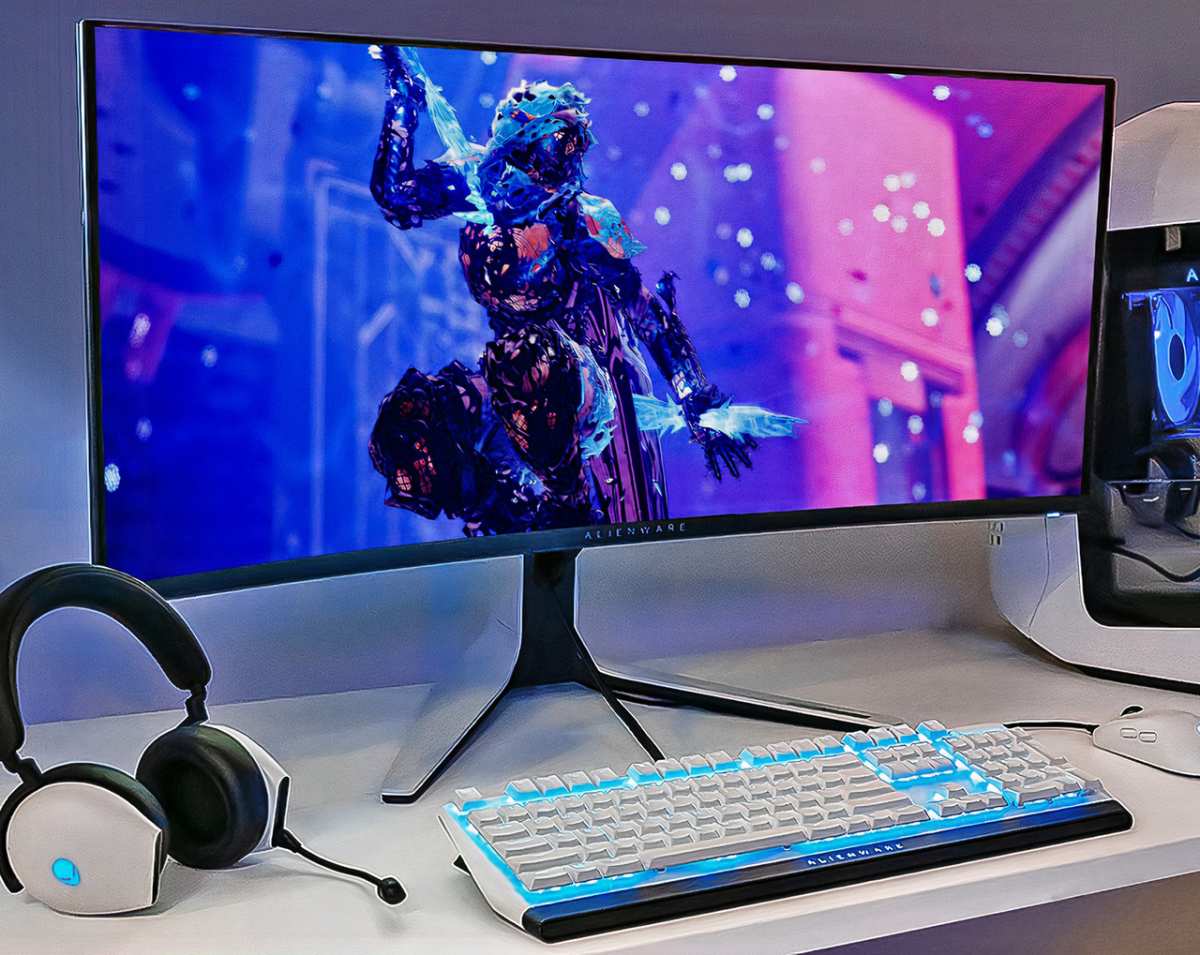
For ultrawide fans, the Dell Alienware AW3423DWF delivers. It's a 34-inch VA panel at 3440×1440 with 165Hz refresh. Contrast ratio is excellent at around 3000:1, and the 1500R curve feels natural at typical desk distances.
Price runs approximately $600 to $800 depending on sales. Response times are slower than IPS or OLED, so consider this for single-player and cinematic games rather than competitive play.
Setup Tips: Getting the Most Out of Your 1440p Display
Getting the monitor is step one. Setting it up correctly is where most people leave performance and quality on the table.
First, verify your refresh rate in Windows. Go to Settings, Display, Advanced Display, and confirm the refresh rate matches your monitor's spec. Windows sometimes defaults to 60Hz even on 144Hz panels.
This single check fixes more "my monitor feels slow" complaints than anything else.
Next, enable adaptive sync. For NVIDIA users, open the NVIDIA Control Panel and enable G-Sync or G-Sync Compatible. For AMD users, enable FreeSync through AMD Adrenalin software.
This eliminates screen tearing without adding the input latency penalty of V-Sync.
Check your cable. DisplayPort 1.4 supports 1440p at up to 144Hz with DSC (Display Stream Compression). HDMI 2.1 supports 1440p at up to 240Hz.
HDMI 2.0 is limited to 1440p 60Hz. Use the right cable for your target refresh rate and resolution combination.
Calibrate your display. Most monitors ship with overly vivid default settings. Set the color mode to sRGB or sRGB emulation to avoid oversaturated colors.
Adjust brightness to around 120 to 150 nits for comfortable indoor use. If your monitor supports it, enable 10-bit color output in your GPU control panel for smoother gradients.
Consider DLSS or FSR if your GPU struggles. Running at native 1440p is ideal, but there's no shame in using DLSS Quality mode to gain 30 to 40% more performance. The visual difference is minimal on most implementations.
Finally, update your monitor firmware. Some models ship with bugs or incomplete feature support that requires a firmware update. Check the manufacturer's support page.
This resolves issues like adaptive sync flickering, incorrect HDR behavior, or missing refresh rate options.
Final Verdict: The Decision Guide
If you have an RTX 4060 or better, or a Radeon RX 7600 or better, 1440p is worth it. The visual improvement over 1080p is substantial. The performance hit is manageable.
Monitor prices have reached a point where you're not overpaying for the resolution.
If you're on a tighter budget with a GTX 1660 or RX 580, 1080p still makes more sense. Those GPUs will struggle at 1440p in modern titles, and you'll end up lowering settings anyway.
For competitive players chasing every frame, 1080p at 240Hz or higher remains the pragmatic choice. But if you split your time between competitive and single-player games, a 1440p 165Hz monitor handles both comfortably.
The sweet spot in 2026 is a 27-inch 1440p IPS panel at 165Hz, priced between $250 and $350. That combination works for the widest range of gamers and hardware configurations. If budget allows and image quality is your priority, step up to OLED.
Either way, you're getting a meaningful upgrade over 1080p.
Frequently Asked Questions
Is 1440p good for competitive gaming?
It is, but competitive FPS players often prefer 1080p at 240Hz or higher. The extra resolution adds GPU load without the motion clarity benefit of extreme refresh rates. That said, 1440p at 240Hz works well if your GPU can push those frame rates.
What GPU do I need for 1440p gaming?
An RTX 4060 or RX 7600 handles 1440p at 60 to 100 fps in most titles. For 144Hz gaming, aim for an RTX 4070 or RX 7800 XT. Higher refresh rates demand stronger hardware, especially in demanding AAA games.
Does 1440p look blurry compared to 4K?
At 27 inches, 1440p looks sharp at normal viewing distances with 109 PPI. 4K at the same size is noticeably sharper at 163 PPI, but most people don't sit close enough to see the difference clearly. The jump from 1080p to 1440p is far more dramatic than 1440p to 4K.
Is 1440p worth it for PS5 gaming?
Absolutely. The PS5 supports 1440p output, and it's a major improvement over 1080p. Games that previously ran at lower resolutions now look sharper.
It's one of the best upgrades you can make for PS5 gaming.
Is 1440p ultrawide better than 16:9?
It depends on preference. Ultrawide 3440×1440 offers a wider field of view that feels more immersive in racing games, simulators, and cinematic titles. However, not all games support 21:9, and competitive players may prefer the standard 16:9 aspect ratio for consistent framing.
Will 1440p monitors work with older GPUs?
Yes, but with limitations. Older GPUs like the GTX 1060 or RX 580 can output 1440p. However, they will struggle to maintain playable frame rates at that resolution in modern games.
You may need to drop settings to medium or low.

Similar Posts





















