Do I Need Dual Monitors for Gaming
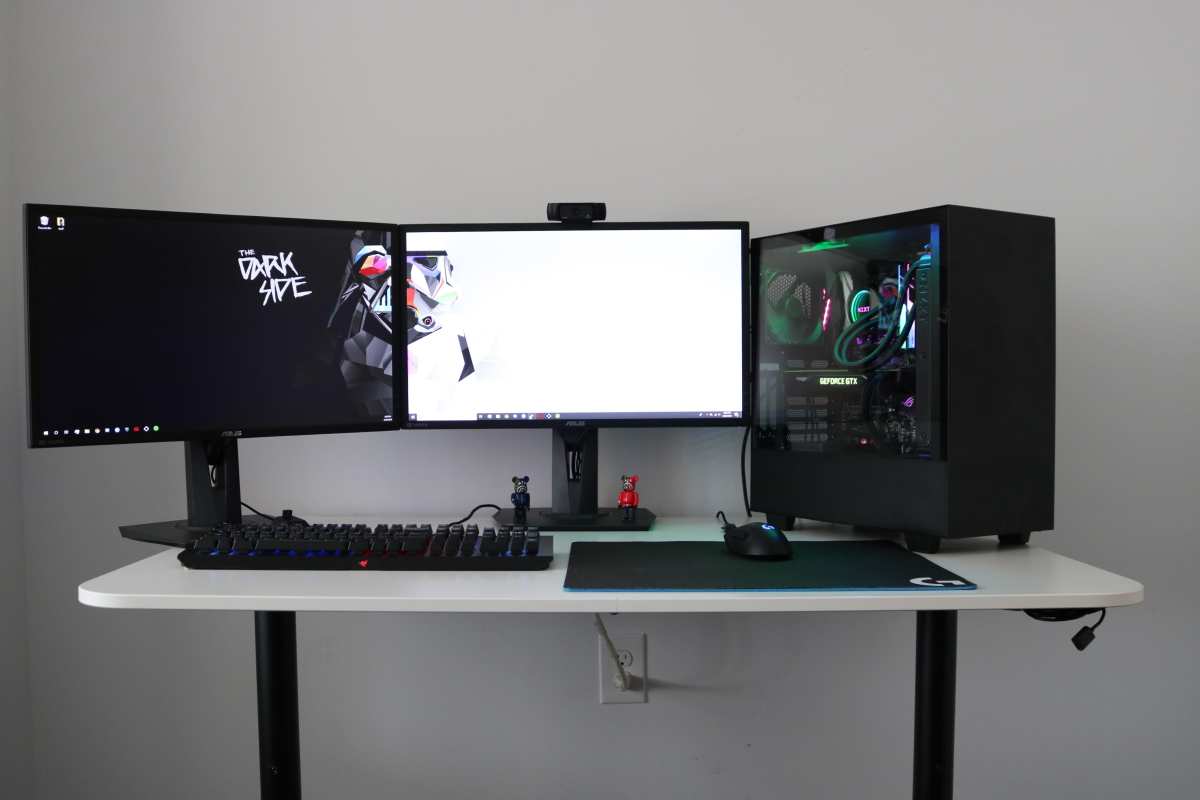
Dual monitor gaming setup
Image source: Bing (Web (fair-use with source credit))
So you're wondering, do I need dual monitors for gaming? The honest answer is no, you absolutely don't need them, but there are some specific situations where a second screen genuinely improves your setup. It really comes down to what you play, how you play, and whether you do anything else at your gaming desk besides gaming.
Most modern GPUs from NVIDIA and AMD support multiple displays right out of the box, typically offering two to four output ports including DisplayPort and HDMI. That means the hardware capability is usually there whether you use it or not. The real question is whether adding a second monitor actually makes your gaming experience better or just adds clutter. For more background on real-world performance, read our breakdown of how to connect dual curved gaming monitors.
Let's break it down by how you actually use your setup.
Quick Answer
No, you don't need dual monitors for gaming. A single monitor handles every game perfectly well. A second screen helps with streaming, multitasking, and certain sim setups.
For pure competitive or single-player gaming, one good monitor is all you need.
The Real Question: What's Your Primary Gaming Style?
Before you spend money on another screen, think about what you actually do at your desk. The answer changes dramatically depending on your situation.
If you're sitting down to play a focused single-player game like Baldur's Gate 3 or Elden Ring, one monitor is honestly all you want. You're immersed in one thing. A second screen would just be sitting there, maybe distracting you. Readers evaluating this setup should also consider how to use dual monitors for gaming for comparative benchmarks.
But if you're streaming on Twitch, running Discord while gaming, or playing an MMO where you want a guide open, that second screen stops being a luxury and starts being genuinely useful. The same desk can serve very different purposes depending on the person sitting at it.
Here's a quick way to think about it:
- Pure gaming, one game at a time: Single monitor is ideal.
- Gaming + streaming or content creation: Dual monitors become almost essential.
- Gaming + work or school at the same desk: Dual monitors make multitasking far easier.
- Sims and strategy games: A second screen is a strong quality-of-life upgrade.
Scenario Breakdown: When Dual Monitors Actually Help
Not all gaming use cases benefit equally from a second screen. Let's walk through the specific scenarios where dual monitors earn their keep and where they're just extra weight on your desk.
Streamers and Content Creators
Streaming setup with dual monitors
Image source: Wikimedia Commons / Daniel Larsen from Auckland, New Zealand (CC BY-SA)
If you stream your gameplay, a second monitor is practically non-negotiable. You need one screen running your game and another showing your streaming software (OBS Studio, Streamlabs), chat feed, and alerts. Trying to manage all of that on a single screen means alt-tabbing mid-game, which is a nightmare when you're live.
Most experienced streamers run their game on the primary display and keep OBS, Twitch chat, Discord, and system monitoring tools on the secondary. It's a workflow that just doesn't compress well onto one screen.
MMO and Strategy Players
Games like World of Warcraft, Final Fantasy XIV, Civilization VI, or StarCraft II benefit hugely from having a second display. You can keep guides, build orders, maps, or raid information open on one screen while the game runs on the other. It's not about immersion.
It's about having the information you need without breaking your flow.
MMO players in particular often use the second screen for Discord voice chat, damage meter overlays, or spreadsheet-style gear planning. Strategy players pull up wikis and tier lists. It's functional, not flashy.
Sim Enthusiasts (Racing, Flight, Space)
Sim gamers are a different breed. Racing sim fans, flight sim players, and space sim enthusiasts often run triple-monitor setups or even VR headsets. But for those not ready to go that far, a second or third monitor can expand your field of view or display instrument panels and navigation data.
Microsoft Flight Simulator, for example, lets you pop out cockpit instruments onto separate displays. That's a genuine gameplay enhancement, not just convenience.
Single-Player and Competitive FPS Gamers
Here's where dual monitors actually work against you. If you're playing competitive shooters like Valorant, Counter-Strike 2, or Apex Legends, you want your full attention on one screen. A second monitor creates peripheral distraction and can even slightly impact GPU performance, typically around 2 to 5 percent of your frame rate just from driving the additional display.
For immersive single-player games, the same logic applies. You want to be in the world, not glancing at a second screen showing your desktop. One high-quality monitor with good color accuracy and a high refresh rate will serve you far better than two mid-range screens.
The Downsides Nobody Talks About
Dual monitors sound great on paper. But there are real trade-offs that don't always show up in the marketing.
GPU Overhead and Performance Impact
Your GPU has to render and output to every connected display. Even if you're only gaming on one screen, the second display still consumes resources. Desktop composition, hardware-accelerated browser content, and video playback on the secondary screen all draw from your GPU.
For most modern cards, the performance hit is small, roughly 2 to 5 percent. But if you're already pushing your GPU to its limits at 4K resolution or with ray tracing enabled, that small percentage can mean the difference between a smooth experience and noticeable stutter.
The Bezel Problem with Spanned Gaming
Some people try to span a single game across both monitors for a wider field of view. The problem? Right in the center of your view sits the bezel gap.
Your crosshair, your character, your focal point, all split right down the middle by a chunk of plastic.
This is why spanned gaming never really caught on for most titles. It works in some sim games where the focal point can be offset, but for everything else, it's awkward and distracting. You're almost always better off gaming on one screen and using the second for everything else.
Desk Space and Ergonomic Headaches
Two monitors take up a lot of room. You need a desk deep enough to hold both at a comfortable viewing distance, at least 24 inches of depth, and wide enough for two 27-inch screens side by side. That's a desk surface of roughly 48 inches wide or more.
Eronomically, you also need to position your primary monitor straight ahead and the secondary at an angle. If you don't, you'll be twisting your neck all day. A proper dual-monitor arm helps a lot here, but that's another expense and another thing to set up.
Distraction Factor
This one's simple. If you have a second screen showing Discord, YouTube, or a half-dozen browser tabs, you will look at it. During competitive games, that split second of distraction matters.
During story-driven games, it pulls you out of the experience. Sometimes the best setup is the one that keeps your eyes where they belong.
Alternatives Worth Considering
Before you commit to a dual-monitor setup, it's worth knowing what else is out there. Two screens isn't the only way to get more visual real estate.
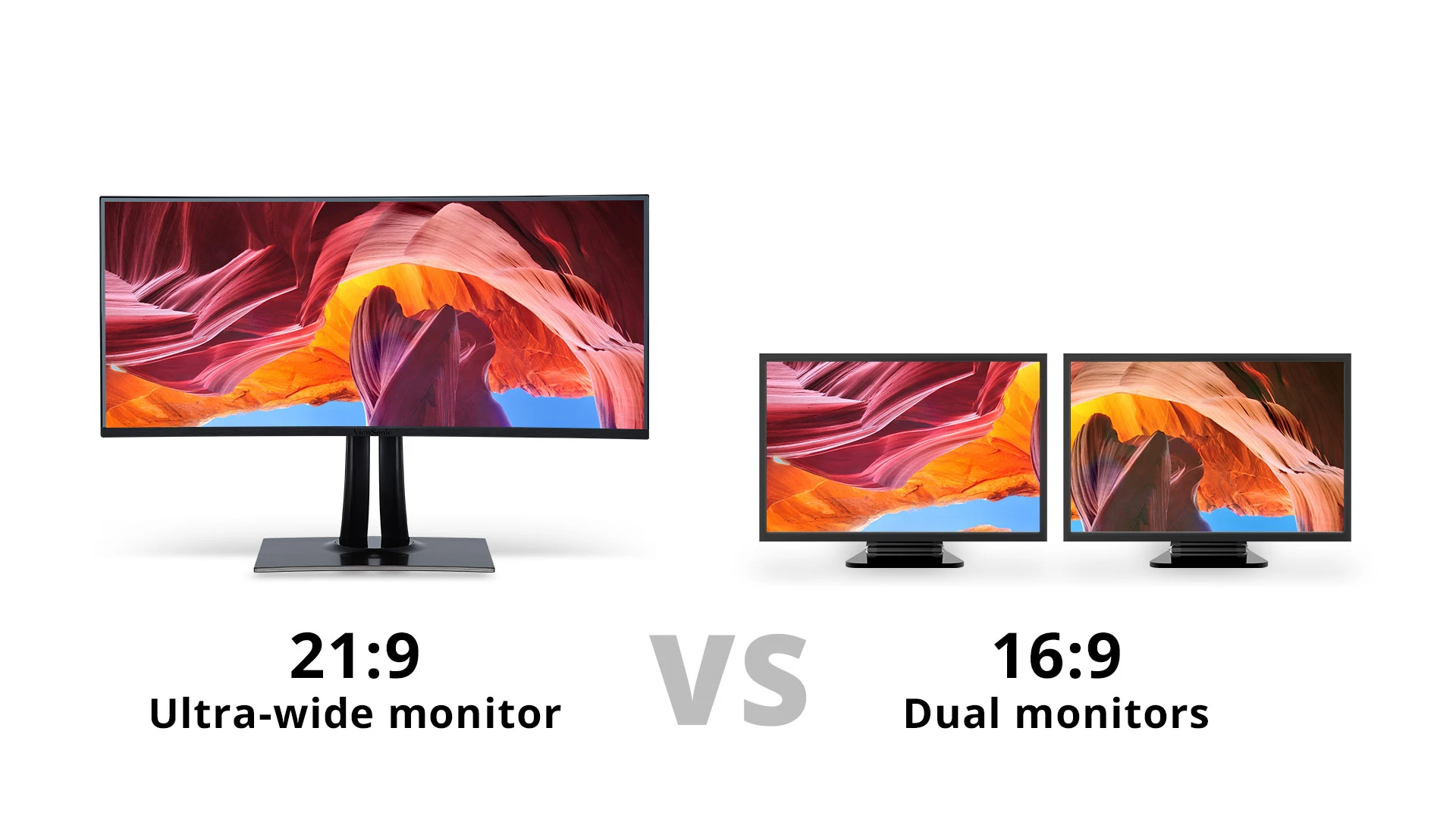
Ultrawide Monitors (21:9 and 32:9)
Ultrawide monitor vs dual monitors
Image source: Bing (Web (fair-use with source credit))
An ultrawide monitor gives you the screen space of two displays without the bezel gap in the middle. A 34-inch 21:9 ultrawide is roughly equivalent to two 27-inch monitors side by side, just without the split down the center.
For gaming, this is a big deal. You get a wider field of view in supported games, and your crosshair sits right where it should be, not behind a strip of plastic. The Samsung Odyssey OLED G9 and similar super-ultrawide models take this even further with 32:9 aspect ratios that genuinely replace a dual-monitor setup for most people.
The catch? Ultrawides cost more than a single standard monitor. A good 34-inch ultrawide runs $400 to $1,000 as of 2026, and the super-ultrawide models go well past that.
But if you're choosing between buying two decent monitors plus a mount or one ultrawide, the math often favors the single screen.
Single Large 4K with Window Management
If your primary use case is gaming plus light multitasking, a single 32-inch 4K monitor with good window management might be enough. Windows 11's built-in snap layouts let you tile windows efficiently, and tools like FancyZones from Microsoft PowerToys give you custom layouts.
This works well if you mostly game full-screen and only occasionally need a second window visible. It's less ideal if you constantly need two things visible at the same time, because you're still splitting one screen.
Laptop + External Display Setup
If you game on a laptop, adding a single external monitor gives you a similar dual-screen experience. Game on the laptop screen while keeping Discord, a browser, or streaming tools on the external display. Or reverse it, run the game on the bigger external screen and use the laptop for everything else.
This is actually one of the most common dual-monitor configurations out there, and most gaming laptops handle it without issue through their HDMI or USB-C display outputs.
Decision Guide: Should You Add a Second Monitor?
Let's cut through everything and give you a clear framework. Your situation determines whether a second screen is worth it.
You Probably Should If
- You stream regularly and need OBS, chat, and alerts visible while gaming.
- You play MMOs or strategy games where guides and maps improve your experience.
- You work and game at the same desk and need screen space for both.
- You already have a decent primary monitor and can pick up a second screen affordably.
You Probably Shouldn't If
- You mainly play competitive FPS or fast-paced games where focus matters.
- Your desk doesn't have the space for two properly positioned monitors.
- You're already GPU-limited and can't afford even a small performance hit.
- You'd be stretching your budget to buy a second monitor that's noticeably worse than your primary.
You're on the Fence If
- You play a mix of game types and aren't sure what you'd use the second screen for.
- You're considering an ultrawide but aren't ready for the price.
- You think you might want to stream someday but haven't started yet.
If you're in that last group, start with your single monitor. See what frustrates you. If you find yourself constantly alt-tabbing or wishing you had more space, that's your signal to add a second screen.
What You Actually Need to Set It Up
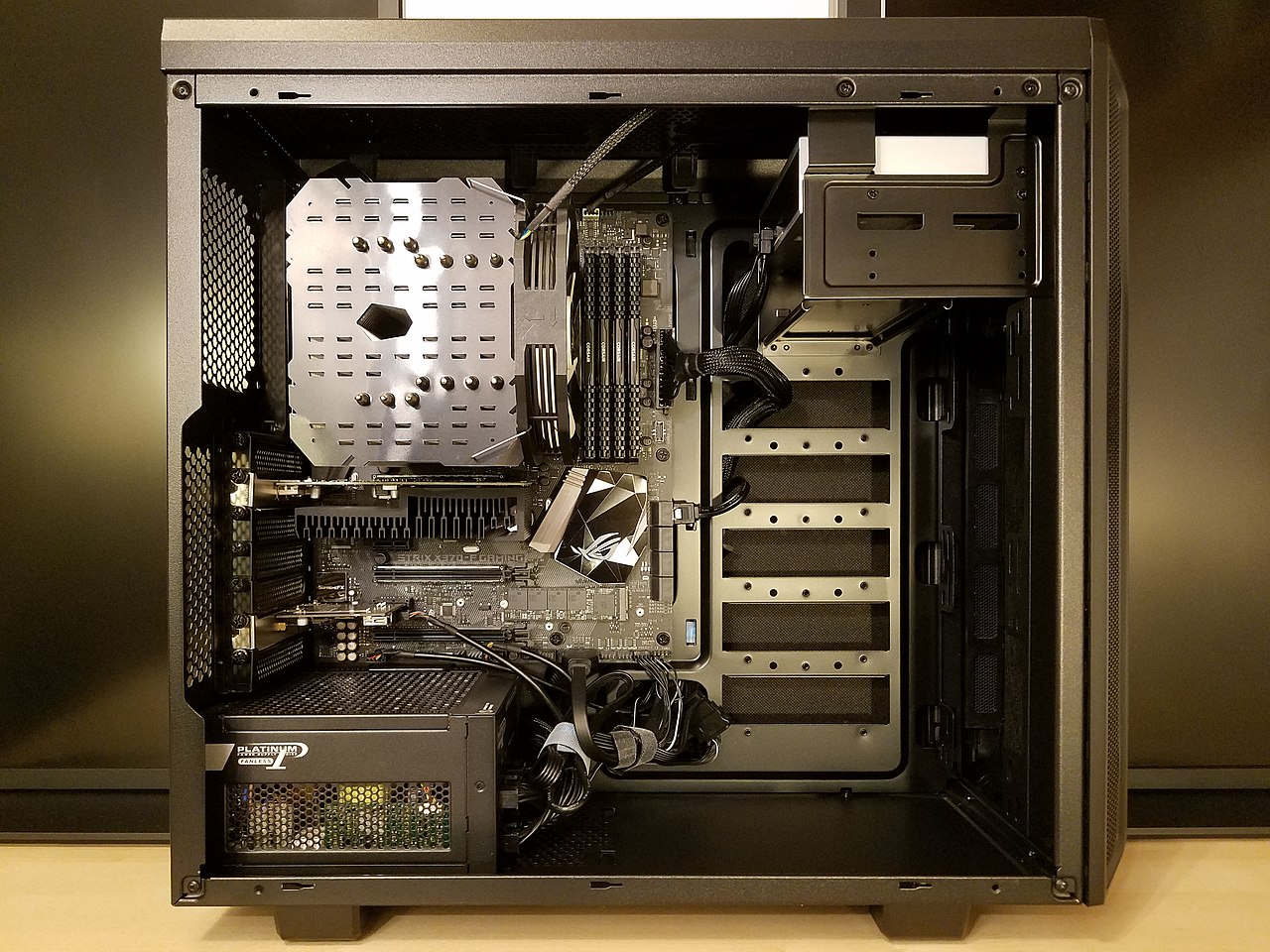
GPU display output ports
Image source: Wikimedia Commons / Bretwa (CC BY-SA)
Setting up dual monitors is straightforward, but there are a few things you need to check before you start.
GPU Output Ports and Capabilities
Look at the back of your graphics card. Most modern GPUs have a mix of DisplayPort and HDMI outputs, typically two to four total. You need one available port per monitor.
Check your GPU's specifications on the manufacturer's website to confirm it supports the resolution and refresh rate you want on both displays simultaneously. Almost all current cards from NVIDIA (RTX 30-series and newer) and AMD (RX 6000-series and newer) handle dual displays without issue.
Cables, Mounts, and Desk Real Estate
You'll need the right cables for each connection. DisplayPort is generally preferred for PC monitors, especially at higher refresh rates. HDMI works fine for secondary displays or lower-resolution screens.
For mounting, you have two options. You can use the stands that come with each monitor, which eats up desk space. Or you can get a dual-monitor arm clamp that attaches to your desk edge and frees up surface area.
A good dual arm runs $40 to $150 and makes a big difference in positioning flexibility.
Your desk needs to be at least 48 inches wide to comfortably fit two 27-inch monitors side by side. Depth matters too. You want at least 24 inches of depth so you're not sitting too close to the screens.
Display Settings Configuration
Once everything's plugged in, Windows will detect both monitors. Right-click the desktop and select Display Settings to arrange them physically so your mouse moves between them in the right direction. You'll also set which monitor is your primary display, the one where games will launch by default.
Set each monitor to its native resolution and maximum refresh rate. For the secondary screen, 60Hz is perfectly fine if it's just for Discord and browsers. There's no need to match refresh rates across both monitors unless you plan to span content.
In your GPU's control panel (NVIDIA Control Panel or AMD Software), you can configure additional settings like color calibration and whether to extend or duplicate your display. Extended desktop is what you want for gaming. Duplicate mode mirrors the same image on both screens, which is only useful for presentations.
Common Mistakes When Going Dual-Screen for Gaming
People make the same handful of mistakes every time they set up a dual-monitor gaming rig. Here's what to watch for.
Spanning games across both monitors. That bezel gap sits right in the center of your view. It's distracting and almost never worth it. Game on one screen, use the other for everything else.
Buying a mismatched secondary monitor. If your primary is a 27-inch 1440p 165Hz IPS panel and your secondary is a 24-inch 1080p 60Hz TN panel, the color and brightness difference will be jarring every time your eyes move between them. You don't need identical monitors, but try to match size and resolution at minimum.
Ignoring ergonomics. Your primary monitor should be directly in front of you with the top of the screen at or slightly below eye level. The secondary goes to the side at the same height. If you set them up wrong, you'll feel it in your neck within a week.
Forgetting to set the primary display. If Windows launches games on the wrong monitor, it's annoying to fix mid-session. Set your gaming monitor as the primary display in Windows Display Settings before you start.
Running the secondary monitor at a different refresh rate without configuring it. Windows can handle mixed refresh rates, but some setups cause stuttering on the primary display when the secondary has video content playing. If you notice micro-stutter while gaming, try turning off hardware acceleration in your browser on the secondary screen.


Similar Posts





















