How to Use Dual Monitors for Gaming
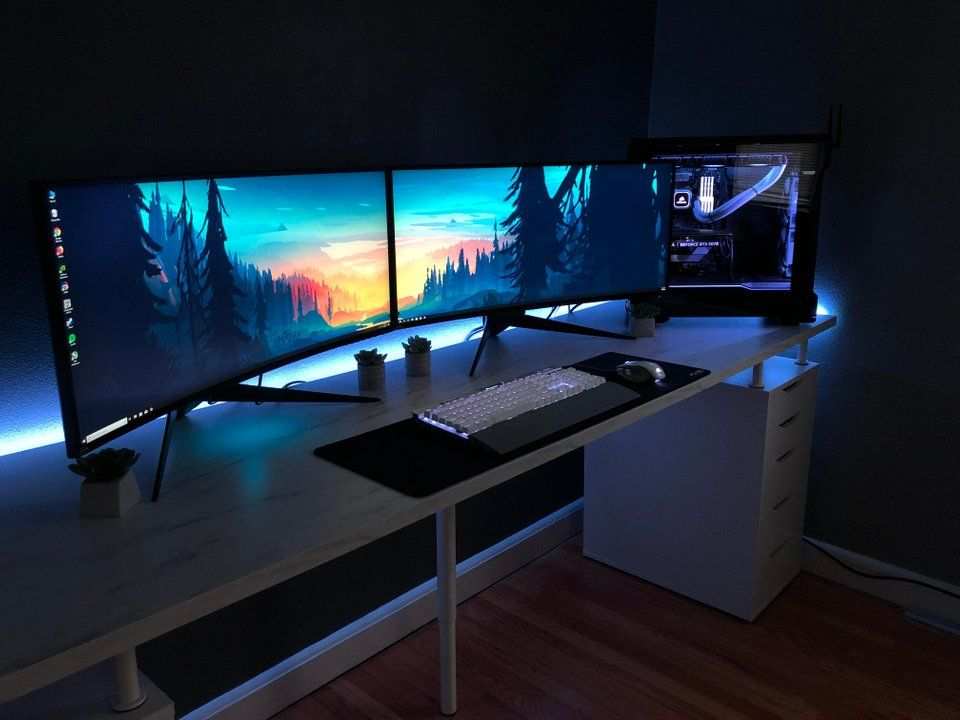
Figuring out how to use dual monitors for gaming sounds like it should be simple. Plug both in, extend the desktop, and you're done. But anyone who's actually tried it knows the reality is messier.
You end up with a game launching on the wrong screen, a bezel sitting right where your crosshair should be, or mysterious frame drops you can't explain.
The good news is that dual monitor gaming works great once you understand the two very different ways to run it. Your best setup depends entirely on what you're playing, what hardware you've got, and whether you want the game stretched across both screens or just want Discord visible while you play on one.
Quick Answer
Connect both monitors to your GPU using DisplayPort or HDMI cables. Open Windows display settings and select "Extend these displays." Decide whether you want one screen for gaming with a second for apps, or a spanned resolution across both. For spanned gaming, use NVIDIA Surround or AMD Eyefinity in your GPU control panel.
Set your gaming monitor as the primary display. Configure each game to run in borderless windowed mode for the smoothest experience.
First, Answer This: What's Your Actual Goal?
This is where most guides skip ahead. They jump straight to cable recommendations without asking what you're actually trying to do. The entire setup path changes based on your answer here.
You want one screen for gaming, second for everything else
This is the most common and the most practical setup. You game on your primary monitor. The second screen handles Discord, Twitch chat, a walkthrough, Spotify, or OBS if you stream.
This is what most people should do. It's simple, it works with any two monitors, and it doesn't tank your frame rate. You just extend your desktop in Windows and drag whatever you need onto the second screen.
You want the game stretched across both monitors for immersion
This is the "wow factor" setup. You span a single game image across both displays, giving you a super-ultrawide field of view. It's incredible for racing games, flight sims, and first-person shooters where peripheral vision matters.
But there are real tradeoffs. The bezel sits right in the center of your view. Your GPU has to push roughly twice the pixels.
And not every game supports spanned resolutions without tweaking.
You're not sure yet, you just want more screen real estate
Totally fair. Start with the extended desktop approach. It costs nothing extra, works with mismatched monitors, and you can always try spanning later if you get curious.
There's no commitment here.
How Dual Monitor Gaming Actually Works Under the Hood
Before you start plugging things in, it helps to understand what's actually happening when you run two monitors. The GPU treats them in one of two ways, and the difference matters a lot for performance.
Extended desktop vs. spanned/surrounded mode
Extended desktop means Windows sees two independent displays. Each runs at its own resolution and refresh rate. Your GPU renders the game on one monitor and your desktop apps on the other.
The performance hit is minimal, usually just a few percent from rendering the desktop on the second screen.
Spanned mode (called NVIDIA Surround on NVIDIA GPUs and AMD Eyefinity on AMD GPUs) tricks the game into thinking both monitors are one giant display. The GPU renders a single ultra-wide resolution, like 5120×1440 instead of 2560×1440. This is where the performance hit gets real because you're literally doubling the pixel count.
What your GPU is doing differently in each scenario
In extended mode, your GPU focuses its gaming power on one output. The second monitor just shows your desktop. In spanned mode, the GPU has to render one massive frame and split it across two outputs.
That's a significantly heavier workload.
For reference, going from a single 2560×1440 monitor to a spanned 5120×1440 setup increases your pixel count from 3.7 million to 7.4 million. That's a 100% increase in pixels your GPU must render every single frame.
Why your second monitor can (and can't) hurt gaming performance
Here's the nuance most guides miss. A second monitor in extended mode has a negligible impact on gaming performance, maybe 2-5% depending on what's running on it. But if you're watching a 4K YouTube video on the secondary while gaming, that uses hardware decoding and can introduce micro-stutter on some systems.
Spanned mode is a different story entirely. Expect a 30-50% drop in frame rate compared to gaming on a single monitor at native resolution. Your GPU is doing double the work.
If you're already struggling to hit 60fps at 1440p, spanning across two 1440p monitors will push you well below that.
The Setup Decision Tree: Matching Your Hardware to Your Goal
Not every hardware combination supports every dual monitor configuration. Check these three things before you start.
Check your GPU outputs first
Look at the back of your PC. You need two available video outputs on your dedicated GPU, not the motherboard. Common port combinations include:
- DisplayPort + DisplayPort
- DisplayPort + HDMI
- HDMI + HDMI (less common on modern cards)
Most modern GPUs have at least two DisplayPort outputs and one HDMI. Higher-end cards from the RTX 40-series and RX 7000-series often have three DisplayPorts. If you only have one HDMI and one DisplayPort, that works fine for two monitors.
Critical mistake to avoid: Never plug one monitor into the motherboard video output and the other into the GPU. This routes one display through your CPU's integrated graphics, which causes stutter, crashes, and a host of weird issues. Both monitors must connect to the same dedicated GPU.
Check your monitor specs, matching matters more than you think
For extended desktop mode, mismatched monitors work perfectly fine. You can pair a 27-inch 1440p with a 24-inch 1080p and Windows handles the scaling.
For spanned mode, matching monitors are strongly recommended. Here's why:
| Factor | Mismatched in Spanned Mode | Matched in Spanned Mode |
|---|---|---|
| Resolution | Cropped or stretched image | Seamless across both |
| Refresh rate | Limited to the slower monitor | Both run at full speed |
| Color/brightness | Visible difference at the seam | Consistent image |
| Bezel thickness | Asymmetrical feel | Symmetrical |
If you're just doing extended desktop gaming, mismatched monitors are totally fine. Don't let anyone tell you otherwise.
Check your cables and ports (DisplayPort vs. HDMI matters here)
Not all cables are created equal. Using the wrong cable can silently cap your refresh rate or resolution.
| Cable/Port | Max Resolution @ Refresh Rate | Best For |
|---|---|---|
| DisplayPort 1.4 | 4K @ 120Hz, 1440p @ 240Hz | High-refresh gaming |
| DisplayPort 2.1 | 4K @ 240Hz, 8K @ 60Hz | Future-proofing |
| HDMI 2.0 | 4K @ 60Hz, 1080p @ 240Hz | Secondary monitor, media |
| HDMI 2.1 | 4K @ 120Hz, 1440p @ 240Hz | High-refresh gaming |
For your primary gaming monitor, use DisplayPort if available. It supports higher refresh rates more reliably and handles adaptive sync better. HDMI 2.1 is equally capable but DisplayPort remains the standard for PC gaming monitors.
For the secondary monitor, HDMI 2.0 is perfectly adequate if you're just running Discord and a web browser on it.
Step-by-Step: Setting Up Two Monitors for Gaming
Here's the full process from unboxing to gaming. Follow these steps in order and you'll avoid 90% of the common headaches.
Physical connection, getting the right cable in the right port
- Power off your PC (recommended but not strictly required).
- Connect your primary gaming monitor to the first DisplayPort on your GPU.
- Connect your secondary monitor to the next available port (DisplayPort or HDMI).
- Power on both monitors first, then boot your PC.
Image source: Bing (Web (fair-use with source credit))
Windows display settings, extend don't duplicate
Once Windows loads:
- Right-click the desktop and select Display settings.
- You'll see two rectangles labeled 1 and 2. Click Identify to see which is which.
- Scroll to Multiple displays and select Extend these displays from the dropdown.
- Drag the monitor rectangles to match their physical arrangement on your desk.
- Click on the monitor you want as your primary gaming display.
- Check Make this my main display.
This step is crucial. If you skip setting the primary display, some games will launch on the wrong monitor and you'll be dragging them across every single time.
GPU control panel configuration (NVIDIA Surround / AMD Eyefinity)
You only need this section if you're spanning the game across both monitors. For extended desktop gaming, skip ahead to game-specific settings.
For NVIDIA (Surround):
- Right-click desktop and open NVIDIA Control Panel.
- Under 3D Settings, select Configure Surround, PhysX.
- Check Span displays with Surround.
- Click Configure to arrange your displays and set bezel correction.
- Apply the settings.
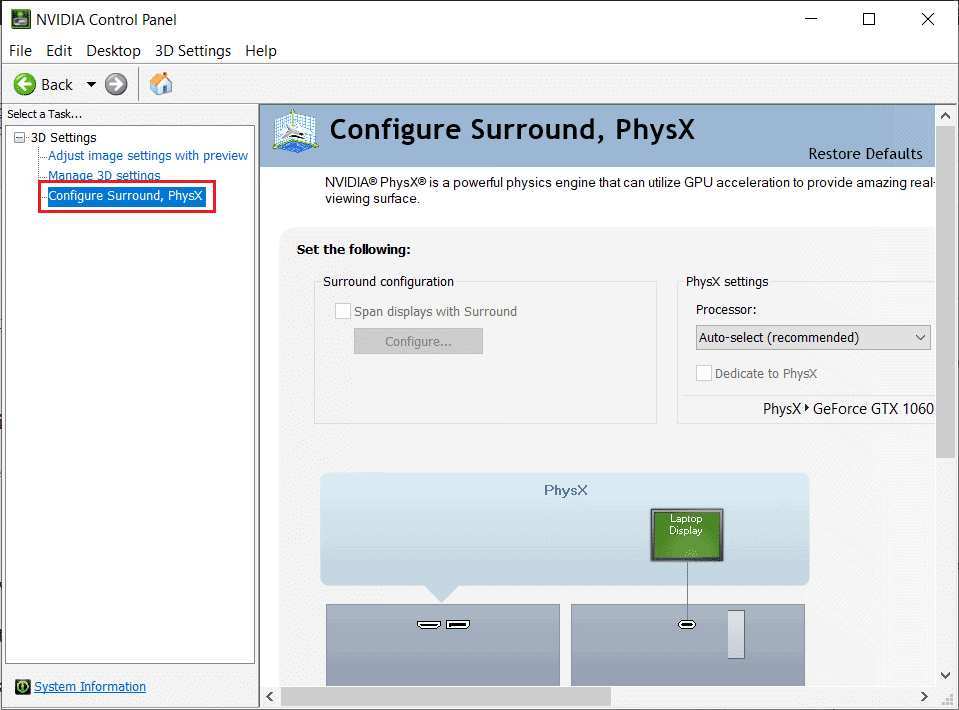
Image source: Bing (Web (fair-use with source credit))
For AMD (Eyefinity):
- Open AMD Software: Adrenalin Edition.
- Go to Display tab.
- Click Create Eyefinity Display Group.
- Arrange your displays and configure the resolution.
- Apply the settings.
Setting your primary display and refresh rate
Even in extended mode, you need to verify each monitor is running at its full potential:
- In Windows Display Settings, click on each monitor individually.
- Scroll to Display resolution and confirm it matches the monitor's native resolution.
- Click Advanced display settings.
- Set the Refresh rate to the maximum your monitor supports (144Hz, 240Hz, etc.).
Windows sometimes defaults new monitors to 60Hz even when they're capable of much more. Always check this manually.
Game-specific settings you need to adjust
Most games need one or two tweaks to play nicely with a dual monitor setup:
- Display mode: Use Borderless Windowed instead of Fullscreen Exclusive. This prevents the game from locking your cursor to one screen and makes alt-tabbing seamless.
- Resolution: Set to your primary monitor's native resolution (not the spanned resolution unless you configured Surround/Eyefinity).
- Display output: Some games let you choose which monitor to render on. Make sure it's set to your primary.
If a game launches on the wrong screen in borderless windowed mode, a quick Win+Shift+Left/Right Arrow moves it to the other monitor instantly.
When You Should NOT Span the Game Across Both Screens
Spanned gaming looks incredible in screenshots. In practice, it's the wrong choice for most people. Here's when to avoid it.
The bezel problem, your crosshair sits dead center
This is the single biggest issue with spanned gaming. The gap between your two monitors sits right in the center of your view. In a first-person shooter, that's exactly where your crosshair lives.
You're literally aiming through a black bar.
Bezel correction in NVIDIA Surround and AMD Eyefinity compensates for this by rendering extra pixels behind the bezel. It helps, but it doesn't solve the problem. Your crosshair still disappears into the gap unless you use a crosshair overlay or offset your aim.
For competitive gaming, this is a dealbreaker. You're actively putting yourself at a disadvantage. Stick with a single monitor for competitive play and save spanning for immersive single-player experiences.
Performance cost of doubled resolution
We covered the pixel math earlier. Doubling your resolution means doubling the GPU workload. A card that pushes 100fps at 1440p on a single monitor might struggle to hit 55-60fps at spanned 5120×1440.
If you're running a mid-range GPU like an RTX 4060 or RX 7600, spanned gaming at 1440p-equivalent resolutions will push the card hard. You'll need to lower settings significantly to maintain playable frame rates.
Adaptive sync conflicts and frame pacing issues
G-Sync and FreeSync can behave unpredictably in spanned mode. Some users report that adaptive sync stops working entirely after enabling Surround or Eyefinity. Others get micro-stutter that wasn't present on a single display.
This varies by GPU, driver version, and monitor combination. There's no universal fix. If you rely on smooth variable refresh rate gaming, test thoroughly before committing to a spanned setup.
Games that simply don't support spanned resolutions
Many modern games detect ultra-wide or non-standard resolutions and either refuse to run properly or display black bars. Older games are especially problematic. Some titles lock the field of view, making the stretched image look distorted.
Always check community forums for your specific games before enabling spanned mode. PCGamingWiki maintains resolution compatibility lists for thousands of titles.
The Mixed Refresh Rate Trap (and How to Avoid It)
This is the most common performance complaint with dual monitor setups. You've got a 144Hz gaming monitor and a 60Hz secondary. Everything feels wrong.
Why 144Hz + 60Hz causes micro-stutter
When Windows composes the desktop across two monitors at different refresh rates, it has to synchronize them. The Desktop Window Manager (DWM) ties the slower monitor's refresh cycle into the presentation pipeline. This can cause micro-stutter on the faster monitor, even when you're gaming fullscreen on it.
The issue is most noticeable when you have hardware-accelerated content on the secondary monitor. A YouTube video, a Twitch stream, or even an animated Discord embed can trigger it.
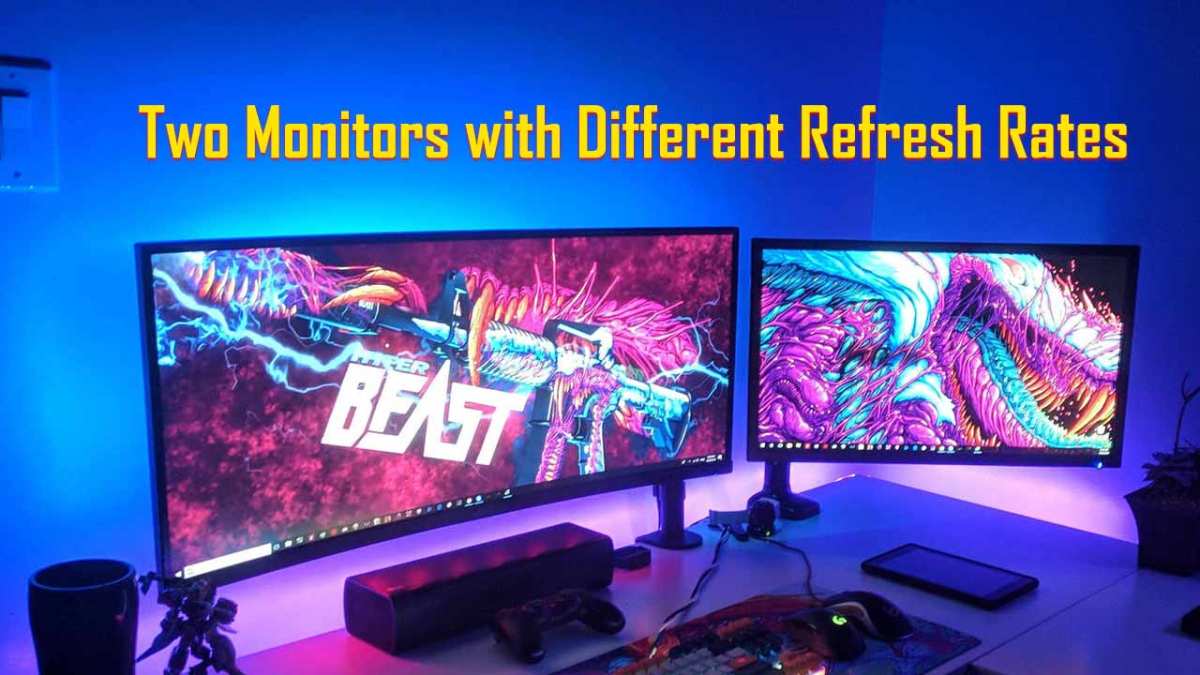
Image source: Bing (Web (fair-use with source credit))
Fixes that actually work
Try these in order, from simplest to most effective:
- Disable hardware acceleration in your browser and Discord. This stops the secondary monitor from triggering GPU composition at its own refresh rate.
- Run the game in exclusive fullscreen mode instead of borderless windowed. This can bypass DWM's compositing for the game display.
- Set both monitors to the same refresh rate if your secondary supports it. Some 60Hz monitors can be overclocked to 75Hz, which helps.
- Use a separate GPU for the secondary monitor if you have an old card lying around. This completely isolates the refresh rate domains.
When you just need matching monitors
If you're planning to span games across both displays, matching monitors are essentially mandatory. Same resolution, same refresh rate, same panel type if possible. The bezels will still be there, but at least the image will be consistent.
For extended desktop use, mismatched refresh rates are manageable with the fixes above. Don't let anyone tell you that you need matching monitors just to have Discord on a second screen.
Dual Monitors vs. One Ultra-Wide: Which Setup Actually Wins for Gaming
This is the question that comes up in every dual monitor discussion. Both setups give you more screen space. But they serve different needs.
Side-by-side comparison
| Factor | Dual Monitors | Single Ultra-Wide |
|---|---|---|
| Total resolution | 5120×1440 (matched 1440p pair) | 3440×1440 (standard) or 5120×1440 (super ultra-wide) |
| Bezel in center | Yes (spanned) / No (extended) | None |
| Cost (matched pair) | $400-$800 for two good 1440p monitors | $600-$1200 for equivalent ultra-wide |
| GPU load (spanned) | High (7.4M pixels) | Moderate (4.9M pixels at 3440×1440) |
| Multitasking flexibility | Excellent (separate screens) | Good (window management software needed) |
| Competitive gaming | Single monitor unaffected | Full screen available |
| Sim immersion | Good with spanning | Better (no bezel gap) |
Cost breakdown
Two solid 27-inch 1440p 165Hz monitors can be had for $500-$700 total as of 2026. A comparable 34-inch ultra-wide with the same specs runs $600-$1000. The price difference isn't huge, but dual monitors give you more flexibility.
A 32-inch 3840×1600 super ultra-wide matches the pixel count of two 1440p monitors more closely. Those run $900-$1500, making them the premium option.
When dual monitors make more sense
- You want one screen for gaming and one for everything else
- You're on a tighter budget and can repurpose an existing monitor
- You need maximum multitasking flexibility
- You play competitive games on a single screen and use the second for comms
When a single ultra-wide or 32:9 is the better call
- You want immersion without a bezel gap
- You play sims (racing, flight, space) as your primary genre
- You prefer a cleaner desk with one monitor, one set of cables
- You don't need to isolate applications on separate physical screens
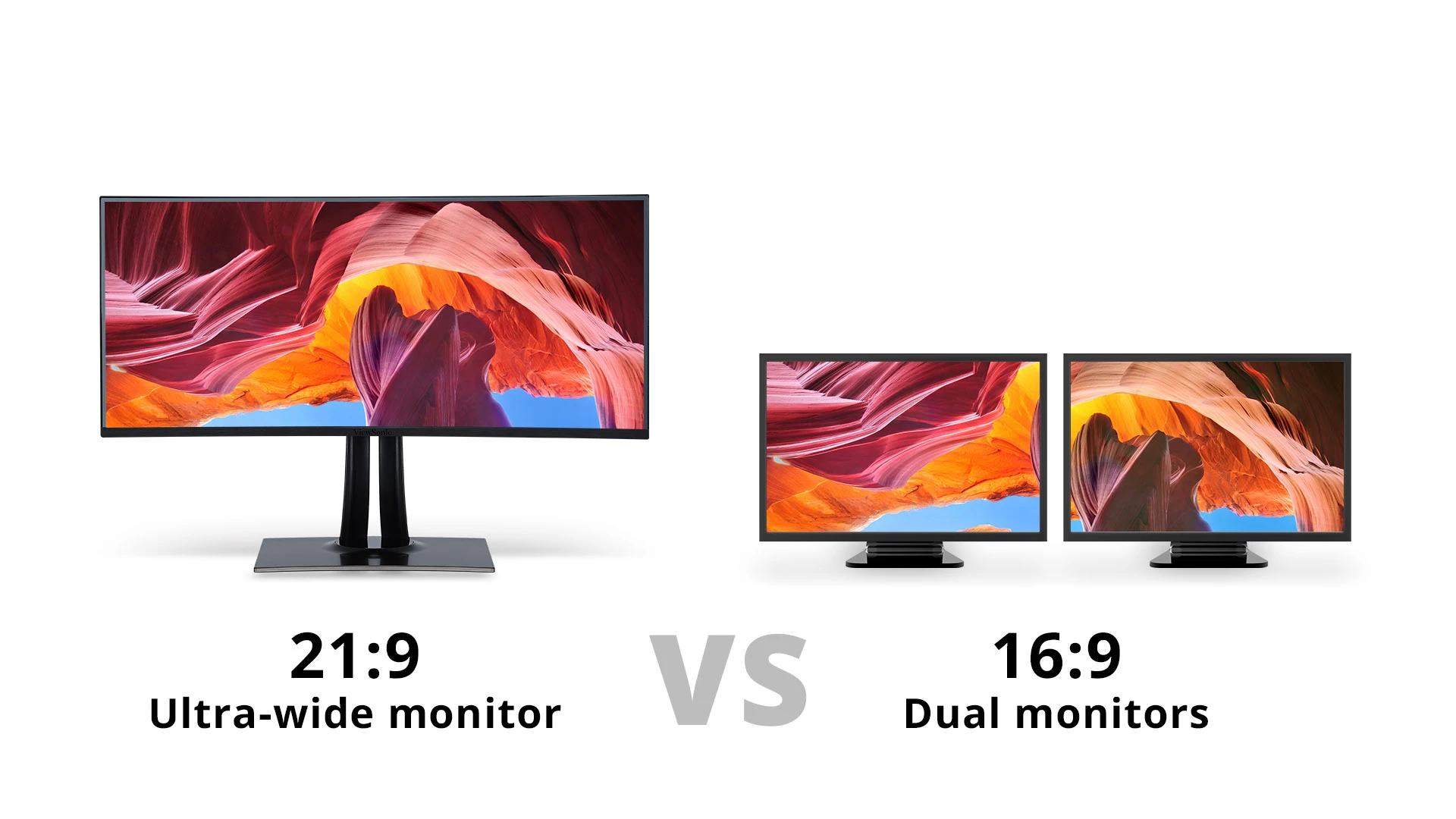
Image source: Bing (Web (fair-use with source credit))
Real Use Cases: Who Benefits Most from Dual Monitor Gaming
Not everyone gets the same value from a second monitor. Here's how different types of gamers use the setup.
The competitive gamer
Uses a single high-refresh monitor for the game. The second screen runs Discord, team comms, or a stream dashboard. Spanning is never used.
The second monitor is purely functional, not part of the gaming experience.
The sim racer or flight simmer
This is where spanned gaming shines. The wide field of view adds genuine immersion and situational awareness. A matched pair of monitors with thin bezels works well here.
Many sim enthusiasts even run three monitors for a full 180-degree view.
The streamer
The gaming monitor runs the game. The second monitor runs OBS, Streamlabs, chat, and alert dashboards. Some streamers use a third monitor for Discord or a browser.
Extended desktop is the only viable option here. Spanning would be pointless.
The "I just want Discord visible" casual gamer
The simplest use case. Extend the desktop, drag Discord to the second screen, game on the primary. No spanning, no bezel correction, no fuss.
This is what 80% of dual monitor gaming actually looks like in practice.
Common Mistakes That Ruin the Experience
These are the errors we see over and over. Avoid them and you'll skip most of the troubleshooting headaches.
Plugging one monitor into the motherboard, one into the GPU
This routes one display through your CPU's integrated graphics. The result is stuttering, crashes, and games refusing to detect the correct GPU. Both monitors must connect to the same dedicated graphics card.
Forgetting to set the primary display
Without a designated primary monitor, games launch on whichever display Windows decides. Always explicitly set your gaming monitor as the primary display in Windows settings.
Ignoring scaling when monitors have different DPI
A 27-inch 1440p monitor and a 24-inch 1080p monitor have different pixel densities. Windows scaling can make text and UI elements look tiny on one screen and huge on the other. Adjust scaling individually in Display Settings for each monitor.
Running fullscreen exclusive instead of borderless windowed
Fullscreen exclusive locks your cursor to the game monitor and can cause crashes when you alt-tab. Borderless windowed lets you move freely between monitors and switch applications without issues.
Using the wrong cable and capping your refresh rate
An HDMI 2.0 cable on a 240Hz monitor will cap you at 60Hz or 144Hz depending on the monitor's fallback behavior. Always verify your cable supports the resolution and refresh rate you want. Check the cable specs, not just the connector shape.
Quick-Reference Specs and Troubleshooting
Cable and port cheat sheet
| Your Goal | Best Cable | Why |
|---|---|---|
| 1080p @ 240Hz gaming | DisplayPort 1.4 | HDMI 2.0 tops out here |
| 1440p @ 144Hz gaming | DisplayPort 1.4 | Reliable, widely supported |
| 1440p @ 240Hz gaming | DisplayPort 1.4 or HDMI 2.1 | Both work, DP preferred |
| 4K @ 120Hz gaming | HDMI 2.1 or DP 2.1 | DP 1.4 needs DSC compression |
| Secondary monitor (60Hz) | HDMI 2.0 | Perfectly adequate |
Minimum GPU recommendations by resolution
| Setup | Recommended GPU | Notes |
|---|---|---|
| Extended desktop (1080p + 1080p) | RTX 4060 / RX 7600 | Any modern mid-range card |
| Extended desktop (1440p + 1080p) | RTX 4060 Ti / RX 7700 XT | Primary gaming at 1440p |
| Spanned 5120×1440 | RTX 4070 Ti / RX 7800 XT | Doubled pixel count needs headroom |
| Spanned 7680×1080 | RTX 4070 / RX 7700 XT | Lower per-monitor res, still demanding |
Most common problems and one-line fixes
- Game launches on wrong screen: Set primary display in Windows, or use Win+Shift+Arrow to move it.
- Second monitor not detected: Check cable connections, try a different port on the GPU, update drivers.
- Stutter with video on secondary: Disable hardware acceleration in browser and Discord.
- Refresh rate capped at 60Hz: Check cable specs, use DisplayPort, verify in Advanced Display Settings.
- Mouse gets stuck at screen edge: Match monitor arrangement in Display Settings to physical layout.
- G-Sync not working in spanned mode: Check NVIDIA Control Panel Surround settings, update to latest driver.
Frequently Asked Questions
Can I use two monitors with different resolutions?
Yes. In extended desktop mode, each monitor runs at its own native resolution. Windows handles the scaling.
For spanned mode, matching resolutions are required for a seamless image.
Does a second monitor lower my frame rate?
In extended desktop mode, the impact is minimal, around 2-5%. In spanned mode, expect a 30-50% drop because you're rendering roughly twice the pixels.
Do both monitors need to match for gaming?
They only need to match if you're spanning the game across both. For extended desktop gaming on one screen with apps on the other, mismatched monitors work perfectly fine.
Should I use DisplayPort or HDMI for gaming?
DisplayPort is preferred for PC gaming monitors. It supports higher refresh rates and adaptive sync more reliably. HDMI 2.1 is equally capable but DisplayPort remains the standard.
Can I span a game across monitors without NVIDIA Surround or AMD Eyefinity?
Some games support custom resolutions that span displays without GPU-level spanning software. But Surround and Eyefinity provide the most consistent results across different titles.
Is dual monitor gaming worth it for competitive play?
For competitive gaming, use a single high-refresh monitor for the game and a second for comms and Discord. Spanning across both monitors puts the bezel in your crosshair and hurts performance.
Final Verdict: The Right Setup for Your Situation
Start with extended desktop mode. It works with any two monitors, costs nothing extra, and handles 90% of what gamers actually need. Add Discord, a browser, or OBS to the secondary screen and call it done.
Only reach for spanned mode if you play immersive single-person games (racing, flight sims, RPGs) and both monitors match in resolution and refresh rate. The bezel gap and GPU performance cost make it a poor fit for competitive FPS or MOBA players.
If you're still deciding hardware, a good 27-inch 1440p 165Hz monitor paired with literally any functional secondary screen will serve you well for years. That combination covers competitive gaming, casual play, and streaming without breaking the bank as of 2026.

Similar Posts