Do Dual Monitors Affect Gaming Performance
Do dual monitors affect gaming performance? Yes, but the impact ranges from virtually zero to noticeably annoying depending on your specific setup. Most gamers lose somewhere between 2 and 5 FPS with a second monitor connected and idle.
That number climbs fast when you start playing video, running streams, or keeping hardware-accelerated apps open on that other screen.
The real question isn't whether there's an impact. It's whether that impact matters for your hardware, your games, and how you use your second display. Let's break down exactly what's happening under the hood so you can make the right call for your setup.

Image source: Wikimedia Commons / RiseAngel (CC BY-SA)
The Short Answer: Do Dual Monitors Affect Gaming Performance?
Dual monitors can affect gaming performance. The typical impact is 2 to 5 FPS with an idle second monitor. Playing video on the second screen can cause stuttering and frame drops.
The effect depends on your GPU, VRAM, and display settings.
What Actually Happens When You Game on Dual Monitors
Your GPU has to render two separate desktop environments simultaneously. Even when your game only runs on one screen, the graphics card still composites a full framebuffer for both displays. This happens through the Desktop Window Manager on Windows, which uses GPU resources to manage the desktop composition for every connected monitor.
Here's where VRAM enters the conversation. Each display's framebuffer consumes video memory. A single 1080p display at 32-bit color depth uses roughly 8 MB of VRAM just for the framebuffer.
A 4K display needs about 32 MB. That sounds trivial until you factor in the additional compositing surfaces, cached windows, and background applications that also live in VRAM.
The bigger issue is memory bandwidth and compositor overhead. Your GPU's memory controller must scan out both displays every refresh cycle. At 60 Hz on two monitors, that's 120 scan-out operations per second.
Push both displays to 144 Hz and you're looking at 288 operations per second. This constant memory traffic competes with your game's own VRAM access patterns.
Modern GPUs handle this workload efficiently. The performance cost on a mid-range card like an NVIDIA RTX 4060 or AMD Radeon RX 7600 typically sits in that 2-5% range during actual gameplay. Budget GPUs and older cards feel it more because they have less VRAM headroom and narrower memory buses to begin with.
When Dual Monitors Barely Matter
Not every dual-monitor setup will cost you meaningful frames. Several scenarios keep the performance impact right at the floor.
Your second monitor is idle or showing a static desktop. If nothing is animating on that second screen, the GPU's compositing workload stays minimal. The framebuffer exists in VRAM, but the compositor isn't doing heavy work to maintain it.
You have a modern mid-range or better GPU. Cards with 8 GB or more of VRAM and a 128-bit or wider memory bus absorb the overhead without breaking a sweat. An RTX 4070 or RX 7800 XT will barely register the second display's existence.
You're playing at 1080p on a 1080p primary monitor. Lower resolution means smaller framebuffers, less memory bandwidth consumed, and less compositor work overall.
Your game runs in exclusive fullscreen mode. This bypasses the Desktop Window Manager entirely for the primary display. The game talks directly to the GPU's display output, which eliminates compositor overhead on that screen. The second monitor still exists in VRAM, but the DWM's workload drops significantly.
Your second monitor runs at 60 Hz while your gaming monitor runs at 144 Hz or higher. Mismatched refresh rates don't inherently cause problems, but a 60 Hz secondary display keeps the scan-out frequency lower on that pipeline, reducing the memory bandwidth competition.
When Dual Monitors Will Cost You Frames
Now let's talk about the scenarios where you'll actually notice the hit. These are the setups that cause complaints on forums and benchmark threads.
Video playback on the second screen. Watching YouTube, Twitch, or any streaming video on your second monitor forces the GPU to decode video frames and composite them continuously. Hardware-accelerated decoding helps, but the compositor still has to blend those frames into the desktop surface. This is the single most common cause of noticeable FPS drops and micro-stutter in dual-monitor gaming setups.
Hardware-accelerated browsers with multiple tabs. Chrome, Edge, and Firefox all use GPU acceleration by default. A browser with several active tabs, especially ones with animated ads or embedded video, can consume 500 MB to over 1 GB of VRAM on its own. That's memory your game was using a moment ago.
Mismatched refresh rates with borderless windowed mode. Running your game in borderless windowed while your second monitor sits at 60 Hz can introduce stutter. The DWM composites to the lowest common denominator in some scenarios, and frame pacing suffers. This is a well-documented issue with Windows 10 and Windows 11's desktop composition pipeline.
Low VRAM cards (4 GB or less). If your GPU only has 4 GB of VRAM, your game might be using 3.5 GB before you even open a browser. Adding a second display's framebuffer and any background compositing pushes you closer to the VRAM ceiling. Once you hit that wall, the GPU starts swapping to system RAM, and performance falls off a cliff.
High-resolution secondary displays. Running a 4K second monitor alongside a 1080p or 1440p gaming display increases the VRAM and bandwidth cost of that secondary framebuffer. The resolution mismatch also forces the GPU to handle two different scaling workloads simultaneously.
| Scenario | Typical FPS Impact | Stutter Risk |
|---|---|---|
| Second monitor idle (desktop only) | 1-3% | Very low |
| Static content (documents, images) | 2-4% | Low |
| Video playback on second screen | 5-15% | Moderate to high |
| Hardware-accelerated browser, multiple tabs | 3-10% | Moderate |
| 4K second monitor + 1080p gaming | 3-8% | Low to moderate |
| Low VRAM card (4GB) with dual displays | 5-20%+ | High |
Video, Streaming, and Hardware Acceleration: The Hidden FPS Killers
This is where most people get caught off guard. You're gaming fine on dual monitors until you open a Twitch stream or YouTube video on the other screen. Suddenly your frame rate tanks and your game feels choppy.
Here's why.
Video decoding is a GPU-intensive task. Even with hardware decoding blocks handling the heavy lifting, the decoded frames still need to be composited into the desktop surface by the DWM. That means the compositor is now working on two active, constantly updating surfaces instead of one.
Your GPU's 3D engine (running your game) and its video decode engine and its compositor are all competing for the same memory bandwidth and processing time.
Hardware acceleration in browsers makes this worse, not better, in many dual-monitor scenarios. When Chrome uses GPU acceleration, it allocates VRAM for its rendering pipeline. A single YouTube tab at 1080p can consume 200-400 MB of VRAM.
Add a few more tabs with any kind of dynamic content and you're looking at 1 GB or more of VRAM dedicated to your browser alone.
Image source: Bing (Web (fair-use with source credit))
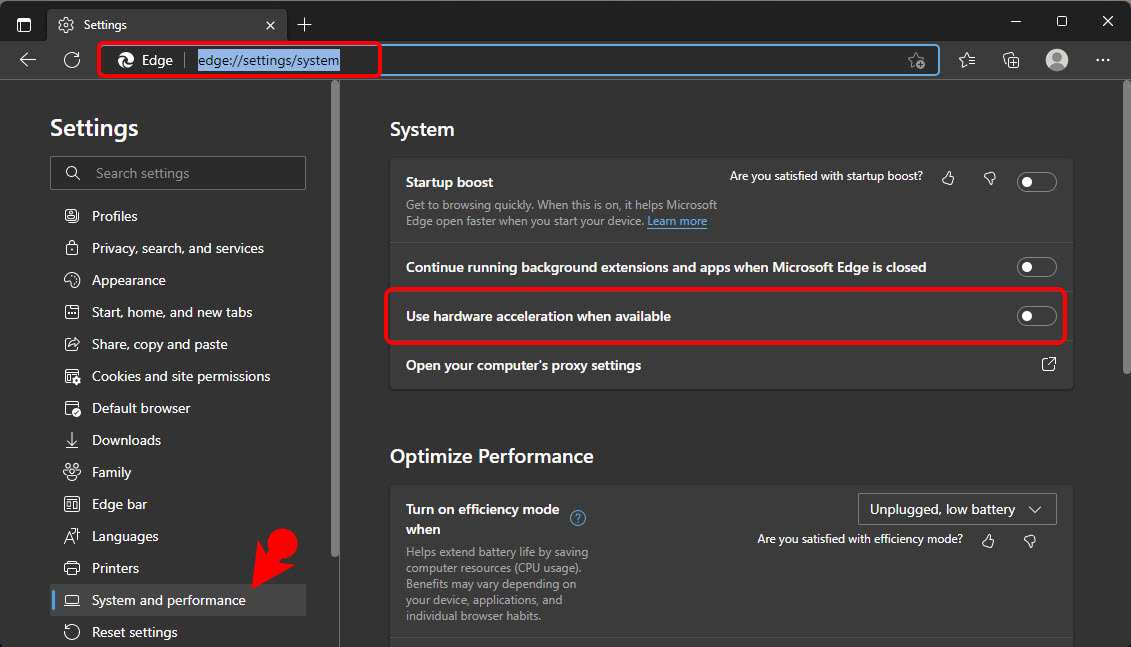
The fix is straightforward. You can disable hardware acceleration in your browser's settings. In Chrome, go to Settings > System and toggle off "Use hardware acceleration when available." This shifts the video decoding workload from your GPU to your CPU.
Modern CPUs handle 1080p and even 4K video decode without issue, and your GPU gets back to doing what you bought it for: running your game.
Another option is to use a lighter browser on your second screen. A browser with less aggressive GPU resource usage will cost you less performance. Or simply close the second-screen video while you're in a competitive match and reopen it between rounds.
Borderless Windowed vs. Exclusive Fullscreen: Why It Matters More Than You Think
The display mode your game runs in changes the entire multi-monitor performance equation. This is one of the most misunderstood aspects of dual-monitor gaming, and getting it right can recover most of your lost frames.
Exclusive fullscreen gives the game direct access to the GPU's display output. The Desktop Window Manager steps aside. The game's frames go straight to the monitor without compositing overhead.
This is why competitive players almost always use exclusive fullscreen: it reduces input lag and eliminates the DWM's performance cost on the primary display.
The downside? Alt-tabbing is slower because the GPU has to switch display modes. And your second monitor may flicker or briefly go black during the transition.
Borderless windowed mode runs the game as a window that happens to cover the entire screen. The DWM composites the game's output along with the desktop and any other windows. This makes alt-tabbing instant and makes it easier to interact with a second monitor.
But it adds compositor overhead to every frame your game produces.
On a dual-monitor setup, borderless windowed mode means the DWM is compositing for both displays with the game's framebuffer as one of the inputs. That's more work than compositing a single display. The performance cost is typically 3-8% compared to exclusive fullscreen on the same hardware.

Image source: Wikimedia Commons / Entwickler: Forgotten Empires Tantalus Medi Wicked Witch World's Edge CaptureAge Publisher: Xbox Game Studios
There's also Windows Game Mode and Hardware-Accelerated GPU Scheduling (HAGS) to consider. Game Mode, found in Windows Settings > Gaming, prioritizes your game's process for CPU and GPU time. HAGS, found in Graphics Settings, moves GPU scheduling from the Windows kernel to the GPU's own hardware scheduler.
Both features can help reduce overhead in borderless windowed mode, though results vary by game and hardware combination.
If you're serious about competitive gaming on a dual-monitor setup, exclusive fullscreen is still the way to go. If you value convenience and seamless alt-tabbing, borderless windowed with Game Mode and HAGS enabled is a reasonable compromise that keeps most of your performance intact.
How to Check the Actual Impact on Your Setup
Numbers on a forum thread are someone else's numbers. Your hardware, your drivers, your background apps, and your game engine all shape the actual impact. Measuring it yourself takes about five minutes.
MSI Afterburner with RivaTuner Statistics Server is the go-to tool. It shows real-time GPU usage, VRAM consumption, frame rate, and frame time graphing. Install both together since Afterburner bundles RivaTuner.
Set up the on-screen display to show GPU usage percentage, VRAM usage in MB, FPS, and frame time. Launch your game and play for a few minutes on a demanding scene. Note the averages and the 1% low FPS.
Now enable your second monitor's content. If you normally game with a browser open on that screen, reproduce your exact setup. If you watch videos while gaming, play a 1080p YouTube video on the second display.
Run the same demanding scene and compare the numbers. Specifically look at VRAM usage delta and 1% low frame times. Average FPS tells part of the story.
Frame time consistency tells you whether you'll feel the difference.
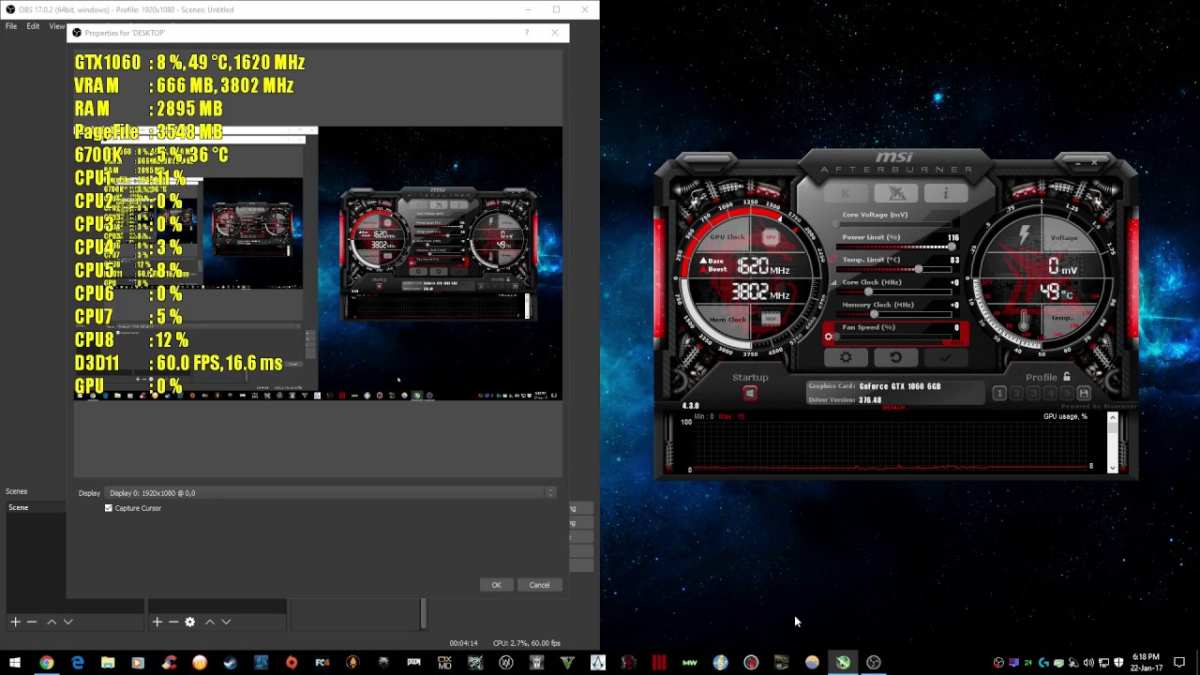
Image source: Bing (Web (fair-use with source credit))
HWiNFO64 gives deeper sensor data if you want to dig further. It tracks per-process GPU usage, memory controller load, and power draw. This helps identify whether the bottleneck is VRAM capacity, memory bandwidth, or pure shader load from compositor overhead.
Document your baseline numbers before adding second-screen load. Screenshot or write them down. This gives you a clear before-and-after comparison instead of relying on subjective feel, which is notoriously unreliable for small frame rate differences.
Quick Fixes to Minimize Dual-Monitor Performance Loss
You don't need to rip out your second monitor. A few targeted changes recover most lost frames with minimal hassle.
Disable hardware acceleration in browsers. Chrome, Edge, Firefox, and Brave all have this toggle. In Chrome: Settings > System > turn off "Use hardware acceleration when available." Your CPU handles video decode instead of your GPU. On any modern processor, this costs you nothing in video quality and frees up GPU resources for your game.
Use exclusive fullscreen mode in your game. This bypasses the Desktop Window Manager entirely. You trade slightly slower alt-tabbing for lower input lag and reduced compositor overhead. The setting is usually in the game's video or display options.
Disable unnecessary background apps on the second screen. Every open application with a live window consumes some GPU compositing time. Close what you're not actively using. A second monitor stuffed with Discord, Spotify, browser tabs, and a streaming overlay adds up fast.
Set your gaming monitor as the primary display. Some games and applications default to rendering on the designated primary monitor. Make sure your high-refresh-rate gaming panel holds that role in Windows display settings.
Disable HAGS if you experience stutter. Hardware-accelerated GPU scheduling helps in some titles and hurts in others. Toggle it off in Windows Settings > Display > Graphics > Change default graphics settings. Test both configurations and keep whichever gives you smoother frame times.
Toggle off the second monitor during competitive matches. Press Win+P and select "PC screen only" before launching a ranked game. This completely removes the second display from the GPU's workload. Press Win+P again afterward and select "Extend" to restore your dual-monitor setup.
Dual Monitors vs. Ultrawide: Which Is Better for Gaming and Productivity?
This comparison comes up constantly. Both setups give you more screen real estate than a single monitor. They handle that extra space very differently under the hood.
A single ultrawide monitor (typically 34" at 3440×1440 or 38" at 3840×1600) is one display pipeline. Your GPU renders one framebuffer. The DWM composites one desktop.
There's no second display competing for scan-out bandwidth or VRAM allocation. From a pure gaming performance standpoint, an ultrawide costs you the same frames as a single monitor at the same resolution.
Dual monitors create two independent display pipelines. Your GPU manages two framebuffers, two scan-out cycles, and two sets of compositor surfaces. That's the source of the performance overhead we've discussed.
But dual monitors offer flexibility that a single ultrawide can't match.
| Factor | Dual Monitors | Ultrawide Single Monitor |
|---|---|---|
| Gaming performance cost | 2-15% depending on usage | 0% (same as single monitor) |
| Productivity flexibility | High (separate screen management) | Moderate (one continuous desktop) |
| Cost (mid-range) | Often cheaper | Usually more expensive |
| Bezel in the middle | Yes | No |
| Resolution matching | Can mix resolutions | Single fixed resolution |
| VRAM overhead | Higher (two framebuffers) | Lower (one framebuffer) |
| Competitive gaming friendliness | Mixed (bezel placement matters) | Generally preferred |
Dual monitors win on raw productivity flexibility. You can turn one screen vertically for coding or reading. You can run a full-screen application on each display without window management headaches.
Budget-wise, two decent 27" 1440p panels often cost less than a single high-quality ultrawide.
Ultrawide wins on simplicity and clean gaming visuals. No bezel cutting through the center of your field of view. No mismatched color calibration between panels.
Lower GPU overhead. Better immersion in racing games and flight sims where a wide field of view matters.
For competitive FPS and MOBA players, dual monitors with a primary gaming panel and a secondary utility panel remains the most common setup. The performance cost at 1080p or 1440p on modern hardware is small enough that the convenience trade-off makes sense.
For immersive single-player games, sims, and anyone who hates managing windows across two bezels, a single ultrawide delivers a cleaner experience with zero performance penalty beyond what its resolution demands.
Who Should Worry and Who Can Ignore This Entire Topic
Not everyone needs to think about this. Let's sort it out based on your actual situation.
If you have a GPU with 8 GB or more VRAM and you game at 1080p or 1440p, you can largely ignore the performance impact. The overhead of a second monitor stays in that 2-5% range on modern mid-range and better cards. Your frame rates are high enough that you won't notice.
If you have a 4 GB VRAM card or an older GPU with a narrow memory bus, pay attention. Every megabyte of VRAM matters on these cards. A second monitor's framebuffer plus background compositing can push you into uncomfortable territory, especially in newer titles that already tax your VRAM.
If you play competitive titles (Valorant, CS2, Apex Legends, Rainbow Six Siege) at high refresh rates, every frame counts. The compositor overhead from borderless windowed mode on dual monitors can add input lag that affects your play. Use exclusive fullscreen on your primary display.
Disable the second monitor during ranked sessions if you're chasing every competitive advantage.
If you play single-player, casual, or modded games at 60-120 FPS, the impact is almost certainly irrelevant to your experience. Keep both monitors on. Enjoy your setup.
If you stream content while gaming, the calculus changes. Running OBS previews, chat overlays, and alerts on the second screen adds real GPU and VRAM load. You'll want to measure the impact specifically for your streaming configuration and potentially disable hardware acceleration in whatever browser you use for chat.
If you primarily use your second monitor for static content (documents, PDFs, code editors, music players), the performance impact is negligible. The compositor isn't doing heavy work on static windows. Game on without worry.
Frequently Asked Questions
Does a second monitor lower your FPS?
Yes, but the drop is usually small. An idle second monitor typically costs 2 to 5 FPS. Playing video or running hardware-accelerated apps on that screen can push the loss to 5 to 15 FPS depending on your GPU.
Does using two monitors use more VRAM?
Yes. Each connected display requires a framebuffer in VRAM. A 1080p display uses roughly 8 MB.
A 4K display uses about 32 MB. The Desktop Window Manager also allocates additional compositing surfaces on top of that base cost.
Should I turn off my second monitor when gaming?
It depends on how competitive you are about your frame rates. For casual gaming, no. For ranked competitive play, disabling the second monitor via Win+P removes every bit of multi-display overhead from your GPU.
Does display port vs HDMI affect dual monitor performance for gaming?
Not meaningfully for frame rate. DisplayPort 1.4 and HDMI 2.1 both support high resolutions and refresh rates without compression. The connection type doesn't change the compositor's workload or VRAM usage.
Use whatever ports your GPU and monitors support natively.
Does HDR on one monitor affect gaming performance on the other?
HDR increases the compositor's workload because it requires tone mapping and higher bit-depth surfaces. If one monitor runs HDR content while you game on the other, you may see a small additional performance hit beyond the standard multi-monitor overhead.
Is it better to use two matching monitors for gaming?
Matching monitors eliminate color calibration mismatched and refresh rate complications. But from a pure performance standpoint, mismatched resolutions and refresh rates don't inherently cause problems. The GPU handles each display pipeline independently.
The main concern with mismatched refresh rates is potential stutter in borderless windowed mode.
Final Verdict: Should You Keep Both Monitors On While Gaming?
For most people, yes. Keep both monitors on and game without worry.
If you have a modern GPU with 8 GB or more VRAM, the performance cost of an idle second monitor sits at 2 to 5 percent. That's within the margin of normal frame rate variance. You won't feel it.
You probably won't even notice it on a frame counter.
The exceptions are worth knowing. Competitive players chasing every frame should disable the second monitor during ranked sessions. Anyone running video or heavy browser content on the second screen while gaming should disable hardware acceleration in their browser.
Gamers on low-VRAM cards need to watch their VRAM usage carefully and may need to compromise.
But for the vast majority of dual-monitor gamers in 2026, the convenience of having that second screen for Discord, guides, music, or streaming chat far outweighs the tiny performance tax. Your second monitor isn't killing your gaming performance. Your browser's hardware acceleration and a few livestreams on the other screen are the real culprits.
Fix those two things and you get your dual-monitor convenience with virtually no cost.

Similar Posts































