Do Dual Monitors Need DisplayPort
Do dual monitors need displayport? Not always, but whether you can skip it depends on what resolution and refresh rate you're running, what ports your graphics card and monitors actually support, and how you want to connect the whole setup together. For basic productivity at 60Hz, you'll probably be fine without it.
For anything more demanding, you'll want at least one DisplayPort connection in the mix.
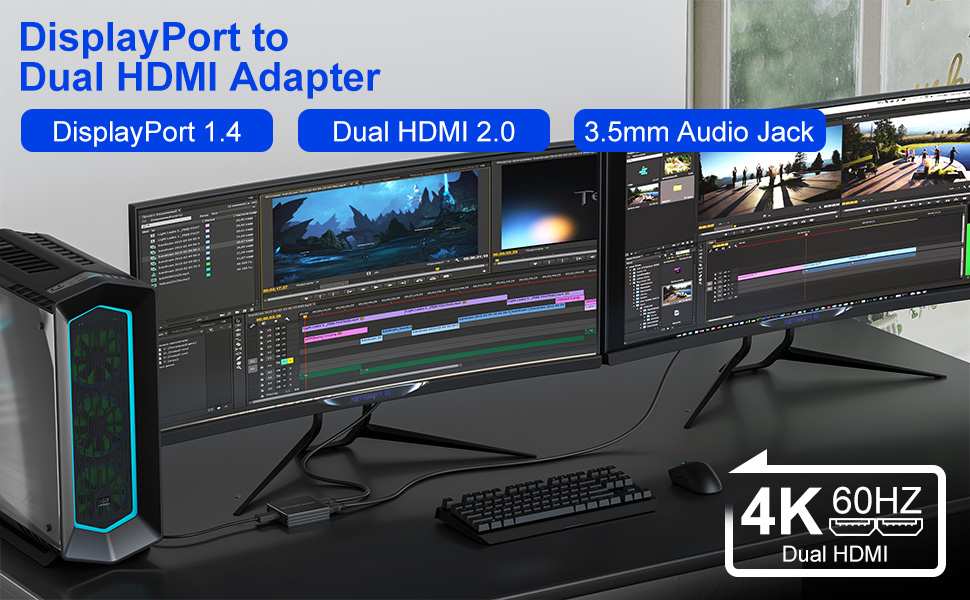
DisplayPort 1.4, released by VESA back in 2016, supports up to 25.92 Gbps of bandwidth and handles 4K at 120Hz or 8K at 60Hz with Display Stream Compression. HDMI 2.0, which is still extremely common on monitors and GPUs, tops out at 18 Gbps and can't push 4K beyond 60Hz without compression. That bandwidth gap is where most people run into trouble without even knowing why.
Let's break down your specific situation so you make the right call.
Quick Answer
No, dual monitors do not always need DisplayPort. HDMI works fine for standard 60Hz setups. You likely need DisplayPort for high refresh rates above 120Hz at 1440p or 4K.
Adaptive sync features like G-Sync often require DisplayPort. Daisy chaining two monitors also requires DisplayPort with MST support.
What Your GPU Ports Actually Tell You
Your graphics card is the starting point for every dual-monitor decision. The number and type of output ports on your GPU determine what you can connect without adapters or compromises.
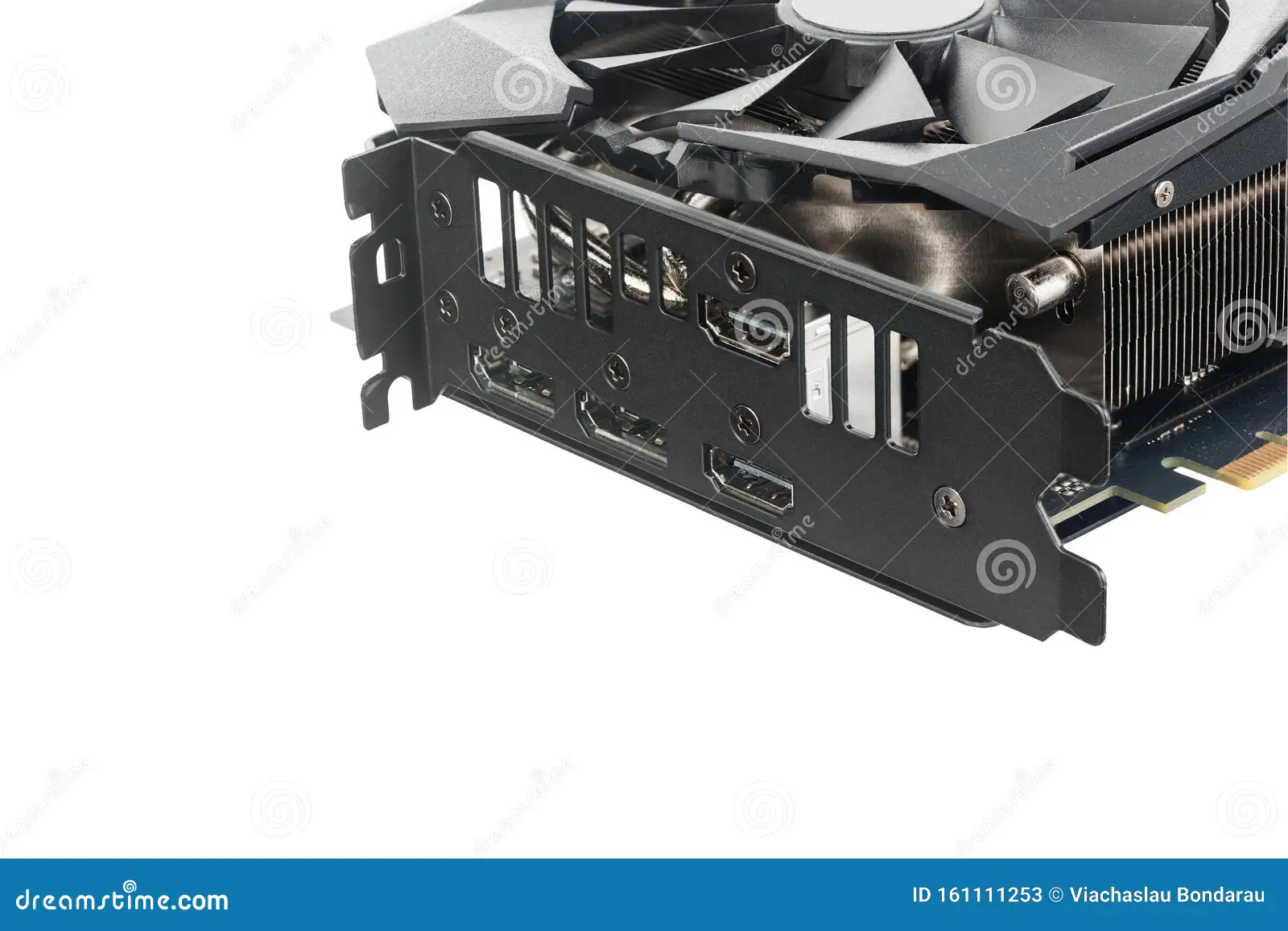
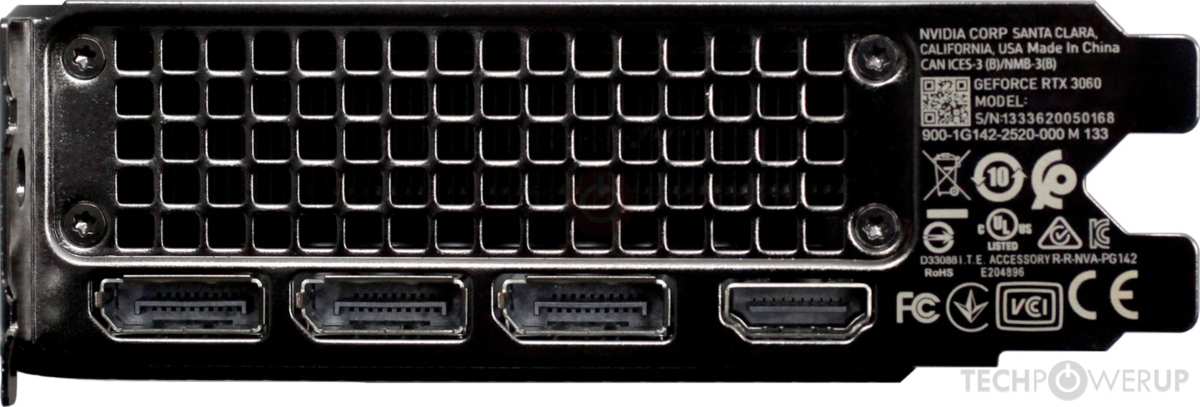
Most modern GPUs ship with a mix of DisplayPort and HDMI outputs. A typical mid-range card might have three DisplayPorts and one HDMI port. Higher-end cards sometimes include USB-C with DisplayPort Alt Mode as well.
Budget or older cards may only offer HDMI and DVI, which limits your options significantly.
Here's what you need to check.
First, look at the physical outputs on the back of your card. Count how many DisplayPorts you have versus HDMI ports. Second, check your GPU's specifications on the manufacturer's website to confirm which DisplayPort version each port supports.
A card advertising "DisplayPort 1.4" can handle more bandwidth than one limited to DisplayPort 1.2.
Why does this matter for dual monitors? If your GPU has only one DisplayPort and you need that single port for your primary high-refresh-rate gaming monitor, your second monitor will have to run on HDMI. That's perfectly fine as long as your second monitor doesn't need more bandwidth than HDMI can provide.
If your GPU has two or more DisplayPorts available, you're in better shape. You can run both monitors over DisplayPort simultaneously, which avoids potential compatibility mismatches that sometimes pop up when mixing connection types.
Some GPUs also support multi-display technologies that treat multiple outputs as a single unified desktop. AMD calls this Eyefinity. NVIDIA has Surround for gaming.
These technologies typically require at least one DisplayPort connection for three or more displays, though two monitors can often run fine over HDMI alone.
What Your Monitors Can Actually Accept
Your GPU's outputs are only half the equation. The input ports on each monitor set the ceiling for what's actually possible, regardless of what your card can push out.
Budget and office monitors usually come with one HDMI port and maybe a VGA connection. Mid-range models often add a DisplayPort. High-end gaming or professional monitors tend to include both HDMI and DisplayPort, sometimes with two DisplayPorts for daisy chaining.
Check the back of each monitor or look up the spec sheet. The key detail is which version of each port the monitor supports. A monitor with HDMI 2.0 will max out at 4K 60Hz.
A monitor with HDMI 2.1 can push 4K 144Hz, which closes the gap with DisplayPort for most users.
Some monitors also have a DisplayPort output port alongside the input. This is the feature that enables daisy chaining, which we'll cover later. If you see two DisplayPort connectors on your monitor, that's what they're for.
Here's where people get caught off guard. You might have a powerful GPU with DisplayPort 2.1 and a perfectly good HDMI 2.1 port, but if your older monitor only has HDMI 1.4, that monitor caps out at 4K 30Hz or 1080p 60Hz. The weakest link in the chain dictates the experience.
If your monitors have different input capabilities, connect your primary or most demanding monitor to the best available port first. That usually means DisplayPort for your highest resolution and fastest refresh rate panel.
Mapping Your Setup: The Decision Branches
This is where we turn general advice into something actionable for your exact situation. The right cable and port choice flows from what you're actually trying to accomplish.
If you're running two 1080p 60Hz monitors for office work, HDMI handles this easily. You don't need DisplayPort at all unless your GPU lacks two HDMI outputs.
If you're running two 1440p 60Hz monitors, HDMI 2.0 or DisplayPort 1.2 both work. Either connection will deliver a clean signal without compression. Use whatever ports are available.
If you're running one 1440p 144Hz gaming monitor and one 1080p 60Hz secondary monitor, connect the gaming monitor to DisplayPort for the best adaptive sync support. The secondary monitor can run over HDMI.
If you're running two high-refresh-rate gaming monitors, you'll want DisplayPort connections for both. HDMI 2.1 can technically handle 4K 144Hz, but most gaming monitors with that spec still rely on DisplayPort as the primary high-refresh connection. Verify your monitor's specifications before assuming either port works at the rated refresh rate.
If you're using a laptop with only USB-C or Thunderbolt outputs, you'll almost certainly need an adapter that outputs DisplayPort Alt Mode. Some USB-C hubs include HDMI outputs, but those sometimes limit refresh rates or resolution. A USB-C to DisplayPort cable is often the simplest and most reliable path.
The decision tree really comes down to three questions. What resolution and refresh rate are you targeting? What ports does your GPU have available?
What ports do your monitors accept? Answer those three honestly and the right connection type becomes obvious.
When DisplayPort Is Actually Necessary
There are specific scenarios where DisplayPort isn't just preferable. It's the only viable option.
High refresh rate gaming above 120Hz at resolutions of 1440p or higher. DisplayPort 1.4 supports 1440p at up to 240Hz with Display Stream Compression. HDMI 2.0 can't touch that. HDMI 2.1 can match it, but far fewer monitors and GPUs adopted HDMI 2.1 compared to DP 1.4.
Adaptive sync functionality. While FreeSync works over HDMI on many monitors, G-Sync Compatible mode typically requires DisplayPort for reliable operation. If you're running an NVIDIA GPU and want variable refresh rate, DisplayPort is the safer bet. Some monitors work fine over HDMI, but the standard itself was designed with DisplayPort in mind.
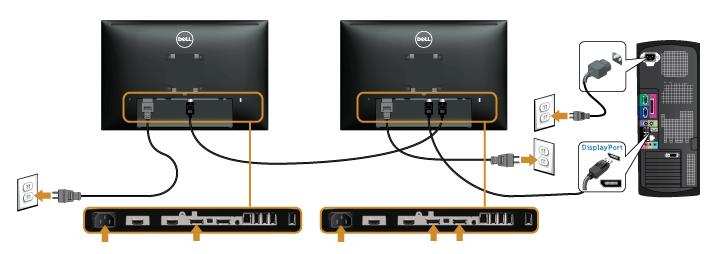
Daisy chaining two monitors from one DisplayPort output. This requires both monitors to support DisplayPort Multi-Stream Transport (MST) and at least one monitor to have a DisplayPort output. You can't daisy chain over HDMI at all. If your desk setup demands minimal cable clutter and your GPU has limited outputs, MST over DisplayPort is the cleanest solution.
Ultrawide monitors at 5120×1440 or higher. These high-bandwidth displays almost universally require DisplayPort for their rated refresh rates. HDMI may work at reduced refresh rates, but you're leaving performance on the table.
Color-critical professional work at 4K with 10-bit color. DisplayPort 1.4 handles 4K 60Hz with 10-bit color comfortably. HDMI 2.0 can too, but only at limited chroma subsampling in some configurations. DisplayPort gives you more headroom for uncompressed, full-color output.
Multi-monitor setups with three or more displays. Most GPUs require at least one DisplayPort connection when driving three or more monitors. HDMI alone often won't cut it beyond two displays on consumer cards.
 ✓
✓Chris Nolan
Senior Hardware & Tech Editor · Lead Benchmark SpecialistChris Nolan leads consumer electronics benchmarking and hardware diagnostics at TechBink. With over 15 years of laboratory stress-testing experience across mobile silicon, PC computing architectures, and cutting-edge gadgetry, Chris provides objective, data-backed hardware reviews and teardowns.

Similar Posts