How to Setup Dual Office Monitors
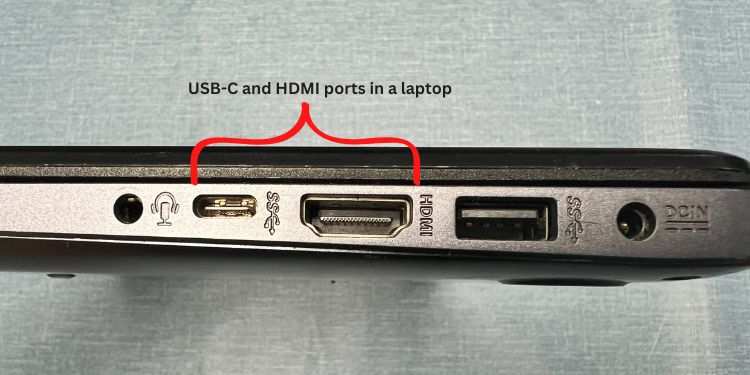

Image source: Wikimedia Commons / Mack Male from Edmonton, AB, Canada (CC BY-SA)
Figuring out how to setup dual office monitors shouldn't feel like solving a puzzle, but that's exactly what it turns into when you realize your laptop only has one video output or the cable you bought doesn't actually do what the listing claimed. The good news is that once you know what hardware you're working with, the whole process takes about 15 to 30 minutes and most of that is untangling cables.
The trick is matching your connection method to what your computer actually supports, not what the generic guide assumes you have. DisplayPort 1.4 pushes 32.4 Gbps of bandwidth, HDMI 2.0 handles 18 Gbps, and USB-C with DisplayPort Alt Mode can do either depending on your laptop's implementation. Let's walk through exactly what to check and how to get both screens running the right way.
Image source: Wikimedia Commons / Mack Male from Edmonton, AB, Canada (CC BY-SA)
Quick Answer
To setup dual office monitors, check your computer's available ports and GPU output limits first. Connect each monitor using the correct cable or adapter for your ports. Then open your OS display settings, choose "Extend" mode, and arrange the screens to match your physical desk layout.
Most setups work with direct HDMI or DisplayPort connections. Laptops with USB-C can use a docking station for a single-cable solution.
First: Check What You Actually Have (The 2-Minute Audit)
Before you buy a single cable or adapter, spend two minutes figuring out what your machine can actually do. This step saves you from the most common frustration: buying gear that your computer simply can't use the way you planned.
What ports are on your computer right now?
Look at the sides of your laptop or the back of your desktop tower. You're hunting for HDMI, DisplayPort, USB-C, or Thunderbolt ports. Write down what you see and how many of each you've got.
Here's a quick reference for what those ports look like and what they can handle:
| Port Type | Shape | Max Resolution at 60Hz | Notes |
|---|---|---|---|
| HDMI 2.0 | Trapezoid, 19 pins | 4K (3840×2160) | Most common on laptops and desktops |
| DisplayPort 1.4 | Rectangular, one corner notched | 4K (3840×2160) | Supports daisy chaining via MST |
| USB-C (DP Alt Mode) | Small oval | 4K (3840×2160) | Must explicitly support DisplayPort Alt Mode |
| Thunderbolt 4 | Small oval (same as USB-C) | 4K (3840×2160) | Backward compatible with USB-C docks |
Image source: Bing (Web (fair-use with source credit))
Not every USB-C port supports video output. Manufacturer specifications will list "DisplayPort Alt Mode" or "video output" if it works. If your spec sheet doesn't mention it, that USB-C port is data and power only.
Does your laptop or desktop support two external displays?
This is where most people hit a wall. Your computer's GPU determines how many external displays it can drive, and that number might be lower than you expect.
If you have a laptop with integrated graphics (most non-gaming business laptops with Intel UHD or Intel Iris), you'll typically support one external display natively. Some newer Intel Iris Xe chips handle two, but you need to verify your specific processor model.
If you have a dedicated GPU (NVIDIA or AMD), you're usually looking at three or more displays total, including the laptop screen.
For desktops, most dedicated GPUs from the last five years support three or four displays. Integrated desktop graphics often cap at two.
Check your GPU spec sheet from the manufacturer. Intel, NVIDIA, and AMD all publish maximum display count per processor or GPU model. That number is your hard ceiling, no matter how many adapters you buy.
The integrated GPU trap that catches most people
Here's the scenario we see constantly. Someone buys two monitors, a USB-C hub with dual HDMI, and plugs everything in. One screen works.
The other stays black. The hub is fine. The monitors are fine.
The problem is that their laptop's integrated GPU only supports one external output, period.
If you're in this situation, your options are:
- Use a USB DisplayLink adapter (software-driven, works but adds slight latency)
- Upgrade to a Thunderbolt dock that your laptop's CPU actually supports for dual output
- Connect one monitor directly and use a USB adapter for the second (if your GPU can handle one of each)
DisplayLink is a legitimate workaround for office work. It's not ideal for video or fast-scrolling content, but for spreadsheets, email, and documents it works fine.
Choosing the Right Connection Method for Your Setup
Your connection method depends entirely on what ports you have and how many displays your GPU supports. There's no universal "best" way. There's only the right way for your specific hardware.
Direct cable connection (simplest, if you have the ports)
If your computer has two video outputs (say, one HDMI and one DisplayPort, or two DisplayPorts), just run a cable from each port to each monitor. This is the most reliable method. No adapters, no drivers, no compatibility headaches.
Best for: Desktops with dedicated GPUs, laptops with multiple video ports.
What you need:
- One HDMI cable (for HDMI port) or one DisplayPort cable (for DisplayPort port)
- A second cable matching your second port
- Monitors with corresponding inputs
Most office monitors ship with an HDMI cable in the box. DisplayPort cables sometimes don't, so check before you start.
USB-C hub or dock (the one-cable laptop solution)
If your laptop has a USB-C port with DisplayPort Alt Mode or a Thunderbolt 4 port, a docking station gives you a single cable connection that handles video, power, and peripherals.
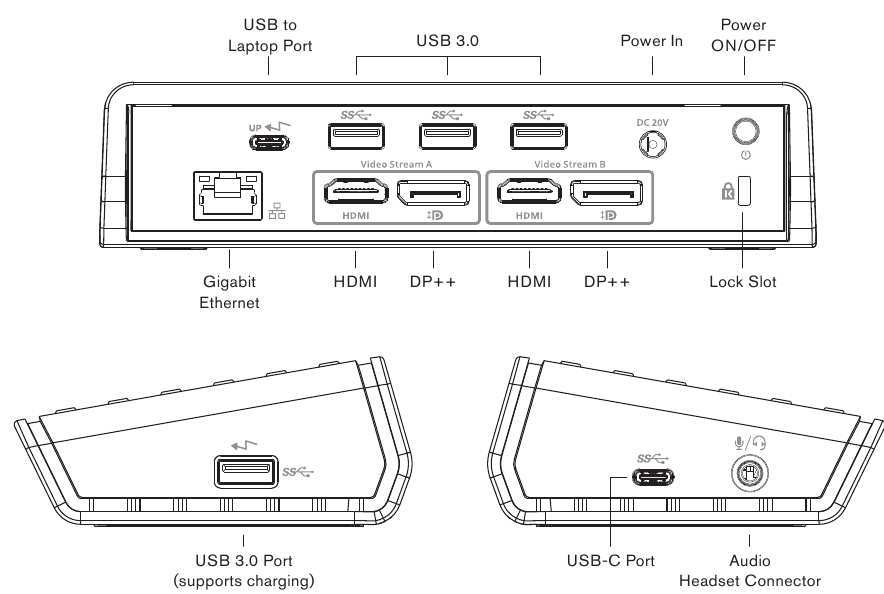
Image source: Bing (Web (fair-use with source credit))
Best for: Laptop users who want a clean desk and one-plug convenience.
What to look for in a dock:
- Dual HDMI or DisplayPort outputs (not just one)
- USB-C Power Delivery of 65W or higher (keeps most office laptops charged)
- Compatibility with your laptop's port type (Thunderbolt 4 dock works on USB-C, but not vice versa)
Price range: Basic USB-C hubs with dual video run $40 to $80. Full Thunderbolt 4 docks with 90W power delivery run $180 to $300.
The catch: Some cheaper USB-C hubs mirror the same display output to both ports instead of extending. That means both monitors show the same thing. Check the product specs for "dual independent display" or "extended desktop" support before buying.
DisplayPort daisy chaining (when monitors support it)
If both your monitors have DisplayPort 1.2 or later and support MST (Multi-Stream Transport), you can connect your computer to Monitor 1, then connect Monitor 1 to Monitor 2. One cable from the PC, two screens.
Best for: Clean setups where you want minimal cable runs and both monitors support MST.
The catch: Both monitors need DisplayPort outputs (not just inputs). Many office monitors have DisplayPort in but not out. Check the spec sheet for "DP out" or "MST" before planning this route.
Mixing connection types (HDMI + DisplayPort, USB-C + HDMI)
This is actually the most common real-world setup. You've got one HDMI port and one USB-C port, or one DisplayPort and one HDMI. That's totally fine.
Different ports feeding different monitors works without issue on both Windows and macOS.
Best for: Anyone whose laptop has two different video port types, which is most laptops.
What you need:
- The right cable or adapter for each port
- Monitors that accept those inputs (or adapters for the monitors)
Step-by-Step: Setting Up Your Dual Monitors
Once you've got your connection method sorted and cables in hand, the actual setup is straightforward. Here's the full process from plug-in to productive.
Connect the hardware and verify detection
- Turn on both monitors and make sure they're set to the correct input source (HDMI 1, DisplayPort, USB-C, etc.)
- Connect the first cable from your computer to Monitor 1. Wait about five seconds. You should see a display or at least a "no signal" message change to active content.
- Connect the second cable from your computer (or dock) to Monitor 2.
- Check detection. On Windows, right-click the desktop and select "Display settings." On macOS, go to System Settings > Displays. Both monitors should appear as numbered rectangles.
If one monitor doesn't show up, try these steps:
- Reseat the cable at both ends
- Try a different cable
- Make sure the monitor is on the right input
- Restart the computer with both monitors connected
Configure display mode: extend vs. mirror
By default, your computer might mirror both screens (same content on each) or only show on one. You want "extend" mode, which treats both monitors as one continuous desktop.
Windows: Press Windows key + P. Select "Extend." Or go to Settings > System > Display and set each monitor to "Extend desktop to this display."
macOS: Go to System Settings > Displays. Click "Arrange" and uncheck "Mirror Displays" if it's checked.
Extend mode lets you drag windows between screens. Mirror mode shows the same thing on both, which is useful for presentations but not for daily work.
Arrange your screens to match your physical desk layout
This sounds minor, but getting the arrangement wrong means your mouse goes the wrong direction when you move between screens.
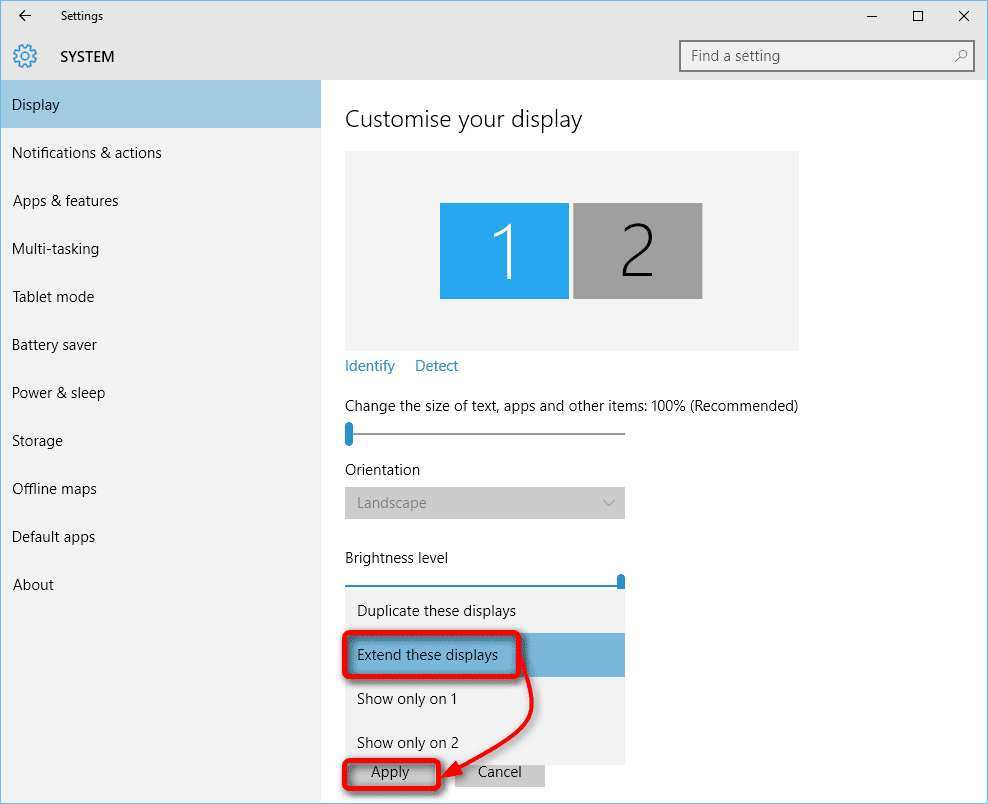
Image source: Bing (Web (fair-use with source credit))
Windows: In Display settings, drag the numbered monitor rectangles so they match your physical layout. If Monitor 2 is to the left of Monitor 1, put rectangle 2 to the left of rectangle 1.
macOS: In Display settings, drag the white menu bar to your preferred primary monitor. Arrange the blue rectangles to match your physical setup.
Test by moving your mouse across the boundary between screens. It should appear on the other monitor where you expect it.
Fix scaling and resolution mismatches
If one monitor is 4K and the other is 1080p, or if one is 27" and the other is 24", text and windows will look different sizes on each screen. This is normal, but you can minimize the annoyance.
Windows: In Display settings, select each monitor individually. Set the resolution to the monitor's native resolution. Adjust the "Scale" setting (100%, 125%, 150%) so text appears roughly the same physical size on both screens.
A 27" 4K monitor at 150% scale and a 24" 1080p monitor at 100% scale will look similar.
macOS: macOS handles scaling automatically on Retina displays. For non-Retina external monitors, go to System Settings > Displays and choose "Scaled" for each monitor.
The honest truth: Mixed-resolution setups never look perfectly identical. If matching text size matters a lot to you, consider buying two monitors of the same size and resolution.
Set your primary display and taskbar behavior
Your primary display is where new windows open and where your taskbar or dock lives by default.
Windows: In Display settings, select the monitor you want as primary. Check "Make this my main display." Your taskbar and Start menu will move there.
macOS: Drag the white menu bar (in the display arrangement screen) to your preferred monitor. The Dock appears on that monitor.
Adjust for laptop lid behavior (sleep, close, or keep open)
If you're using a laptop with two external monitors, you probably want to close the lid and just use the external screens. But by default, closing the lid puts your laptop to sleep.
Windows: Go to Control Panel > Power Options > Choose what closing the lid does. Set "When I close the lid" to "Do nothing" for both battery and plugged in. Now you can close the lid and keep working on the external monitors.
macOS: macOS supports clamshell mode when the laptop is connected to power and an external display. Close the lid, and the external display stays active. You'll need an external keyboard and mouse connected.
Tip: If you keep the laptop open as a third screen, make sure it's positioned ergonomically. Having a third screen off to the side at a bad angle gets uncomfortable fast.
Matching Monitors: Should They Be Identical?
You don't need matching monitors for a dual setup to work. But there are practical reasons to consider it, and practical reasons not to.
When matching monitors make sense
- You want consistent color, brightness, and text rendering across both screens
- You do color-sensitive work (photo editing, design) and need both screens to look the same
- You want a clean, symmetrical desk setup
- You're buying both monitors at the same time and can get a deal on a pair
When mixing sizes or resolutions is totally fine
- You use one screen for your main work and the other for reference material, email, or chat
- You already own one monitor and want to add a second without replacing the first
- Your budget doesn't allow for two identical screens right now
- You prefer a larger primary screen and a smaller secondary in portrait mode
A 27" 4K primary with a 24" 1080p secondary in portrait mode is a genuinely useful setup for coding or writing. The portrait monitor is perfect for viewing full pages of documentation or code files.
How to handle blurry text on one screen but not the other
This happens when Windows or macOS applies different scaling to each monitor, and some apps don't handle the transition well.
Fixes to try:
- Set both monitors to the same scaling percentage if possible
- Run the Windows ClearType tuner (search "ClearType" in Start)
- Update your GPU drivers
- Restart the app after moving it to the other screen
- On Windows, right-click the app shortcut, go to Properties > Compatibility > Change high DPI settings, and check "Override high DPI scaling behavior"
Some older apps will always look a bit blurry on a high-DPI screen. That's an app limitation, not a monitor problem.
The Ergonomics Nobody Talks About
You can get both screens running perfectly and still end up with a sore neck by lunch. Monitor position matters just as much as the connection method, and it's the part most people skip entirely.
Monitor height, distance, and angle
The top of each screen should sit at or slightly below eye level. Your gaze should tilt slightly downward, about 10 to 20 degrees, without bending your neck. For most people that means raising the monitors off the desk surface.
Distance: Arm's length is the general rule. Extend your arm and your fingertips should just brush the screen. For 24" monitors that's roughly 20 to 26 inches.
For 27" monitors, about 26 to 32 inches.
Angle: Both monitors should angle slightly inward in a V-shape if you use them equally. If you use one as primary and the other as secondary, center the primary directly in front of you and angle the secondary to the side you glance at less.
Single monitor arm vs. dual arms vs. built-in stands
| Option | Pros | Cons | Price Range |
|---|---|---|---|
| Built-in stands | Free, simple | Takes desk space, limited height adjustment | Included |
| Dual monitor arms | Full adjustability, frees desk space | Installation, weight limits | $60–$200 |
| Single dual-arm mount | One clamp, two screens | Heavier, needs sturdy desk | $80–$250 |
Monitor arms use VESA mount points on the back of your screens. The two common patterns are 75x75mm and 100x100mm. Check your monitor's spec sheet to confirm which one it supports before buying a mount.
Cable management that actually works
Two monitors means at least four cables (two video, two power) plus whatever your dock adds. A few practical fixes:
- Mount a power strip under the desk or behind the monitors
- Use adhesive cable clips along the monitor arm or desk edge
- Bundle cables with velcro ties every 12 inches
- If using a dock, position it behind the monitors so its cables stay hidden
Common Problems and How to Fix Them
Even when you do everything right, something usually doesn't work on the first try. Here are the issues that come up most often and what actually fixes them.
Monitor not detected
This is the number one complaint. You plug in the cable and nothing happens.
Try this sequence:
- Confirm the monitor is on the correct input source
- Reseat the cable at both ends
- Try a different cable of the same type
- Restart the computer with the monitor connected
- On Windows, press Ctrl + Shift + B to reset the graphics driver
- Update your GPU drivers from Intel, NVIDIA, or AMD's website
If none of that works, the port itself may be the issue. Test with a different port on your computer if one is available.
Flickering or wrong refresh rate
Your monitor might be set to 30Hz or 24Hz instead of 60Hz, which causes visible flickering and choppy mouse movement.
Fix: Right-click desktop > Display settings > Advanced display settings. Select the monitor and check the refresh rate. Set it to 60Hz if available.
If 60Hz isn't an option, your cable may not have enough bandwidth. Try a higher-quality HDMI or DisplayPort cable rated for the resolution you're using.
Docking station stops working after sleep
This is a known frustration with USB-C and Thunderbolt docks. You close your laptop, it sleeps, you come back and the external monitors stay black.
Fixes that help:
- Update the dock's firmware (check the manufacturer's support page)
- Update your laptop's BIOS and Thunderbolt/USB-C drivers
- In Windows Power Settings, disable USB selective suspend
- On macOS, disable Power Nap while on battery
- As a last resort, unplug and replug the USB-C cable after waking
Some docks just play nicer with certain laptops. Manufacturer compatibility matrices exist for a reason. Check your laptop maker's recommended accessories list before buying a dock.
Laptop battery draining too fast through USB-C
If your dock provides 65W but your laptop ships with a 90W charger, the laptop may drain slowly during heavy use even while plugged in.
Fix: Use a dock that matches or exceeds your laptop's rated charging wattage. Check the charger that came with your laptop for the wattage rating, then buy a dock that delivers at least that much.
Real Setup Scenarios (Pick Yours)
Every setup is a little different. Here are the most common configurations and what works best for each.
Laptop + two external monitors (home office standard)
What you need: A USB-C or Thunderbolt dock with dual video output, or one direct cable plus one USB-C adapter.
Best dock specs: Dual HDMI 2.0 or DisplayPort 1.4, 65W or higher power delivery, compatible with your laptop's port type.
Setup flow: Connect dock to laptop via USB-C. Run HDMI or DisplayPort cables from dock to each monitor. Plug the dock's power adapter in.
Configure displays in your OS settings.
Desktop + two monitors (straightforward but still has gotchas)
What you need: Two cables matching your GPU's available outputs. Most dedicated GPUs have a mix of HDMI and DisplayPort.
Common mistake: Plugging both monitors into the motherboard video ports instead of the GPU ports. If you have a dedicated GPU, its ports are the lower set, usually horizontal. The motherboard ports are vertical near the top.
Use the GPU ports.
One good monitor + one old monitor you already own
What you need: Whatever cable or adapter connects the old monitor to your computer. The old monitor likely has VGA or DVI input. You'll need a DVI-to-HDMI adapter or a VGA-to-HDMI converter (active, not passive).
Tip: Put the better monitor in the center as your primary. Use the older one for email, Slack, or reference material where color accuracy doesn't matter.
Dual monitors on a tight budget
What you need: Two affordable 24" 1080p IPS monitors ($120 to $160 each), basic cables, and possibly a USB-C to HDMI adapter if your laptop lacks a direct video port.
Total cost estimate: $250 to $400 for both monitors plus cables and adapter. That's less than most single ultrawide monitors and gives you more flexibility.
Quick Comparison: Connection Methods at a Glance
| Method | Reliability | Cable Complexity | Cost | Best For |
|---|---|---|---|---|
| Direct cables (HDMI/DP) | Excellent | Moderate | Low ($10–$30 for cables) | Desktops, laptops with multiple ports |
| USB-C/Thunderbolt dock | Very good | Low (one cable to laptop) | Moderate ($40–$300) | Laptop users wanting clean setup |
| DisplayPort daisy chain | Good | Low | Low (no extra hardware) | Monitors with DP MST support |
| USB DisplayLink adapter | Fair | Moderate | Moderate ($30–$70) | Workaround for GPU with limited outputs |
Frequently Asked Questions
How long does dual monitor setup take?
Plan for 30 to 45 minutes including cable management. The actual configuration in your OS takes about five minutes. Most of the time goes to connecting cables, adjusting monitor positions, and tidying up.
Can I use two different brand monitors?
Yes. Brand doesn't matter. What matters is matching resolution and size if you want a seamless experience.
Mixed brands work fine as extended displays.
Do I need a docking station?
Only if your laptop doesn't have enough direct video ports. A dock is a convenience, not a requirement. If your laptop has two video outputs, just use direct cables.
Will dual monitors slow my computer down?
For office work, no. The GPU uses a small amount of extra resources to drive a second display. You won't notice any difference in browsing, email, or document work.
Video editing or 3D work is a different story, but that's not what this setup is for.
Can I dual monitor with a Chromebook?
Most modern Chromebooks support at least one external display via USB-C. Dual external displays depends on the specific model. Check your Chromebook's specs for display output limits before buying monitors.
What if my second monitor says "no signal"?
Check the input source on the monitor itself. Make sure it's set to the port you plugged into. Try a different cable.
If using a dock, make sure the dock is powered and connected to the laptop first.

Similar Posts