How to Choose the Best Office Monitor
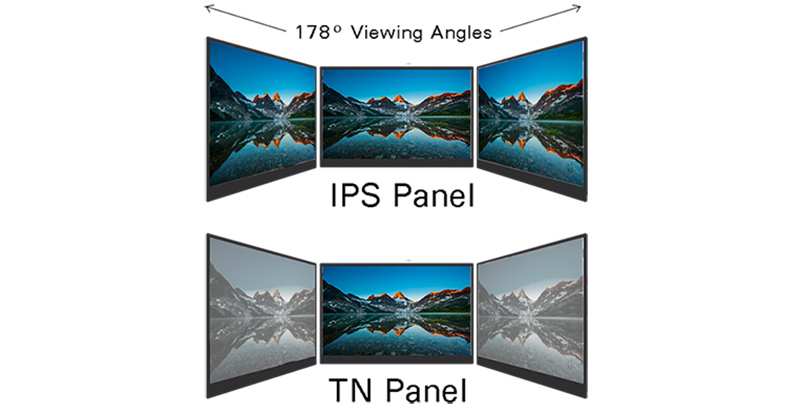

Image source: Wikimedia Commons / Håkan Dahlström from Malmö, Sweden (CC BY)
So you need a new office monitor and you want to get it right the first time. Here's how to choose the best office monitor for your actual work, your actual desk, and your actual budget. It's not about finding the highest specs.
It's about finding the right match.
Most shopping advice lists features in isolation and calls it a day. That approach misses the point entirely. What matters is how size, resolution, panel type, connectivity, and ergonomics work together for your specific situation.
Let's walk through each one.
Image source: Wikimedia Commons / Håkan Dahlström from Malmö, Sweden (CC BY)
Quick Answer
Choose your resolution and screen size together. Match your panel type to your work tasks. Check that your laptop or computer has the right output port.
Make sure the stand adjusts for height and tilt. Always read at least three professional reviews before purchasing.
What "Office Monitor" Really Means (And Why Most Shopping Advice Misses the Point)
Let's get something straight. "Office monitor" isn't one category. It covers everything from a basic 24-inch display for email and spreadsheets to a 34-inch ultrawide with built-in KVM switching for a hybrid desk setup.
The right choice depends entirely on what you do eight hours a day.
Here's what confuses people. Spec sheets are designed to make everything look impressive. A monitor can have 4K resolution, a 144Hz refresh rate, and a 1ms response time, then ship with a fixed-height stand, a TN panel with washed-out colors, and no USB-C connectivity.
On paper it sounds great. In practice it's the wrong tool for the job.
The ISO 9241 standard defines ergonomics of human-system interaction, including display requirements. That's the framework professionals actually use. Not marketing copy.
The goal isn't a spec sheet that wins on a spreadsheet. It's a monitor that lets you work comfortably and efficiently for years.
Think about it this way. Would you buy shoes based only on the sole thickness? Same principle.
You need to understand the whole picture. Let's break it down factor by factor.
The Five Factors That Should Drive Your Decision
Screen Size and Resolution Need to Be Chosen Together
This is where most people go wrong. They pick a size first, or a resolution first, and treat them as separate decisions. They're not separate.
They're one decision that determines pixel density, and pixel density determines how text looks on your screen.
Here's the basic math. A 27-inch monitor at 2560 x 1440 (QHD) gives you about 109 pixels per inch. That's the sweet spot for office work.
Text is sharp, you don't need display scaling, and everything sits at a natural size. A 27-inch monitor at 3840 x 2160 (4K) gives you about 163 PPI. That's incredibly sharp, but you'll likely need to enable 150% scaling in Windows or macOS, which reduces your effective screen real estate.
| Diagonal | Native Resolution | Pixel Density (PPI) | Best For |
|---|---|---|---|
| 24 inches | 1920 x 1080 (FHD) | ~92 PPI | Basic office work, budget builds |
| 24 inches | 2560 x 1440 (QHD) | ~122 PPI | Text-heavy work at close range |
| 27 inches | 2560 x 1440 (QHD) | ~109 PPI | General office, best all-around |
| 27 inches | 3840 x 2160 (4K) | ~163 PPI | Design work, requires scaling |
| 32 inches | 3840 x 2160 (4K) | ~138 PPI | Multi-window productivity, larger desks |
| 34 inches | 3440 x 1440 (UW-QHD) | ~110 PPI | Spreadsheet traders, devs, multi-tasking |
Notice the pattern. Resolution alone tells you almost nothing. A 32-inch 4K display and a 27-inch QHD display have similar pixel density.
They feel similar to use. The 32-inch just gives you more total space.
For most office workers as of 2026, 27 inches at QHD hits the best balance of sharpness, real estate, and value. Go smaller if your desk is shallow or your budget is tight. Go larger if you work with lots of windows at once and you have the desk depth to sit 28 to 32 inches back from the screen.
Panel Type Determines Your Daily Experience More Than Any Other Spec
Panel technology shapes how colors render, how wide your viewing angle is, and how text appears at the edges of the screen. You'll notice this every single day. Resolution you only notice when's wrong.
IPS (In-Plane Switching) is the standard recommendation for office use. It delivers consistent colors across wide viewing angles, which matters because you're not always sitting dead center. Text looks clean.IPS panels typically cover 95 to 100% of the sRGB color space, which is fine for almost all office tasks.
The downside is IPS glow, a slight brightening in corners that's most visible on dark backgrounds in dim rooms.
VA (Vertical Alignment) offers better contrast ratios, often 3000:1 compared to IPS at 1000:1. Darker content looks richer. For people who work in dim environments or who switch between documents and dark-themed applications, VA can feel more comfortable.
Color shift at angles is worse than IPS though. If you sit off-center, colors near the edges shift noticeably.
TN (Twisted Nematic) is mostly dead for office use in 2026. It's cheap and fast, but viewing angles are terrible and color reproduction is mediocre. You'd only pick a TN panel if you need high refresh rates for gaming on the same display and you're on a very tight budget.
OLED is entering the office monitor market. Perfect blacks, infinite contrast, incredible color accuracy. The trade-offs are burn-in risk with static elements like taskbars and toolbars, plus higher cost.
For office use with lots of static content, OLED is still a calculated risk in 2026 rather than a safe default.
Image source: Bing (Web (fair-use with source credit))
For most office workers, IPS remains the best all-around choice. Go VA if you prioritize contrast and work in lower light. Consider OLED only if your content is mostly dynamic and you're comfortable with the burn-in risk and premium price.
Connectivity Can Make or Break Your Desk Setup
This one trips people up constantly. You find the perfect monitor on paper. Then you get it home and realize your laptop only has HDMI 1.4, which can't drive the resolution and refresh rate you paid for.
Here's what to check. Look at the output ports on your computer first. Look at the input ports on the monitor second.
Make sure they match, or that you have the right cable or adapter.
| Port | Max Resolution at 60Hz | Laptop Charging | Notes |
|---|---|---|---|
| HDMI 1.4 | 4K at 30Hz only | No | Insufficient for 4K office use |
| HDMI 2.0 | 4K at 60Hz | No | Acceptable for most office tasks |
| HDMI 2.1 | 4K at 120Hz+ | No | Overkill for office, useful if also gaming |
| DisplayPort 1.2 | 4K at 60Hz | No | Solid choice, common on desktops |
| DisplayPort 1.4 | 4K at 60Hz, 1440p at 120Hz+ | No | Best for high refresh and multi-monitor daisy chain |
| USB-C (with DP Alt Mode) | 4K at 60Hz | Yes, varies by wattage | Ideal for single-cable laptop docking |
| Thunderbolt 4 | 4K at 60Hz+ | Yes, up to 100W | Best for MacBooks and premium docking |
USB-C is the feature that matters most for remote and hybrid workers in 2026. A monitor with USB-C and at least 65 watts of power delivery means one cable from your laptop handles video, data, and charging. That's a genuinely cleaner desk.
Some monitors go up to 90 or 100 watt delivery, which covers even power-hungry workstations.
The catch. Not all USB-C implementations are equal. Some monitors have USB-C that handles video only, no power.
Others have power delivery but limited to 15 or 45 watts. That's not enough to charge a typical laptop under load. Always verify the wattage in the spec sheet before you buy.
Daisy chaining matters if you run a dual monitor setup with a single cable from your laptop. This requires DisplayPort 1.2 or later with Multi-Stream Transport support, and both monitors need to support it. It's not common on consumer monitors, but it's standard on business-class displays from Dell, HP, and Lenovo.
Ergonomics: The Factor Everyone Skips Until Their Neck Hurts
You'd be surprised how many people spend $500 on a high-end panel bolted to a cheap fixed-height stand, then wonder why their shoulders ache by Thursday.
The stand matters as much as the screen. Here's what to look for in order of importance.
- Height adjustment. The top of the screen should sit at or slightly below eye level. Without height adjustment, you're stacking books or buying a separate arm.
- Tilt. At minimum, you need upward and downward tilt to angle the screen to your seated position.
- Swivel. Side-to-side rotation helps when you share your screen with a colleague or adjust to window glare.
- Pivot. Portrait mode (90-degree rotation) is essential for developers and writers working with long documents. Not everyone needs it, but if you do, you really do.
Most budget monitors include tilt-only stands. Mid-range models typically add height and swirl. Premium and business-class monitors usually include full adjustment.
If your chosen monitor has a poor stand but everything else is right, VESA mount compatibility saves you. A 100 x 100mm VESA pattern means you can attach any third-party monitor arm, which almost always offers better adjustment than included stands.
Image source: Bing (Web (fair-use with source credit))
Blue light filtering and flicker-free backlighting are also worth checking. Look for TÜV Rheinland certification with low blue light and flicker-free standards. These are independent certifications and they verify the manufacturer's claims.
Lots of monitors advertise "eye care" features without certification, and the actual performance varies wildly.
The 20-20-20 rule is still the best habit. Every 20 minutes, look at something 20 feet away for 20 seconds. That's free and more effective than any blue light filter on the market.
A good monitor just makes the baseline more comfortable along the way.
Office Monitor Comparison: IPS vs. VA vs. TN vs. OLED for Work
Let's put the four main panel technologies side by side so you can see exactly where each one wins and where each one falls short for office use.
| Feature | IPS | VA | TN | OLED |
|---|---|---|---|---|
| Viewing Angle | Excellent (178/178) | Good with color shift at edges | Poor, color inverts at slight angles | Excellent |
| Color Accuracy (sRGB) | 95-100% | 95-100% | 60-70% typically | 100%+ |
| Contrast Ratio | ~1000:1 | ~3000:1 | ~800:1 | Infinite (perfect blacks) |
| Response Time | 4-8ms | 4-12ms | 1-5ms | <1ms |
| Refresh Rate Range | 60-120Hz common | 60-100Hz common | up to 240Hz | up to 240Hz+ |
| Text Clarity | Very Good | Good | Acceptable | Excellent |
| Burn-In Risk | None | None | None | Present (static content) |
| Price Range | $150-$700 | $140-$500 | $100-$250 | $500-$2,500 |
| Best For | Office general use, design | Contrast-focused, dim rooms | Gaming on tight budget | Premium creative work |
Our recommendation: IPS for most office workers. VA if you work in lower light and watch media during breaks. Skip TN entirely for office use unless budget is the only consideration.
OLED if budget allows, content is dynamic, and you're comfortable with the burn-in trade-off.
Best Monitor Choice by Use Case
General Office Work (Email, Docs, Spreadsheets)
You don't need a fancy display. You need a comfortable one. A 27-inch QHD IPS monitor with a fully adjustable stand and USB-C connectivity handles this workload perfectly.
Budget around $250 to $400 for a solid business-class option.
Look for a factory-calibrated panel with 95% or higher sRGB coverage. That's plenty for documents, browsers, and video calls. Skip high refresh rates and HDR.
You won't notice them, and you'll pay extra for nothing.
Developers and Coders
Screen real estate is your priority. You want to see your editor, terminal, and browser without constant window juggling. A 32-inch 4K display gives you the equivalent of four 1600 x 900 windows tiled on one screen.
That's a lot of code visible at once.
Ultrawide monitors at 34 inches and 3440 x 1440 are popular with developers too. The extra horizontal space works well for side-by-side files. The trade-off is less vertical space compared to a 16:9 display of similar height.
Pivot support matters here. Portrait mode lets you see 80 to 100 lines of code without scrolling. If your monitor doesn't pivot, check whether it can be mounted in portrait orientation via VESA.
Designers, Video Editors, and Color-Critical Work
Color accuracy is non-negotiable. You need a panel that covers 100% of sRGB at minimum, with DCI-P3 coverage important for video work. Look for a Delta E rating below 2 out of the box.
Factory calibration is a must, and hardware calibration support is a bonus.
A 27-inch 4K IPS display or a 32-inch 4K IPS display is the standard here. OLED is gaining ground for its perfect contrast and color volume, but verify the specific model's burn-in warranty before committing. Budget $500 to $1,200 for a professional-grade option.
Check for 10-bit color support if your workflow requires it. Some 10-bit panels use frame dithering (8-bit + FRC) rather than true 10-bit. For most photo and video work, 8-bit + FRC is fine.
For print proofing, true 10-bit is worth the premium.
Finance, Trading, and Multi-Screen Setups
This use case is about quantity of information. Most traders and analysts run two to four monitors, sometimes more. Thin bezels matter here because you're looking at gaps between screens all day.
Consider a dual monitor arm instead of two separate stands. It saves desk space and lets you angle the displays precisely. Business-class monitors with USB-C and DisplayPort out let you daisy chain two displays from one laptop cable.
For this scenario, 24-inch QHD displays offer the best balance of size, resolution, and cost when buying multiples. You don't need color accuracy or HDR. You need reliability, thin bezels, and good ergonomics.
Remote and Hybrid Workers Using USB-C Laptops
Single-cable docking is the quality-of-life upgrade you didn't know you needed. One USB-C cable from your laptop to the monitor handles video output, data, and charging simultaneously. No separate power brick.
No HDMI adapter hunting. Just one cable.
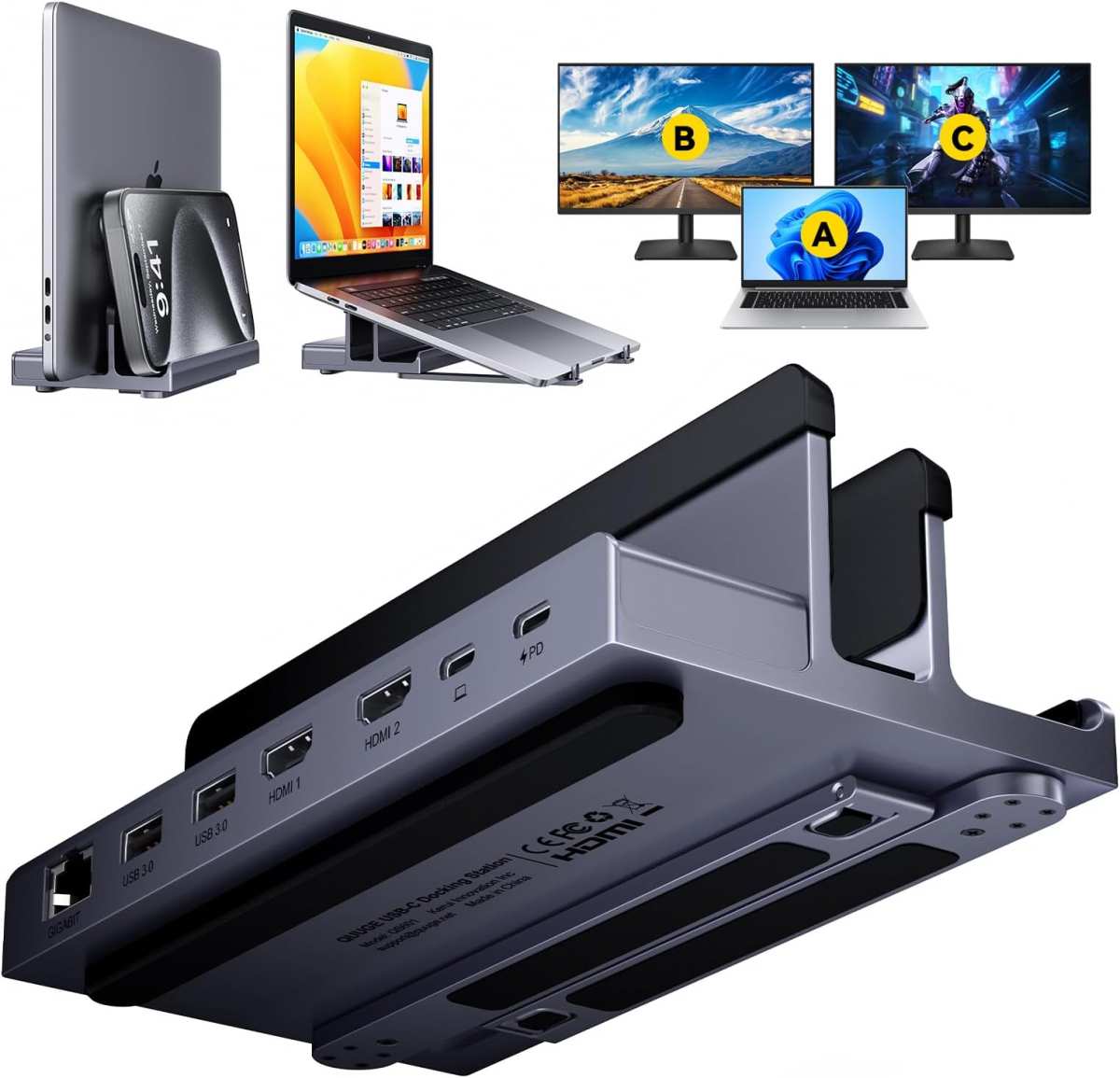
Image source: Bing (Web (fair-use with source credit))
Verify the power delivery wattage matches your laptop's requirements. Most ultrabooks ship with 45 to 65 watt chargers. A monitor delivering 65 watts covers them.
A 65 watt monitor may charge slowly or not keep up under load. Check your laptop's rated power adapter and match or exceed it.
MacBook users should look for Thunderbolt or USB-C monitors with at least 60 watts of power delivery for MacBook Air, and 96 watts or more for MacBook Pro 14 and 16 inch models. Apple's own Studio Display and the LG UltraFine series are purpose-built for this, but third-party options from Dell, HP, and BenQ work just as well at lower prices.
The Common Mistakes That Lead to Buyer's Remorse
Buying resolution without considering scaling. A 27-inch 4K display looks stunning. It also forces you to use 150% or 175% display scaling, which reduces your effective workspace. For many office workers, a 27-inch QHD display gives more usable screen real estate at native 100% scaling.
Ignoring the stand. A great panel on a tilt-only stand is a daily frustration. You'll end up buying a separate monitor arm or a stack of books. Either factor the arm into your budget upfront or choose a monitor with a fully adjustable stand included.
Overpaying for features you won't use. High refresh rates, HDR600, and 1ms response times are gaming features. They add cost without improving your spreadsheets, code, or documents. A 75Hz IPS panel with good color accuracy serves office work better than a 165Hz TN panel with mediocre color.
Not checking compatibility before buying. Your laptop has one HDMI 1.4 port. The monitor you want needs DisplayPort or HDMI 2.0 for 4K 60Hz. Now you're shopping for adapters.
Always verify your computer's output capabilities against the monitor's input requirements before you click buy.
Assuming all IPS panels are equal. They're not. Panel quality varies significantly between manufacturers and even between production runs of the same model. Backlight bleed, IPS glow, and color uniformity differ unit to unit.
Reading multiple professional reviews helps you understand the range of quality to expect.
Skipping the pixel policy check. Some manufacturers accept three or more bright pixels as within spec. Others guarantee zero bright pixels. Business-class monitors from Dell UltraSharp and HP typically have stricter pixel policies.
Check the warranty terms before you buy, especially if you're the type who notices a single stuck pixel and can't unsee it.
What You Should Actually Expect to Spend
Office monitor pricing in 2026 breaks down into clear tiers based on features and build quality.
| Tier | Price Range | What You Get | Best For |
|---|---|---|---|
| Budget | $150 – $250 | 24-inch FHD, IPS, tilt stand, HDMI only | Basic office, students |
| Mid-Range | $250 – $450 | 27-inch QHD, IPS, adjustable stand, USB-C 65W | Most office workers |
| Premium | $450 – $800 | 27-32 inch 4K, IPS, USB-C 90W+, factory calibrated | Designers, developers, executives |
| Professional | $800 – $1,500 | 32-inch 4K, true 10-bit, hardware calibration, KVM | Color-critical, medical, studio |
| Ultrawide | $400 – $1,200 | 34-38 inch 21:9, IPS or VA, USB-C | Traders, coders, multi-taskers |
The sweet spot for most office workers is the $250 to $450 range. You get QHD resolution, a good IPS panel, USB-C with meaningful power delivery, and an adjustable stand. Spending more gets you 4K resolution, better color accuracy, or premium build quality.
Spending less usually means sacrificing the stand, connectivity, or panel quality.
Refurbished business monitors are worth considering. Models like the Dell UltraSharp U2723QE or HP Z27k G3 depreciate quickly off corporate leases. You can often find them at 40 to 60% off retail with remaining warranty.
Verify the pixel condition and included accessories before buying refurbished.
How to Set Up Your New Monitor So It Actually Helps
Unboxing and setup takes about 30 minutes. Doing it right saves you weeks of neck strain and frustration.
Step 1: Position the monitor correctly. The top edge of the screen should sit at or just below your eye level when you're seated at your working posture. The screen should be about an arm's length away. For a 27-inch display, that's roughly 24 to 30 inches from your eyes.
Step 2: Connect with the right cable. Use the highest-bandwidth connection available. If your computer and monitor both support USB-C with DisplayPort Alt Mode, use that. It's one cable for video, data, and power.
If not, DisplayPort is preferred over HDMI for PC use. HDMI is fine for MacBooks but verify the version supports your target resolution and refresh rate.
Step 3: Adjust display scaling. On Windows, go to Settings > System > Display and set scaling to 100% for QHD at 27 inches, or 150% for 4K at 27 inches. On macOS, the system handles scaling automatically on Retina and high-PPI displays, but you can adjust in System Settings > Displays.
Step 4: Enable blue light reduction if needed. Most monitors have a low blue light mode in the on-screen display menu. Windows has Night Light. macOS has Night Shift. Use whichever you prefer, but don't expect dramatic results.
The 20-20-20 rule does more for eye comfort than any software filter.
Step 5: Check for firmware updates. Business-class monitors from Dell, HP, and Lenovo occasionally receive firmware updates that fix bugs or improve compatibility. Check the manufacturer's support page for your specific model.
Step 6: Calibrate if your work requires it. For general office work, factory calibration is sufficient. For photo or video work, invest in a hardware colorimeter. The Calibrite ColorChecker Display or X-Rite i1Display Pro are the standard tools.
Software-only calibration through your operating system is better than nothing but nowhere near as accurate.
Frequently Asked Questions
Is 4K worth it for office work?
At 27 inches, 4K gives you sharper text but requires display scaling, which reduces effective workspace. At 32 inches, 4K is ideal because the higher screen size offsets the scaling trade-off. For 24-inch displays, QHD is the practical limit before scaling becomes necessary.
How important is refresh rate for office monitors?
60Hz is perfectly fine for office work. 75Hz adds a subtle smoothness to scrolling and mouse movement that some people appreciate. Anything above 75Hz is a gaming feature and provides diminishing returns for productivity tasks.
Should I buy one ultrawide or two separate monitors?
An ultrawide gives you seamless screen real estate with one cable and no bezel gap in the middle. Two separate monitors give you more flexibility in arrangement and let you mix sizes or orientations. For most office workers, a single good 27-inch QHD display is simpler and sufficient.
Go ultrawide or dual if your workflow genuinely requires multiple full-size windows visible simultaneously.
Do I need a monitor with built-in speakers?
Built-in monitor speakers are universally mediocre. They're fine for notification sounds and quick video calls. If you attend meetings regularly or care about audio quality, external speakers or a headset are a better investment.
Consider built-in speakers a convenience feature, not a deciding factor.
What does USB-C power delivery actually do for me?
It lets your monitor charge your laptop through the same cable that carries the video signal. One cable connects everything. The key spec is wattage.
Match the monitor's power delivery to your laptop's charger rating for reliable charging during use.
How long should an office monitor last?
A quality office monitor should last five to eight years before panel degradation becomes noticeable. Backlight brightness slowly decreases over time. Business-class monitors with three-year warranties and replaceable stands are designed for long-term deployment.
Consumer models typically last just as long but may have less robust stand mechanisms.
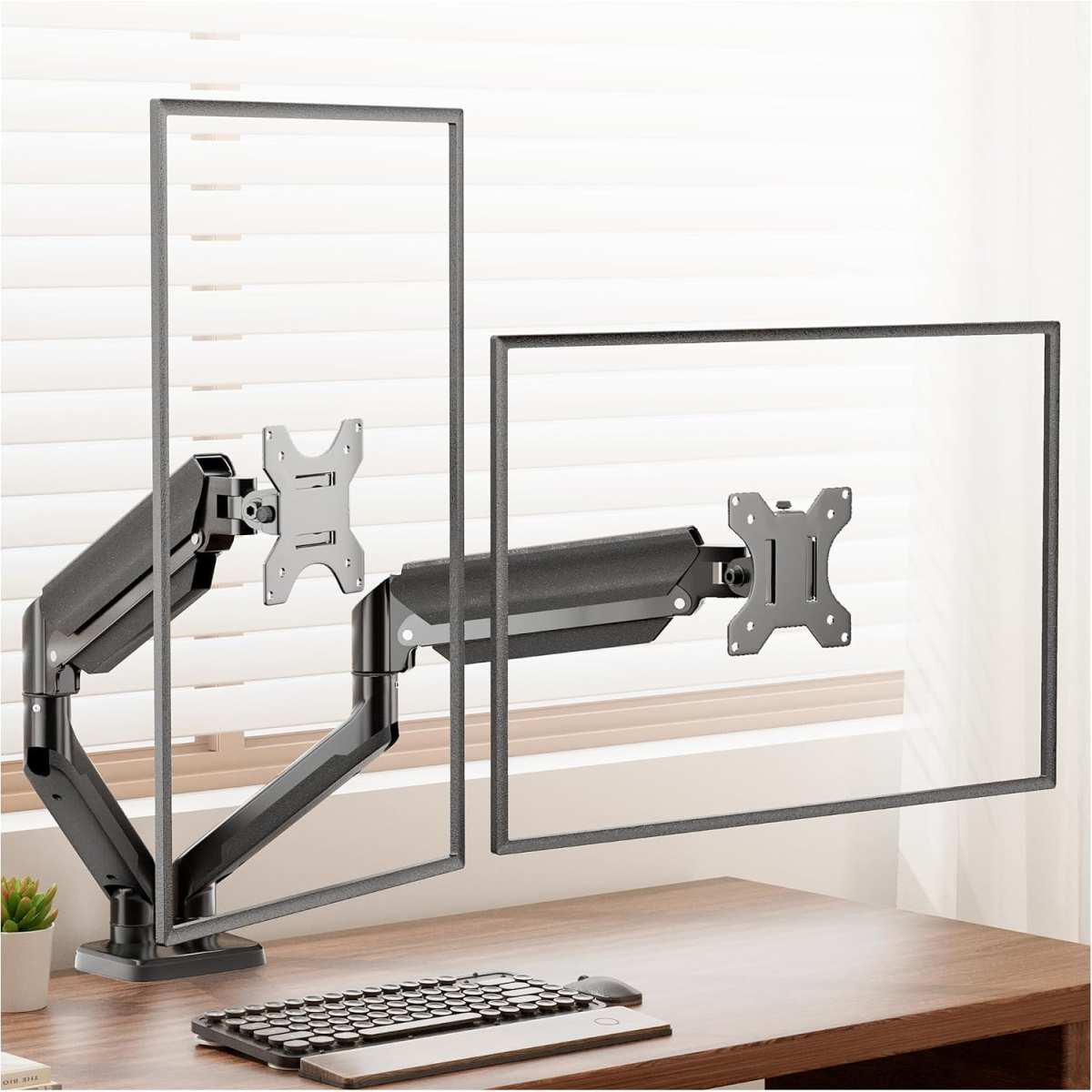
Image source: Bing (Web (fair-use with source credit))

Similar Posts































