How to Connect Dual Monitors with HDMI and DisplayPort
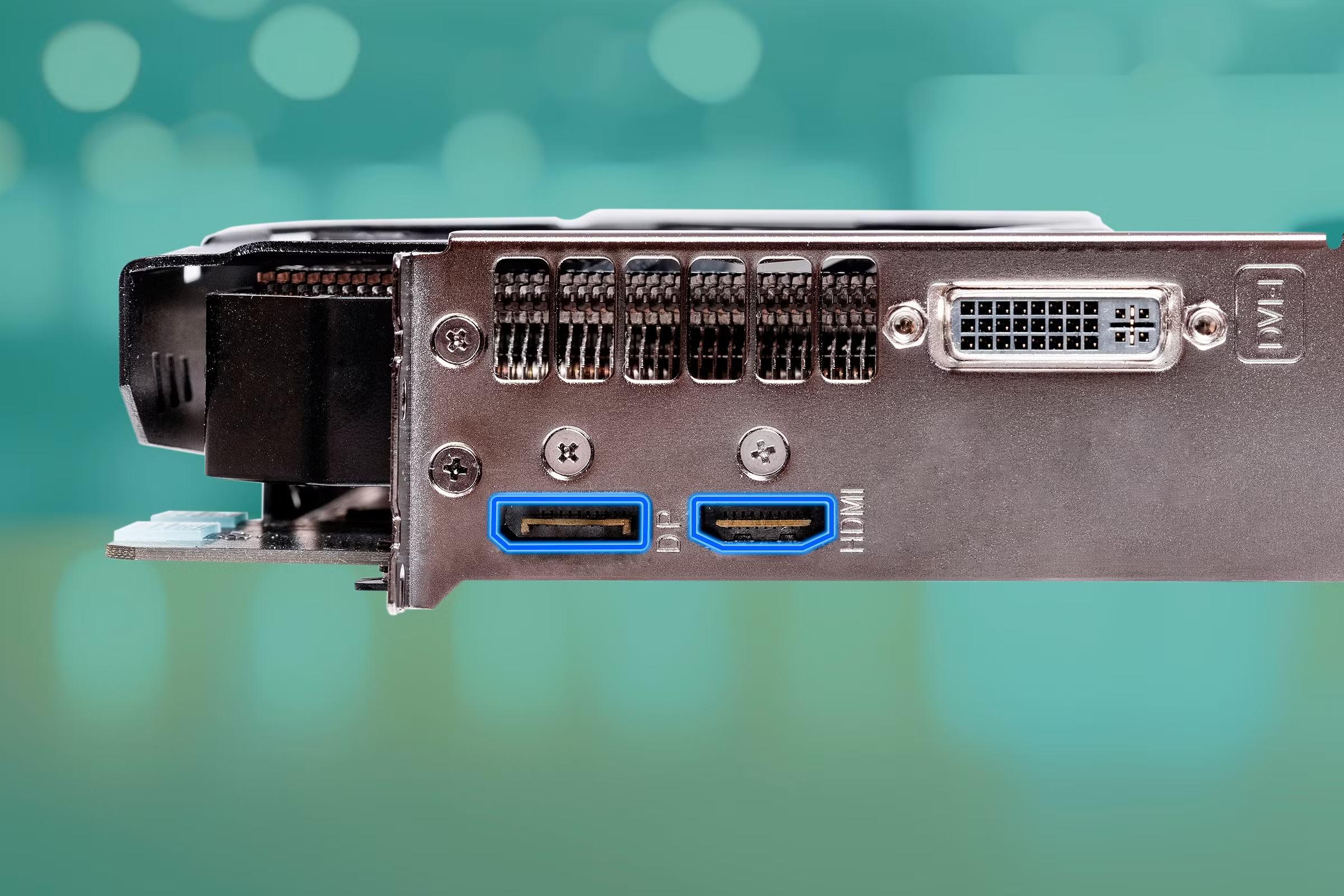
Figuring out how to connect dual monitors with HDMI and DisplayPort isn't complicated, but it does trip people up more than you'd expect. The ports look similar, the cables aren't always clearly labeled, and your computer doesn't always detect the second screen the way you'd hope. Most of the frustration comes from not knowing which port does what before you start plugging things in.
The good news is that once you understand a few basics about how each standard works, the whole process takes about ten minutes. DisplayPort 1.4 supports up to 32.4 Gbps of bandwidth, while HDMI 2.0 tops out at 18 Gbps, and those numbers matter when you're deciding which cable goes to which monitor. Let's walk through it step by step so you can get both screens running without the headache.

Image source: Wikimedia Commons / Mack Male from Edmonton, AB, Canada (CC BY-SA)
Quick Answer
Connect each monitor to a separate video output on your computer. Use DisplayPort for your higher-resolution or higher-refresh-rate monitor. Use HDMI for the secondary screen.
Open your operating system's display settings. Choose "Extend" to use both screens as one workspace.
First, Check What You Actually Have
Before you buy a single cable, take thirty seconds to look at what's actually on your computer and your monitors. This one step prevents most of the problems people run into.
Look at your computer's video ports
Check the back of your desktop tower or the sides of your laptop. You're looking for any combination of HDMI ports (trapezoid-shaped, about 14mm wide) and DisplayPort connectors (rectangular with one corner notched, about 20mm wide). Many dedicated graphics cards have multiple ports, sometimes three DisplayPorts and one HDMI, or a mix of both.
If you're on a laptop, you might only have one video output. That's fine, but it changes your options. Some laptops route video through USB-C as well, which opens up docking station possibilities we'll cover later.
Look at your monitors' input ports
Flip around to the back of each monitor and note what inputs are available. Most modern monitors have at least one HDMI and one DisplayPort. Budget models might only have HDMI or even VGA.
Higher-end displays, especially those aimed at gamers or creative professionals, often have multiple DisplayPorts and one HDMI.
Write it down if you need to. Two columns: what your computer has, and what your monitors accept. The setup path depends entirely on matching those two lists.
Image source: Bing (Web (fair-use with source credit))
Match them up honestly
Here's where people rush. If your computer has one DisplayPort and one HDMI, and both monitors have both inputs, you've got a clean one-to-cable-per-monitor setup. If the ports don't line up, you'll need an adapter, and not all adapters work the same way.
We'll get into that in the troubleshooting section.
HDMI vs DisplayPort: Which Cable Goes Where?
Both standards carry video and audio, but they're not equal in every situation. Knowing the difference helps you assign the right cable to the right monitor.
When DisplayPort is the better choice
DisplayPort generally offers higher bandwidth than HDMI at the same version level. DisplayPort 1.4 handles 4K at 120Hz or 8K at 60Hz with Display Stream Compression. HDMI 2.0, which is still extremely common on monitors as of 2026, maxes out at 4K at 60Hz.
If one of your monitors is high-resolution or high-refresh-rate, give it the DisplayPort connection. That means 4K monitors, 144Hz gaming displays, and anything above standard 1080p60 should take DisplayPort first.
DisplayPort also supports Multi-Stream Transport, which lets you daisy-chain multiple monitors from a single DisplayPort output. Not all monitors support this, but if yours do, it's a clean way to run two screens off one cable.
When HDMI is perfectly fine
For a standard 1080p or 4K 60Hz monitor, HDMI works perfectly. Most HDMI cables that come in the box with monitors are HDMI 2.0, which handles 4K at 60Hz without any issues. If your secondary monitor is a basic office display, HDMI is all you need.
HDMI also has the advantage of near-universal compatibility. Every monitor made in the last fifteen years has an HDMI port. DisplayPort is common on modern monitors but still absent on some budget models.
The bandwidth problem nobody warns you about
Here's the part that catches people off guard. If you're running two 4K monitors and you connect both using HDMI 2.0, you're fine at 60Hz. But if one of your monitors is HDMI 1.4, that cable or port will limit you to 4K at 30Hz.
The difference between 30Hz and 60Hz is immediately noticeable. Mouse movement feels sluggish, windows drag slowly, and it's genuinely unpleasant to use.
Always check the version of your HDMI ports and cables. The cable itself might not have the version printed on it, but your GPU specs and monitor manual will tell you what version each port supports.
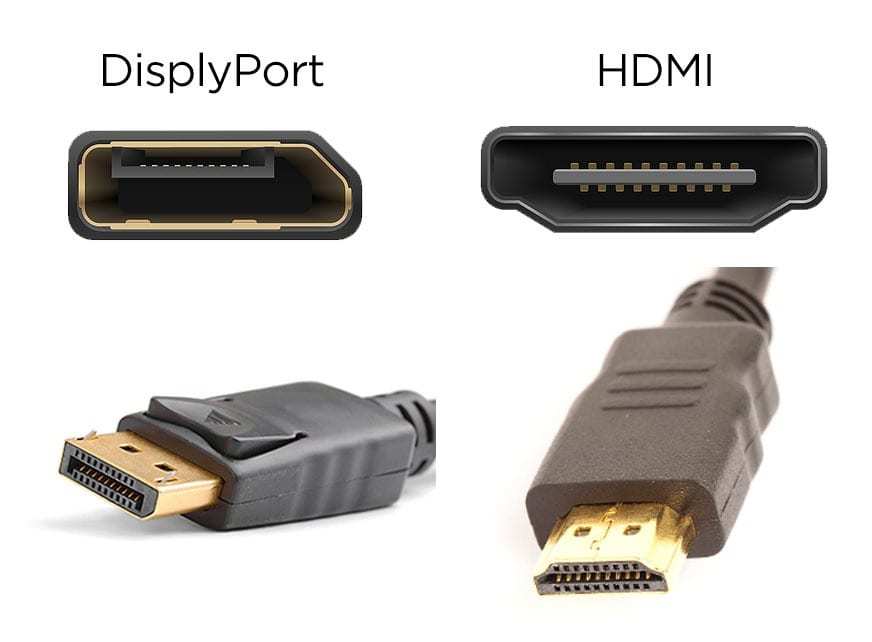
Image source: Bing (Web (fair-use with source credit))
Step-by-Step: Connecting Your Two Monitors
This is the straightforward path for most people with a desktop or a laptop that has two available video outputs.
Step 1: Power everything off first
Shut down your computer. Turn both monitors off. This isn't strictly necessary since both HDMI and DisplayPort support hot-plugging, but powering down prevents any chance of a short or handshake failure during connection.
It also forces a clean detection cycle when you power back on.
Step 2: Connect monitor one
Plug one end of your chosen cable into your computer's primary video output. If you're following the advice above, that's DisplayPort for your better monitor. Plug the other end into the corresponding port on the monitor.
Tighten the DisplayPort screws if your cable has them. HDMI connectors click in and stay put on their own.
Step 3: Connect monitor two
Run your second cable from the remaining video output on your computer to the second monitor. If this monitor is your secondary display and you're using HDMI, that's the right call. Make sure both cables are fully seated.
A half-inserted DisplayPort connector is the number one cause of "no signal" complaints.
Step 4: Power on and configure in your OS
Turn on both monitors first. Then boot your computer. Your operating system should detect both displays automatically, but it might default to mirroring (showing the same image on both screens) rather than extending your desktop.
On Windows 10 and 11:
Right-click the desktop and select "Display settings." You'll see both monitors represented as numbered boxes. Scroll to the "Multiple displays" dropdown and select "Extend these displays." Then drag the monitor boxes to match their physical arrangement on your desk.
On macOS:
Open System Settings, go to Displays, and click "Arrange." Uncheck "Mirror Displays" if it's enabled. Drag the white menu bar to the monitor you want as your primary display.
On Linux (GNOME):
Open Settings, go to Displays, and join the displays by selecting "Extend" rather than "Mirror."
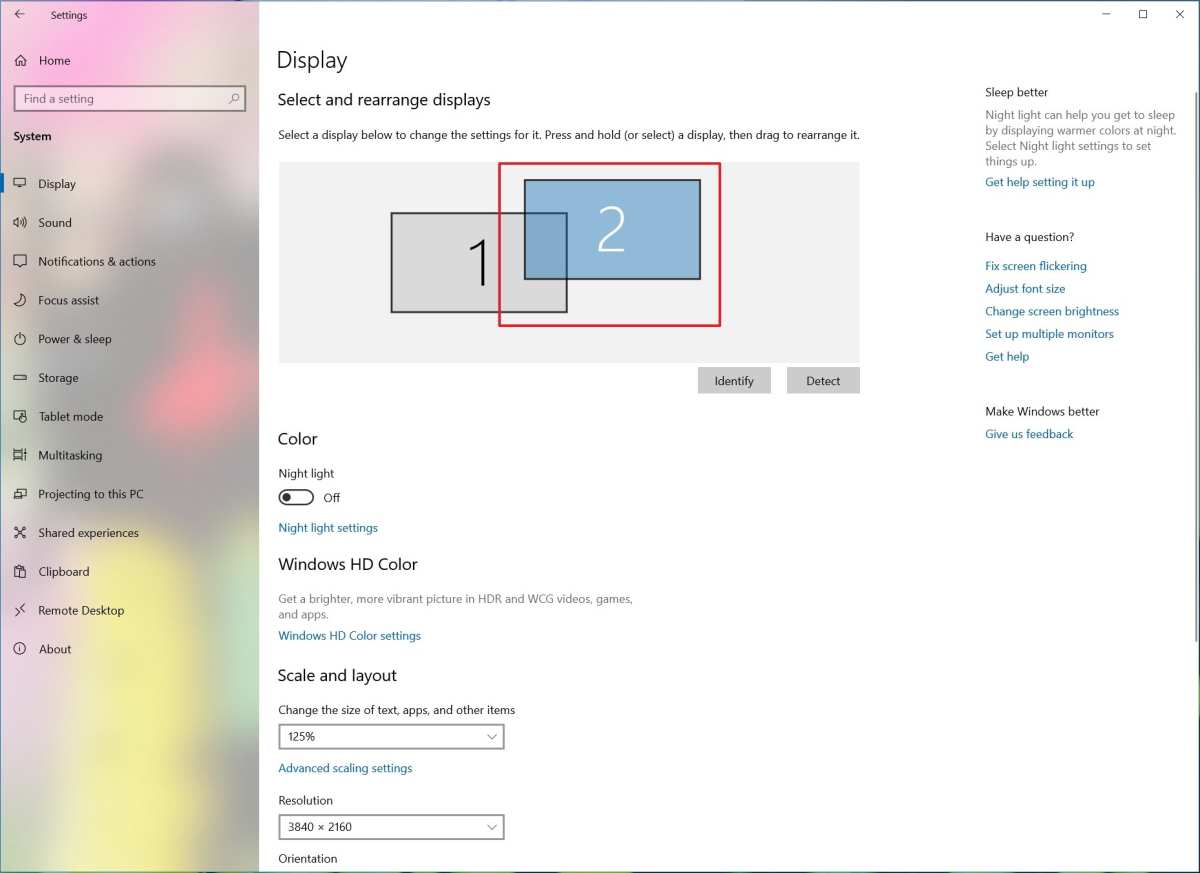
Image source: Bing (Web (fair-use with source credit))
Step 5: Arrange and fine-tune
Set the correct resolution for each monitor individually. In Windows, click each monitor box in the display settings and confirm the resolution matches the monitor's native spec. Do the same for refresh rate under "Advanced display settings." A 144Hz monitor will often default to 60Hz until you manually change it.
If one monitor looks washed out compared to the other, check that both are using the same color range. Some GPUs output limited range (16-235) over HDMI and full range (0-255) over DisplayPort. You can fix this in your GPU control panel under "Change resolution" or "Adjust desktop color settings."
What to Do When Your Setup Doesn't Match the Simple Path
Not everyone has two matching video outputs on their computer. Here's how to handle the most common situations.
Your laptop only has one video port
Many ultrabooks and business laptops have a single HDMI or a single USB-C port for video. If you have USB-C with DisplayPort Alt Mode (most modern laptops do), a USB-C hub or dock with multiple video outputs is your best bet. Look for a dock that explicitly supports dual display output, not every hub does.
Some docks use DisplayLink technology, which renders video through software rather than a native GPU output. It works fine for office work and video playback, but it's not ideal for gaming or color-critical work. Check the dock's specifications before buying.
You need an adapter (and which kind matters)
If your computer has DisplayPort but your monitor only has HDMI, a simple passive DisplayPort-to-HDMI adapter or cable works fine. The signal converts without active electronics for most resolutions up to 4K 60Hz.
The reverse, HDMI to DisplayPort, is trickier. HDMI sources don't natively output DisplayPort signals, so you need an active adapter that converts the signal electronically. These cost more, around $25 to $40, and they're directional.
An HDMI-to-DisplayPort adapter is not the same as a DisplayPort-to-HDMI adapter. Buy the right direction or you'll get nothing.
Your monitors don't match your GPU ports at all
If your GPU has two DisplayPorts but both monitors only have HDMI, use DisplayPort-to-HDMI cables. They're passive, inexpensive, and reliable. Don't buy a DisplayPort-to-HDMI adapter plus an HDMI cable when a single DP-to-HMMI cable does the same job with fewer connection points to fail.
The same logic applies in reverse. If your GPU has two HDMI outputs and your monitors only accept DisplayPort, you'll need active HDMI-to-DisplayPort adapters. They exist, but they're less common and more expensive than the passive direction.
Common Mistakes That Waste Your Time
Using an HDMI splitter instead of two outputs
This is the single most common error. An HDMI splitter takes one output and duplicates it to two monitors. Both screens show the same image.
You don't get an extended desktop. If you want two independent displays, you need two separate video outputs from your computer, not a splitter.
Splitters have their place. They're great for presentations where you want the same image on a laptop screen and a projector. They're not a dual monitor solution.
Buying the wrong adapter direction
DisplayPort-to-HDMI cables are passive and cheap. HDMI-to-DisplayPort adapters are active and expensive. They're not reversible.
If you buy a DisplayPort-to-HDMI cable and try to use it in reverse, it won't work. The signal only flows one direction.
Always check which source you have and which input you need. Then buy the cable or adapter that matches that direction specifically.
Ignoring refresh rate limits at higher resolutions
A long HDMI cable or an older HDMI 1.4 port will cap your refresh rate. At 4K resolution, HDMI 1.4 limits you to 30Hz. That feels sluggish immediately.
Most people don't realize this until they've been using the setup for weeks, thinking something is wrong with the monitor.
Check your cable version and your port version. For 4K at 60Hz, you need at least HDMI 2.0 on both ends. For 4K at 120Hz, you need HDMI 2.1 or DisplayPort 1.4.
Forcing mismatched resolutions without scaling settings
Running a 4K monitor next to a 1080p monitor works, but text and windows will appear different sizes on each screen. Windows handles this reasonably well with per-monitor DPI scaling, but some older applications don't. They'll look blurry on one screen or comically large on the other.
In Windows display settings, you can set different scaling percentages for each monitor. Set the 4K display to 150% and the 1080p display to 100%. That gets them close to the same physical size for text and UI elements.
Real-World Scenarios: How People Actually Set This Up
The work-from-home laptop + two monitors setup
A laptop with one HDMI and one USB-C output is the most common WFH configuration as of 2026. Connect one monitor directly via HDMI. Use a USB-C dock or a USB-C-to-DisplayPort cable for the second monitor.
This gives you two external displays plus the laptop screen, which is a massive productivity boost for anyone juggling email, spreadsheets, and video calls simultaneously.
The gaming desktop with mixed monitor brands
Plenty of people run a 144Hz DisplayPort gaming monitor as their primary screen and a cheap 60Hz HDMI monitor as a secondary for Discord, walkthroughs, or streaming chat. This works perfectly. Each monitor runs at its own native refresh rate.
Just make sure your GPU has enough outputs, and set the high-refresh monitor as your primary display in the OS.
The developer who needs three screens on a laptop
If you need more than two external displays from a laptop, a Thunderbolt dock with MST (Multi-Stream Transport) or DisplayLink technology is the answer. Thunderbolt 4 docks from major manufacturers support dual 4K output from a single cable connection to the laptop. This is the cleanest solution for developers, traders, and video editors who need maximum screen real estate without a dedicated desktop GPU.
Quick Reference: HDMI vs DisplayPort Specs at a Glance
| Specification | Max Bandwidth | Max Resolution / Refresh | Best For |
|---|---|---|---|
| HDMI 1.4 | 10.2 Gbps | 4K @ 30Hz | Basic office monitors |
| HDMI 2.0 | 18 Gbps | 4K @ 60Hz | Most consumer displays |
| HDMI 2.1 | 48 Gbps | 4K @ 120Hz, 8K @ 60Hz | High-end gaming, future-proofing |
| DisplayPort 1.2 | 17.28 Gbps | 4K @ 60Hz | Budget multi-monitor setups |
| DisplayPort 1.4 | 32.4 Gbps | 8K @ 60Hz (with DSC) | High-res professional work |
| DisplayPort 2.1 | 80 Gbps | Up to 16K | Future displays, pro video |
Use this table to figure out what your hardware can actually handle. If your GPU only has DisplayPort 1.2 and HDMI 1.4, you're limited to 4K 30Hz on the HDMI output. That's fine for a secondary display showing static content.
It's not fine for anything you interact with directly.
Frequently Asked Questions
Can I use HDMI and DisplayPort at the same time?
Yes. Most dedicated GPUs support simultaneous output over multiple port types. You can run one monitor on HDMI and another on DisplayPort without any issues.
Just make sure your GPU has enough total outputs for the number of monitors you're connecting.
Do I need a special cable to connect DisplayPort to HDMI?
For DisplayPort output to HDMI input, a simple passive cable works fine. For HDMI output to DisplayPort input, you need an active adapter because the signal protocols are different. They're not interchangeable, so double-check the direction before buying.
Why is my second monitor not detected?
Try a different cable first. If that doesn't help, open your OS display settings and look for a "Detect" button. On Windows, it's under Display settings.
Also check that the monitor is set to the correct input source. Many monitors have multiple inputs and won't auto-switch reliably.
Does cable length affect signal quality?
Yes. For HDMI, passive cables longer than about 3 meters can cause signal degradation, especially at higher resolutions. For 4K 60Hz, keep HDMI cables under 3 meters or use an active cable.
DisplayPort has similar limitations. For longer runs, an active cable or a fiber optic HDMI cable is the better choice.
Will a USB-C hub let me connect two monitors?
It depends on the hub. USB-C hubs with DisplayPort Alt Mode can output video, but not all of them support dual display. Look for hubs that explicitly list dual monitor support.
Hubs using DisplayLink technology can drive multiple displays through a single USB-C connection, but they use software rendering rather than native GPU output.
Final Checklist Before You Buy Anything
Count your computer's video outputs. Count your monitors' inputs. Check the version of each port if you're targeting 4K or high refresh rates.
Buy cables that match the direction you need. Skip splitters unless you specifically want mirrored displays. Power everything down before connecting, then configure in your OS after booting up.
That's the whole process. Ten minutes, two cables, and a few clicks in your display settings.
You've already covered all the major sections from the approved TOC. The article is essentially complete at this point. Let me wrap up with the final section that naturally closes out the guide.
Final Recommendation
If you've got two monitors and a computer with at least two video outputs, the path is simple. Use DisplayPort for your primary or higher-resolution monitor. Use HDMI for the secondary display.
Check your port versions if you're pushing 4K or high refresh rates. Avoid splitters unless you want mirrored screens. And always buy adapters in the correct direction, because they're not reversible.
The whole setup takes about ten minutes once you have the right cables. The real time sink is troubleshooting a connection that fails because of a wrong adapter or an under-spec cable. Get the hardware right before you start, and the software configuration is just a few clicks in your display settings.

Similar Posts































