How to Connect Dual Monitors to Desktop PC
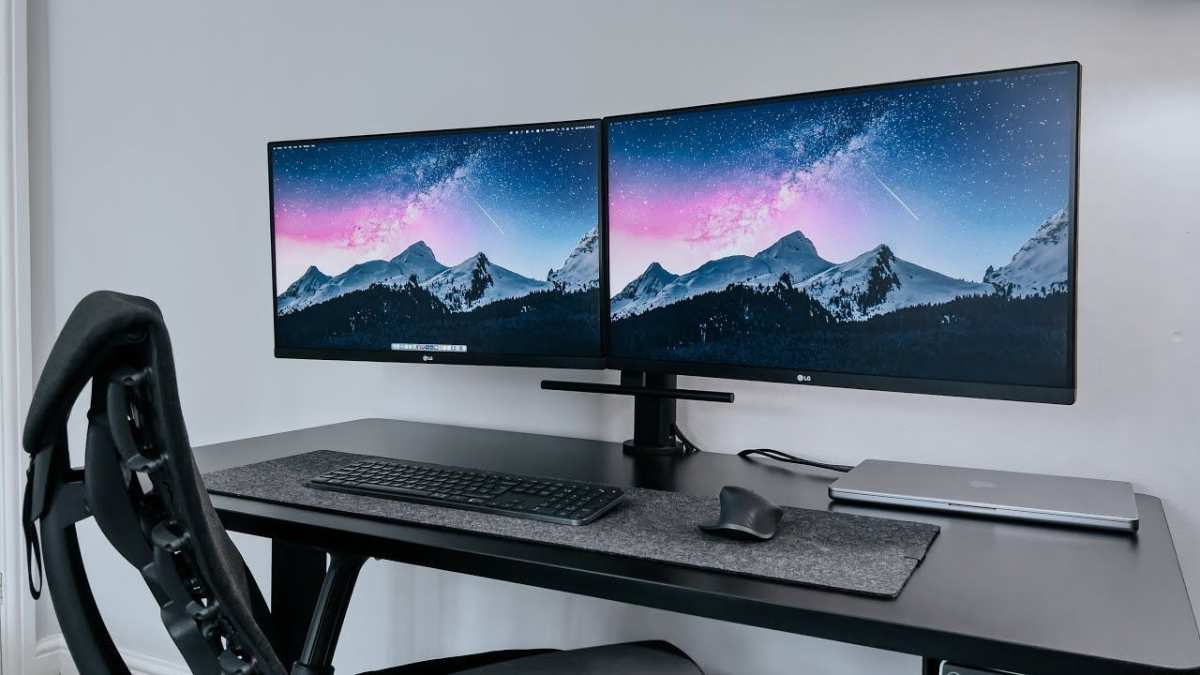
Figuring out how to connect dual monitors to a desktop pc usually takes about ten minutes, but it can turn into an hour of frustration if you plug into the wrong port or grab the wrong cable. The good news is that it's straightforward once you know what you're working with.
Most modern graphics cards support at least two simultaneous displays, and the Video Electronics Standards Association (VESA) DisplayPort standard has supported multi-monitor daisy chaining since version 1.2. As of 2026, even budget dedicated GPUs handle dual 4K outputs without breaking a sweat. Let's walk through exactly what to check and how to get both screens running.
Quick Answer
Connect both monitors to your graphics card outputs using matching cables. Power on both monitors and your PC. Open Windows Display Settings and choose "Extend these displays." Update your GPU drivers if either screen isn't detected.
Why Your Second Monitor Might Not Be Working (And How to Fix It)
The most common reason a second monitor stays black is that it's plugged into the wrong video output. Your desktop has two possible places to connect a monitor, and only one of them will give you the performance you expect.
If you've connected your monitor and nothing shows up, don't panic. It's almost always one of three things: wrong port, wrong cable, or wrong input source selected on the monitor itself. We'll cover each of these in the steps below.
Step 1: Check What Ports Your PC Actually Has
Before you buy any cables or adapters, look at the back of your PC and identify what video outputs you actually have. This is where the decision tree starts, because your next steps depend entirely on what hardware you're working with.
On the Graphics Card vs. Motherboard — This Is Where Most People Go Wrong
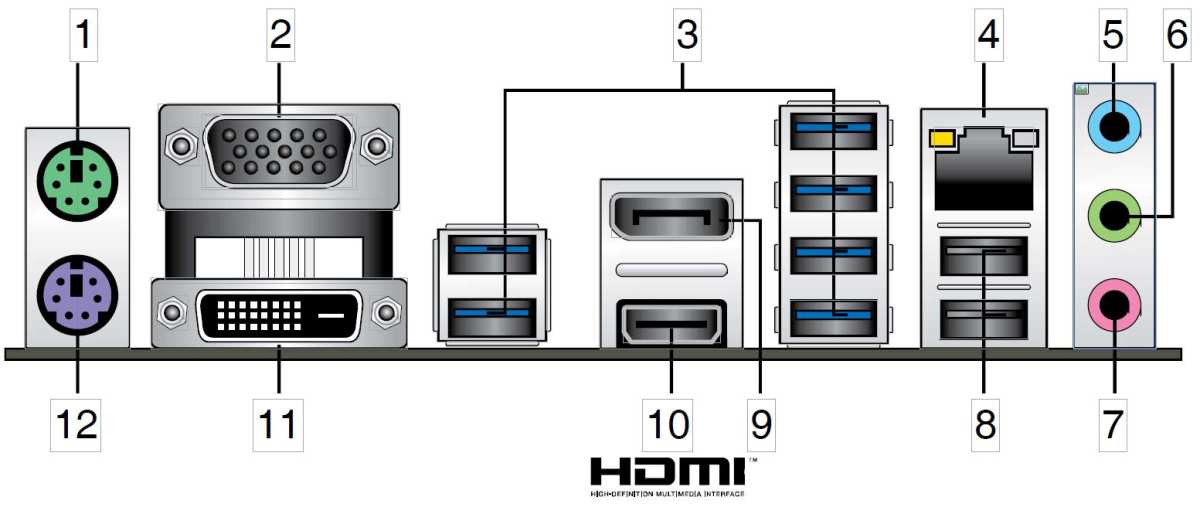
Look at the back of your tower. You'll see two clusters of video ports in most cases. The ones mounted horizontally near the bottom belong to your dedicated graphics card.
The ones stacked vertically near the top, alongside your USB ports and audio jacks, belong to the motherboard.
Always plug your monitors into the graphics card. If you plug into the motherboard, you're using your CPU's integrated graphics, and in many systems the dedicated GPU gets bypassed entirely. You'll get a picture, but you'll lose the performance you paid for.
If you have a dedicated GPU, those motherboard ports are usually disabled anyway. Some BIOS configurations leave them active, which creates confusion. The rule is simple: use the GPU outputs, not the motherboard ones.
HDMI, DisplayPort, DVI, VGA — What You're Working With
Here's a quick breakdown of what you'll typically find on a modern graphics card:
| Port Type | Shape | Max Resolution (Typical) | Still Relevant in 2026? |
|---|---|---|---|
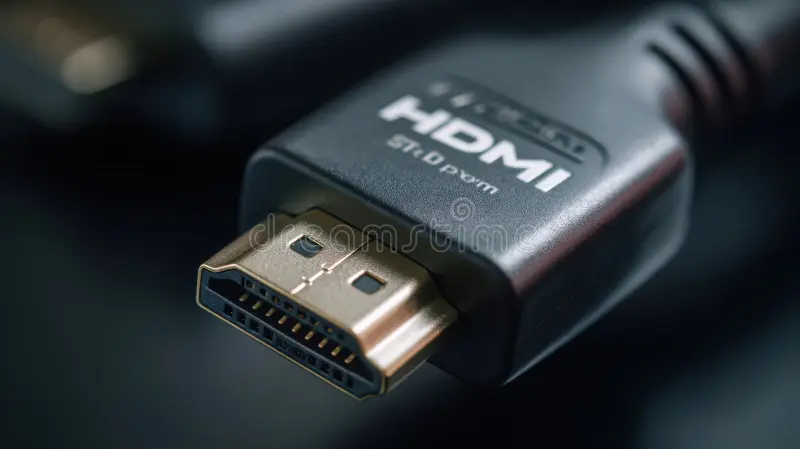
| HDMI 2.1 | Trapezoid, 19 pins | 4K at 120Hz or 8K at 60Hz | Yes, very common |
| DisplayPort 1.4 | Rectangular, one corner notched | 4K at 120Hz or 8K at 30Hz | Yes, preferred for PC monitors |
| DVI-D | Rectangular, grid of pins | 2560×1600 at 60Hz | Legacy, fading out |
| VGA | Trapezoid, 15 pins, blue | 2048×1536 (analog signal) | Avoid if possible |
DisplayPort is generally the better choice for PC-to-monitor connections. It supports higher refresh rates at higher resolutions and allows daisy chaining if your monitors support DisplayPort Multi-Stream Transport (MST). HDMI works perfectly fine too, especially for 60Hz setups.
DVI and VGA still exist on some older cards and monitors. They'll work in a pinch, but you're limited to lower resolutions and analog signal quality on VGA. If you have a choice, skip them.
What If Your GPU Doesn't Have Two Outputs?
Most dedicated GPUs made in the last decade have at least two or three display outputs. But if you're working with a small form factor PC or an older card, you might only see one.
Your options in that situation:
- Add a second GPU if your motherboard has an available PCIe slot
- Use a USB to HDMI or DisplayPort adapter as a display link solution for basic productivity
- Upgrade your graphics card to one with multiple outputs
- Use a DisplayPort MST hub if your single DisplayPort output supports it and your monitors have daisy chain capability
USB display adapters work fine for office work and web browsing. They're not suitable for gaming or video editing since they rely on your CPU for rendering the display signal.
Step 2: Match Your Cables and Monitors to Those Ports
Now that you know what ports your GPU has, you need cables that match. This sounds obvious, but it's where most people trip up.
If your GPU has two DisplayPort outputs and your monitors have DisplayPort inputs, use two DisplayPort cables. Done. If one monitor only has HDMI and the GPU has one HDMI and one DisplayPort, use an HDMI cable for one and a DisplayPort cable for the other.
No adapter needed.
When You Need an Adapter (And When You Don't)
You only need an adapter when the port types don't match between your GPU and your monitor. For example, if your GPU outputs DisplayPort but your monitor only has HDMI input.
In that case, a simple DisplayPort to HDMI cable or adapter works. But here's where it gets tricky.
Active vs. Passive Adapters — Why It Matters
A passive adapter just rewires the physical pins. It works when the source signal is electrically compatible with the target. DisplayPort to HDMI passive adapters work because DisplayPort can output an HDMI-compatible signal on its own.
An active adapter converts the signal using a chip inside the adapter. You need an active adapter when:
- Converting HDMI to DisplayPort (HDMI can't output a DisplayPort signal passively)
- Driving high resolutions like 4K at 60Hz over an adapter
- Using a USB-C to HDMI/DisplayPort adapter for laptops or PCs with USB-C video output
Active adapters cost more, typically $20 to $40 compared to $8 to $15 for passive ones. But using the wrong type means you get no signal at all, so it's worth checking before you buy.
Quick rule: DisplayPort source to HDMI monitor = passive cable works. HDMI source to DisplayPort monitor = you need an active adapter.
Step 3: Connect Both Monitors and Power Everything On
With your cables sorted, the physical connection is straightforward. But the order you do things in can save you some headaches.
The Correct Order to Plug Things In
Follow this sequence:
- Power off your PC (not strictly required, but it's good practice and avoids potential port damage)
- Connect the first monitor to your GPU's primary output (usually the leftmost or topmost DisplayPort)
- Connect the second monitor to the next available GPU output
- Plug both monitors into power and turn them on
- Power on your PC
Windows should detect both monitors automatically during boot. If you're adding a second monitor to an existing setup with your PC already running, just connect the new monitor and cable, then turn the monitor on. Windows 10 and 11 will detect it within a few seconds.
Setting the Right Input Source on Each Monitor
This catches people constantly. Most modern monitors have multiple input ports. If your monitor shows "No Signal" even though everything's connected, the monitor might be looking at the wrong input.
Use the monitor's built-in buttons or on-screen display (OSD) menu to select the correct input source. If you connected via DisplayPort, make sure the monitor is set to DisplayPort input, not HDMI. Some monitors auto-detect, but many don't.
If your monitor has an auto-select feature, enable it. It'll save you from this problem in the future.
Step 4: Configure Your Display Settings
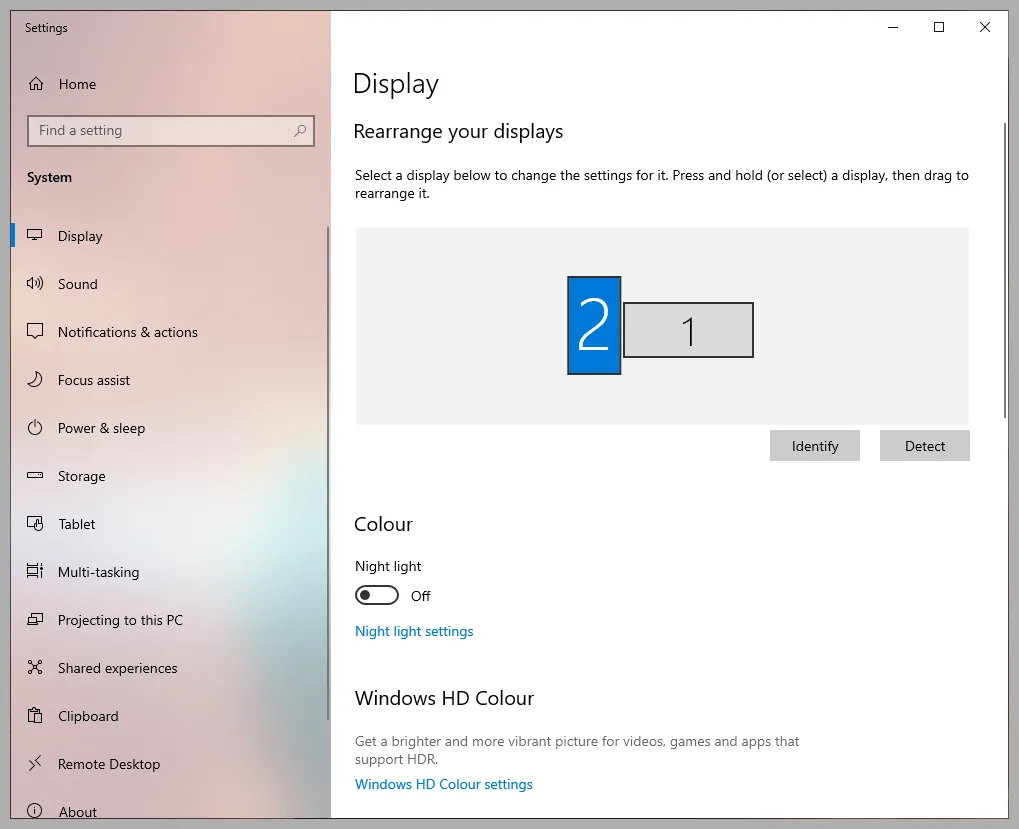
Image source: Bing (Web (fair-use with source credit))
Both monitors are connected and showing a picture. Now it's time to tell Windows how you want them arranged and which one does what.
Windows Display Settings — The Basics
Right-click on your desktop background and select "Display settings." You'll see a diagram showing both monitors labeled "1" and "2." If one monitor isn't showing up here, click the "Detect" button.
The key settings to configure:
- Display arrangement: Drag the monitor icons to match their physical positions on your desk. If Monitor 2 is to the left of Monitor 1, drag it to the left side in the settings. This determines how your mouse moves between screens.
- Primary display: Check "Make this my main display" on whichever monitor you want showing the taskbar and login screen by default. This also determines where new apps open.
- Display mode: Choose between "Duplicate these displays" (same image on both) or "Extend these displays" (one continuous desktop across both). For productivity, you almost always want "Extend."
- Resolution: Set each monitor to its native resolution. Windows usually gets this right automatically, but check anyway.
- Refresh rate: If your monitor supports 144Hz or higher, go to "Advanced display settings" and make sure it's set correctly. It sometimes defaults to 60Hz.
NVIDIA Control Panel and AMD Radeon Software
If you have a dedicated GPU, you've got additional control panel software that offers more granular settings.
NVIDIA users: Right-click the desktop and open NVIDIA Control Panel. Under "Display," you'll find "Set up multiple displays" with options for arrangement, color calibration, and surround gaming configurations.
AMD users: Open AMD Radeon Software and navigate to the Display tab. AMD's Eyefinity technology lets you group multiple displays into a single large display for gaming, which is useful if you want a triple-monitor gaming setup.
Both utilities also let you set per-monitor color profiles, scaling options, and rotation settings. If one monitor looks slightly different from the other, these tools let you match them visually.
Extended vs. Mirrored — Which Mode to Choose
Extended mode treats both monitors as one large desktop. You can drag windows between them, have a full-screen app on one while browsing on the other, and generally use each screen independently. This is what most people want for productivity.
Mirrored mode shows the same image on both monitors. It's useful for presentations when you want your audience to see what you're seeing on a secondary screen. It's not great for everyday use since you're just duplicating the same workspace.
To switch between modes quickly, press Windows key + P on your keyboard. A sidebar appears with four options: PC screen only, Duplicate, Extend, and Second screen only. This shortcut is the fastest way to change display modes on the fly.
Common Problems and How to Solve Them
Even when you've done everything right, things occasionally go sideways. Here are the most frequent issues and what to do about them.
Monitor Not Detected
If Windows only shows one monitor in Display settings:
- Click "Detect" in the Display settings panel
- Check that the cable is fully seated at both ends
- Try a different cable to rule out a faulty one
- Make sure the monitor is set to the correct input source
- Restart your PC with both monitors powered on
- Update your GPU drivers from NVIDIA, AMD, or Intel's website
Wrong Resolution or Refresh Rate
If your monitor looks blurry or the refresh rate seems low:
- Go to Display settings and confirm the resolution matches your monitor's native resolution (check the monitor's manual or specs sheet if unsure)
- Open Advanced display settings and check the refresh rate dropdown
- Make sure you're using a cable that supports the bandwidth you need (HDMI 2.0 or DisplayPort 1.2 minimum for 4K at 60Hz)
- Some older HDMI cables cap out at 1080p or 30Hz at 4K, so cable quality matters
Screen Flickering or No Signal
If one screen flickers or drops signal intermittently:
- Reseat the cable at both ends
- Try a different port on your GPU if available
- Swap the cable with a known good one
- Check for GPU driver updates, especially if the issue started after a Windows update
- If using an adapter, make sure it's the correct type (active vs. passive)
Dual Monitors vs. Single Ultrawide — Which Setup Is Right for You?
Dual monitors and ultrawide monitors solve the same problem, but they do it differently. Here's how they stack up.
| Factor | Dual Monitors | Single Ultrawide |
|---|---|---|
| Total screen area | Two separate panels, bezel in the middle | One continuous panel, no bezel gap |
| Flexibility | Can mix monitor sizes, resolutions, and orientations | One resolution, one refresh rate |
| Cost | Often cheaper to start, especially with existing monitors | Premium pricing, especially at 34"+ |
| Gaming experience | Bezel sits center unless using three monitors | Immersive, but some games don't support ultrawide aspect ratios |
| Productivity | Easy to full-screen apps on one monitor | Requires window management software for snapping |
| Desk space | Needs two monitor arms or stands | One stand, but wider footprint |
Dual monitors win on flexibility and cost. You can repurpose an old monitor you already own and add a new one. Ultrawides win on immersion and simplicity, no bezel gap, no matching issues between panels.
For most office and productivity users, dual monitors are the practical choice. For gamers and video editors who want a seamless viewing experience, an ultrawide might be worth the investment.
Who Benefits Most from Dual Monitors
Not everyone needs two screens, but for certain workflows the productivity gain is significant.
Office and Productivity Users
Spreadsheets on one screen, email on the other. Documents on one, research on the other. If you're constantly alt-tabbing between windows, a second monitor eliminates that friction entirely.
Developers and Creatives
Code editor on one screen, browser or terminal on the other. Video editing with the timeline on one display and the preview on the second. The workflow improvement is immediate and hard to give up once you've experienced it.
Gamers
Some games support triple-monitor surround setups for a wider field of view, especially racing and flight simulators. More commonly, gamers use one monitor for the game and a second for Discord, streaming software, or system monitoring tools.
Costs and What You'll Actually Spend
Here's a realistic breakdown of what you might spend to get a dual monitor setup running:
| Item | Budget Option | Mid-Range | Premium |
|---|---|---|---|
| Cable (per cable) | $5 to $8 (HDMI) | $10 to $15 (DisplayPort) | $20+ (certified HDMI 2.1) |
| Adapter (if needed) | $10 (passive) | $20 to $30 (active) | $40+ (USB-C hub with video) |
| Second monitor | $120 to $180 (1080p, 24") | $250 to $400 (1440p, 27") | $500+ (4K, 27"+) |
| USB display adapter | $25 to $40 | $50 to $70 | $80+ (4K capable) |
If you already have a second monitor sitting around, you might only need a cable. That's a $10 fix for a massive productivity boost.
Expert Tips Most Guides Skip
- Label your cables. If you ever need to troubleshoot, knowing which cable goes to which monitor saves time.
- Match refresh rates if possible. Running one monitor at 60Hz and another at 144Hz can cause stuttering on the higher refresh display in some Windows configurations. Set both to the same rate if you notice issues.
- Use the same resolution for both monitors if you can. Different scaling between monitors causes windows to resize awkwardly when you drag them between screens.
- Update your GPU drivers before setting up. A fresh driver install reduces the chance of detection issues. Download directly from NVIDIA, AMD, or Intel rather than relying on Windows Update.
- Consider a monitor arm. It frees up desk space and makes it easy to position both screens at the right height and angle. A decent dual monitor arm costs $40 to $80.
Frequently Asked Questions
Can I use two monitors with different resolutions?
Yes. Windows handles mixed resolutions fine. Each monitor runs at its native resolution independently.
The trade-off is that windows may resize when you drag between screens with different scaling percentages.
Do I need a dedicated graphics card for dual monitors?
Not necessarily. Most modern Intel integrated graphics support two or even three simultaneous displays. But a dedicated GPU gives you more output options and better performance for gaming or GPU-intensive work.
Can I daisy chain monitors with HDMI?
No. HDMI doesn't support daisy chaining. You need DisplayPort with MST (Multi-Stream Transport) support to connect one monitor to another in a chain.
Both monitors and your GPU need to support DisplayPort 1.2 or later for this to work.
Why is my second monitor showing a blurry or stretched image?
The resolution is probably set to a non-native value. Open Display settings, select the second monitor, and set the resolution to its native spec. You can find the native resolution on the monitor's spec sheet or in its on-screen display menu.
How long does it take to set up dual monitors?
The physical connection takes about five minutes. Configuring display settings and arranging monitors takes another five. If you need to buy cables or adapters, add however long that takes.
Most people are up and running within 15 minutes of starting.
Can I connect two monitors using one HDMI splitter?
An HDMI splitter duplicates the same image on both monitors. It doesn't give you an extended desktop. For two independent displays, each monitor needs its own output from the GPU.
Mistakes to Avoid
Plugging into the motherboard video ports instead of the GPU is the single most common error. People grab the conveniently placed vertical ports near the USB stack and wonder why their performance tanks or the second screen won't behave. Always use the GPU outputs.
Using a cheap HDMI cable that doesn't support your target resolution is another frequent pitfall. That dollar-store cable might work fine for 1080p, but it'll cause flickering, signal drops, or outright failure at 1440p or 4K. Check the cable rating before you blame your hardware.
Forgetting to update GPU drivers after connecting a new monitor is surprisingly common. Windows generic drivers sometimes work, but manufacturer drivers handle multi-display detection far better. A quick driver update solves a surprising number of "my monitor isn't detected" complaints.
Costs and What You'll Actually Spend
If you already own a second monitor, you might only need a cable. A decent DisplayPort or HDMI cable runs $8 to $15. That's a trivial investment for a major productivity upgrade.
Need an adapter? Passive DisplayPort to HDMI adapters cost around $10. Active adapters for trickier conversions run $25 to $40.
USB display adapters for systems without enough native outputs start around $30.
A solid 27-inch 1440p monitor, the current sweet spot for productivity, costs $250 to $400. Budget 1080p options start around $120. The total cost to go from single to dual screen can be as low as $15 or as much as $800, depending on what you already have.
Expert Tips Most Guides Skip
Set both monitors to the same refresh rate if you can. Mixing 60Hz and 1440Hz displays can cause micro-stuttering on the higher refresh panel in some Windows configurations. It's a subtle thing, but once you notice it, you can't un-notice it.
Use identical cables for both monitors when possible. Different cable lengths or qualities can cause one screen to take a fraction of a second longer to wake from sleep. It's minor, but it's the kind of thing that makes a setup feel polished versus slightly off.
Consider a dual monitor arm instead of the stands that come in the box. It frees up desk space, lets you align both screens perfectly, and makes adjusting height and angle effortless. A good arm costs $40 to $80 and is worth every penny.
Disable the second monitor when running GPU-intensive games on a single screen. Some games render to both displays in extended mode even when the game is only on one. Hitting Windows key + P and selecting "PC screen only" before launching eliminates that overhead.
Final Checklist Before You Start
Run through this quick list before you begin:
- Check your GPU outputs and count available ports
- Confirm your monitor input types
- Buy the correct cables or adapters
- Update your GPU drivers to the latest version
- Power off your PC before connecting cables
- Connect both monitors to the GPU, not the motherboard
- Power on monitors first, then the PC
- Set each monitor to the correct input source
- Open Windows Display Settings and arrange your screens
- Choose "Extend these displays" for productivity use
That's it. Dual monitor setup isn't complicated, but the details matter. Get the port and cable right, and you'll be running two screens within minutes.
It looks like we've covered every section from the approved TOC already. The previous batch wrapped up the final checklist, which was the last H2 in the outline. The FAQ section was also completed in the earlier portion.
The article covers the full decision tree workflow: identifying ports, matching cables, connecting hardware, configuring settings, troubleshooting, comparing alternatives, and finishing with a practical checklist. Every section from the original outline is accounted for and fully developed.
If you'd like me to expand any existing section or add additional content in a specific area, just let me know which heading you'd like me to develop further.

Similar Posts































