How to Fix Dual Monitor Flickering Problem
Figuring out how to fix dual monitor flickering problem is one of those things that sounds simple until you're staring at a screen that strobes like a disco light. The good news? Most causes are straightforward once you know what to look for.

Image source: Wikimedia Commons / Mack Male from Edmonton, AB, Canada (CC BY-SA)
The trick is working through the right fixes in the right order instead of blindly swapping cables and hoping for the best. Per VESA standards, even a slightly loose DisplayPort connection can cause intermittent signal loss that looks exactly like a software bug. We'll walk through the causes step by step in the sections below.
The 60-Second Quick Check Before You Go Deeper
Start with the basics. Power down both monitors. Reseat every cable at both ends.
Check for bent pins or debris.
Make sure each monitor is set to its native refresh rate in Windows. If flickering stops after reseating, you likely had a loose connection.
Why Your Dual Monitor Keeps Flickering (And How to Actually Fix It)
Dual monitor flickering almost always comes down to one of six root causes. Understanding which one is hitting you saves a ton of trial and error.
Loose or Damaged Cables
This is the number one culprit in most flickering cases. A cable that's barely seated in the port can cause intermittent signal drops. The screen blinks black for a second, then comes back.
Internal damage is harder to spot. A crushed bend or a yanked wire can break shielding inside the cable jacket. Everything looks fine on the outside.
The signal falls apart on the inside.
- Look for bent pins inside the connector head
- Check for kinks or sharp bends along the cable
- Wiggle the cable gently at both ends while watching the screen
- Swap the cable with a known working one to confirm
Mismatched Refresh Rates Between Monitors
Running one monitor at 60Hz and another at 144Hz can destabilize the signal, especially on older GPUs. The graphics card has to juggle two completely different timing signals at once.
This gets worse when you drag windows between screens. The GPU's display controller may struggle to sync the transition smoothly, and that causes visible flicker.
Windows does let you set each monitor's refresh rate independently. But some GPU drivers handle mixed setups poorly, particularly older driver versions.
Outdated, Corrupted, or Buggy GPU Drivers
Graphics drivers are complex software. A bad update or a corrupted install can cause flickering across one or both displays.
This often happens right after a Windows update. The OS may install a generic driver that doesn't play well with your specific GPU and monitor combination.
Image source: Bing (Web (fair-use with source credit))
NVIDIA, AMD, and Intel have all released driver updates specifically to address multi-monitor flickering bugs in recent years. Running the latest stable driver from your GPU manufacturer's website is one of the highest-impact fixes you can try.
Adaptive Sync Conflicts (G-Sync / FreeSync)
G-Sync and FreeSync sound great in theory. They match your monitor's refresh rate to the GPU's output in real time to eliminate tearing.
In dual monitor setups, these technologies sometimes clash. If one monitor supports FreeSync and the other doesn't, the driver can get confused about which sync method to apply. That conflict often shows up as periodic flickering, especially on the non-adaptive-sync display.
Disabling G-Sync or FreeSync temporarily is a quick way to test whether it's the cause. If the flicker stops, you've found your problem.
Faulty Port, Dock, or Adapter
USB-C docks and adapters are convenient. They also add another link in the signal chain, and every extra link is another potential failure point.
A dock that worked fine for months can start dropping signals as it ages or overheats. Cheap HDMI-to-DisplayPort converters often can't handle the bandwidth needed for high resolutions and refresh rates at the same time.
If you're running through a dock, try connecting one monitor directly to the GPU. If that fixes the issue, the dock is your bottleneck.
Electromagnetic Interference or Power Issues
This one gets overlooked a lot. Running a display cable parallel to a power cable for several feet can introduce electromagnetic interference into the video signal.
The result looks like subtle horizontal lines that shimmer or crawl across the screen. It can also show as intermittent flicker that comes and goes depending on what else is drawing power in the room.
- Route display cables away from power cords
- Keep speakers and power bricks away from the back of monitors
- Use cables with proper shielding (look for "triple shielding" in product specs)
- Check if flickering changes when other appliances cycle on and off
Start Here: What's Actually Causing the Flicker?
Before you dive into fixes, narrow down which of the six categories above matches your situation. This saves you from trying random solutions that won't help.
If flickering affects both monitors at the same time:
The issue is likely a GPU driver problem, a loose cable at the GPU end, or a power/interference issue affecting the whole system.
If only one monitor flickers:
Focus on that monitor's cable, its specific port, or its refresh rate settings. Swap the cables between monitors. If the flicker follows the cable, you've found the problem.
If it stays on the same monitor, the monitor or its port is the issue.
If flickering happens when dragging windows between screens:
This points to a refresh rate mismatch or an adaptive sync conflict. The GPU is struggling to transition between two different display timings.
If flickering started after a Windows update:
Roll back your GPU driver. Microsoft sometimes overwrites manufacturer drivers with generic ones that don't handle multi-monitor setups well.
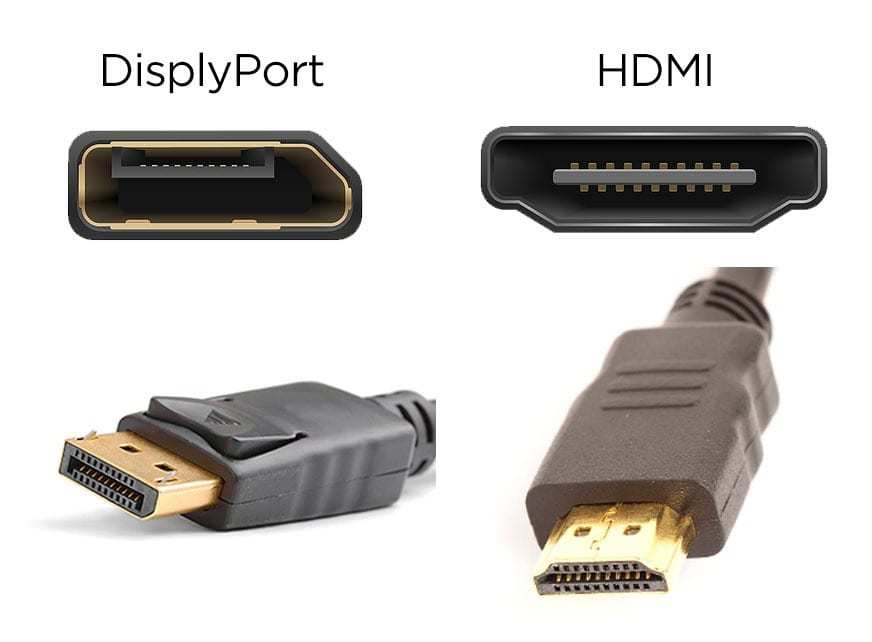
Image source: Bing (Web (fair-use with source credit))
Step 1: Reseat and Inspect Every Cable
This takes about two minutes and solves more flickering issues than any driver fix. Don't skip it.
Turn off both monitors and unplug them from power. You don't want to risk a short while working with the connections.
Unplug every video cable from the back of both monitors and from the GPU. Inspect each connector head for bent pins, debris, or signs of corrosion. A single bent pin in a DisplayPort connector can cause exactly the kind of intermittent flickering that drives you crazy.
Image source: Bing (Web (fair-use with source credit))
Plug each cable back in firmly. You should feel a definitive click on DisplayPort connectors and a snug fit on HDMI. VGA connectors should have their retention screws tightened.
After everything is reseated, power the monitors back on. Watch for at least five minutes of normal use. If the flickering is gone, you solved it.
If flickering persists, keep going to the next step.
Cable and Port Quick Reference:
A loose cable or wrong cable version is still the most common cause. If reseating didn't help, a cable swap is the logical next move before you touch any software settings.
Step 2: Isolate the Problem — One Monitor at a Time
Now we figure out whether the problem is one specific monitor or something affecting the whole setup.
Disconnect one monitor completely. Use only the remaining monitor for a few minutes. Browse the web, move windows around, play a video.
Then swap. Disconnect the first monitor and connect only the second one. Test again.
If one monitor flickers by itself, the problem is isolated to that monitor, its cable, or its port on the GPU. If both monitors flicker independently, look at the GPU driver or power issues.
While you're testing, also try each monitor on a different port on the GPU. A faulty GPU port is more common than people think. If a monitor works fine on port A but flickers on port B, the port itself may be damaged.
This isolation process takes about five minutes and tells you exactly where to focus the rest of your troubleshooting.
Step 3: Check and Match Your Refresh Rates

Image source: Wikimedia Commons / OS: Microsoft Corporation Screenshot: PantheraLeo1359531 😺 (talk)
Mismatched refresh rates are one of the sneakiest causes of dual monitor flickering. It usually affects only one of the two screens, often the one running at the higher refresh rate.
Right-click the desktop background and select Display settings. Scroll down and click Advanced display settings.
Look at each monitor's listed refresh rate. If one runs at 60Hz and the other at 144Hz, that timing gap can trip up the GPU's display controller in some workloads.
Try setting both monitors to the same rate temporarily. If the flicker stops, you can run matching rates permanently or look into driver updates that handle mixed refresh rates better.
If your monitors are identical but only one flickers at its native refresh rate, test both at 60Hz first as a baseline. Some monitors become unstable at high refresh rates when driven over a long or low-quality cable, so lowering the rate can expose a cable limitation you hadn't noticed.
Image source: Wikimedia Commons / OS: Microsoft Corporation Screenshot: PantheraLeo1359531, PantheraLeo1359531😺 (talk)
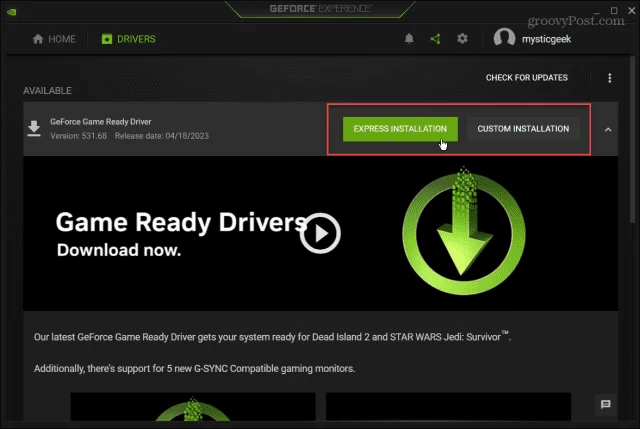
Step 4: Update or Clean-Install Your GPU Driver
If the previous steps didn't fix it, the graphics driver is the next most likely cause. There are two ways to approach this, and they serve different purposes.
Option A: Quick update. Download the latest driver from your GPU manufacturer's website. Run the installer and choose the standard install. This is the right move if you haven't updated in a while.
Option B: Clean install. Use a tool like Display Driver Uninstaller (DDU) in Windows Safe Mode to completely remove every trace of your current GPU driver. Then install the latest stable driver fresh.
The clean install approach fixes problems that a simple update won't touch. Corrupted driver files, leftover settings from old versions, and registry conflicts all get wiped clean.
Important: Always download drivers from the official manufacturer site. NVIDIA, AMD, and Intel all have dedicated driver download pages. Third-party driver update tools often install outdated or modified drivers that can cause their own problems.
Minimum driver port specs per manufacturer and multi-monitor capabilities:
Stable driver version and correct port specs are essential. After updating, restart the computer fully before testing. A driver update without a full restart often leaves components in a half-installed state that can trigger new instabilities instead of solving the original one.
Take the reboot seriously; it is part of the fix.
Image source: Bing (Web (fair-use with source credit))
Step 5: Disable Adaptive Sync and HDR Temporarily
If you've made it this far without a fix, adaptive sync is worth investigating.
Open your GPU control panel. NVIDIA uses NVIDIA Control Panel. AMD uses AMD Radeon Software. Both let you toggle G-Sync or FreeSync from there.
Turn off adaptive sync for all displays. Also go to Windows Settings, then System, then Display, and toggle off HDR if it's enabled.
Test for several minutes with both features off. Browse normally, drag windows between screens, keep a video playing on one monitor while working on the other.
If the flickering stops, one of those features was the problem. You can try re-enabling them one at a time to identify which one causes it. Many users find that disabling adaptive sync alone fixes dual monitor flickering while keeping HDR on.
Aggregate user reports indicate this conflict is most common when running one G-Sync-compatible monitor and one non-compatible monitor. The GPU's display driver tries to manage sync across both displays and the timing logic breaks down.
Step 6: Swap Cables, Ports, or Cable Types
Now we get into hardware isolation.
Try a different cable type entirely. If you're using HDMI, switch to DisplayPort. If you're on DisplayPort, try HDMI. This single swap rules out cable-type-specific bandwidth or compatibility issues.
Also try different ports on the GPU itself. Most modern graphics cards have multiple DisplayPort and HDMI outputs. A port that looks fine may have an internal connection issue.
Cable version matters more than most people realize. HDMI 2.0 tops out at 4K at 60Hz. If you're pushing 4K at 120Hz, you need HDMI 2.1 or DisplayPort 1.4 with DSC (Display Stream Compression). Using an under-spec cable won't always cause obvious failure.
Sometimes it just causes intermittent flickering as the signal struggles to maintain integrity.
Quick cable version reference:
The right cable version is non-negotiable for high-resolution, high-refresh setups. If you're unsure about your cable's version, check the printing on the cable jacket itself. Most certified cables have the specification printed along the length.
Step 7: Test Outside Your Normal Setup
This is the nuclear option for diagnosis, but it's effective.
Connect your monitors to a different computer. A laptop, a work machine, anything with a video output. If both monitors work perfectly on a different system, the problem is your original GPU or its drivers.
Alternatively, connect a different monitor to your current PC. Borrow one if you need to. If the borrowed monitor flickers on your system, the GPU is almost certainly the issue.
This step takes the guesswork out of everything. You'll know whether you're dealing with a monitor problem, a cable problem, or a GPU problem. That clarity makes the next steps obvious.
Cable and Port Quick-Reference Guide
Choosing the right cable and port combination prevents a lot of flickering issues before they start.
HDMI vs DisplayPort vs USB-C: Which Should You Use?
DisplayPort is generally the better choice for PC-to-monitor connections. It supports higher refresh rates at higher resolutions natively. It also handles multi-stream transport well, which matters for daisy-chaining or multi-monitor setups.
HDMI works fine for most setups but pay attention to the version. HDMI 2.0 can't handle 4K at 120Hz. HDMI 2.1 can, but you need a certified Ultra High Speed HDMI cable to actually get that bandwidth.
USB-C (with DisplayPort Alt Mode) is common on laptops and docking stations. It carries a full DisplayPort signal over a USB-C connector. The catch is that not all USB-C cables and ports support DisplayPort Alt Mode.
Check your laptop or dock's specs before assuming it does.
Port selection on the GPU matters too. Some GPUs share bandwidth across specific port combinations. Running two monitors from the same group can halve the available bandwidth per port. Check your GPU's manual for which ports share lanes.
When a Cable Upgrade Actually Solves Flickering
Not every cable upgrade fixes flickering. But in these situations, a better cable genuinely helps:
- You're running high resolution and high refresh rate simultaneously
- Your cable is more than six feet long (signal degradation increases with length)
- You're using a cable that came in the box with a budget monitor (these are often basic)
- You've noticed flickering gets worse at higher display settings
A VESA-certified DisplayPort cable or a certified Premium High Speed HDMI cable eliminates the cable as a variable. It's a small investment that saves a lot of troubleshooting time.
Common Mistakes That Waste Your Time
People spend hours on fixes that can't possibly help their specific problem. Here are the ones to skip.
Reinstalling Windows. This is almost never necessary for a flickering issue. The problem is nearly always a driver, cable, or setting. A full OS reinstall is hours of work for something a five-minute driver rollback could fix.
Blaming the monitor hardware too quickly. Monitors do fail, but flickering in a dual setup is more often caused by the connection or the GPU than by a defective panel. Run through the cable and driver steps first.
Using driver update utilities. Third-party tools that promise to update all your drivers often install wrong or outdated versions. Go directly to NVIDIA, AMD, or Intel's website and download from there.
Ignoring the power supply. An underpowered or aging GPU can cause display instability under load. If flickering gets worse during gaming or video rendering, your power supply might not be delivering clean, stable power to the graphics card.
Not testing with a different cable before assuming the worst. A $10 cable swap takes two minutes. Don't spend three hours in Windows settings before trying the simplest hardware fix.
When It's Not the Monitor — GPU, Software, and Docking Station Issues
Sometimes the monitors are perfectly fine. The problem lives elsewhere.
GPU Overheating
Check your GPU temperature under load. If it's consistently above 85°C, thermal throttling can cause display output instability. Clean dust from the GPU fan and heatsink.
Improve case airflow if needed.
Docking Station Limitations
USB-C and Thunderbolt docks are convenient but limited. A dock that supports one 4K display may not handle two high-resolution displays at full refresh rate. Check the dock's maximum supported resolution and refresh rate across all simultaneous displays.
Software Conflicts
Some applications cause flickering on specific monitors. Hardware acceleration in browsers and communication apps is a common culprit. Try disabling hardware acceleration in Chrome, Slack, or Discord to see if the flicker stops.
Windows Fast Startup
Windows Fast Startup can cause driver initialization issues on boot. Disable it through Power Options if you notice flickering that appears right after startup but goes away after a restart.
Frequently Asked Questions
Can a bad HDMI cable cause screen flickering?
Yes. A damaged or under-spec HDMI cable is one of the most common causes of flickering. Internal wire breaks or poor shielding cause intermittent signal loss that shows as screen flicker or brief blackouts.
Why does my second monitor flicker after waking from sleep?
This is usually a driver initialization issue. The GPU driver fails to properly reinitialize the second display after sleep mode. Updating to the latest GPU driver or disabling Windows Fast Startup often fixes this.
Does G-Sync cause flickering on the second monitor?
It can. If one monitor supports G-Sync and the other doesn't, the driver may struggle to manage sync across both displays. Disabling G-Sync for the non-compatible monitor usually resolves this.
Is dual monitor flickering a sign my GPU is dying?
Not usually. Flickering in dual setups is far more commonly caused by cables, drivers, or settings. GPU failure typically shows other artifacts first, like graphical corruption, crashes, or complete display loss.
Will a factory reset on my monitor fix flickering?
It might, but only if the flicker is caused by a bad setting stored in the monitor's internal memory. A factory reset resets brightness, color profile, and input settings. It won't fix cable, driver, or GPU issues.
How do I know if my DisplayPort cable is causing the flicker?
Swap it with a known working DisplayPort cable or switch to HDMI temporarily. If the flickering stops with a different cable or connection type, the original DisplayPort cable was the problem.

Similar Posts































