How to Play Games on Dual Monitors
If you've ever wanted how to play games on dual monitors without dropping hundreds on an ultrawide, you're in the right place. The good news is that most setups only need a few software changes, not new hardware.
Aggregate user reports confirm that a second screen can be the cheapest immersion or productivity upgrade for your rig. We'll cover the main play styles, the exact Windows and GPU-driver steps, and the usual taskbar and mouse slip-ups. As of 2026, Windows still handles multiple displays differently depending on whether you want one game stretched across both screens or a game on one screen and Discord, a browser, or a stream dashboard on the other.
Quick Answer
Connect both monitors to your graphics card. Set Windows Display Settings to "Extend these displays". For spanning one game, use NVIDIA Surround or AMD Eyefinity at the driver level.
For single-screen play, run the game in borderless windowed mode and lock your cursor. Hide the auto-hide taskbar to prevent accidental mouse slip and double-check that both displays run at the same refresh rate if you're going for a seamless experience.
What "Gaming on Dual Monitors" Actually Means
Before diving into steps, it helps to understand what's actually going on when you fire up a game with two screens attached. Your GPU has to manage two separate display outputs, each with potentially different resolutions, refresh rates, and physical positions on your desk.
When you tell Windows to "Extend" your displays, it creates one large virtual desktop across both monitors. Your mouse moves between them as if they were one continuous workspace. This is fundamentally different from duplicating your screen, which just mirrors the same image on both displays.
A few terms you'll see a lot in this guide:
- Extended desktop mode: Two independent screens acting as one workspace.
- Spanning / Surround / Eyefinity: Forcing the GPU to treat both monitors as one giant display for a single game.
- Borderless windowed mode: A game running in a window that's been stripped of borders and title bars, filling one whole screen.
- Bezel correction: A GPU driver feature that accounts for the physical gap between two monitor edges so the image doesn't wrap awkwardly.
Understanding these distinctions makes every later step easier, because you'll know exactly which path fits what you're trying to do.
Setting Up Your Hardware: Connections, Ports, and Basics
The physical setup is straightforward, but a few small details can save you headaches later.
First, both monitors need to plug into your graphics processor, not one into the graphics card and one into the motherboard's onboard video output. Mixing GPU and motherboard outputs usually means the second display won't be available for gaming or advanced driver features like NVIDIA Surround. If your card has a mix of DisplayPort and HDMI, check the GPU manufacturer's documentation for which ports support the highest bandwidth, because that's what you'll want for your primary gaming screen.
Watch for a common mix-up: not all GPU ports are equal. Older cards might do DisplayPort 1.2 on one output and 1.4 on another. A quick search for your exact GPU model's specifications usually clears this up.
Quick checklist before you touch any software:
- Both monitors connected directly to the GPU.
- Power cables secure and displays powered on.
- Cables rated for your target resolution and refresh rate (DisplayPort 1.4 or HDMI 2.1 for 4K high-refresh as of 2026).
- Identical resolutions on both displays if you plan to span a game across them.
Two 27-inch 1920×1080 panels do not behave like an ultrawide 34-inch. You always have a bezel in the middle. But they're widely available, relatively affordable, and with the right settings they do exactly what most dual-monitor gamers need.
Getting the Display Settings Right in Windows
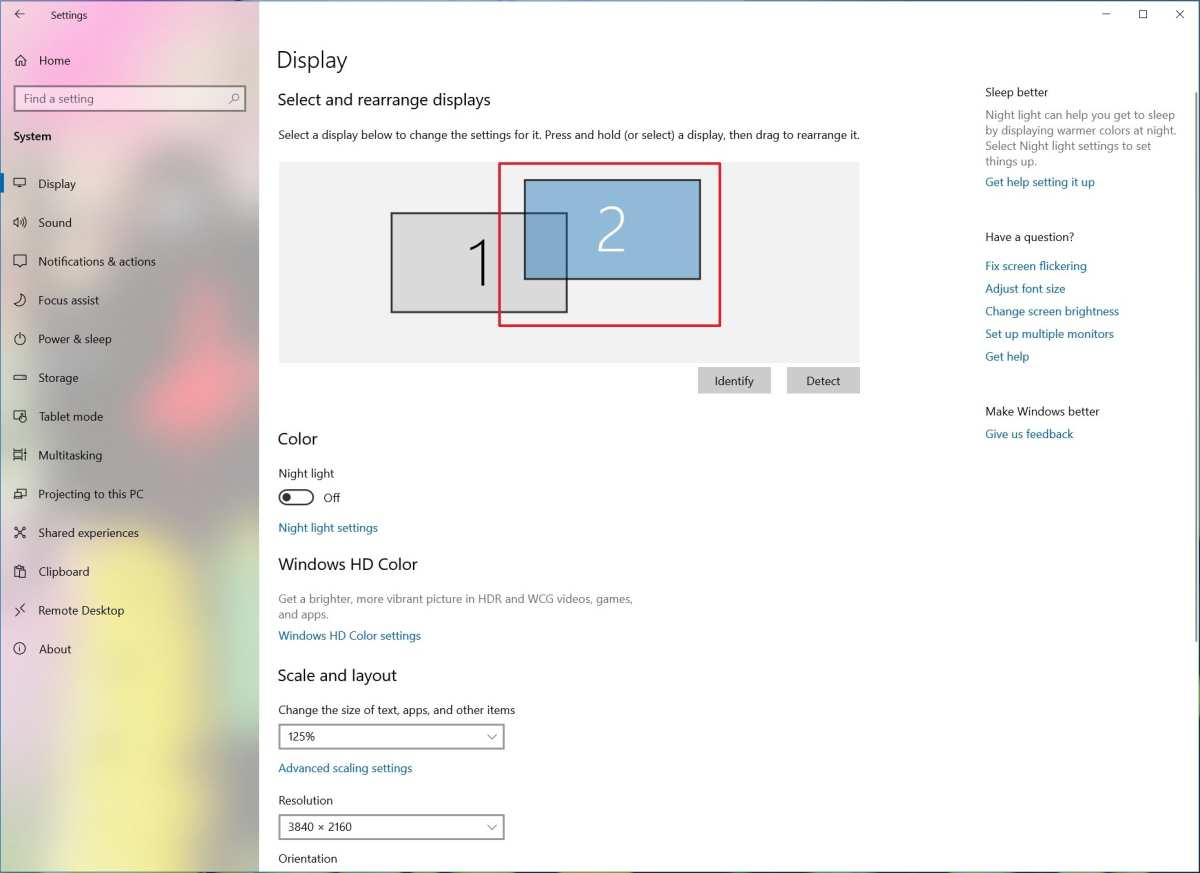
Once your hardware is connected, Windows should detect both screens automatically. Open Settings > System > Display to verify everything's showing up correctly.
If only one display appears, hit the Detect button. If that doesn't work, double-check your cable connections and try a different port on the GPU. Factory resets on the monitor itself can occasionally help with stubborn detection issues.
Under Windows 10 and 11, you'll see a few critical options:
- Multiple displays dropdown: Set this to "Extend these displays" for gaming across two screens.
- Identify: Click this to see numbered overlays on each physical screen so you can drag them into the correct left-right arrangement.
- Make this my main display: Choose which screen gets your taskbar and where fullscreen games launch by default.
This is also where you'll adjust each monitor's resolution and refresh rate individually. If you're planning to span a game across both screens later, getting both displays to the same resolution here makes the next steps far less painful.
Once you've got both monitors detected and extended, Windows 11 makes it particularly easy to quickly switch projection modes using Windows key + P, which opens a sidebar with PC screen only, Duplicate, Extend, and Second screen only options. It's handy when you need to toggle modes without diving into Settings.
How to Use NVIDIA Surround or AMD Eyefinity for Spanning
If your goal is to stretch a single game across both screens like an ultrawide, you'll need to step beyond Windows Display Settings and into your GPU's driver software. This is where NVIDIA Surround and AMD Eyefinity come in.
These technologies combine two or more displays into one giant virtual monitor. The game then sees a single ultra-wide resolution, such as 3840×1080 for two 1080p panels, and renders across both.
Key requirements for spanning:
- Monitors at the same resolution and refresh rate.
- Monitors connected to the same GPU (no mixing NVIDIA and AMD outputs).
- Reasonable bezel correction to offset the gap. This adds pixels so a straight line doesn't appear to jump at the seam.
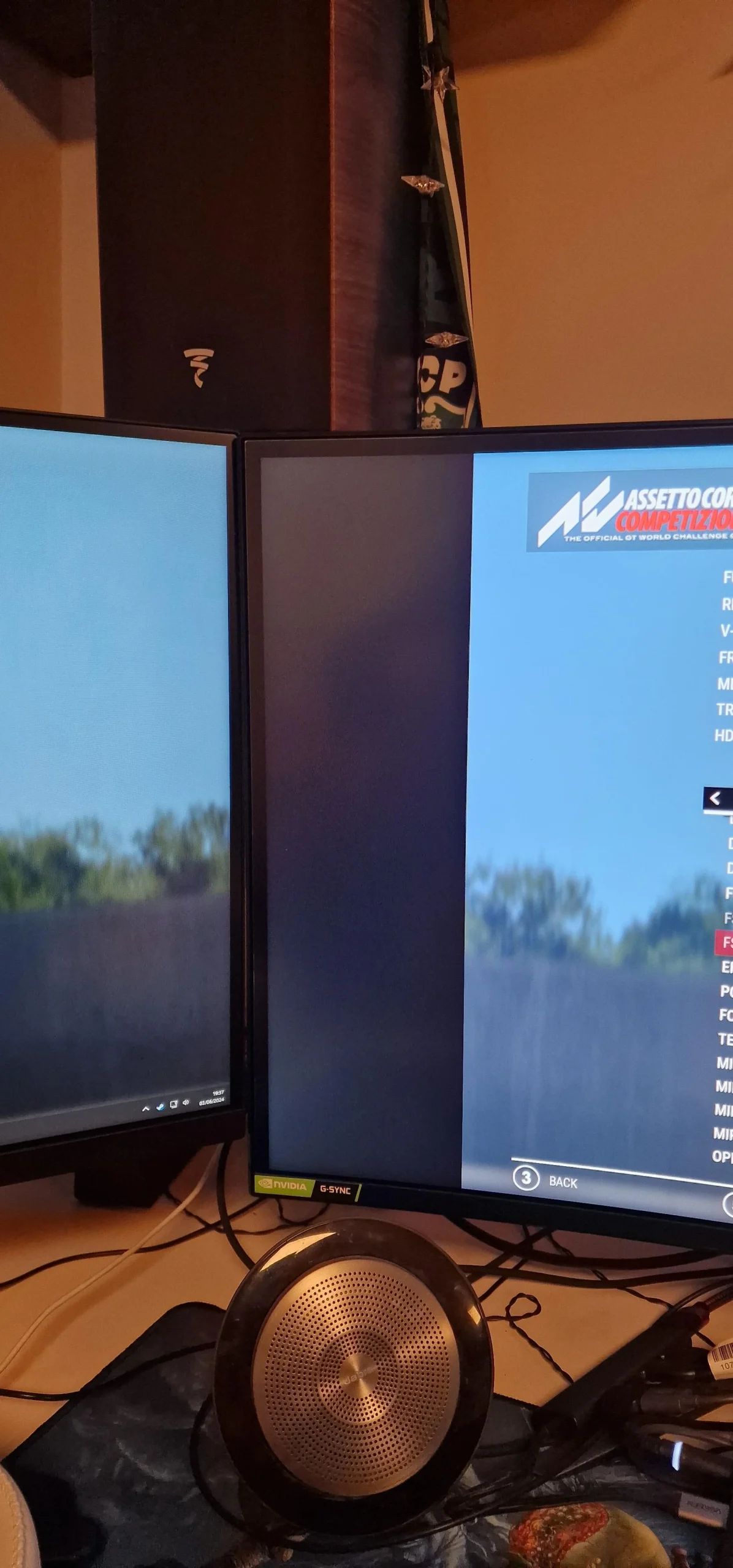
Some older GPUs or very old monitor combinations might not support Surround at all. If your setup doesn't qualify, forced windowed mode with tools like Borderless Gaming is the most reliable workaround for playing on both screens without driver-level support.
A word of warning from real user forums: not every game handles custom ultra-wide resolutions well. HUD elements can end up at the far edges of either screen, crosshairs sit smack on the bezel line, and some titles simply refuse to accept the unusual aspect ratio. Racing sims and flight sims tend to shine with spanning.
First-person shooters often feel worse.
How to Run a Game on One Screen and Apps on the Other
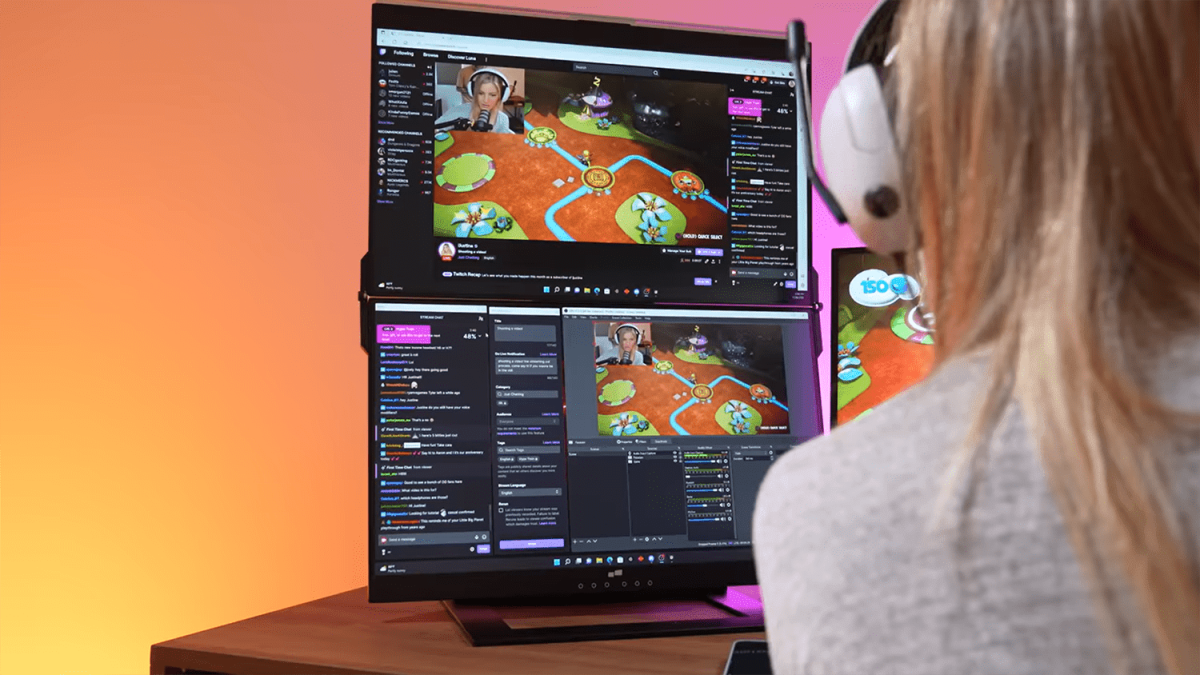
This is the sweet spot for most gamers, and it's also the easiest setup to pull off. You run your game in fullscreen or borderless windowed mode on your primary monitor while keeping Discord, a browser, Spotify, or a streaming dashboard open on the secondary screen.
The trick is keeping the game locked to your primary display so your mouse doesn't wander off in the middle of a firefight. Here's how:
- Fullscreen mode naturally locks the cursor to the game window. It's the most foolproof option.
- Borderless windowed mode is more convenient for alt-tabbing, but the cursor can slide onto the second screen. You'll need a third-party tool to lock it.
- DisplayFusion and Dual Monitor Tools both offer cursor confinement features that keep your mouse on the primary screen during gameplay.
For streamers, this setup is nearly mandatory. OBS or Streamlabs on the second screen lets you monitor chat, scene transitions, and streamhealth without ever minimizing your game. A dual-monitor streaming setup is one of the best quality-of-life upgrades you can make.
Windows taskbar tip: right-click the taskbar, choose Taskbar settings, and look for options to auto-hide or disable the taskbar on the secondary display. Nothing breaks immersion faster accidentally clicking through to your desktop mid-game.
Fixing the Annoying Stuff: Taskbar, Mouse Drift, and Resolution Mismatches
Even when everything's set up correctly, a handful of gremlins can ruin the dual-monitor gaming experience. Here are the most common culprits and how to fix them.
Mouse drift. Your cursor sliding onto the second screen mid-game is the number one complaint. In fullscreen mode, Windows usually contains the cursor to the game window.
If you're in borderless windowed, a tool like Lock Cursor or the cursor confinement option in DisplayFusion solves this instantly.
Taskbar popping over your game. The fix is in Windows Settings under Taskbar behaviors. Toggle "Automatically hide the taskbar" or set the taskbar to only show on your main display.
Windows 11 has improved this, but it still slips through in some fullscreen implementations.
Resolution mismatch headaches. If you have a 1440p primary and a 1080p secondary, games that default to your desktop resolution can look wrong on the smaller panel. Setting both displays to the same resolution avoids this entirely, though it means running your higher-res screen at lower quality.
An alternative is to specifically tell each game which monitor to use through its settings or Windows graphics preferences.
Refresh rate mismatches causing stutter. Running one monitor at 144Hz and another at 60Hz can cause frame pacing issues, especially in borderless windowed mode. If you see micro-stutter, try setting both displays to the same refresh rate temporarily to test.
Quick Comparison: Dual Monitors vs Ultrawide vs Single Screen
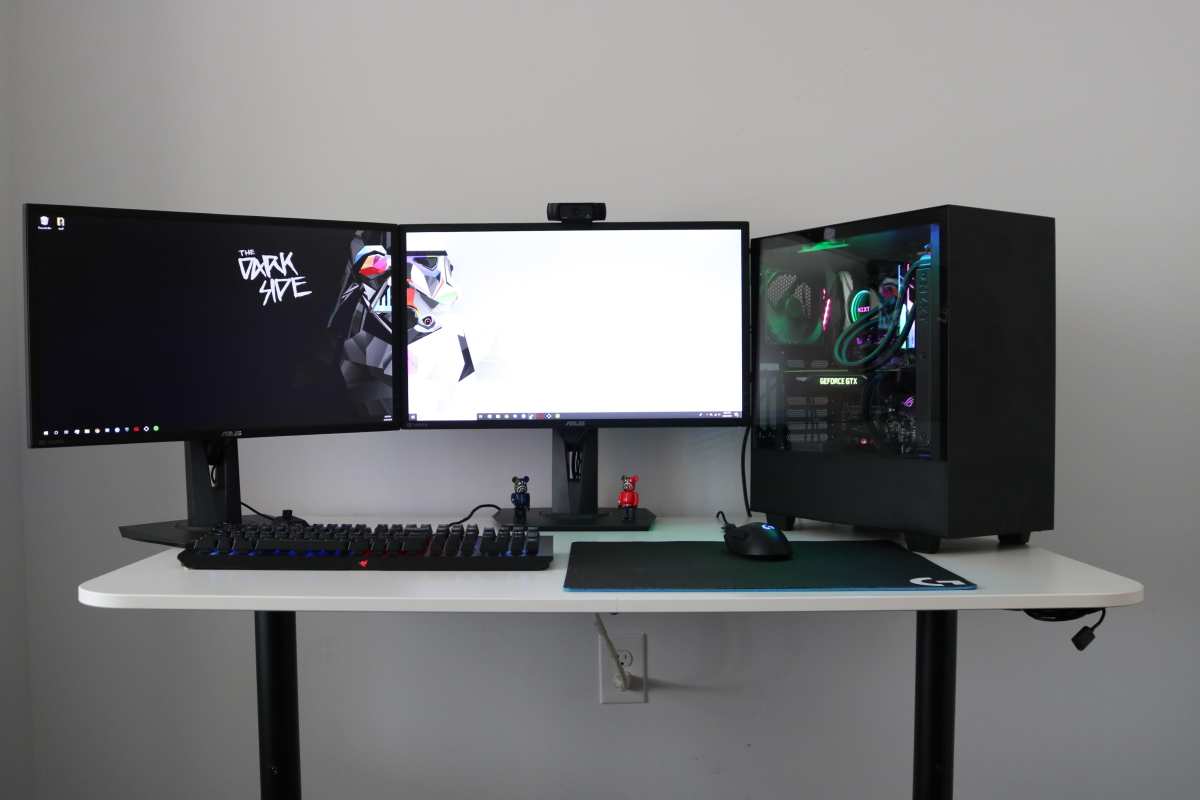
Your best setup depends on what you play and how you use your PC. Here's a practical side-by-side:
Dual Monitor Setup
- Much wider field of view or the ability to run a game and apps simultaneously.
- You can mix and match existing monitors you already own.
- The center bezel sits right where your crosshair would be in most FPS games.
- Slightly higher GPU overhead from driving two separate outputs.
- Best for MMOs, streaming, cockpit games, and productivity-plus-gaming rigs.
Single Ultrawide Monitor
- Clean, seamless image with no bebezil splitting the screen.
- Easier to set up. No need for driver-level spanning or bezel correction.
- Higher resolution ultrawides demand more GPU power than a single 1080p screen.
- Less screen real estate for multitasking compared to two separate displays.
- Best for players who want a simple, immersive experience.
Single Monitor (Standard Setup)
- Lowest GPU overhead and simplest configuration.
- Focused, distraction-free gaming.
- Alternate apps alt-tabbed in the background, not visible simultaneously.
- Best for competitive esports players who need every frame.
| Feature | Dual Monitor | Ultrawide | Single 16:9 |
|---|---|---|---|
| Native multitasking | Excellent | Moderate | Poor |
| Seamless gameplay | No center bezel | Yes | Yes |
| GPU overhead | Moderate | Moderate-High | Lowest |
| Ease of setup | Moderate | Easy | Very easy |
| Best for multiboxing MMOs, streaming | Immersive solo play | Competitive FPS |
Mistakes That Make Dual Monitor Gaming Feel Terrible
After digging through community threads and aggregate user reports, the same mistakes come up again and again. Here's what to avoid.
Ignoring the bezel problem for spanning setups. If you're stretching a game across two monitors, that center gap is always there. Some players think Surround or Eyefinity will magically erase it.
Bezel correction only compensates for it, and even then, your crosshair ends up right on the seam in many fast-paced titles.
Forgetting to set a primary display. Windows defaults new setups to a primary screen, but if you change connections or ports, that assignment can shuffle around. Games sometimes launch on the wrong monitor, and fullscreen mode can force everything to the secondary screen.
Explicitly set your gaming monitor as the main display in Windows Settings and double-check it after driver updates.
Running mismatched resolutions without adjusting. It's tempting to just connect whatever monitors you have. But if one is 1440p and the other is 1080p, your taskbar icons, text scaling, and cursor movement speed will feel off between screens.
Either match resolutions or accept that one screen will feel like a downgrade.
Not testing borderless windowed before committing. Many users set up a complex spanning arrangement and never realize that borderless windowed mode on a single screen would have been easier and looked better. Spending two minutes in your game's display settings before configuring NVIDIA Surround can save an hour of frustration.
Performance Impact: What Dual Monitors Actually Costs You
Driving two displays does take a toll on your GPU, but it's often less than people fear.
If you're simply running a game on one screen and static apps like Discord or a browser on the other, the performance hit is minimal. Most modern GPUs handle a second idle display with negligible frame loss in the primary game.
The real cost comes with spanning. When two 1920×1080 panels are combined into a single 3840×1080 virtual display, your GPU is pushing roughly twice the pixels of a single 1080p screen. Depending on the game and your hardware, expect a measurable frame rate drop.
Additional performance considerations:
- Video playback or web browsing on the second display while gaming typically causes minimal FPS loss.
- Running two separate games simultaneously (such as MMO multiboxing) demands the GPU resources of both instances loaded at once, which can heavily tax cards with 4GB or less VRAM.
- Hardware acceleration in some applications (Discord, browsers) can occasionally conflict with fullscreen games, causing stutter on the secondary display.
If you notice more lag than expected, check your task manager to see what's eating resources on the second screen. Hardware acceleration in some applications is a common hidden culprit.
Expert Tips and Small Tweaks That Make a Big Difference
Here are some practical tweaks that experienced multi-monitor gamers swear by:
- Use Windows key + Shift + Arrow keys to instantly move a window between displays without messing with the mouse.
- Auto-hide the taskbar on both displays for gaming sessions.
- Set per-app affinities in Windows Graphics Settings to tell specific applications which display to prefer.
- Calibrate colors across both monitors if productivity work happens on the same setup.
- Pin games to the primary monitor using the Windows Graphics settings app-specific override.
- Create a custom resolution via your GPU control panel for weird spanning setups.
One tip that barely anyone talks about: use a single dark wallpaper across both screens instead of different images. If you capture your screen for streaming or screenshots, mismatched wallpapers from the second monitor getting exposed is a minor distraction you can avoid.
Final Decision Guide: What Should You Actually Do?
After all this, your setup path comes down to what you want from dual monitors. Here's a quick decision tree.
If your goal is the widest possible game display and you mostly play racing sims, flight sims, or strategy games: go with NVIDIA Surround or AMD Eyefinity spanning. Make sure both monitors match in resolution, run the driver configuration wizard, enable bezel correction, and test a few titles to see which ones handle the stretched HUD well.
If your goal is keeping communication tools, guides, or chat open while you play: you don't need spanning at all. Set your better monitor as primary in Windows, run your game in borderless windowed or fullscreen on that screen, and leave Discord, a browser, or your streaming software on the secondary display. Lock your cursor with DisplayFusion if needed.
If your goal is multiboxing MMOs: you might want separate fullscreen instances on each monitor. This is trickier to set up and demands a strong GPU, but it's well-documented in MMO community resources. Look into virtual machine setups or built-in multiboxing support the specific game provides.
If your budget allows and you only want simplicity: consider whether a single ultrawide might serve you better than managing two displays. Dual monitors shine for multitasking. They're less elegant when the only goal is immersive gaming.
Either way, don't sleep on the software side. A great hardware setup with default Windows settings will frustrate you. Ten minutes of configuration pays off every time you sit down to play.
Frequently Asked Questions
Can I play a game across two different resolution monitors?
Technically you can, but it's a bad experience. The image will appear stretched or cropped on the lower-resolution panel, bezel correction becomes a mess, and most driver-level spanning tools refuse to work with mismatched resolutions. Stick with matching resolutions for spanning.
Will a second monitor hurt my gaming frame rate?
If the second screen only runs static applications like Discord or a browser, the FPS cost is typically minimal. But spanning a game across both monitors roughly doubles your pixel count and can push your GPU noticeably harder.
How do I stop my mouse from moving to the second screen while gaming?
Borderless windowed mode allows cursor drift by default. Run your game in fullscreen mode for automatic cursor lock. Or use a tool like Lock Cursor to confine the mouse to your primary monitor in borderless windowed.
Does Windows 11 handle multi-monitor gaming better than Windows 10?
Windows 11 adds better per-monitor refresh rate handling and improved taskbar management. But the core functionality is the same across both operating systems. The main compatibility factor is your GPU driver version, not the underlying Windows version.
What games actually support spanning across two monitors?
Racing sims and flight sims are the most naturally compatible, followed by many RPGs and strategy games. FPS titles are hit-or-miss due to HUD placement on the far edges of the spanned display. Check community forums for specific game titles you care about, because compatibility varies widely.
Is an ultrawide monitor better than dual monitors for gaming?
It depends on your priority. An ultrawide gives you a seamless image with no bezel in the middle, which is cleaner and simpler. Dual monitors give you more multitasking flexibility and the option to angle each screen independently.
Neither is objectively better for all scenarios.
Quick Comparison: Dual Monitors vs Ultrawide vs Single Screen
Your best setup depends on what you play and how you use your PC. Here's a practical side-by-side:
Dual Monitor Setup
- Much wider field of view or the ability to run a game and apps simultaneously.
- You can mix and match existing monitors you already own.
- The center bezel sits right where your crosshair would be in most FPS games.
- Slightly higher GPU overhead from driving two separate outputs.
- Best for MMOs, streaming, cockpit games, and productivity-plus-gaming rigs.
Single Ultrawide Monitor
- Clean, seamless image with no bezel splitting the screen.
- Easier to set up. No need for driver-level spanning or bezel correction.
- Higher resolution ultrawides demand more GPU power than a single 1080p screen.
- Less screen real estate for multitasking compared to two separate displays.
- Best for players who want a simple, immersive experience.
Single Monitor (Standard Setup)
- Lowest GPU overhead and simplest configuration.
- Focused, distraction-free gaming.
- Alternate apps alt-tabbed in the background, not visible simultaneously.
- Best for competitive esports players who need every frame.
| Feature | Dual Monitor | Ultrawide | Single 16:9 |
|---|---|---|---|
| Native multitasking | Excellent | Moderate | Poor |
| Seamless gameplay | No center bezel | Yes | Yes |
| GPU overhead | Moderate | Moderate-High | Lowest |
| Ease of setup | Moderate | Easy | Very easy |
| Best for multiboxing MMOs, streaming | Immersive solo play | Competitive FPS |
Mistakes That Make Dual Monitor Gaming Feel Terrible
After digging through community threads and aggregate user reports, the same mistakes come up again and again. Here's what to avoid.
Ignoring the bezel problem for spanning setups. If you're stretching a game across two monitors, that center gap is always there. Some players think Surround or Eyefinity will magically erase it.
Bezel correction only compensates for it, and even then, your crosshair ends up right on the seam in many fast-paced titles.
Forgetting to set a primary display. Windows defaults new setups to a primary screen, but if you change connections or ports, that assignment can shuffle around. Games sometimes launch on the wrong monitor, and fullscreen mode can force everything to the secondary screen.
Explicitly set your gaming monitor as the main display in Windows Settings and double-check it after driver updates.
Running mismatched resolutions without adjusting. It's tempting to just connect whatever monitors you have. But if one is 1440p and the other is 1080p, your taskbar icons, text scaling, and cursor movement speed will feel off between screens.
Either match resolutions or accept that one screen will feel like a downgrade.
Not testing borderless windowed before committing. Many users set up a complex spanning arrangement and never realize that borderless windowed mode on a single screen would have been easier and looked better. Spending two minutes in your game's display settings before configuring NVIDIA Surround can save an hour of frustration.
Performance Impact: What Dual Monitors Actually Costs You
Driving two displays does take a toll on your GPU, but it's often less than people fear.
If you're simply running a game on one screen and static apps like Discord or a browser on the other, the performance hit is minimal. Most modern GPUs handle a second idle display with negligible frame loss in the primary game.
The real cost comes with spanning. When two 1920×1080 panels are combined into a single 3840×1080 virtual display, your GPU is pushing roughly twice the pixels of a single 1080p screen. Depending on the game and your hardware, expect a measurable frame rate drop.
Additional performance considerations:
- Video playback or web browsing on the second display while gaming typically causes minimal FPS loss.
- Running two separate games simultaneously (such as MMO multiboxing) demands the GPU resources of both instances loaded at once, which can heavily tax cards with 4GB or less VRAM.
- Hardware acceleration in some applications (Discord, browsers) can occasionally conflict with fullscreen games, causing stutter on the second display.
If you notice more lag than expected, check your task manager to see what's eating resources on the second screen. Hardware acceleration in some applications is a common hidden culprit.
Expert Tips and Small Tweaks That Make a Big Difference
Here are some practical tweaks that experienced multi-monitor gamers swear by:
- Use Windows key + Shift + Arrow keys to instantly move a window between displays without messing with the mouse.
- Auto-hide the taskbar on both displays for gaming sessions.
- Set per-app affinities in Windows Graphics Settings to tell specific applications which display to prefer.
- Calibrate colors across both monitors if productivity work happens on the same setup.
- Pin games to the primary monitor using the Windows Graphics settings app-specific override.
- Create a custom resolution via your GPU control panel for weird spanning setups.
One tip that barely anyone talks about: use a single dark wallpaper across both screens instead of different images. If you capture your screen for streaming or screenshots, mismatched wallpapers from the second monitor getting exposed is a minor distraction you can avoid.
Final Decision Guide: What Should You Actually Do?
After all this, your setup path comes down to what you want from dual monitors. Here's a quick decision tree.
If your goal is the widest possible game display and you mostly play racing sims, flight sims, or strategy games: go with NVIDIA Surround or AMD Eyefinity spanning. Make sure both monitors match in resolution, run the driver configuration wizard, enable bezel correction, and test a few titles to see which ones handle the stretched HUD well.
If your goal is keeping communication tools, guides, or chat open while you play: you don't need spanning at all. Set your better monitor as primary in Windows, run your game in borderless windowed or fullscreen on that screen, and leave Discord, a browser, or your streaming software on the secondary display. Lock your cursor with DisplayFusion if needed.
If your goal is multiboxing MMOs: you might want separate fullscreen instances on each monitor. This is trickier to set up and demands a strong GPU, but it's well-documented in MMO community resources. Look into virtual machine setups or built-in multiboxing support the specific game provides.
If your budget allows and you only want simplicity: consider whether a single ultrawide might serve you better than managing two displays. Dual monitors shine for multitasking. They're less elegant when the only goal is immersive gaming.
Either way, don't sleep on the software side. A great hardware setup with default Windows settings will frustrate you. Ten minutes of configuration pays off every time you sit down to play.
Frequently Asked Questions
Can I play a game across two different resolution monitors?
Technically you can, but it's a bad experience. The image will appear stretched or cropped on the lower-resolution panel, bezel correction becomes a mess, and most driver-level spanning tools refuse to work with mismatched resolutions. Stick with matching resolutions for spanning.
Will a second monitor hurt my gaming frame rate?
If the second screen only runs static applications like Discord or a browser, the FPS cost is typically minimal. But spanning a game across both monitors roughly doubles your pixel count and can push your GPU noticeably harder.
How do I stop my mouse from moving to the second screen while gaming?
Borderless windowed mode allows cursor drift by default. Run your game in fullscreen mode for automatic cursor lock. Or use a tool like Lock Cursor to confine the mouse to your primary monitor in borderless windowed.
Does Windows 11 handle multi-monitor gaming better than Windows 10?
Windows 11 adds better per-monitor refresh rate handling and improved taskbar management. But the core functionality is the same across both operating systems. The main compatibility factor is your GPU driver version, not the underlying Windows version.
What games actually support spanning across two monitors?
Racing sims and flight sims are the most naturally compatible, followed by many RPGs and strategy games. FPS titles are hit-or-miss due to HUD placement on the far edges of the spanned display. Check community forums for specific game titles you care about, because compatibility varies widely.
Is an ultrawide monitor better than dual monitors for gaming?
It depends on your priority. An ultrawide gives you a seamless image with no bezel in the middle, which is cleaner and simpler. Dual monitors give you more multitasking flexibility and the option to angle each screen independently.
Neither is objectively better for all scenarios.

Similar Posts





















