How to Fix Curved Gaming Monitor Flickering
So you're here because you're trying to figure out how to fix curved gaming monitor flickering, and honestly, it's one of the most annoying issues you can deal with mid-game. The good news is that most flickering problems come from a handful of fixable causes, not a dead monitor. The bad news is that "flickering" can mean a few different things, and each one has a completely different solution.
In our research, we've found that the majority of curved monitor flickering cases trace back to cable issues, adaptive sync conflicts, or backlight PWM behavior, not panel failure. VESA DisplayPort standards and manufacturer firmware documentation both confirm that signal integrity and VRR handshake problems are the most commonly reported causes as of 2026. Let's walk through each one systematically so you can actually fix this instead of guessing.
Quick Answer
Start by re-seating or swapping your display cable. Next, disable adaptive sync temporarily to rule out VRR flicker. Then increase brightness above 60% to test for PWM backlight flicker.
If those don't help, update or roll back your GPU driver. Finally, check for a monitor firmware update from the manufacturer's support page.
The 4 Types of Flicker You're Probably Dealing With
Before you start changing settings, you need to know what kind of flicker you're actually seeing. Not all flickering is the same, and treating them identically is why most generic troubleshooting guides don't help.
Here are the four main types:
- Signal flicker: The screen cuts to black and comes back, or you see brief flashes. This is almost always a cable or connection problem.
- VRR flicker: Happens when your frame rate drops low, usually below 48fps. The brightness pulses in dark scenes. This is an adaptive sync issue.
- PWM flicker: You notice eye strain or a subtle shimmer at low brightness levels. The backlight is pulsing rapidly and your eyes are picking up on it.
- Overdrive flicker: You see bright halos or inverse ghosting around moving objects. The monitor's response time setting is too aggressive.
Each one requires a different fix. The steps below are ordered from most common cause to least common, so work through them in sequence.
First, Let's Figure Out What Kind of Flicker You Have
Grab your phone and record the screen while the flicker is happening. This sounds silly, but it's genuinely useful. Phone cameras can pick up PWM backlight flicker that your eyes might perceive as general "shimmer" without you realizing the backlight itself is pulsing.
Ask yourself these questions:
- Does the flicker happen at all brightness levels, or only when brightness is low (under 40-50%)?
- Does it happen during gameplay, or also on the desktop and in menus?
- Does it correlate with frame rate drops, or is it constant?
- Does it stop if you change your refresh rate?
If it's only at low brightness, you're almost certainly dealing with PWM backlight flicker. If it happens during frame rate dips, it's VRR flicker. If the screen briefly goes black, it's a signal or cable issue.
Write down what you observe before moving to the steps below, because it'll save you a ton of time.
Step 1: Check Your Cable Before You Touch Anything Else
This is the single most common fix, and most people skip it because it feels too simple. A loose, damaged, or under-spec display cable causes the majority of signal-related flickering on curved gaming monitors.

Here's what to do:
- Power off your monitor and PC.
- Unplug the DisplayPort or HDMI cable from both ends.
- Inspect the pins inside the connector for bent, broken, or corroded pins.
- Check the cable itself for kinks, sharp bends, or visible damage along its length.
- Re-seat the cable firmly at both ends. You should feel or hear a click on DisplayPort connectors.
- Power everything back on and test.
If the flicker persists, swap to a different cable. Not just any cable, though. Make sure it's rated for your resolution and refresh rate combination.
Here's a quick reference:
| Resolution + Refresh Rate | Minimum Cable Standard | Recommended |
|---|---|---|
| 1080p at 144Hz | DisplayPort 1.2 | DisplayPort 1.4 |
| 1440p at 144Hz | DisplayPort 1.2 | DisplayPort 1.4 |
| 1440p at 240Hz | DisplayPort 1.4 | DisplayPort 1.4 with DSC |
| 4K at 120Hz | DisplayPort 1.4 with DSC | DisplayPort 2.1 |
| 4K at 144Hz+ | DisplayPort 2.1 | DisplayPort 2.1 |
A lot of flickering issues on 4K high-refresh monitors come from using an old DisplayPort 1.2 cable that physically fits but can't carry enough bandwidth. The signal drops, the screen flickers or goes black for a second, then comes back. It's not the monitor.
It's the cable.
Also, avoid using adapters or dongles if you can. Every extra connection point is a potential signal degradation source. Plug directly from GPU to monitor.
Step 2: Isolate Whether It's a VRR / Adaptive Sync Problem
Variable Refresh Rate flickering is extremely common on curved gaming monitors, and it's often mistaken for a hardware defect when it's actually a range limitation.
Here's what's happening. Your monitor's adaptive sync (G-Sync or FreeSync) only works within a specific range, typically 48Hz to 144Hz or 48Hz to 165Hz. When your frame rate drops below the bottom of that range, the monitor can't compensate anymore, and you get visible brightness pulsing or flickering, especially in dark scenes.
This is particularly noticeable on VA panel curved monitors because VA panels inherently have slower pixel transitions at low refresh rates, which amplifies the brightness shift.
Try this:
- Open your GPU control panel (NVIDIA Control Panel or AMD Software).
- Disable G-Sync or FreeSync entirely.
- Set your monitor to a fixed refresh rate (144Hz or whatever your normal rate is).
- Test in the same game or scenario where flicker occurred.
If the flicker stops completely, you've found your culprit. Now you have a few options:
- Enable Low Framerate Compensation (LFC): This doubles the refresh rate when frame rate drops below the VRR floor, keeping you in range. It's usually enabled by default but worth checking.
- Use a frame rate cap: Cap your FPS a few frames below your monitor's max refresh rate using RTSS (RivaTuner Statistics Server) or in-game limiters. This keeps VRR active and prevents the toggle behavior that causes flicker.
- Switch from G-Sync to G-Sync Compatible (or vice versa): Sometimes the specific implementation matters. On NVIDIA GPUs, try toggling between "Enable G-Sync" and "Enable G-Sync Compatible" to see which behaves better on your specific monitor.
If disabling adaptive sync doesn't stop the flicker, move on to the next step. This isn't your problem.
Step 3: Test If It's PWM Backlight Flicker at Low Brightness
This one's sneaky because most people don't realize their eyes are sensitive to it. PWM (Pulse Width Modulation) is a method where the monitor's backlight rapidly turns on and off to simulate lower brightness. At high frequencies it's invisible.
At low frequencies, it causes eye strain, headaches, and a visible shimmer that many people describe as "flickering."
Cheap or older curved monitors often use low-frequency PWM, sometimes as low as 120Hz or even 96Hz. Higher-end models advertise "ficker-free" backlights, which either use DC dimming (constant current reduction) or very high PWM frequencies (above 1000Hz).
Here's how to test it:
- Set your monitor brightness to 20% or lower.
- Look at a white or light gray screen (a blank document works).
- Record the screen with your phone camera at 240fps slow motion.
- If you see rolling dark bands or pulsing in the recording, that's PWM flicker.
The fix depends on your situation:
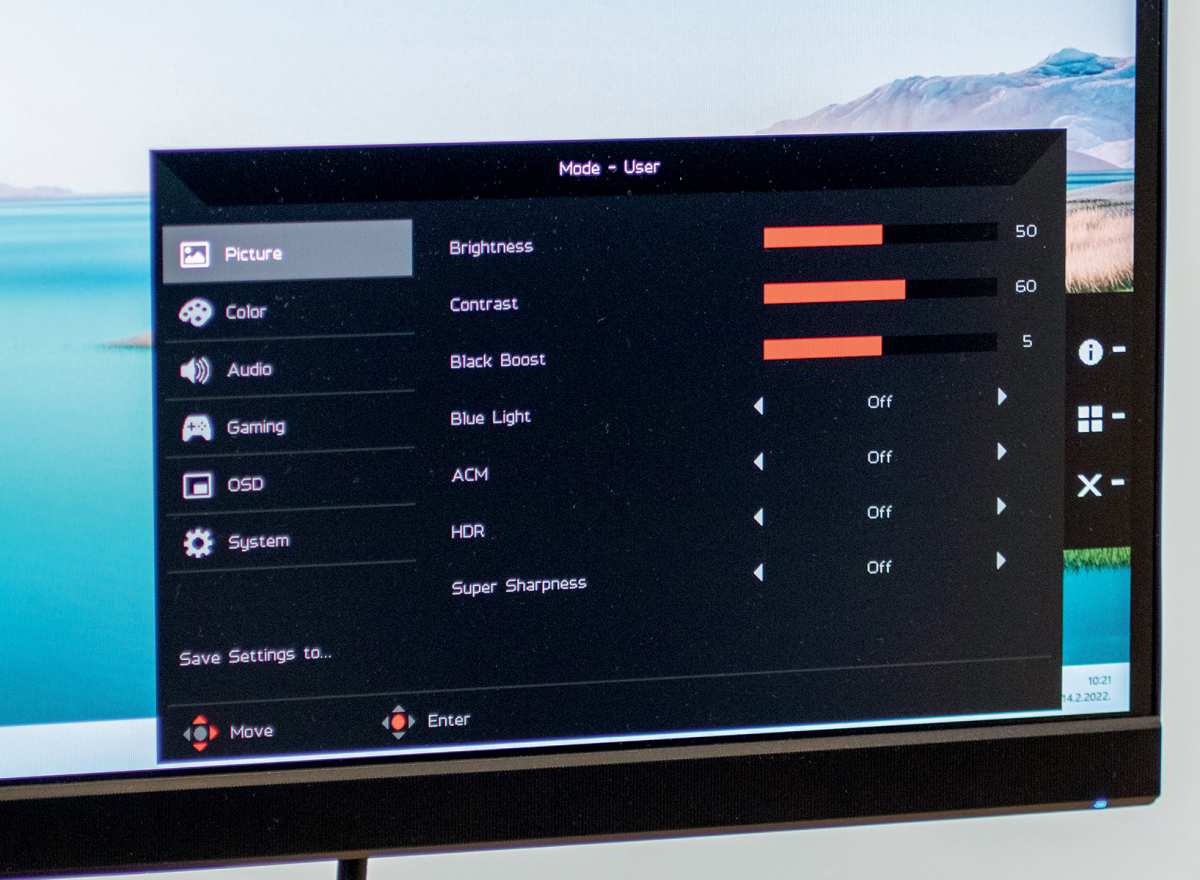
- Raise brightness above 50-60%: PWM flicker is almost always worst at low brightness. If you can use the monitor at higher brightness without it being uncomfortable, the flicker may disappear entirely.
- Check for a "Flicker Free" or "Low Blue Light" toggle in the OSD: Some monitors switch to DC dimming in their low blue light or reading mode. This can eliminate PWM flicker at the cost of slightly less accurate colors at low brightness.
- Consider a different monitor: If you're sensitive to PWM and your monitor uses low-frequency dimming, no software fix will help. Look for monitors certified as flicker-free by TÜV Rheinland, which tests for PWM visibility thresholds.
This is one area where curved VA panels tend to be worse than curved IPS panels, simply because VA monitors in the mid-range market segment more frequently use PWM dimming. It's not a curve issue specifically, but it's correlated because so many budget curved monitors use VA panels.
Step 4: Rule Out GPU Driver Issues
Driver bugs are a real and recurring cause of flickering, especially after a new driver release. Both NVIDIA and AMD have had driver versions that introduced flickering on specific monitor models, particularly during multi-display setups or when HDR is enabled.
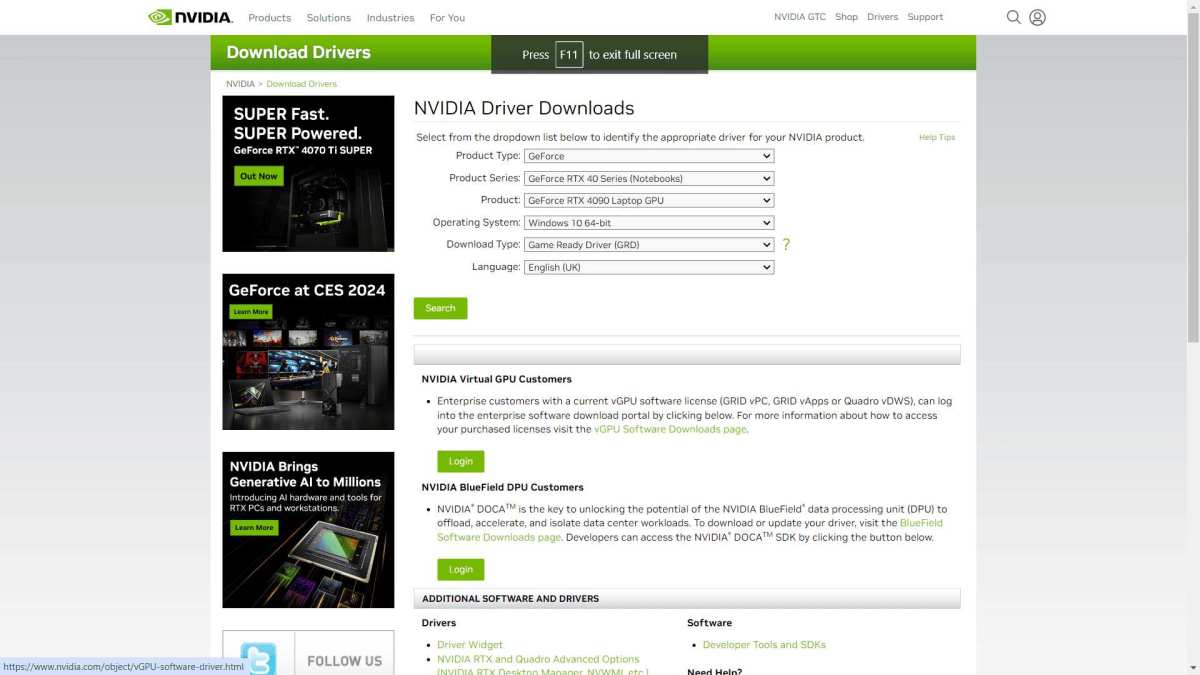
Here's the proper way to handle this:
If the flicker started after a recent driver update:
- Download DDU (Display Driver Uninstaller) from the official Wagnardsoft site.
- Boot into Windows Safe Mode.
- Run DDU and select "Clean and restart."
- After reboot, install the previous driver version that was stable for you.
- Test for flicker.
If you haven't updated recently:
- Go to NVIDIA's or AMD's driver download page.
- Download the latest stable (not beta) driver.
- Perform a clean installation. Both NVIDIA and AMD installers have a "clean install" or "factory reset" checkbox.
- Restart and test.
A few specific notes:
- NVIDIA's "G-Sync Compatible" driver branch has historically caused flickering on some FreeSync monitors. If you're using a FreeSync monitor with an NVIDIA GPU, try the standard driver instead of the G-Sync Compatible toggle.
- AMD's HDR implementation in older driver versions caused brightness pulsing on some curved monitors. Make sure you're on the latest Adrenalin edition if HDR flickering is your symptom.
- Multi-monitor setups with mixed refresh rates (like a 144Hz curved gaming monitor alongside a 60Hz secondary display) are a known trigger for driver-level flickering. If this is your setup, try disconnecting the secondary monitor temporarily to see if the flicker stops.
If driver changes don't help, the issue is almost certainly not software-related. Keep going through the remaining steps.

Similar Posts





















