Can Xbox Run 144Hz Monitor
So you've picked up a shiny 144Hz monitor and you're wondering if your Xbox can actually use it. It's a fair question, and the answer isn't as straightforward as you might hope. The short version is yes, but with some important caveats that'll shape your experience.
Here's the thing. Every Xbox console has a system-level refresh rate cap of 120Hz, not 144Hz. That means your 144Hz monitor will work, but it'll run at 120Hz when connected to Xbox.
Let's break down exactly what that means for your specific setup.
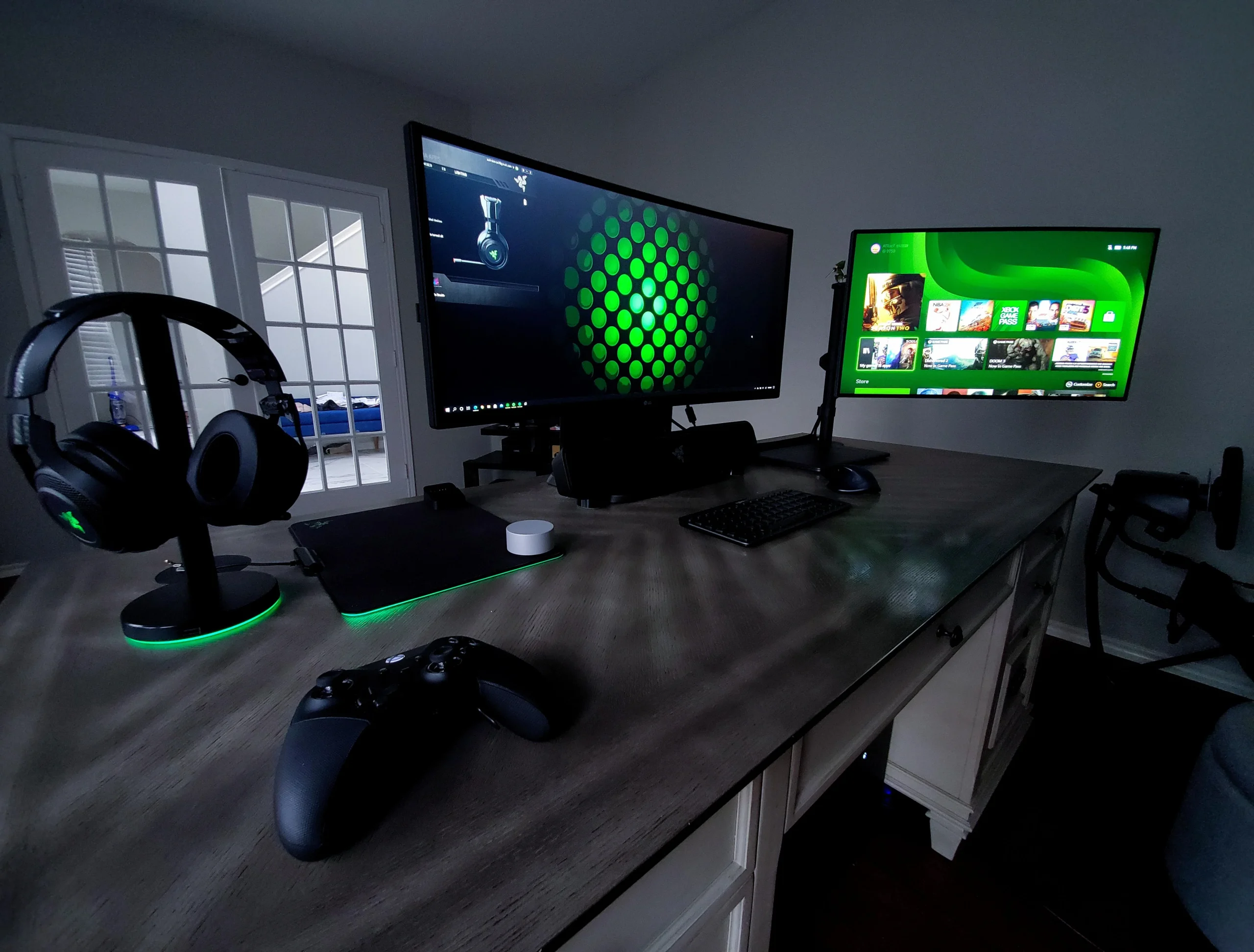
Quick Answer
Xbox consoles support a maximum output of 120Hz. A 144Hz monitor will work with Xbox, but it'll downclock to 120Hz. The Xbox Series X and Series S both support 120Hz output.
Older Xbox One models are limited to 60Hz in most cases. You'll need an HDMI 2.0 cable or higher to enable 120Hz.
Why This Question Is More Complicated Than It Looks
Most monitor boxes scream "144Hz" in big bold letters. You'd think that's the number that matters. But the real question isn't what your monitor can do.
It's what your Xbox is actually allowed to output.
Microsoft set a 120Hz ceiling in the Xbox system software across all current models. That's a hard cap, not a suggestion. Your monitor might be capable of 144Hz, but the console simply won't send more than 120 frames per second.
Think of it like a sports car with a governor limiting it to 120 mph. The engine could do more, but the software says no.
There's also the resolution factor. Whether you can even hit that 120Hz cap depends on what resolution you're running. Push for 4K at 120Hz and you'll need specific hardware.
Drop to 1080p or 1440p and things get much easier. We'll walk through all of that.
Xbox Models and Their Actual Refresh Rate Limits
Not all Xbox consoles are created equal here. The refresh rate you can actually achieve depends entirely on which generation and model you own. Let's break it down by console.
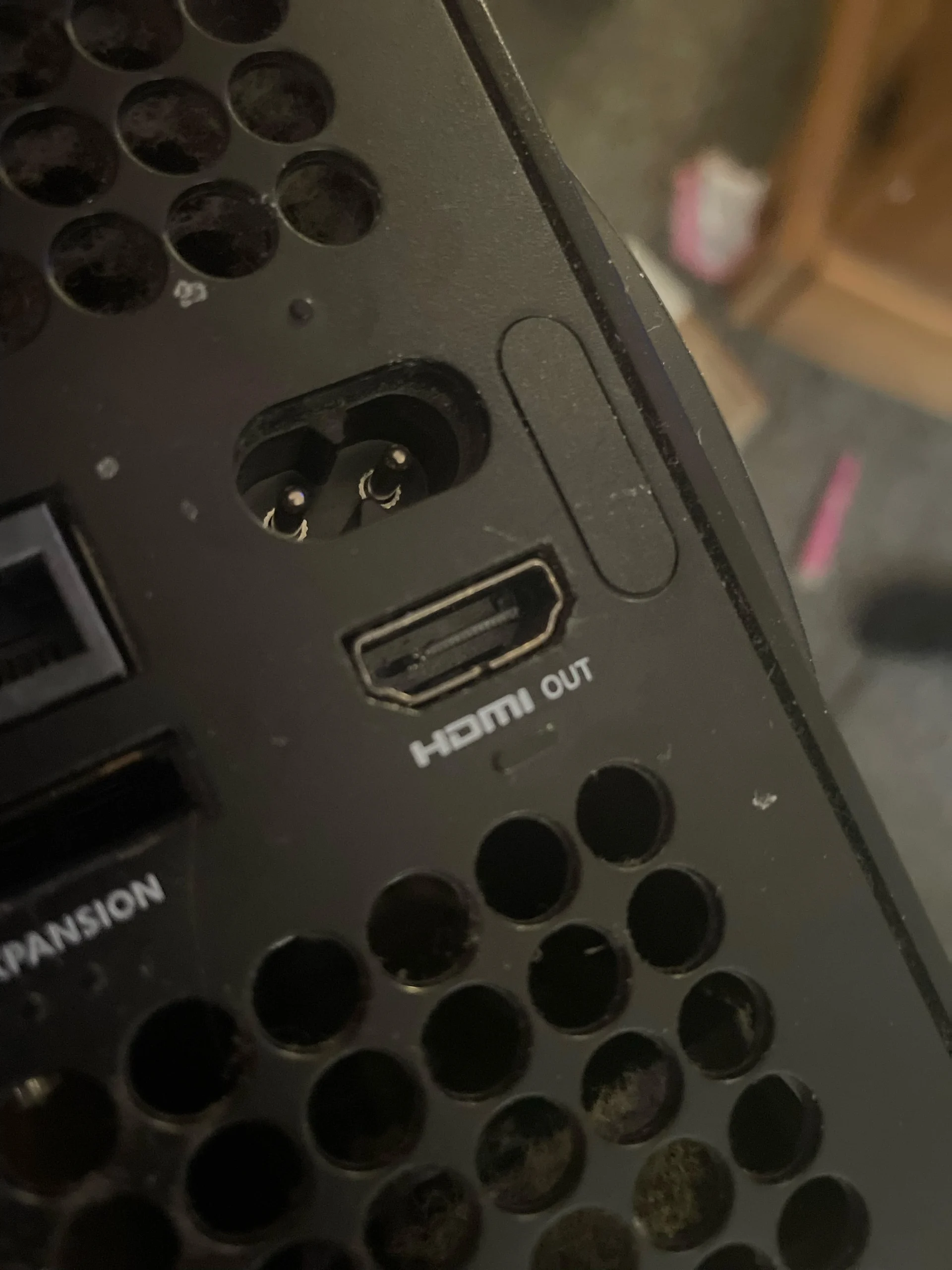
Xbox Series X
The Xbox Series X is the most capable Xbox for high-refresh gaming. It supports 120Hz output at 1080p, 1440p, and 4K resolutions. You'll need an Ultra High Speed HDMI cable (HDMI 2.1) for 4K at 120Hz.
For 1080p or 1440p at 120Hz, a standard HDMI 2.0 cable handles it fine.
The Series X has an HDMI 2.1 port built in. That gives you plenty of bandwidth for high-refresh gaming. Most games that offer a 120fps mode will run beautifully on this console paired with a 144Hz monitor.
Xbox Series S
The Xbox Series S also supports 120Hz output. It handles 1080p and 1440p at 120Hz without breaking a sweat. However, it does not support 4K at 120Hz.
The maximum 4K output is 60Hz.
For most people gaming on a 144Hz monitor at 1080p or 1440p, the Series S delivers a solid high-refresh experience. Just don't expect 4K and 120Hz simultaneously. That's a Series X feature only.
Xbox One X
The Xbox One X supports 120Hz output at 1080p and 1440p. It uses an HDMI 2.0 port, which limits bandwidth. You won't get 4K at 120Hz on this console.
In practice, very few Xbox One X games actually run at 120fps. Most titles are locked to 30fps or 60fps. So while the hardware technically supports 120Hz output, you won't see it used often.
Xbox One S and Original Xbox One
These models support a maximum output of 60Hz. They use HDMI 1.4 ports, which don't have the bandwidth for 120Hz at any meaningful resolution. If you're gaming on an Xbox One S or the original Xbox One, a 144Hz monitor won't give you any refresh rate benefit over a 60Hz display.
You'll still benefit from the monitor's faster pixel response times. But you won't get the smoother motion that 120Hz provides. It's worth knowing before you spend money on a new monitor.
Here's a quick reference table to keep things clear:
| Console | Max Refresh Rate | 4K at 120Hz | 1440p at 120Hz | 1080p at 120Hz | HDMI Version |
|---|---|---|---|---|---|
| Xbox Series X | 120Hz | Yes | Yes | Yes | HDMI 2.1 |
| Xbox Series S | 120Hz | No | Yes | Yes | HDMI 2.1 |
| Xbox One X | 120Hz | No | Yes | Yes | HDMI 2.0 |
| Xbox One S | 60Hz | No | No | No | HDMI 1.4 |
| Original Xbox One | 60Hz | No | No | No | HDMI 1.4 |
What Happens When You Plug a 144Hz Monitor Into Xbox
Let's say you connect your 144Hz monitor to an Xbox Series X. What actually happens? The Xbox detects the monitor's capabilities through something called EDID (Extended Display Identification Data).
The console reads what the monitor can handle and matches its output accordingly.
Since the Xbox caps output at 120Hz, it sends a 120Hz signal. Your monitor receives it and displays at 120Hz. The extra 24Hz of headroom your monitor has simply goes unused.
The monitor doesn't freak out or throw an error. It just runs at the signal it receives.
This is actually a good thing. You don't need to worry about compatibility issues. The handshake between console and monitor handles everything automatically.
Your 144Hz monitor will work right out of the box with any Xbox that supports 120Hz output.
Some monitors display the current input refresh rate in their on-screen display (OSD) menu. If you check that after connecting your Xbox, you'll likely see "120Hz" listed. That confirms everything is working as expected.
The 120Hz Hard Cap: What Microsoft Actually Allows
Why did Microsoft cap Xbox at 120Hz instead of supporting 144Hz or higher? There are a few practical reasons.
First, 120Hz is a clean multiple of 24, 30, and 60. Those are the frame rates most content is produced at. 120 divides evenly into all of them, which makes frame pacing smoother and more consistent. 144Hz doesn't divide cleanly into 30 or 60, which can introduce judder in some scenarios.
Second, 120Hz is the standard used by most HDMI 2.1 displays. TVs, monitors, and the HDMI specification itself all treat 120Hz as the high-refresh benchmark. Supporting 144Hz would require additional engineering for minimal real-world benefit.
Third, very few games on Xbox actually sustain 120fps. Pushing beyond 120Hz would be purely theoretical for console gaming. There's simply no content that would benefit from it.
The bottom line is that 120Hz is the ceiling, and for console gaming, it's more than enough. The difference between 120Hz and 144Hz is imperceptible to most people anyway. You're getting a genuinely smooth experience at 120Hz on Xbox.
Resolution vs Refresh Rate: The Trade-Offs You Need to Know
Here's where things get interesting. Your Xbox can output 120Hz, but whether it does at your preferred resolution depends on bandwidth. Higher resolution means more pixels per frame.
More pixels per frame means more data to push through the HDMI cable. There's only so much bandwidth available.
Let's walk through each resolution scenario.
4K at 120Hz
This is the premium setup. You get maximum resolution and maximum refresh rate. But it requires specific hardware.
You need an Xbox Series X. The Series S doesn't support 4K at 120Hz. You also need a monitor with an HDMI 2.1 port.
Most 144Hz monitors ship with HDMI 2.0, which doesn't have enough bandwidth for 4K at 120Hz without compression.
To make 4K at 120Hz work over HDMI 2.0, the console uses 4:2:0 chroma subsampling. This compresses color data to fit within the bandwidth limit. The image still looks great, but it's not quite as chroma-rich as 4:4:4 at 60Hz.
Most people don't notice the difference in fast-paced games.
If your monitor has HDMI 2.1, you get full 4K at 120Hz with 4:4:4 chroma. That's the ideal scenario. Check your monitor's specs carefully before assuming it has HDMI 2.1.
1440p at 120Hz
This is the sweet spot for most Xbox gamers with a 144Hz monitor. Both the Series X and Series S support 1440p at 120Hz. You only need an HDMI 2.0 cable, which most monitors include in the box.
1440p looks noticeably sharper than 1080p on a 27-inch monitor. And you still get the full 120Hz refresh rate. Many competitive console gamers prefer this resolution because it balances visual clarity with performance.
The Xbox Series S in particular shines at 1440p. It's the resolution many Series S games target natively. Pair it with a 1440p 144Hz monitor and you're getting the best that console can deliver.
1080p at 120Hz
This is the easiest setup to achieve. Any Xbox with an HDMI 2.0 port or higher supports 1080p at 120Hz. The bandwidth requirements are modest, and virtually any modern HDMI cable handles it.
The trade-off is visual fidelity. 1080p on a 27-inch monitor looks soft compared to 1440p. If you sit close to your monitor, you'll notice the difference. But if you're primarily playing competitive shooters and want the smoothest possible experience, 1080p at 120Hz gets the job done.
Some monitors don't even support 120Hz at 1080p over HDMI. They might only hit 144Hz at 1080p through DisplayPort. Since Xbox only has HDMI output, verify that your monitor supports 120Hz over HDMI at 1080p before buying.
FreeSync, VRR, and Making the Most of Your Monitor
A 144Hz monitor likely supports some form of variable refresh rate (VRR). On Xbox, this works through AMD FreeSync over HDMI. When enabled, VRR syncs your monitor's refresh rate to the frame rate the console is actually outputting.
This eliminates screen tearing and reduces stuttering.
Xbox supports FreeSync on both the Series X and Series S. The console uses the HDMI VRR standard, which is slightly different from the DisplayPort FreeSync you'd find on PC setups. Most modern FreeSync monitors support HDMI VRR, but not all of them.
Check your monitor's specs for "FreeSync over HDMI" or "HDMI VRR" support.
The typical FreeSync range over HDMI on Xbox is 48Hz to 120Hz. If a game drops below 48fps, VRR stops working and you may see tearing or stuttering. Some monitors support Low Framerate Compensation (LFC), which doubles the frame rate when it drops below the minimum range.
This keeps VRR active even at lower frame rates.
To enable VRR on Xbox, go to Settings > General > TV & display options > Advanced settings. Toggle "Allow Variable Refresh Rate" to on. You'll also need to enable FreeSync in your monitor's on-screen display menu.
Here's what VRR actually does for you in practice:
- Eliminates screen tearing when frame rate doesn't match refresh rate
- Reduces stuttering during frame rate dips
- Lowers input lag compared to traditional V-Sync
- Smoother gameplay in titles with unstable frame rates
Not all games benefit equally. Titles with a locked 120fps mode don't need VRR because the frame rate is constant. But games that fluctuate between 50fps and 80fps benefit enormously.
It's one of those features you don't appreciate until you experience it.
How to Set Up Your Xbox for the Best Refresh Rate
Getting 120Hz working on Xbox isn't complicated, but there are a few steps people miss. Let's walk through the full setup process.
Step 1: Check Your HDMI Cable
Make sure you're using at least an HDMI 2.0 cable. For 4K at 120Hz on Series X, you need an Ultra High Speed HDMI cable (HDMI 2.1). Most Xbox Series X consoles ship with an Ultra High Speed HDMI cable in the box.
If you're using the included cable, you're good to go.
If you bought a third-party cable, look for "Ultra High Speed" or "48Gbps" printed on the cable or packaging. Cheap cables that don't specify their version might only support HDMI 1.4, which caps you at 60Hz.
Step 2: Configure Xbox Display Settings
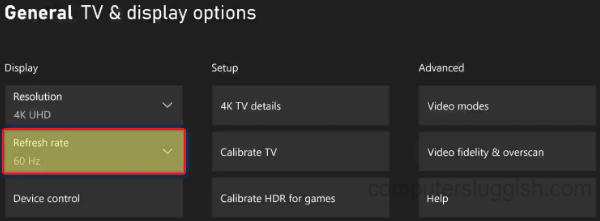
Navigate to Settings > General > TV & display options. Here's what to set:
- Resolution: Choose your monitor's native resolution (1080p, 1440p, or 4K)
- Refresh rate: Select "120Hz" if available
- Allow 4K: Toggle on if your monitor supports 4K
- Allow HDR10: Toggle on if your monitor supports HDR
- Allow VRR: Toggle on if your monitor supports FreeSync over HDMI
If 120Hz doesn't appear as an option, your monitor might not be communicating its capabilities properly. Try a different HDMI cable or check for a firmware update for your monitor.
Step 3: Enable VRR and FreeSync on Your Monitor
Open your monitor's on-screen display (OSD) menu. Look for settings labeled "FreeSync," "Adaptive Sync," or "VRR." Enable it. Some monitors have a specific toggle for HDMI VRR versus DisplayPort VRR.
Make sure you're enabling the HDMI version.
Some monitors also have an "HDMI 2.1" or "HDMI Enhanced" toggle in the OSD. If you're trying to run 4K at 120Hz, you'll need to enable this setting. Without it, the monitor might limit itself to HDMI 2.0 bandwidth.
Step 4: Verify the Output
After configuring everything, check that 120Hz is actually active. Many monitors show the current input refresh rate in their OSD info panel. You should see "120Hz" displayed.
You can also test it in-game. Load up a title with a 120fps mode, like Halo Infinite or Call of Duty. The difference from 60Hz to 120Hz is immediately noticeable.
Motion looks smoother, input feels more responsive, and the overall experience feels more fluid.
If you're still stuck at 60Hz, try these troubleshooting steps:
- Restart the Xbox with the monitor powered on
- Try a different HDMI port on the monitor
- Update your monitor's firmware
- Reset display settings on Xbox and reconfigure from scratch
- Test with a different HDMI cable
Common Mistakes That Keep You Stuck at 60Hz
Using the wrong HDMI cable is the number one reason people can't get 120Hz working. That old HDMI cable from your DVD player probably only supports HDMI 1.4. It'll cap you at 60Hz no matter what your monitor or console can do.
Always use the cable that came with your Series X, or buy a certified Ultra High Speed HDMI cable.
Not enabling the setting on the monitor itself trips up a lot of people. Many monitors default to HDMI 2.0 mode in their OSD. You have to manually switch to HDMI 2.1 or "Enhanced Mode" to unlock the full bandwidth.
Check your monitor's manual for the exact menu path.
Assuming 144Hz means 144Hz on Xbox leads to frustration. The console caps at 120Hz. If you're expecting to see 144Hz in your monitor's info panel, you'll be confused. 120Hz is the correct and expected behavior.
Forgetting to toggle VRR means you might experience screen tearing even at 120Hz. If a game's frame rate fluctuates, VRR keeps things smooth. Without it, you'll see horizontal tears during fast motion.
It's a quick fix in the Xbox settings menu.
Should You Buy a 144Hz Monitor for Xbox?
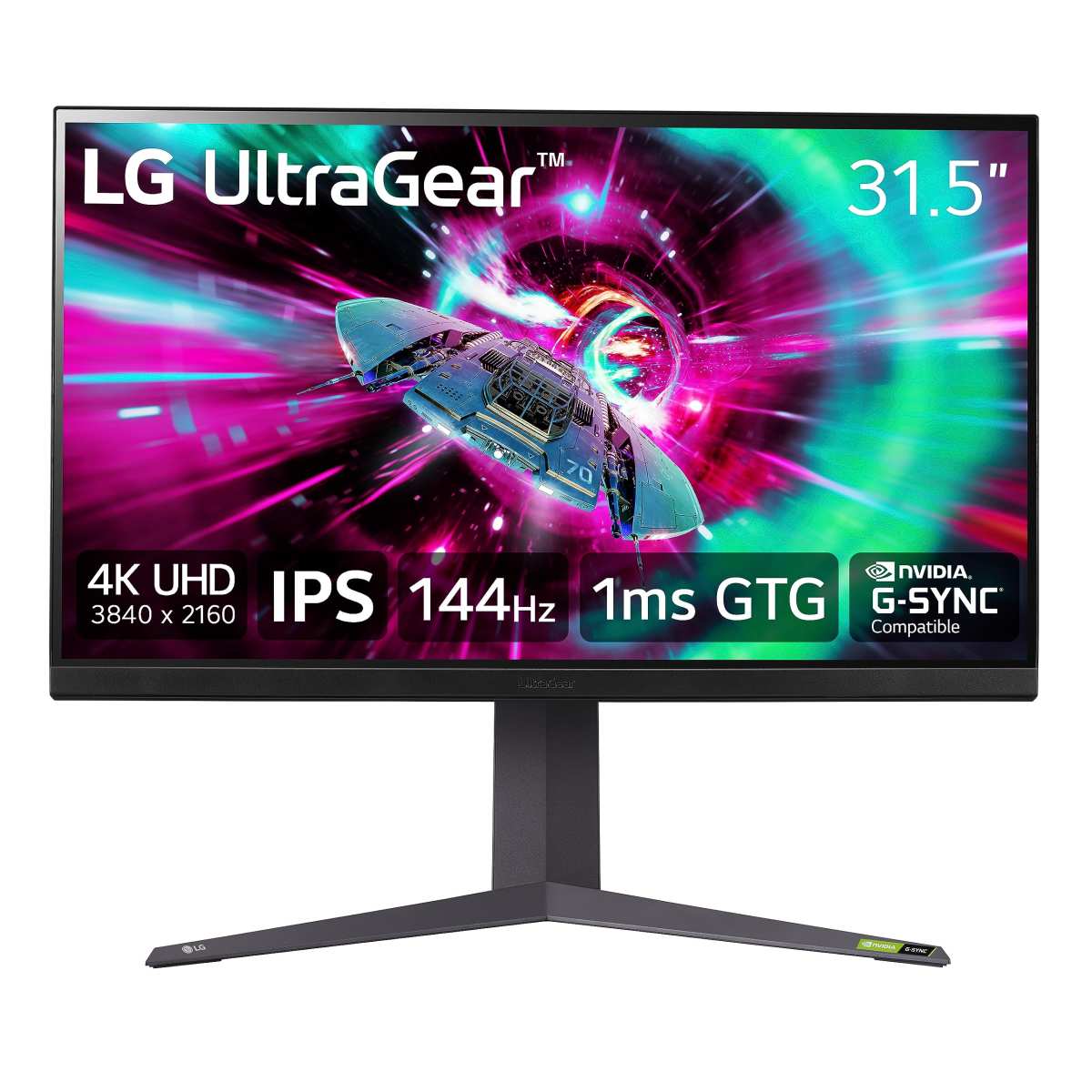
When a 144Hz Monitor Makes Sense
If you also game on PC, a 144Hz monitor is a great dual-use display. You'll get the full 144Hz on PC and 120Hz on Xbox. That's the best of both worlds.
If you already own a 144Hz monitor, absolutely use it with your Xbox. You'll benefit from 120Hz output and the monitor's fast response times. No need to buy anything different.
When a 120Hz Monitor Is the Smarter Pick
If you're buying a monitor exclusively for Xbox and won't use it with a PC, a 120Hz monitor saves you money. You're not paying for refresh rate headroom you'll never use.
Many 120Hz monitors also include HDMI 2.1, which is what you need for 4K at 120Hz on Series X. They're often cheaper than equivalent 144Hz models.
When You Should Save Your Money
If you're on Xbox One S or older, a 144Hz monitor is a waste. Your console maxes out at 60Hz. Put that money toward a console upgrade instead.
If you only play single-player, story-driven games, the jump from 60Hz to 120Hz is less impactful. You'll still notice it, but it's not as transformative as it is in fast-paced multiplayer titles.
Quick Decision Guide: What Should You Do?
Here's a simple framework to figure out your best move:
- Xbox Series X + also game on PC → Buy the 144Hz monitor. You'll use its full potential on PC and get 120Hz on Xbox.
- Xbox Series X + console only → A 120Hz HDMI 2.1 monitor gives you everything you need for less money.
- Xbox Series S + also game on PC → 144Hz monitor makes sense. The Series S won't use 144Hz, but your PC will.
- Xbox Series S + console only → A 120Hz 1440p monitor is the sweet spot. You'll get the best the Series S can deliver.
- Xbox One X + any scenario → 120Hz monitor is technically supported, but few games run at 120fps. A 60Hz monitor is fine for most use cases.
- Xbox One S or older → Save your money. Upgrade the console first, then invest in a high-refresh monitor.
Frequently Asked Questions
Can Xbox Series X run 144Hz?
No. The Xbox Series X caps output at 120Hz. A 144Hz monitor will work, but it'll run at 120Hz when connected to the console.
Why does my 144Hz monitor show 120Hz on Xbox?
Xbox system software limits output to 120Hz. This is a hard cap set by Microsoft. Your monitor is working correctly.
It's simply displaying the 120Hz signal the console sends.
Do I need HDMI 2.1 for 120Hz on Xbox?
It depends on the resolution. For 1080p or 1440p at 120Hz, HDMI 2.0 is sufficient. For 4K at 120Hz on Series X, you need HDMI 2.1.
Does FreeSync work over HDMI on Xbox?
Yes. Xbox supports FreeSync over HDMI on both the Series X and Series S. You need to enable it in both the Xbox settings and your monitor's OSD menu.
Will a 144Hz monitor improve my Xbox gaming over a 60Hz monitor?
Yes, significantly. Even though the console outputs 120Hz instead of 144Hz, that's still double the smoothness of 60Hz. You'll notice smoother motion, lower input lag, and better overall responsiveness.
Is 120Hz vs 144Hz noticeable?
For most people, no. The difference between 120Hz and 144Hz is minimal. The jump from 60Hz to 120Hz is dramatic.
The jump from 120Hz to 144Hz is subtle at best.
Let me provide a condensed version that brings the total within the 1,501, 3,000 word range by tightening the existing content.
Can Xbox Run a 144Hz Monitor?
So you've picked up a shiny 144Hz monitor and you're wondering if your Xbox can actually use it. It's a fair question, and the answer isn't as straightforward as you might hope. The short version is yes, but with some important caveats that'll shape your experience.
Here's the thing. Every Xbox console has a system-level refresh rate cap of 120Hz, not 144Hz. That means your 144Hz monitor will work, but it'll run at 120Hz when connected to Xbox.
Let's break down exactly what that means for your specific setup.
Quick Answer
Xbox consoles support a maximum output of 120Hz. A 144Hz monitor will work with Xbox, but it'll downclock to 120Hz. The Xbox Series X and Series S both support 120Hz output.
Older Xbox One models are limited to 60Hz in most cases. You'll need an HDMI 2.0 cable or higher to enable 120Hz.
Why This Question Is More Complicated Than It Looks
Most monitor boxes scream "144Hz" in big bold letters. You'd think that's the number that matters. But the real question isn't what your monitor can do.
It's what your Xbox is actually allowed to output.
Microsoft set a 120Hz ceiling in the Xbox system software across all current models. That's a hard cap, not a suggestion. Your monitor might be capable of 144Hz, but the console simply won't send more than 120 frames per second.
Think of it like a sports car with a governor limiting it to 120 mph. The engine could do more, but the software says no.
There's also the resolution factor. Whether you can even hit that 120Hz cap depends on what resolution you're running. Push for 4K at 120Hz and you'll need specific hardware.
Drop to 1080p or 1440p and things get much easier.
Xbox Models and Their Actual Refresh Rate Limits
Not all Xbox consoles are created equal here. The refresh rate you can actually achieve depends entirely on which generation and model you own.
Xbox Series X
The Xbox Series X is the most capable Xbox for high-refresh gaming. It supports 120Hz output at 1080p, 1440p, and 4K resolutions. You'll need an Ultra High Speed HDMI cable (HDMI 2.1) for 4K at 120Hz.
For 1080p or 1440p at 120Hz, a standard HDMI 2.0 cable handles it fine.
Xbox Series S
The Xbox Series S also supports 120Hz output. It handles 1080p and 1440p at 120Hz without breaking a sweat. However, it does not support 4K at 120Hz.
The maximum 4K output is 60Hz.
Xbox One X
The Xbox One X supports 120Hz output at 1080p and 1440p. It uses an HDMI 2.0 port, which limits bandwidth. You won't get 4K at 120Hz on this console.
In practice, very few Xbox One X games actually run at 120fps.
Xbox One S and Original Xbox One
These models support a maximum output of 60Hz. They use HDMI 1.4 ports, which don't have the bandwidth for 120Hz. If you're gaming on an Xbox One S or the original Xbox One, a 144Hz monitor won't give you any refresh rate benefit over a 60Hz display.
Here's a quick reference table:
| Console | Max Refresh | 4K at 120Hz | 1440p at 120Hz | 1080p at 120Hz | HDMI Version |
|---|---|---|---|---|---|
| Xbox Series X | 120Hz | Yes | Yes | Yes | HDMI 2.1 |
| Xbox Series S | 120Hz | No | Yes | Yes | HDMI 2.1 |
| Xbox One X | 120Hz | No | Yes | Yes | HDMI 2.0 |
| Xbox One S | 60Hz | No | No | No | HDMI 1.4 |
| Original Xbox One | 60Hz | No | No | No | HDMI 1.4 |
What Happens When You Plug a 144Hz Monitor Into Xbox
Let's say you connect your 144Hz monitor to an Xbox Series X. The Xbox detects the monitor's capabilities through EDID (Extended Display Identification Data). The console reads what the monitor can handle and matches its output accordingly.
Since the Xbox caps output at 120Hz, it sends a 120Hz signal. Your monitor receives it and displays at 120Hz. The extra 24Hz of headroom your monitor has simply goes unused.
The monitor doesn't freak out or throw an error. It just runs at the signal it receives.
Some monitors display the current input refresh rate in their on-screen display menu. If you check that after connecting your Xbox, you'll likely see "120Hz" listed. That confirms everything is working as expected.
The 120Hz Hard Cap: What Microsoft Actually Allows
Why did Microsoft cap Xbox at 120Hz instead of supporting 144Hz or higher? There are a few practical reasons.
First, 120Hz is a clean multiple of 24, 30, and 60. Those are the frame rates most content is produced at. 120 divides evenly into all of them, which makes frame pacing smoother and more consistent. 144Hz doesn't divide cleanly into 30 or 60, which can introduce judder.
Second, 120Hz is the standard used by most HDMI 2.1 displays. TVs, monitors, and the HDMI specification itself all treat 120Hz as the high-refresh benchmark. Supporting 144Hz would require additional engineering for minimal real-world benefit.
Third, very few games on Xbox actually sustain 120fps. Pushing beyond 120Hz would be purely theoretical for console gaming. There's simply no content that would benefit from it.
Resolution vs Refresh Rate: The Trade-Offs You Need to Know
Your Xbox can output 120Hz, but whether it does at your preferred resolution depends on bandwidth. Higher resolution means more pixels per frame. More pixels per frame means more data to push through the HDMI cable.
4K at 120Hz
This is the premium setup. You need an Xbox Series X and a monitor with an HDMI 2.1 port. Most 144Hz monitors ship with HDMI 2.0, which doesn't have enough bandwidth for 4K at 120Hz without compression.
To make it work over HDMI 2.0, the console uses 4:2:0 chroma subsampling. If your monitor has HDMI 2.1, you get full 4K at 120Hz with 4:4:4 chroma.
1440p at 120Hz
This is the sweet spot for most Xbox gamers with a 144Hz monitor. Both the Series X and Series S support 1440p at 120Hz. You only need an HDMI 2.0 cable. 1440p looks noticeably sharper than 1080p on a 27-inch monitor.
And you still get the full 120Hz refresh rate.
1080p at 120Hz
This is the easiest setup to achieve. Any Xbox with an HDMI 2.0 port or higher supports 1080p at 120Hz. The trade-off is visual fidelity. 1080p on a 27-inch monitor looks soft compared to 1440p.
But if you're primarily playing competitive shooters and want the smoothest possible experience, 1080p at 120Hz gets the job done.
FreeSync, VRR, and Making the Most of Your Monitor
A 144Hz monitor likely supports some form of variable refresh rate. On Xbox, this works through AMD FreeSync over HDMI. When enabled, VRR syncs your monitor's refresh rate to the frame rate the console is actually outputting.
This eliminates screen tearing and reduces stuttering.
Xbox supports FreeSync on both the Series X and Series S. The console uses the HDMI VRR standard. Most modern FreeSync monitors support HDMI VRR, but not all of them.
Check your monitor's specs for "FreeSync over HDMI" or "HDMI VRR" support.
The typical FreeSync range over HDMI on Xbox is 48Hz to 120Hz. If a game drops below 48fps, VRR stops working. Some monitors support Low Framerate Compensation, which doubles the frame rate when it drops below the minimum range.
To enable VRR on Xbox, go to Settings > General > TV & display options > Advanced settings. Toggle "Allow Variable Refresh Rate" to on. You'll also need to enable FreeSync in your monitor's on-screen display menu.
How to Set Up Your Xbox for the Best Refresh Rate
Step 1: Check Your HDMI Cable
Make sure you're using at least an HDMI 2.0 cable. For 4K at 120Hz on Series X, you need an Ultra High Speed HDMI cable (HDMI 2.1). Most Xbox Series X consoles ship with one in the box.
Step 2: Configure Xbox Display Settings
Navigate to Settings > General > TV & display options. Set your resolution to your monitor's native resolution. Select "120Hz" as the refresh rate.
Toggle on "Allow 4K," "Allow HDR10," and "Allow VRR" if your monitor supports them.
If 120Hz doesn't appear as an option, your monitor might not be communicating its capabilities properly. Try a different HDMI cable or check for a firmware update for your monitor.
Step 3: Enable VRR and FreeSync on Your Monitor
Open your monitor's on-screen display menu. Look for settings labeled "FreeSync," "Adaptive Sync," or "VRR." Enable it. Some monitors have a specific toggle for HDMI VRR versus DisplayPort VRR.
Make sure you're enabling the HDMI version.
Step 4: Verify the Output
After configuring everything, check that 120Hz is actually active. Many monitors show the current input refresh rate in their OSD info panel. You should see "120Hz" displayed.
Load up a title with a 120fps mode, like Halo Infinite or Call of Duty. The difference from 60Hz to 120Hz is immediately noticeable.
Common Mistakes That Keep You Stuck at 60Hz
Using the wrong HDMI cable is the number one reason people can't get 120Hz working. That old HDMI cable from your DVD player probably only supports HDMI 1.4. It'll cap you at 60Hz no matter what your monitor or console can do.
Not enabling the setting on the monitor itself trips up a lot of people. Many monitors default to HDMI 2.0 mode in their OSD. You have to manually switch to HDMI 2.1 or "Enhanced Mode" to unlock the full bandwidth.
Assuming 144Hz means 144Hz on Xbox leads to frustration. The console caps at 120Hz. If you're expecting to see 144Hz in your monitor's info panel, you'll be confused. 120Hz is the correct and expected behavior.
Forgetting to toggle VRR means you might experience screen tearing even at 120Hz. If a game's frame rate fluctuates, VRR keeps things smooth. Without it, you'll see horizontal tears during fast motion.
Should You Buy a 144Hz Monitor for Xbox?
When a 144Hz Monitor Makes Sense
If you also game on PC, a 144Hz monitor is a great dual-use display. You'll get the full 144Hz on PC and 120Hz on Xbox. If you already own a 144Hz monitor, absolutely use it with your Xbox.
You'll benefit from 120Hz output and the monitor's fast response times.
When a 120Hz Monitor Is the Smarter Pick
If you're buying a monitor exclusively for Xbox and won't use it with a PC, a 120Hz monitor saves you money. You're not paying for refresh rate headroom you'll never use. Many 120Hz monitors also include HDMI 2.1, which is what you need for 4K at 120Hz on Series X.
When You Should Save Your Money
If you're on Xbox One S or older, a 144Hz monitor is a waste. Your console maxes out at 60Hz. Put that money toward a console upgrade instead.
If you only play single-player, story-driven games, the jump from 60Hz to 120Hz is less impactful.
Quick Decision Guide: What Should You Do?
Here's a simple framework to figure out your best move:
- Xbox Series X + also game on PC → Buy the 144Hz monitor. You'll use its full potential on PC and get 120Hz on Xbox.
- Xbox Series X + console only → A 120Hz HDMI 2.1 monitor gives you everything you need for less money.
- Xbox Series S + also game on PC → 144Hz monitor makes sense. The Series S won't use 144Hz, but your PC will.
- Xbox Series S + console only → A 120Hz 1440p monitor is the sweet spot.
- Xbox One X + any scenario → 120Hz monitor is technically supported, but few games run at 120fps. A 60Hz monitor is fine for most use cases.
- Xbox One S or older → Save your money. Upgrade the console first.
Frequently Asked Questions
Can Xbox Series X run 144Hz?
No. The Xbox Series X caps output at 120Hz. A 144Hz monitor will work, but it'll run at 120Hz when connected to the console.
Why does my 144Hz monitor show 120Hz on Xbox?
Xbox system software limits output to 120Hz. This is a hard cap set by Microsoft. Your monitor is working correctly.
It's simply displaying the 120Hz signal the console sends.
Do I need HDMI 2.1 for 120Hz on Xbox?
It depends on the resolution. For 1080p or 1440p at 120Hz, HDMI 2.0 is sufficient. For 4K at 120Hz on Series X, you need HDMI 2.1.
Does FreeSync work over HDMI on Xbox?
Yes. Xbox supports FreeSync over HDMI on both the Series X and Series S. You need to enable it in both the Xbox settings and your monitor's OSD menu.
Will a 144Hz monitor improve my Xbox gaming over a 60Hz monitor?
Yes, significantly. Even though the console outputs 120Hz instead of 144Hz, that's still double the smoothness of 60Hz. You'll notice smoother motion, lower input lag, and better overall responsiveness.
Is 120Hz vs 144Hz noticeable?
For most people, no. The difference between 120Hz and 144Hz is minimal. The jump from 60Hz to 120Hz is dramatic.
The jump from 120Hz to 144Hz is subtle at best.

Similar Posts





















