How to Fix Lag on Dual Monitor Setup
Image source: Bing (Web (fair-use with source credit))
Figuring out how to fix lag on dual monitor setup configurations usually comes down to a handful of common culprits. The most frequent offenders are mismatched refresh rates, outdated graphics drivers, wrong cable types, or software settings that quietly eat into your GPU's resources.
The tricky part is that "lag" means different things to different people. Cursor stutter on the second screen feels nothing like frame drops during gaming. Per VESA standards, DisplayPort 1.4 supports up to 4K at 120Hz with Display Stream Compression, while HDMI 2.0 tops out at 4K 60Hz.
Knowing what your hardware can actually handle narrows things down fast. Let's walk through this step by step, starting with the quickest diagnosis.
Quick Answer
Fix dual monitor lag by checking which screen stutters first. Update your graphics drivers cleanly using Display Driver Uninstaller. Match refresh rates or set each monitor to its native rate in Windows.
Replace old HDMI cables with certified DisplayPort 1.4 or HDMI 2.1 cables. Disable hardware acceleration in browsers and apps if GPU usage spikes.
Why Your Second Monitor Stutters (And Why It's Not Always the Cable)
Here's what most guides skip. The lag you're feeling probably isn't one problem. It's usually a combination of two or three small things stacking on top of each other.
Your GPU has to render frames for two separate displays. Each one might run at a different resolution, refresh rate, and color depth. That's a lot of pixel-pushing, especially if one screen is 4K and the other is 1080p.
The Desktop Window Manager in Windows composites both displays into a single render surface. When those displays run at mismatched refresh rates, the compositor has to juggle timing. That juggling act is where stutter lives.
Most people assume the cable is the problem. Sometimes it is. But more often, the cable is fine and the real issue lives in your GPU settings, your driver version, or a Windows feature that doesn't play nice with mixed displays.
Let's break down exactly where to look.
First Branch: Is the Lag on ONE Monitor or Both?
This is the single most important question. Your entire troubleshooting path depends on the answer.
If Only Your Primary Monitor Lags
If the main screen stutters but the second one feels fine, you're probably dealing with a GPU bottleneck or a driver issue affecting the primary render pipeline. Check these first:
- Open Task Manager (Ctrl + Shift + Esc) and look at GPU utilization under the Performance tab
- If GPU usage sits above 90%, something is overloading it
- Disable V-Sync globally through your GPU control panel and test again
- Check if the issue only happens in specific apps or across the entire desktop
If Only Your Second Monitor Lags
This is the most common scenario and the one with the clearest fix path. The second monitor often runs through a different cable, a different port, or a different GPU output path entirely.
- Swap the cables between your two monitors and see if the lag follows the cable
- Check if the laggy monitor is plugged into a motherboard video output instead of the dedicated GPU
- Verify the second monitor's refresh rate in Windows Settings > System > Display > Advanced display settings
- A monitor stuck at 30Hz or 48Hz (common with HDMI 1.4 on 4K panels) will feel noticeably sluggish
If Both Monitors Show Delay
When both screens stutter, the problem is almost always at the GPU or driver level.
- Your graphics card might be thermal throttling
- A recent driver update might have introduced a bug
- Windows might have switched to the integrated GPU after an update
- Background processes could be consuming GPU memory
The Cable Check That Solves More Problems Than You'd Think
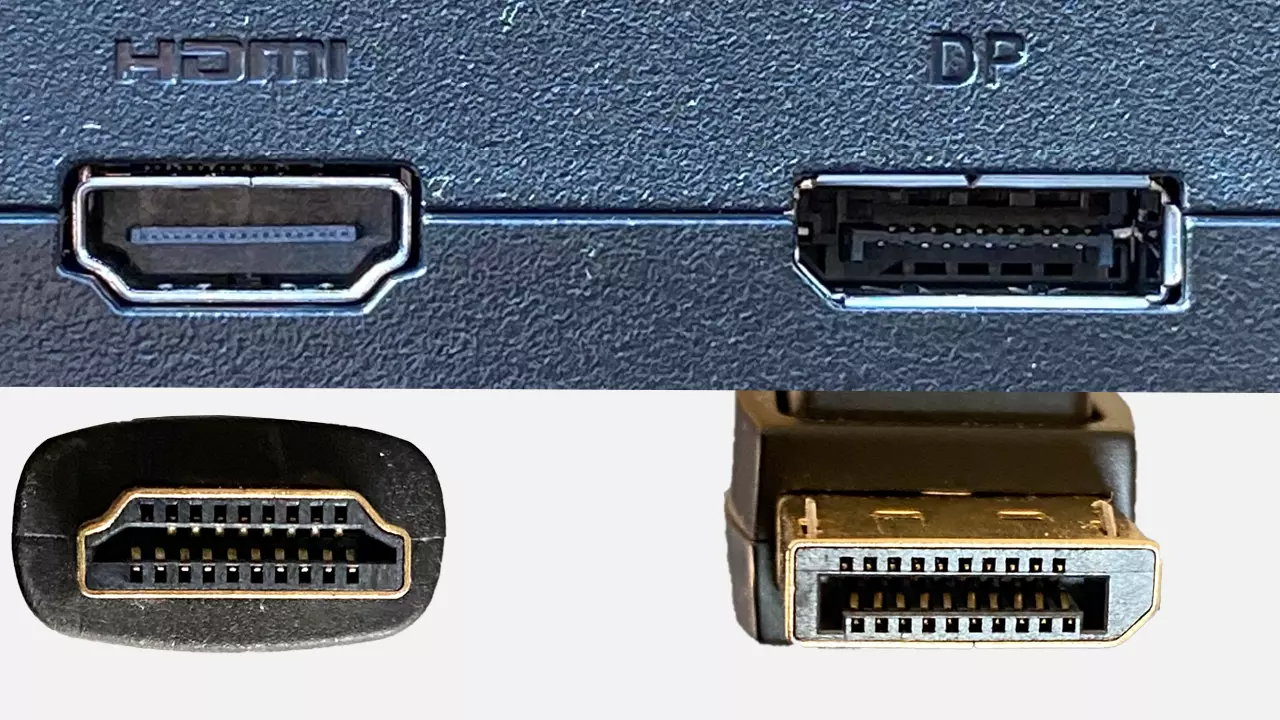
Image source: Bing (Web (fair-use with source credit))
Cables are the most overlooked cause of display lag. Not because cables go bad often, but because people grab whatever's in a drawer without checking version compatibility.
HDMI vs. DisplayPort: What Your Setup Actually Needs
Here's a quick reference for what each cable version can actually handle:
| Standard | Max Resolution at 60Hz | Max Resolution at 120Hz+ | Common Use Case |
|---|---|---|---|
| HDMI 1.4 | 4K (30Hz) or 1080p (60Hz) | 1080p at 120Hz | Older monitors, budget setups |
| HDMI 2.0 | 4K at 60Hz | 1440p at 120Hz | Most current consumer setups |
| HDMI 2.1 | 4K at 120Hz | 4K at 1440Hz, 8K at 60Hz | PS5, Xbox Series X, high-end PCs |
| DisplayPort 1.2 | 4K at 60Hz | 1080p at 144Hz | Older GPUs and monitors |
| DisplayPort 1.4 | 4K at 120Hz (with DSC) | 4K at 240Hz (with DSC) | Most modern gaming setups |
| DisplayPort 2.0 | 8K at 60Hz | 4K at 240Hz+ | Latest GPUs (RTX 40-series, RX 7000) |
The key takeaway: if you're running a 4K 144Hz monitor through an HDMI 2.0 cable, you're leaving performance on the table. The cable caps your refresh rate. Your monitor can do 144Hz but your cable only allows 60Hz.
That mismatch feels like lag even though it's technically a bandwidth limitation.
USB-C and Docking Stations: The Hidden Bandwidth Problem
If you're connecting through a USB-C hub or docking station, you're adding another layer of complexity. Many docks only support DisplayPort Alt Mode over a single lane, which halves the available bandwidth.
- Check your dock's specs for maximum resolution and refresh rate
- Some docks limit secondary displays to 30Hz at 4K
- Thunderbolt 4 docks handle dual 4K 60Hz far better than USB-C 3.2 docks
- If possible, connect your primary monitor directly to the GPU and only route the secondary through the dock
The Mixed Refresh Rate Trap (Most Common Cause Nobody Explains Well)
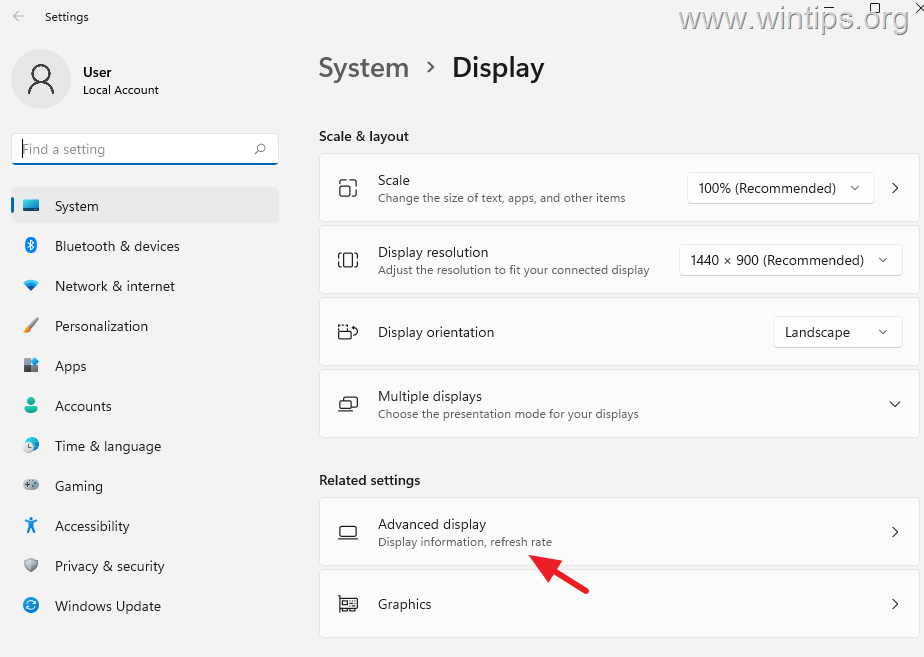
Image source: Bing (Web (fair-use with source credit))
This is the big one. If you've got a 144Hz gaming monitor as your main screen and a 60Hz panel as your secondary, Windows is going to struggle. Not always, but often enough that it's worth understanding why.
Why 144Hz + 60Hz Causes Stutter
Windows' Desktop Window Manager (DWM) composites your desktop at a single pace. When one monitor runs at 144Hz and the other at 60Hz, DWM has to synchronize across both. It typically defaults to the lower common denominator for certain operations.
What this means in practice:
- Moving windows between screens causes visible stutter
- Animations on the high-refresh monitor feel janky when the 60Hz monitor has video or motion on it
- Mouse movement across the boundary between displays feels inconsistent
- Fullscreen applications on the primary monitor can cause the secondary to freeze momentarily
This isn't a bug exactly. It's a limitation of how composited desktops handle timing across asynchronous refresh rates. Microsoft improved this significantly in Windows 11 22H2 and later, but it's not perfect.
How to Fix Mixed Refresh Rate Lag in Windows
Try these in order. One of them will likely solve it.
Option 1: Set both monitors to the same refresh rate temporarily
- If your 144Hz monitor can do 120Hz, try setting both to 120Hz and 60Hz. The math divides more evenly.
- 120 is a multiple of 60, so DWM has an easier time syncing frames.
Option 2: Disable hardware-accelerated GPU scheduling
- Go to Settings > System > Display > Graphics > Change default graphics settings
- Turn off Hardware-accelerated GPU scheduling
- Restart your PC
- This forces DWM to use a different timing path that sometimes handles mixed rates better
Option 3: Run fullscreen applications in exclusive fullscreen mode
- Borderless windowed mode forces DWM to composite across both displays
- Exclusive fullscreen lets the GPU talk directly to the primary monitor
- This eliminates secondary display stutter during gaming
Option 4: Update to the latest Windows 11 build
- Microsoft has patched several mixed-refresh-rate issues since late 2023
- Windows 10 still has more frequent reports of this problem
Driver Fixes That Actually Work (Not Just "Update Them)
"Update your drivers" is the most common advice you'll see. It's also the least helpful because it doesn't explain which driver, which version, or why a clean install matters more than a quick update.
Clean Install vs. Quick Update: Why It Matters
When you update a graphics driver normally, the installer layers the new version over the old one. Leftover registry entries, cached shaders, and old configuration files stick around. Over months of updates, this creates a messy driver state that can cause display issues.
A clean install wipes everything and starts fresh. Here's how:
- Download Display Driver Uninstaller (DDU) from the official Wagnardsoft site
- Download the latest driver from NVIDIA, AMD, or Intel (but don't install it yet)
- Boot Windows into Safe Mode
- Run DDU and select "Clean and restart"
- After reboot, install the fresh driver package you downloaded
- Restart again normally
This process takes about 15 minutes and resolves more dual monitor issues than any single setting change. Per NVIDIA's own support documentation, clean installs are recommended when experiencing multi-display anomalies.
NVIDIA Control Panel Settings for Dual Monitors
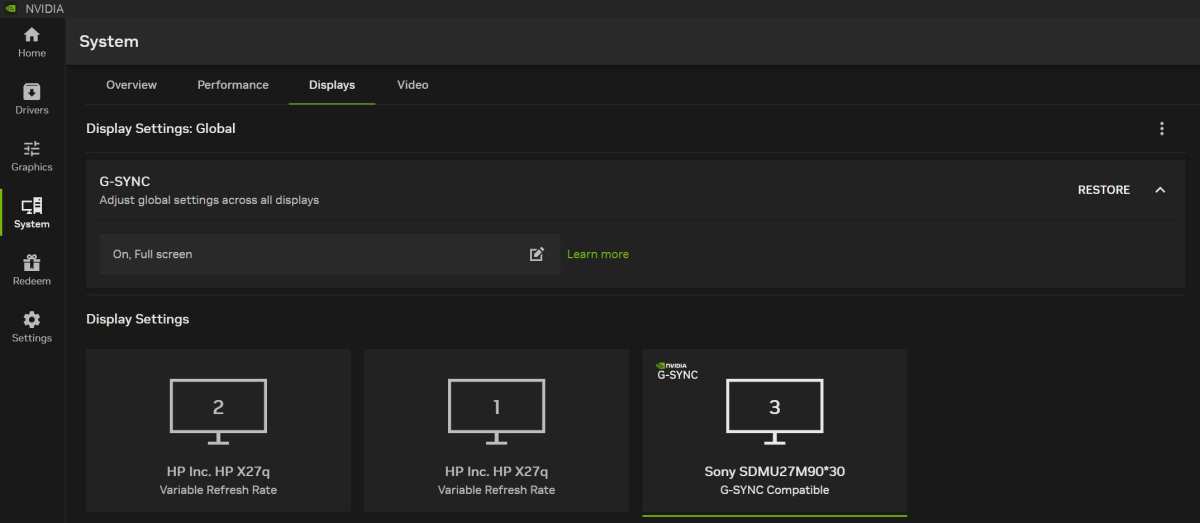
Image source: Bing (Web (fair-use with source credit))
Open NVIDIA Control Panel and check these specific settings:
- Change resolution: Verify each monitor is set to its native resolution and maximum supported refresh rate
- Set up G-Sync: If you have a G-Sync monitor, enable it only for the primary display. Enabling G-Sync on a secondary 60Hz panel can cause timing conflicts
- Manage 3D settings > Power management mode: Set to "Prefer maximum performance" to prevent the GPU from downclocking during multi-display use
- Configure Surround, PhysX: Make sure Surround is disabled unless you specifically want it. Surround treats multiple monitors as one giant display and will destroy your desktop experience
AMD Adrenalin Settings to Check
For AMD GPU users, the Adrenalin software has its own set of culprits:
- Display > Specifications: Confirm both monitors are detected at their correct specs
- Display > FreeSync: Enable only on the primary monitor if you're running mixed refresh rates
- Performance > Tuning: Check that GPU clock speeds aren't stuck at low values during multi-display use
- Settings > Graphics > Radeon Anti-Lag: Try disabling this. It can introduce micro-stutter on secondary displays in some driver versions
Software Culprits You're Probably Overrunning
Your GPU isn't just driving two monitors. It's also rendering every browser tab, every animated widget, and every hardware-accelerated app on your system. Some of these eat more GPU resources than you'd expect.
Hardware Acceleration: When to Turn It Off
Hardware acceleration offloads rendering tasks from your CPU to your GPU. It's great on single-monitor setups. On dual-monitor configurations, it can push an already-loaded GPU over the edge.
Apps that commonly cause issues:
- Google Chrome: Settings > System > "Use hardware acceleration when available", turn it off and restart
- Discord: Settings > Advanced > Hardware Acceleration, disable it
- Spotify: Settings > Compatibility > Enable hardware acceleration, toggle off
- Slack: Settings > Advanced > Hardware Acceleration, disable
- OBS Studio: This one needs hardware encoding for streaming, but if you're not streaming, switch to software (x264) encoding
After disabling hardware acceleration in these apps, check Task Manager again. If GPU usage drops significantly and the lag disappears, you've found your culprit. Re-enable them one at a time to pinpoint which app was the main offender.
Fullscreen Optimizations and Windowed Mode
Windows 10 and 11 apply "fullscreen optimizations" to most games and media players by default. This feature runs applications in a borderless windowed wrapper instead of true exclusive fullscreen.
The problem: borderless windowed mode routes everything through DWM. On a dual-monitor setup, that means your GPU is compositing the game frame plus your secondary display content simultaneously.
To disable it for a specific application:
- Right-click the application's executable or shortcut
- Select Properties > Compatibility
- Check "Disable fullscreen optimizations"
- Apply and test
This often eliminates micro-stutter on the primary monitor when the secondary display has video playing or animated content.
Background Apps Eating Your GPU Alive
Open Task Manager right now. Click the GPU column header to sort by GPU usage. You'll probably see a few surprises.
Common offenders:
- Wallpaper engines (Wallpaper Engine, Rainmeter with animated skins)
- RGB lighting software (iCUE, Armoury Crate, RGB Fusion), these poll USB controllers constantly and some versions leak GPU memory
- Browser tabs with video, even a paused YouTube tab can hold GPU resources
- Windows Search indexing, temporary but can spike GPU usage during rebuilds
- Antivirus real-time scanning, some suites use GPU-accelerated analysis
Close anything that's using more than 2-3% GPU when idle. On a dual-monitor setup, every bit of GPU headroom matters.
Quick Fixes vs. Real Fixes: What's Worth Your Time
Not every troubleshooting step deserves equal attention. Here's what actually moves the needle versus what people waste hours on.
| Fix Attempt | Time Cost | Success Rate for Dual Monitor Lag | Worth It? |
|---|---|---|---|
| Clean driver reinstall with DDU | 15 minutes | High | Yes, do this early |
| Cable swap (DP vs HDMI) | 2 minutes | High if wrong cable version | Yes, check first |
| Match refresh rates properly | 1 minute | High for mixed-rate setups | Yes, always check |
| Disable hardware acceleration | 5 minutes | Medium | Yes, quick and reversible |
| Disable fullscreen optimizations | 1 minute per app | Medium for gaming lag | Worth trying |
| Change GPU power management mode | 1 minute | Medium | Helps if GPU downclocking |
| Update motherboard chipset drivers | 20 minutes | Low | Only if USB-C/dock involved |
| Reinstall Windows | 1-2 hours | Low (fixes only OS corruption) | Nuclear option only |
| Replace the monitor | N/A | Low (rarely the actual problem) | Only if panel confirmed faulty |
The highest-impact fixes take under five minutes each. Start with cable verification, refresh rate matching, and a clean driver install. Those three steps resolve the majority of dual monitor lag complaints across NVIDIA, AMD, and Intel integrated graphics platforms.
Checklist: Dual Monitor Lag Troubleshooting Flow
Work through this list bottom to top in order. Stop when the lag disappears. That's your fix.
- Both monitors set to their native resolution and max refresh rate in Windows Display Settings
- Correct cable type for each monitor's specs (DisplayPort 1.4 or HDMI 2.1 for high-refresh panels)
- Cables plugged into the dedicated GPU, not motherboard video outputs
- GPU drivers cleanly reinstalled using Display Driver Uninstaller in Safe Mode
- Power management set to maximum performance in GPU control panel
- Hardware acceleration disabled in Chrome, Discord, Slack, and Spotify
- Fullscreen optimizations disabled for laggy games or apps
- Background GPU usage below 5% at idle in Task Manager
- No thermal throttling (GPU temps below 85°C under load)
- G-Sync or FreeSync enabled only on primary monitor
- Windows fully updated (especially on Windows 11, where mixed-refresh patches are ongoing)
If you've checked every box and lag persists, your GPU might not have enough memory bandwidth for your specific resolution and refresh rate combination. At that point, lowering one monitor's resolution or refresh rate is the most practical remaining option.
Frequently Asked Questions
Can a bad HDMI cable cause lag on a monitor?
A degraded or under-spec HDMI cable can absolutely cause display issues. It usually manifests as flickering, signal dropouts, or color artifacts rather than pure lag. However, a cable that only supports HDMI 1.4 on a 4K monitor will cap your refresh rate at 30Hz.
That low refresh rate creates a laggy feel that people often blame on the monitor or GPU.
Does running two monitors slow down gaming?
Yes, but usually by a small amount. Your GPU has to render the desktop for both screens while also running the game. On mid-range GPUs, expect a 2-5% frame rate drop.
Higher-end cards handle the overhead more easily. The bigger issue is stutter caused by mixed refresh rates or hardware-accelerated content on the secondary display.
Why does my mouse lag only on the second monitor?
This is almost always a refresh rate mismatch or a driver-level timing issue. If your second monitor runs at 60Hz while your primary runs at 144Hz, your eyes perceive the difference most clearly when moving the cursor. Set both to the same refresh rate if possible, or ensure your GPU drivers are cleanly installed.
Will a DisplayPort cable fix my dual monitor lag?
It will if your current HDMI cable is the bottleneck. DisplayPort 1.4 offers more bandwidth than HDMI 2.0 and supports higher refresh rates at 4K. But simply swapping cables won't help if you're already using a DisplayPort cable and the lag comes from mixed refresh rates or software issues.
Match the cable to the problem, not the other way around.

Similar Posts































