How to Switch Taskbar to Second Monitor
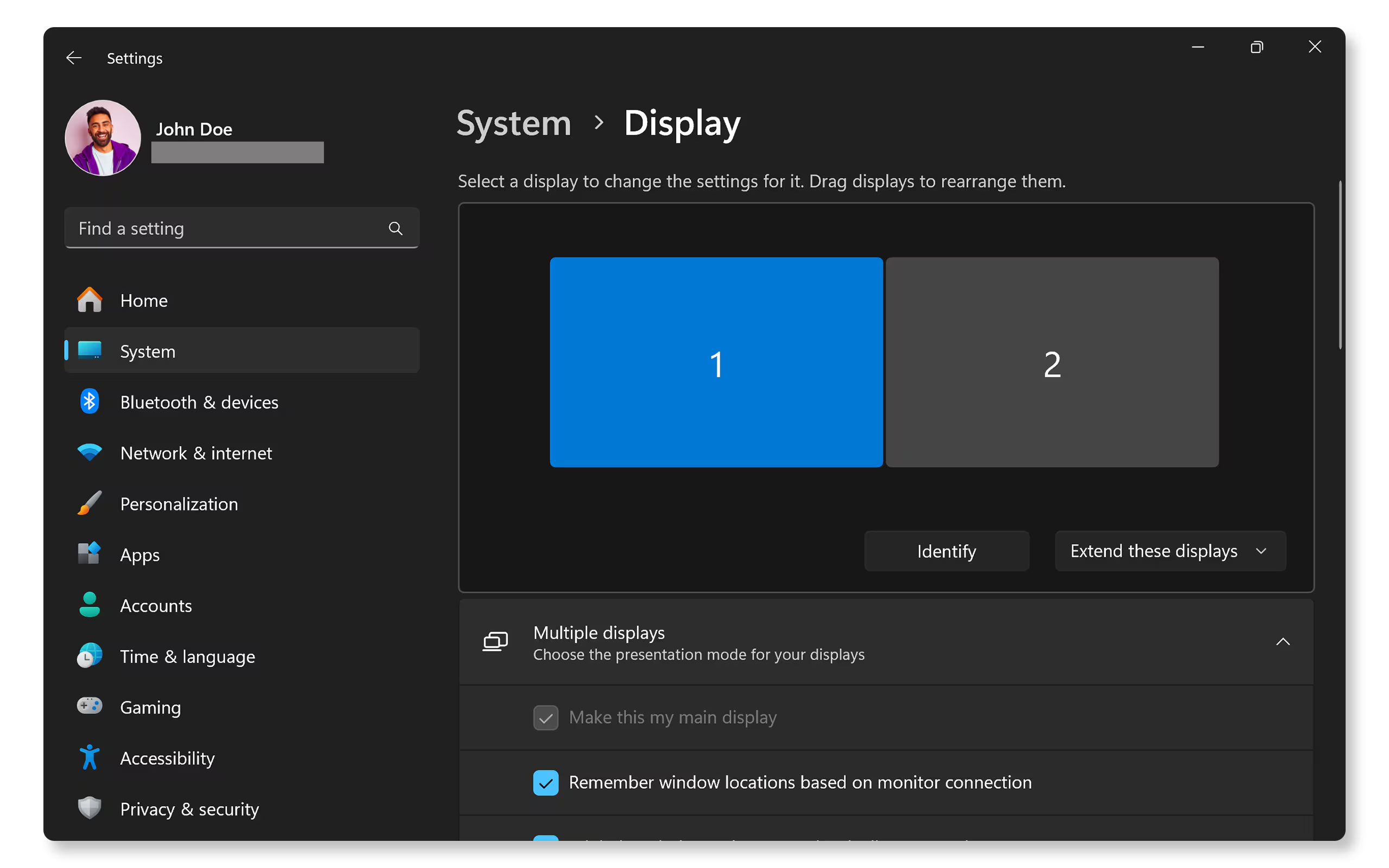

Image source: Wikimedia Commons / geckzilla (CC BY)
Figuring out how to switch taskbar to second monitor sounds like it should be simple. You'd think there'd be a "move taskbar" button somewhere, right? Unfortunately, Windows doesn't work that way.
The taskbar is tied to what's called your "main display," and moving it means changing which monitor holds that role or tweaking how Windows handles multiple taskbars.
Here's the good news: you've got options. Whether you're on Windows 10 or Windows 11, the built-in tools let you control exactly where the taskbar appears and which buttons show up where. As of 2026, the core multi-monitor taskbar logic hasn't changed much since Microsoft introduced it in Windows 8.
The settings just got a facelift in Windows 11. Let's break down what's actually going on and how to get it set up the way you want.
Quick Answer
To move the taskbar to your second monitor, open Settings > System > Display, select the monitor you want, and check "Make this my main display." The taskbar will then default to that screen. On Windows 10 and 11, you can also show the taskbar on all monitors and control where buttons appear. The whole process takes about two minutes.
Why Your Taskbar Won't Move Where You Want (And What Actually Works)
Here's the thing that trips everyone up. The taskbar doesn't "move" the way you might expect. Windows ties the primary taskbar experience to whichever monitor is designated as your main display.
That's where new taskbar buttons appear by default. That's where the system tray lives. That's where the clock sits.
So when someone says they want the taskbar on their second monitor, they usually mean one of three things:
- They want the second monitor to become the main display entirely
- They want the taskbar to appear on both screens but with specific rules
- They want the taskbar gone from one screen (like during a presentation)
Each of those goals requires a different approach. There's no single "move" button. Once you understand that the main display is the key, everything else clicks into place.
What "Main Display" Really Means for the Taskbar
Your main display is the monitor Windows treats as "home." It's where new apps open by default. It's where the desktop icons appear first. And critically, it's where the full taskbar (with system tray, clock, and notification area) lives.
You can change your main display in seconds:
- Right-click on your desktop and select Display settings
- Click the monitor you want to set as main (it'll highlight with a number)
- Scroll down and check "Make this my main display"
- Click Apply
That's it. Your taskbar will now default to that monitor. Any apps you open will also open on that screen unless you manually drag them elsewhere.
One important note: if you're using a laptop docked to an external monitor, Windows might reset your main display after a reboot or driver update. It's annoying but common. If your taskbar keeps jumping back, we'll cover how to lock that behavior down later.
Windows 10 vs. 11: Different Settings, Same Core Idea
The underlying logic is identical on both operating systems. Your main display gets the primary taskbar. But the settings menus look different, and Windows 11 simplified some options while removing others.
| Feature | Windows 10 | Windows 11 |
|---|---|---|
| Show taskbar on all displays | Toggle in Taskbar settings | Toggle in Taskbar settings |
| Control where taskbar buttons appear | Dropdown: All taskbars / Main taskbar and where window is open / Taskbar where window is open | Same dropdown options |
| Combine taskbar buttons | Separate setting for "Combine taskbar buttons" | Combined in same section |
| System tray on secondary displays | Only on main display by default | Only on main display by default |
| Settings path | Right-click taskbar > Taskbar settings | Right-click taskbar > Taskbar settings |
Windows 11's centered taskbar design added some visual quirks to multi-monitor setups. The secondary taskbar (when enabled) still aligns to the left, which looks a bit odd next to a centered primary taskbar. It's cosmetic, but worth knowing about.
The "Show taskbar buttons on" dropdown is where most of the magic happens. Let's dig into that next.
Method 1: Set Your Second Monitor as the Main Display
Image source: Bing (Web (fair-use with source credit))
This is the most straightforward approach if you want the full taskbar experience on your second monitor. It's ideal when you've got an external monitor that you use as your primary workspace, with the laptop screen as secondary.
Here's the step-by-step:
Open Display Settings: Right-click on your desktop background and click Display settings. You can also hit Windows key + I, then go to System > Display.
Identify your monitors: Click the Identify button. Big numbers will appear on each screen so you know which is which in the settings.
Select the target monitor: Click on the rectangle representing the monitor you want as your main display. It'll highlight with a blue border.
Set as main display: Scroll down to the Multiple displays section. Check the box that says "Make this my main display". If the box is grayed out, that monitor is already set as main.
Apply and confirm: Click Apply. Your screens might flicker for a second. The taskbar should now appear on your chosen monitor.
Image source: Dell (Official Support Documentation)
When this is the right choice:
- You use an external monitor as your primary workspace
- You want the clock, system tray, and notification area on that screen
- You're docking a laptop and want everything on the big screen
- You don't want the taskbar on your other monitor at all
When it's not:
- You want the taskbar visible on both screens
- You only want to move certain elements, not everything
- You're presenting and just need the taskbar hidden on the projected screen
If you're in that second camp, Method 2 is what you need.
Method 2: Keep Your Current Main Display but Control Where Taskbar Buttons Appear
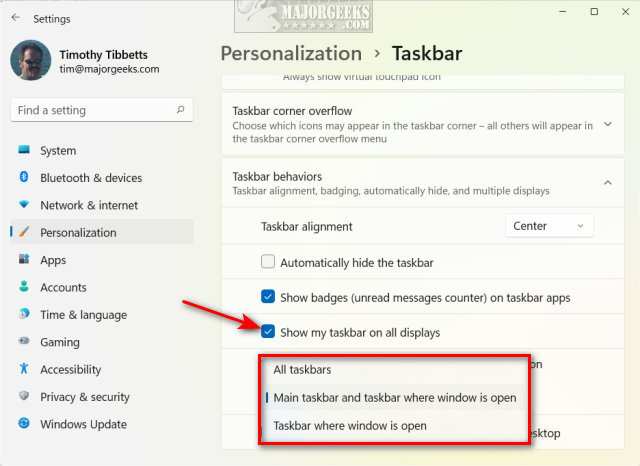
Image source: Bing (Web (fair-use with source credit))
Maybe you don't want to change your main display. That's totally valid. You can keep your primary monitor as-is and still control exactly where taskbar buttons show up across your screens.
This is the approach most people actually need. You get the taskbar on both monitors, but you decide where the buttons for each app appear.
Here's how to set it up:
Open Taskbar Settings: Right-click on the taskbar itself and select Taskbar settings. On Windows 11, you might need to click Taskbar behaviors first.
Find the multi-display section: Scroll down until you see the Multiple displays heading.
Toggle "Show taskbar on all displays": Flip this on if you want a taskbar visible on every monitor.
Choose where buttons show: Use the dropdown labeled "Show taskbar buttons on". You'll see three options: , All taskbars: Every button appears on every monitor's taskbar
, Main taskbar and taskbar where window is open: Buttons appear on the main display and on whichever display the app is running on
, Taskbar where window is open: Buttons only appear on the taskbar of the monitor where that app's window is currently displayed
That third option is the one most people prefer. It keeps things clean. If you're working in Chrome on monitor two, its taskbar button shows on monitor two only.
No clutter on the other screen.
Image source: MajorGeeks (Fair Use)
You can also toggle "Show badges on secondary taskbars" if you want notification markers, like Teams message counts, to appear on the secondary taskbar as well.
Method 3: Show the Taskbar on Every Monitor (When You Want It on Both)
Some workflows genuinely benefit from having the full taskbar on every screen. Video editors, traders running multiple data feeds, and programmers juggling terminals often want it this way.
The setup is straightforward:
Right-click the taskbar, go to Taskbar settings
Expand Taskbar behaviors (Windows 11)
Turn on "Show taskbar on all displays"
Set "Show taskbar buttons on" to "Taskbar where window is open"
This gives you a taskbar on each monitor that only shows the apps running on that specific screen. It's clean, it's intuitive, and it prevents you from clicking a button on monitor one only to have the app actually working on monitor two.
One thing to watch: if your monitors have different scaling settings (say, 100% on one and 125% on another), the taskbar can look different sizes on each screen. Not a dealbreaker, but a bit visually inconsistent. Set both monitors to the same scaling if it bothers you.
Third-Party Tools: When Built-in Options Aren't Enough
Windows gives you decent control, but it has limits. You can't pin specific taskbar icons to specific monitors natively. You can't get fancy multi-monitor taskbar layouts without some help.
That's where third-party tools come in. Two stand out:
DisplayFusion ($29 for the standard version) is the most popular multi-display management tool. It gives you independent taskbars on each monitor with full customization. You can set different wallpapers per screen, create custom taskbar buttons, and set up triggers that move apps to specific monitors.
Per the developer's documentation, it supports all current Windows 10 and 11 builds.
Actual Multiple Monitors ($25) offers similar functionality with a focus on taskbar customization. You can add custom buttons, control which apps appear where, and set up profile configurations. Aggregate user reviews report it handles three-plus monitor setups more gracefully than DisplayFusion in some edge cases.
TaskbarX is free and open-source, but it's more about visual customization (centering icons, adding transparency) than multi-monitor management. It won't solve your second-monitor taskbar problem on its own. However, it's a nice complement if you want a cleaner look after you've got your displays configured.
Honestly? For most people, the native Windows settings are enough. Third-party tools matter when you've got three or more monitors, or when you need per-app pinning rules that Windows just doesn't support.
Image source: Dreamstime (Licensed Stock)
Presentation Mode: Hide the Taskbar on the Projector or Second Screen
If you're presenting something and don't want the taskbar showing on the projected screen, you've got a couple of quick options.
Option A: Don't show the taskbar on all displays. This is the simplest. Go into your taskbar settings and turn off "Show taskbar on all displays." The taskbar stays on your laptop screen only, and the audience sees a clean projected image.
Option B: Use Windows key + P. Hit Windows key + P to open the Project menu. Select "Second screen only" if you want everything on the external display, or "PC screen only" to keep it off the projector entirely. Note that this changes your entire display setup, not just the taskbar.
Option C: Auto-hide the taskbar. Right-click the taskbar, go to Taskbar settings, and turn on "Automatically hide the taskbar." It'll disappear until you mouse over its edge. Works fine in a pinch, but it's not as clean as just keeping it off the second screen entirely.
The first option is what most presenters use. Set it before the presentation starts, and you won't have any embarrassing notification pop-ups showing on the big screen.
Common Mistakes That Waste Time and Drive You Crazy
Let's cover the issues that come up most often, so you don't fall into the same traps.
Mistake 1: Thinking there's a "move taskbar" button. There isn't. The taskbar is anchored to the main display. You change the main display, or you configure multi-monitor taskbar behavior.
That's it.
Mistake 2: Forgetting to click "Apply." You can check all the right boxes, but if you don't click Apply (or just close the settings window), nothing happens. Windows will sometimes keep your changes without asking. Other times it won't.
Always click Apply to be safe.
Mistake 3: Not identifying monitors first. When you open Display Settings, you see rectangles labeled 1 and 2, but you might not know which physical monitor is which. Click Identify first. It saves so much frustration.
Mistake 4: Main display resets after reboot. This happens especially with laptops that dock and undock frequently. If your taskbar keeps jumping back to the wrong screen after restarts, try updating your display drivers. In some cases, a BIOS update resolves the issue on certain Dell and Lenovo dock configurations per community reports.
Mistake 5: Different DPI scaling on each monitor. If one monitor is set to 150% scaling and another to 100%, the taskbar can look oversized on one screen and tiny on the other. Match the scaling values if the size difference bothers you. This is especially common with a 4K monitor paired with a 1080p screen.
Mistake 6: Grouping taskbar buttons. If you combine taskbar buttons in settings, you might not realize a minimized app is on your other screen. Try setting "Combine taskbar buttons" to "Never" temporarily when troubleshooting multi-monitor issues. It makes it easier to see which window is actually where.
Mistake 7: Forgetting about pinned icons. Pinned icons only appear on the main display's taskbar by default. If you're expecting to see your pinned apps on the secondary monitor, make sure "Show taskbar on all displays" is enabled and the button behavior is set correctly.
Quick Setup Checklist: Pick Your Goal and Do It
Here's a fast reference. Find what you want and follow the shortest path.
| Goal | Best Method | Steps |
|---|---|---|
| Move everything to second monitor | Set as main display | Display Settings > Select monitor > Check "Make this my main display" > Apply |
| Taskbar on both screens, buttons where apps are | Multi-taskbar config | Taskbar settings > Show on all displays > "Taskbar where window is open" |
| Hide taskbar on projector/presentation screen | Disable secondary taskbar | Taskbar settings > Turn off "Show taskbar on all displays" |
| Pin specific icons to specific monitors | Third-party tool | DisplayFusion or Actual Multiple Monitors |
| App opens on wrong monitor | Set correct main display | Display Settings > "Make this my main display" on the right screen |
Frequently Asked Questions
Can I have different taskbar icons on each monitor?
Not with native Windows settings. You can control where app buttons appear, but pinned icons are tied to the main display. To get truly independent pinned icons per monitor, you'd need DisplayFusion or Actual Multiple Monitors.
Why does my taskbar keep moving to the wrong screen after I restart?
This often happens when Windows re-detects displays during boot. The fix is to set your preferred monitor as the main display, then update your graphics drivers. Some dock configurations cause this repeatedly.
A BIOS update may help on certain hardware.
Does this work the same on a laptop with one external monitor?
Yes. A laptop with one external monitor is just a dual-display setup. The same settings apply.
Set the external as main display if you want the taskbar there, or keep the laptop as main and show the taskbar on both.
Can I move the taskbar to the top or left edge instead of moving it to another monitor?
You can change the taskbar edge position. Unlock the taskbar first by right-clicking it and unchecking "Lock the taskbar." Then drag it to any edge of the screen. It won't move to a different monitor this way, but you can reposition it vertically or to the top.
Do Windows updates reset multi-monitor taskbar settings?
They sometimes do. Feature updates occasionally reset display preferences to defaults. Our research indicates this comes up mostly with Windows 11 annual updates.
Check your settings after any major update just to be safe.
Does the game bar or overlay affect multi-monitor taskbar behavior?
Not directly. The Game Bar (Windows key + G) works independently. However, fullscreen games may temporarily hide the taskbar on the monitor the game is running on.
That's normal and expected behavior.

Similar Posts































