Why Is My Second Monitor Not Working
Figuring out why is my second monitor not working doesn't have to be a guessing game. Most detection failures fall into two categories: hardware-level issues like failing cables and ports, or software issues like Windows failing to detect display output. We'll walk through both based on verified data and official documentation.
Display interfaces carry strict bandwidth budgets. Per the HDMI Forum specification, HDMI 2.0 tops out at 18 Gbps, supporting 4K at only 60Hz. Exceed those limits with a worn cable, and you'll skip a more obvious diagnosis.
Let's sort it out.

Quick Answer
Usually, the cause is a loose connection, wrong input source, or a driver issue. First, verify the monitor is powered on and set to the correct port. Next, swap cables and ports to rule out hardware failure.
Then, use your OS's “Detect” feature for hidden displays. Lastly, install pending Windows updates and newer display drivers. If nothing helps, check dock firmware updates and consult the manufacturer's troubleshooting guide.
The 30-Second Diagnostic: What Your "Broken" Second Monitor Is Actually Telling You
Before you touch a single setting, the symptoms point toward the root cause. You don't need any tools. You just need to match what's actually happening to the right branch in this workflow.
| What you see | What's probably wrong | Your starting point |
|---|---|---|
| Monitor LED off, screen black | No power, dead cable, or dead port | Step 1 (physical check) |
| "No Signal" message on screen | Wrong input source, bad cable, or wrong port version | Step 1 and Step 2 |
| Screen is black but mouse cursor appears on it | Display detected but output misconfigured | Step 3 (settings) |
| Monitor shows desktop but resolution is wrong | Driver issue or cable bandwidth limit | Step 3 and Step 4 |
| Worked yesterday but broken today | Fast Startup glitch, driver update, or Windows update | Step 4 and Step 5 |
Is the monitor actually powered on?
Check the power LED. No light means no power reaching the unit. Confirm the power brick is seated firmly if it uses one.
If the LED is amber or blinking, the monitor is on but not receiving a video signal.
Does your PC detect a second display at all?
Right-click your desktop. Open Display Settings in Windows or System Preferences > Displays on macOS. If there's no second rectangle shown, your PC genuinely doesn't see the monitor.
That isolates the problem to cable, port, or input selection. If a second rectangle is there but the screen is black, skip ahead to the display mode check.
Is the screen black but recognized, or completely invisible?
This distinction is everything. A recognized-but-black screen usually means Duplicate mode is active on an unsupported resolution, or the GPU is sending a signal the panel can't render. An invisible display points to cable, port, or dock failure.
Does the problem follow the cable or the monitor?
Swap the working cable from monitor one onto monitor two. If the problem moves, the cable is the issue. If monitor two still fails with the good cable, either the port on the PC or the input on the monitor itself is the problem.
Start Here: The Five Questions That Determine Your Entire Fix Path
These questions map directly to specific fixes. Think of them as branches on a decision tree. Your answer determines which step section below is your actual starting point.
Is the monitor actually powered on?
Confirm the power LED is solid on. Some monitors have a power button that doubles as a status indicator. Blinking usually means the unit is in standby because there's no video signal coming in.
Solid amber or red typically means powered but no signal detected. Power cycling: unplug the monitor's power cord from the back or wall, wait 30 seconds, then reconnect.
Does your PC detect a second display at all?
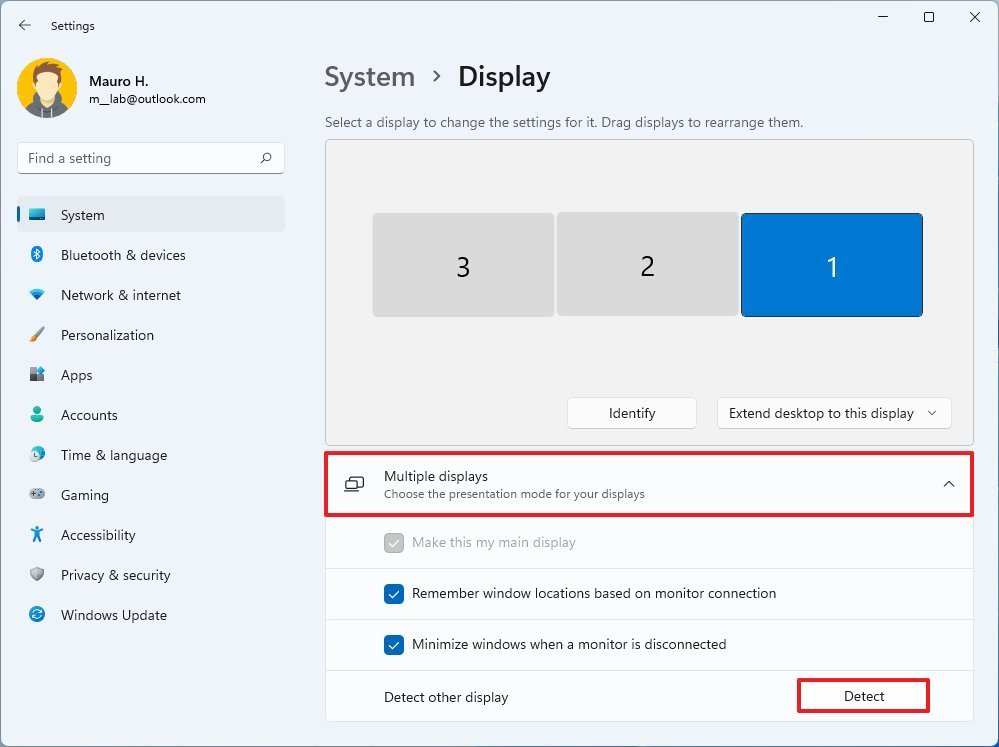
Open Settings > System > Display on Windows. Click Detect when only one display icon is shown. On macOS, open System Preferences > Displays, then hold the Option key and click Detect Displays in the bottom-right corner.
Linux users can run xrandr --auto from the terminal. If detection fails, the GPU or operating system doesn't electrically see the monitor at all. That means one of three things: cable failure, port failure, or the monitor's EDID (Extended Display Identification Data) isn't communicating properly with the host.
Is the screen black but recognized, or completely invisible?
Use Win+P. Choose Extend or Second screen only. If the monitor lights up under Second screen only, your GPU and cable work.
That means the old display mode was set to Duplicate at a resolution your second panel couldn't handle. Strike that configuration immediately and instead extend at a supported resolution. If nothing happens, go back to our hardware tests.
Does the problem follow the cable or the monitor?
Label your cables before testing. Swap them between the known-good monitor and the suspect one. If the previously working monitor now loses signal, the cable is most likely broken internally, even if it looks fine from the outside.
Keep that cable as a reference. You'll need to replace it with a certified cable; per VESA, a faulty DisplayPort cable can cause intermittent detection failures without any obvious physical damage.
Did this start after a recent update?
Windows feature updates and driver updates sometimes change display settings. Boot into Safe Mode. If both monitors work there, you're dealing with a software conflict.
Rolling back the latest display driver via Device Manager often fixes this overnight. If nothing changed before the failure, focus on hardware troubleshooting.
The 5-Minute Troubleshooting Flow: Where to Start Based on Your Situation
The table below gives you your starting point. Go straight to that section.
| Your situation | Start at |
|---|---|
| Monitor shows "No Signal" | Check the Physical Stuff First |
| Monitor LED is off | Check the Physical Stuff First |
| Screen black, not detected | Settings and Driver Fixes |
| Monitor detected but display is black | Settings and Driver Fixes |
| Worked in morning, failed after sleep/wake | Driver and Display Detection Tricks |
| Laptop with USB-C dock, not working | Dock and USB-C Adapter Considerations |
| All hardware checks pass, still nothing | Edge Cases and Escalation |
Step 1: Check the Physical Stuff First (It's Usually This)
Per professional IT helpdesk experience, "no signal" issues are most often simple physical-layer problems. Reseat, replace, then isolate. That sequence catches the most common faults without wasting time on settings that don't need touching.
Cable swap test — the fastest way to isolate the problem
Take the cable that's working on your primary monitor. Move it to the second. If the second monitor comes alive, the original cable needs replacement.
Use a certified cable that matches the port version on both ends. For 4K at 60Hz over HDMI, you need at least an HDMI 2.0 cable (Premium High Speed certified). For DisplayPort, VESA-certified DisplayPort 1.4 cables carry up to 32.4 Gbps and will drive 4K displays at 120Hz.
Port swap test — when the cable isn't the culprit
You've confirmed the cable is good. Now try the second monitor on a different port on your GPU. Desktop cards often have multiple outputs: HDMI 2.1, DisplayPort 1.4a, sometimes USB-C.
If the monitor works on a different port, the original port may have a bent pin or internal fault. You can keep using the working port, or if the card is under warranty, get it replaced.
Monitor input source — the setting nobody checks
Physical buttons or a joystick on the back of the monitor bring up the on-screen menu. Navigate to Input or Source. Confirm it matches the port the cable is actually plugged into.
Most modern monitors support multiple inputs: HDMI 1, HDMI 2, DisplayPort, USB-C. The auto-detect feature isn't always reliable with multiple sources attached.
USB-C and adapter gotchas — not all ports carry video
Many USB-C ports are data and power only. No DisplayPort Alt Mode, no video output. Check your laptop's specifications or user manual.
A lightning bolt or DP symbol next to the port is a good sign. A USB symbol with a battery icon means power delivery only. No video.
Buy a USB-C hub or dock explicitly certified for video output. In docks like the CalDigit TS4 or Anker 577, video conversion chips carry their own firmware that occasionally needs updating.
Step 2: Tell Your Computer to Actually Look for the Monitor
USB Implementers Forum specs confirm that the OS initiates detection through EDID reads across the wire. When you press Detect, the graphics driver reads a small data block from the monitor. It contains supported resolutions, refresh rates, colorspace info.
Detection failure here means the monitor's EDID can't be read reliably. Here's what to do with each operating system.
Windows: the keyboard shortcut and Settings method
- Press
Win+Pto open the project sidebar. Cycle through Duplicate, Extend, Second screen only. - Go to Settings > System > Display. Click Multiple displays > Detect.
- If still nothing, open Device Manager > Monitors. If you see a second PnP monitor listed with a yellow exclamation mark, right-click it and select Enable device. Then uninstall the driver, scan for hardware changes.
macOS: forcing display detection in System Preferences
- Open Apple Menu > System Preferences > Displays. Hold the Option key. A Detect Displays button appears in the bottom-right corner. Click it.
- If the display is still invisible, boot into Safe Mode by holding Shift after the startup chime on Intel Macs, or by shutting down and pressing and holding the power button then selecting boot options on Apple Silicon. Safe Mode loads only essential drivers, which helps isolate software conflicts.
Linux: xrandr and the GUI approach
- Open a terminal. Run
xrandr --queryto list all detected outputs and their status. If you see a listed output showing "disconnected" despite the cable being attached, note its name (e.g.,HDMI-2). - Run
xrandr --output HDMI-2 --autoto attempt to wake that output. For GNOME users, Settings > Displays shows the output list. KDE Plasma has a similar display configuration panel in System Settings.
Step 3: Fix It in Display Settings (When It's Seen But Wrong)
Maybe the monitor appears in your settings. The screen is still black. That's a configuration mismatch, not a hardware problem.
Matching the source output to the panel's native spec solves most of these cases. A stuck 60Hz refresh refusal by the monitor is actually a classic.
The screen is black but Windows thinks it's there
- Go to Settings > System > Display > Multiple displays. Set it to Extend these displays. Immediately go back and choose a sensible resolution for that monitor. A panel that advertises 2560 x 1440 natively will go black if you send it 4K interlaced by mistake.
- Dismiss any old, never-on-top windows that might be opening on the black screen. Press
Shift+Win+Arrow keysto yank a selected window back to the primary display.
Wrong resolution, blurry text, or stuck at 60Hz
- Select the second monitor in Display Settings. Manually set its resolution to its native panel value. 1920 x 1080 for most 24-inch panels. 2560 x 1440 for most 27-inch panels. 3840 x 2160 for 4K.
- Scroll to Advanced display settings. Under Refresh rate, raise it to the maximum the monitor supports. A 144Hz gaming monitor should never ship at 60Hz. For a detailed breakdown of panel types, see our related guide on monitor panel technologies.
- Blurry text on a fixed-pixel display almost always indicates a non-native resolution. Text mapped from a different pixel grid looks fuzzy.
Monitors swapped or arrangement is backwards
- In Display Settings, the numbered rectangles represent physical layout. Drag rectangle 2 to the left or right of rectangle 1 to match your actual desk arrangement.
- The narrow gray top bar designates the primary display. Click the intended primary monitor, then check Make this my main display. That's where the taskbar, Start menu, and desktop icons will appear. No reboot needed.
Duplicate vs. extend — how to switch
Win+Ppops up sidebar near the notification area. Pick Duplicate if you want both screens showing the same thing. Pick Extend for more desk space. Second screen only shuts off your laptop panel entirely.- If Duplicate makes one screen go black, the common resolution is not shared. The GPU falls back to the lower maximum and the higher-res panel loses signal. Switch to Extend instead and configure each screen separately.
Step 4: Driver and Firmware-Level Fixes
When hardware and settings all look right, the problem lives deeper. Driver conflicts, stale firmware on a dock, or the Windows Fast Startup feature are the usual suspects. Here's the order in which to attack these causes.
Update or reinstall your graphics driver
- Visit your GPU vendor's official utility. NVIDIA has GeForce Experience or you can download drivers manually. AMD has Adrenalin Software. Intel provides the Intel Driver & Support Assistant for integrated graphics.
- Use DDU (Display Driver Uninstaller) to cleanly remove the existing driver. Boot into Safe Mode first. Remove, restart, install fresh.
NVIDIA vs. AMD vs. Intel: where to look
- NVIDIA: Open NVIDIA Control Panel. Open the Set up multiple displays page in the left sidebar under Display. Right-click in the display list. Choose Enable or Apply.
- AMD: Open AMD Software: Adrenalin Edition. Navigate to Display in the top menu. Toggle Multiple Displays.
- Intel: Open Intel Graphics Command Panel. Choose Display > Multiple Displays. EDID override options live here if your monitor's identification data is being read incorrectly.
Check Windows Update, too. Sometimes driver updates hide under Optional updates.
USB-C dock and adapter firmware updates
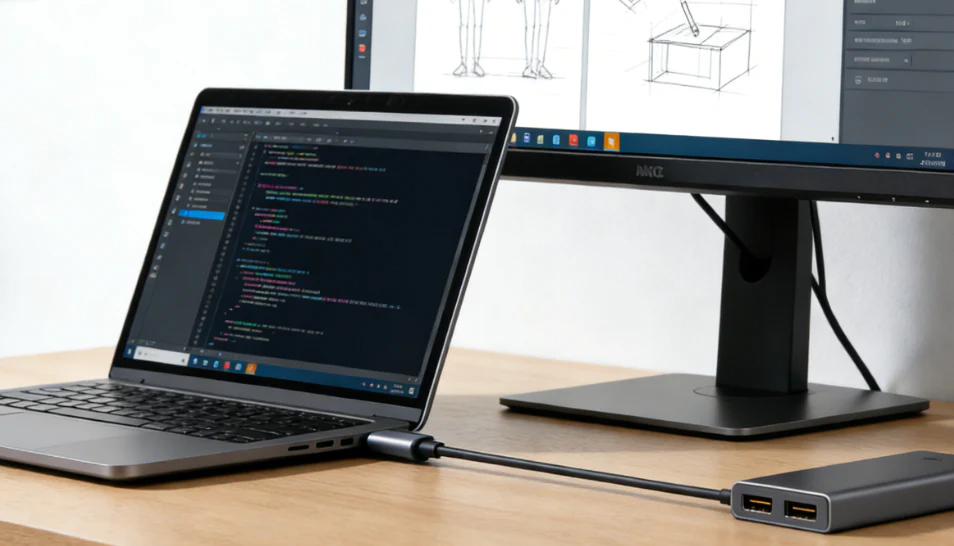
- Docks like the CalDigit TS4, Anker 577, or Plugable UD-6950PDZ contain a DisplayLink chip or Thunderbolt controller that runs its own firmware. Check the manufacturer's support page. Outdated firmware can cause displays to fail after waking from sleep, or drop them entirely when bandwidth is split between data and video.
- After applying any firmware update, unplug power from the dock for 60 seconds. Then reconnect.
Disable Fast Startup (Windows-specific fix that catches people out)
- Open Control Panel > Power Options > Choose what the power buttons do. Click Change settings that are currently uncheck. Uncheck Turn on fast startup. Click Save changes.
- Fast Startup puts the kernel session into hibernation instead of a full shutdown from Hybrid Boot mode. Sometimes the graphics driver doesn't reinitialize the second monitor correctly on wake. After disabling, perform a proper change:
shutdown /s /t 0. Then restart.
Step 5: Advanced Troubleshooting When Nothing Else Worked
You've swapped cables. You've swapped ports. You've reinstalled drivers.
Still nothing. Now we go deeper.
Safe Mode test — ruling out software problems
Boot into Safe Mode. If both monitors work there, something in your normal startup is interfering. That could be a third-party display utility, an overlay app, or a startup program conflicting with the graphics driver.
Disable startup items one by one using Task Manager until you find the offender.
EDID issues and monitor factory reset
EDID is the small data block your monitor sends to the GPU describing its capabilities. Sometimes this data gets corrupted. When that happens, the GPU outputs a signal the panel cannot display.
Go into the monitor's on-screen menu and look for Factory Reset or Reset All. That often restores the EDID table to its default state.
Note: the EDID data path also routes through the cable and the dock. On long cable runs (over 15 feet or 5 meters), EDID read errors become far more common. Use a signal-boosting active cable or shorten the physical path.
Re-seating a desktop GPU
Power down completely. Switch off the power supply. Ground yourself on the chassis.
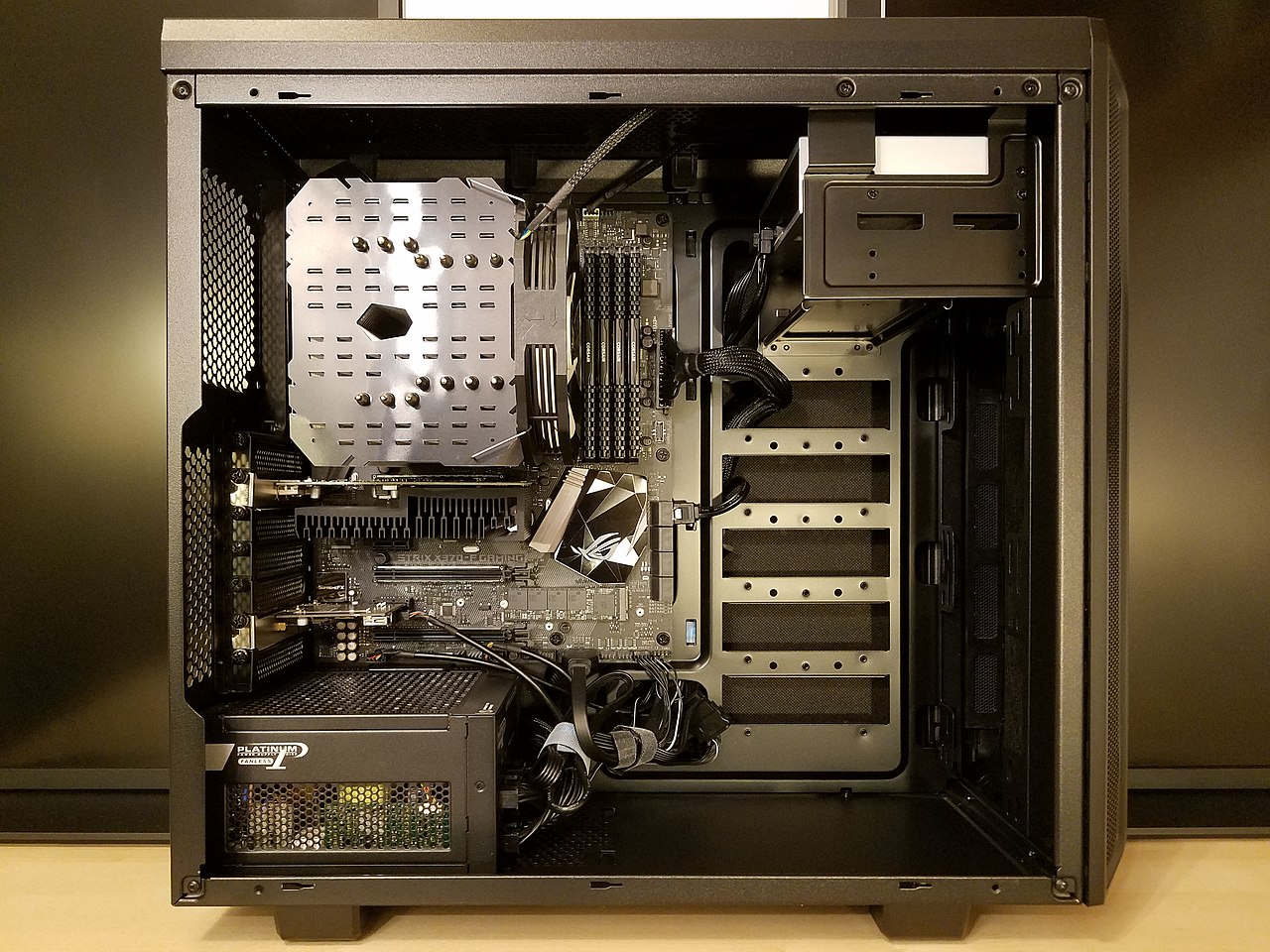
Remove the graphics card and firmly re-seat it. Sometimes insufficient contact on the PCIe edge connector causes one output group to fail while the others work fine. Look for any bloated or leaking capacitors on the board while you are in there.
Those are obvious failure signs.
Headless ghost / dummy plug trick
Some GPUs reduce clock speeds or shut down outputs when no monitor is detected. This behavior impacts rendering performance and multi-display initialization. You can buy a small DisplayPort or HDMI dummy plug.
It contains just enough circuitry to present a valid EDID, and the GPU then maintains an active output. Useful for servers, but also handy for troubleshooting detection failures with headless setups.
Cable and Port Quick Reference
Understanding interface capabilities avoids mismatch problems. Each standard imposes strict bandwidth limits that govern maximum resolution and refresh rate.
HDMI vs. DisplayPort vs. USB-C — which to use and when
| Feature | HDMI 2.0 | HDMI 2.1 | DisplayPort 1.4 | DisplayPort 2.1 | USB-C (DP Alt Mode) |
|---|---|---|---|---|---|
| Max bandwidth | 18 Gbps | 48 Gbps | 32.4 Gbps | 80 Gbps | Shares with data and PD |
| 4K at 60Hz | Yes | Yes | Yes | Yes | Depends on host |
| 4K at 120Hz | No | Yes | Yes (DSC) | Yes | Varies by dock |
| Daisy-chaining | No | No | Yes (MST) | Yes | Rarely over USB-C |
| Best for | TVs, consoles | Latest consoles, HDR TVs | PC monitors, gaming | Future high-refresh 8K | Laptop docking |
Prefer DisplayPort for dedicated PC monitors. It supports higher refresh rates at lower resolutions and MST daisy-chaining without HDMI's licensing restrictions. DisplayPort 1.4 with Display Stream Compression delivers clean 4K 120Hz with no visible quality loss.
Maximum cable length and resolution limits at a glance
- HDMI passive cable: 15 feet (5 meters) typical reliable limit for 4K 60Hz.
- DisplayPort passive cable: 10 to 12 feet (3 to 4 meters) for full bandwidth 1.4 signals. VESA certifies cable lengths only up to certain bandwidth grades.
- USB-C cable for video: shorter runs perform better. 3.3 feet (1 meter) for full-featured TB4 or USB4 at 40 Gbps; longer cables reduce bandwidth and may drop display resolution or refresh rate.
Exceed those limits with passive cables and expect signal degradation. If you need longer runs, use active cables with built-in signal repeaters or convert to fiberoptic HDMI or fiberoptic DisplayPort cables. Those can carry 4K signal across 100 feet with degradation.
Common Mistakes People Make When Troubleshooting
These are the errors that waste the most time. Chances are you are making at least one of them right now.
- Forcing a resolution the panel can't handle, causing a black screen with no error message.
- Begging for a second display while still running the first monitor's cable through a dock that cannot drive both at full bandwidth.
- Assuming a new monitor is defective when the computer's port is physically damaged or disabled in BIOS/UEFI.
- Using an old HDMI 1.4 cable from a drawer without realizing it caps 4K output at 30Hz, which then flickers or drops out.
- Upgrading Windows and never checking Optional Updates, where staged display driver releases sit for weeks.
Always verify the cable's printed markings. Grab a magnifying glass if necessary. A cable marked "High Speed" but not "Premium High Speed" is an HDMI 1.4 cable.
That immediately falls short of 4K 60Hz.
Real-World Scenarios and How They Got Fixed
These are the patterns that show up repeatedly in support forums and helpdesk tickets.
The USB-C hub that charged fine but wouldn't push video
A user's laptop charged through their USB-C hub. The external monitor stayed black. The hub was a basic data-and-power model with no DisplayPort Alt Mode support.
The fix: swap to a Thunderbolt 4 dock that explicitly lists video output in its spec sheet. The CalDigit TS4 and Anker 577 both pass video alongside power delivery.
The monitor that only worked on one specific port
A desktop with an NVIDIA RTX 3070 had three DisplayPort outputs and one HDMI. The second monitor only woke up on HDMI. Two of the DisplayPort outputs had bent pins from a previous cable insertion.
The fix: use the HDMI port for the secondary monitor and have the card serviced for the damaged ports.
The "it stopped working after a Windows update" situation
A cumulative update reset the display driver to a generic Microsoft Basic Adapter. The second monitor disappeared from Device Manager entirely. The fix: open Device Manager, uninstall the Basic Adapter, scan for hardware changes, then install the latest driver from NVIDIA or AMD directly.
Do not rely on Windows Update alone for graphics drivers.
Frequently Asked Questions
How do I force Windows to detect a second monitor?
Open Settings > System > Display. Click the Detect button under the display layout diagram. If that fails, press Win+P and cycle through the projection modes.
You can also open Device Manager, expand the Monitors section, and select Scan for hardware changes from the Action menu.
Why does my second monitor say "No Signal" even though everything is plugged in?
The monitor is powered on but not receiving a video signal. Check that the correct input source is selected on the monitor's own menu. Swap the cable.
Try a different port on the GPU. If the cable works on another monitor, the original monitor's input port may be damaged.
Can a bad HDMI cable cause detection failure?
Yes. A damaged or under-spec HDMI cable can prevent the EDID handshake from completing. The GPU then assumes nothing is connected.
Use a Premium High Speed certified HDMI cable for 4K 60Hz or a VESA-certified DisplayPort cable for higher bandwidth needs.
Why does my second monitor work in Safe Mode but not normal boot?
Safe Mode loads only the basic Microsoft display driver. That rules out hardware failure. The problem is a third-party driver, utility, or startup application interfering with the graphics stack.
Perform a clean boot using MSConfig to isolate the conflicting software.
Do all USB-C ports support external monitors?
No. Many USB-C ports handle data and power delivery only. Look for a DisplayPort symbol or lightning bolt next to the port.
Check your laptop's technical specifications document. Ports without explicit DP Alt Mode support cannot output video, regardless of the adapter you plug in.
How do I fix a second monitor that is detected but stays black?
Set the display mode to Extend instead of Duplicate. Lower the resolution to the panel's native value. Reduce the refresh rate to 60Hz as a test.
If the screen comes alive, raise the refresh rate gradually until you find the stable maximum for your cable and port combination.
Final Decision Guide: Your Situation → Your Fix
Here's the fastest path based on what you're seeing right now.
If the monitor LED is off → Re-seat the power cable, test a different outlet, monitor may need repair or replacement.
If it says "No Signal" → Try a different input source, try a different cable, try a different port on the GPU. Three swaps, done.
If it's detected but black → Set it to Extend mode. Lower the resolution. Check that the refresh rate is within spec for your cable.
If driver updates failed → Use DDU in Safe Mode, install the driver directly from your GPU vendor's website.
If still nothing → The GPU may have damaged ports, or the dock may need firmware. At this point, contact the manufacturer's technical support.

Similar Posts































