How to Fix HDR Not Working on Monitor

Why HDR Isn't Working on Your Monitor (And How to Actually Fix It)
Figuring out how to fix HDR not working on monitor setups is one of those things that sounds simple until you're staring at a washed-out screen with no toggle in sight. The frustrating part is that HDR depends on every link in the chain agreeing to speak the same language. Your GPU, cable, monitor, operating system, and content all need to align.
Manufacturer specifications indicate that a proper HDR signal path requires at least HDMI 2.0 or DisplayPort 1.2, a 10-bit color depth, and HDCP 2.2 compliance across every component. Miss one of those and the whole thing falls apart. Let's walk through exactly where things break and how to fix them.
Quick Answer
Start with your cable. Swap to a certified HDMI 2.0 or DisplayPort 1.4 cable. Then enable HDR in your monitor's on-screen display menu.
Next, turn on the HDR toggle in Windows Display Settings. Finally, set your GPU to output 10-bit color at the correct format. These four steps resolve the majority of HDR issues.
The Most Common Culprits — A Quick Diagnostic Checklist
Before diving into specific fixes, it helps to understand what actually needs to work. HDR fails for a handful of predictable reasons, and most of them live outside Windows settings.
Here's what to check first:
- Cable: Is it rated for enough bandwidth? HDMI 1.4 cables can't carry a proper HDR signal at 4K.
- Monitor OSD: Many monitors have a separate HDR toggle in their own on-screen display that Windows can't see or control.
- GPU driver: An outdated or corrupted driver is one of the most common reasons the HDR toggle disappears entirely.
- Color format: If your GPU is outputting YCbCr 4:2:0 instead of RGB Full or 4:4:4, HDR will look wrong or not engage.
- Content source: Not everything is actually HDR. A standard SDR video won't magically become HDR just because the toggle is on.
If you're not sure where to start, work through the sections below in order. Each one addresses a specific failure point.
Check Your Cable First (This Fixes More Problems Than You'd Think)
This is the step most people skip, and it's the one that causes the most headaches. HDR requires significantly more bandwidth than SDR, and not all cables can deliver it.
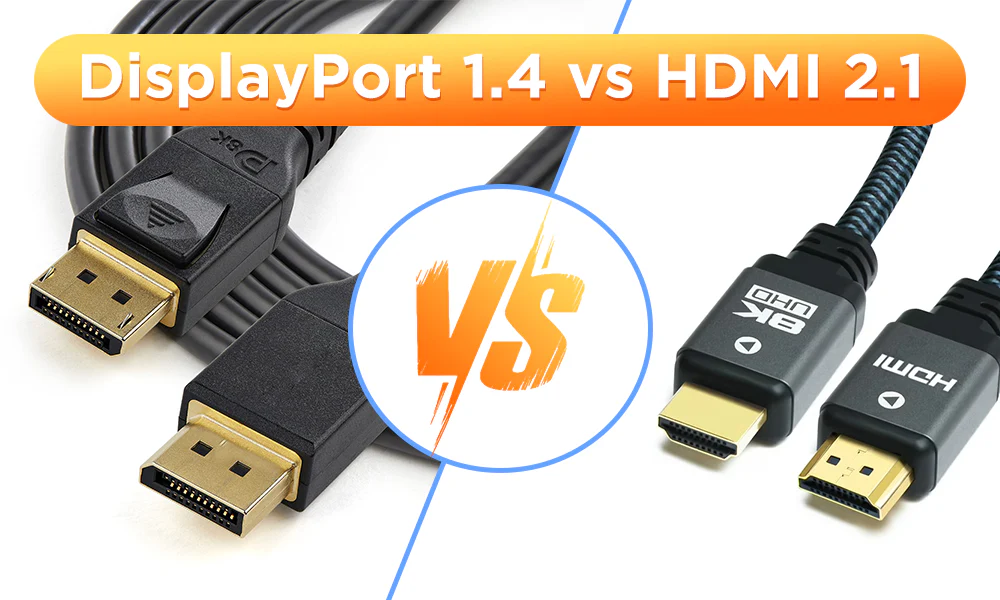
Here's what each standard supports:
| Standard | Max Bandwidth | HDR at 4K/60Hz | HDR at 4K/120Hz |
|---|---|---|---|
| HDMI 1.4 | 10.2 Gbps | No | No |
| HDMI 2.0 | 18 Gbps | Yes (with compression) | No |
| HDMI 2.1 | 48 Gbps | Yes | Yes |
| DisplayPort 1.2 | 17.28 Gbps | Limited | No |
| DisplayPort 1.4 | 32.4 Gbps | Yes | Yes (with DSC) |
If you're running HDMI 2.0 and want 4K HDR at 60 Hz with full RGB color, you're right at the edge of the bandwidth limit. That's why HDMI 2.0 setups sometimes force 4:2:0 chroma subsampling. It works, but the image quality takes a hit.
DisplayPort 1.4 handles 4K HDR at 60 Hz with full color more comfortably, especially with Display Stream Compression (DSC). If your monitor and GPU both support DP 1.4, that's generally the more reliable path for HDR on PC.
A few practical notes:
- The cable that came in the box with your monitor is usually the right spec. Third-party cables sometimes have misleading labeling.
- Longer cables (over 3 meters) can degrade signal quality, which may cause intermittent HDR dropouts.
- If you're using an adapter (HDMI-to-DP or vice versa), that adapter needs to support the full bandwidth. Many cheap adapters don't.
Is Your Monitor Actually in HDR Mode? (OSD Settings People Miss)
This one catches almost everyone. Windows has an HDR toggle, but your monitor has its own separate HDR setting in the on-screen display (OSD). Both need to be on.
On most monitors, the HDR setting lives somewhere in the picture or display section of the OSD. It might be labeled as "HDR Mode," "HDMI HDR," "DisplayHDR," or something similar. Some monitors auto-detect the HDR signal.
Others require you to manually enable it every time.
Here's what typically happens when you forget this step:
- The Windows HDR toggle is on, but the monitor is still processing the signal as SDR.
- Colors look oversaturated or completely desaturated.
- The screen appears dimmer than expected.
- Peak brightness never engages, so highlights don't pop.
Some monitors, particularly those with VESA DisplayHDR 400 certification, have limited HDR processing. They accept the HDR signal but can't actually deliver the contrast or brightness that makes HDR look good. In those cases, enabling HDR in the OSD might make the image look worse than SDR.
It's worth testing both ways.
If your monitor has local dimming (FALD or edge-lit), make sure that's also enabled in the OSD. Local dimming is what actually creates the contrast difference that makes HDR look like HDR. Without it, you're just running a tone-mapped SDR image with extra steps.
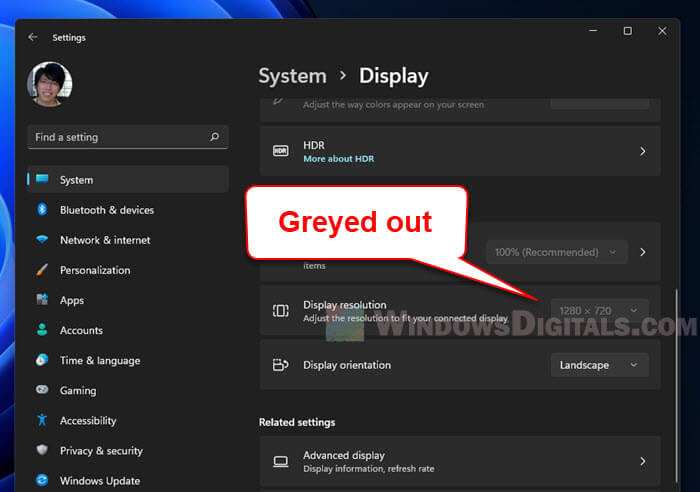
Windows HDR Toggle: Where It Hides and Why It Might Be Grayed Out
The Windows HDR toggle lives in Settings → System → Display → HDR. On Windows 11, it's under the "Brightness and color" section. If you don't see it at all, something upstream isn't working.
The most common reasons the toggle is missing or grayed out:
- No HDR-capable display detected: Windows reads EDID data from your monitor. If that data doesn't report HDR support, the toggle won't appear.
- Wrong output connection: Some GPUs only output HDR over specific ports. Check your GPU documentation.
- Driver issue: An outdated GPU driver can prevent Windows from reading the display's capabilities correctly.
- Cable bandwidth limitation: If the cable can't carry the full signal, Windows may not detect HDR support.
If the toggle is there but grayed out, try this sequence:
- Disconnect and reconnect the cable at both ends.
- Restart the monitor.
- Restart Windows.
- If that doesn't work, try a different cable or port.
If the toggle is completely absent, the problem is almost always one of these:
- Your monitor's EDID isn't reporting HDR support. A driver update or monitor firmware update may fix this.
- You're connected through a hub or dock that doesn't pass through HDR metadata. Connect directly to the GPU instead.
- Your integrated GPU is handling the display instead of your dedicated GPU. Check your BIOS or GPU routing settings.
GPU Driver Settings That Block or Break HDR
Your GPU control panel has several settings that directly affect whether HDR works and how it looks. These settings vary by manufacturer, but the core concepts are the same.
NVIDIA (NVIDIA Control Panel):
Navigate to "Change resolution" and look at the output color format and depth settings. For HDR to work properly:
- Color format should be RGB (Full) or YCbCr444. YCbCr420 will compress the signal and degrade quality.
- Color depth should be 10 bpc (bits per color) when available. Some monitors only support 10-bit over specific connections.
- Output dynamic range should be "Full" rather than "Limited." Limited range crushes blacks and blows out highlights.
AMD (Radeon Software):
Under Display settings, check the pixel format. AMD calls it "Pixel Format" and offers options like RGB 4:4:4 Full and YCbCr 4:2:2. For HDR, you want RGB 4:4:4 Full at the highest bit depth your monitor supports.
Intel (Intel Graphics Command Center):
Intel's HDR support has improved significantly with Arc GPUs, but integrated graphics on older processors may not support HDR output at all. Check under Display → Color settings for HDR and bit depth options.
A clean driver installation often resolves stubborn HDR issues. Both NVIDIA and AMD offer clean install options in their driver installers. If you've been updating drivers incrementally for years, old configuration data can interfere with HDR detection.
A clean install wipes that slate fresh.
Color Depth, Bit Rate, and Output Format — The Hidden HDR Killers
Even when HDR is technically "on," the wrong color settings can make it look terrible or prevent it from engaging properly.
HDR10, the most common HDR standard, requires a 10-bit signal path. That means your GPU needs to output 10 bits per color channel, your cable needs to carry that data, and your monitor needs to accept and display it. If any link in that chain drops to 8-bit, you'll get banding, crushed blacks, or no HDR at all.
Here's how to verify and fix this:
- Open your GPU control panel (NVIDIA, AMD, or Intel).
- Find the color depth or bit depth setting.
- Set it to 10 bpc if available. If 10 bpc isn't an option, your cable or port may not support it.
- Set the color format to RGB Full or YCbCr444.
- Set the dynamic range to Full (not Limited).
The difference between Limited and Full range matters more than people realize. Limited range uses values 16-235 instead of the full 0-255 spectrum. That means blacks aren't truly black and whites aren't truly white.
HDR content is mastered for Full range output, so sending it through Limited range crushes the entire dynamic range.
If you're seeing a washed-out, low-contrast image with HDR enabled, the output dynamic range is almost certainly set to Limited. Switch to Full and the image should snap into proper contrast immediately.
When HDR Works in Games but Looks Washed Out on the Desktop
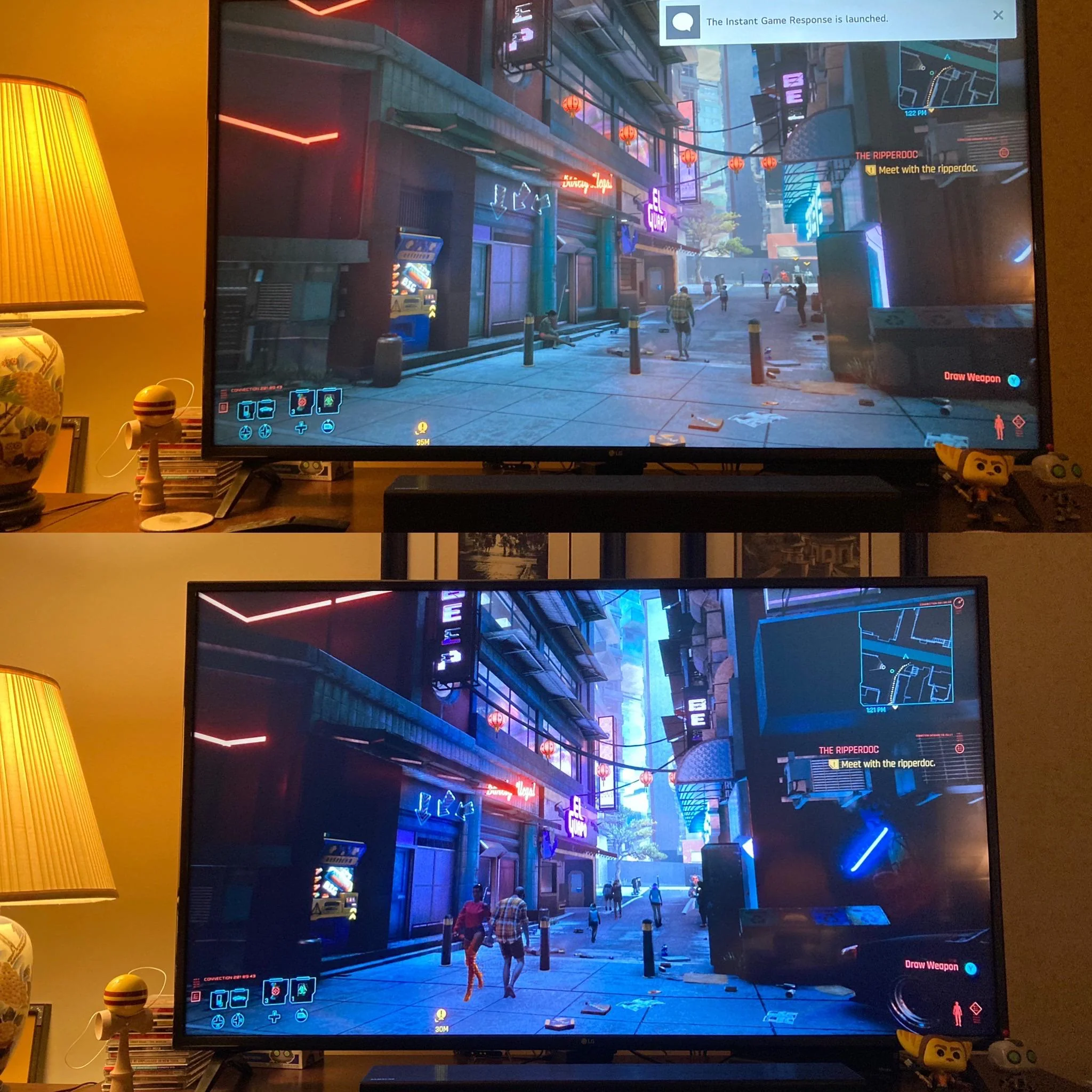
If HDR looks fine in games but your desktop looks faded and gray, you're dealing with a Windows tone-mapping issue, not a hardware problem.
Windows renders the desktop in SDR space and then composites it into the HDR signal. The "SDR content brightness" slider in the HDR settings controls how bright that SDR content appears within the HDR output. If it's set too low, everything outside of HDR apps looks washed out.
Try this: go to Settings → System → Display → HDR and adjust the "SDR content brightness" slider. Start around 40 to 50 and adjust from there. Higher values make the desktop and SDR apps brighter within the HDR signal.
Lower values preserve more contrast but make the desktop harder to see.
Windows 11's Auto HDR feature can also cause desktop washout. Auto HDR attempts to upscale SDR games into HDR, but it doesn't affect the desktop itself. If you notice that some games look great while others look odd, Auto HDR might be inconsistently applying its tone mapping.
You can toggle it off in the same HDR settings panel.
Monitor Firmware and HDCP Handshake Issues
Monitor firmware doesn't get talked about much, but it's a real source of HDR problems. Manufacturers occasionally release firmware updates that fix EDID reporting, improve HDR tone mapping, or resolve handshake failures.
HDCP (High-bandwidth Digital Content Protection) 2.2 is required for most HDR content from streaming apps and physical media. If the HDCP handshake fails between your GPU and monitor, HDR content may refuse to play or fall back to SDR.
Signs of an HDCP issue include:
- HDR works in games but not in streaming apps like Netflix or Disney+
- The screen flickers or goes black for a few seconds when HDR content starts
- You see an error message about "HDCP unauthorized" or similar
To troubleshoot HDCP issues:
- Make sure your cable is firmly seated at both ends.
- Try a different port on your GPU or monitor.
- Update your monitor's firmware using the manufacturer's utility.
- Update your GPU drivers.
- If you're using a dock or hub, bypass it and connect directly.
Does Your Monitor Actually Have Real HDR? (HDR400 vs. True HDR)
This is the uncomfortable truth that a lot of monitor marketing obscures. VESA DisplayHDR 400 certification does not mean you're getting a meaningful HDR experience.
Here's what the DisplayHDR levels actually require:
| Level | Peak Brightness | Black Level | Local Dimming | Color Gamut |
|---|---|---|---|---|
| DisplayHDR 400 | 400 nits | 0.4 nits | Not required | sRGB |
| DisplayHDR 600 | 600 nits | 0.1 nits | Required | 95% DCI-P3 |
| DisplayHDR 1000 | 1000 nits | 0.05 nits | Required (FALD) | 99% DCI-P3 |
| DisplayHDR 1400 | 1400 nits | 0.02 nits | Required (FALD) | 99% DCI-P3 |
A DisplayHDR 400 monitor accepts an HDR signal. It just can't display the contrast or brightness that makes HDR look noticeably better than SDR. The panel's native contrast ratio is usually around 1000:1, which is the same as a decent SDR monitor.
If you're on a DisplayHDR 400 or 600 panel and HDR looks worse than SDR, that's not a bug. It's a hardware limitation. In that case, running SDR and calibrating your monitor's SDR mode will give you a better picture than forcing HDR.
True HDR impact starts around DisplayHDR 1000 with full-array local dimming. That's where you get the deep blacks and bright highlights that create the "wow" factor people expect from HDR.
Step-by-Step Troubleshooting Flow
When you're stuck and don't know where to start, follow this sequence. Each step builds on the previous one.
- Step 1: Verify your cable and port support HDR bandwidth. Swap to a known-good HDMI 2.0 or DisplayPort 1.4 cable.
- Step 2: Enable HDR in your monitor's on-screen display. Don't skip this. It's separate from the Windows toggle.
- Step 3: Turn on HDR in Windows Display Settings. If the toggle is missing, go back to Step 1.
- Step 4: Set color depth to 10-bit in your GPU control panel. If 10-bit isn't available, your cable or port is the bottleneck.
- Step 5: Match the output color format. Use RGB Full or YCbCr444. Avoid YCbCr420 unless you have no choice.
- Step 6: Update or clean-install your GPU drivers. Use the "clean install" option in the driver installer.
- Step 7: Check for monitor firmware updates on the manufacturer's website.
- Step 8: Test with confirmed HDR content. Use a known HDR video or game, not just the toggle.
- Step 9: Use the Windows HDR Calibration app to generate a proper ICC profile for your display.
Common Mistakes That Waste Your Time
People spend hours on the wrong fixes. Here's what not to bother with:
- Toggling HDR on and off repeatedly without changing any other settings: If it doesn't work the first time, the problem isn't the toggle.
- Adjusting monitor brightness and contrast with HDR enabled: HDR has its own tone mapping. Adjusting SDR-era settings often makes things worse.
- Assuming all HDR content is created equal: A YouTube video labeled "HDR" might be poorly mastered. Test with a known reference first.
- Using the motherboard's video output instead of the GPU: Integrated graphics on many CPUs don't support HDR output. Always connect your monitor to the dedicated GPU.
- Ignoring the monitor's HDR OSD toggle: This is the single most commonly missed step. Windows can't enable HDR on the monitor side.

Similar Posts





















