Is 27 Inch Monitor Good for Office Desk
Is a 27-inch monitor good for office desk? The short answer is: it depends on your setup, your daily tasks, and how far you sit from the screen. For most people working at a standard office desk, a 27-inch display hits a genuinely useful sweet spot. It gives you space to tile two windows side by side without feeling cramped.
But here's the thing most buying guides skip. Size alone doesn't tell you everything. The resolution, your desk depth, and the type of work you do all change whether 27 inches helps or hurts during a long day.
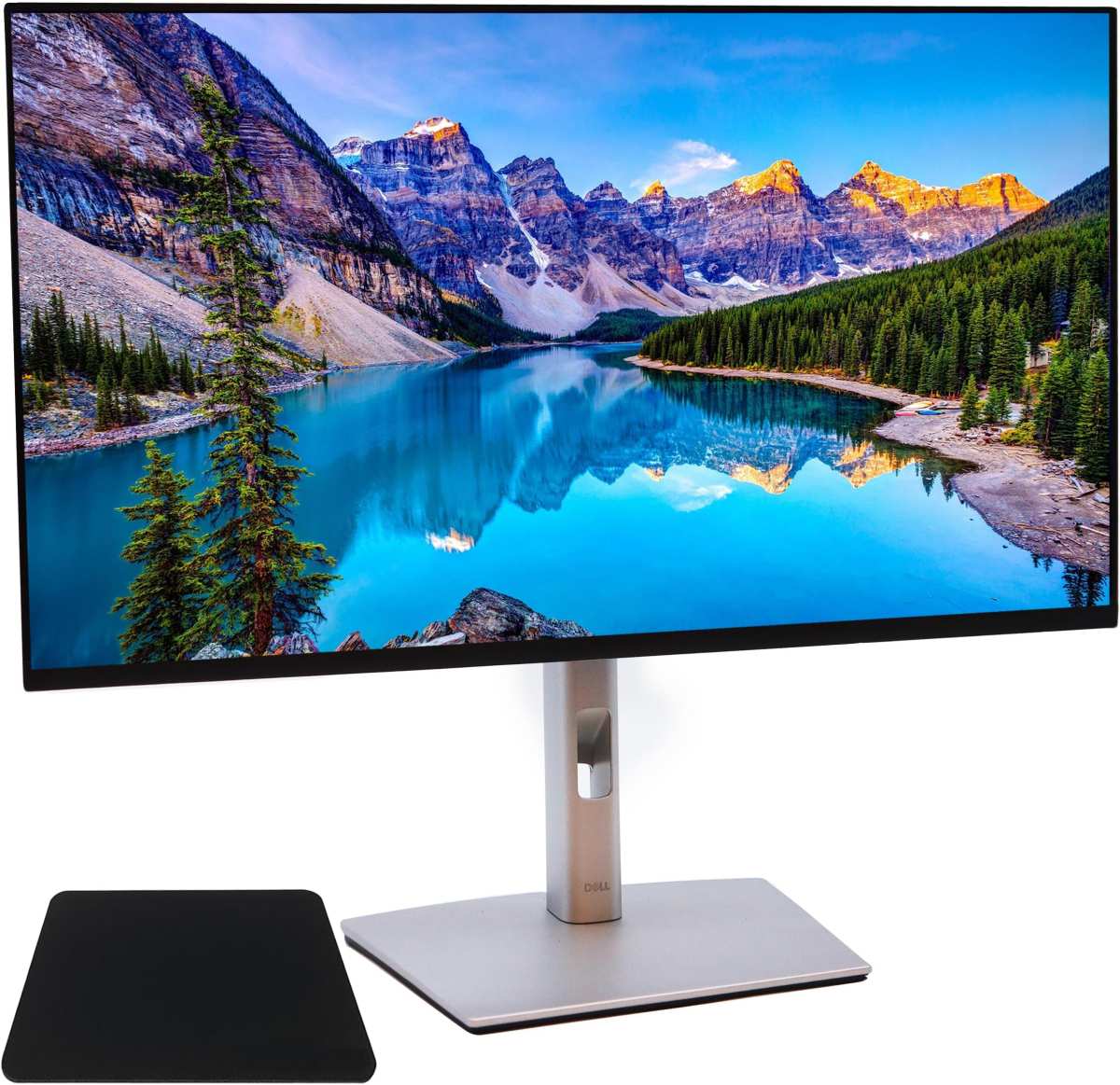
According to ergonomic research, the most comfortable viewing distance for office monitors sits roughly between 20 and 28 inches for most people. A 27-inch screen fills your field of view nicely at that range without forcing you to turn your head. Let's break down exactly when this size works and when you'd be better off with something else.
Quick Answer
A 27-inch monitor works well for most office desks measuring 24 to 30 inches deep. Pair it with 1440p resolution for the best balance of screen space and text clarity. If your desk is shallower than 24 inches, consider a 24-inch display instead.
For desks deeper than 36 inches, 4K at 27 inches sharpens text noticeably during long work sessions.
Why Most Buyers Get Monitor Size Wrong
The biggest mistake people make when choosing an office monitor is looking at screen size by itself. They assume bigger is always better. That thinking falls apart the moment you put a cheap 27-inch 1080p panel on a desk 22 inches from your face.
Suddenly every spreadsheet looks fuzzy. Text edges get soft. You lean forward and your neck starts aching before lunch.
Here's what actually matters. Pixel density determines how sharp your display looks, and density comes from the relationship between screen resolution and monitor size. A 27-inch 1080p monitor delivers roughly 82 pixels per inch.
That's noticeably less crisp than a 24-inch 1080p screen sitting at the same distance.
The second common mistake is ignoring desk depth. Someone with a compact home office desk faces completely different comfort and size constraints than someone working off a deep executive-style desk. The screen doesn't care how nice your setup looks.
It only cares about how far your eyes are from the glass.
Understanding the 27-Inch Size Sweet Spot, and Where It Breaks Down
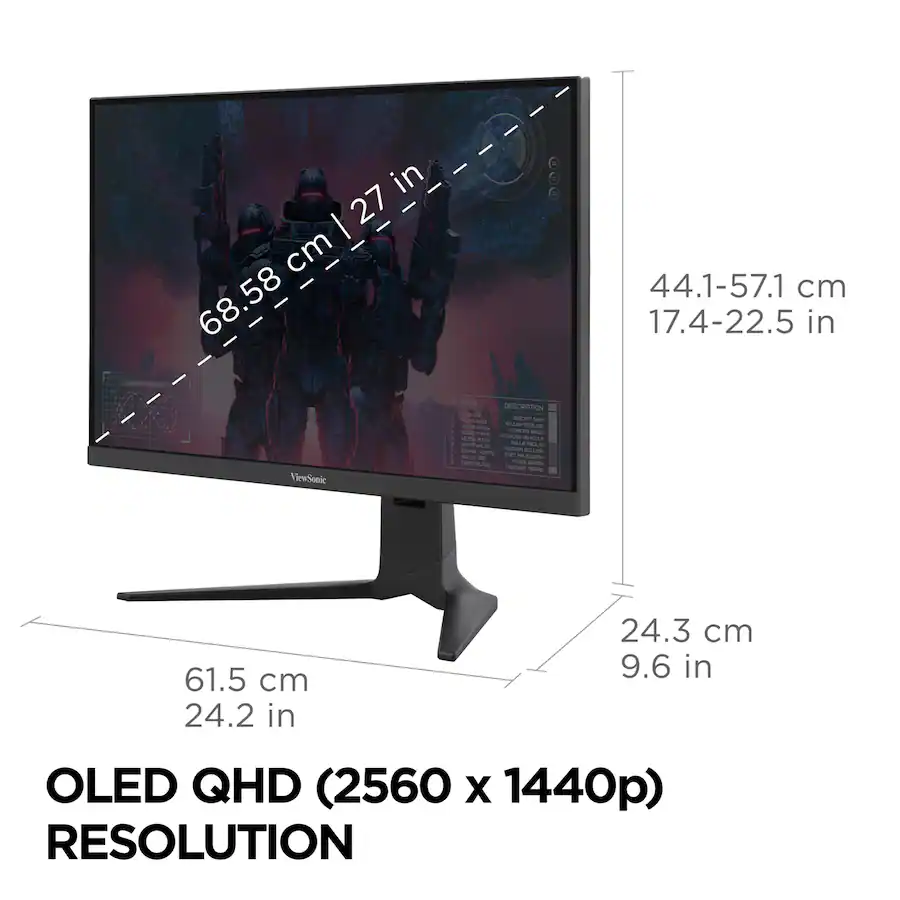
A 27-inch monitor diagonal measures about 68.5 centimeters. The actual visible width comes in around 23.5 inches. That width comfortably displays two standard document windows side by side at proper scaling, which is why people doing spreadsheets, coding, or comparing documents tend to love this size.
The sweet spot reputation comes from 1440p resolution at this size. At 2560 by 1440 pixels across 27 inches, you get roughly 109 pixels per inch. Text looks clean.
Icons render sharply. You get real screen area without scaling headaches or visible pixels during normal office work.
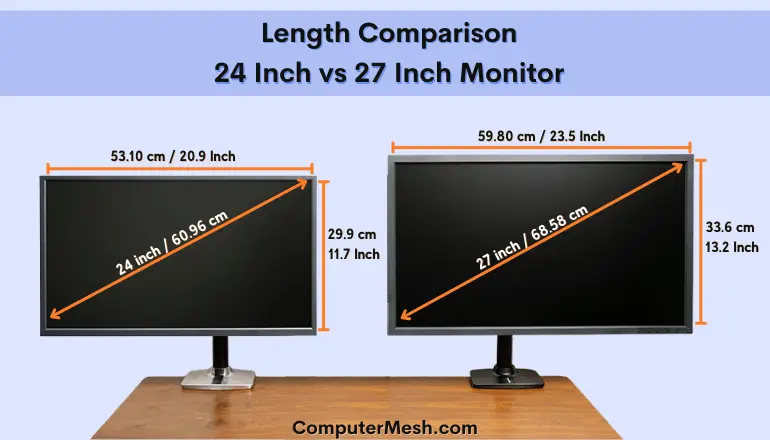
Where 27 inches breaks down comes down to two situations. First, shallow desks under 24 inches deep. At that distance a 27-inch screen pushes the edges of your vision and forces head-turning for content in the corners.
Second, budget setups running 1080p at this size. The lower pixel density makes everything look softer than you'd expect.
24-Inch vs 27-Inch: Which Fits Your Desk Better
Both sizes have their place in an office, but they serve different needs.
24-inch monitors work best when:
- Your desk depth measures less than 24 inches
- You primarily work in one or two maximized windows
- You prefer sharper text at 1080p resolution (roughly 92 PPI)
- You're buying on a tighter budget
27-inch monitors work best when:
- Your desk measures 24 to 30 inches deep
- You regularly tile multiple windows side by side
- You pair the display with 1440p or higher resolution
- You want one screen doing the work of a dual setup
According to ergonomic standards from ISO 9241-303, maintaining the right balance between screen size and viewing distance reduces fatigue during prolonged computer work. A 24-inch screen viewed at 20 inches puts your eyes in a more relaxed zone. A 27-inch screen viewed at 28 inches does the same.
How Resolution Changes Everything at 27 Inches
The resolution you choose completely changes your experience with a 27-inch display. Let's walk through each option.
27-Inch 1080p: Enough for Basic Work, but With Trade-offs
A 1080p resolution on a 27-inch panel gives you roughly 82 pixels per inch. At a typical office viewing distance, this is usable but not ideal for long sessions. Text in documents and spreadsheets looks soft compared to what you'd see on a sharper display.
If you mostly handle emails, web browsing, and light document work, your eyes adapt. If you stare at small text for eight hours, you'll notice the compromise.
27-Inch 1440p: The Office Work Sweet Spot
QHD at 2560 by 1440 pixels is where 27 inches truly shines for productivity. You get roughly 109 pixels per inch. Text looks crisp and clean.
Two full-sized windows tile comfortably beside each other. Most 27-inch office monitors you'll find in 2026 use this resolution because it balances cost, performance, and real-world usefulness better than any other pairing.
27-Inch 4K: Overkill or Future-Proof Luxury?
FourK resolution at 27 inches pushes up to roughly 163 pixels per inch. Text looks razor sharp. Designers and video editors who need pixel-perfect accuracy value this density.
For standard office productivity though, 4K at this size creates scaling challenges. Windows and macOS both handle scaling well enough now, but some business applications still render tiny UI elements that require manual adjustment. Unless you do creative work or simply want the sharpest text possible, 1440p saves money without a noticeable downgrade.
Key Specs Beyond Size That Actually Matter for Office Use
Screen size and resolution get all the attention, but a few other specs directly affect your daily comfort.
Panel type is probably the feature that matters most after resolution. The three main types are:
- IPS (In-Plane Switching), best color accuracy and viewing angles, common on office monitors from Dell, LG, and HP
- VA (Vertical Alignment), better contrast ratio but color shifting at angles, occasionally used on budget models
- TN (Twisted Nematic), cheapest, worst viewing angles, avoid for office work unless budget is extremely tight
Stand adjustability directly affects ergonomics. Look for a stand that supports height, tilt, and ideally swivel adjustments. Fixed-height stands or basic tilt-only stands often put the screen at the wrong angle for prolonged use.
Connectivity varies between common office laptops and desktops, but DisplayPort and HDMI cover most setups. USB-C with power delivery adds convenience if your laptop charges over a single cable. According to the Video Electronics Standards Association (VESA), a growing number of business monitors support USB-C alt mode for simplified single-cable desk setups as of 2026.
Blue light and flicker-free features reduce discomfort during long sessions. Most modern office monitors include a low-blue-light mode that warms up screen colors for extended document work. Flicker-free backlighting eliminates the rapid dimming cycles that cause headaches for sensitive users.
Who Should Pick 27 Inches, and Who Shouldn't
Ideal for: Spreadsheets, Multi-Window Work, Video Calls, Long Sessions
Accountants and financial analysts live in spreadsheets. A 27-inch 1440p display lets you view a wide spreadsheet alongside a reference document without squinting. Software developers gain visible lines of code without excessive scrolling.
Managers running email, calendar, and chat apps simultaneously appreciate the extra horizontal space. If your work involves juggling multiple open programs, this size pays off every single day.
Less Ideal for: Shallow Desks (<20 inches), Basic Budget Tasks, Tight Collaborative Spaces
If your desk depth measures under 20 inches, a 27-inch monitor physically crowds your workspace. Your keyboard placement gets pushed forward and your arms lack support. Users doing genuinely basic work (email, web browsing, light document review who are on a tight budget) get better value from a 24-inch 1080p display.
In shared or hot-desking office environments where monitors get moved frequently, the larger footprint creates logistical friction.
Step-by-Step: How to Decide If 27 Inches Is Right for Your Desk
Follow this sequence to make the right call for your specific situation.
Measure your desk depth and expected viewing distance. Grab a tape measure. How far will the screen sit from your eyes? If it's under 20 inches, look at 24 inches. If it's 24 to 32 inches, 27 inches fits naturally.
Check your daily window and monitor usage. Spend a day noting how many apps you keep open simultaneously. If you regularly run three or more windows side by side, the extra space helps. Single-window users benefit less.
Determine your resolution pairing. Match your choice to what you can afford: basic work with 1080p, productive workflows with 1440p, design or sharp text needs with 4K.
Decide between single large screen, ultrawide, or dual 27-inch setups. Sometimes two monitors give better multitasking flexibility. Sometimes a single replacement works better. Consider how much free desk space you have.
Match expected physical comfort to your available desk real estate. Make sure room exists for your keyboard, mouse, and any peripherals you use regularly at the new monitor's footprint.
Test before committing. Many retailers and office equipment providers offer return policies or trial periods, which means you can try a setup at home and see first-hand whether it works for you.
Real Desk Scenarios
Standard Office Desk (24 to 30 inches deep)
This is where the 27-inch monitor feels at home. At typical viewing distances of 24 to 28 inches, a 27-inch display fills a natural part of your field of view without dominating it. Productivity apps like Microsoft Office, Google Workspace, and most business software work well at the default scaling settings.
Compact Home Desk (Under 24 inches deep)
At distances under 24 inches, a 27-inch display pushes beyond comfortable viewing. Your eyes constantly refocus across a larger area, and tracking detail at screen edges without turning your head is an issue. A 24-inch alternative keeps the same documents and spreadsheets visible in your comfortable field of view at a similar cost.
Executive/Deep Desk (36 inches plus)
Deep desks change the calculation. The added distance of 36 inches and beyond makes a 27-inch display look smaller. A 32-inch 4K screen provides a better viewing experience because you sit further back, and 4K resolution becomes necessary to keep image quality comfortable.
An ultrawide monitor can replace a dual-screen setup entirely in these distance scenarios.
Setup Tips for Comfort and Productivity at 27 Inches
The right physical setup prevents neck strain and shoulder tension during long workdays. Position the top of the screen at or slightly below your eye level. Viewing a monitor that sits too high causes you to tilt your head back, compressing vertebrae and shortening neck flexor muscles over the course of a day.
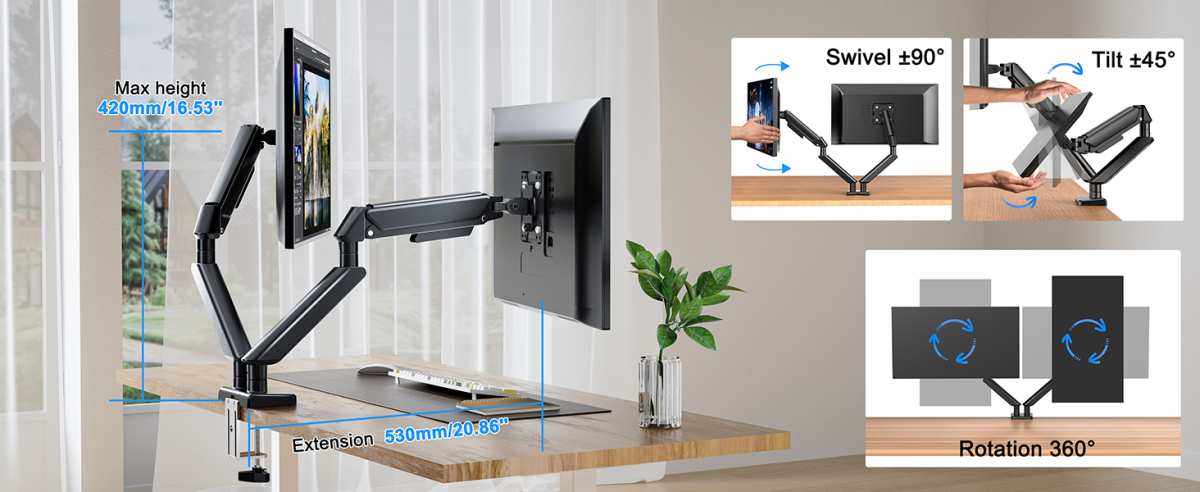
Adjust your chair so your eyes naturally rest about one-third of the way down from the top edge of the screen. Your arms should rest comfortably at your side with elbows at roughly 90 degrees when typing. If the monitor stand doesn't reach the right height, a VESA-compatible monitor arm solves the problem and frees up desk space underneath.
Glare and lighting matter too. Position the screen to avoid direct light hitting the panel from windows or overhead fixtures. Many modern office monitors include anti-glare coatings, but poor placement can overwhelm even a good matte finish.
Turning on a blue light filter after sunset reduces total visible blue light, which can support better sleep timing. Position your keyboard so your wrists stay straight and supported. Take short breaks where you stand and focus something at least 20 feet away for 20 seconds every 20 minutes.
Common Mistakes When Choosing a 27-Inch Office Monitor
Buying based on size alone is by far the most frequent error. A 27-inch 1080p display delivers a visibly different user experience than a 27-inch 4K panel. Shop by the full combination of size and resolution together.
Ignoring your laptop's output capabilities catches people who connect a new monitor and discover their graphics hardware caps out at low resolutions. Check display output specifications before purchasing to avoid unexpected compatibility issues.
Mounting or positioning too high is remarkably common with stock factory stands that place the center of the screen well above eye level. Never compromise on ergonomic height. Raise your chair or add a proper stand instead.
Saving money on the wrong specs produces poorer long term results than buying slightly less screen size with better panel quality. An IPS display at 24 inches beats a cheap TN panel at 27 inches for almost every office task. Good monitors last five to eight years.
Annualized, the incremental cost amounts to less than lunch money. Buy once, buy right.
Frequently Asked Questions
Is 27 inches too big for a desk?
A 27-inch monitor suits standard office desks measuring at least 24 inches deep. It becomes physically excessive on desks under 20 inches deep, where a smaller alternative provides a better viewing experience and better typing comfort.
Is a 27-inch 1040p good enough for office work?
A 27-inch 1040p display handles everyday office tasks like email and web browsing acceptably. If you regularly read spreadsheets, legal documents, or code, the low pixel density of 1040p at this size reveals blurry text over extended periods. Stepping up to 1440p removes that limitation entirely.
Is 1440p on a 27-inch monitor worth it?
Yes. According to manufacturer specifications and aggregated user reviews, the 1440p resolution at 27 inches represents the best balance of sharp text, comfortable scaling, and productive screen space for general office workflows. It beats 1080p visibly and avoids the scaling challenges of 4K computing.
Should I get dual 24-inch monitors or a single 27-inch?
Dual 24-inch monitors maximize the ability to run separate full-screen applications on each display. A single 27-inch display minimizes bezel gap while keeping a single clean workspace. If you need true separation between tasks like design tools and communication apps, go dual 24 inches.
If you mainly view two documents side by side on one canvas, the single 27-inch setup works with fewer distractions, no bezel break, and a lower overall cost.
Is a 27-inch monitor good for productivity?
For most office workers, a 27-inch monitor ranks among the highest-impact upgrades to daily efficiency. Reduced window switching, smoother multitasking, and less zooming directly reduce time lost shuffling screens during a typical workday.
When would a 32-inch monitor make more sense?
Desks 36 inches or deeper suit 32-inch monitors as viewing distances beyond 30 inches need larger image sizes for content to stay legible. Designers, video editors, and anyone who wants a single display replacing a dual monitor setup finds a 32-inch 4K screen more effective than 27 inches.

Similar Posts





















