Are Budget Monitors Good for Office Work
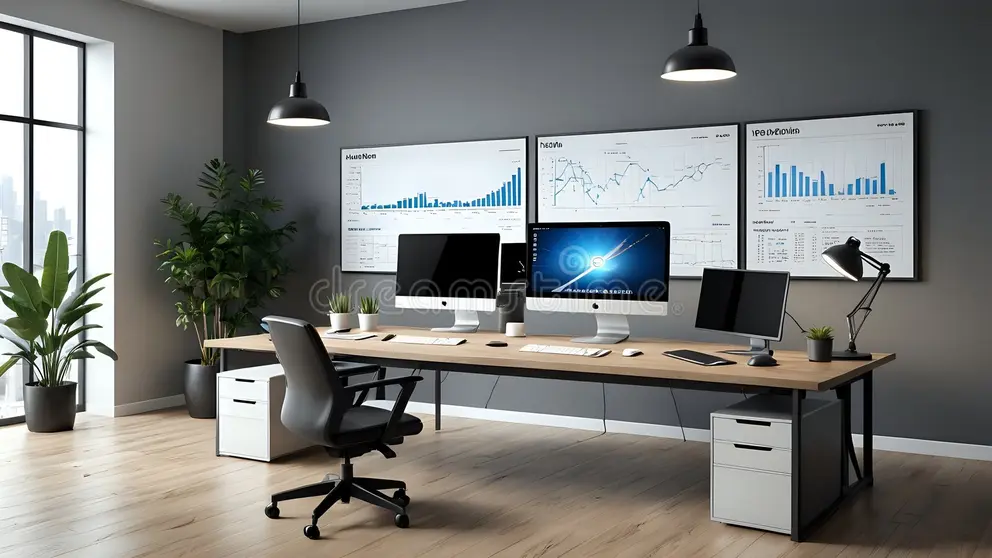
Are budget monitors good for office work? For most people running spreadsheets, email, documents, and video calls, a budget monitor in the $100 to $200 range handles the job just fine. You don't need a $500 display to browse Outlook or format a Word doc.
The trade-offs show up in areas that matter less for pure productivity: color accuracy, ergonomic adjustability, and long-term build quality. Manufacturer specifications and aggregate reviews from sources like RTINGS confirm that modern budget IPS panels hit 95% to 99% sRGB coverage, which is more than adequate for non-color-critical office tasks. Let's break down exactly where budget monitors shine, where they fall short, and which specific models make sense for your setup.
Quick Answer
Yes, budget monitors are good for most office work. A $100 to $200 IPS panel handles spreadsheets, documents, email, and video calls without issues. You sacrifice color precision, ergonomic adjustability, and premium build quality.
For non-color-critical tasks, budget monitors deliver strong value per dollar.
What Budget Monitors Actually Get Right for Office Work
Here's the thing. For the core tasks that define office work, budget monitors have gotten genuinely good. We're not talking "good for the price" anymore.
We're talking capable, period.
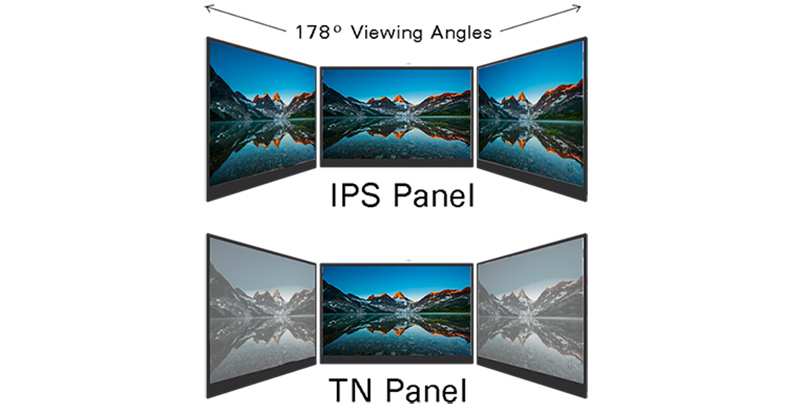
Panel technology is solid at this price point. Most budget monitors in the $120 to $200 range ship with IPS (In-Plane Switching) panels, which give you wide 178-degree viewing angles and decent color reproduction. That means text looks crisp from edge to edge, and you won't get that weird color shift when you lean back in your chair. Budget IPS panels from LG Display, AUO, and BOE routinely hit 95% to 99% sRGB coverage according to aggregated spec sheets.
For office work, that's more than enough.
Resolution and workspace are where budget monitors punch above their weight. A 24-inch 1080p display gives you 92 pixels per inch, which renders text sharply at normal viewing distances. Step up to a 27-inch 1440p budget model and you get 109 PPI plus significantly more screen real estate for side-by-side windows. Several budget 1440p monitors dropped below $180 as of 2025, making this the sweet spot for productivity-focused buyers.
Connectivity has improved dramatically. Even sub-$150 models now commonly include HDMI 1.4, VGA, and sometimes DisplayPort. USB-C with power delivery is showing up on budget models in the $180 to $220 range, which lets you run a single cable to a laptop for video and charging. That's a genuine quality-of-life upgrade for remote workers.
Power consumption and heat output run low. Most budget office monitors draw 15 to 25 watts during normal use. They stay cool enough to mount in enclosed spaces without active cooling. Over a year of 8-hour workdays, that translates to roughly $3 to $6 in electricity costs depending on your local rates.
The multi-monitor math works in your favor. Because budget monitors cost $100 to $180 each, running two or three displays costs less than a single premium ultrawide. For roles that benefit from multiple screens, data entry, customer service, coding, trading, this is a real productivity win.
Where Budget Monitors Fall Short for Daily Office Use
Let's be honest about the compromises. Budget monitors cut corners somewhere, and knowing where helps you decide if those corners matter for your specific work.
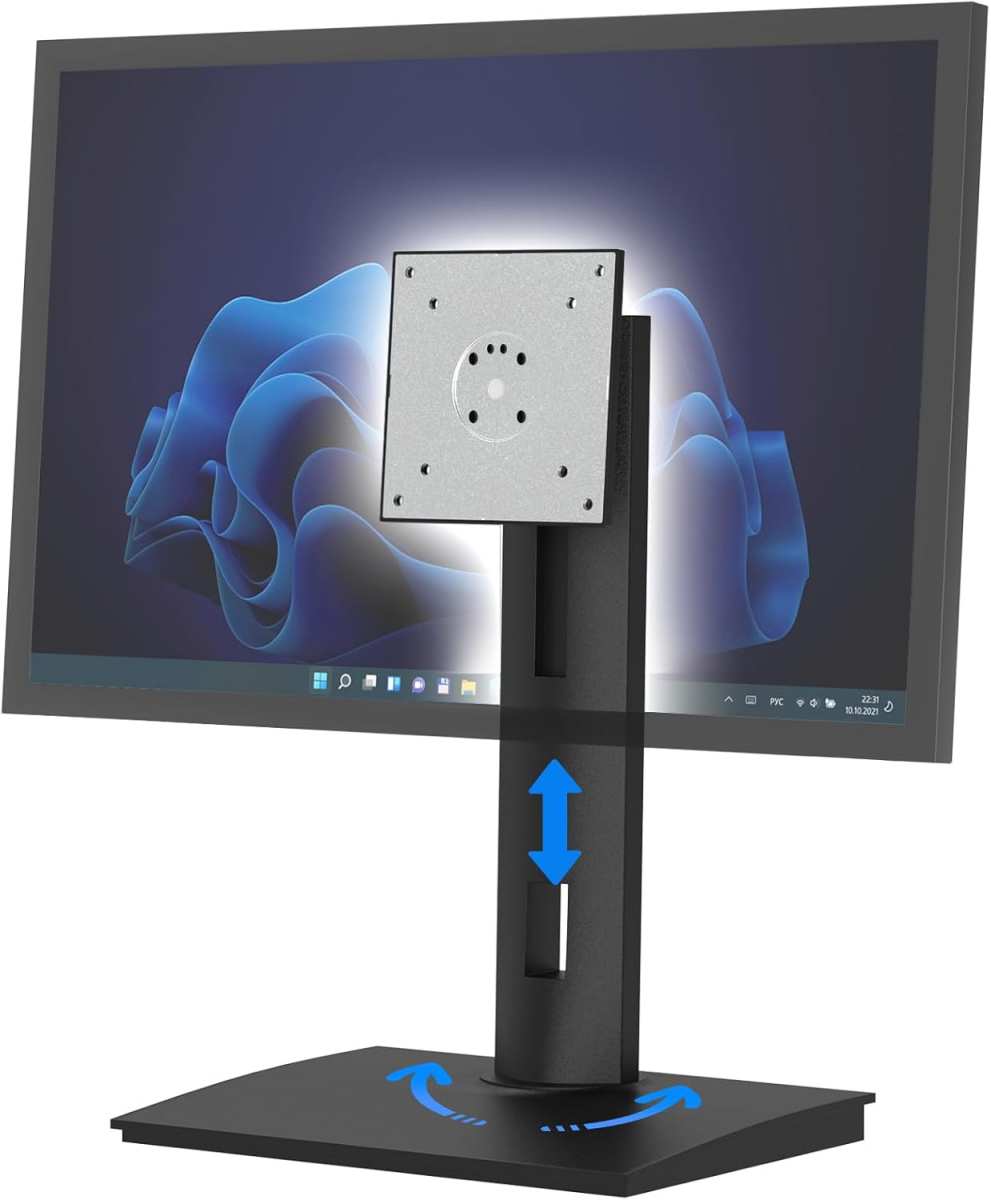
Ergonomic adjustability is the biggest sacrifice. Most budget monitors come with tilt-only stands. You get maybe -5 to +15 degrees of tilt and that's it. No height adjustment, no swivel, no pivot.
If you're sitting at a desk for 8 hours, that fixed height can cause neck strain. The fix is a VESA monitor arm, which adds $20 to $40 to your total cost, but it's worth it.
Color accuracy out of the box is hit or miss. While budget IPS panels cover the sRGB gamut well, factory calibration is rare. You might see a slight blue or yellow tint without manual adjustment. For office work that doesn't involve design or photo editing, this is a non-issue.
If you're preparing client-facing presentations with brand colors, it matters.
Build quality feels cheap for a reason. The plastic housings on budget monitors flex, the buttons feel mushy, and the stands wobble on uneven surfaces. This isn't a dealbreaker for most people, but it's noticeable if you're used to a Dell UltraSharp or LG UltraFine. The bezels are often thicker too, which looks dated on multi-monitor setups.
Built-in speakers are almost always terrible. If your budget monitor has speakers, they're typically 2x2W drivers that sound tinny and lack bass. They're fine for notification sounds and the occasional video call, but you'll want external speakers or headphones for anything meaningful.
HDR support is essentially decorative. Some budget monitors advertise "HDR10 support," but without local dimming, peak brightness above 300 nits, or wide color gamut, HDR content looks worse than SDR. Ignore HDR claims on budget monitors entirely.
Panel lottery is real with off-brand models. Lesser-known brands like CRUA, Sceptre, and some KTC models use whatever panels are available that week. Two identical model numbers might perform slightly differently. Stick with established brands like Dell, LG, Samsung, Acer, or ASUS if consistency matters to you.
Side-by-Side: Budget vs Mid-Range vs Premium Office Monitors
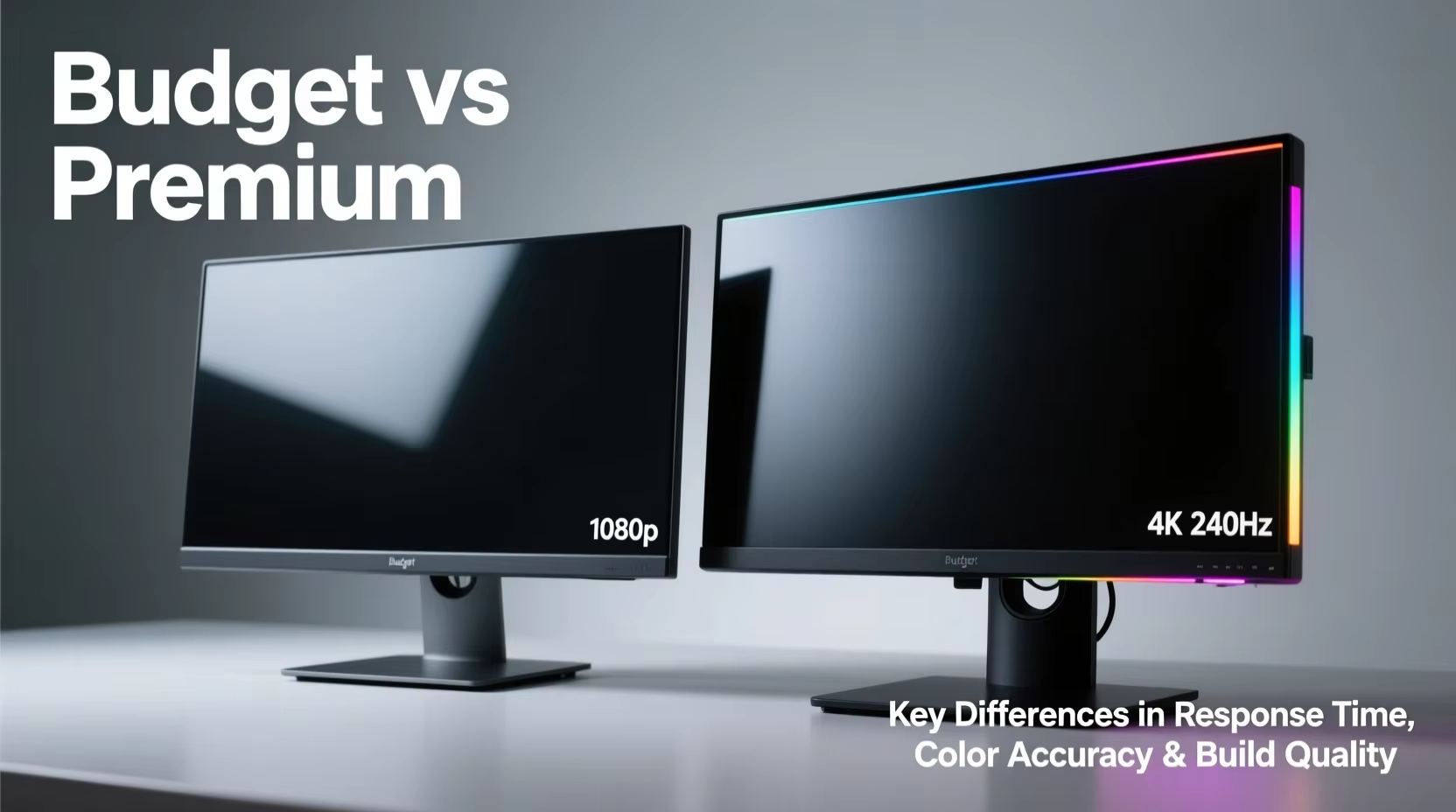
The differences get clearer when you see the specs lined up. Here's how the three tiers compare for office-specific use cases.
| Feature | Budget ($100-$200) | Mid-Range ($200-$400) | Premium ($400+) |
|---|---|---|---|
| Panel Type | IPS or VA | IPS, some factory-calibrated | IPS or OLED, calibrated |
| Resolution | 1080p or 1440p | 1440p or 4K | 4K or ultrawide |
| sRGB Coverage | 95-99% | 99-100% | 100% + DCI-P3 |
| Brightness | 250-300 nits | 300-400 nits | 400-600+ nits |
| Ergonomics | Tilt only | Height, tilt, swivel | Full ergonomic + USB hub |
| USB-C PD | Rare or 15-45W | Common, 60-95W | Standard, 90-100W |
| Warranty | 1-3 years | 3 years | 3-5 years |
| Best For | Basic office, multi-monitor | Professional office, design-adjacent | Color-critical, executive |
Budget wins on price-per-screen. A dual-monitor setup with two $150 24-inch IPS panels costs $300 total. That gets you more total workspace than a single $300 mid-range display, and if one fails, you still have the other.
Mid-range wins on ergonomics and connectivity. Monitors like the Dell P2723D or LG 27UL500 bring height-adjustable stands, USB-C with meaningful power delivery, and better out-of-box calibration. If you're at a desk all day, the ergonomic adjustment alone justifies the jump.
Premium is overkill for most office work. Unless you're doing photo editing, video production, or financial modeling with color-coded data, a $500+ monitor won't make you more productive than a $200 one. The diminishing returns hit hard above the mid-range tier.
Best Budget Monitors for Specific Office Tasks
Not all office work is the same. Here's how to match a budget monitor to your actual workload.
For email, documents, and web browsing: A 24-inch 1080p IPS panel is the sweet spot. Look at the Dell SE2422H, AOC 24G2, or LG 23.8MP400B. These run $100 to $140, deliver sharp text, and sip power.
You don't need more for basic productivity.
For spreadsheets and data-heavy work: Go 27-inch 1440p. The extra resolution means more visible rows and columns without scrolling. Models like the KTC M27P10, AOC Q27V4, or LG 27QN600-B hit the $160 to $200 range.
The pixel density at 109 PPI keeps text readable without display scaling.
For video conferencing: Prioritize a built-in webcam or USB-C connectivity. The Dell S2722QC has a built-in camera and USB-C at around $250, which is technically mid-range but worth mentioning. On a strict budget, any 1080p or 1440p panel with a decent mic input works fine with an external USB camera.
For dual or triple monitor setups: Buy matching models from the same brand. The AOC 24G2 or ASUS VY249HGE are popular choices because they're affordable, consistent, and have thin bezels for the price. Three of these under $150 each gives you a wall of productivity for less than a single premium display.
For coding and development: 1440p at 27 inches is the developer sweet spot. You get enough vertical space for code plus a terminal or browser. The Dell S2722QC or LG 27UL500-W are solid picks.
If you're on a tighter budget, a 24-inch 1080p in portrait mode works well for reading long files.
Dual Monitor Setups on a Budget: What Works
Running two monitors on a budget is one of the best productivity upgrades you can make. Here's what to know.
Matching monitors makes life easier. Mismatched sizes, resolutions, or color temperatures create a jarring experience when you drag windows between screens. Buying two identical budget monitors solves this. If you can't match exactly, at least match the resolution and panel type.
Your graphics card needs two outputs. Most modern integrated GPUs support two external displays. Check that your laptop or desktop has at least two video outputs, whether that's HDMI, DisplayPort, or USB-C with DisplayPort Alt Mode. If you only have one output, a USB 3.0 display adapter works for basic office tasks.
VESA arms make dual setups manageable. Two monitors on stock stands eat desk space fast. A dual VESA mount like the Amazon Basics Premium arm ($35 to $50) frees up space and lets you position each screen at the correct height. Most budget monitors support 75x75mm or 100x100mm VESA patterns.
The cost math favors budget for multi-screen. Two 24-inch 1080p IPS monitors at $120 each run $240 total. That's less than a single 34-inch ultrawide at $400+, and you get the flexibility of independent screen management. For roles like customer service, data entry, or trading, multiple budget screens outperform a single expensive one.
Cable management gets messy fast. Two monitors means two power cables and two video cables. Budget monitors sometimes lack built-in cable routing. A simple cable tray mounted under the desk keeps things clean for under $15.
Hidden Costs of Cheap Monitors Nobody Talks About
The sticker price is just the start. Here's what budget monitors cost you beyond the receipt.
A monitor arm is almost mandatory. Budget stands lack height adjustment, which forces you into a fixed position. Over weeks and months, that causes neck and shoulder strain. A decent VESA arm costs $25 to $50.
Factor that into your total budget from the start.
Calibration tools add cost if color matters. If you need accurate colors for presentations, a basic colorimeter like the Datacolor Spyder X runs around $180. For most office work, you can skip this. But if your brand colors look off on screen, calibration is the fix.
Replacement happens sooner. Budget monitors use cheaper capacitors and power supplies. Aggregate user reviews suggest a functional lifespan of 3 to 5 years for budget models versus 7 to 10 years for premium displays. That $120 monitor might need replacing in year four, while a $300 monitor runs strong into year eight.
Dead pixel policies vary wildly. Some brands allow up to 5 dead pixels before honoring a warranty replacement. Others are stricter. Check the dead pixel policy before buying.
Off-brand monitors often have vague or unenforced warranty terms, which means you're stuck with a bright green dot in the center of your screen.
Return windows matter. Buy from a retailer with at least a 30-day return policy. Test the monitor immediately for backlight bleed, dead pixels, and color uniformity. Dark scenes or a solid gray test image reveal issues fast.
Amazon, Best Buy, and B&H Photo all offer reasonable return windows.
Shipping damage is more common with budget packaging. Budget monitors often ship with minimal padding. Inspect the box on arrival and refuse delivery if it looks rough. File a return immediately if you notice any damage.
Common Mistakes When Buying a Budget Office Monitor
People make the same errors repeatedly when shopping for budget monitors. Here's how to avoid them.
Ignoring panel type entirely. Not all budget monitors use IPS. Some still ship with VA or TN panels. TN panels have narrow viewing angles and washed-out colors.
VA panels have better contrast but slower response times that cause ghosting in scrolling text. Always confirm it's an IPS panel before buying for office use.
Buying based on price alone. The cheapest monitor on Amazon isn't always the deal it seems. A $79 monitor might use a TN panel, lack VESA mounting, and have a one-year warranty. Spending $20 to $30 more on a known brand with IPS and VESA support is almost always worth it.
Overlooking input options. If your laptop only has USB-C, buying a monitor with just HDMI means you need an adapter. Check your computer's outputs and match them. A monitor with USB-C simplifies your setup and reduces cable clutter.
Assuming the stand is adequate. That fixed-height, tilt-only stand might seem fine in product photos. In practice, it often positions the screen too low for comfortable viewing. Budget for a VESA arm or riser from the start.
Not checking VESA compatibility. Some budget monitors omit VESA mounting entirely or use non-standard patterns. If you plan to use a monitor arm, confirm the VESA pattern (usually 75x75mm or 100x100mm) before purchasing.
Ignoring the return policy. Budget monitors have higher defect rates than premium models. Buying from a retailer with a no-questions-asked return policy protects you. Stick with Amazon, Best Buy, B&H Photo, or direct from Dell/LG/Samsung.
Expert Tips for Getting the Most From a Budget Monitor
You can squeeze more performance and comfort out of a budget monitor with a few simple adjustments.
Calibrate the display manually. Even without a colorimeter, you can improve accuracy. Set the monitor to sRGB mode in the OSD, adjust brightness to around 120 cd/m² for indoor use, and set color temperature to 6500K. This reduces eye strain and gets colors closer to accurate.
Enable blue light filtering during long sessions. Most budget monitors include a blue light mode or low blue light setting. Enable it for afternoon and evening use. It reduces the harsh blue spectrum that contributes to eye fatigue during long workdays.
Use dark mode in your OS and apps. Dark backgrounds reduce the perceived impact of backlight bleed and IPS glow, which are more common on budget panels. Windows, macOS, and most major apps support dark mode natively.
Position the monitor correctly. The top of the screen should be at or slightly below eye level. The screen should be about an arm's length away. If the fixed stand doesn't allow this, a $20 stand riser or VESA arm solves it.
Update your graphics drivers. This sounds basic, but outdated GPU drivers cause resolution scaling issues, incorrect refresh rates, and color banding. Keep your drivers current for the best output quality.
Test for defects on arrival. Display a solid white, black, red, green, and blue image full-screen. Look for dead pixels, excessive backlight bleed in corners, and uneven brightness. Do this within your return window so you can exchange if needed.
Frequently Asked Questions
Can a budget monitor handle a full day of office work?
Yes. A budget IPS monitor running at 60Hz or 75Hz handles 8-hour workdays without issues. The panel technology doesn't care whether you're staring at spreadsheets or browsing the web.
Just make sure the height and distance are set correctly to avoid neck strain.
Is 1080p enough for office work on a 27-inch monitor?
It's usable but not ideal. At 27 inches, 1080p gives you 82 PPI, which means text looks slightly soft compared to 1440p at 109 PPI. If you sit more than 2 feet from the screen, you'll likely notice.
For 27-inch displays, 1440p is the better choice for office productivity.
Do budget monitors have USB-C?
Some do, but it's not universal under $150. Models like the ASUS VY249HGE and Dell S2722QC include USB-C, often with power delivery. Check the specs carefully.
USB-C with at least 45W PD is ideal for single-cable laptop setups.
How long do budget monitors last?
Most budget monitors last 3 to 5 years under normal office use. Premium models often reach 7 to 10 years. The backlight LEDs are usually the first component to degrade.
Proper ventilation and avoiding maximum brightness extend lifespan.
Should I buy one expensive monitor or two budget monitors?
For most office roles, two budget monitors win. The total workspace of two 24-inch displays exceeds a single ultrawide, and the cost is similar. Exceptions include roles that benefit from a single seamless canvas, like video editing or financial modeling with wide spreadsheets.
Are refurbished premium monitors better than new budget monitors?
Often, yes. A refurbished Dell UltraSharp or LG UltraFine from a reputable seller gives you better build quality, ergonomics, and color accuracy than a new budget model. The trade-off is a shorter warranty and no guarantee of panel condition.
If you find a good refurbished deal, it's worth considering.
Final Verdict: Who Should Buy Budget Monitors for Office Work
Budget monitors make sense for most office workers. If your daily work involves email, documents, spreadsheets, web browsing, and video calls, a $120 to $180 IPS monitor handles everything you need. The value per dollar is strong.
Buy a budget monitor if you're a remote worker or home office user who needs reliable displays without overspending. You'll get solid performance for years. Add a $30 VESA arm and you've solved the ergonomics problem.
Buy a budget monitor if you're setting up multiple screens. Two or three budget displays give you more total workspace than a single premium monitor at the same price. For data entry, customer service, coding, and trading, this is the smart play.
Skip budget monitors if you do color-critical work. Photo editing, graphic design, and video production need factory-calibrated panels with wide gamut coverage. A budget monitor's color accuracy won't cut it.
Skip budget monitors if ergonomics are non-negotiable. If you need a fully adjustable stand with height, swivel, and pivot out of the box, you'll need to step up to mid-range. Budget stands are the weakest link.
The bottom line is simple. For 80% of office workers, a budget monitor is the right call. Spend $150 on a good IPS panel, put $30 into a decent arm, and you've got a setup that lasts years.
Save the premium displays for the people who actually need them.

Similar Posts





















