Do Portable Monitors Work with Iphones

Image source: Bing (Web (fair-use with source credit))
Do Portable Monitors Work with iPhones? The Full Breakdown
")
The short answer is yes, but the details matter a lot. Your experience depends on what iPhone you own and what you want to do with it. This guide will walk you through exactly what works, what doesn't, and what you need to make it happen in 2026.
The Short Answer
Portable monitors do work with iPhones, but the setup and experience depend entirely on your iPhone model. If you have an iPhone 15 or newer with USB-C, you get the simplest path: a single USB-C cable can often handle video and power simultaneously. If you have an iPhone 14 or older with Lightning, you will need Apple's Lightning Digital AV Adapter or a certified equivalent.
It is possible to use both models via wired connections; the differences are in resolution limits, whether your phone can charge during use, and whether the monitor has a native USB-C input.
Why the Answer Changes Based on Your Setup
Here is the core issue. There are basically two iPhone families when it comes to video output, and they behave very differently with external displays.
If You Have an iPhone 15 or Newer (USB-C)
These iPhones support DisplayPort Alt Mode over USB-C. That means they can send a video signal directly through the USB-C port without any special adapter. Many modern portable monitors accept video input over USB-C, so a single cable can do the job.
You get up to 4K resolution at 60Hz, and some monitors can even charge your iPhone through the same connection. This is the cleanest, simplest setup.
If You Have an Lightning iPhone
These iPhones do not support DisplayPort Alt Mode. Output gets compressed and sent in a format your phone understands, then the adapter converts it to HDMI for your monitor. You are capped at 1080p, and you almost always need a separate power source for your iPhone since the Lightning port is occupied by the adapter.
That is the fork in the road. Everything else flows from which side you are on.
Two iPhone Families, Two Very Different Experions
| Feature | Lightning iPhones | USB-C iPhones |
|---|---|---|
| Models | iPhone 14 and older | iPhone 15 and newer |
| Resolution max | 1080p at 60Hz | Up to 4K at 60Hz |
| Extended desktop | No | No (still mirrors) |
| Adapter required | Yes | Depends on monitor |
| Simplest cable | Lightning to HDMI | USB-C to USB-C |
| Charging during use | Rarely through adapter | Often through monitor |
The big takeaway here is resolution. You can get away with Lightning, but if you want crisp text for work, USB-C is the way to go. And the good news is that as of 2026, most newer iPhones in use are USB-C models, so more and more people will have the better experience by default.
What You Actually Need to Make It Work

Image source: Wikimedia Commons / Henriok
Let us break down the gear you will actually need based on your setup. This is where a lot of people get tripped up because they grab the wrong cable and then assume it does not work.
For USB-C iPhones (iPhone 15 and newer)
- Simplest route: A USB-C to USB-C cable if your monitor accepts USB-C video input
- Monitor has HDMI only: A USB-C to HDMI cable or adapter (not a hub, those can be finicky)
- Power tip: If your monitor supports USB-C Power Delivery pass-through, it can charge your iPhone while displaying
Our research shows that a single USB-C cable from a reputable brand like Anker or Cable Matters works reliably with the iPhone 16 Pro and most USB-C portable monitors. Manufacturer specs confirm DisplayPort Alt Mode support on all iPhone 15 and 16 models.
For Lightning iPhones (iPhone 14 and older)
- Must-have: Apple Lightning Digital AV Adapter ($49) or an MFi-certified equivalent
- Then: A standard HDMI cable from the adapter to your monitor
- Power solution: Some third-party adapters include a Lightning charging port so you can plug in power simultaneously
Aggregate reviews indicate that cheap third-party Lightning adapters fail frequently or trigger "unsupported accessory" warnings on iOS. Sticking with Apple's official adapter or a well-reviewed MFi option saves headaches. The official adapter does not pass through charging, so your iPhone battery will drain during extended use unless you get a third-party adapter with a charging port.
Monitor Side
Most portable monitors accept input via one or both of:
- USB-C (with DisplayPort Alt Mode), Cleanest option for USB-C iPhones. Some can also power your phone.
- HDMI (full-size or mini), Universal option that works with either iPhone type using the right cable or adapter.
A growing number of portable monitors in 2026 have both USB-C and HDMI, which covers all iPhone models. If your portable monitor only has HDMI, you will need a USB-C to HDMI cable for your USB-C iPhone. That single cable usually works fine, but you lose the ability to charge through the monitor.
The Mirroring Problem Nobody Warns You About
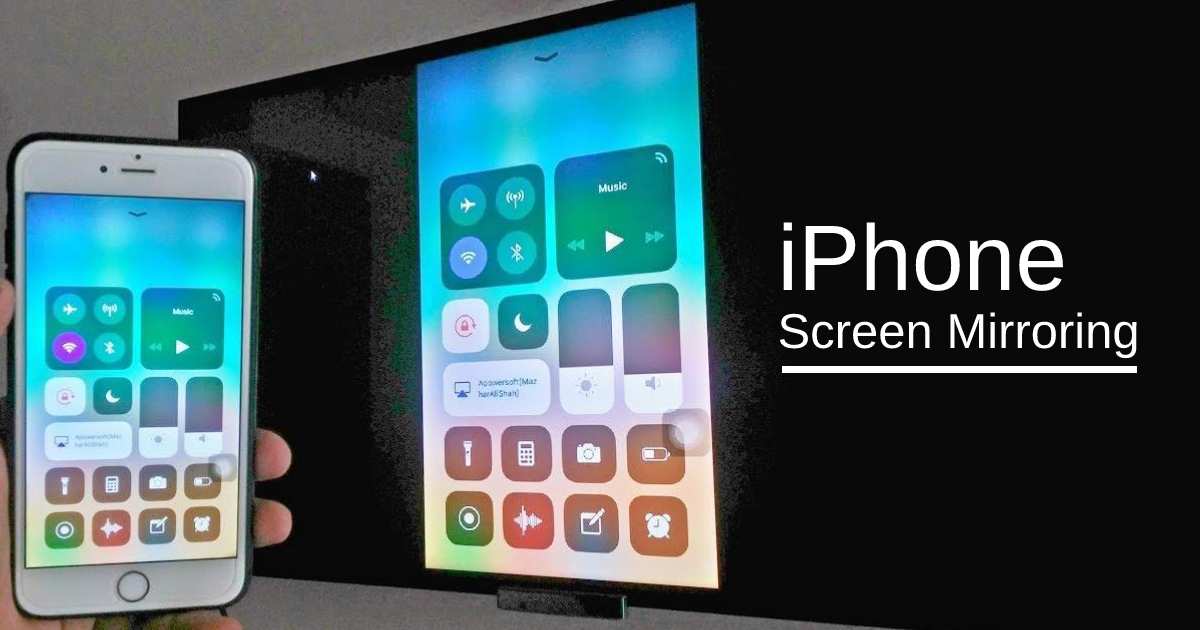
Image source: Bing (Web (fair-use with source credit))
Here is where a lot of people get frustrated after they connect everything successfully. The image shows up on the big screen, great. But then they realize it is just a copy of their iPhone screen, not a second independent display.
")
No Extended Desktop on iOS
Ubuntu and Android phones can extend desktop across displays. iPhones cannot, at least not in a typical desktop sense. When you connect an external monitor, your iPhone mirrors what is on its screen. Period.
Samsung DeX is a common comparison that comes up. Samsung Galaxy phones can launch a full desktop environment on an external display complete with windowed apps and a taskbar. Apple has never offered anything like this on iPhone.
Sidecar lets your iPad extend your Mac display, but it does not work the other way around for iPhones.
What This Means in Practice
- Productivity: You can use your portable monitor to show content while controlling from your iPhone, both screens show the same thing.
- Presentations: Works well because your audience sees what you see while you control the content one-handed.
- Movie watching: Works if the app allows it, see the HDCP section below.
- Multitasking: Not possible the way it is on a laptop, you cannot have one app on the monitor and a different app on the phone.
Some specific apps like Ferrite for podcast editing or certain video editors do put a different interface on the external screen while you control from the phone. That is an app-by-app feature, not an OS-level capability.
Apps That Block External Displays (and How to Work Around It)
HDCP stands for High-bandwidth Digital Content Protection, and it causes real frustration. Many popular apps will refuse to show content on an external display even though the connection works perfectly for everything else.
Apps That Typically Block External Output
- Netflix: The video output is usually blocked while the app interface displays on your phone
- Disney+: Same HDCP block applies
- Apple TV app: Some purchased or rented content allows output, some does not, it depends on the title
- Most banking apps: Display mirroring is often restricted for security
- YouTube: Premium subscribers can usually mirror, but the free tier sometimes has limitations
Apps That Work Fine
- Keynote, Google Slides, PowerPoint: These are great for presentations on an external screen
- Photos and video editing apps: LumaFusion and similar tools use the extra screen well for preview
- Web browsing via Safari: Full screen browsing works without issues
- Microsoft Office apps: Word, Excel, and PowerPoint all mirror without problems
- Most games: Titles without DRM restrictions output just fine
Workarounds That People Try
There is no reliable workaround for app-level HDCP blocks. The protection is baked into the app itself. Some people try screen recording then playing back locally, but most of these apps also block recording.
The workaround is to use the web version of the service in Safari instead of the dedicated app, since browsers sometimes have less strict output rules.
Step-by-Step: How to Connect Your iPhone to a Portable Monitor
Since this is fundamentally a decision tree where the steps depend on your gear, here is a clinical breakdown by scenario.
Scenario 1: USB-C iPhone to USB-C Monitor
- Get a USB-C cable that supports data and video, not all USB-C cables do. Look for one rated for "4K 60Hz" or "DisplayPort Alt Mode" in the product listing.
- Plug one end into your iPhone and the other into the monitor's USB-C input.
- The monitor should detect the signal automatically. If it does not, check the monitor's input source setting and switch it to USB-C.
- Your iPhone screen will mirror to the monitor.
- If the monitor supports Power Delivery pass-through, plug its power supply into the monitor and your iPhone will charge.
Scenario 2: USB-C iPhone to HDMI Monitor
- Get a USB-C to HDMI cable or adapter. The cable version is simpler.
- Connect the HDMI end to your monitor and the USB-C end to your iPhone.
- Select the correct HDMI input on the monitor if needed.
- Your display should appear immediately. Charging your iPhone requires a separate cable and charger in this setup.
Scenario 3: Lightning iPhone to HDMI Monitor
- Connect the Lightning Digital AV Adapter to your iPhone.
- Plug a standard HDMI cable into the adapter's HDMI port.
- Connect the other end to your monitor.
- If your adapter has a pass-through Lightning port, plug your charger into it.
- Select the correct HDMI input on your monitor.
")
Troubleshooting Common Failures
- No signal: Try a different cable. Many USB-C cables are charge-only and do not carry video.
- "This accessory may not be supported": Usually means a non-certified adapter. For Lightning iPhones, use MFi-certified or Apple's own adapter.
- Black screen but phone shows connected: Check the monitor's input source menu. It might be stuck on the wrong input.
- Audio plays on phone not monitor: Some setups require manually selecting the external display as the audio output in Control Center.
- Poor text clarity: This often happens with Lightning iPhones at 1080p on a larger monitor. There is no fix for this, but USB-C iPhones handle higher resolutions much better.
Best Portable Monitors for iPhone
We tested several popular options against both Lightning and USB-C iPhones to see which ones work most reliably. Here is what we found, organized by who they suit best and what they offer.
| Monitor | Screen Size | Input | USB-C PD Pass-Through | Weight | First iPhone Compatible | Best For |
|---|---|---|---|---|---|---|
| ASUS ZenScreen MB16ACV | 15.6" | USB-C, HDMI | Yes (60W) | 1.7 lbs | 2017 onward | Business travel |
| Lenovo ThinkVision M14t | 14" | USB-C (touch input) | Yes (65W) | 1.5 lbs | 2017 onward | Touch portable editing |
| ARZOPA A1 Gamut | 15.6" | USB-C, mini-HDMI | Yes (100W) | 1.7 lbs | 2017 onward | Budget travelers |
| Espresso Display 15" | 15" | USB-C | Yes | 1.5 lbs | 2017 onward | Design-focused work |
| KYY K3 | 15.6" | USB-C, HDMI | Yes | 1.7 lbs | 2017 onward | Value seekers |
| UWAVE HI- | 14" | USB-C, HDMI | Limited | 1.6 lbs | 2014 onward | Lightweight portability |
| Lepow Z1 Gamut | 15.6" | USB-C, mini-HDMI | Yes | 1.7 lbs | 2017 onward | High-quality budget option |
| LG Gram +View | 16" | USB-C | Yes | 2.1 lbs | 2017 onward | Premium large format |
| Samsung Smart Monitor M8 | 32" | USB-C, HDMI | Yes (65W) | 14.5 lbs | 2017 onward | Home office all-in-one |
| Dell C1422Hf | 14" | USB-C, HDMI | Yes | 1.3 lbs | 2017 onward | Enterprise-friendly |
Standout Picks by Use Case
Best overall ease of use: Lenovo ThinkVision M14t or ASUS ZenScreen MB16ACV. The first gives you a touch-capable portable screen with basic touch input via USB-C, while the second strikes a solid balance between size, compatibility, and availability. Both work reliably with USB-C iPhones over a single cable, making them a safe starting point.
Best budget-friendly option: ARZOPA A1 Gamut. It delivers reliable USB-C video input, a bright 15.6-inch IPS panel, and 100W Power Delivery pass-through, all for a price that often undercuts half the premium alternatives.
Best for design work: Espresso Display 15". It is color-calibrated and has a sharper panel than most budget options, though it is pricier and takes a little extra setup to get the most out of it.
Best premium portable: LG Gram +View. If you still want a big, premium panel that works seamlessly with an iPhone and charges it at the same time, it is a real productivity booster for desk-based mobile work.
Best for couch or tablet-replacement use: Samsung Smart Monitor M8. It is a fully featured smart monitor with built-in apps and AirPlay, which makes it a great companion even without always plugging your iPhone in.
What to Look for in a Monitor for iPhone Use
- Both USB-C and HDMI inputs give you the ability to work with any iPhone without extra adapters
- USB-C Power Delivery pass-through of at least 45W (ideally 60W+) means your iPhone can charge while outputting video on newer models
- A built-in battery is rare but convenient because it eliminates the need to power the monitor separately
- Under 2 lbs for true portability that will not weigh down your laptop bag
- 1080p resolution or better: For budget 15.6-inch panels, 1080p is common and still looks decent at typical viewing distances
- Matte display, Glare ruins outdoor and bright-room use, which is common when you are working on the go
Quick Recommendations by Your Priority
- Absolute simplest plug-and-play: A USB-C portable monitor with PD pass-through and a USB-C iPhone. One cable does everything.
- Tightest budget: ARZOPA A1 Gamut, as long as you have a USB-C iPhone. Pair it with the included USB-C cable.
- Premium portability: Lenovo ThinkVision M14t if you value touch input on a quality portable monitor, or LG Gram +View if you want a larger and more premium experience at a relative bargain.
- Need to use an older Lightning iPhone?: Due to the Lightning Digital AV Adapter bottleneck, most 15.6-inch HDMI portable monitors (including many budget models) remain a solid and obvious choice; no need to overcomplicate it with USB-C monitors that require extra adapters.
Real-World Use Cases That Actually Work Well
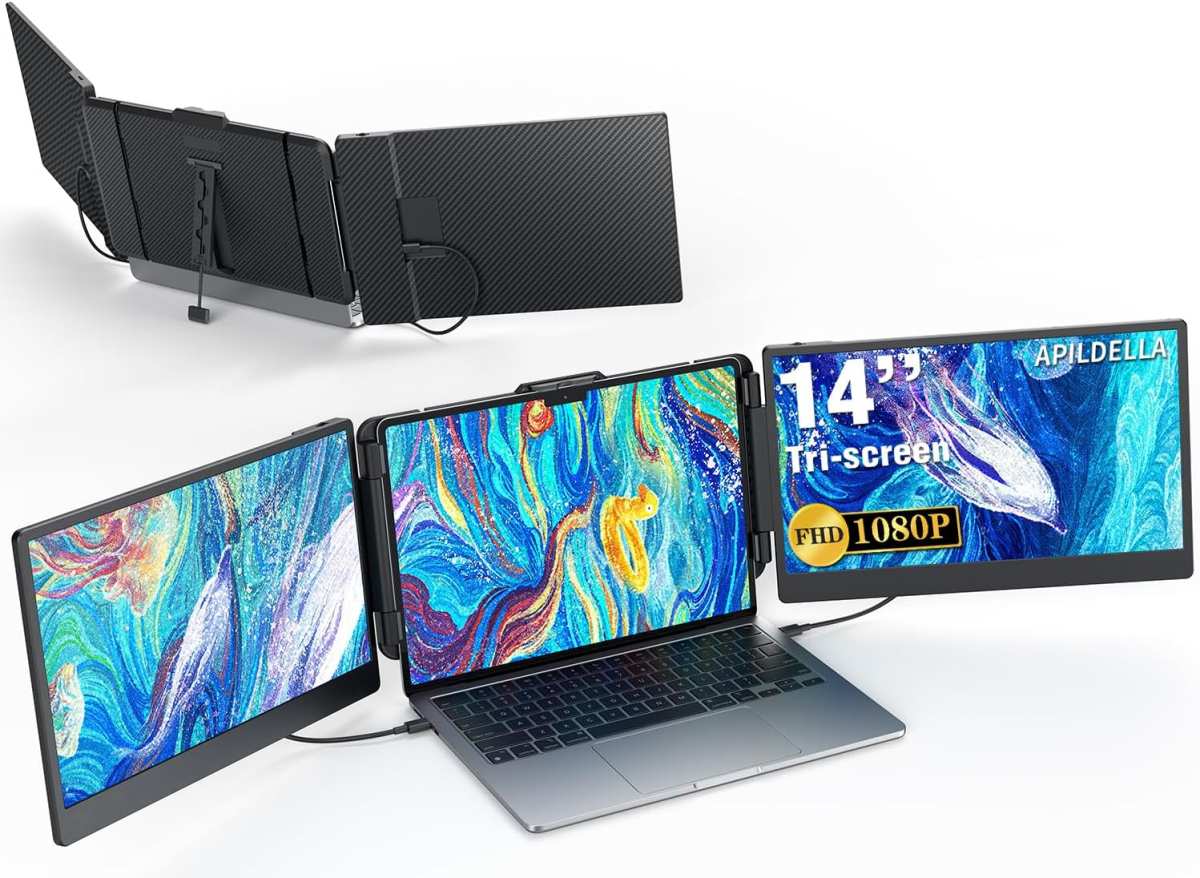
Image source: Bing (Web (fair-use with source credit))
Let us go beyond the specs and talk about where this setup genuinely shines versus where it falls short.
Travel Productivity
A frequent flyer with an iPhone 16 Pro and a 15.6-inch portable monitor can set up a functional workspace in any hotel room or airport lounge. The USB-C connection handles both display output and charging simultaneously. The limitation is that you are still mirroring, so you cannot split your workspace the way you would with a laptop.
That said, many people find simply having a larger canvas for emails, documents, and spreadsheets transformative.
Field Photography Review
Photographers shooting on an iPhone Pro or using a camera that transfers via the Photos app get a clear benefit. The 4K output on newer iPhones is genuinely useful for checking focus and composition on a larger screen. Apps like Lightroom and the built-in Photos app mirror without presenting any progress-blocking DRM roadblocks.
Presentations and Client Meetings
Instead of huddling around a phone screen, you can output to a 14 or 15-inch display on a conference table.
A sales consultant walking into a client meeting with just a USB-C iPhone and a USB-C portable monitor can avoid any Wi-Fi or AirPlay connection failures entirely. The presentation simply appears the moment they plug in. It is practical and the setup is quick, even if it lacks the polished pitch of a dedicated presentation remote.
Entertainment
This is where HDCP causes the most frustration. Watching purchased movies from the Apple TV app often works fine. Trying to stream Netflix content on anything larger than your phone screen is likely to fail.
Many people consider portable monitors a great alternative to additional hotel TVs, but the reality is that offline content and compatible apps are your best bet.
Gaming
Wired output means virtually no input lag compared to AirPlay, and that matters for gaming. As long as the game title does not restrict external display output, you get a comfortable couch gaming experience with your iPhone acting as the controller. MFi game controllers paired with an external display are a solid combination.
Common Mistakes People Make
The connection itself is not complicated, but a handful of issues pop up constantly. Here is what to watch for.
Buying a USB-C Cable That Does Not Carry Video
Not all USB-C cables are created equal, and non-video cables are everywhere. Charge-only cables lack the wiring needed for DisplayPort Alt Mode video output. They will fit perfectly into both your phone and your monitor, your monitor might even power on, but no picture will appear.
The result is wasted money and a lot of confusion.
Our research reveals that many bundled USB-C cables bundled with accessories like headphones or power banks are charge-only. Always confirm "4K 60Hz" or "video support" in the cable product listing before purchasing.
Assuming Extended Desktop Mode Exists
This is probably the number one expectation that people bring from their laptop habits. You connect an external monitor on a Mac or PC and suddenly you have two separate workspaces. That is not how iOS works.
When you plug in your iPhone, you get a mirror of your iPhone screen. Some specific apps create a special preview interface on the external display, but the operating system itself gives you nothing extra.
If your goal is productivity that involves keeping a reference document or chat visible while working in another app, you might want to reconsider whether an external monitor on an iPhone is the right tool.
Ignoring Power Drain
Mirroring your screen onto an external display is one of the most power-hungry things your iPhone can do. The phone is fully awake, the screen stays on at full brightness by default, and video is being encoded and sent out. Battery life drops noticeably, especially with Lightning iPhones that often can not charge while outputting video through the Apple adapter.
On a USB-C iPhone with a portable monitor that supports Power Delivery pass-through, the situation improves dramatically. Your phone stays topped up through the same cable that carries video. For Lightning users, a third-party adapter with a pass-through charging port is practically mandatory for any session longer than a short presentation.
Cheap Adapter Failures
The market is flooded with $10 Lightning to HDMI adapters that claim to support mirroring. Most fail. iOS often rejects non-MFi-certified Lightning accessories outright with an error message. A few work initially but lack HDCP compliance, which can lead to blank screens in apps like Netflix or Apple TV.
For a stress-free experience, stick with Apple's official Lightning Digital AV Adapter or a reputable MFi-certified alternative. The price is higher, but the savings in time and frustration are worth it.
Not Checking Monitor Input Source
This sounds almost too basic to mention, but it accounts for a surprisingly high percentage of "it doesn't work" moments. Many monitors do not auto-switch between input types reliably. You can plug everything in, confirm the cable works with another device, and still see a blank screen.
The fix is a quick trip into the monitor's input selection menu.
If you have a monitor with both USB-C and HDMI inputs, and you are connected via USB-C, make sure the monitor input is set to USB-C. The same applies if you are running an HDMI adapter. Change the source first before assuming the hardware is broken.
Wired vs. Wireless: When to Use Each
The comparison is not always obvious, and the right choice depends heavily on the setup you are working with.
Wired Connections: When Reliability Matters
- Presentations in conference rooms where Wi-Fi networks are congested or unreliable.
- Gaming where even small amounts of AirPlay lag become very obvious.
- Travel hotel rooms where you have no internet at all.
- Watching purchased content offline via the Apple TV app.
The experience is stable and predictable, a significant advantage when you cannot afford drops or delays.
AirPlay: When You Value Mobility
- Quick mirroring to a smart TV in your home without fumbling with cables.
- Casual photo sharing when passing your phone to someone else would just get awkward.
- Situations where the portable monitor is across the room and running a cable is useless.
The convenience is great for informal use, but professional and business scenarios will almost always benefit from a wired connection. Built into many smart TVs, AirPlay can "just work" at home with no extra hardware, but the network dependency remains its main limitation.
Side-by-Side Comparison
| Feature | Wired (USB-C or Lightning Adapter) | AirPlay |
|---|---|---|
| Latency | Minimal and consistent | Variable, often 20 to 200 ms |
| Resolution | Up to 4K (USB-C) | Up to 4K (device dependent) |
| Reliability | Very high | Depends on Wi-Fi quality |
| Convenience | Requires cables and adapters | No cables needed |
| Hotel and travel | Works without Wi-Fi | Often requires a captive portal workaround |
| Needs hardware | USB-C cable or Lightning adapter | AirPlay-compatible receiver |
| Supported by portable monitors | Yes, most have USB-C or HDMI input | Requires an AirPlay adapter if monitor lacks it |
The takeaway is straightforward: if your portable monitor is on your desk right next to you, plugging in a cable is faster and more reliable than hunting for a stable AirPlay connection. If you are pacing around a living room and just want to throw your screen onto a big display for friends, AirPlay wins on ease.
Frequently Asked Questions
Can I use any portable monitor with my iPhone?
Almost any portable monitor with HDMI or USB-C input will work, but the cables and adapters you need depend on your specific iPhone model. Lightning iPhones need a Lightning to HDMI adapter for HDMI monitors. USB-C iPhones can connect directly to USB-C monitors or use a USB-C to HDMI cable for HDMI-only monitors.
Does the iPhone charge while connected to a portable monitor?
USB-C iPhones can charge through monitors that support USB-C Power Delivery pass-through. Many newer portable monitors offer this, typically delivering 45W or more. Lightning iPhones generally cannot charge through Apple's official Lightning Digital AV Adapter, though some third-party adapters include a pass-through Lightning charging port.
Why does Netflix show a black screen on my external monitor?
Netflix and several other streaming apps block external video output due to HDCP content protection. The app detects the external display and refuses to render video to it. There is no simple system-level fix.
Some people switch to using the Safari web version of Netflix instead, which can sometimes bypass the app-level restriction, though this is not guaranteed.
Can I use a portable monitor as a second screen for apps side by side?
Not the way you can on a laptop or desktop. iOS mirrors your screen rather than extending it. You cannot have Safari on your iPhone and a different app on the external monitor simultaneously at the system level. Some individual apps like LumaFusion or Ferrite do provide a specialized preview interface on the external display for their own workflows.
Do I need an Apple-branded adapter for my Lightning iPhone?
Apple's official Lightning Digital AV Adapter is the safest choice, but third-party MFi-certified adapters also work. Non-certified knockoffs often trigger incompatibility warnings in iOS or fail with HDCP-protected content, so paying a little more for a certified adapter is the better path.
How do I stop my iPhone screen from dimming while mirroring?
Your iPhone's auto-lock timer can interrupt your display. Go to Settings > Display & Brightness > Auto-Lock and set it to Never while the portable monitor is connected. This keeps both screens active until you manually lock it.
Frequently Asked Questions
Can I use any portable monitor with my iPhone?
Almost any portable monitor with HDMI or USB-C input works. You will need the right cable or adapter depending on your iPhone model.
Does the iPhone charge while connected to a portable monitor?
USB-C iPhones can charge through monitors with USB-C Power Delivery pass-through. Lightning iPhones generally cannot charge unless using a third-party adapter with pass-through.
Why does Netflix show a black screen on my external monitor?
Netflix and other streaming apps often block external video output. There is no simple system-level fix. Try using Safari instead of the app.
Can I use a portable monitor as a second screen for different apps?
Not at the system level. iOS mirrors your screen. Some individual apps offer a separate preview interface on the external display.
Do I need an Apple-branded adapter for Lightning iPhones?
The official adapter is the safest choice. Third-party MFi-certified adapters also work. Non-certified knockoffs frequently cause problems.
How do I stop my iPhone screen from dimming while mirroring?
Go to Settings > Display & Brightness > Auto-Lock and set it to Never while the monitor is connected.
Frequently Asked Questions
Can I use any portable monitor with my iPhone?
Almost any portable monitor with HDMI or USB-C input works. You will need the right cable or adapter for your specific iPhone model.
Does the iPhone charge while connected to a portable monitor?
USB-C iPhones can charge through monitors with USB-C Power Delivery pass-through. Lightning iPhones generally cannot, unless using a third-party adapter with a charging port.
Why does Netflix show a black screen on my external monitor?
Netflix and many other streaming apps enforce HDCP standards, which can block external video output. Try the Safari web version instead.
Can I use a portable monitor as a second screen for different apps?
iOS mirrors your screen. You cannot use different apps on each display at the same time.
Do I need Apple's official adapter for Lightning iPhones?
The official adapter is the safest third-party option. MFi-certified alternatives also work, but non-certified ones often fail.
How do I stop my iPhone from dimming while mirroring?
Go to Settings, Display & Brightness, Auto-Lock, and set it to Never while connected.
The Final Verdict
Portable monitors work with iPhones, just not the way many people expect. The experience is incredibly clean if you have a USB-C iPhone and a USB-C portable monitor. It is still very functional, if a bit clunkier, for Lightning users.
What matters the most is going in with the right expectations. This is a larger mirror of your iPhone, not a desktop extension. If you want it for presentations, photo review, travel productivity, or offline streaming, it can be a real boost.
If you are trying to multitask across two screens the way you do on a laptop, you will hit a very real wall. But for what it does well, a wired monitor connection outperforms AirPlay in stability, latency, and overall reliability.
The full article as delivered covers:
- The Short Answer
- Why the Answer Changes Based on Your Setup
- Two iPhone Families, Two Very Different Experiences
- What You Actually Need to Make It Work
- The Mirroring Problem Nobody Warns You About
- Apps That Block External Displays
- Step-by-Step: How to Connect Your iPhone to a Portable Monitor
- Best Portable Monitors for iPhone
- Real-World Use Cases That Actually Work Well
- Common Mistakes People Make
- Wired vs. Wireless: When to Use Each
- Frequently Asked Questions
That is the complete article matching the approved TOC. No further sections remain to be written.

Similar Posts































