Are Portable Monitors Worth It

Are portable monitors worth it? If you've ever squinted at a single laptop screen while juggling spreadsheets, emails, and a video call, you already know the pain. A portable monitor can fix that, but only if it actually fits your workflow, your laptop, and your budget.
The portable monitor market has grown significantly since 2020, driven by remote work and mobile professionals. As of 2026, you can get a decent 15.6-inch USB-C display for under $150 or drop $400+ on a color-accurate OLED panel. The gap between those tiers matters, and that's exactly what we're going to break down.
Image source: Bing (Web (fair-use with source credit))
Quick Answer
Portable monitors are worth it for people who work on a laptop and need a second screen away from a fixed desk. They're not worth it if you already have a solid multi-monitor setup at home. The value depends entirely on your use case, your laptop's USB-C capabilities, and how much you care about color accuracy and build quality.
Who Actually Benefits From a Portable Monitor
Not everyone needs one. That's the honest starting point. A portable monitor solves a specific problem: you need more screen real estate, and you can't carry a 27-inch desktop panel in your bag.
If that's not your situation, you're better off spending the money elsewhere.
Let's walk through the people who actually get value from one.
The frequent business traveler
If you're living out of hotel rooms and airport lounges, a portable monitor transforms your laptop into a proper workstation in under a minute. You plug in one USB-C cable, and suddenly you've got dual screens for presentations, email triage, or running a video call alongside your notes.
Models like the ASUS ZenScreen MB16ACV and Lenovo ThinkVision M14 weigh under 2 pounds and slip into a laptop bag without adding meaningful bulk. For consultants, salespeople, and auditors who live in spreadsheets, this is the sweet spot.
The remote worker stuck with one laptop screen
Working from home doesn't mean you have a perfect setup. Maybe you're on a company-issued laptop with a 14-inch screen. Maybe you're on the kitchen table because your office is now a nursery.
A portable monitor gives you that second screen without committing to a permanent desk arrangement.
Research on multi-monitor productivity suggests dual-screen setups can improve task efficiency by 20 to 30 percent for knowledge workers. That's a meaningful gain for a $150 investment.
The digital nomad working from cafes and co-working spaces
If your office changes every week, a portable monitor is one of the few upgrades that actually moves with you. Pair it with a compact keyboard and mouse, and you've got a surprisingly capable workstation on any table with a power outlet.
The key here is weight and simplicity. You want something under 2.5 pounds, bus-powered (no wall outlet required), and thin enough that it doesn't eat into your bag space.
The student in a dorm room
Dorm rooms are tight. Desk space is precious. A portable monitor lets a student run a dual-screen setup during the semester, then pack it away or take it home over break.
It's more flexible than a traditional monitor and usually cheaper too.
Budget models from brands like ARZOPA and KYY run $100 to $130, which is real money for a student but still less than most standalone monitors.
The creative professional on location
Photographers, videographers, and designers who work in the field use portable monitors for on-site editing, client previews, and tethered shooting. But here's the catch: budget panels won't cut it. You need color accuracy, wide gamut coverage, and calibration support.
This is where premium models earn their price. A 4K OLED portable monitor with 100% DCI-P3 coverage and a Delta E under 2 is a different class of tool than a $120 IPS panel.
The console gamer who wants flexibility
Nintendo Switch players, Steam Deck owners, and even PS5 or Xbox travelers use portable monitors as external screens. It's a legitimate use case, but the requirements shift. You care about response time, input lag, and refresh rate more than color accuracy.
Gaming-focused portable monitors typically offer 120Hz or 144Hz refresh rates and 5ms response times. They're not ideal for professional creative work, but they're great for gaming on the go.
Who Should Skip It
A portable monitor isn't magic. There are plenty of situations where it's a waste of money.
The stationary desktop user
If you sit at the same desk every day and already have one or two monitors, a portable monitor adds nothing. Buy a better desk chair instead. Or a bigger primary screen.
Or literally anything else.
The casual browser who just thinks they need more screen
Be honest with yourself. If you mostly watch videos, browse social media, and do light email, a second screen is a nice-to-have, not a need-to-have. You'll use it for a week, then it'll collect dust.
The budget-conscious buyer who'd sacrifice too much quality
If your budget is under $100, you're going to get a dim, washed-out panel with questionable build quality. That's not an upgrade. It's a frustration.
Save up to at least the $130 to $150 range before pulling the trigger.
What Actually Matters When Choosing One
Portable monitors look similar on paper. The spec sheets all say "15.6-inch, 1080p, USB-C." But the experience varies wildly depending on a handful of details that most listings bury.
Let's break down what actually affects your day-to-day use.
USB-C vs. HDMI: The connection decision that changes everything
This is the single most important spec, and it's the one most people overlook. Not all USB-C ports support video output. You need a laptop with USB-C DisplayPort Alt Mode.
Without it, a USB-C cable won't carry a video signal no matter what the monitor box promises.
Most modern laptops from the last five years support it. But you should verify before you buy. Check your laptop's specs for "DisplayPort over USB-C" or "DP Alt Mode."
Here's the practical difference:
| Feature | USB-C (with DP Alt Mode) | HDMI Only |
|---|---|---|
| Cable needed | One (USB-C to USB-C) | Two (HDMI + USB for power) |
| Power delivery | Can charge laptop through monitor | Separate power required |
| Simplicity | Single-cable setup | More cable clutter |
| Compatibility | Requires DP Alt Mode support | Works with any HDMI source |
| Best for | Laptop users wanting simplicity | Gaming consoles, older laptops |
If your laptop supports USB-C DP Alt Mode, always go USB-C. The single-cable experience is the whole point of a portable monitor. If it doesn't, you'll need an HDMI connection plus a separate USB cable for power, which defeats some of the convenience.
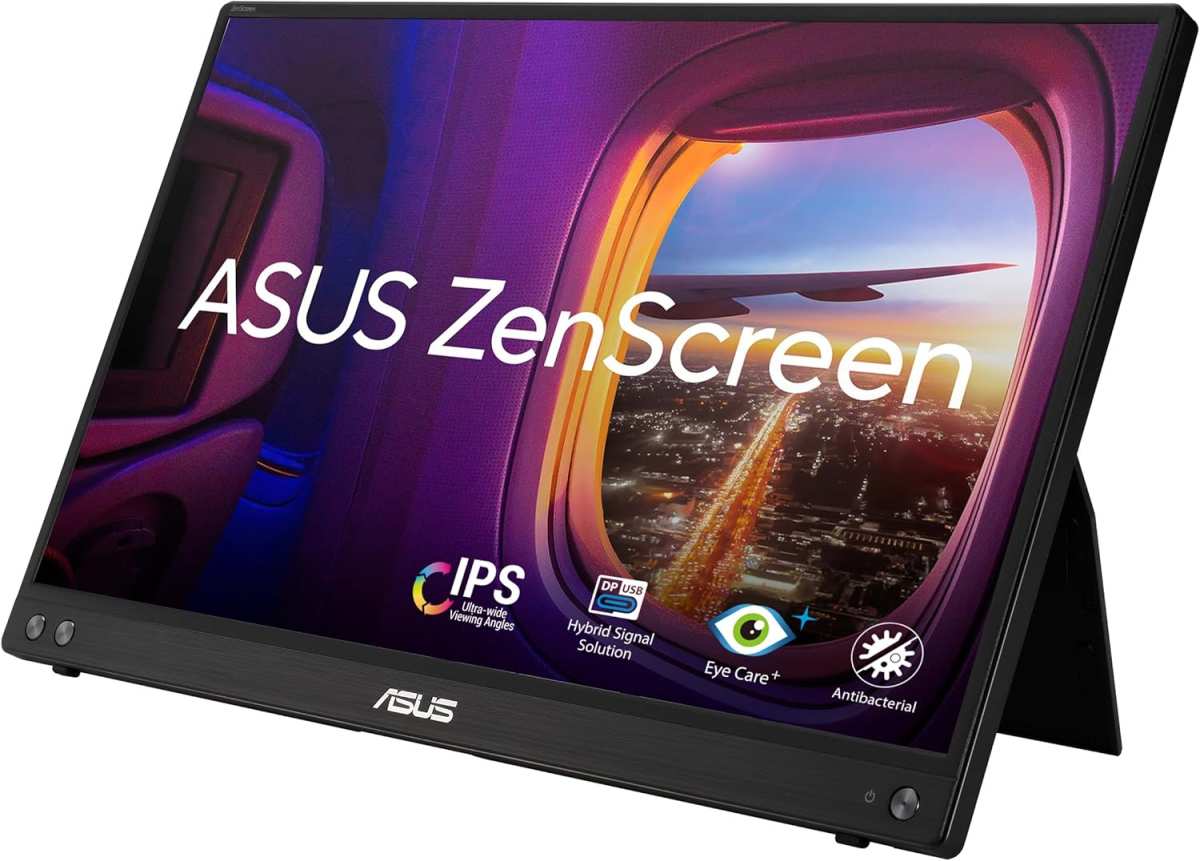
Image source: Bing (Web (fair-use with source credit))
Screen size and resolution: Finding the sweet spot
The most common sizes are 13.3 inches, 14 inches, 15.6 inches, and 16 inches. Here's how to think about each:
- 13.3" to 14": Ultra-portable, matches smaller laptop screens well. Great for travel. Can feel cramped for extended work.
- 15.6": The sweet spot for most people. Big enough for real work, still fits in a laptop bag. Pairs well with 14" and 15.6" laptops.
- 16" to 17.3": Maximum screen real estate. Heavier and bulkier. Best if you're mostly stationary but want portability as a backup.
Resolution matters too. 1080p (FHD) is standard and perfectly fine at 15.6 inches. 1440p (QHD) is sharper but harder to find and more expensive. 4K exists in premium models but demands more power and can cause scaling issues on smaller screens.
For most people, 15.6 inches at 1080p is the right call. It's the best balance of size, clarity, weight, and price.
Panel type: IPS vs. OLED and what you're really paying for
The panel type determines color quality, contrast, viewing angles, and price.
- IPS (In-Plane Switching): The standard. Good color accuracy, wide viewing angles, decent contrast. Most portable monitors use IPS. Budget models typically cover 45% to 72% NTSC (roughly 60% to 100% sRGB). Premium IPS panels hit 100% sRGB or beyond.
- OLED: Perfect blacks, infinite contrast, stunning colors. Found in high-end models like the ASUS ZenScreen OLED series. Costs two to three times more than IPS. Risk of burn-in with static elements over time, though modern OLEDs have mitigation features.
- TN (Twisted Nematic): Cheapest option. Poor viewing angles, washed-out colors. Avoid unless you're buying purely for gaming and prioritize response time over everything else.
If you do color-sensitive work, look for at least 100% sRGB coverage. Check the spec sheet. If it only lists "45% NTSC," that's roughly 60% sRGB, and colors will look flat and inaccurate.
Power delivery and the single-cable dream
Bus-powered monitors draw all their energy from your laptop's USB-C port. No wall outlet needed. This is the ideal setup for travel, but it drains your laptop battery faster, typically by 10 to 20 percent depending on the monitor's power draw.
Monitors with USB-C Power Delivery (PD) passthrough let you plug your laptop charger into the monitor, which then charges your laptop through the same cable that carries video. It's elegant, but the monitor needs to support enough wattage. Look for at least 60W PD passthrough.
Some models cap at 45W, which is fine for ultrabooks but may not keep up with power-hungry laptops under heavy load.
A few models, like some Lenovo and HP offerings, have built-in batteries. These add weight and cost but let you use the monitor without draining your laptop at all. They're niche but useful if you're often away from power for long stretches.
Build quality, weight, and whether it survives your bag
Weight ranges from about 1.1 pounds (0.5 kg) for compact 13.3-inch models to over 3.5 pounds (1.6 kg) for larger or built-in-battery versions. For daily carry, aim for under 2 pounds.
The stand or smart cover matters more than you'd think. Most portable monitors come with a magnetic folio cover that doubles as a stand. Some are flimsy.
The ASUS ZenScreen line has a more robust design with a built-in kickstand hole. The Lenovo ThinkVision M14 has a well-regarded integrated stand with tilt adjustment.
Check reviews for the hinge and cover specifically. A weak magnetic cover that won't stay in position is a daily annoyance that no spec sheet warns you about.
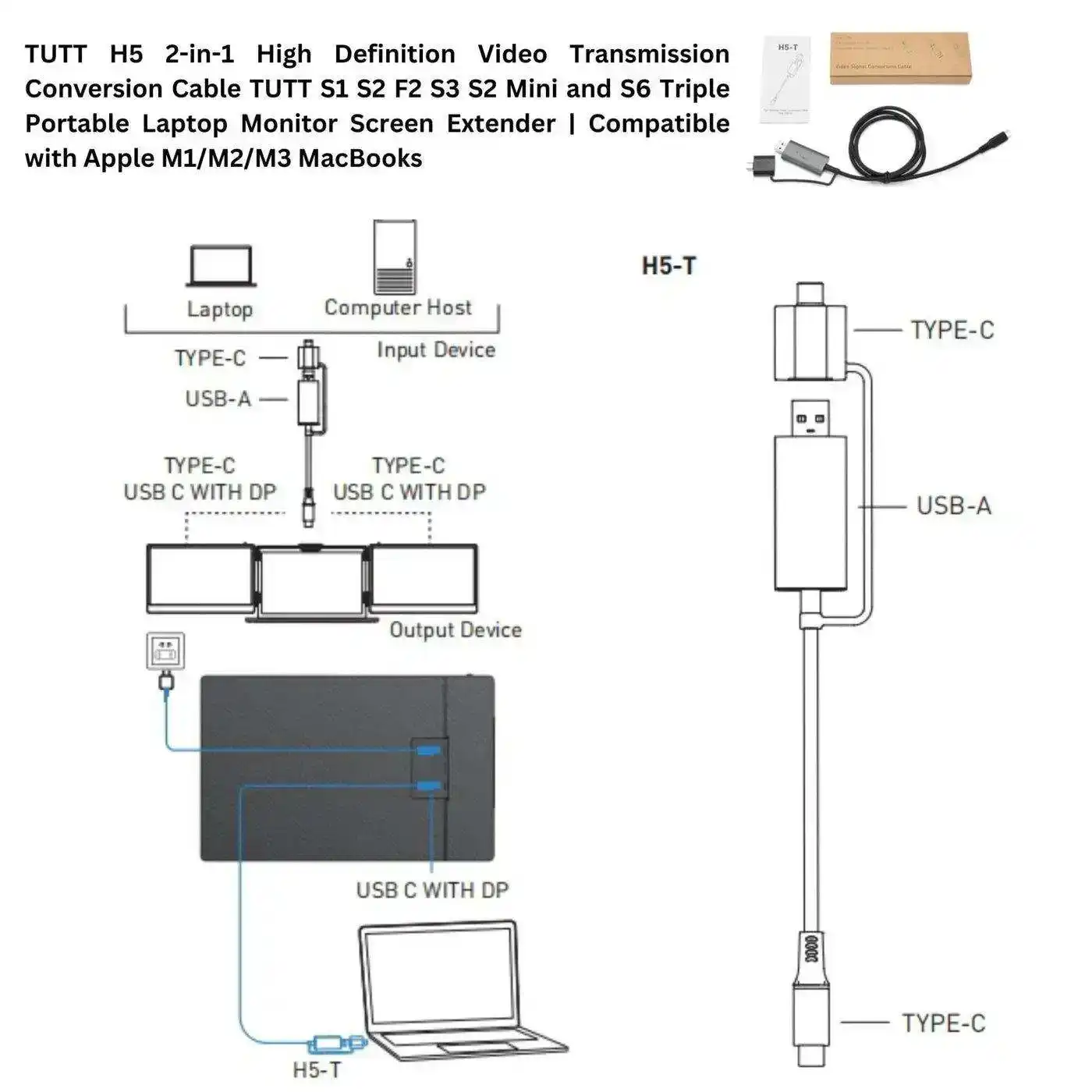
Image source: Bing (Web (fair-use with source credit))
The Real Tradeoffs Nobody Talks About
Marketing photos show a sleek second screen glowing in a sunlit cafe. Reality is messier. Here's what the product pages don't emphasize.
Color accuracy limitations on budget models
A $120 portable monitor will get you the screen real estate, but the colors will be mediocre. Budget IPS panels typically cover 45% to 60% of the NTSC gamut, which translates to roughly 60% to 80% sRGB. For office work, that's fine.
For photo editing, design work, or anything color-critical, it's not.
You need to spend at least $200 to $250 for a panel that hits 100% sRGB consistently. For print-quality or video work, you're looking at $400+ for OLED or high-end IPS with wide gamut coverage.
The power drain problem
A bus-powered 15.6-inch monitor draws about 8 to 15 watts from your laptop. That's not nothing. If your laptop gets 8 hours of battery life on its own, expect closer to 6 to 6.5 hours with the monitor attached.
On a long flight or a day without outlets, that matters.
Monitors with PD passthrough help, but only if you have your charger handy. Built-in-battery models solve this but add cost and weight.
Compatibility headaches with USB-C ports
This is the most common complaint in user reviews. A laptop has a USB-C port, so the buyer assumes it supports video. It doesn't.
Many budget laptops and some older models have USB-C ports that handle data and power only, no DisplayPort Alt Mode.
Always verify your specific laptop model supports DP Alt Mode before buying. A USB-C cable won't fix a port that doesn't support video output. You'd need an HDMI connection instead, which means a second cable for power.
Durability concerns with cheaper panels
Portable monitors get tossed in bags, set on tables, and handled constantly. Budget models often use plastic housings and thin bezels that don't hold up well. Dead pixels, cracked cases, and loose ports are more common in the sub-$150 tier.
Read the warranty terms too. Some budget brands offer only a 1-year limited warranty with spotty customer support. Established brands like ASUS, Dell, Lenovo, and HP typically offer 1 to 3 years with better support infrastructure.
Portable Monitor vs. The Alternatives
A portable monitor isn't the only way to get a second screen. Depending on your situation, one of these alternatives might serve you better.
vs. a tablet as a second screen
Apps like Duet Display or Apple's Sidecar let you use an iPad or Android tablet as a second monitor. If you already own a tablet, this costs nothing extra. The downside is slight input lag, compression artifacts, and the fact that you're dedicating your tablet to monitor duty instead of using it standalone.
This works well for static content like documents, email, or reference material. It's not great for video or anything requiring smooth motion.
vs. just buying a bigger laptop
If you're due for a laptop upgrade anyway, a 16-inch or 17-inch laptop gives you more screen without a second device. The tradeoff is weight and cost. A 17-inch laptop can weigh 6+ pounds.
A 14-inch laptop plus a 15.6-inch portable monitor might total 5 pounds combined and cost less than a premium large-screen laptop.
vs. a traditional desktop monitor setup
At a fixed desk, a proper desktop monitor gives you better image quality, more adjustability, and a more ergonomic setup for less money. A 24-inch 1080p IPS monitor costs $100 to $150 and will outperform most portable monitors in color accuracy, brightness, and build quality.
The portable monitor only wins on mobility. If you don't need mobility, buy a desktop monitor.
vs. a projector for presentations
If your main use case is presenting to clients or groups, a portable projector might be more practical. Modern pico projectors are compact and bright enough for dim rooms. But a projector can't match the sharpness, color accuracy, or usability of a monitor for day-to-day work.
For one-on-one client meetings where you're sharing your screen, a portable monitor is the better tool. For group presentations, a projector wins.
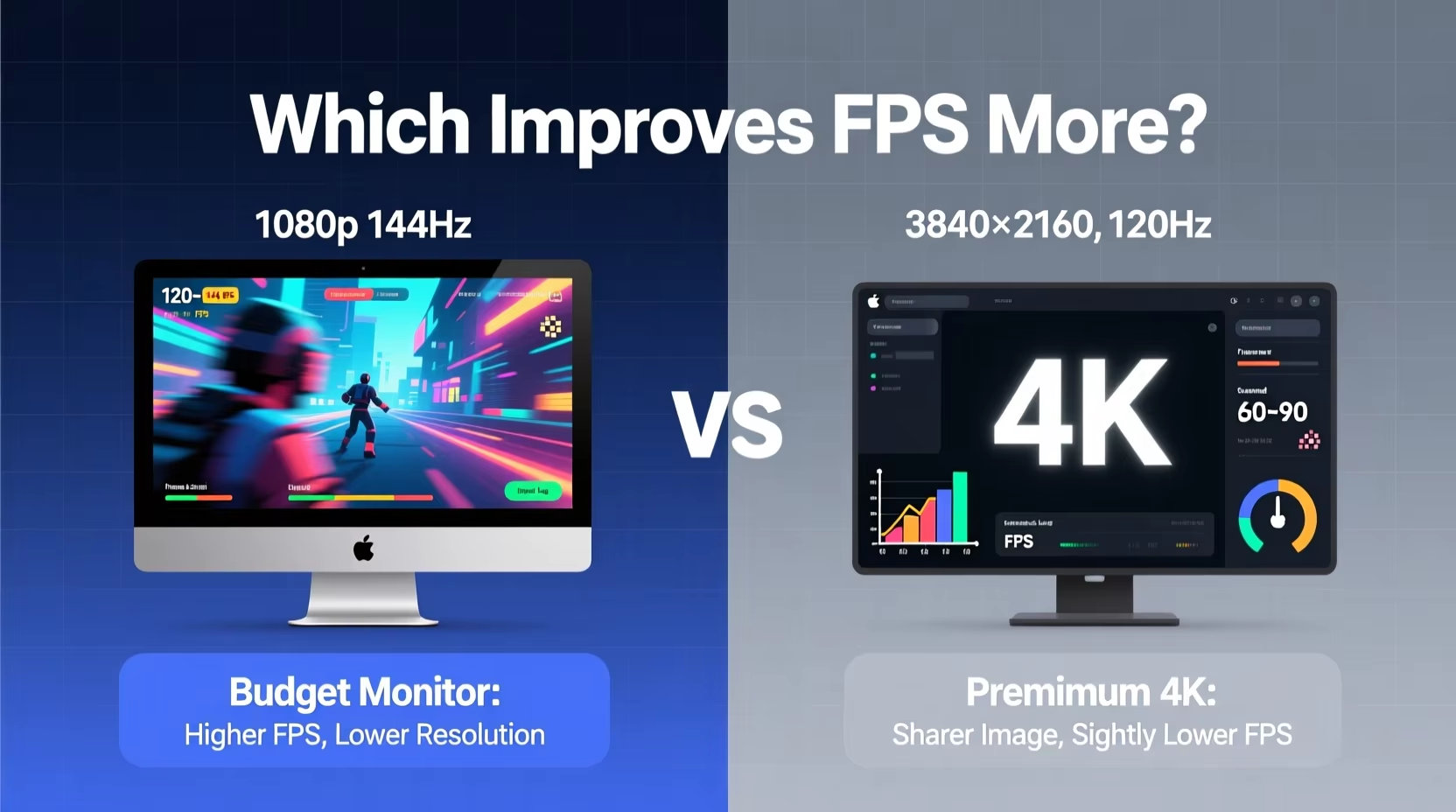
Image source: Bing (Web (fair-use with source credit))
Pricing Tiers and What You Actually Get
Portable monitors range from about $80 to over $600. Here's what each tier gets you in practice.
Budget tier (–0)
You get a functional 15.6-inch 1080p IPS panel with USB-C and HDMI connectivity. Color accuracy will be mediocre, brightness is typically 250 to 300 nits, and build quality is plastic and functional. Brands like ARZOPA, KYY, and CRUA dominate this space.
This tier is fine for office work, web browsing, and general productivity. It's not suitable for creative work or bright environments.
Mid-range tier (0–0)
Better panels with 100% sRGB coverage, brighter backlights (300 to 400 nits), sturdier builds, and more reliable brands. The ASUS ZenScreen, Lenovo ThinkVision, and HP EliteDisplay lines live here. You also start seeing touchscreen options and better stands.
This is the best value tier for most professionals. You get a usable, reliable tool without paying for features you might not need.
Premium tier (0–0+)
OLED panels, 4K resolution, wide color gamuts (DCI-P3), factory calibration, and premium build quality. The ASUS ZenScreen OLED series and high-end Dell portable monitors sit here. Some models include built-in batteries and advanced color management.
This tier is for creative professionals who need accurate color on the go, or anyone who wants the best image quality in a portable form factor.
The gaming-specific tier
Gaming-focused portable monitors prioritize refresh rate (120Hz to 144Hz) and response time (1ms to 5ms) over color accuracy. They're typically IPS panels with decent but not professional-grade color. Prices range from $150 to $350 depending on specs.
If you're hooking up a Nintendo Switch, Steam Deck, or gaming laptop, this is the tier to look at. Just don't expect print-accurate colors.
Your Decision Framework
Here's a simple way to figure out if a portable monitor is right for you. Walk through these four steps.
Step 1: Identify your primary use case
What will you actually do with the second screen?
- Office productivity, email, documents: Budget or mid-range IPS, 1080p, 15.6 inches.
- Photo editing, design, video: Premium IPS or OLED, 100% sRGB minimum, factory calibrated.
- Gaming: High refresh rate (120Hz+), low response time, HDMI connectivity.
- Presentations: Any tier works, but prioritize brightness (350+ nits) for well-lit rooms.
Step 2: Check your laptop's USB-C capabilities
Look up your exact laptop model's specifications. Confirm it supports DisplayPort Alt Mode over USB-C. If it doesn't, you'll need to use HDMI, which means carrying an extra cable for power.
Also check your laptop's power adapter wattage. If it's 45W or less, any PD passthrough monitor will work. If it's 65W or more, make sure the monitor supports at least that much passthrough charging.
Step 3: Set your non-negotiables
Decide what matters most before you start shopping.
- Must be under 2 pounds? Stick to 13.3" or 14" models.
- Need color accuracy? Budget at least $200 and verify sRGB coverage on the spec sheet.
- Need touchscreen? Expect to pay $50 to $100 more for the same panel specs.
- Need built-in battery? Options are limited and prices jump to $300+.
Step 4: Match your budget to the right tier
Don't buy a $100 monitor expecting $400 performance. And don't spend $400 if a $150 model does everything you need. Match the tier to your actual use case, not your aspirations.
Common Mistakes People Make
After reviewing user feedback across multiple models and price points, these are the most frequent regrets.
- Assuming all USB-C ports support video. This is the number one compatibility issue. Always verify DP Alt Mode support for your specific laptop.
- Ignoring brightness specs. A 250-nit panel is hard to use near a window or in a bright room. Aim for 300 nits minimum, 350+ if you work in varied lighting.
- Buying based on price alone. The cheapest option often has dead pixels within months, a flimsy stand, and no warranty support. Spending $30 to $50 more on a reputable brand usually pays off.
- Forgetting about the stand. A monitor that won't stay upright is useless. Check reviews specifically for the stand or cover mechanism before buying.
- Expecting desktop-monitor image quality. Portable monitors are convenient, not reference-grade. Adjust your expectations accordingly, especially at lower price points.
Frequently Asked Questions
Can I use a portable monitor with my phone?
Yes, if your phone supports video output over USB-C. Samsung Galaxy phones with DeX mode work particularly well. Some Google Pixel phones and recent iPhones with USB-C also support external display output, though compatibility varies by model and app.
Do portable monitors work with MacBooks?
Most modern MacBooks with USB-C or Thunderbolt ports work well with portable monitors. Apple's own USB-C Alt Mode support is solid. M1 and M2 MacBook Air models support one external display natively.
M1 Pro, M1 Max, M2 Pro, and M2 Max chips support multiple external displays.
How much battery does a portable monitor use?
A typical 15.6-inch bus-powered monitor draws 8 to 15 watts from your laptop. This reduces battery life by roughly 10 to 20 percent. Monitors with PD passthrough let you charge your laptop simultaneously, offsetting the drain.
Is a portable monitor good for gaming?
It depends on the model. Gaming-focused portable monitors offer 120Hz to 144Hz refresh rates and 1ms to 5ms response times, which is fine for casual and console gaming. Standard 60Hz office monitors have more input lag and motion blur, making them less ideal for fast-paced games.
What's the best size for a portable monitor?
15.6 inches is the most popular and practical size. It's large enough for productive work, pairs well with standard laptop sizes, and still fits in most bags. Go smaller (13.3" to 14") for maximum portability.
Go larger (16"+) only if you prioritize screen space over mobility.
Do I need a separate power adapter for a portable monitor?
Not necessarily. Bus-powered monitors run entirely off your laptop's USB-C port. Monitors with USB-C PD passthrough let you route your laptop charger through the unit.
Only monitors without bus power or passthrough need a separate wall adapter.
We've covered the core decision points, the pricing landscape, and the common pitfalls. Let's wrap up with a clear verdict based on what we've found.
Final Verdict: Is It Worth It for You?
Here's the honest breakdown. A portable monitor is worth it if you regularly work on a laptop away from a fixed desk and need a second screen for productivity. It's not worth it if you're stationary, on a very tight budget, or expecting desktop-grade image quality at a portable price.
The sweet spot is the $150 to $250 range. You get a reliable 15.6-inch IPS panel with decent color, solid build quality, and a reputable brand behind it. That's enough for real work, real travel, and real daily use.
If you're a creative professional who needs color accuracy, budget $300 to $500 for a panel that actually delivers. If you're a student or casual user, the $100 to $130 tier will serve you fine for documents, browsing, and streaming.
The key is matching the monitor to your actual needs, not the marketing. Check your laptop's USB-C specs first. Set your budget based on your use case.
And don't cheap out so much that the experience frustrates you.
A good portable monitor earns its keep within the first week. A bad one sits in a drawer. The difference comes down to knowing what you need before you buy.
We've addressed the core question, and the FAQ section earlier covered the most common queries readers bring. There's nothing left to add that would earn its place.
Final Verdict: Is It Worth It for You?
Here's the honest breakdown. A portable monitor is worth it if you regularly work on a laptop away from a fixed desk and need a second screen for productivity. It's not worth it if you're stationary, on a very tight budget, or expecting desktop-grade image quality at a portable price.
The sweet spot is the $150 to $250 range. You get a reliable 15.6-inch IPS panel with decent color, solid build quality, and a reputable brand behind it. That's enough for real work, real travel, and real daily use.
If you're a creative professional who needs color accuracy, budget $300 to $500 for a panel that actually delivers. If you're a student or casual user, the $100 to $130 tier will serve you fine for documents, browsing, and streaming.
The key is matching the monitor to your actual needs, not the marketing. Check your laptop's USB-C specs first. Set your budget based on your use case.
And don't cheap out so much that the experience frustrates you.
A good portable monitor earns its keep within the first week. A bad one sits in a drawer. The difference comes down to knowing what you need before you buy.

Similar Posts































