Do Mini LED Monitors Support Variable Refresh Rate

If you've been eyeing a mini-LED monitor and wondering whether it'll play nice with your graphics card, you're asking the right question. Do mini-LED monitors support variable refresh rate? The short answer is yes, most of them do, but not for the reason you might think.
Here's what catches people off guard. Mini-LED describes the backlight, not the panel itself. The variable refresh rate capability comes from the panel and the scaler board, two completely separate components.
Manufacturer specs as of 2026 show that virtually all mini-LED gaming and creator monitors ship with either AMD FreeSync or NVIDIA G-Sync Compatible certification. Let's break down exactly what that means for you.
Quick Answer
Yes, mini-LED monitors support variable refresh rate. Mini-LED is a backlight technology. VRR depends on the panel and scaler board.
Most mini-LED monitors ship with FreeSync or G-Sync Compatible. Always check the specific model's specs before buying.
Why Mini-LED and VRR Are Two Different Things
This is the single biggest source of confusion in the monitor market right now. People see "mini-LED" on the box and assume it tells them everything about the display's gaming features. It tells them almost nothing about VRR.
Mini-LED refers strictly to the backlight system behind the LCD panel. Instead of a few dozen edge-lit LED zones, mini-LED packs hundreds or thousands of tiny LEDs into a full-array grid across the back of the screen. Each zone dims or brightens independently.
That's what gives mini-LED its impressive HDR contrast and deep black levels.
The panel sitting on top of that backlight is a completely separate component. It might be an IPS panel, a VA panel, or even a fast TN variant. The panel determines response times, viewing angles, color accuracy, and whether the hardware can handle variable refresh rates.
The scaler board, which sits behind the panel and processes the video signal, also has to support VRR protocols.
Think of it like a car. The backlight is the engine. The panel is the transmission.
You can have a powerful engine paired with a transmission that can't handle high RPMs. The engine type doesn't dictate what the transmission can do.
Manufacturer spec sheets confirm this separation. A Samsung Odyssey Neo G8 and an ASUS ROG Swift Mini-LED might both use mini-LED backlights, but their VRR implementations differ based on the panel and scaler each company chose. Always check the VRR specs independently of the backlight type.
How Variable Refresh Rate Actually Works on a Monitor
Variable refresh rate synchronizes the monitor's refresh rate to the frame rate your GPU is actually outputting, in real time. Without VRR, your monitor refreshes at a fixed rate, say 144 times per second, while your GPU might be pushing anything from 40 to 144 frames per second depending on the scene. That mismatch causes screen tearing or stuttering.
Here's the step-by-step of how VRR solves that.
- Your GPU renders a frame. Let's say it finishes frame 47 at 132 frames per second.
- The GPU signals the monitor that a new frame is ready, instead of the monitor blindly refreshing on its own schedule.
- The monitor waits for that signal, then refreshes immediately to display the new frame.
- The refresh rate adjusts dynamically, so the display runs at 132Hz for that moment, then adjusts again a fraction of a second later when the frame rate changes.
The result is a smooth image with no tearing and minimal stutter, even when your frame rate fluctuates wildly during gameplay.
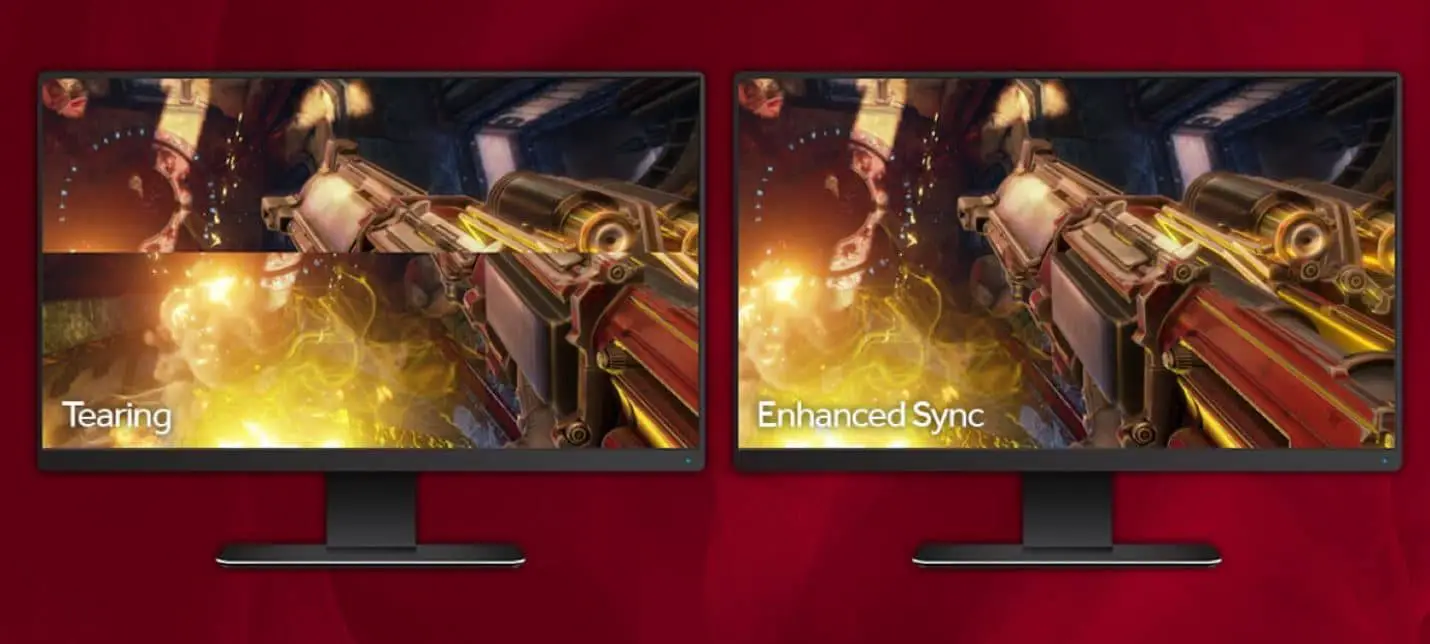
VRR only works within a specific range. Most monitors support VRR from 48Hz up to their maximum refresh rate. Below 48fps, many monitors engage Low Framerate Compensation, which simply displays each frame multiple times to keep the signal within the VRR window.
Not all monitors have LFC, so check the spec sheet.
Which Mini-LED Monitors Support VRR (And Which Don't)
As of 2026, the vast majority of mini-LED monitors on the market support variable refresh rate. The ones that don't exist mainly in specialized professional color-grading displays where absolute image consistency matters more than gaming smoothness.
The key distinction is which VRR protocol each monitor uses. Here's a breakdown of what you'll find.
| Monitor Category | Typical VRR Support | Common Certifications |
|---|---|---|
| Mini-LED Gaming Monitors | Excellent | FreeSync Premium Pro, G-Sync Compatible |
| Mini-LED Creator/Pro Monitors | Moderate to Good | FreeSync, Adaptive-Sync (no certification) |
| Mini-LED Console Gaming Monitors | Good | HDMI VRR, FreeSync over HDMI |
| Mini-LED Reference/Color Grading | Rare or None | None |
The important takeaway is that you shouldn't assume. A mini-LED monitor marketed toward photographers or video editors might ship without any VRR certification at all, even though the underlying panel could technically support it. Manufacturers sometimes disable or omit VRR on professional panels to prioritize color accuracy and uniformity.
If VRR matters to you, look for one of these terms on the spec sheet: FreeSync (any tier), G-Sync Compatible, G-Sync Ultimate, Adaptive-Sync, or HDMI VRR. If none of those appear, the monitor almost certainly doesn't support variable refresh rate, regardless of how good its mini-LED backlight is.
FreeSync vs. G-Sync Compatible: What to Look For
You'll see both terms constantly when shopping for mini-LED monitors, and they're not the same thing. Understanding the difference saves you money and prevents headaches.
FreeSync is AMD's adaptive sync technology, built on the open VESA Adaptive-Sync standard. It's royalty-free, so monitor manufacturers implement it widely. FreeSync has three tiers.
- FreeSync (basic). Variable refresh rate with no additional requirements. Works fine for most gaming.
- FreeSync Premium. Adds Low Framerate Compensation and mandates at least 120Hz at Full HD resolution.
- FreeSync Premium Pro. Adds HDR support on top of Premium requirements. This is the tier most high-end mini-LED monitors target.
G-Sync Compatible is NVIDIA's certification program. These monitors don't contain NVIDIA's proprietary G-Sync hardware module. Instead, they use the same Adaptive-Sync standard as FreeSync, but NVIDIA has tested and validated them for a tear-free experience.
You'll find this label on many mini-LED monitors that were originally designed for AMD FreeSync.
G-Sync Ultimate is the top tier. These monitors include NVIDIA's dedicated hardware module and pass stricter testing, including for HDR performance. Very few mini-LED monitors carry this certification because most rely on Adaptive-Sync rather than NVIDIA's proprietary module.
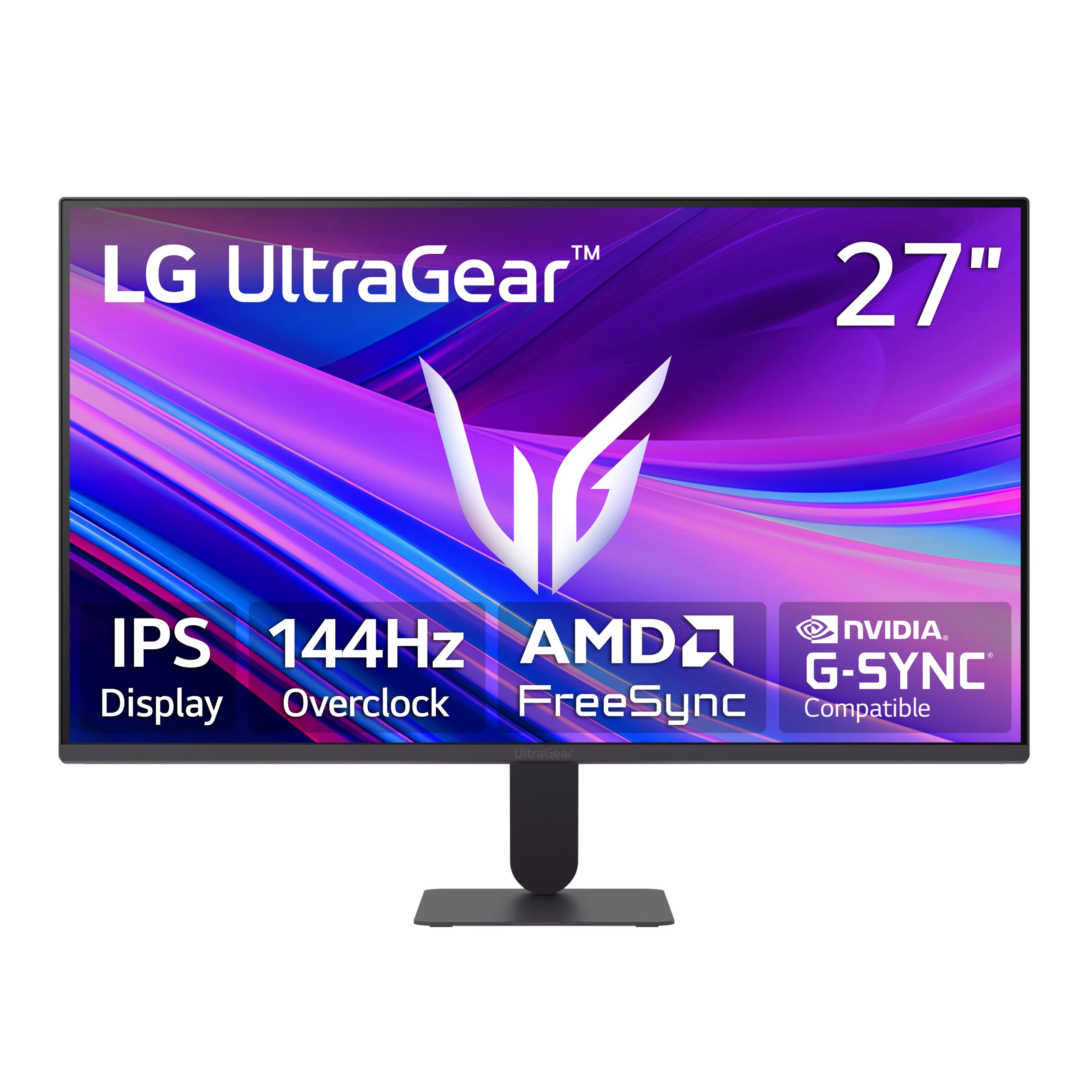
If you have an NVIDIA GPU, both FreeSync and G-Sync Compatible monitors will work with VRR through NVIDIA's drivers. You don't strictly need a G-Sync Compatible certified monitor. The certification simply means NVIDIA verified it.
Many uncertified FreeSync monitors work perfectly with NVIDIA GPUs too, but you might encounter occasional flickering or blanking that wouldn't happen on a certified model.
If you have an AMD GPU, stick with FreeSync certified monitors. You won't get G-Sync Compatible functionality, but FreeSync gives you the full VRR experience including LFC on Premium and Premium Pro tiers.
For console gamers, HDMI VRR is what matters. PS5 and Xbox Series X all support HDMI Forum VRR. Look for monitors that explicitly list HDMI VRR support, which many mini-LED models now include through HDMI 2.1 ports.
VRR Over DisplayPort vs. HDMI: Does It Matter?
Yes, the connection type matters more than most people realize. Not all ports on your mini-LED monitor will deliver the same VRR experience, and using the wrong cable can leave the feature completely disabled.
DisplayPort 1.4 and later supports Adaptive-Sync natively as part of the VESA standard. This is the most reliable way to get VRR working on a PC. Plug in a certified DisplayPort cable, enable FreeSync or G-Sync in your driver settings, and you're done.
DisplayPort 2.1, found on newer mini-LED monitors as of 2025 and 2026, extends this support with higher bandwidth for 4K at 240Hz or beyond.
HDMI VRR is a different beast. It's part of the HDMI 2.1 specification, not HDMI 2.0. Many mini-LED monitors ship with a mix of HDMI 2.0 and HDMI 2.1 ports.
If you plug into the wrong HDMI port, VRR simply won't work. Check your manual to confirm which HDMI port supports VRR.
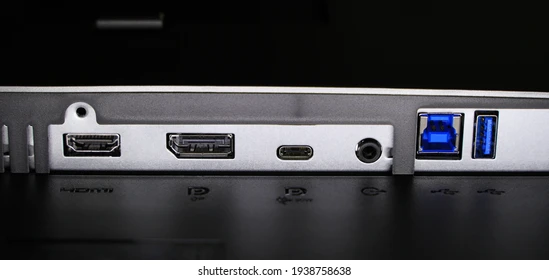
For console gaming, HDMI 2.1 VRR is your only option. PS5 and Xbox Series X both support HDMI Forum VRR, and they'll work with any mini-LED monitor that has an HDMI 2.1 port with VRR enabled. Some monitors require you to manually turn on HDMI VRR in the on-screen display menu, so don't assume it's active by default.
Here's a practical tip. If you're connecting a PC, always use DisplayPort first. It's the more mature standard for VRR and tends to have fewer compatibility quirks.
Save HDMI 2.1 for your console or as a secondary PC connection.
Common Problems When VRR Doesn't Work on Mini-LED Monitors
You've got a mini-LED monitor with FreeSync or G-Sync Compatible on the box, but VRR isn't kicking in. This is one of the most common frustrations in monitor forums, and the fix is usually straightforward.
VRR is disabled in the monitor's OSD. Most monitors ship with FreeSync or Adaptive-Sync turned off by default. You need to dig into the on-screen display menu and enable it manually. Look for a setting called "Adaptive-Sync," "FreeSync," or "VRR" in the gaming or display section of the OSD.
You're using the wrong cable or port. A standard HDMI 2.0 cable won't carry VRR. You need a certified Ultra High Speed HDMI cable for HDMI 2.1 VRR, or a VESA-certified DisplayPort cable for Adaptive-Sync. Similarly, plugging into an HDMI 2.0 port on a monitor that only supports VRR on HDMI 2.1 will leave you stuck.
Your frame rate is below the VRR range. If your game is running at 35fps and your monitor's VRR range starts at 48Hz, VRR disengages. This is where Low Framerate Compensation saves the day, but only on FreeSync Premium and Premium Pro monitors. Without LFC, you'll see stuttering or tearing at low frame rates.
HDR and VRR are conflicting. Some early mini-LED monitors had firmware bugs where enabling HDR disabled VRR entirely. This has been largely resolved through firmware updates on most 2024 and 2025 models, but it's worth checking if you're running an older unit. Update your monitor's firmware from the manufacturer's support page.
Flickering during VRR operation. This is a known issue on some mini-LED monitors, particularly when the local dimming algorithm interacts with rapidly changing frame rates. The brightness can pulse or flicker during scenes with wildly varying frame rates. Disabling local dimming or switching to a fixed backlight mode often resolves it, though you lose the contrast benefit.
Mini-LED vs. OLED: VRR Performance Compared
Both mini-LED and OLED monitors support VRR, but the experience differs in ways that matter depending on what you're doing.
OLED panels have near-instantaneous pixel response times, typically around 0.03ms. This means motion looks incredibly clean at any refresh rate, and VRR enhances an already excellent motion picture. OLED also supports VRR across a wider effective range, often from 1Hz up to 240Hz or 360Hz on newer models.
The lower bound is essentially zero because OLED pixels can switch on and off almost instantly.
Mini-LED monitors rely on LCD pixels, which are slower. Response times on mini-LED panels range from about 1ms to 5ms GtG depending on the panel type. When VRR is active and the refresh rate changes rapidly, some mini-LED monitors exhibit slight overshoot or ghosting because the overdrive tuning can't keep up with a constantly shifting refresh rate.
This is most noticeable on VA panel mini-LED monitors, which already have slower dark-level transitions.
For HDR gaming with VRR, mini-LED holds an advantage in sustained brightness. Mini-LED backlights can push 1000 to 2000 nits peak brightness across small highlights, while OLED typically tops out around 800 to 1000 nits on small windows. If you're playing HDR games in a bright room, mini-LED's brightness advantage is noticeable.
OLED wins on per-pixel contrast and motion clarity. Mini-LED wins on peak brightness and price per inch at larger sizes. Both support VRR well, but OLED's near-instant response time gives it a slight edge in motion quality during variable frame rate scenarios.
Best Mini-LED Monitors With VRR for Gaming and Creative Work
Rather than naming specific models that'll go out of date in six months, let's talk about what to look for in a mini-LED monitor that'll give you a great VRR experience.
For PC gaming, prioritize a monitor with both FreeSync Premium Pro and G-Sync Compatible certification. This dual certification means you're covered regardless of which GPU you own. Look for a VRR range that starts at 48Hz or lower and extends to at least 144Hz.
A DisplayPort 1.4 or 2.1 connection is essential.
For console gaming, HDMI 2.1 with HDMI VRR support is non-negotiable. Make sure the monitor explicitly lists HDMI VRR in its specs, not just HDMI 2.1 bandwidth. Some monitors have HDMI 2.1 ports that support 4K 120Hz but not VRR, which is a frustrating oversight.
For creative work with occasional gaming, a mini-LED monitor with basic FreeSync and good color accuracy (95% DCI-P3 or higher) gives you the best of both worlds. You get tear-free gaming when you want it and accurate color grading when you need it. Just confirm that VRR can be toggled on and off easily, since some color-critical workflows prefer a fixed refresh rate.
Across all categories, check aggregate user reviews for reports of VRR flickering or brightness instability. This is the most commonly reported issue with mini-LED VRR, and it varies significantly between models and firmware versions.
How to Check and Enable VRR on Your Mini-LED Monitor
Getting VRR working takes about two minutes once you know where to look. Here's the process for both PC and console.
Enabling VRR on PC with NVIDIA GPU
- Open NVIDIA Control Panel from the right-click menu on your desktop.
- Navigate to "Display" then "Set up G-Sync."
- Check "Enable G-Sync, G-Sync Compatible" and select your mini-LED monitor.
- Choose whether to enable it for full screen mode only or both full screen and windowed mode.
- Click Apply. Your monitor should briefly blink as the setting takes effect.
- Open the monitor's OSD and confirm that Adaptive-Sync or FreeSync is enabled there too.
Enabling VRR on PC with AMD GPU
- Open AMD Software: Adrenalin Edition from your system tray or Start menu.
- Go to the "Display" tab.
- Toggle "AMD FreeSync" to On.
- Verify that your monitor's OSD also shows Adaptive-Sync or FreeSync as enabled.
- Launch a game and check the AMD overlay (Alt+R) to confirm VRR is active.
Enabling VRR on Console
- On PS5, go to Settings, Screen and Video, Video Output, and set VRR to Automatic.
- On Xbox Series X|S, go to Settings, General, TV & Display Options, Video Modes, and check "Allow variable refresh rate."
- On your mini-LED monitor, ensure HDMI VRR is enabled in the OSD. This setting is sometimes buried under an "Advanced" or "Gaming" submenu.
- Use a certified Ultra High Speed HDMI cable connected to the correct HDMI 2.1 port.
To verify VRR is actually working, run a frame rate fluctuating test like the one on TestUFO. If the motion looks smooth without tearing, you're good. If you see horizontal tears, double-check both your GPU driver settings and the monitor's OSD.
Mistakes People Make When Buying a Mini-LED Monitor for VRR
The most common mistake is assuming mini-LED automatically means VRR support. As we covered earlier, the backlight and the refresh rate capability are unrelated. Always verify VRR certification independently.
Another frequent error is ignoring the VRR range. A monitor that only supports VRR from 80 to 120Hz is far less useful than one that covers 48 to 165Hz. If your frame rate drops below the minimum, VRR stops working and you're back to tearing or stuttering.
Buying based on HDMI 2.1 marketing without checking for HDMI VRR specifically is another trap. HDMI 2.1 includes VRR as an optional feature, not a mandatory one. Some monitors have HDMI 2.0 ports labeled with HDMI 2.1 bandwidth but omit VRR support entirely.
Finally, people overlook firmware. Early mini-LED monitors shipped with VRR bugs that caused flickering, black screen dropouts, or conflicts with HDR. Check the manufacturer's support page for recent firmware updates and read user reviews to see if those issues have been resolved.
Final Verdict: Should You Buy a Mini-LED Monitor for VRR?
Yes, if you want excellent HDR gaming with tear-free performance. Mini-LED monitors with FreeSync Premium Pro or G-Sync Compatible deliver a fantastic experience for both PC and console gaming. Just remember to verify the VRR specs separately from the backlight type.
If motion clarity is your top priority, OLED still holds an edge due to its near-instant pixel response. But for sustained brightness, larger screen sizes, and value, mini-LED with VRR is a strong choice that'll serve you well.
Frequently Asked Questions
Does every mini-LED monitor support VRR?
No. While most gaming and consumer mini-LED monitors support VRR, some professional and color-grading models omit it entirely. Always check the spec sheet for FreeSync, G-Sync Compatible, or HDMI VRR certification before buying.
Can I use VRR on a mini-LED monitor with an NVIDIA GPU?
Yes. Look for a monitor with G-Sync Compatible certification or one that supports Adaptive-Sync over DisplayPort. NVIDIA GPUs work with both G-Sync Compatible and most uncertified FreeSync monitors through the driver settings.
Does VRR work over HDMI on mini-LED monitors?
Only if the monitor has an HDMI 2.1 port with HDMI VRR support. HDMI 2.0 ports do not carry VRR. Check your monitor's manual to confirm which port supports it.
Why does my mini-LED monitor flicker when VRR is enabled?
This is a known issue on some models where the local dimming algorithm conflicts with rapidly changing frame rates. Updating the monitor's firmware or adjusting the local dimming setting often resolves it.
Is VRR better on mini-LED or OLED?
OLED has an advantage in motion clarity due to faster pixel response times. Mini-LED wins on peak brightness during HDR content. Both support VRR effectively, so the choice depends on your priorities.

Similar Posts































