What Is the Refresh Rate of 27 Inch Gaming Monitors
So you're trying is the refresh rate of 27 inch gaming monitors, and honestly, the answer isn't as straightforward as the spec sheet makes it sound. What refresh rate your setup actually supports depends on the resolution you're running, the cable you're using, and whether you've even turned on the right setting in Windows.
Manufacturer specifications for the most common 27-inch gaming monitors in 2026 typically range from 60Hz at the budget end up to 360Hz on premium models, with the sweet spot sitting firmly at 144Hz or 165Hz for 1440p panels. Getting the right match matters more than most people realize, so let's break down exactly what you need to know.
Quick Answer: What the Refresh Rate Actually Means for 27-Inch Gaming Monitors
The refresh rate of a 27-inch gaming monitor refers to how many times the display updates the image per second, measured in hertz. Most 27-inch gaming monitors in 2026 ship at 144Hz or 165Hz at 1440p resolution. Budget options start at 60Hz or 75Hz.
Premium models reach 240Hz or 360Hz. Your graphics card and cable type determine whether you can actually use the maximum rate.
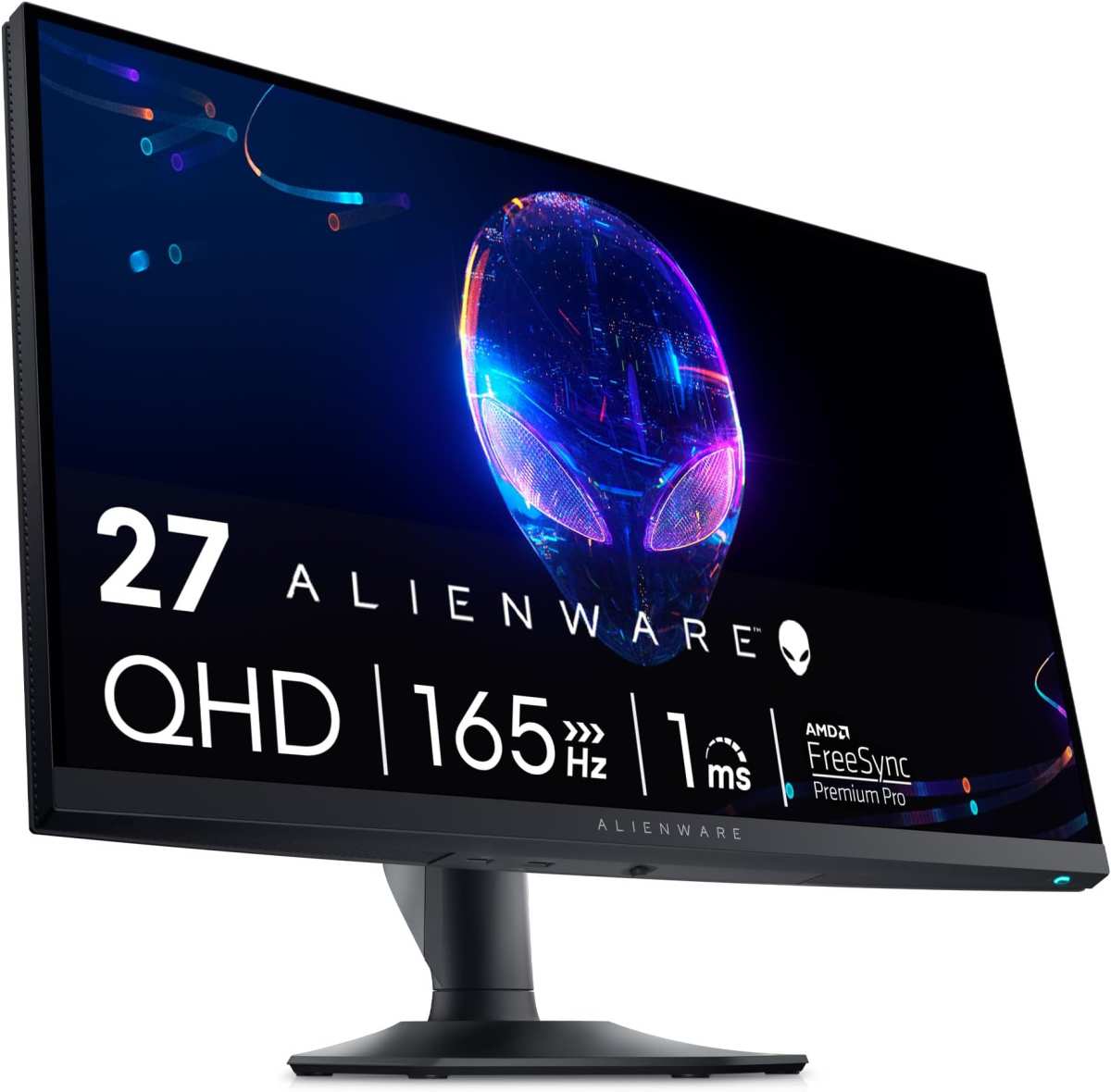
The Standard Refresh Rate Tiers You'll Actually See at 27 Inches
Not all refresh rates are created equal, and the landscape at 27 inches is pretty well-defined by tier. Here's what you're actually shopping through when you browse specs.
60Hz and 75Hz: the baseline, These are what you'll find on cheap office monitors that market themselves as "gaming-capable." A 75Hz panel is a marginal step up from 60Hz, but neither delivers the smooth motion that most gamers expect in 2026. Avoid these if gaming is your primary use.
144Hz to 165Hz: the sweet spot, This is where the vast majority of 27-inch gaming monitors land, and for good reason. The jump from 60Hz to 144Hz is dramatic. The jump from 144Hz to 165Hz is real but subtle.
Most 165Hz panels are just 144Hz monitors with a small overclock option in the on-screen display settings.
240Hz: where competitive gaming starts, At this tier you're paying more for the privilege of seeing frames your GPU is probably struggling to produce at 1440p. If you play lighter esports titles like Valorant or CS2 and your GPU can push 240+ FPS, you'll notice the difference.
360Hz: the niche ceiling, This is almost exclusively for competitive esports players running 1080p on a high-end GPU. At 27 inches and 1440p, you will almost never hit 360 frames per second in modern games without dropping every visual setting.
Here's how the common tiers break down in practical terms:
| Refresh Rate | Frame Time | Best For | Typical Price Range |
|---|---|---|---|
| 60Hz | 16.7ms | Office/casual use | $100–$150 |
| 75Hz | 13.3ms | Budget casual | $120–$160 |
| 144Hz | 6.9ms | Most gamers | $180–$300 |
| 165Hz | 6.1ms | Most gamers (slight OC) | $200–$350 |
| 240Hz | 4.2ms | Competitive FPS | $300–$550 |
| 360Hz | 2.8ms | Esports professionals | $450–$700 |
Why 27 Inches Makes Refresh Rate a Different Conversation Than 24 or 32
The 27-inch size class sits right at a crossroads. This matters for how you should think about refresh rate more than any other factor.
The dominant resolution at 27 inches is 2560 x 1440, commonly called 1440p or QHD. That's about 36% more pixels than 1080p at 24 inches, which means your GPU has to work noticeably harder to push the same frame count. A card that easily drives 240 FPS at 1080p might only manage 140 to 160 FPS at 1440p in the same game.
At 32 inches, most gaming panels are either 4K at 144Hz or 1440p at lower refresh rates. The pixel density drops at 32 inches with 1440p, which is a tradeoff some people dislike. At 24 inches, 1080p at 240Hz is common and easier to drive, which is why competitive players who want maximum refresh rate often prefer that smaller size.
So at 27 inches, you're balancing visual sharpness against the GPU power needed to feed a high refresh rate. For most people in 2026, 1440p at 144Hz or 165Hz is the equilibrium point where the image looks crisp, the motion is smooth, and your GPU doesn't need to be a flagship card to keep up.
If you're coming from a 60Hz 1080p monitor, even a 144Hz 1080p 27-inch panel will feel like a massive upgrade. But if you want that sharp 1440p image AND high refresh rate, 144Hz to 165Hz is where the value sits.
The Real Comparison: 144Hz vs. 165Hz vs. 240Hz at 27 Inches
Let's put the three most common gaming refresh rates head to head. This is where most buyers get stuck, and the right answer depends entirely on what games you play and what hardware you own.
Side-by-side breakdown
144Hz is the baseline that modern gaming monitors should start at. Response times on a decent 144Hz 1440p panel typically sit around 1ms MPRT or 3-4ms GTG. These monitors start around $180 for budget models and go up to $300 for well-reviewed options with good color accuracy.
165Hz is essentially a 144Hz panel with a factory overclock. The price premium over true 144Hz models is usually $20 to $40 at most. If the price gap is small, grab the 165Hz version.
If it's a $70 or $80 jump, you're not getting meaningful value from hertz alone.
240Hz at 1440p starts around $300 and easily climbs past $500. The panels that hit 240Hz at this resolution are typically IPS or OLED, and the response times are genuinely fast. You're looking at 1ms GTG or better.
But here's the catch: you need a GPU that can actually produce 240 FPS at 1440p to see the benefit.
240Hz vs. 144Hz: is the jump worth it?
If you play competitive shooters and your system consistently pushes 200+ FPS at 1440p, yes. The motion clarity at 240Hz is visibly better than 144Hz in fast-paced scenes. Input latency also drops because the display is sampling your inputs more frequently.
If you mostly play single-player games, strategy titles, or anything where your frame rate hovers between 60 and 120 FPS, you will see virtually no difference between 144Hz and 240Hz. That money is better spent on a better panel type like OLED or a higher resolution.
27" at 240Hz vs. 24" at 240Hz: does size change the decision?
It does. Competitive esports players have gravitated toward 24 inches at 240Hz because the smaller screen is easier to track visually, and 1080p at that size is far easier to drive at extreme frame rates. The standard competitive setup in tournament environments remains 24 to 25 inches at 1080p or 1440p with 240Hz or higher.
At 27 inches with 240Hz, you're choosing a more versatile monitor that works better for everything else you do. It's a bigger canvas for single-player games, productivity, and media. You just need to accept that your GPU has to work harder to hit those top frame rates at 1440p.
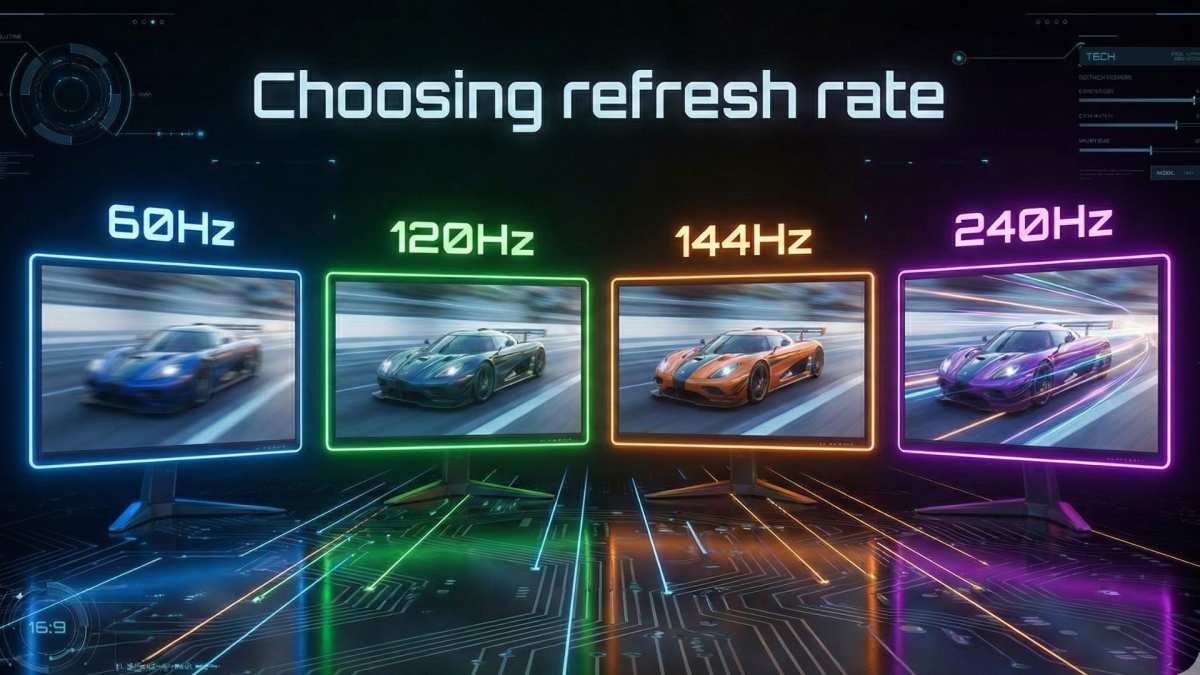
Best Refresh Rate for How You Actually Game
Specs on a box only matter in the context of your actual setup. Here's how to match refresh rate to real-world gaming habits.
Competitive FPS (Valorant, CS2, Apex, Overwatch), 240Hz is the target if your GPU can push the frames at your chosen resolution. Valorant and CS2 are well-optimized esports titles that even mid-range GPUs can drive well above 200 FPS at 1080p or 1440p. For Apex and Overwatch, you'll want at least a current-generation mid-range GPU to make 240Hz worthwhile.
If you're serious about competitive play, consider 1080p at 240Hz rather than struggling to hit 240 FPS at 1440p.
Story-driven and single-player games (Baldur's Gate 3, Elden Ring, Cyberpunk), 60Hz to 144Hz is more than enough. These games are designed to be experienced at consistent frame rates, and most hardware won't push past 120 to 140 FPS at 1440p on high settings anyway. Spending extra on 240Hz for Cyberpunk is wasted money when your GPU is sweating to hit 80 FPS on Ultra settings.
Mixed use: some gaming, some work, some streaming, 144Hz to 165Hz is the ideal range. You get smooth gaming when you want it and a perfectly fine experience for browsing, documents, and video. An IPS panel at this refresh rate with good color accuracy is a great all-rounder.
What refresh rate your GPU can actually push at 1440p, This is the most important question. A current-generation upper-midrange GPU can typically push 120 to 200+ FPS at 1440p in well-optimized esports titles and 60 to 100 FPS in demanding AAA games. A current-generation flagship GPU will push 200+ FPS reliably at 1440p across almost everything.
If your GPU can't sustain frame rates matching your monitor's refresh rate, you're paying for capability you can't use.
The honest advice most people need: if you're not playing competitive shooters and your GPU is midrange, 144Hz or 165Hz at 1440p is the perfect match. Skip the 240Hz tax and put the savings toward a better GPU or more RAM.
The GPU Problem Nobody Talks About Enough
Here's where most buyers trip up. They drop $400 on a 240Hz monitor only to realize their graphics card can't push past 90 FPS at 1440p in the games they actually play. That expensive refresh rate headroom sits completely unused.
The relationship between FPS and refresh rate is simple. Your monitor can only display as many frames per second as your GPU produces. If your GPU outputs 80 FPS, a 240Hz monitor shows you 80 unique frames per second, same as an 80Hz one would.
You see all the smoothness of 80Hz despite paying for 240Hz.
At 1440p, which is the native resolution on virtually every 27-inch gaming monitor worth buying in 2026, the GPU demand is significantly higher than 1080p. Those extra pixels add up. A current-generation upper-midrange GPU typically handles 120 to 200+ FPS at 1440p in well-optimized esports titles.
The same card drops to 60 to 100 FPS in demanding AAA games on high or ultra settings. A current-generation flagship GPU will push 200+ FPS at 1440p across most titles, but that comes at a steep premium for the GPU itself.
The practical takeaway: match your monitor to your GPU's realistic output. If you have a midrange GPU, 144Hz at 1440p is the right call. If you have a flagship GPU and play lighter games, 240Hz makes sense.
If your GPU is a couple of generations old, don't pair it with anything above 60Hz, as you'll be severely underutilizing the panel's capabilities.
There's another layer to this. Frame time consistency matters as much as peak frame rate. A monitor running at a steady 144Hz with a consistent 6.9ms frame time will feel smoother than a 240Hz monitor where frame times are jumping between 4ms and 12ms because your GPU is struggling to keep up.
A well-matched setup feels better than a mismatched one on paper.
How to Make Sure Your Monitor Is Actually Running at Its Advertised Refresh Rate
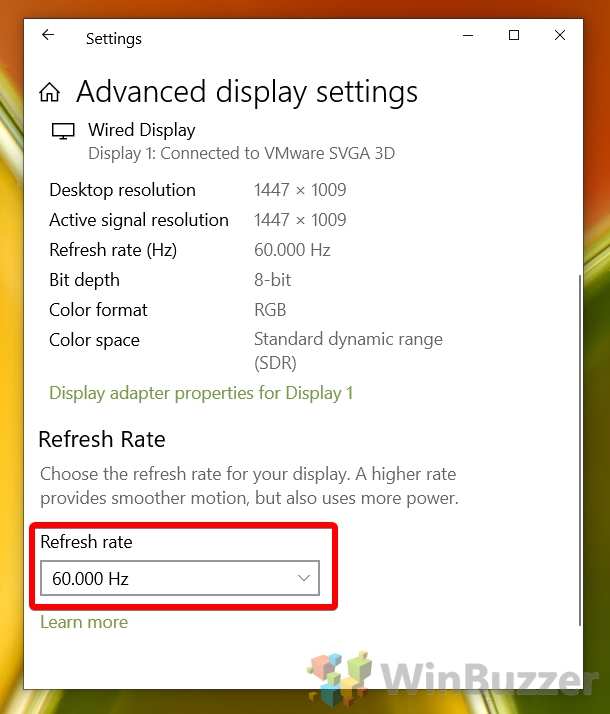
This catches more people than you'd think. You plug in a 165Hz monitor, boot up Windows, and it's running at 60Hz. Default behavior in Windows is to set most monitors to 60Hz until you manually change it.
Here's how to check and fix it.
Windows display settings method, Right-click your desktop and select Display settings. Scroll down and click Advanced display. Look at the Refresh rate dropdown.
If it says 60Hz and your monitor supports 144Hz or higher, click the dropdown and select the highest available option. This is the most common fix.
NVIDIA Control Panel method, Right-click the desktop and open NVIDIA Control Panel. Navigate to Display, then Change resolution. Select the refresh rate from the dropdown menu on the right.
NVIDIA's panel sometimes shows refresh rates that Windows doesn't, especially over HDMI.
AMD Adrenalin method, Right-click the desktop and open AMD Software. Go to Display settings and look for the refresh rate toggle. AMD's interface varies slightly by driver version, but the option is always under Display.
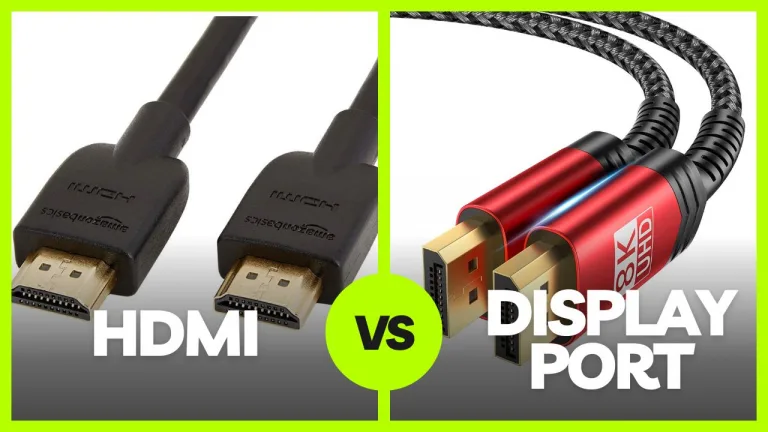
Cable type matters more than you think, Not every cable can carry every resolution and refresh rate combination. Check what you're plugged into:
| Cable / Version | Max at 1440p | Notes |
|---|---|---|
| HDMI 2.0 | 144Hz | Common on older GPUs and monitors |
| HDMI 2.1 | 240Hz+ | Required for full 240Hz+ at 1440p on many newer displays |
| DisplayPort 1.2 | 165Hz (with overclock) | Older standard, still functional |
| DisplayPort 1.4 | 240Hz (with DSC) | Most common on current-gen gaming monitors |
| DisplayPort 2.1 | 360Hz+ | Newest standard, limited monitor support in 2026 |
If you're using an HDMI 2.0 cable with a 240Hz monitor, you will likely be capped at 144Hz or see the option missing entirely. A DisplayPort 1.4 cable is the safest bet for 27-inch gaming monitors in 2026. Most monitors ship with a decent DP cable in the box, but if you're reusing an older cable, check the version printed on the cable itself or look up the manufacturer's specs.
Verifying your actual refresh rate, After changing the setting, confirm it took effect. Your monitor's on-screen display usually shows the current refresh rate in its info section. There are also free tools and websites that display your actual refresh rate in real time, so you can verify the number is correct.
A quick visual test is to move a window around quickly; at 60Hz you'll see noticeable blur and stutter, while at 144Hz the same motion looks much sharper.
One more thing worth checking: your monitor's overdrive setting. Most gaming panels have an overdrive option in the OSD menu, usually labeled as "Response Time" or "Overdrive." This controls how aggressively pixels transition between colors. Setting it too high causes inverse ghosting, where bright trails appear behind moving objects.
Setting it too low means smearing. Medium or Normal is usually the best balance. Check your monitor's manual or support page for the recommended overdrive setting, as it varies by panel.
Common Mistakes People Make With 27-Inch Gaming Monitor Refresh Rates
Buying a monitor isn't just about picking the highest number you can afford. These are the mistakes that waste money and leave you underwhelmed.
Paying for 360Hz when you're getting 80 FPS, This is the single biggest waste of money in the monitor market. If your GPU can't push frame rates that match your monitor's refresh rate, you're paying for capability you literally cannot see. A 360Hz panel showing 80 FPS looks identical to a 60Hz panel showing 80 FPS, except you spent $300 more.
Always match your monitor to your GPU's realistic output at your chosen resolution.
Not enabling the right setting in Windows, It sounds obvious, but a surprising number of people buy a 144Hz monitor and never change the default 60Hz setting. Windows doesn't automatically switch to the highest available refresh rate. You have to do it manually.
Always verify in Display settings or your GPU control panel.
Confusing overclocked numbers with native specs, A monitor marketed as 165Hz is almost always a 144Hz panel with an overclock option. This is normal and fine. The difference is small and the overclock is factory-tested.
But some monitors, particularly budget models, advertise "240Hz equivalent" using motion blur reduction or frame interpolation tricks that don't actually increase the real refresh rate. Read detailed reviews from trusted sources to confirm a monitor's true native refresh rate.
Ignoring the resolution-refresh rate tradeoff at 27 inches, At 27 inches with 1440p, you need more GPU power to hit high frame rates than you would at 1080p. If you buy a 1440p 240Hz monitor but your GPU tops out at 100 FPS at that resolution, you'd have been better served by either a 1080p 240Hz panel or a 1440p 144Hz panel with the money saved going toward a GPU upgrade. Don't treat refresh rate as a standalone spec.
It only matters in relation to what your system can actually output.
Forgetting to check adaptive sync compatibility, If your frame rate fluctuates below your monitor's refresh rate, you'll see screen tearing or stuttering unless you have variable refresh rate enabled. FreeSync and G-Sync solve this. Most modern 27-inch gaming monitors support FreeSync, and many are G-Sync Compatible.
Enable it in both your monitor's OSD and your GPU driver. The gaming experience is noticeably smoother with VRR active, especially in the 60 to 120 FPS range.
What You Should Actually Buy: Final Recommendation by Use Case
After all the specs and theory, here's what the research points to for each type of gamer shopping for a 27-inch monitor in 2026.
Best value pick for most gamers, 1440p, 144Hz or 165Hz, IPS panel. This handles everything well. You get sharp visuals, smooth motion, and you don't need a flagship GPU to enjoy it.
Budget roughly $200 to $300 for a solid option.
Best pick for competitive FPS players, 1440p or 1080p, 240Hz, fast IPS or OLED. If your GPU can push 200+ FPS at your chosen resolution, the difference over 144Hz is real and measurable in terms of input latency and motion clarity. Budget roughly $350 to $600.
Best pick for budget builds, 1440p, 144Hz, IPS, prioritizing price over extras like HDR or wide color gamut. You don't need premium features to get the core benefit of smooth high-refresh gaming. Models in the $150 to $200 range deliver the essentials.
When to look at alternatives, If you want above all to push the highest possible frame rate at 27 inches with minimal compromise, a 24-inch 1080p 240Hz monitor is a battle-tested competitive setup that many professional players prefer. At the other end, if image quality is your top priority for cinematic single-player games, 4K at 60Hz or a higher-resolution ultrawide might serve you better than chasing refresh rate. But for the largest number of gamers, 27 inches at 1440p and 144Hz remains the all-round champion in 2026.
Frequently Asked Questions
Does a 27-inch 144Hz monitor work with any GPU?
Yes, but you need the right cable and port. A current-generation midrange GPU or better from the last five years will drive 1440p 144Hz without issues over DisplayPort 1.2 or newer, or HDMI 2.0 or newer. Older GPUs may be limited to 60Hz at 1440p without DisplayPort and may need an upgrade to take full advantage.
Is 240Hz worth it over 144Hz for casual gaming?
Usually not. The difference between 144Hz and 240Hz is subtle. Competitive FPS players with high-end GPUs benefit most.
Casual gamers will barely notice the jump while feeling the lighter wallet.
Can I run a 240Hz monitor at 144Hz?
Absolutely. Any high-refresh monitor can run at a lower refresh rate. This is useful if your GPU can't keep up at the maximum.
Just set the lower rate in Windows or your GPU control panel and the display will follow.
Do I need a special cable for 240Hz at 1440p?
Yes. You need DisplayPort 1.4 with DSC or HDMI 2.1 for 1440p at 240Hz without compression artifacts. DisplayPort 1.2 and HDMI 2.0 don't have enough bandwidth.
Always check your GPU's output capabilities and use the cable that shipped with your monitor if you're unsure.
How do I check my monitor's current refresh rate?
Open Windows Display settings, click Advanced display, and look at the refresh rate field. Alternatively, check your monitor's built-in OSD info panel. There are also free tools and websites that report your current refresh rate in real time.

Similar Posts





















